
The 'tree' command
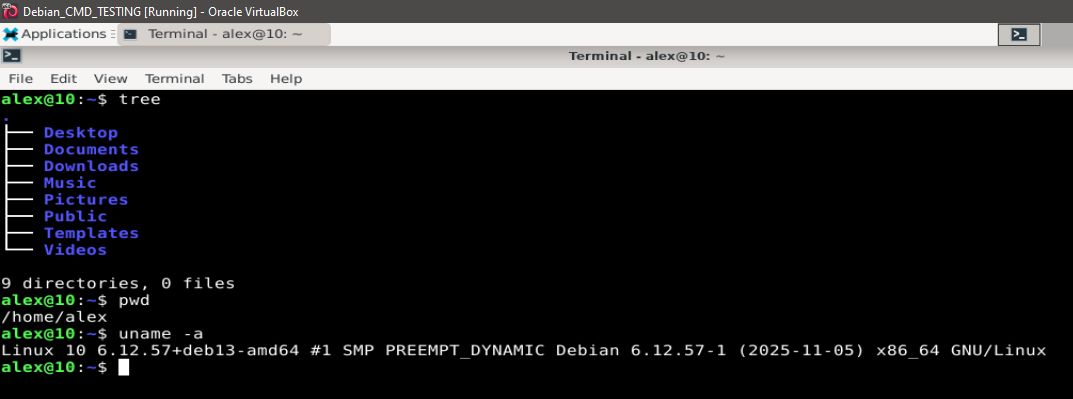
The 'tree' command displays the contents of directories recursively.
Instead of dumping a long list (like ls -R), tree visualizes the structure with indents and branch-like lines.
We immediately see which folder contains which subfolder or files.
With GUI file managers, we often expand directories to see content.
tree gives that view directly in the terminal, so we don’t have to cd in/out or manually use ls for multiple directories.
Instead of manually drilling into many subfolders to inspect their contents, a single tree can show everything at once.
Saves time and keystrokes compared to repeated cd + ls.
When working with many nested directories (for example, with code projects, logs, config folders, etc.), tree helps us get a map of what’s where without navigating each part.
Tree supports many options to tailor what we see.
Here are common tree options:
* tree (no args)
Lists the current directory and all its subdirectories and files
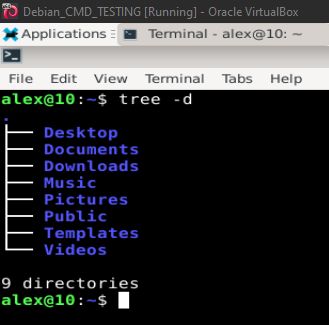
* -d
Lists only directories (no files).
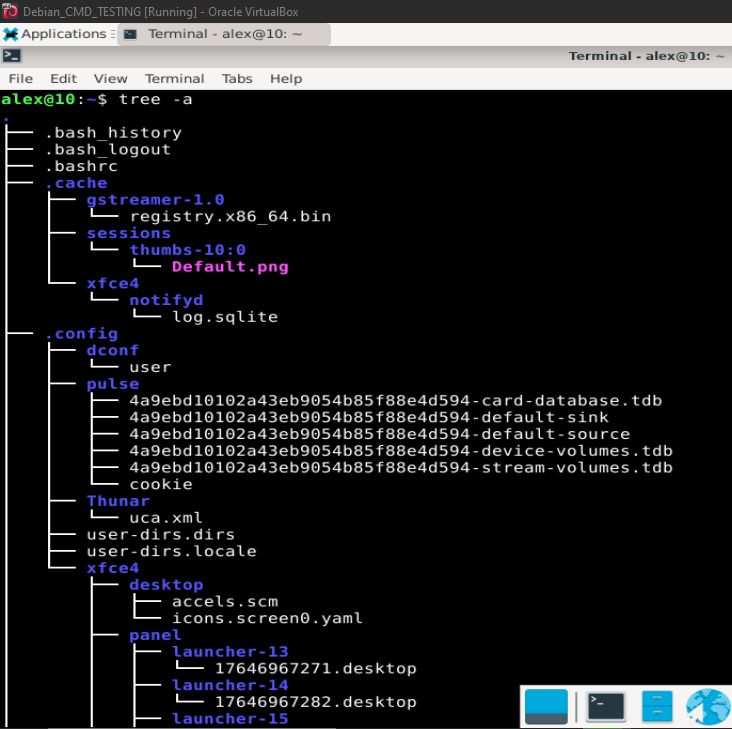
* -a
Includes hidden files and directories
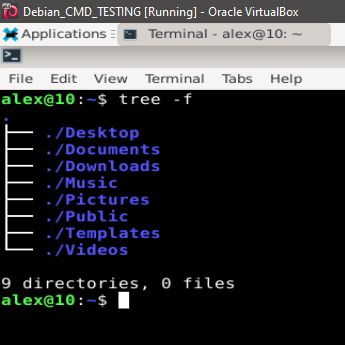
* -f
Prints the full path prefix for each file/directory
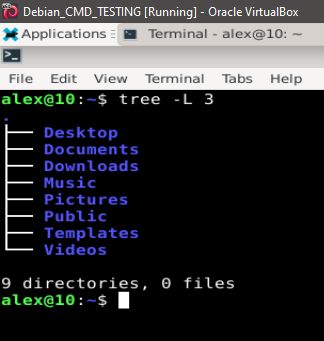
* -L
Limits how deep into the subdirectory tree goes (e.g., only 2 or 3 levels down).
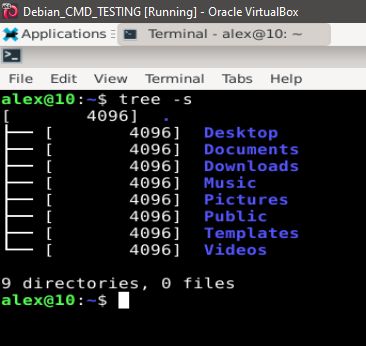
* -s
Shows file/directory sizes (in bytes) alongside names
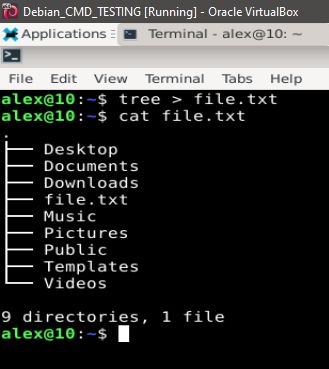
* Output redirection (e.g., tree /path > file.txt)
Lets us save the structure listing to a file (text or HTML), handy for documentation or sharing.
This is very useful for shell scripting.
Enjoy #linux
Well, that was exciting. See you in the next one!