
MS-DOS 6.22 on a 2020 ThinkPad X13
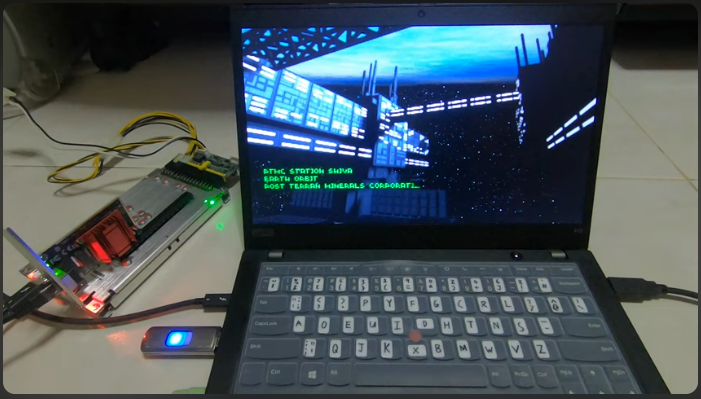
Someone actually installed stock MS-DOS 6.22 on a 2020 ThinkPad X13 (no emulator, no patched DOS), and it works surprisingly well.
You people all know I love retro computing tech.
-----------------------------------
Someone actually installed stock MS-DOS 6.22 on a 2020 ThinkPad X13 (no emulator, no patched DOS), and it works surprisingly well.
A 2020 ThinkPad (one of the last with Legacy BIOS/CSM and a “Thunderbolt BIOS Assist Mode”) can boot and run MS-DOS 6.22 from an external drive.
The experiment used a USB floppy emulator for installing, and a few modern open-source drivers (e.g. SBEMU) to make contemporary hardware appear as classic devices (soundblaster, NICs).
-----------------------------------
Step 1. Used stock MS-DOS 6.22 (not a patched DOS, not an emulator).
Installation was performed pretty much the old way using floppy/disk images, but via a USB floppy emulator instead of real floppies.
Step 2. Installed DOS onto an external drive rather than the NVMe internal disk to avoid clobbering the main OS.
Step 3. Loaded a modern open-source driver (SBEMU) to make the laptop’s Intel HD audio present itself to DOS as a Sound Blaster device; Thunderbolt BIOS Assist Mode helped make Thunderbolt adapters look like regular PCI devices so DOS drivers could work.
-----------------------------------
The laptop still supports Legacy BIOS / CSM boot (instead of UEFI-only).
DOS relies heavily on BIOS services, so machines that can run in legacy mode can provide the expected interrupts/BIOS calls DOS expects.
Thunderbolt BIOS Assist Mode maps TB devices to a form that older OSes/drivers can see (so some modern adapters can work under DOS).
Some benchmark tools or old software that poke hardware in unusual ways failed; others ran and produced enormous scores (because modern CPUs are so much faster).
Modern NVMe drives and controllers aren’t understood by DOS.
That person used an external drive to avoid the NVMe issue. Expect to need intermediary hardware (USB drive, USB-to-SATA adapter, or an emulated floppy/drive) for installation.
We often need wrappers/emulators like SBEMU for audio and special drivers or extenders (DOS/32, DOS/4GW, etc.) for some games/apps.
Very old software sometimes assumes very slow CPUs; “turbo” programs or direct hardware timing loops can behave incorrectly on modern hardware unless patched or slowed.
Newer machines are moving to UEFI-only and may not allow legacy mode; flashing alternate firmware (coreboot) is an advanced/higher-risk route others mention.
-----------------------------------
If we want to try this at home:
Find a machine that still supports Legacy BIOS / CSM. (Check BIOS/UEFI settings for “Legacy boot”, “CSM”, or similar.)
Prepare MS-DOS installation media as floppy images (you can use MS-DOS 6.22 disk images) and a USB floppy emulator (Gotek or similar) or an external USB drive to install to.
Disable secure boot / enable legacy boot in firmware, and use the USB floppy émulator to boot the DOS installer.
Enjoy #retro
Enjoy the full video here:
https://www.youtube.com/watch?v=-mTmZqoNeFA
Well, that was exciting. See you in the next one!