
Installing the Trinity desktop environment on Debian
Step by step guide and HOWTO
Debian Linux is known for its stability and security, making it a reliable choice for servers and workstations.
It also has a vast software repository with extensive community support, ensuring access to a wide range of applications.
The Trinity Desktop Environment (TDE) is beloved for a number of reasons that contribute to its distinct beauty, especially for users who appreciate the design philosophies of traditional desktop environments.
Trinity carries forward the iconic visual style of KDE3, which many Linux users fondly remember.
KDE3 was known for its polished, clean interface, with gradients, a rich color palette, and a consistent design that never felt overdone.
The user interface (UI) of TDE is meticulously crafted, with elegant window borders, well-defined icons, and logical menu layouts.
It's both functional and visually appealing without being flashy or overwhelming.
The aesthetics of Trinity can be deeply customized.
From themes to window decorations and icon sets, users can personalize it to fit their tastes.
While maintaining a classic visual appeal, Trinity is lightweight and fast, making it ideal for both older hardware and users who prioritize system performance.
This lightweight nature doesn't come at the cost of appearance—it still looks polished and sophisticated without the bloat.
Because of its lower memory and CPU requirements, TDE remains responsive even on legacy hardware, yet it doesn’t sacrifice user experience.
This performance boosts its beauty as it operates smoothly without slowdowns or glitches, even under load.
The Trinity Desktop follows a traditional desktop metaphor—taskbars, system tray, and launchers—which makes navigation intuitive.
The simplicity and predictability of the layout help users focus on tasks rather than fiddling with the interface.
TDE strikes a balance between beauty and function.
Users have granular control over nearly every aspect of the environment, including keyboard shortcuts, window behaviors, panel configuration, and menu content.
This flexibility allows users to craft an experience that looks and works exactly how they want.
The iconic Konqueror file manager/browser adds to TDE's charm.
It is a highly versatile tool that integrates web browsing, file management, and document viewing in one application, reflecting TDE’s all-in-one utility and aesthetic philosophy.
Unlike more modern desktops that sometimes mix design styles and workflows across apps, Trinity adheres to consistent visual and interaction paradigms.
Whether you're using KWrite or Konsole, the UI feels cohesive, adding to the aesthetic harmony.
For users who migrated from older versions of KDE or those who miss classic desktop designs, Trinity offers a familiar, comforting space that looks like a continuation of what many consider the "golden age" of desktop Linux.
This familiarity itself is beautiful.
In an era where many desktop environments are moving toward minimalist or overly simplified designs, TDE stands apart with its balanced mix of aesthetics and functionality.
It avoids modern trends like flat design or excessive transparency, instead embracing a look that is visually distinct and focused on practicality.
Unlike some modern DEs that focus primarily on aesthetics, Trinity's beauty lies in its user-centric design.
It doesn’t impose unnecessary visual effects; instead, it presents an environment that is both attractive and purpose-driven.
TDE comes with a selection of beautiful, classic themes that give the desktop a unique character, ranging from Keramik to Crystal themes, reminiscent of the early 2000s.
These themes are designed with clear usability principles but also maintain a polished and professional look.
Trinity includes various desktop widgets (called SuperKaramba widgets in TDE), which can display system information, clocks, or even monitor network activity.
They add both functionality and aesthetic flair to the desktop, making it feel alive and personal.
TDE has managed to preserve the essence of KDE3, which itself was a blend of traditional desktop design and an eagerness to push the boundaries of open-source desktop aesthetics.
While other environments have moved on, TDE retains this unique blend, which is appealing to users who want something that stands apart from the current design trends.
Trinity’s beauty lies in its ability to transcend time.
Its aesthetics are reminiscent of a period when desktops were designed to empower users, with highly customizable interfaces and a touch of creative expression in design, making it visually pleasing even today.
In summary, Trinity Desktop Environment is beautiful because it maintains a balance of nostalgia, functionality, and customization.
Its classic KDE3 design elements evoke a sense of timelessness, while its lightweight performance ensures that it feels modern and responsive.
For those who value a traditional desktop that is visually appealing without sacrificing efficiency, TDE is the perfect blend of elegance and simplicity.
In a landscape filled with ever-evolving desktop environments, Trinity Desktop Environment stands out as a beacon of nostalgia and classic design, appealing to users who appreciate the roots of Linux aesthetics.
Its unique blend of customization, lightweight performance, and familiar workflows offers a refreshing alternative to more modern interfaces.
The attention to detail in its visual elements and the functionality of its applications create a harmonious user experience that feels both personal and efficient.
Ultimately, TDE captures the essence of what many users loved about the early days of desktop computing, making it a beautiful choice for those seeking a polished yet classic environment.
Today we shall install the Trinity desktop environment on Debian
We need to complete several steps to get it working correctly.
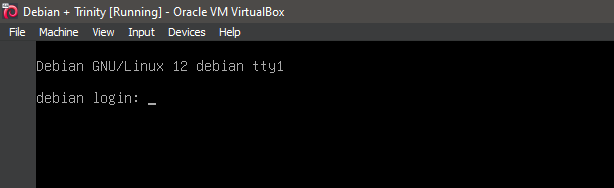
1. Boot the system -- System Ready.
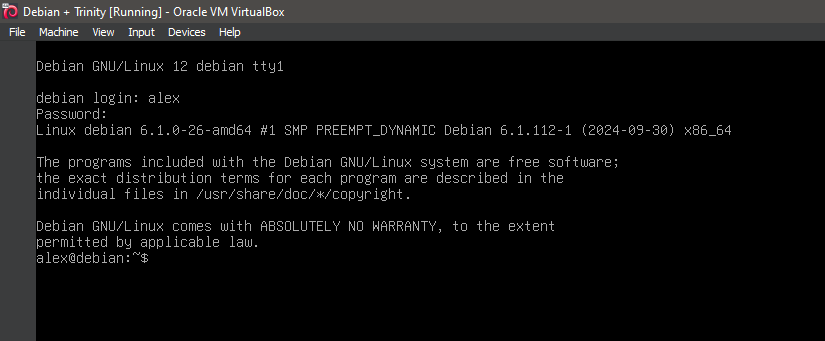
2. Boot the system -- Logged In.
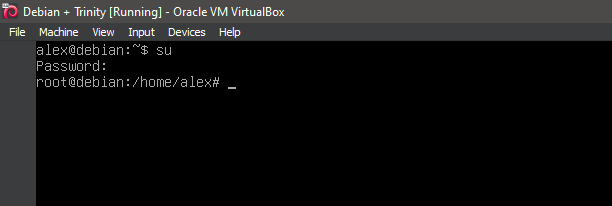
3. Switch to root
su
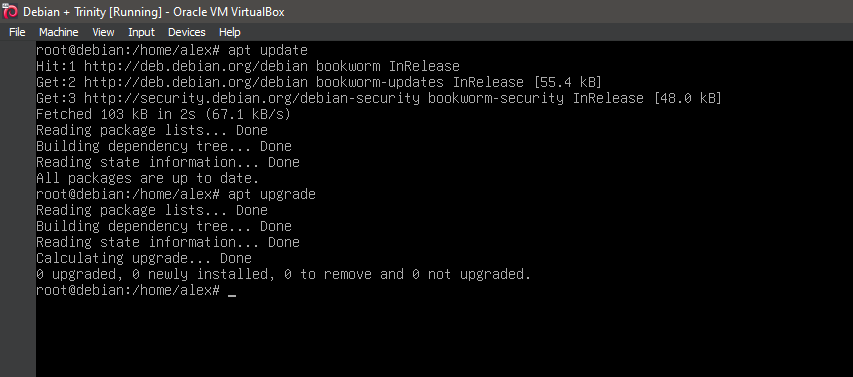
4. Running update
apt-get update
apt-get upgrade
5. Adding the custom repository
nano /etc/apt/sources.list
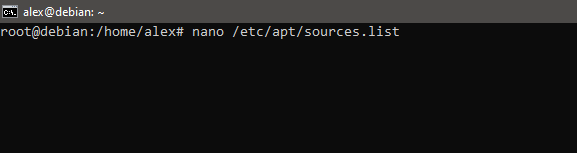
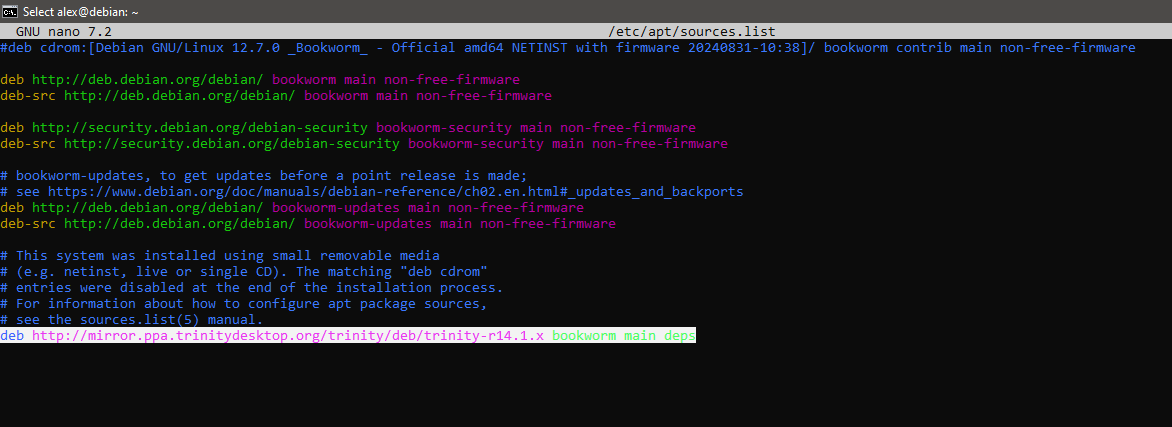
6. Adding the custom repository
deb http://mirror.ppa.trinitydesktop.org/trinity/deb/trinity-r14.1.x bookworm main deps
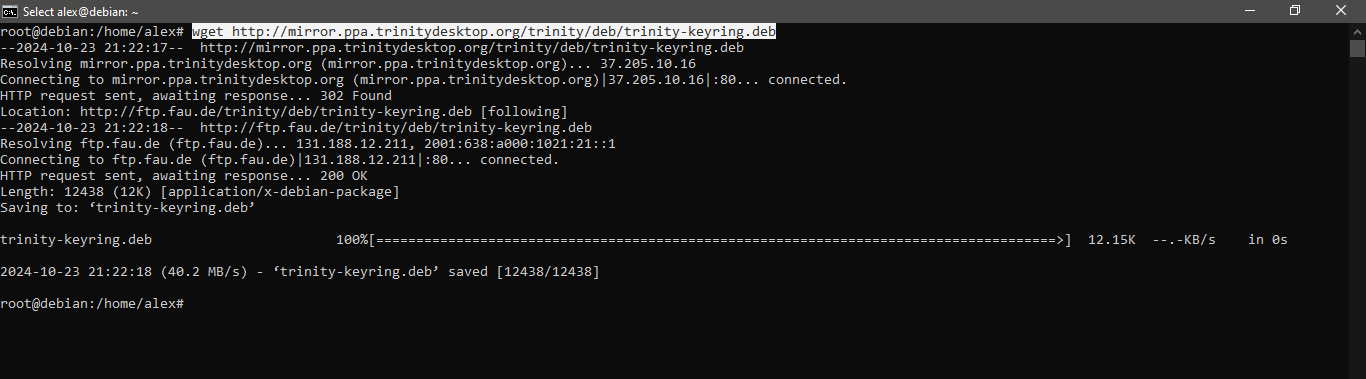
7. Adding the custom GPG signing key
wget http://mirror.ppa.trinitydesktop.org/trinity/deb/trinity-keyring.deb
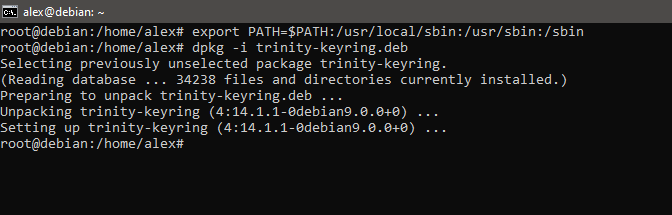
8. Adding the custom GPG signing key
export PATH=$PATH:/usr/local/sbin:/usr/sbin:/sbin
dpkg -i trinity-keyring.deb
9. Installing Trinity
apt-get update
aptitude install tde-trinity
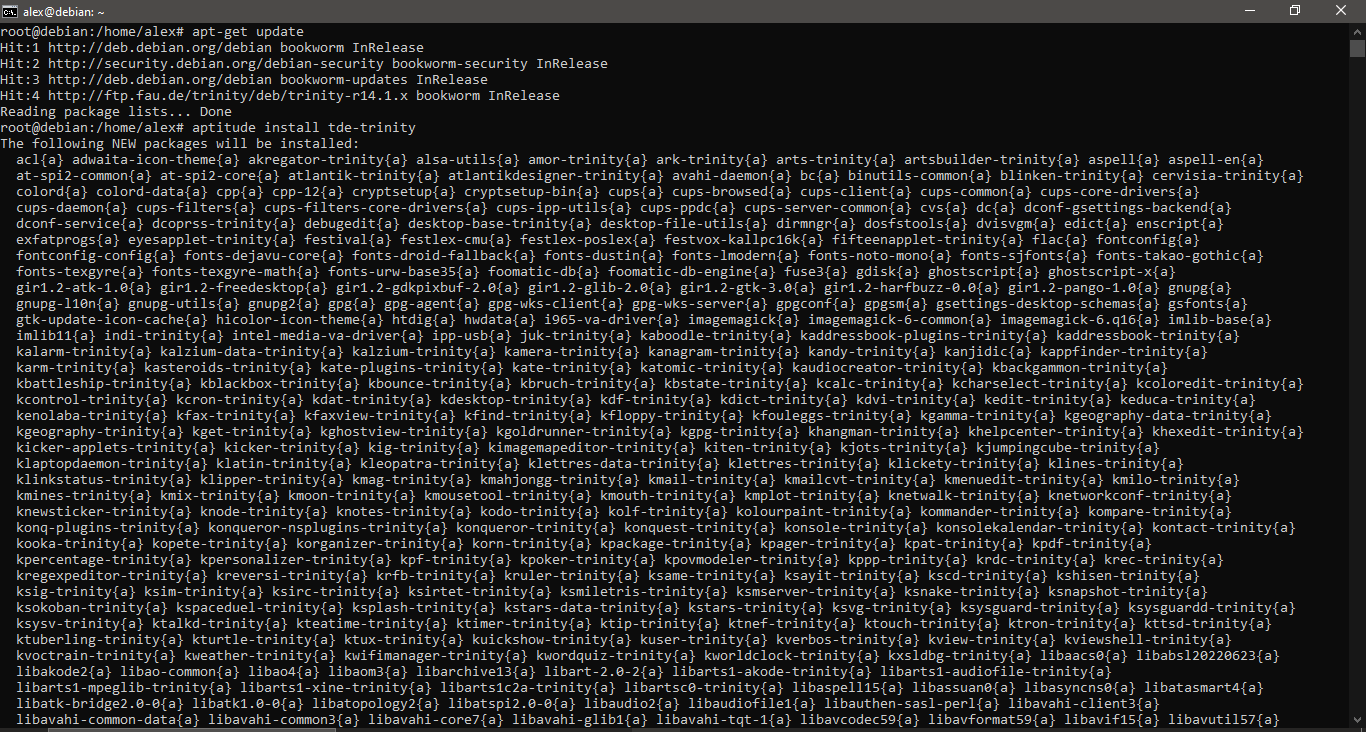
10. Installing Trinity
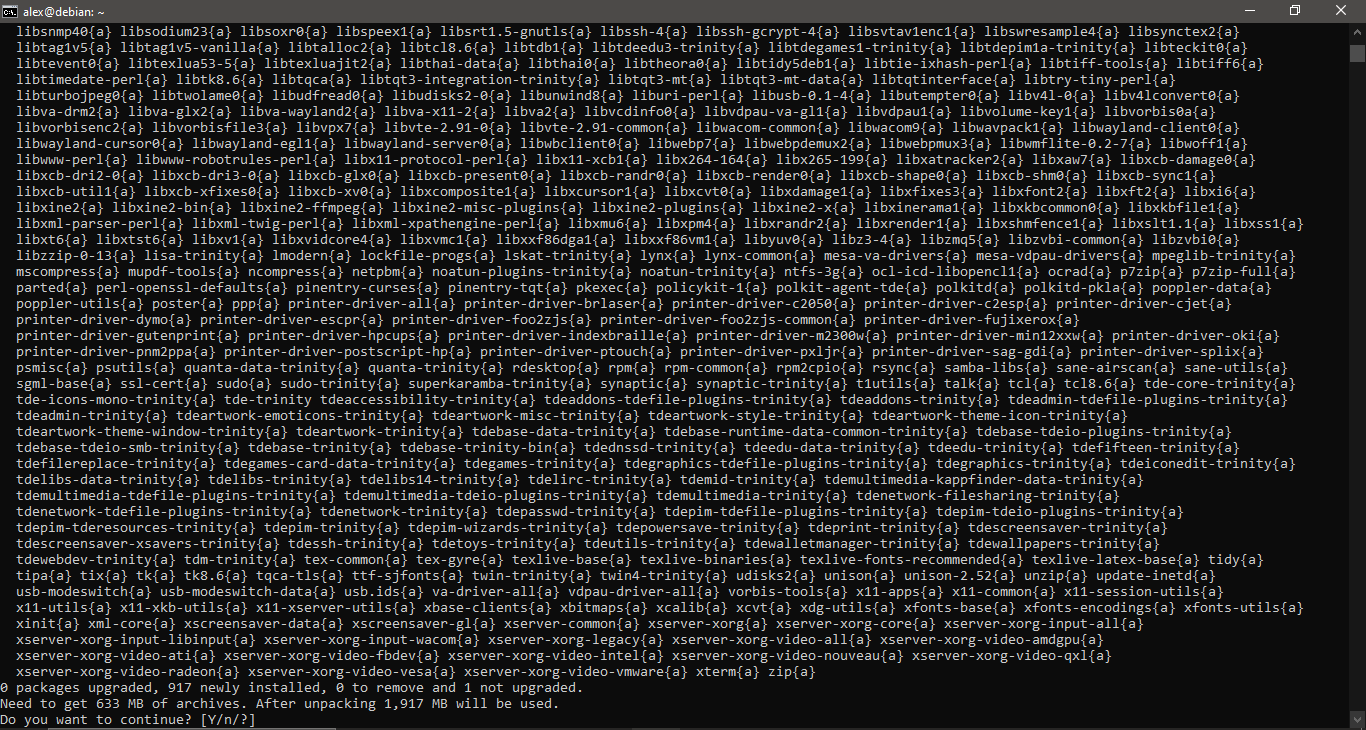
11. Installing Trinity
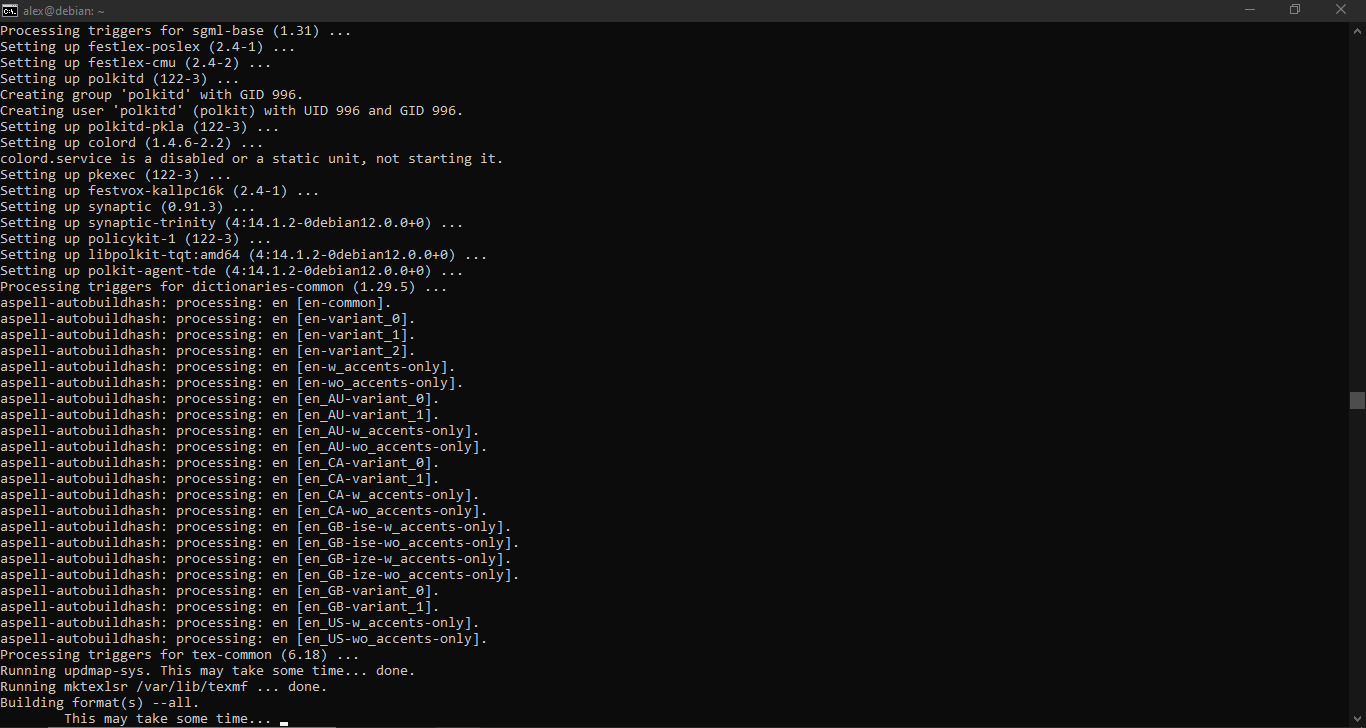
12. Installing Trinity
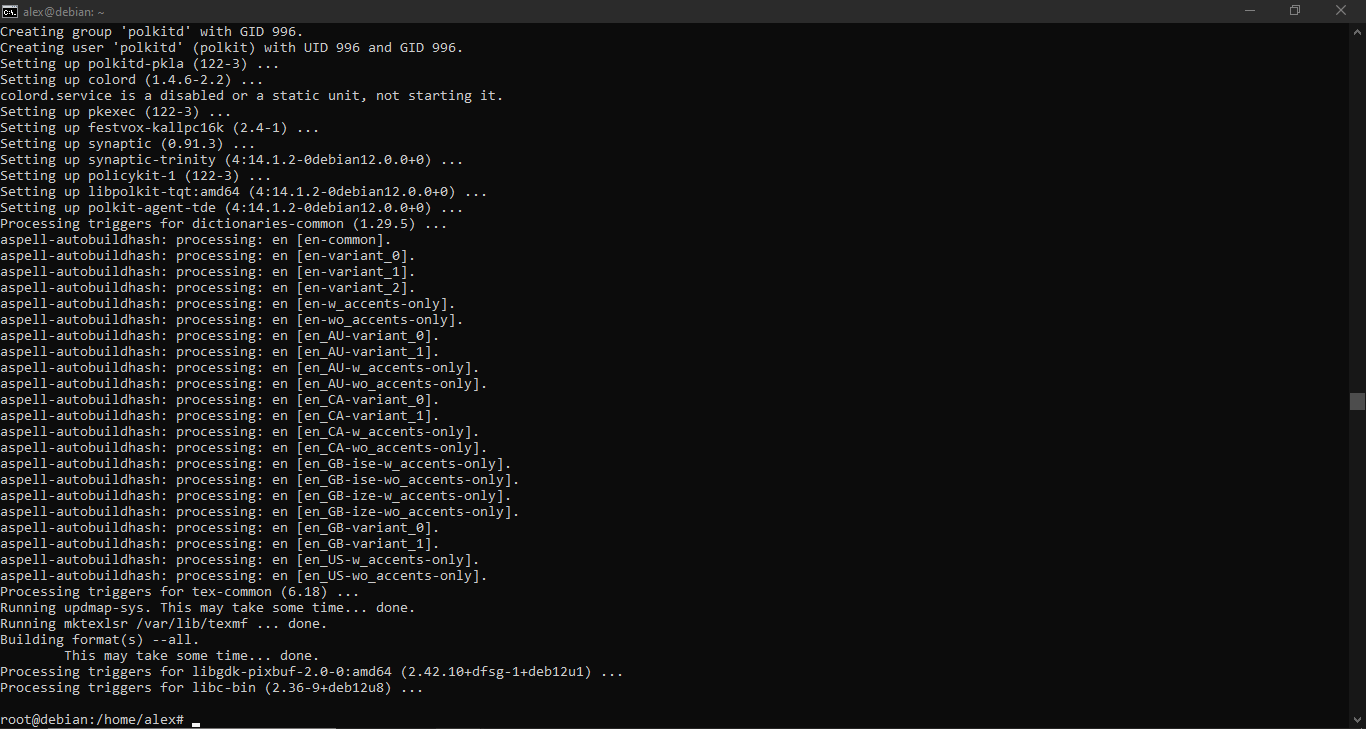
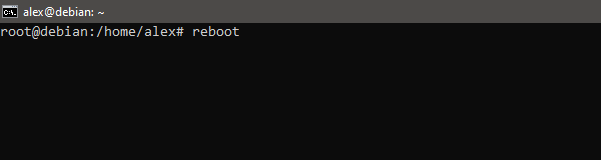
13. Running 'reboot'
reboot
14. Running Trinity
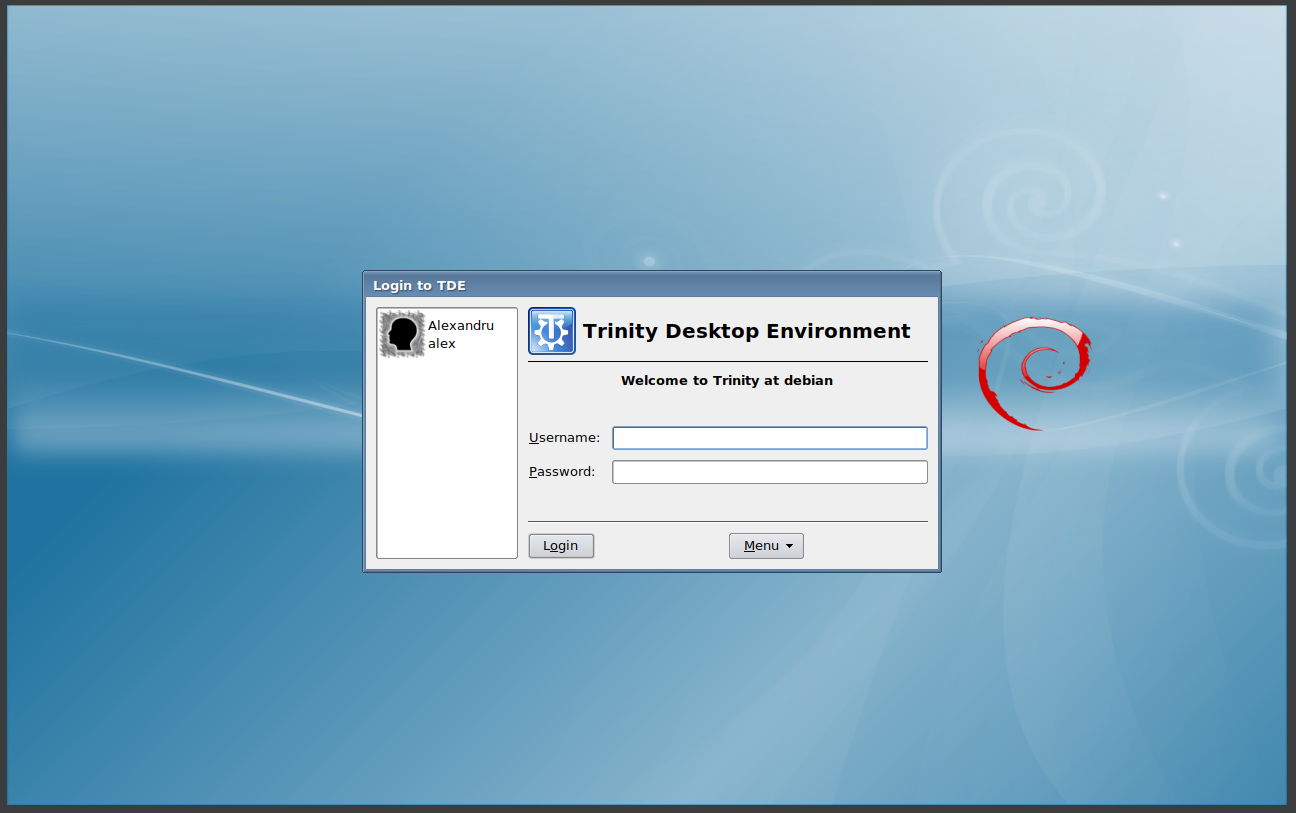
15. Running Trinity
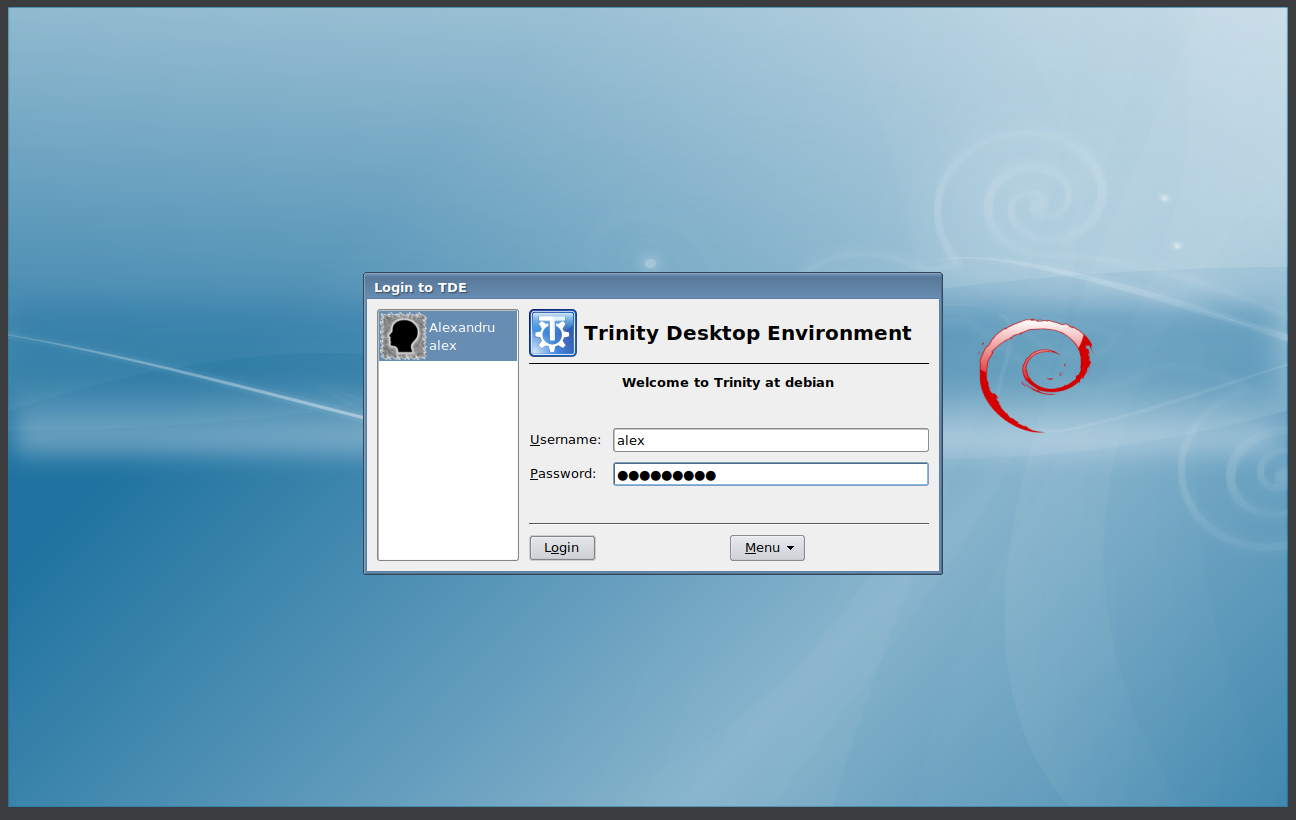
16. Running Trinity
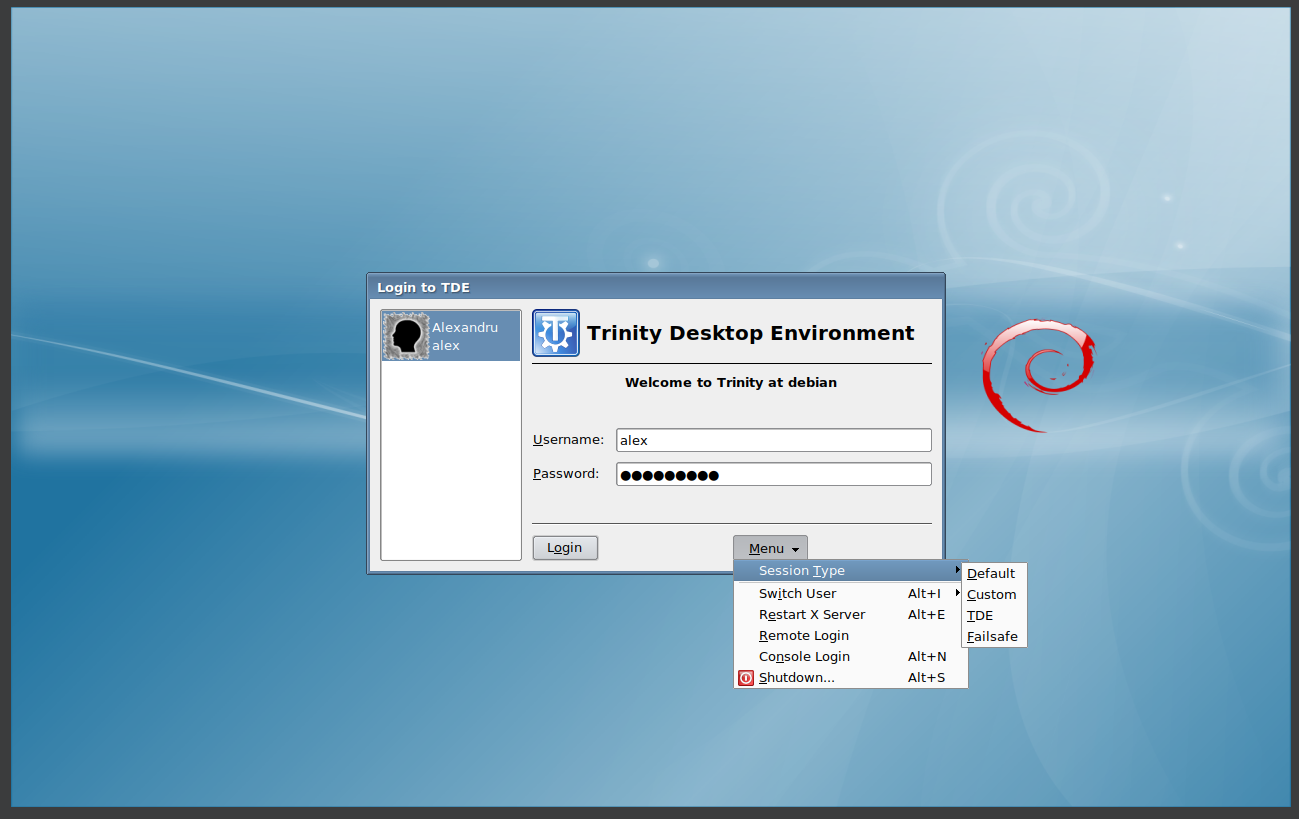
17. Running Trinity
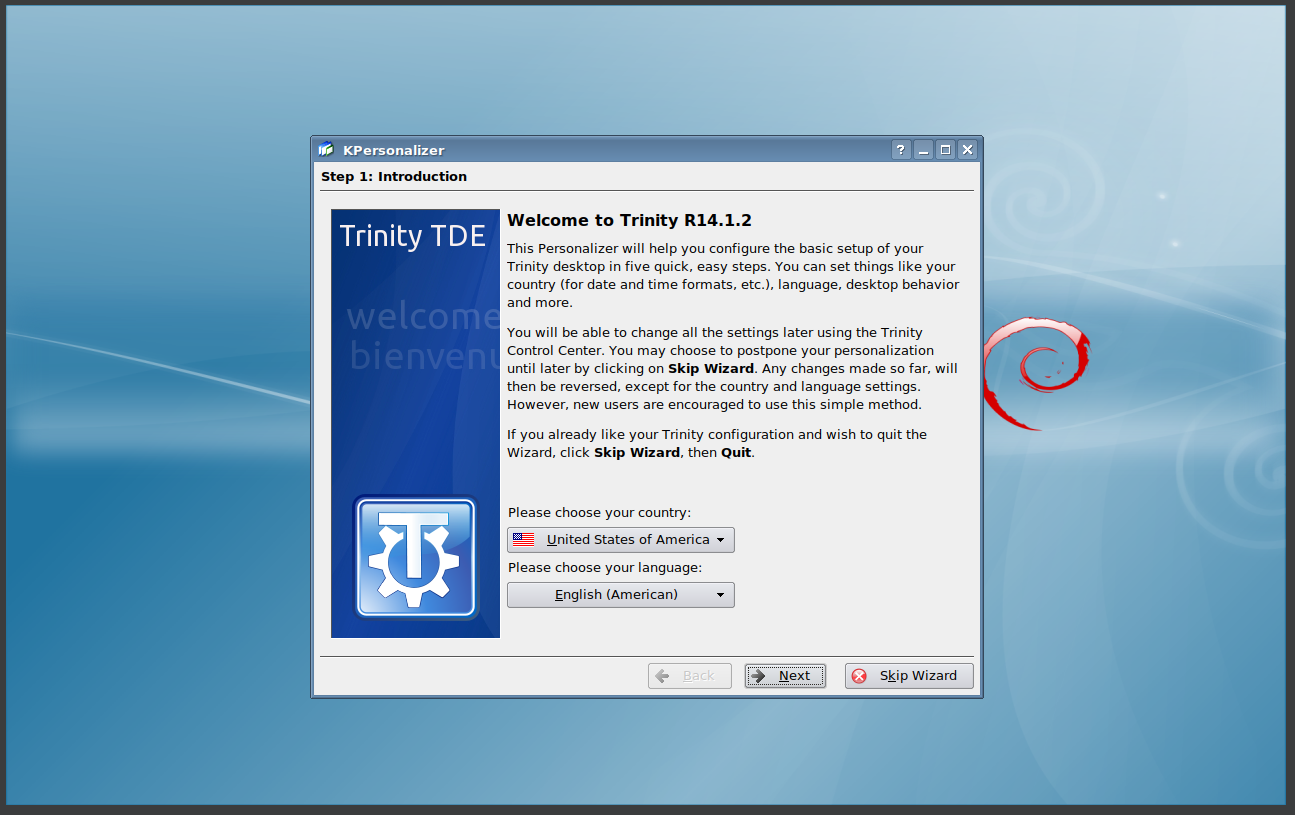
18. Running Trinity
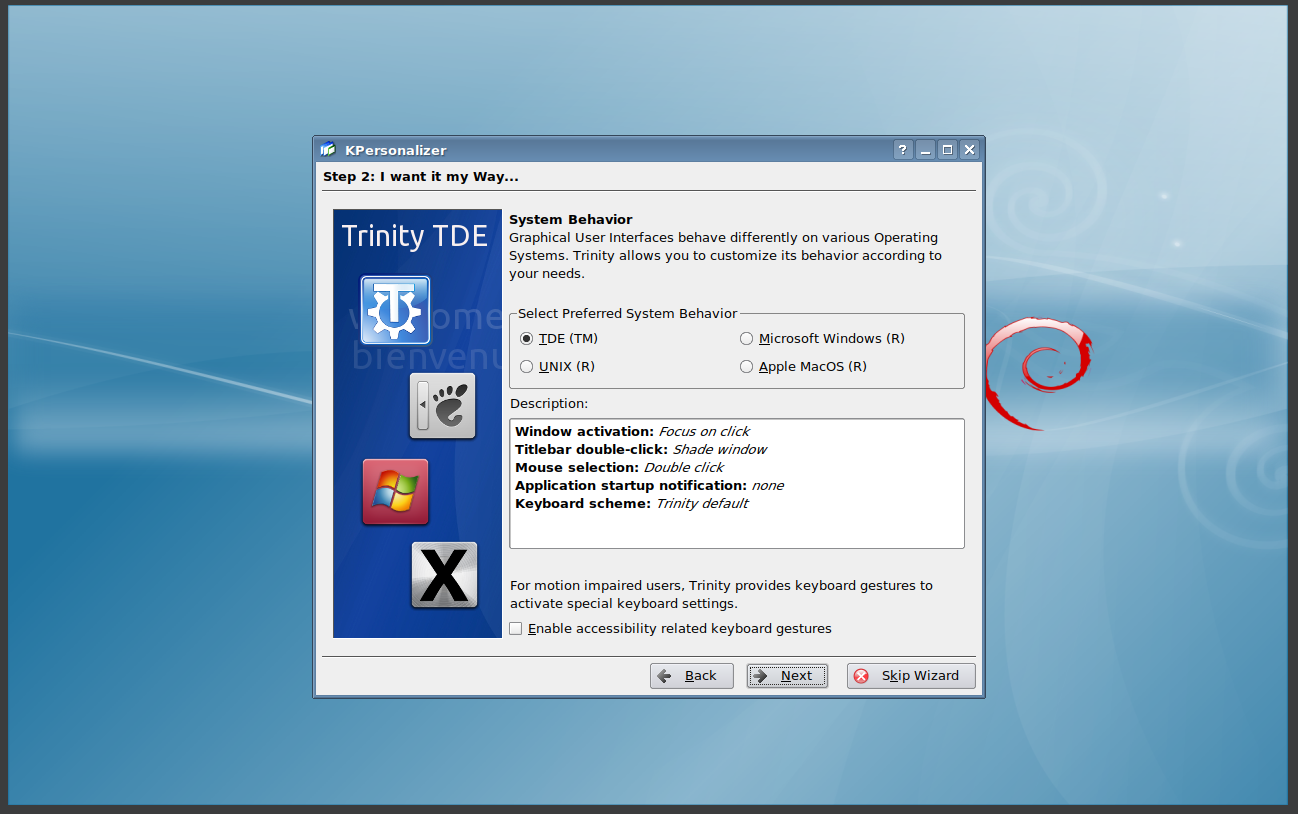
19. Running Trinity
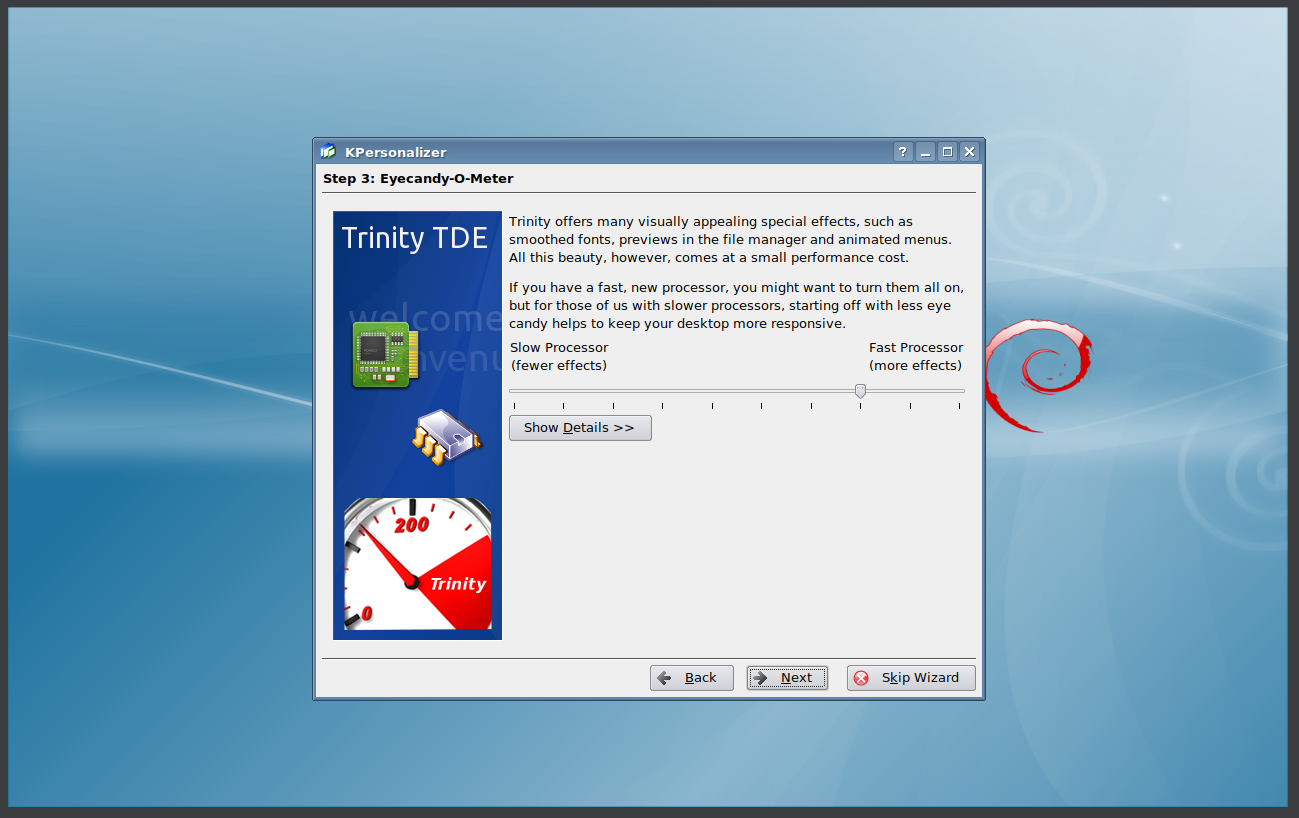
20. Running Trinity
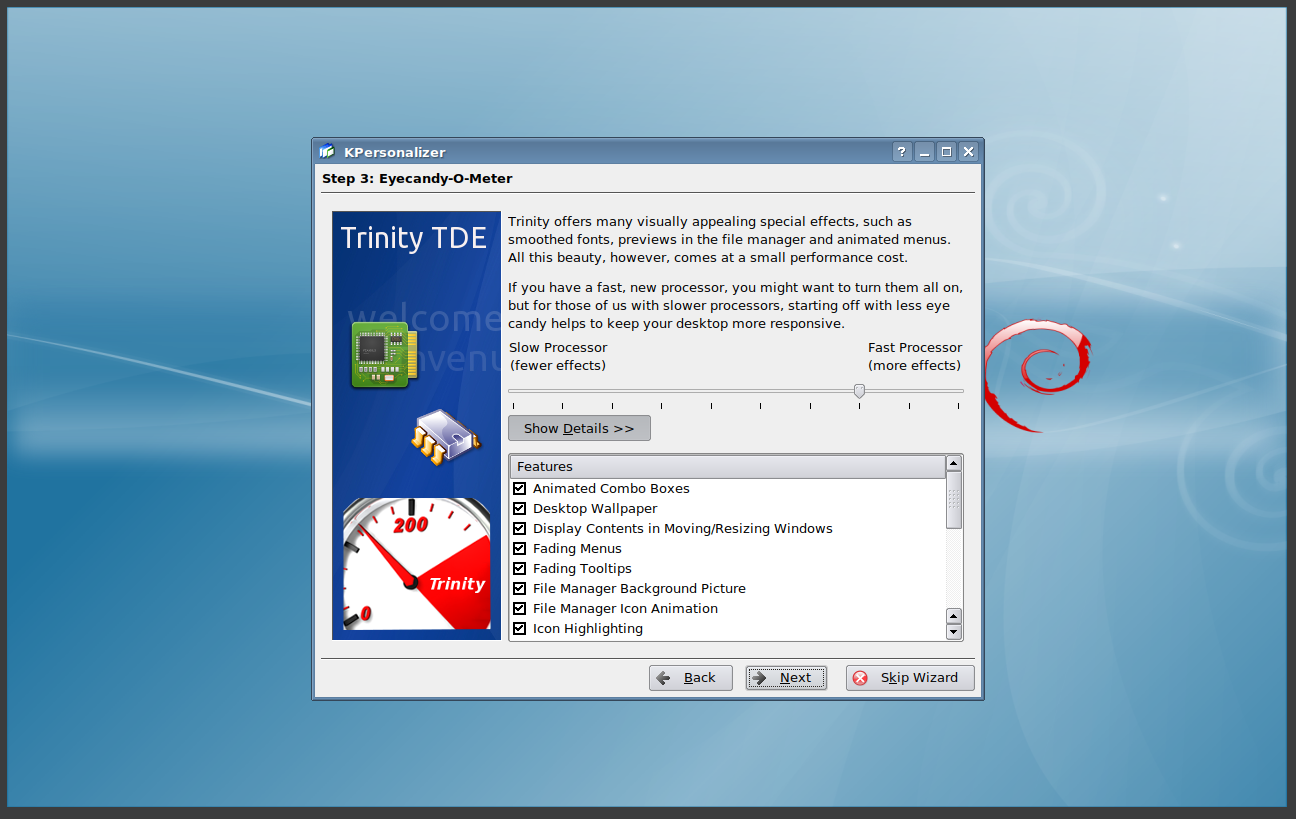
21. Running Trinity
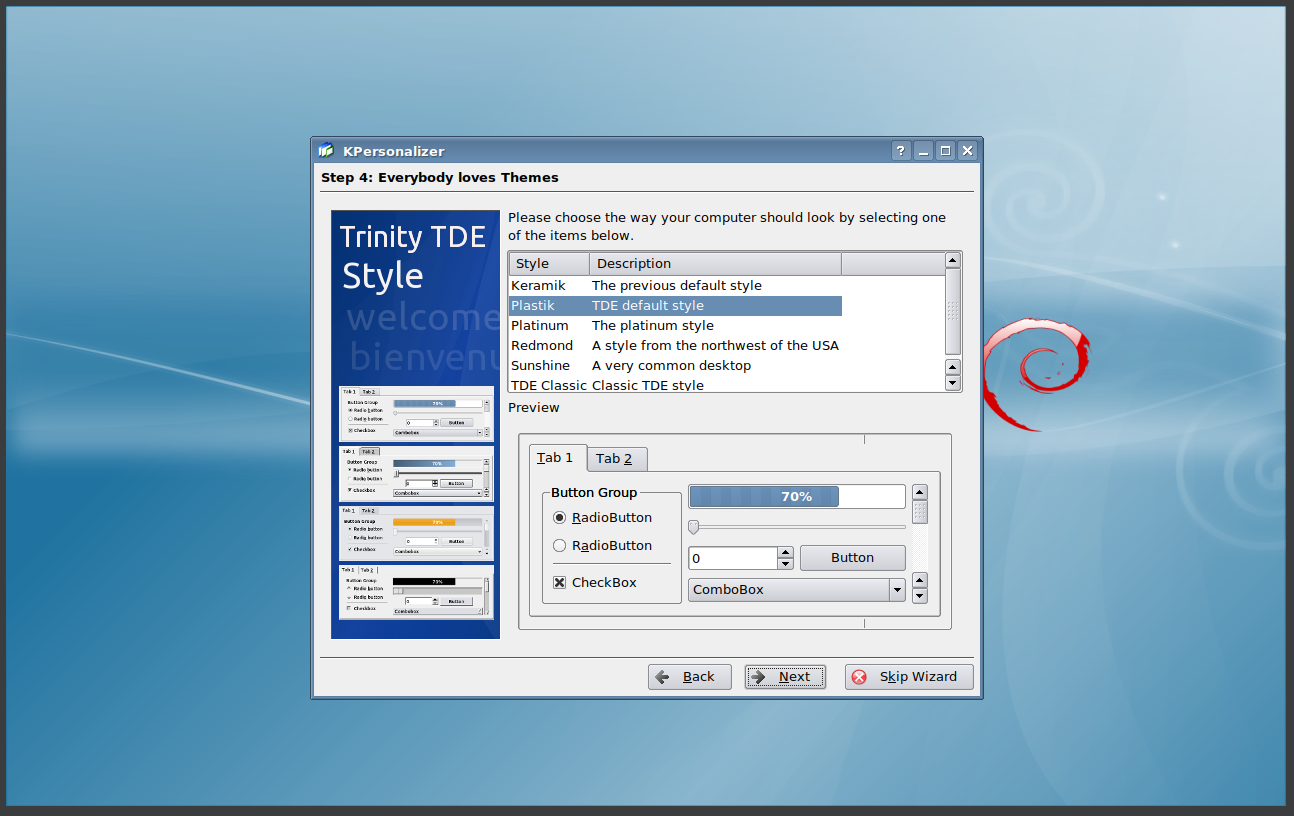
22. Running Trinity
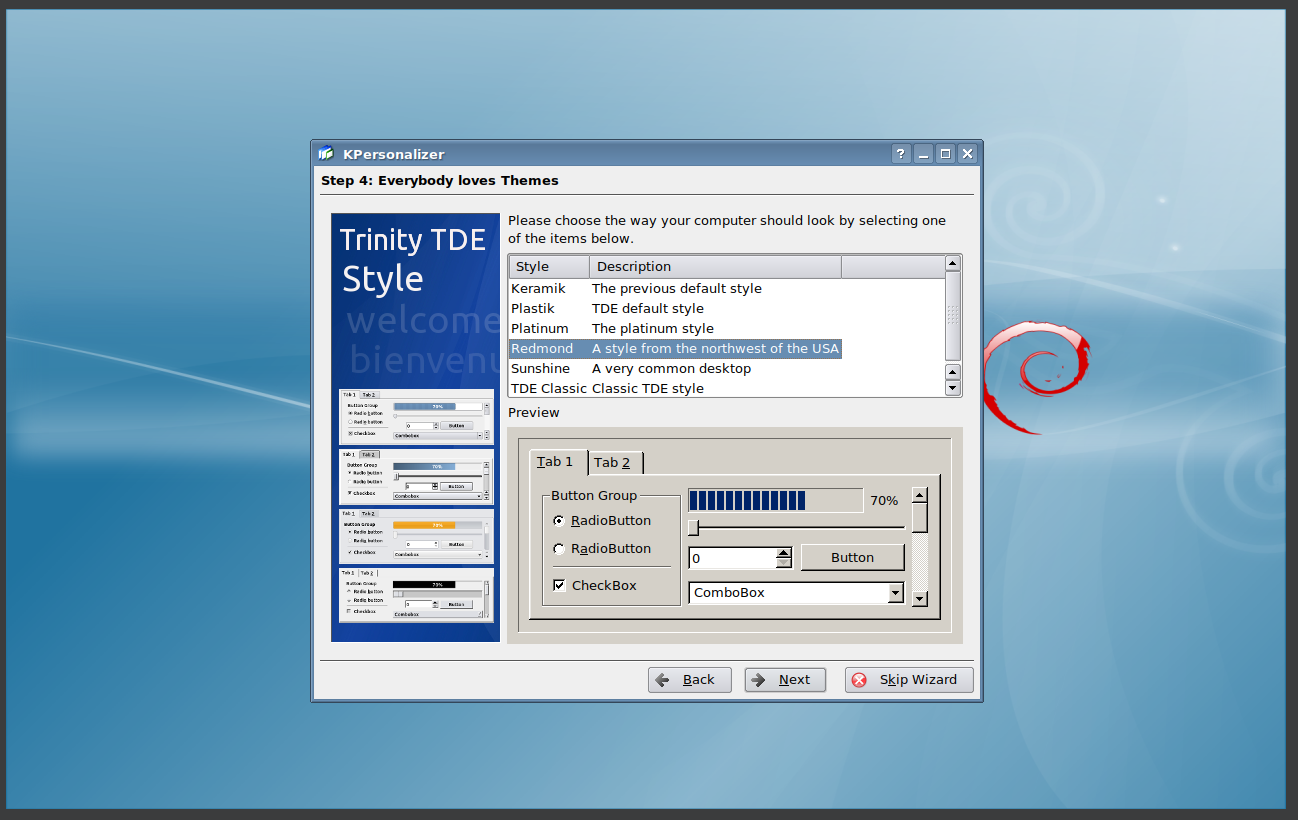
23. Running Trinity
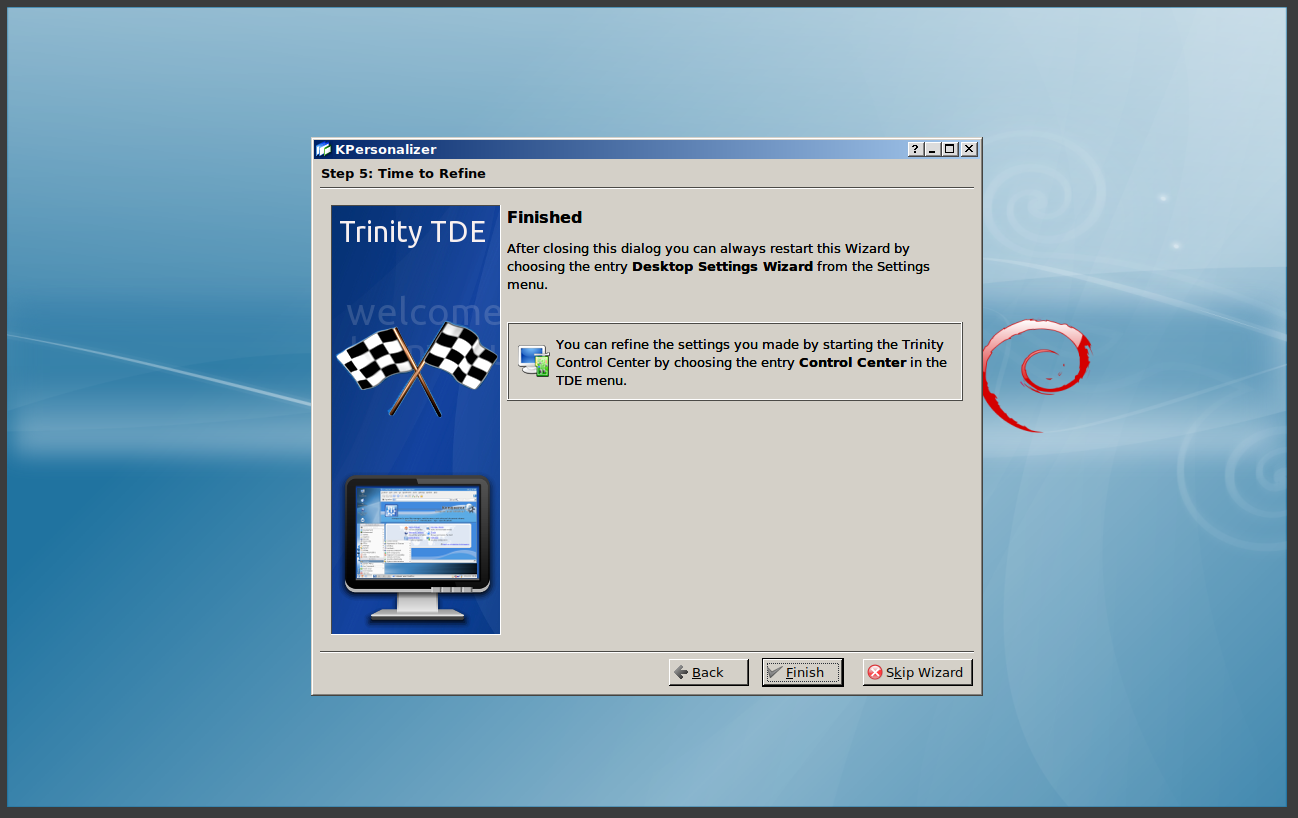
24. Running Trinity
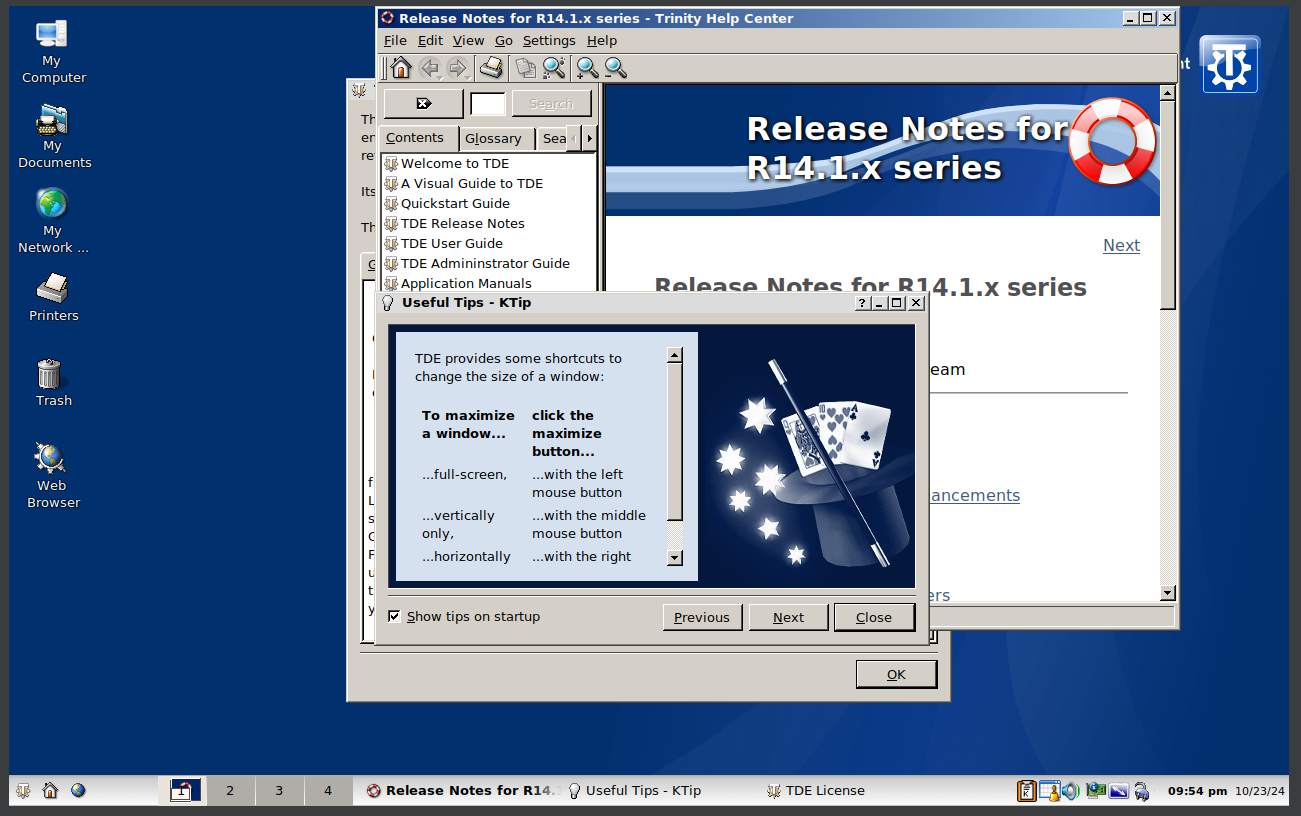
25. Running Trinity
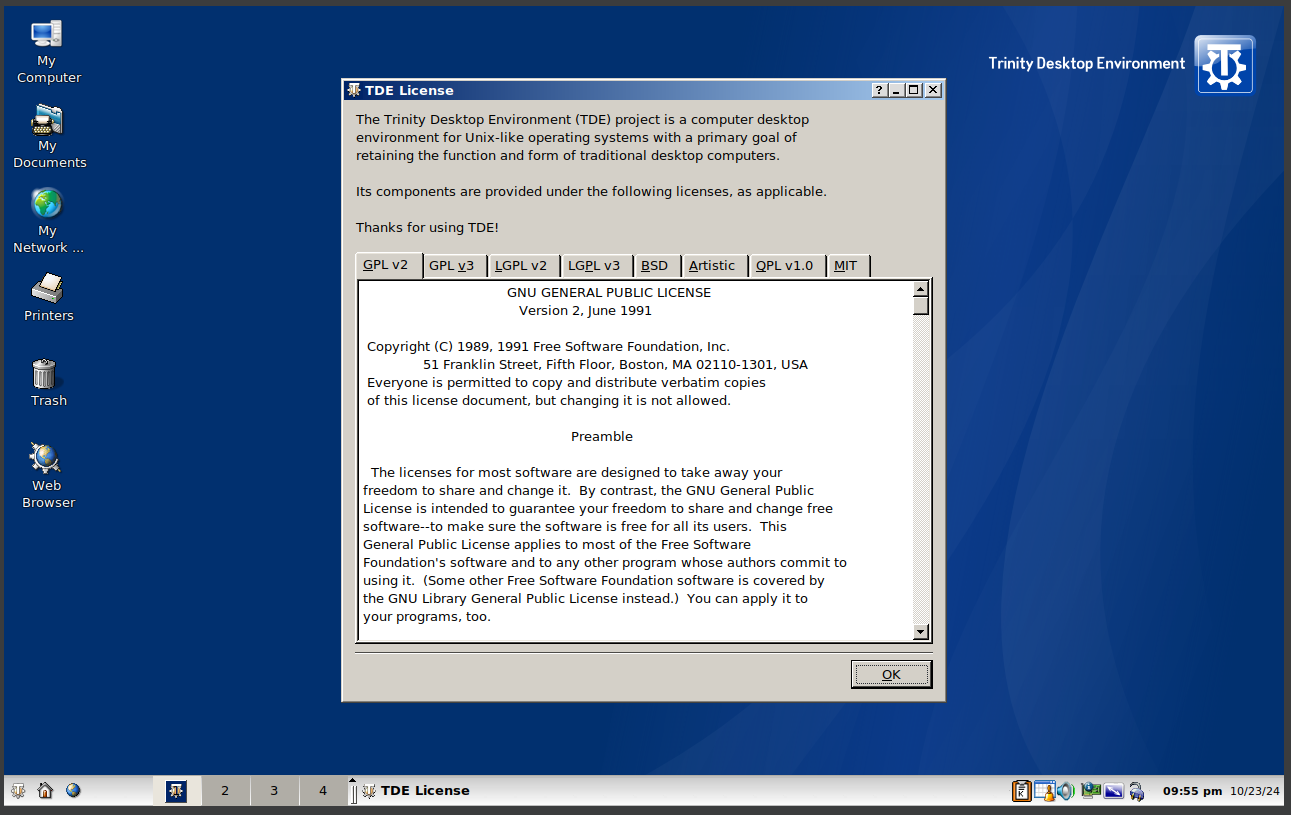
26. Running Trinity
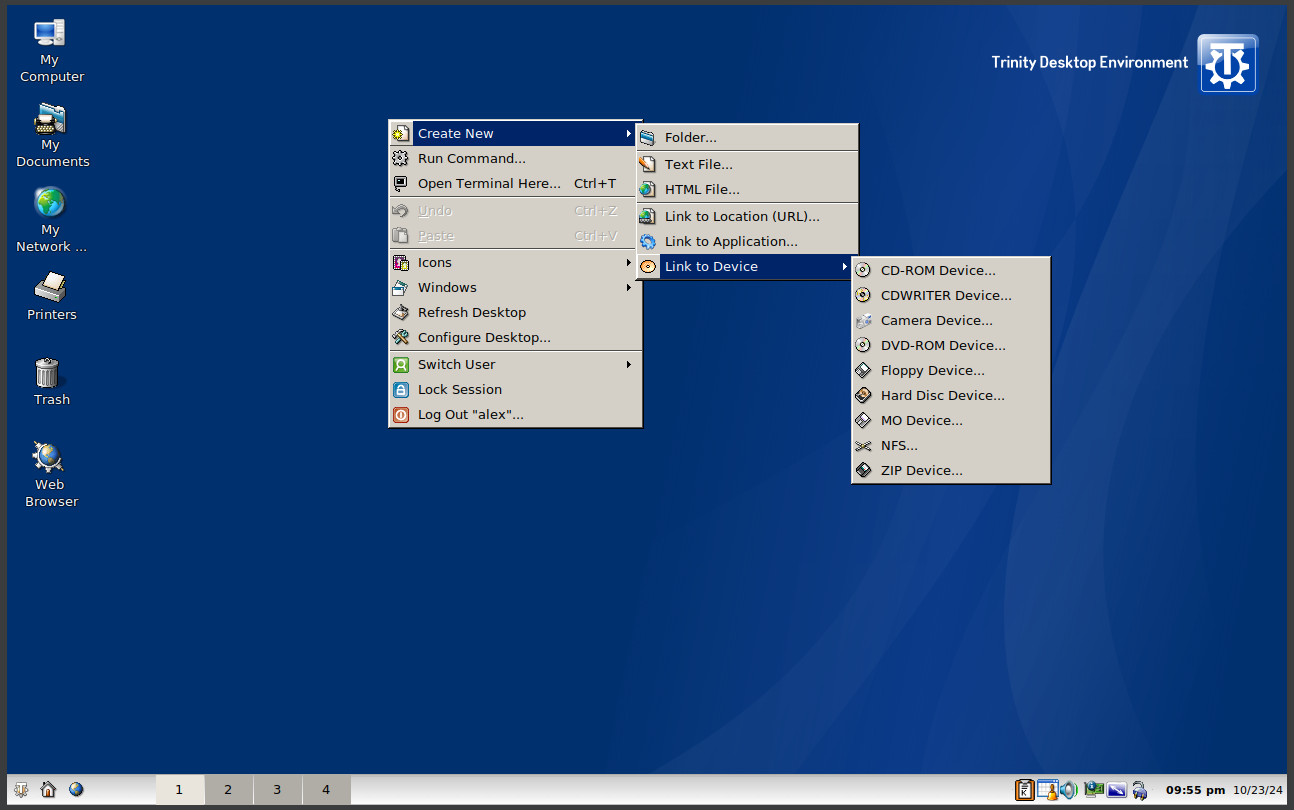
27. Running Trinity
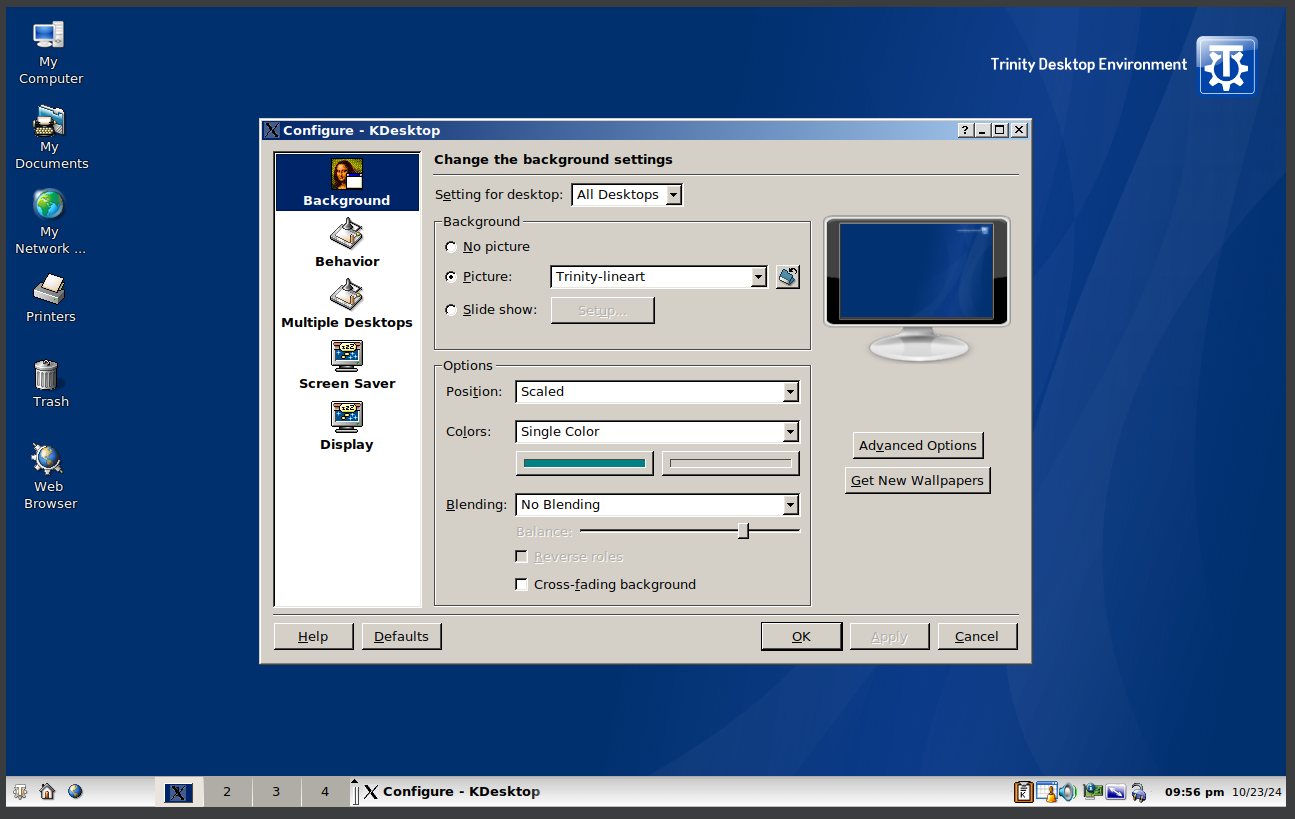
28. Running Trinity
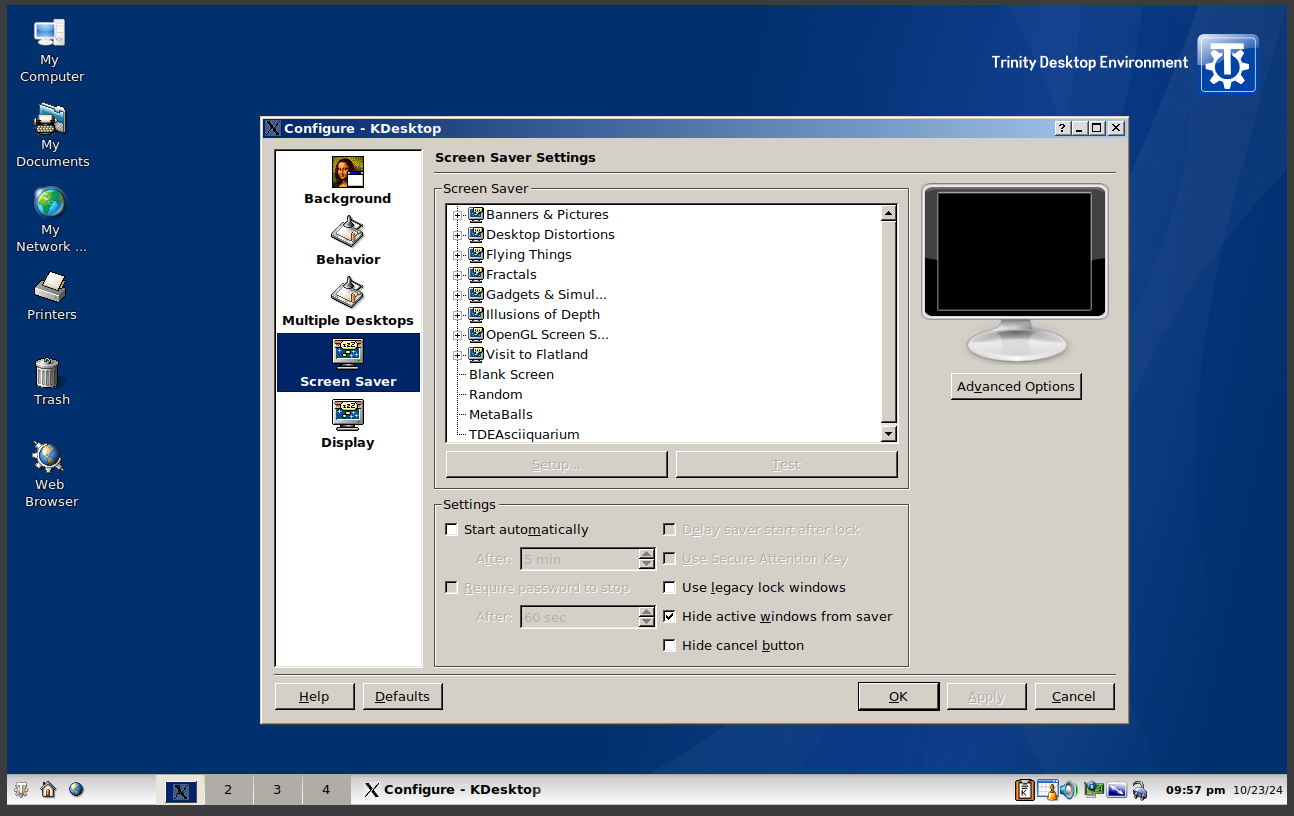
29. Running Trinity
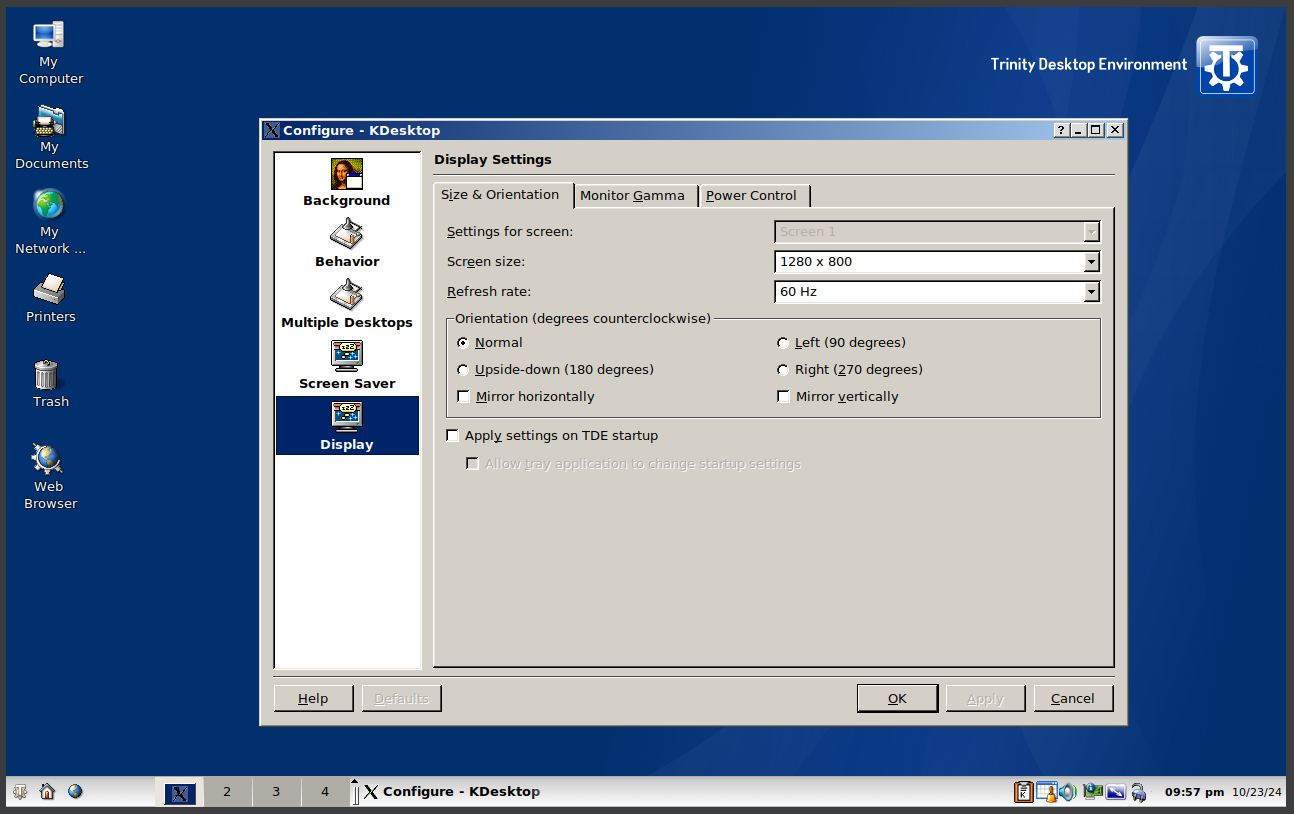
30. Running Trinity
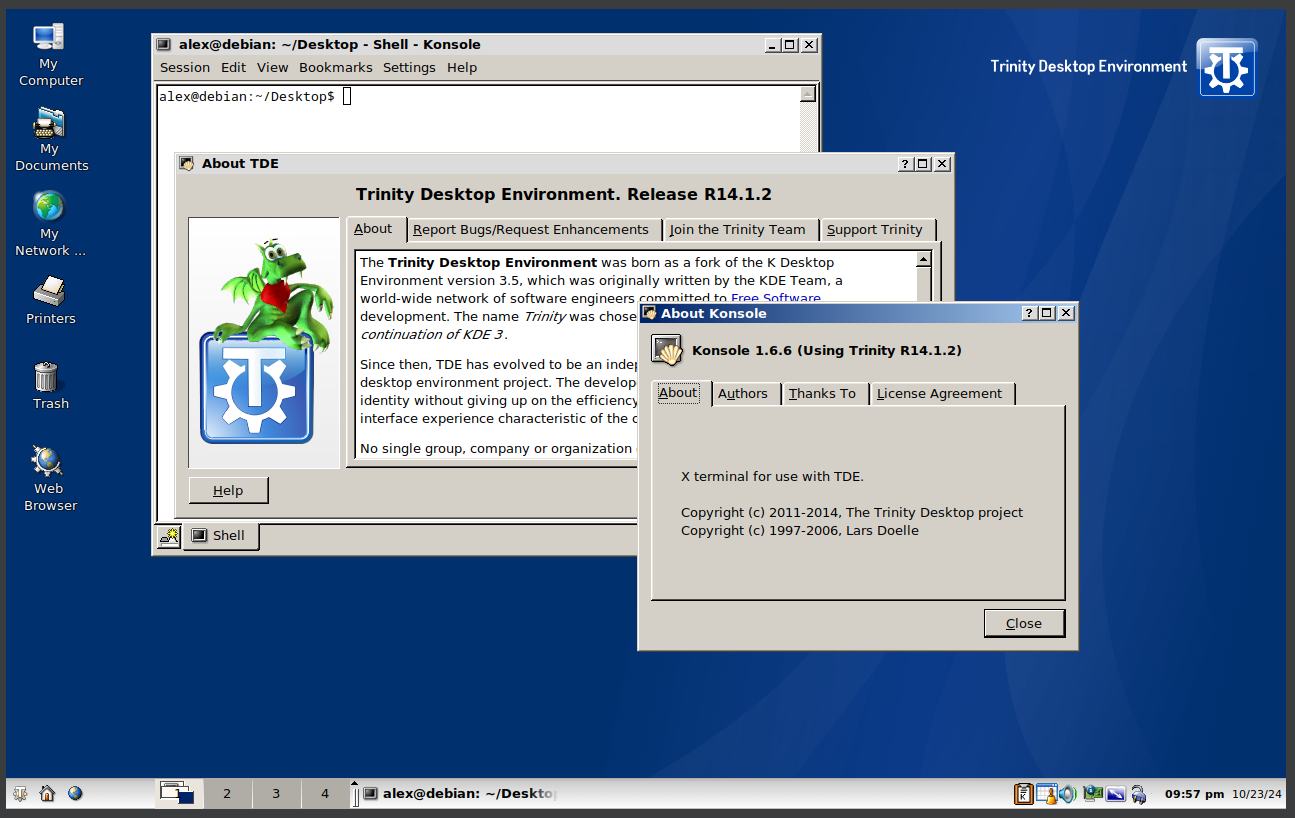
31. Running Trinity
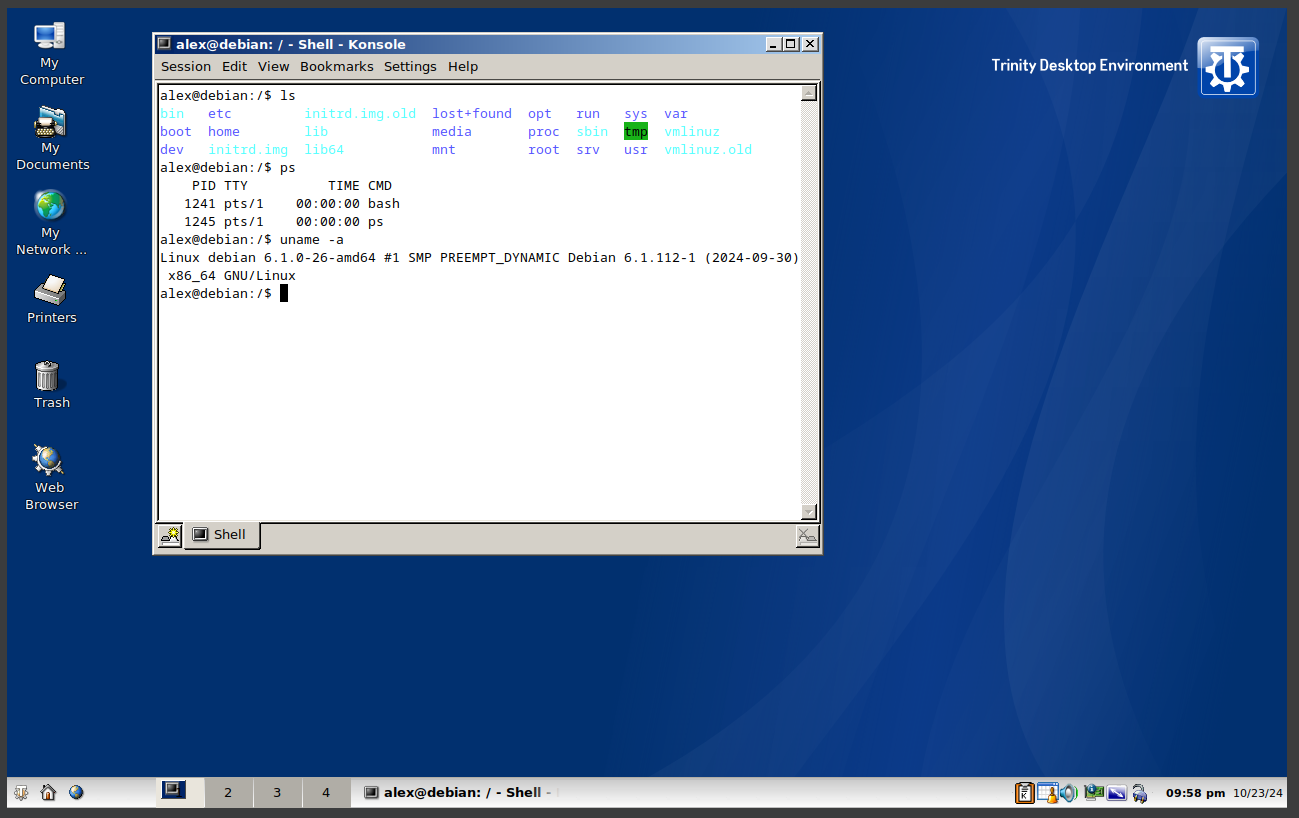
32. Running Trinity
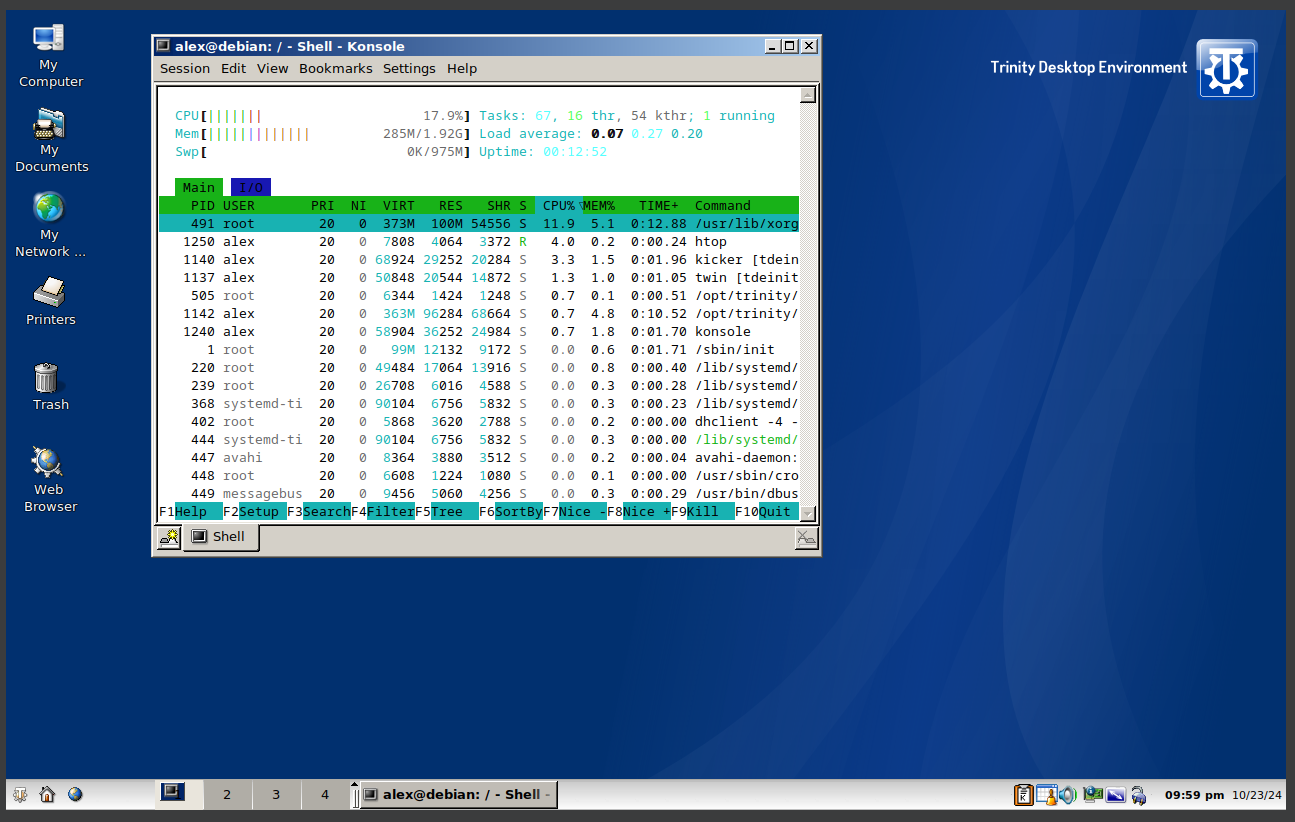
33. Running Trinity
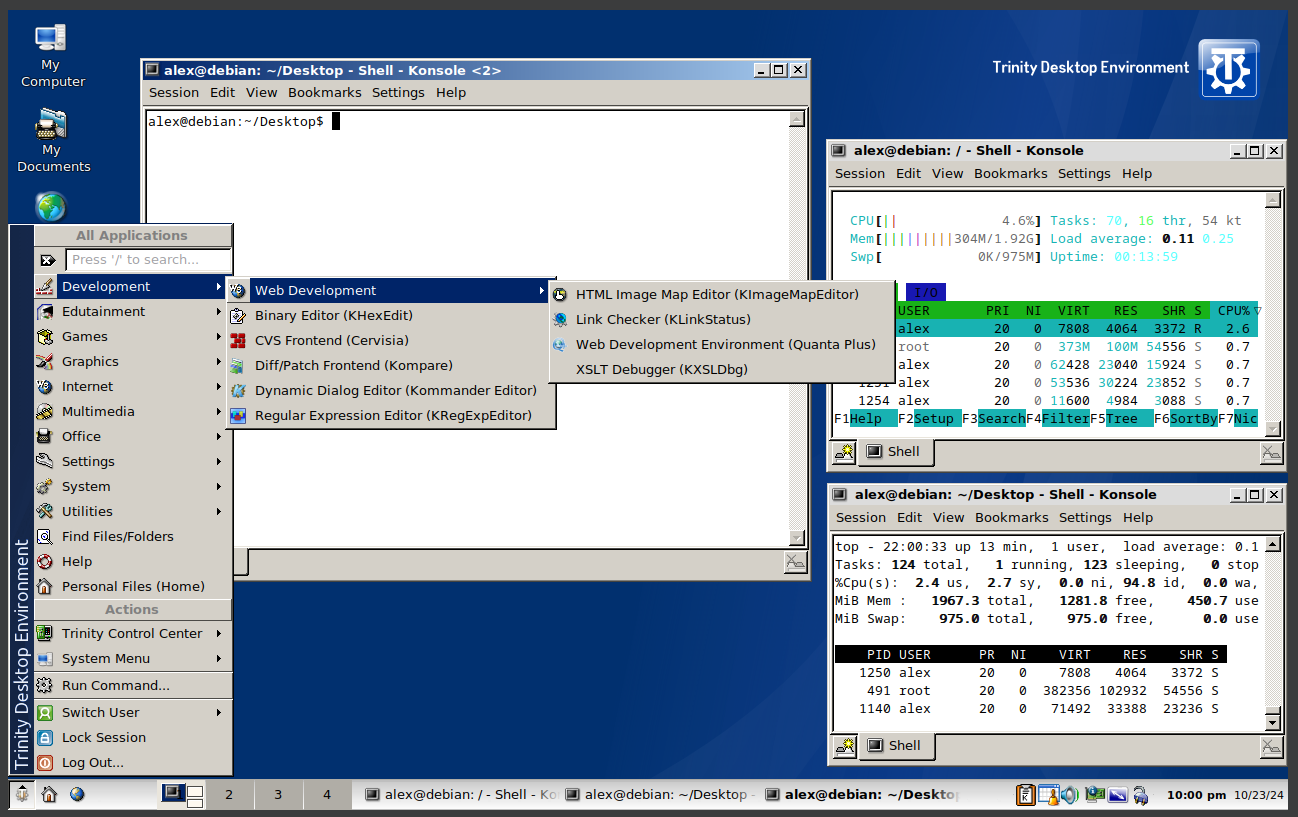
34. Running Trinity
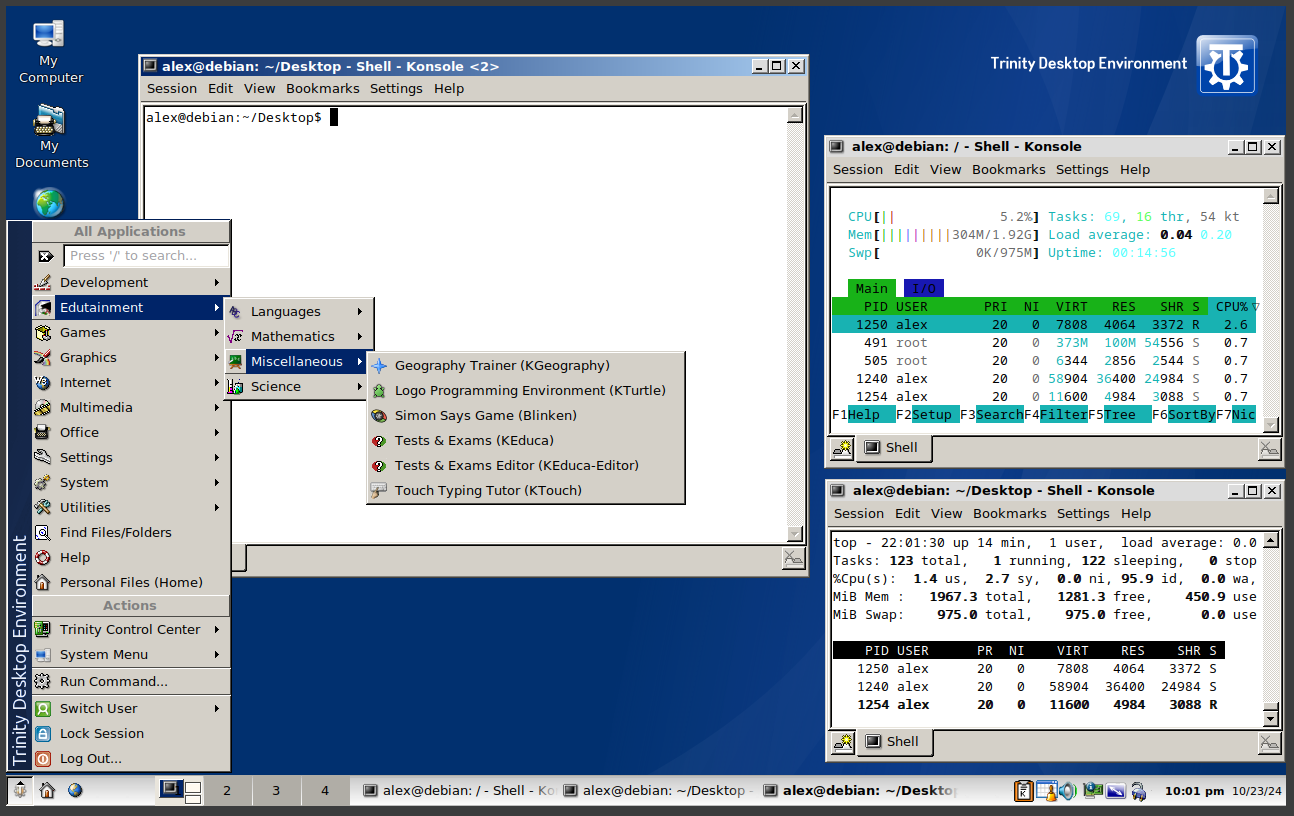
35. Running Trinity
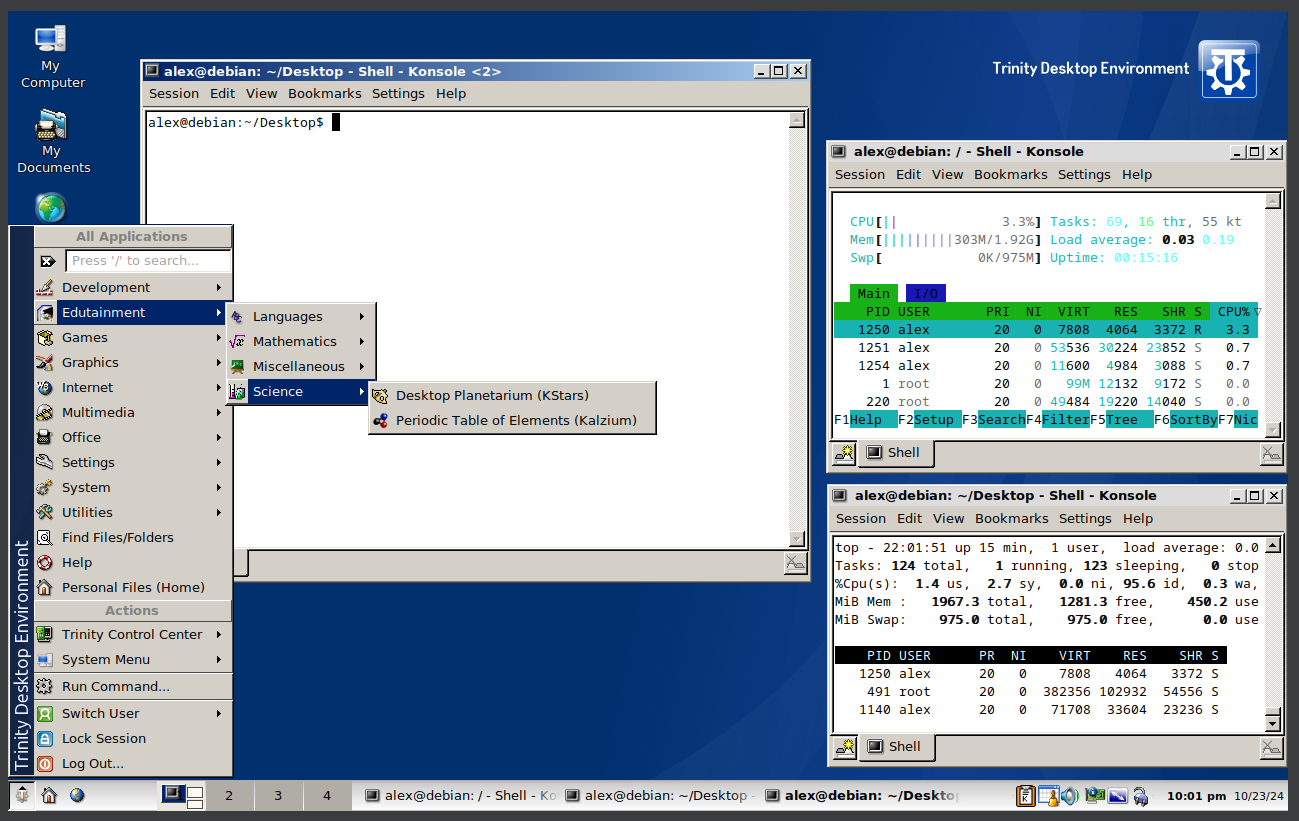
36. Running Trinity
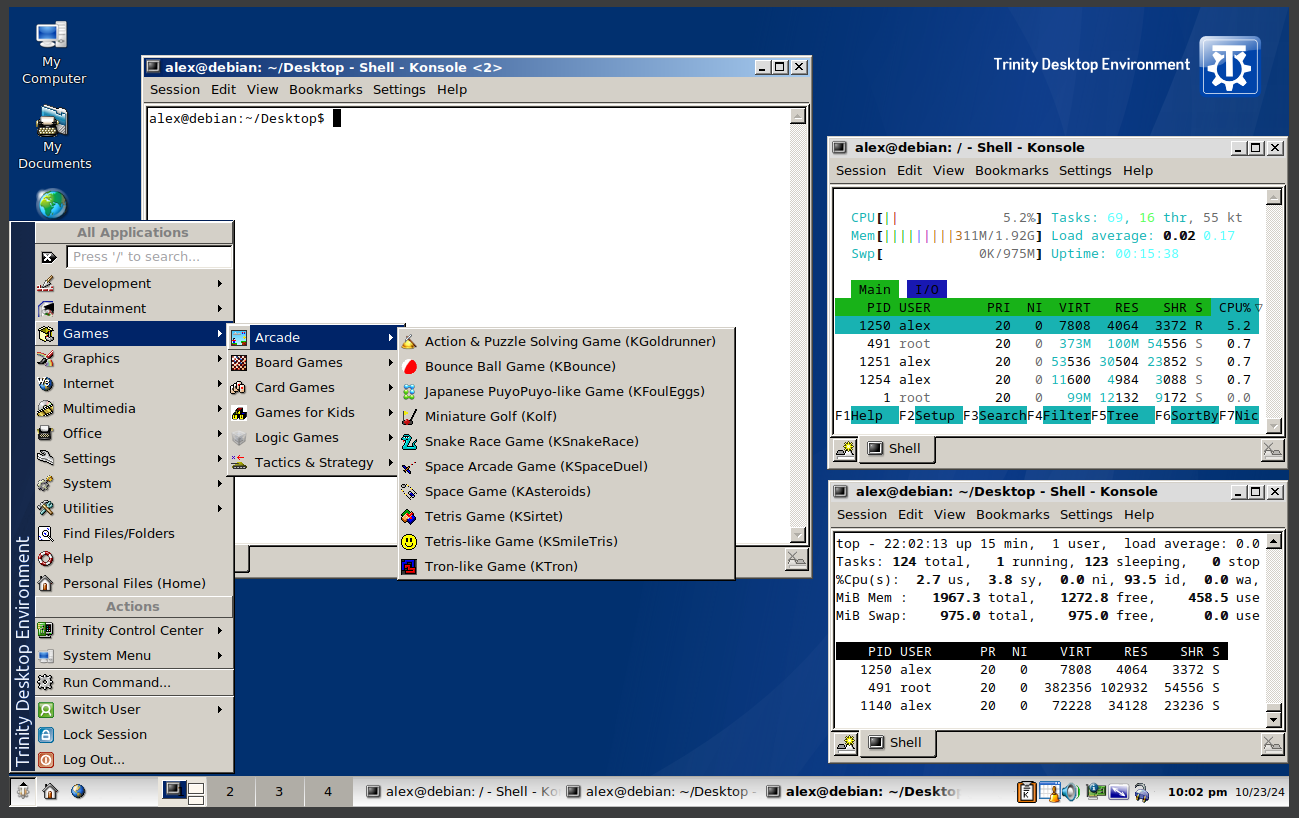
37. Running Trinity
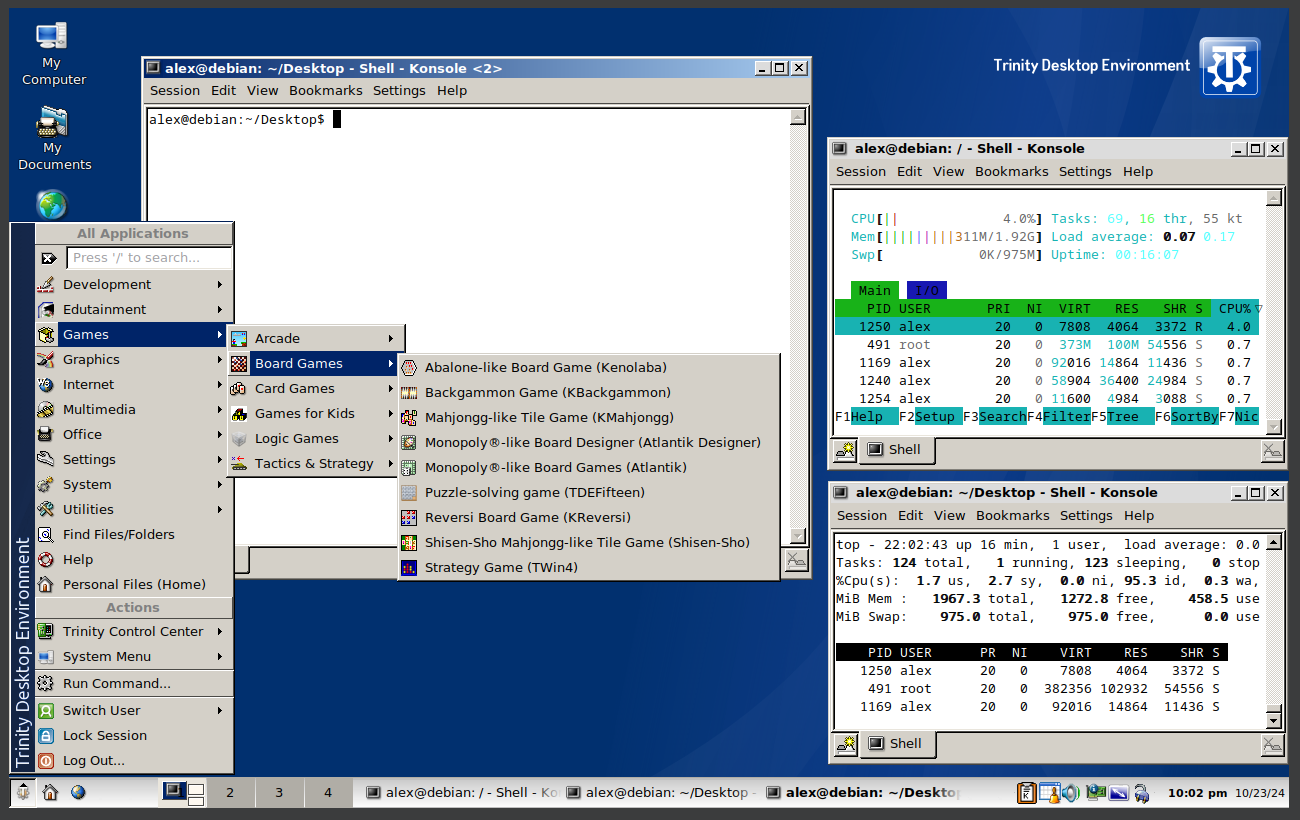
38. Running Trinity
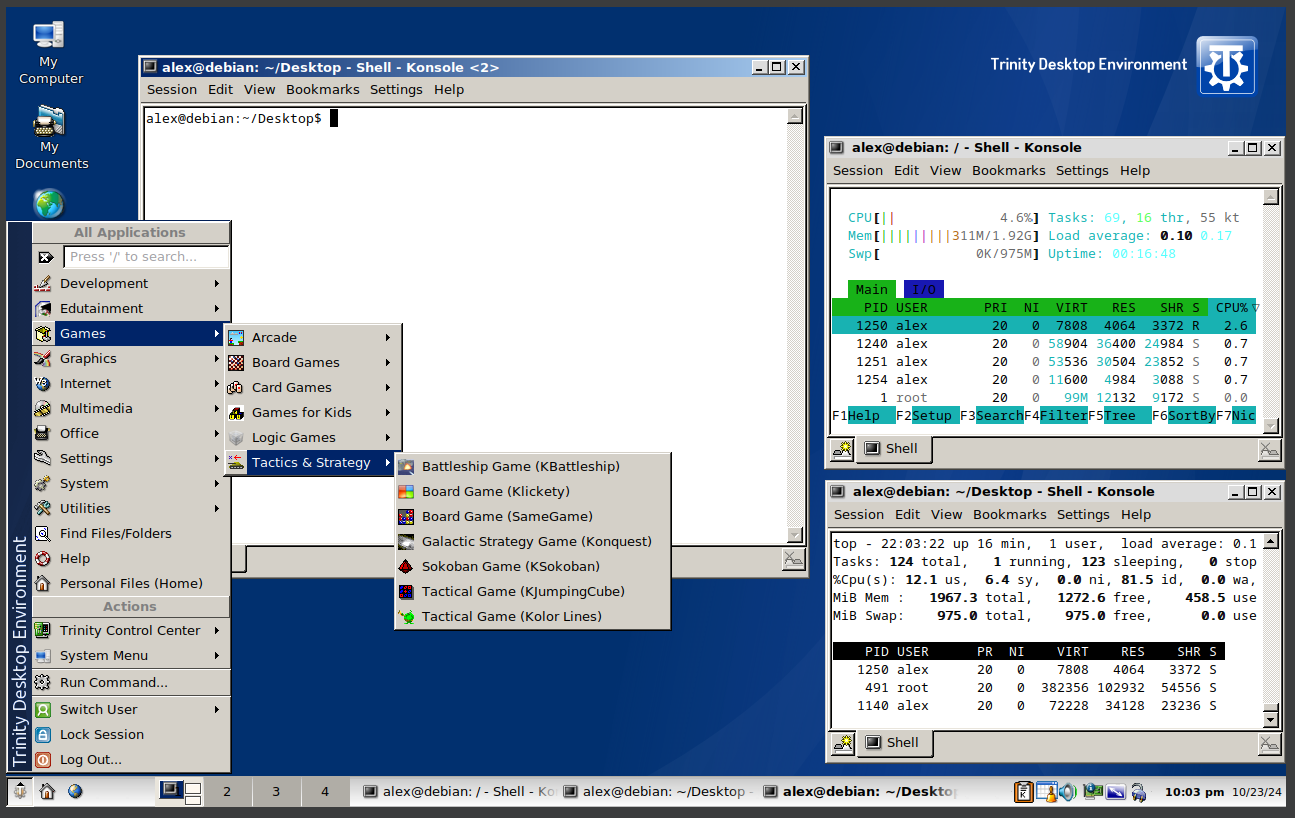
39. Running Trinity
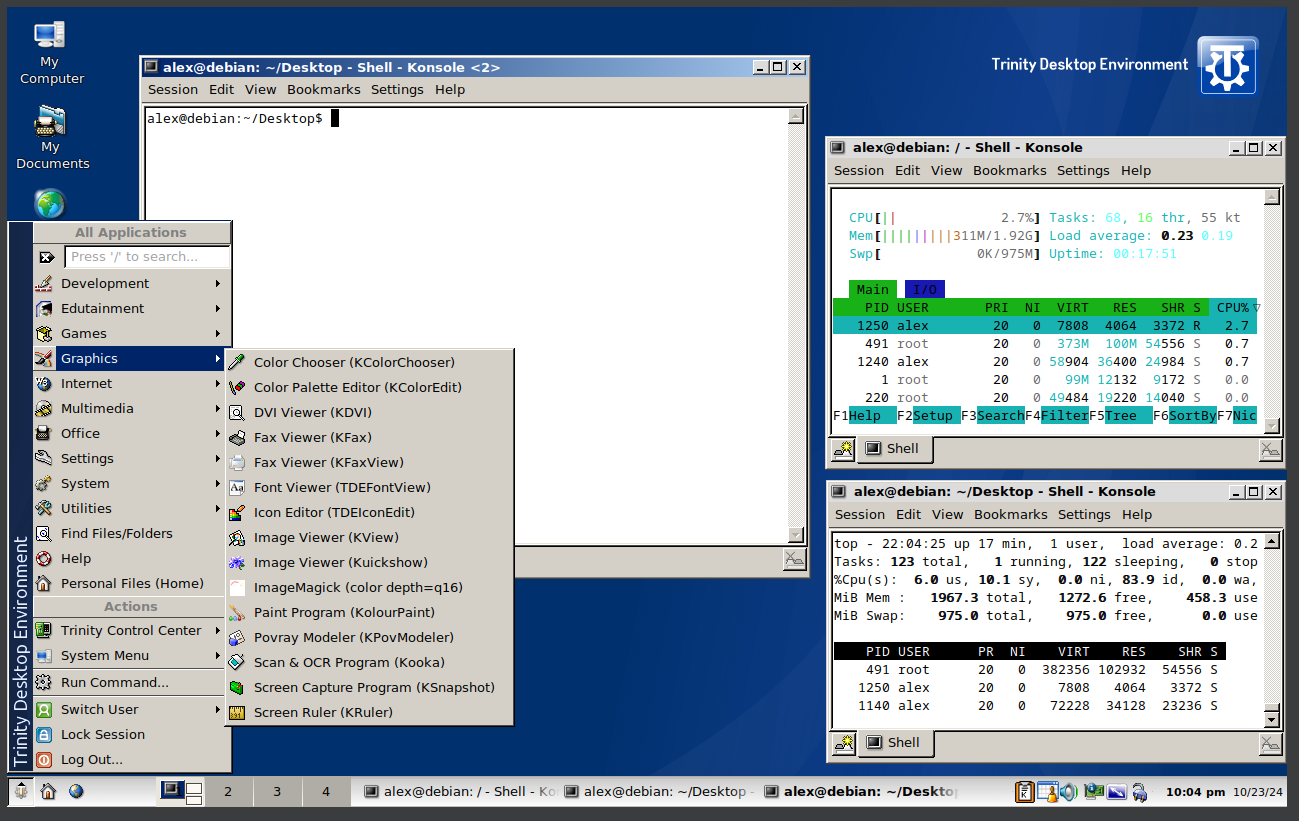
40. Running Trinity
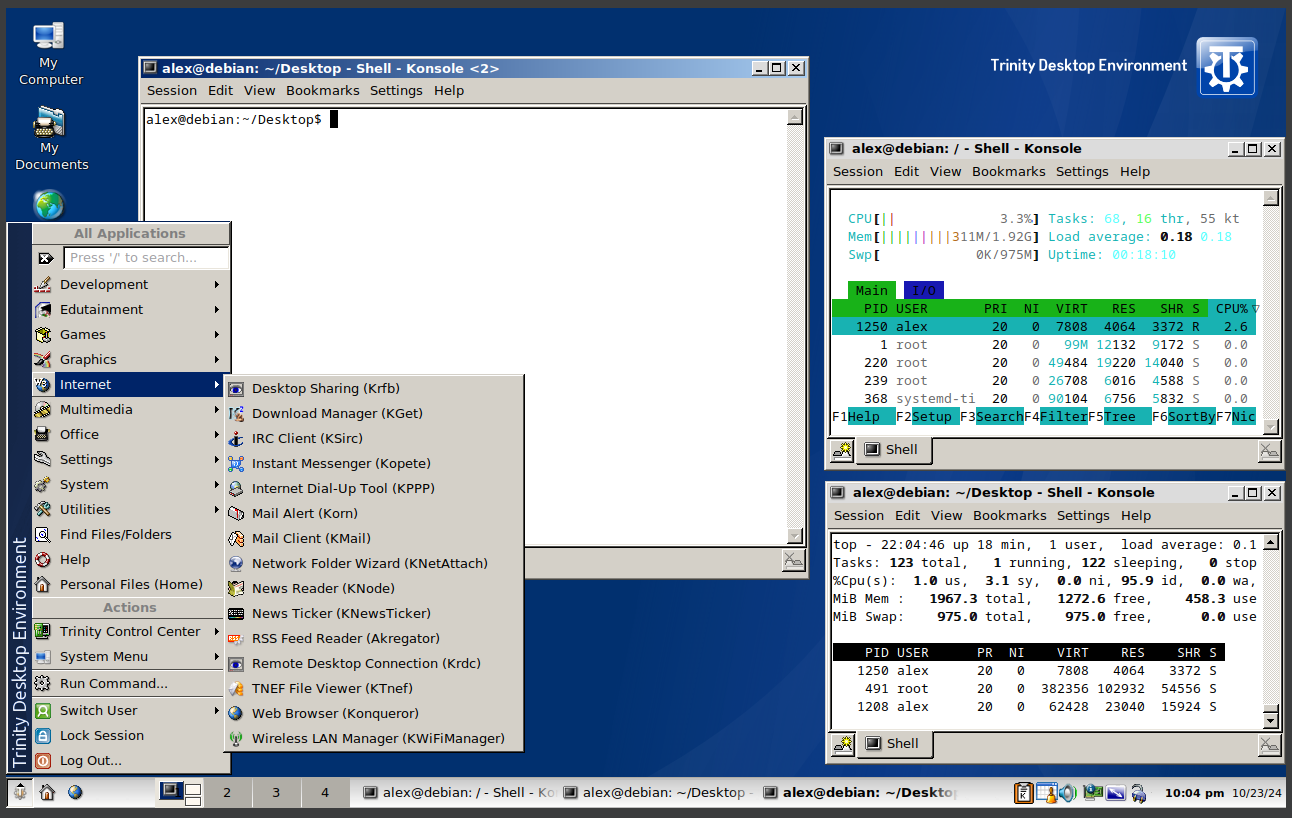
41. Running Trinity
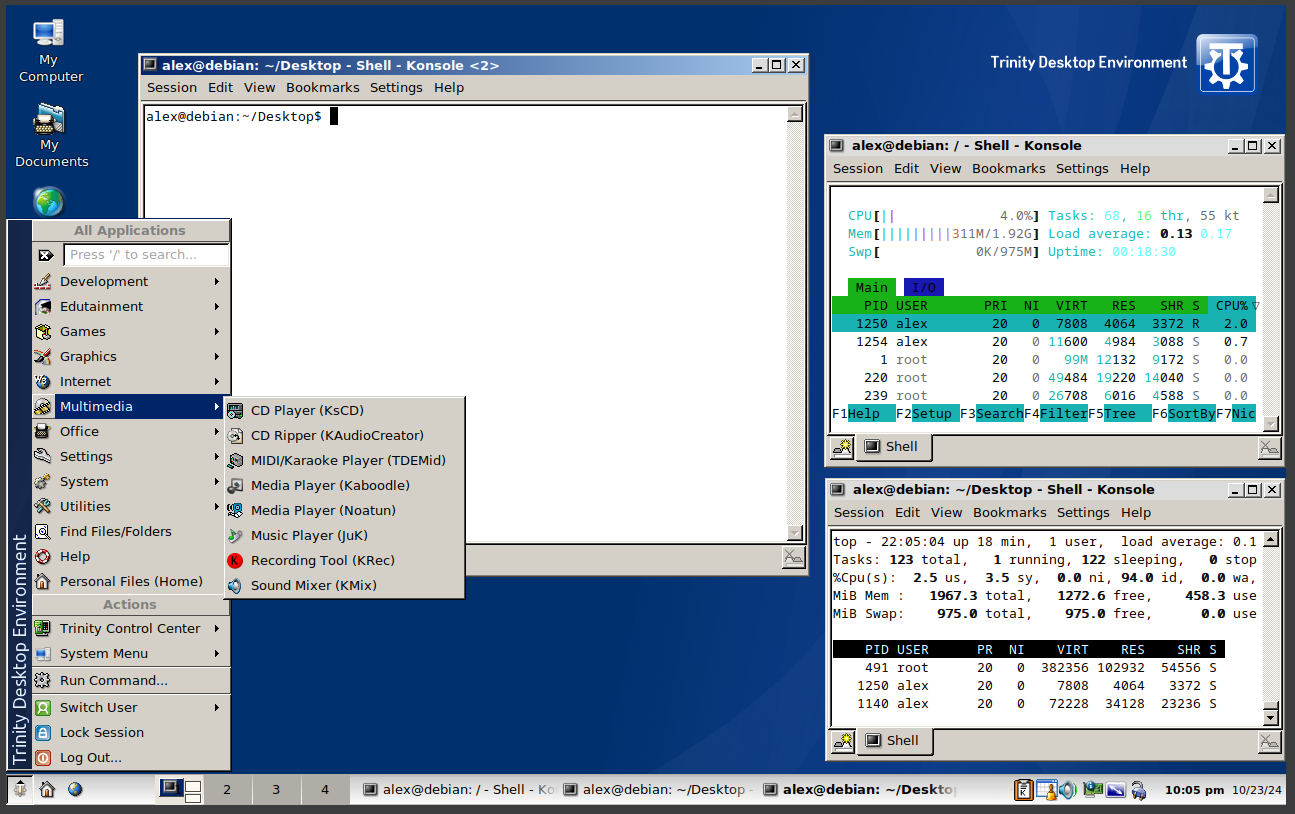
42. Running Trinity
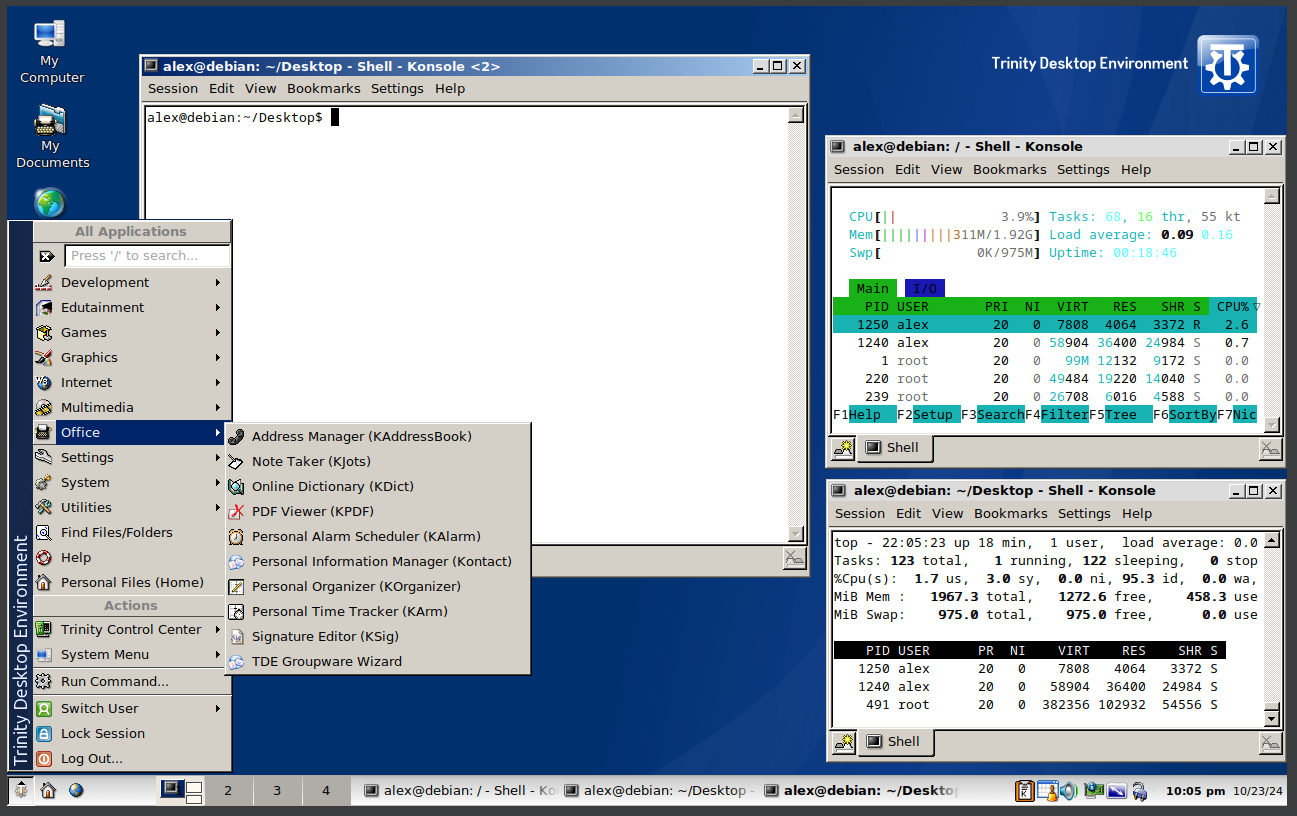
43. Running Trinity
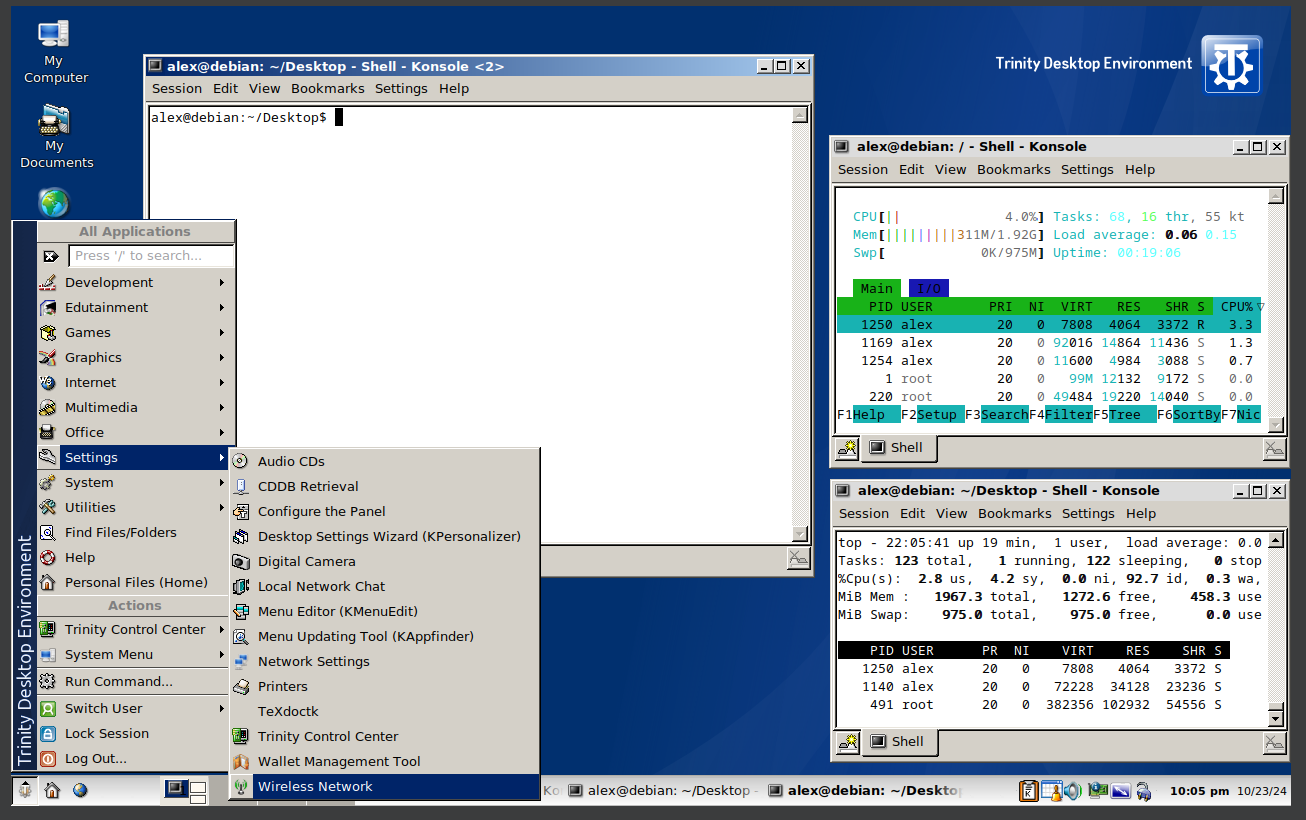
44. Running Trinity
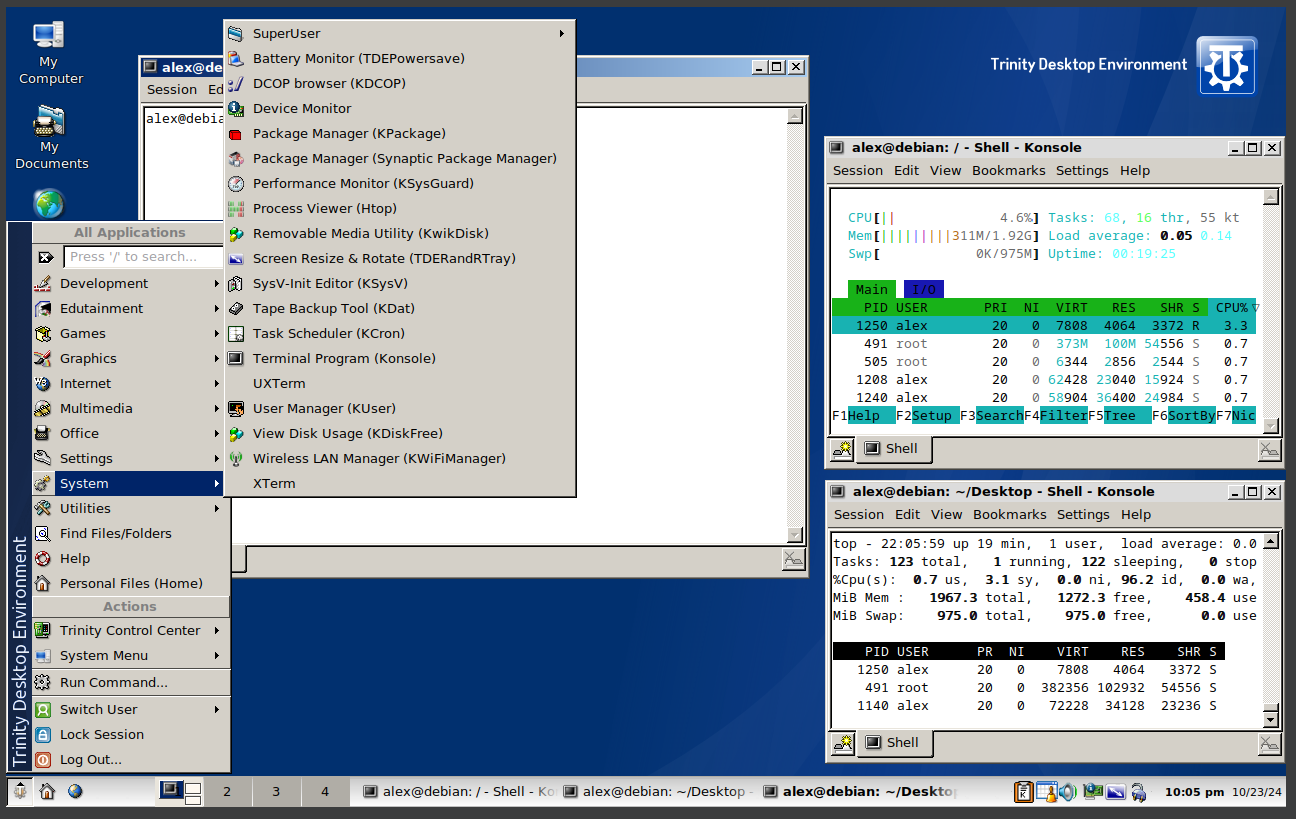
45. Running Trinity
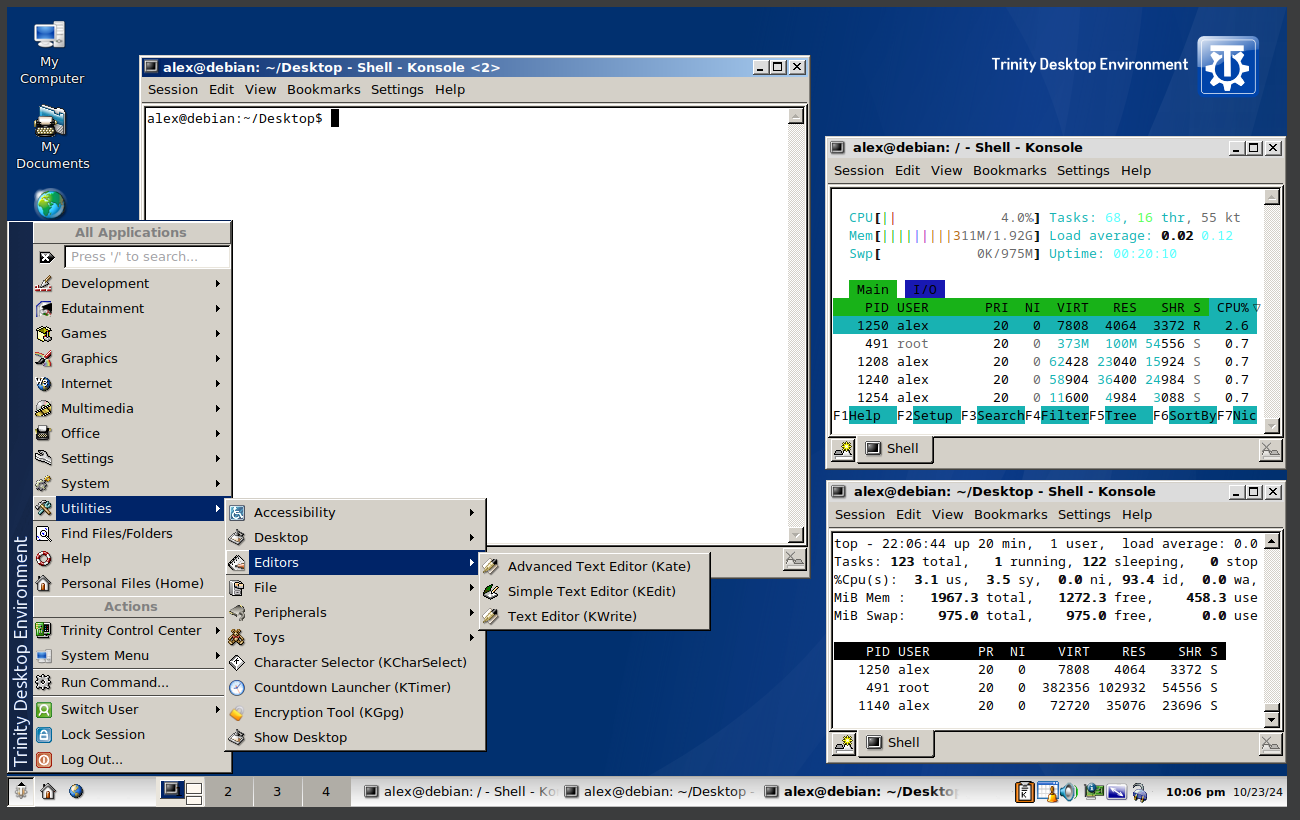
46. Running Trinity
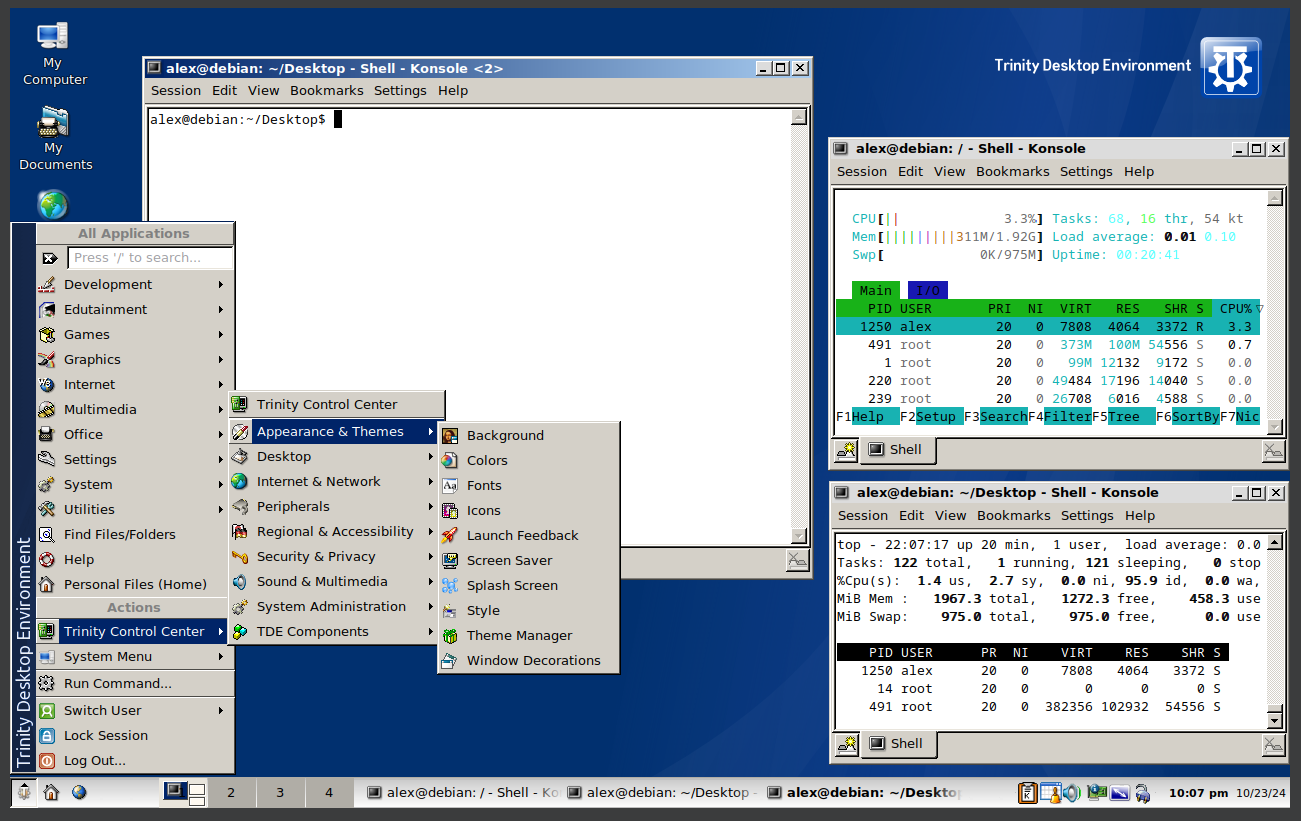
47. Running Trinity
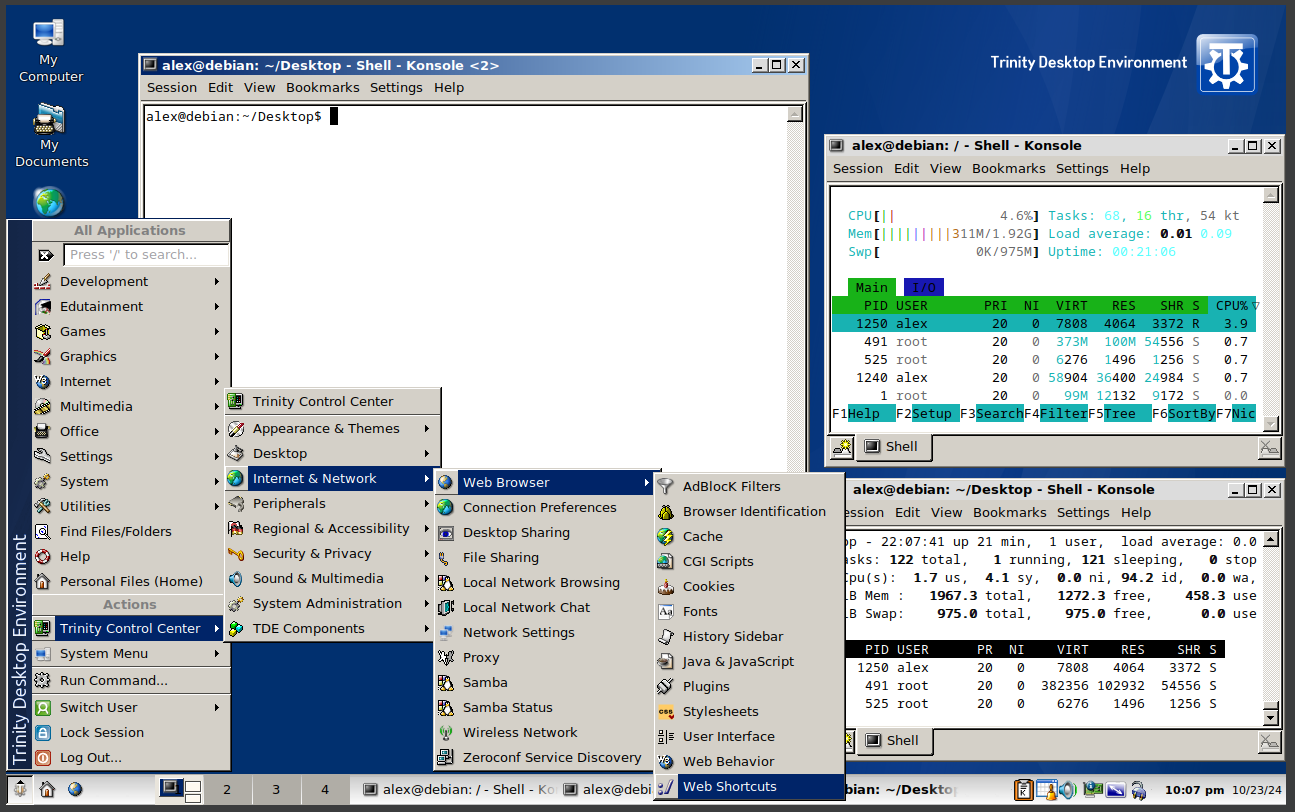
48. Running Trinity
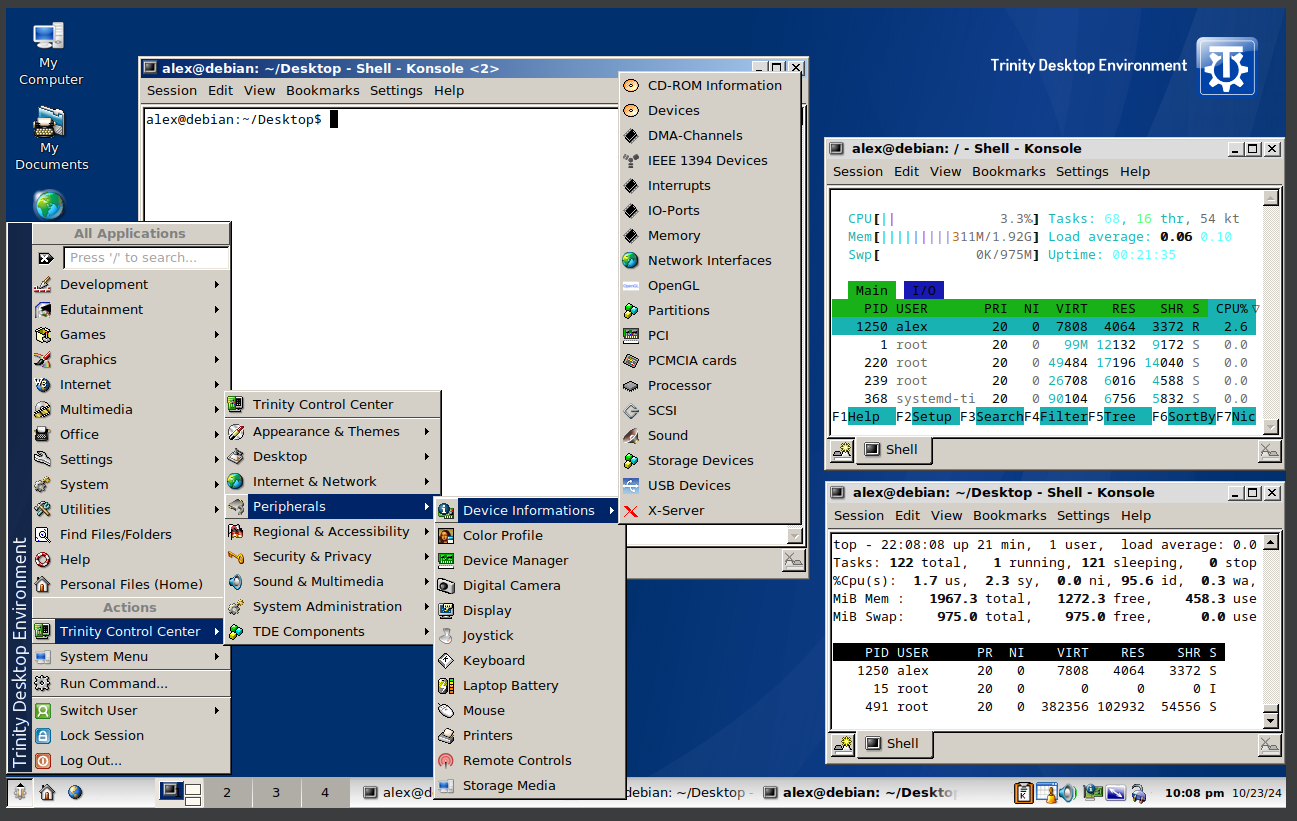
49. Running Trinity
50. Running Trinity
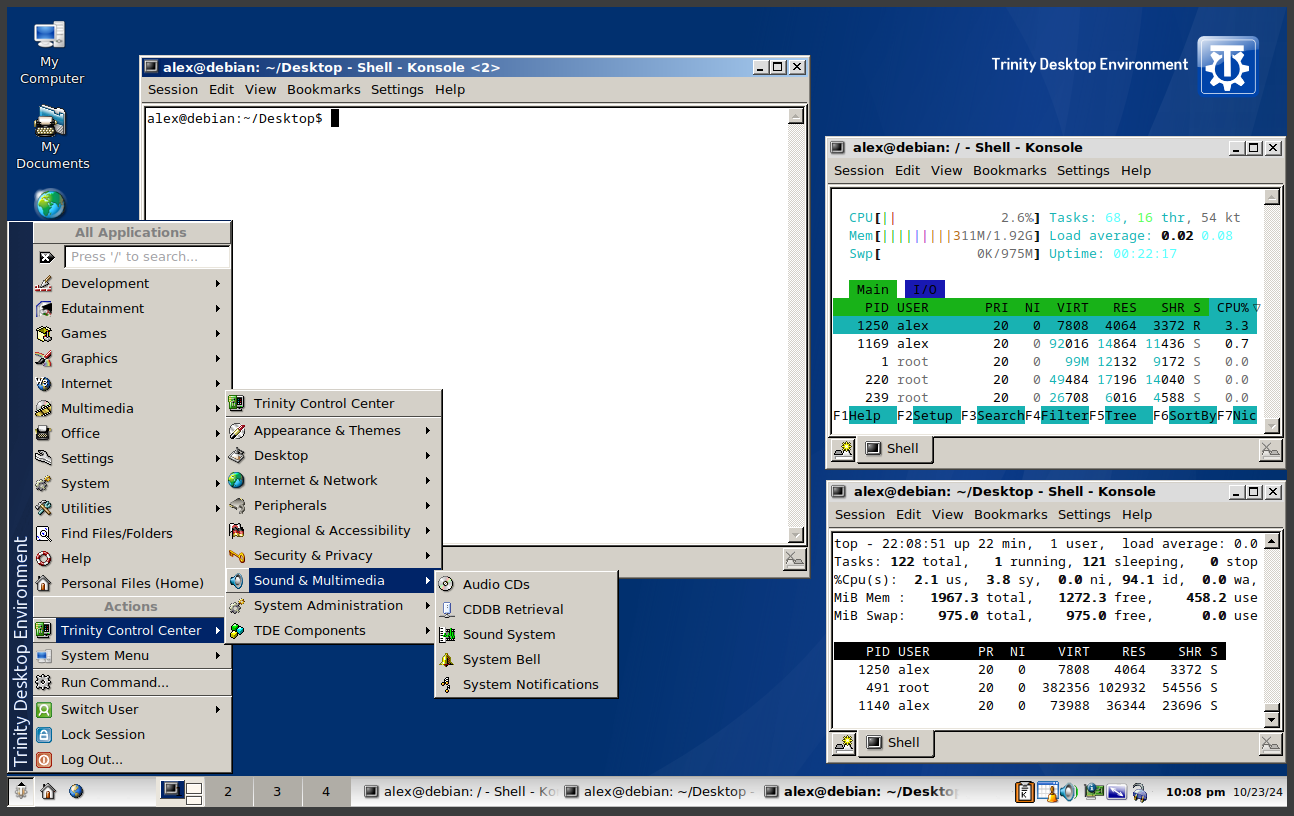
51. Running Trinity
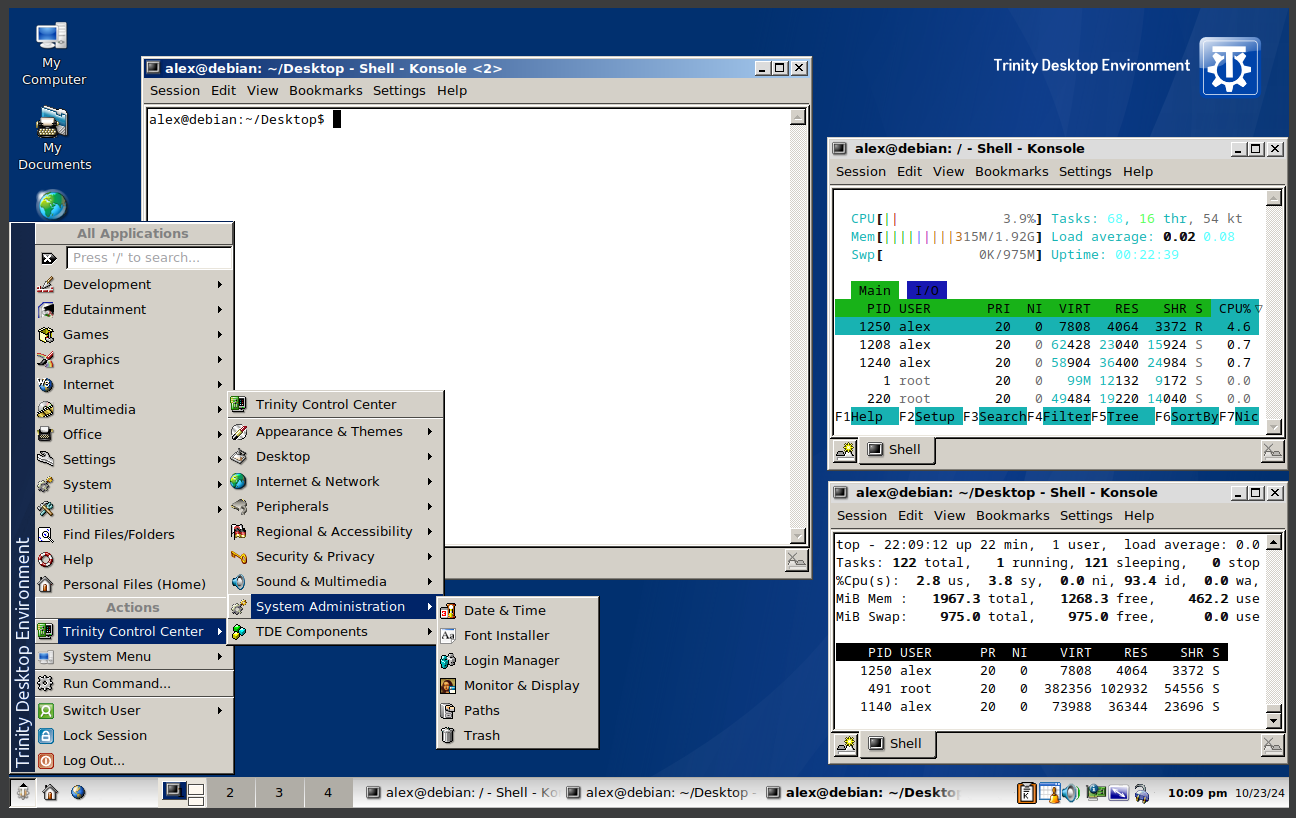
52. Running Trinity
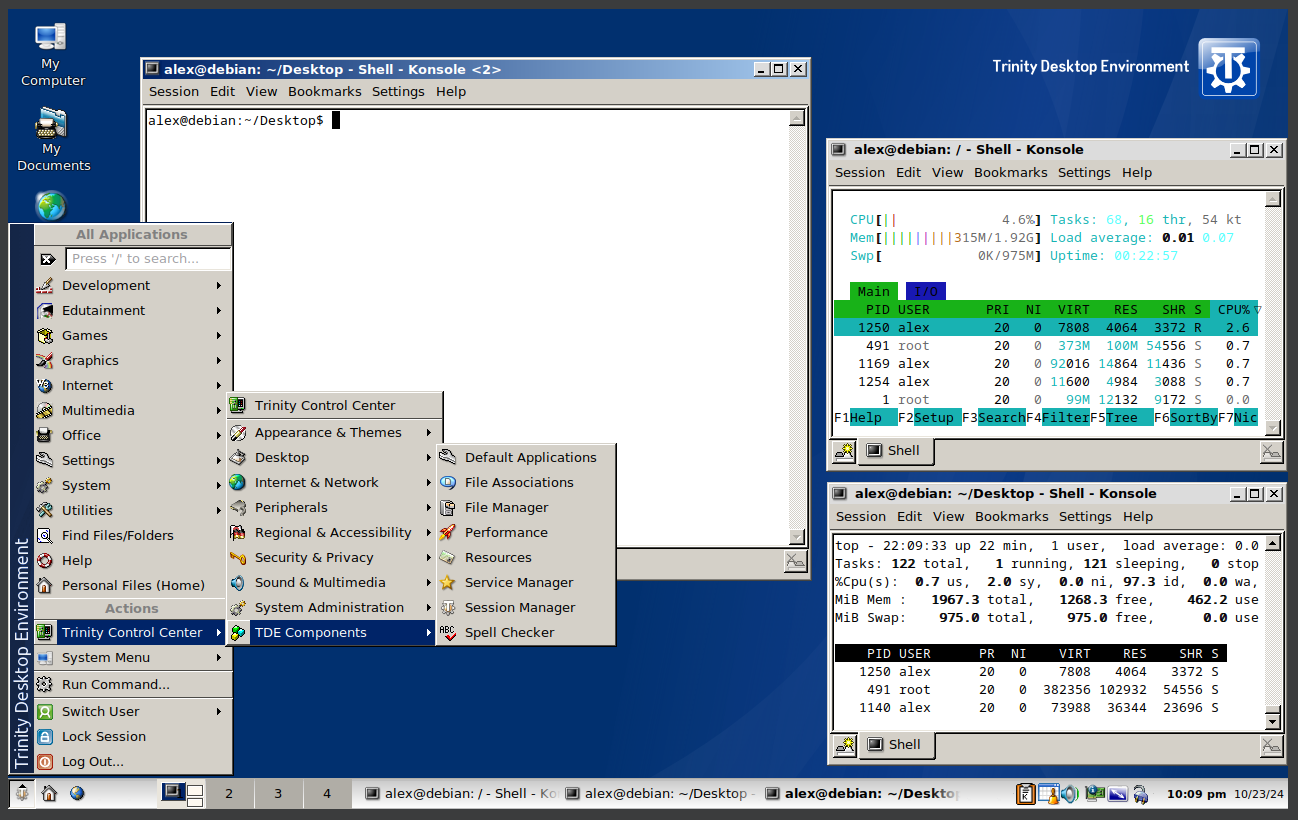
53. Running Trinity
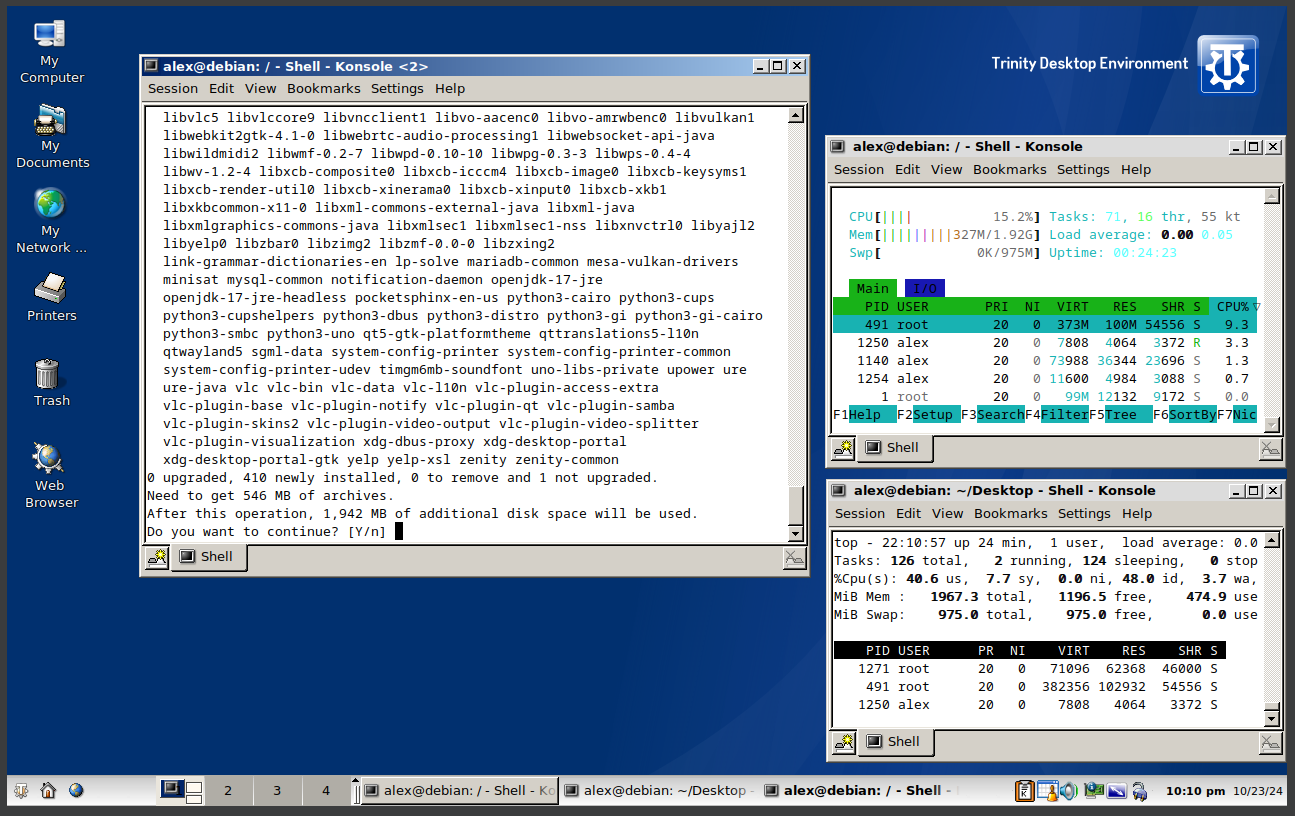
54. Running Trinity
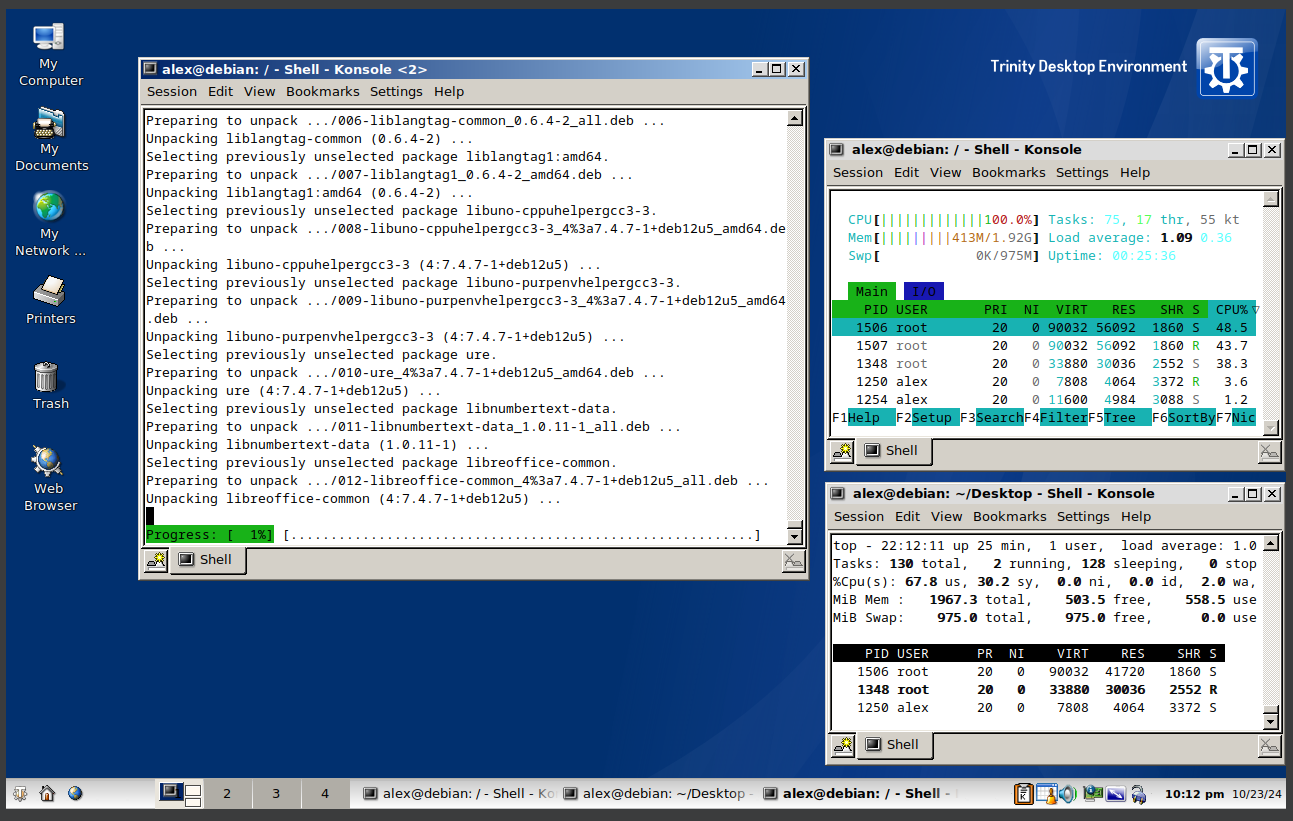
55. Running Trinity
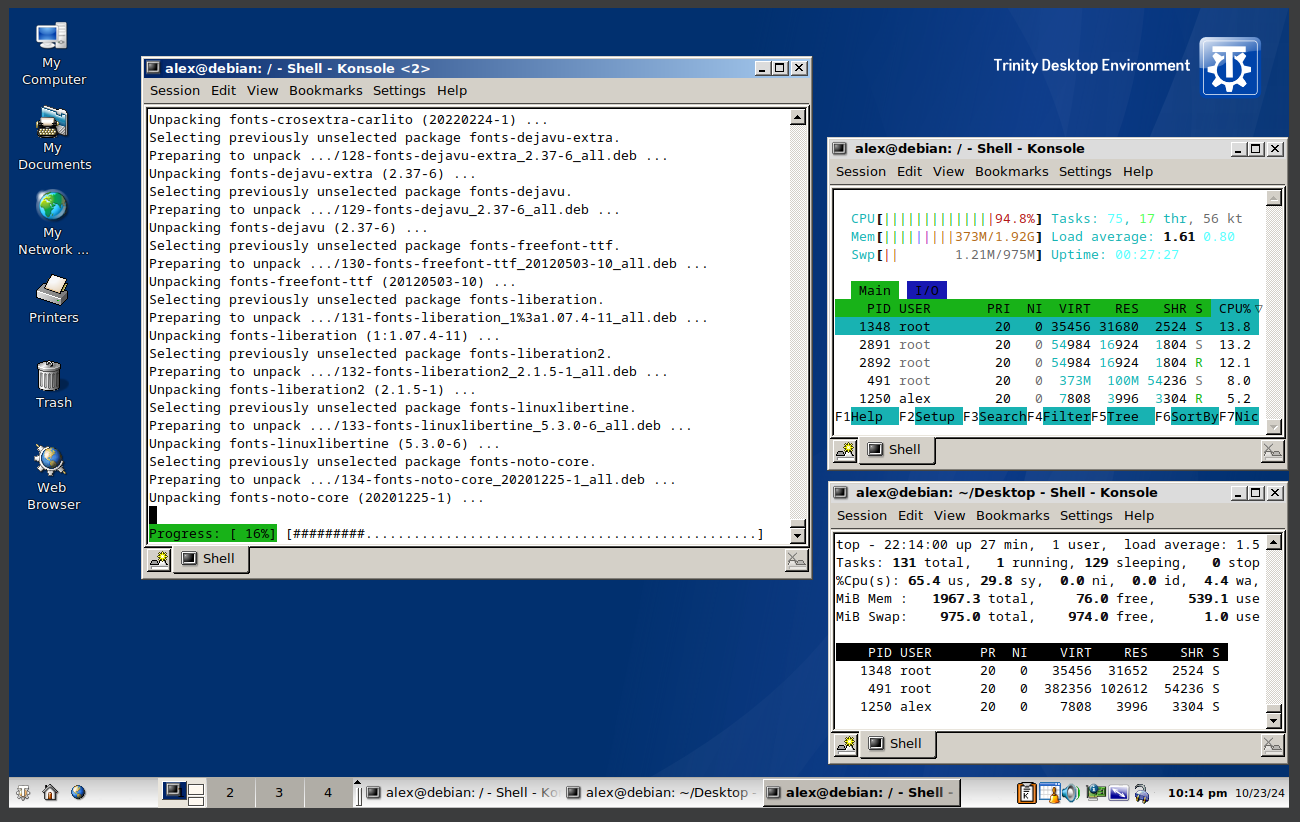
56. Running Trinity
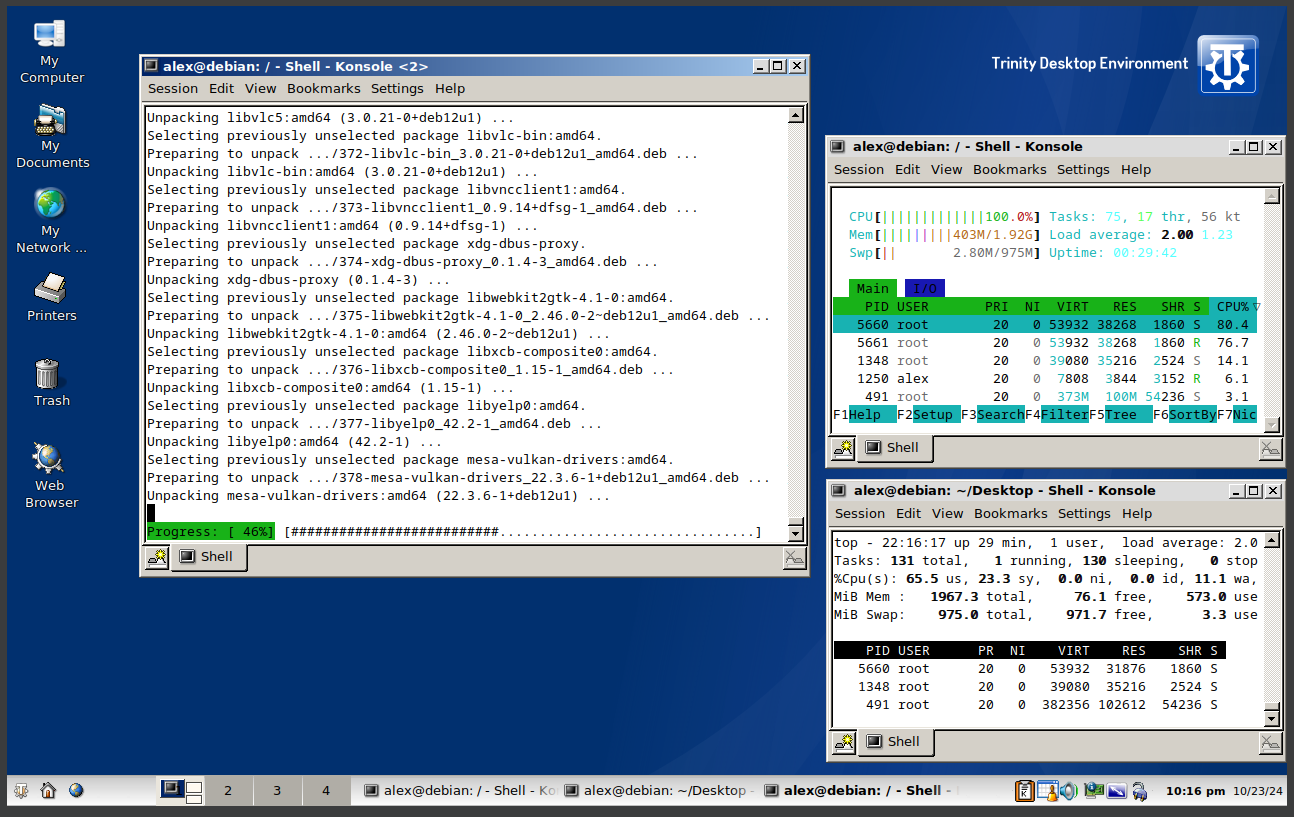
57. Running Trinity
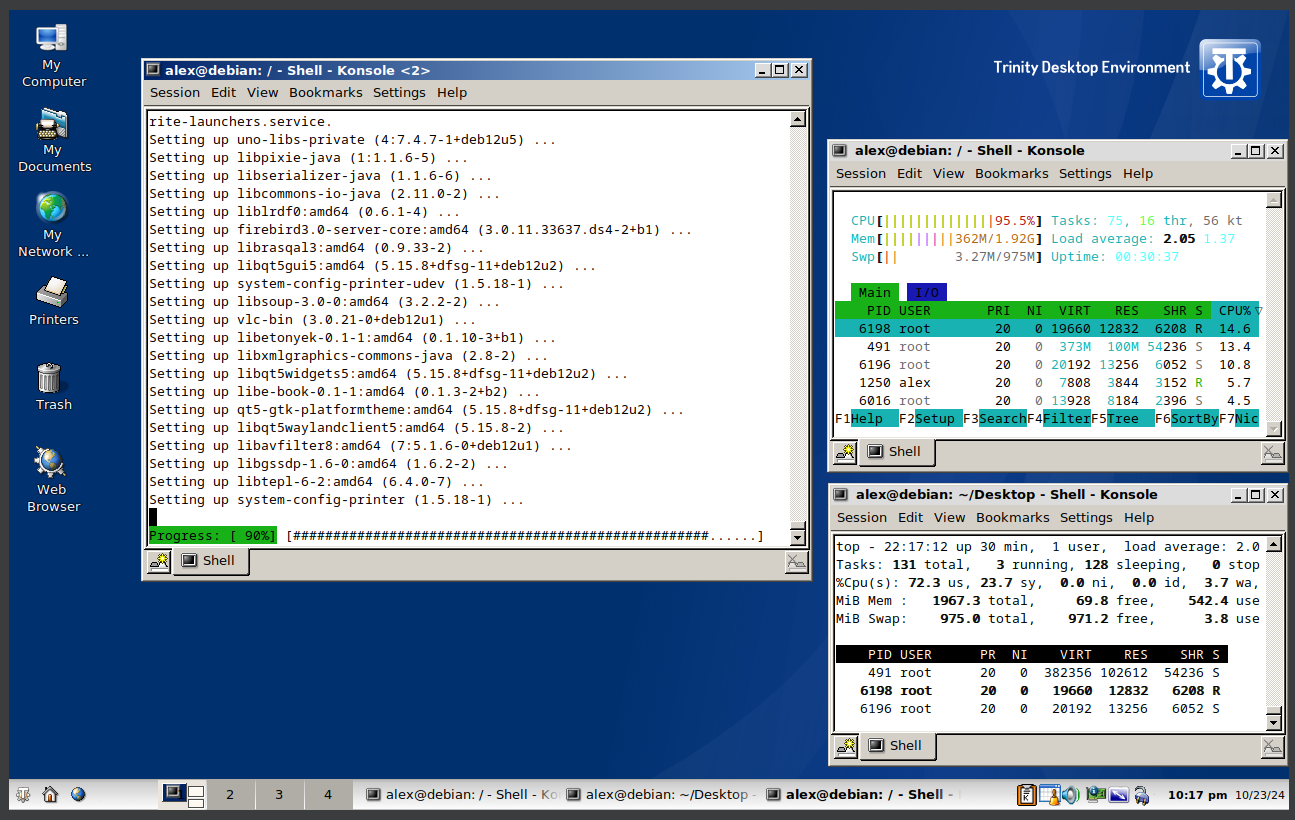
58. Running Trinity
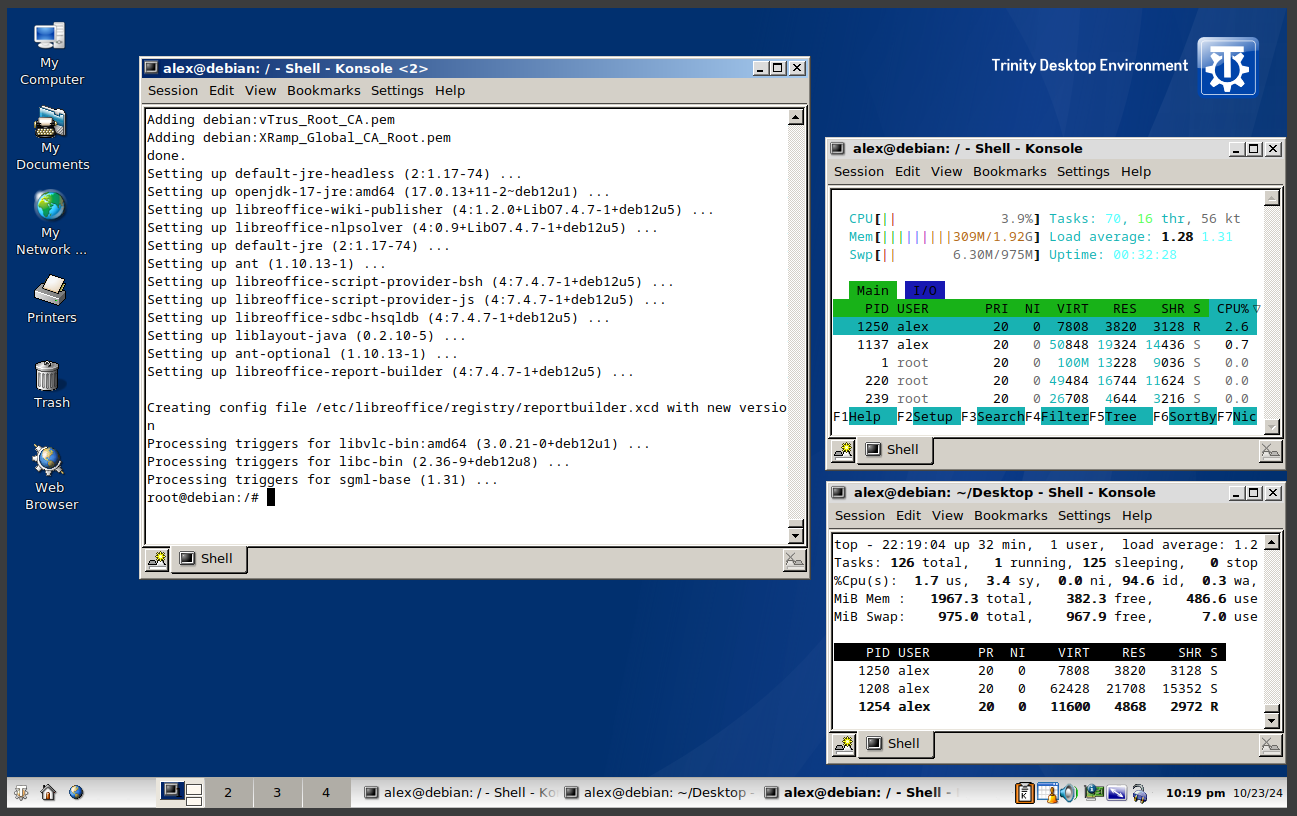
59. Running Trinity
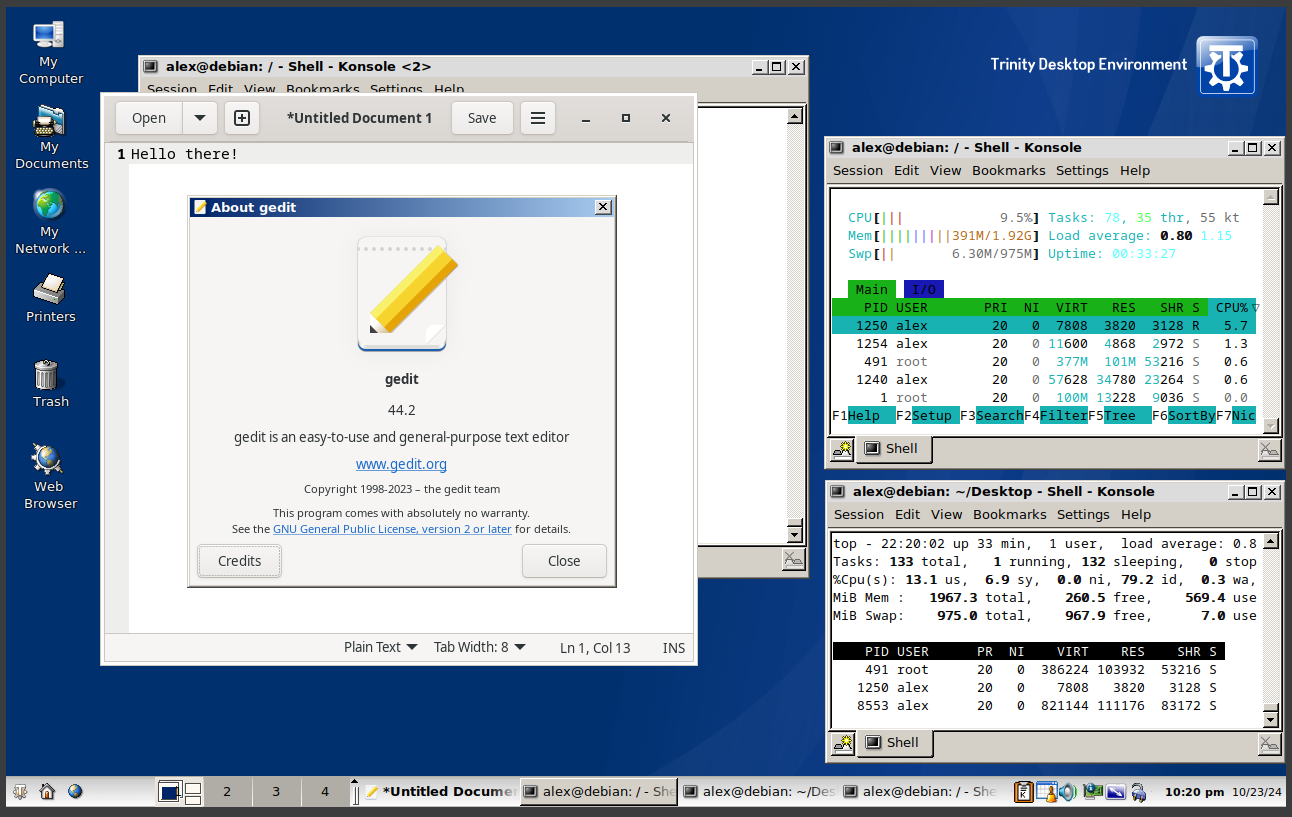
60. Running Trinity
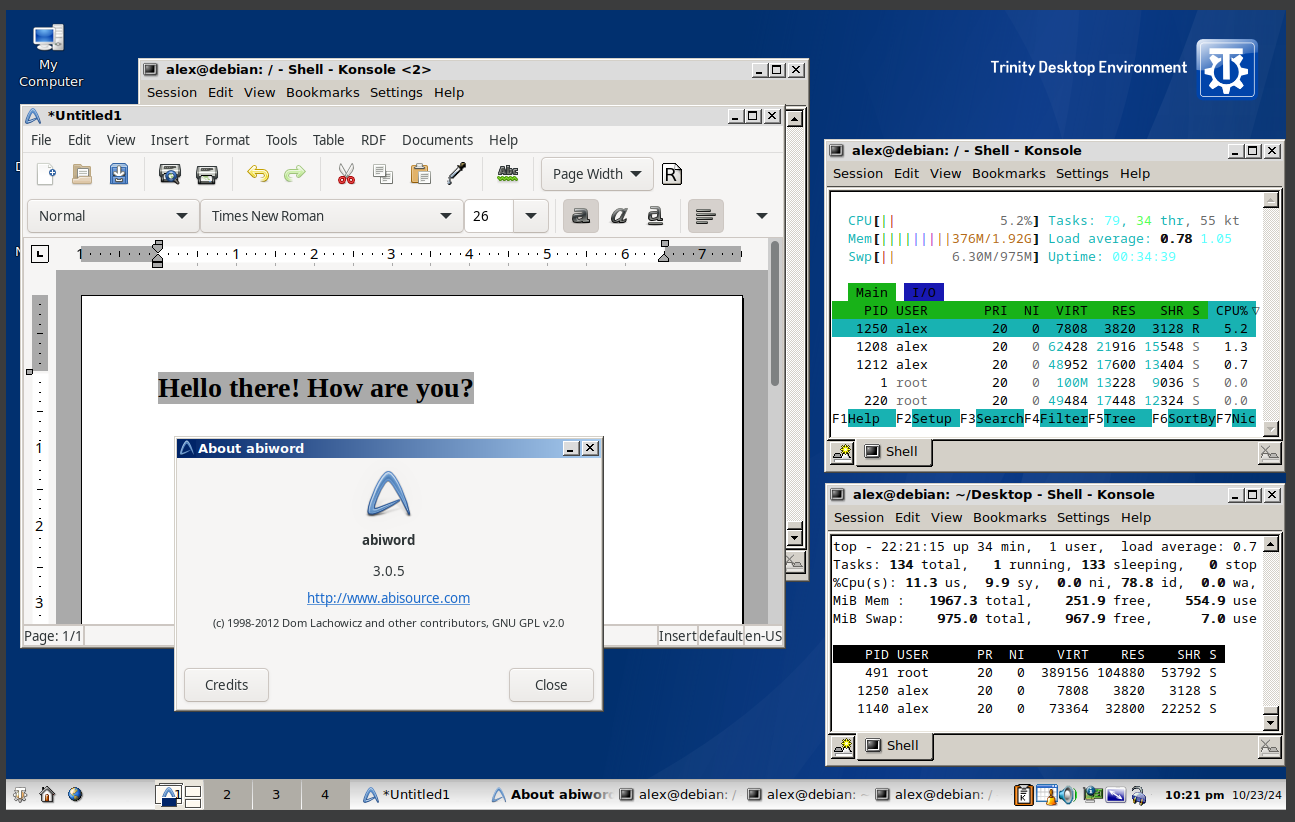
61. Running Trinity
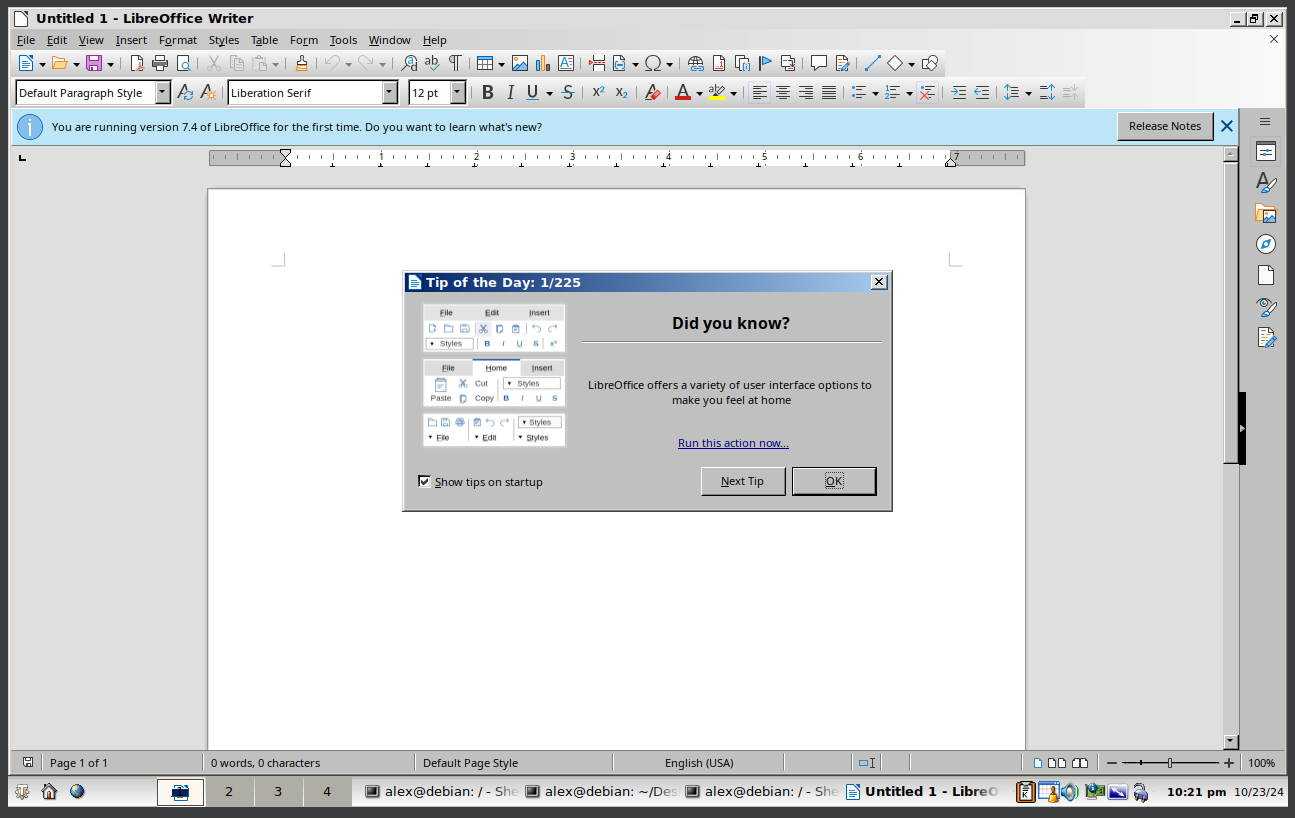
62. Running Trinity
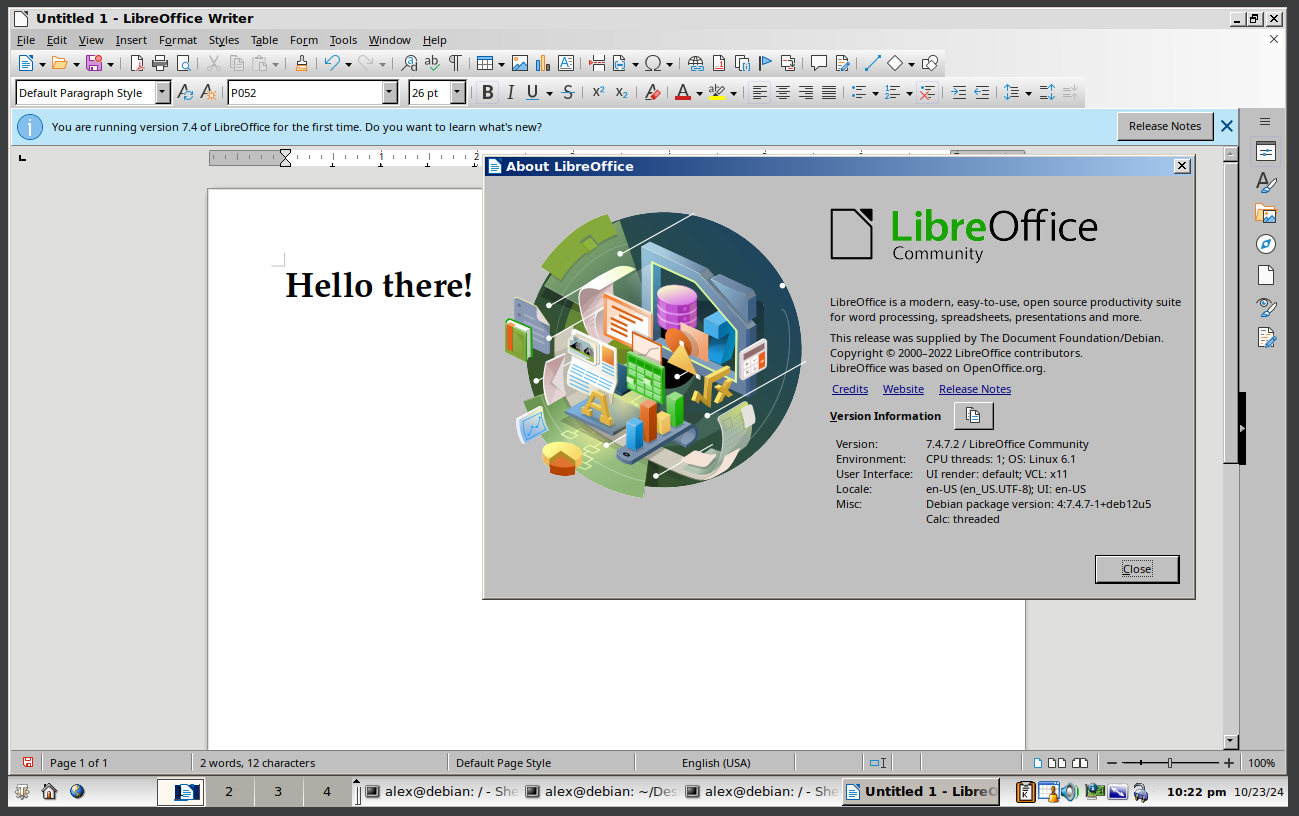
63. Running Trinity
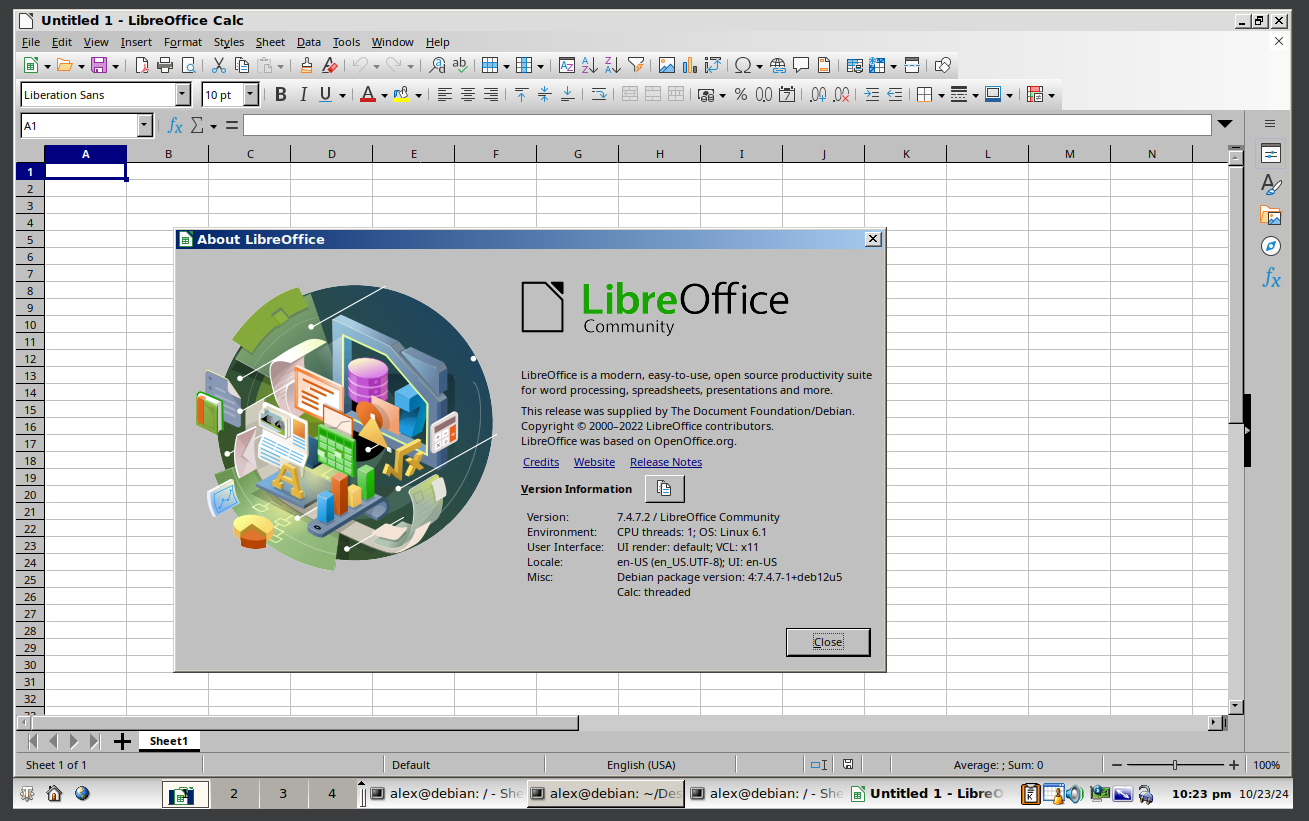
64. Running Trinity
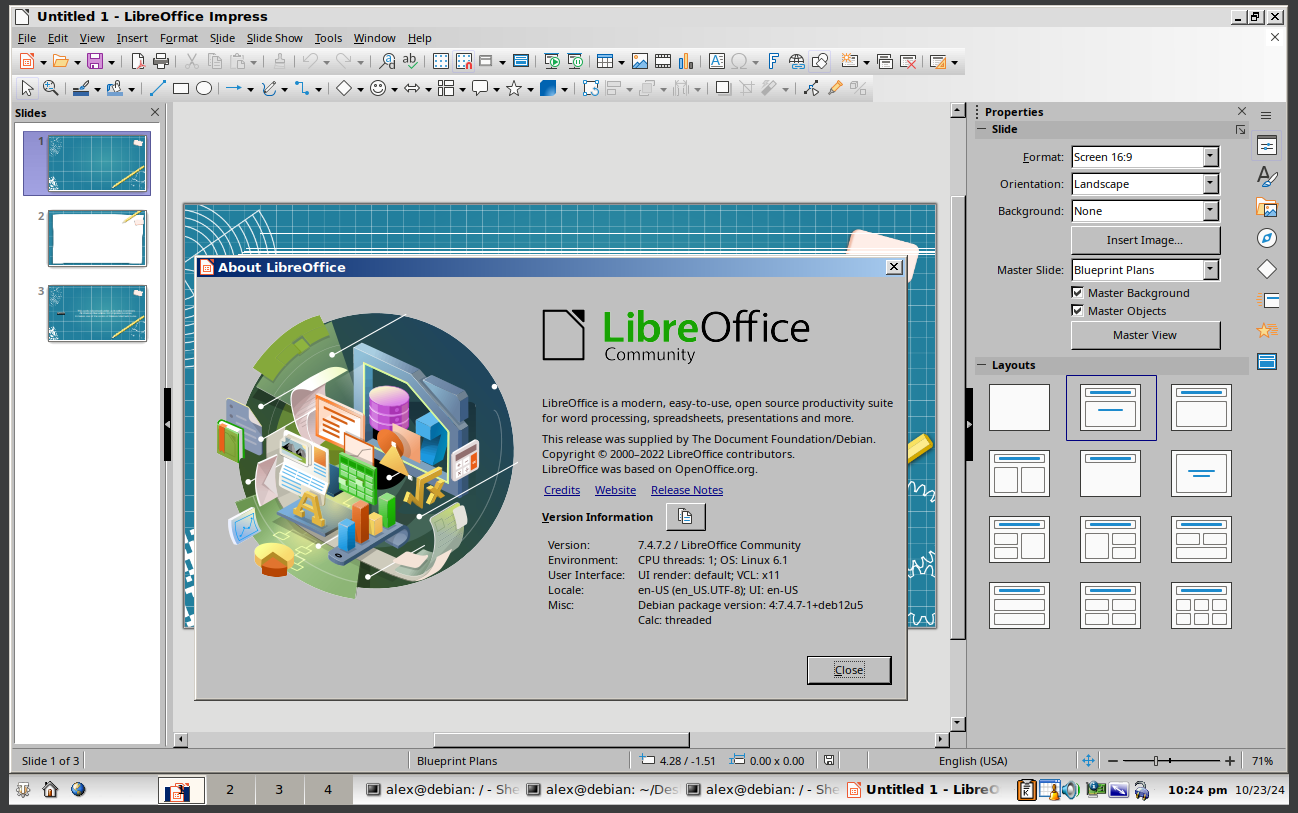
65. Running Trinity
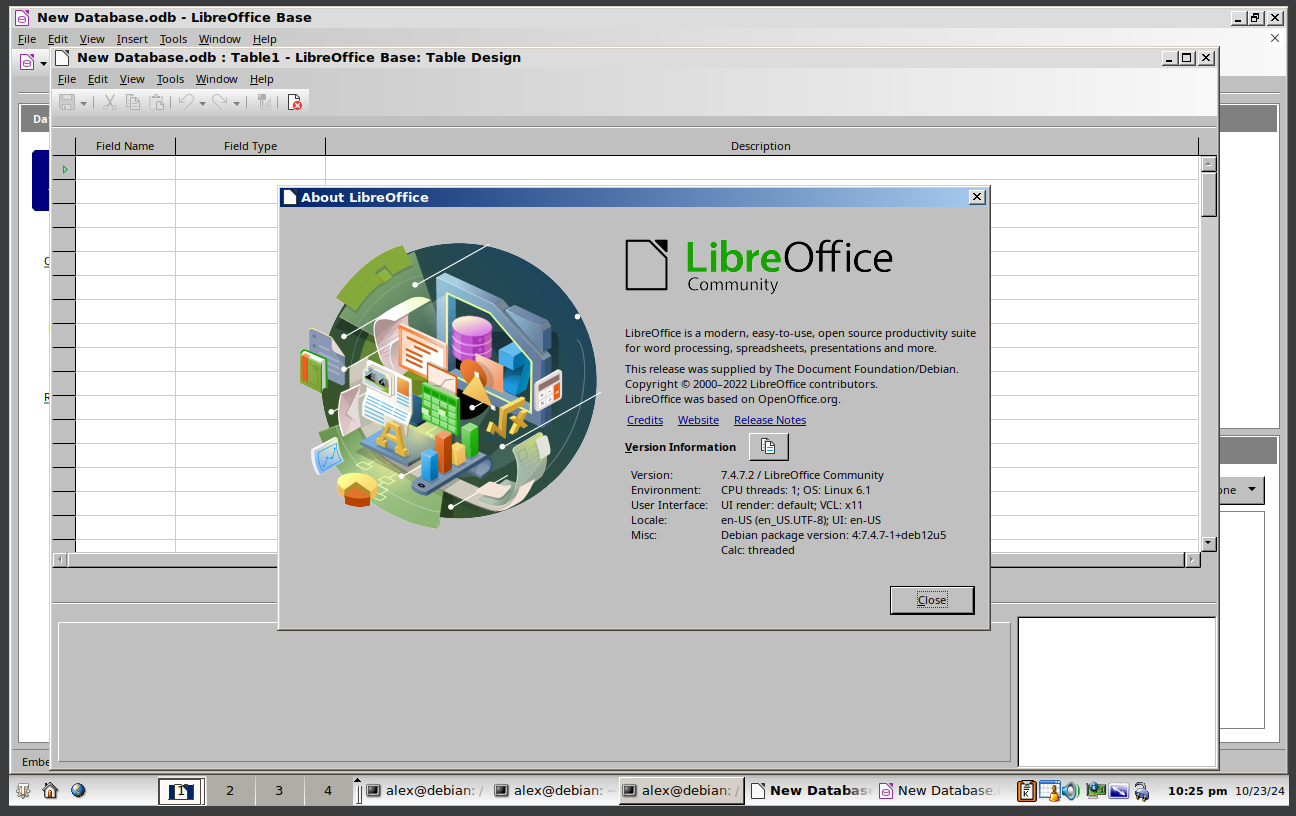
66. Running Trinity
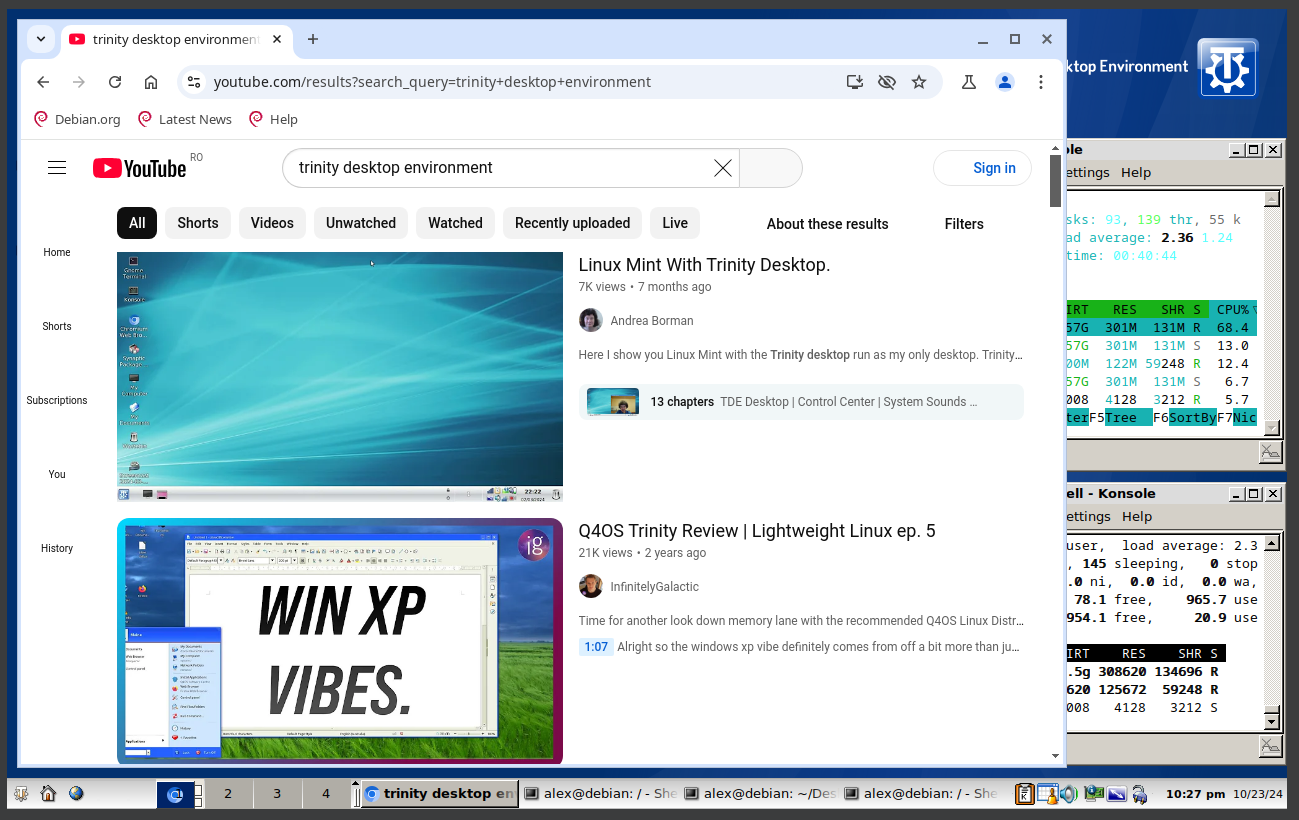
67. Running Trinity
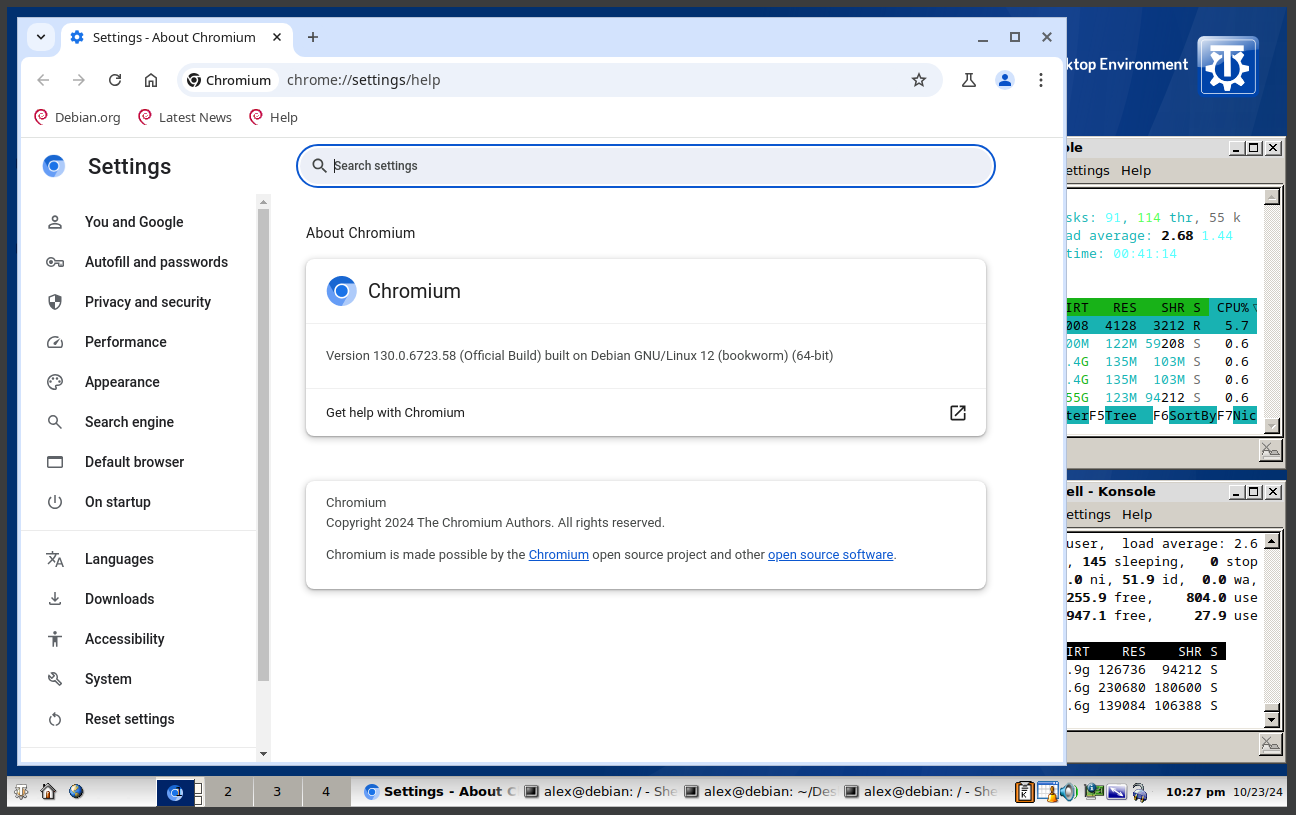
68. Running Trinity
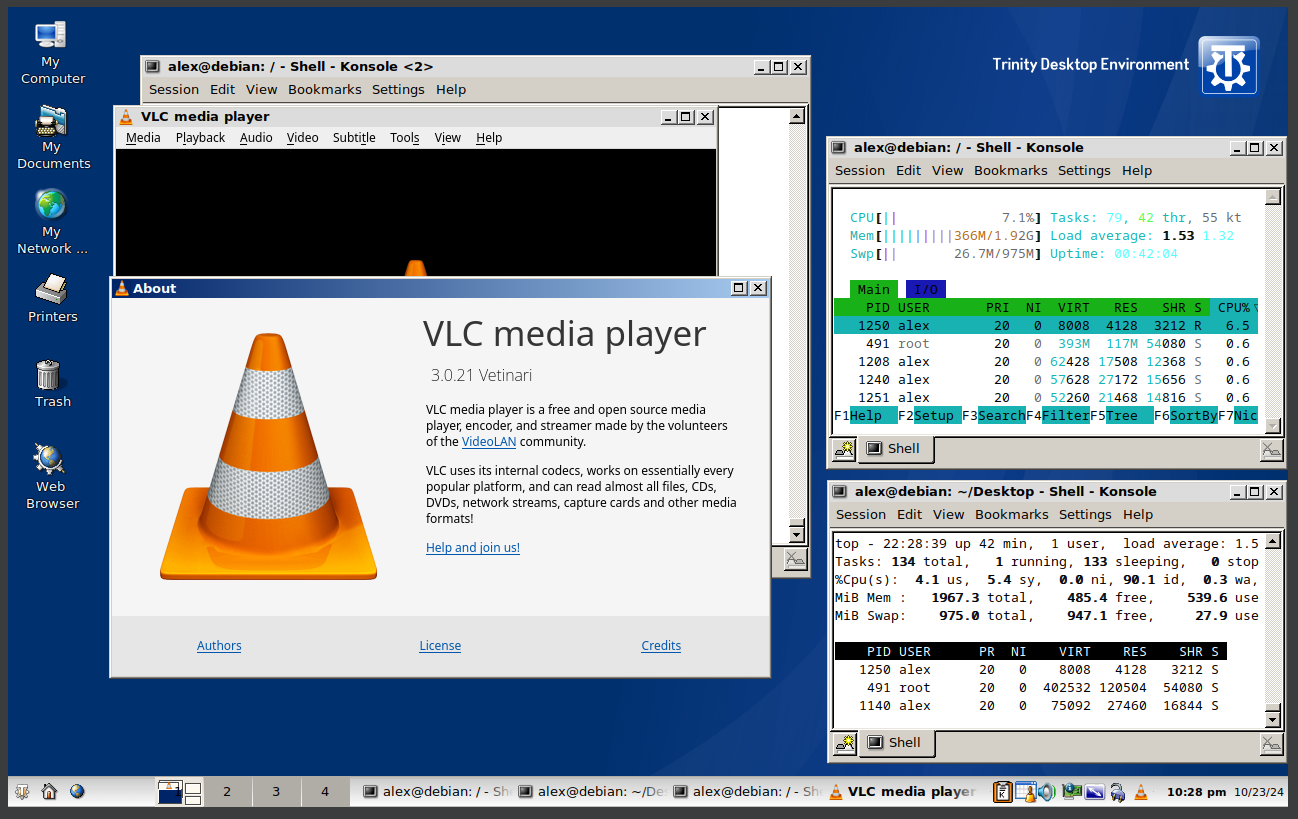
69. Running Trinity
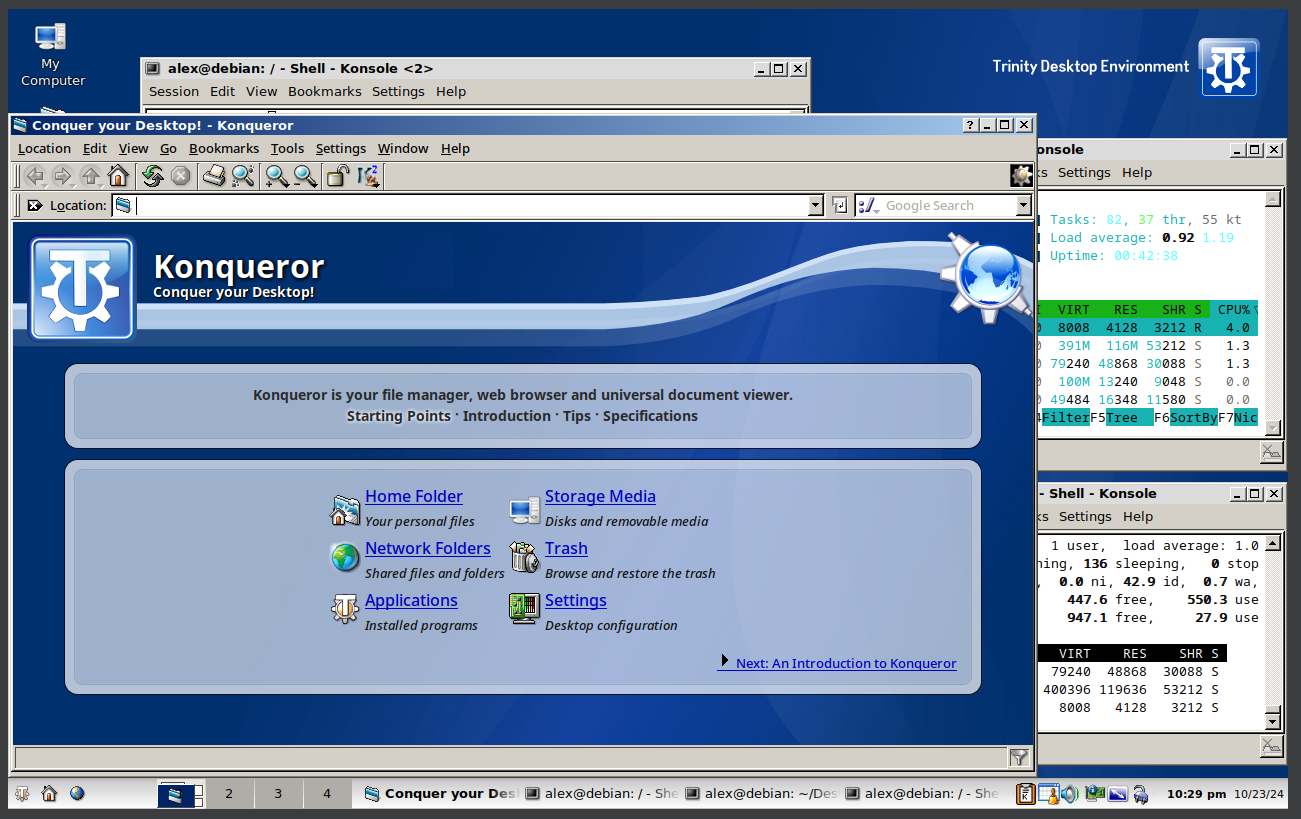
70. Running Trinity
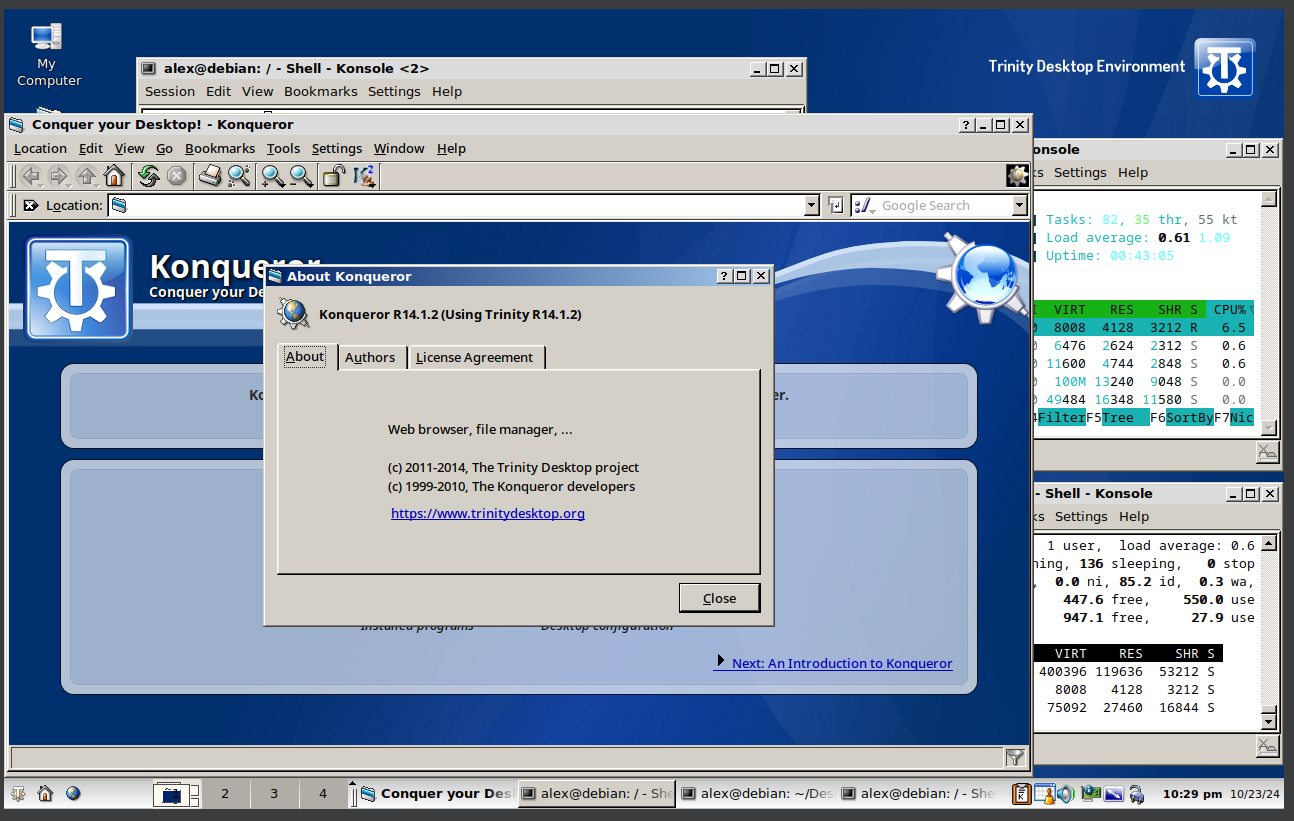
71. Running Trinity
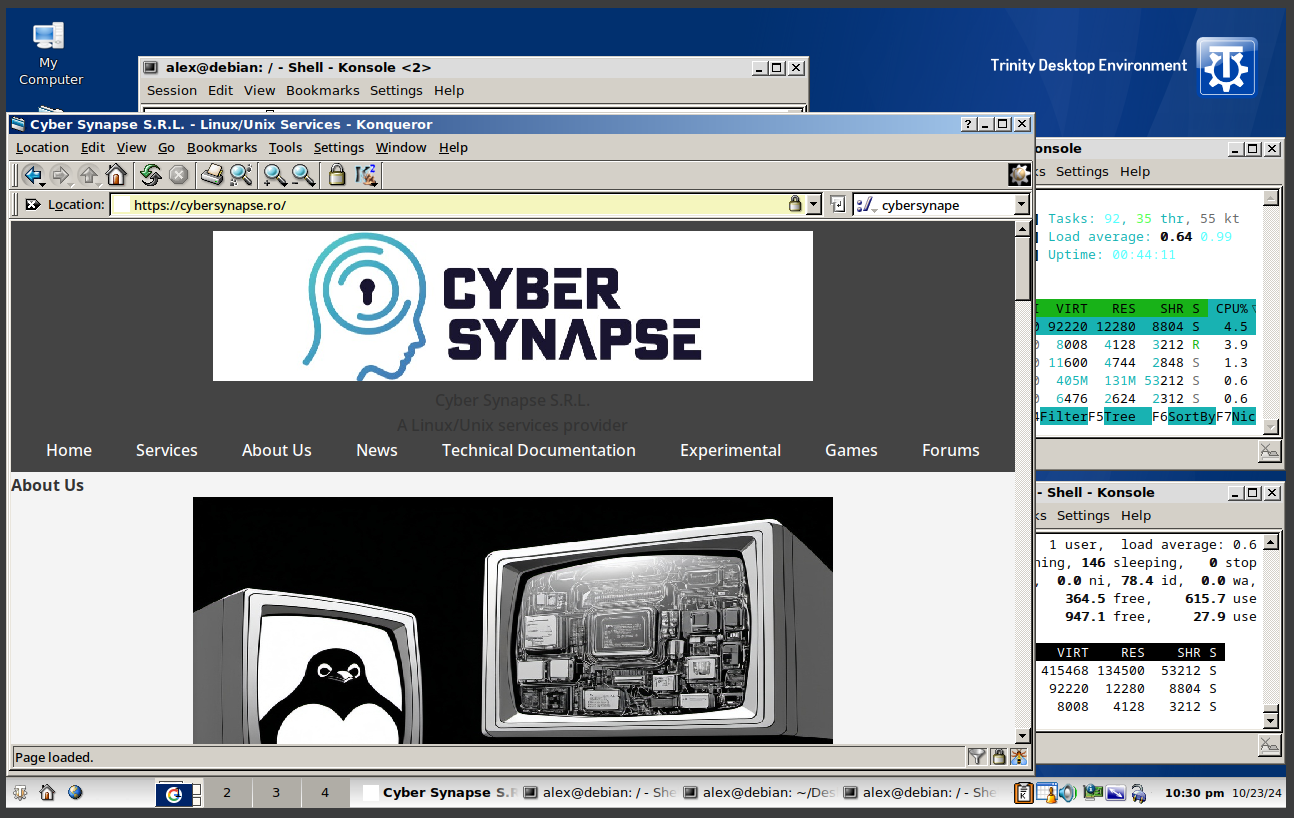
72. Running Trinity
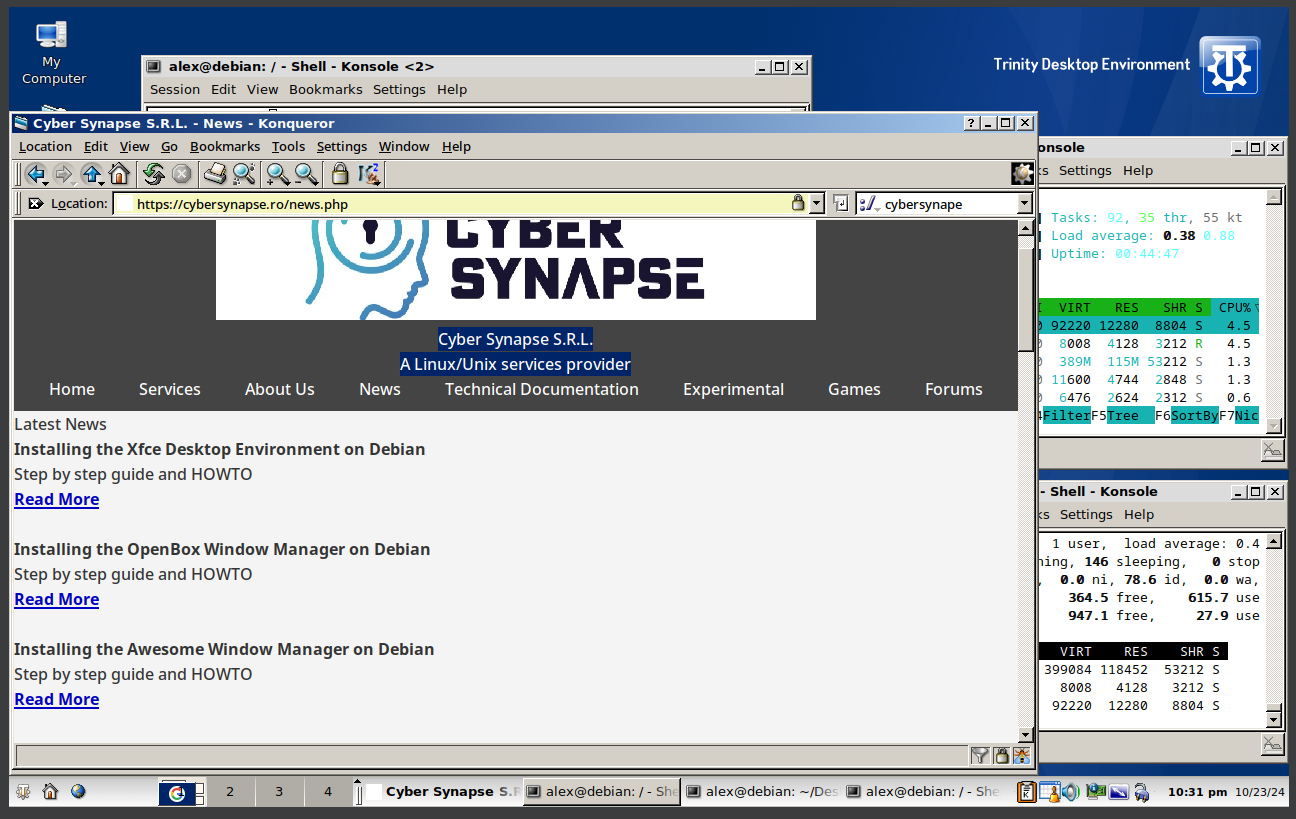
73. Running Trinity
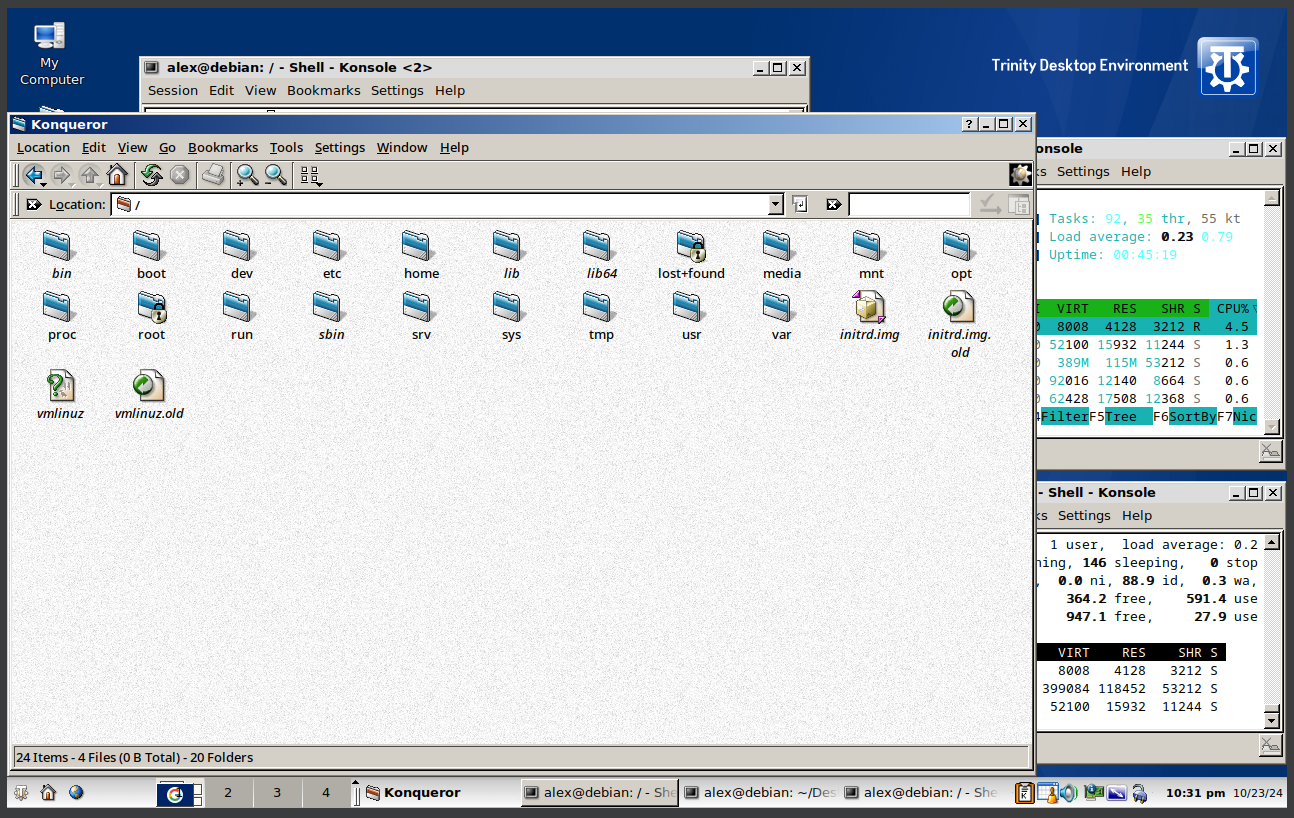
74. Running Trinity
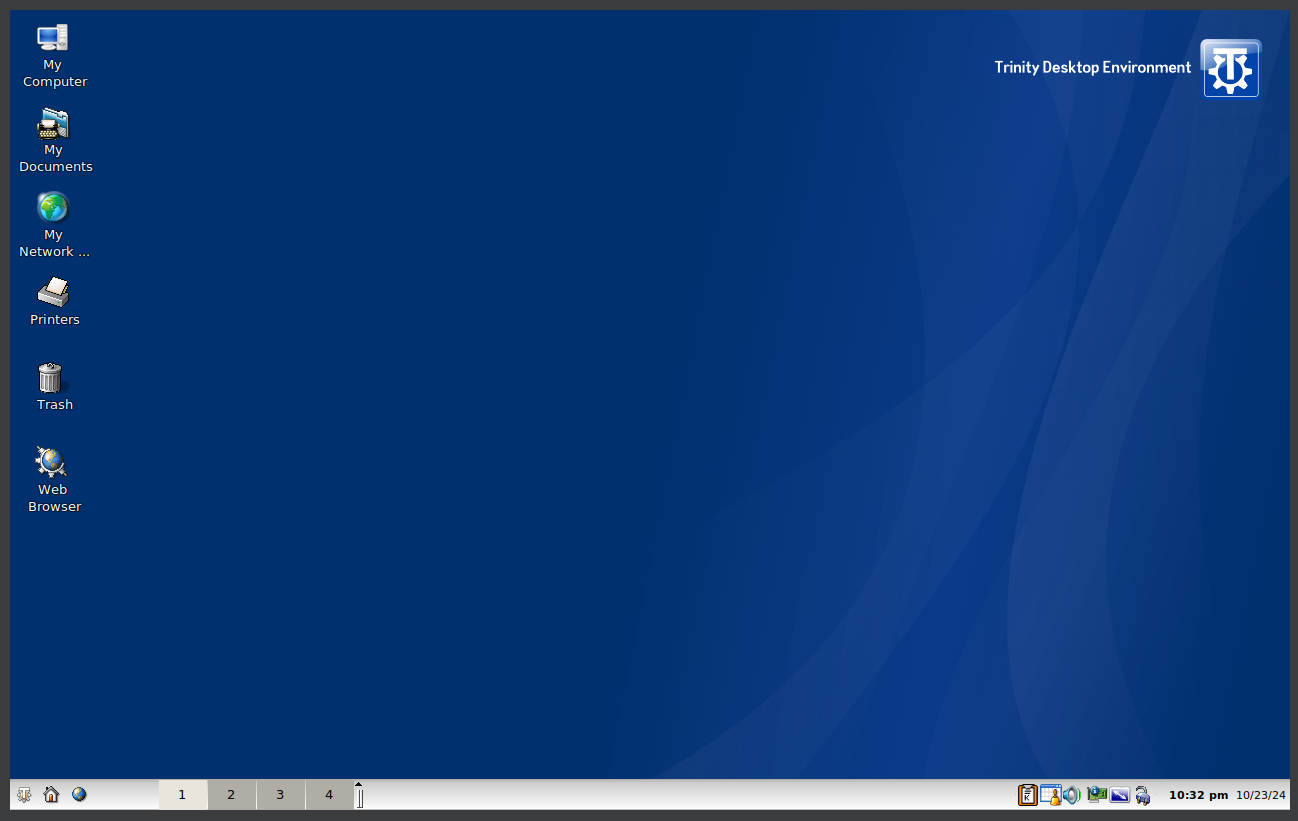
74. Running Trinity
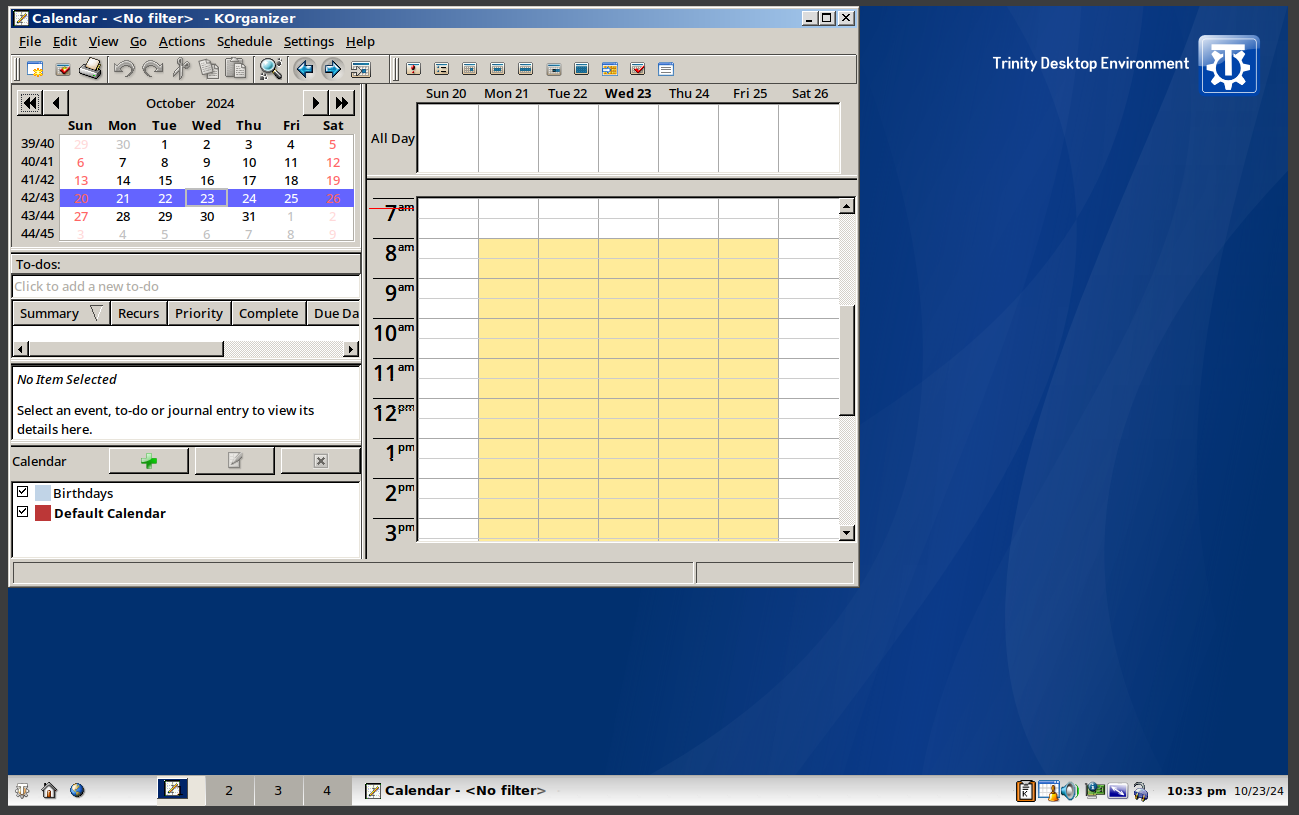
75. Running Trinity
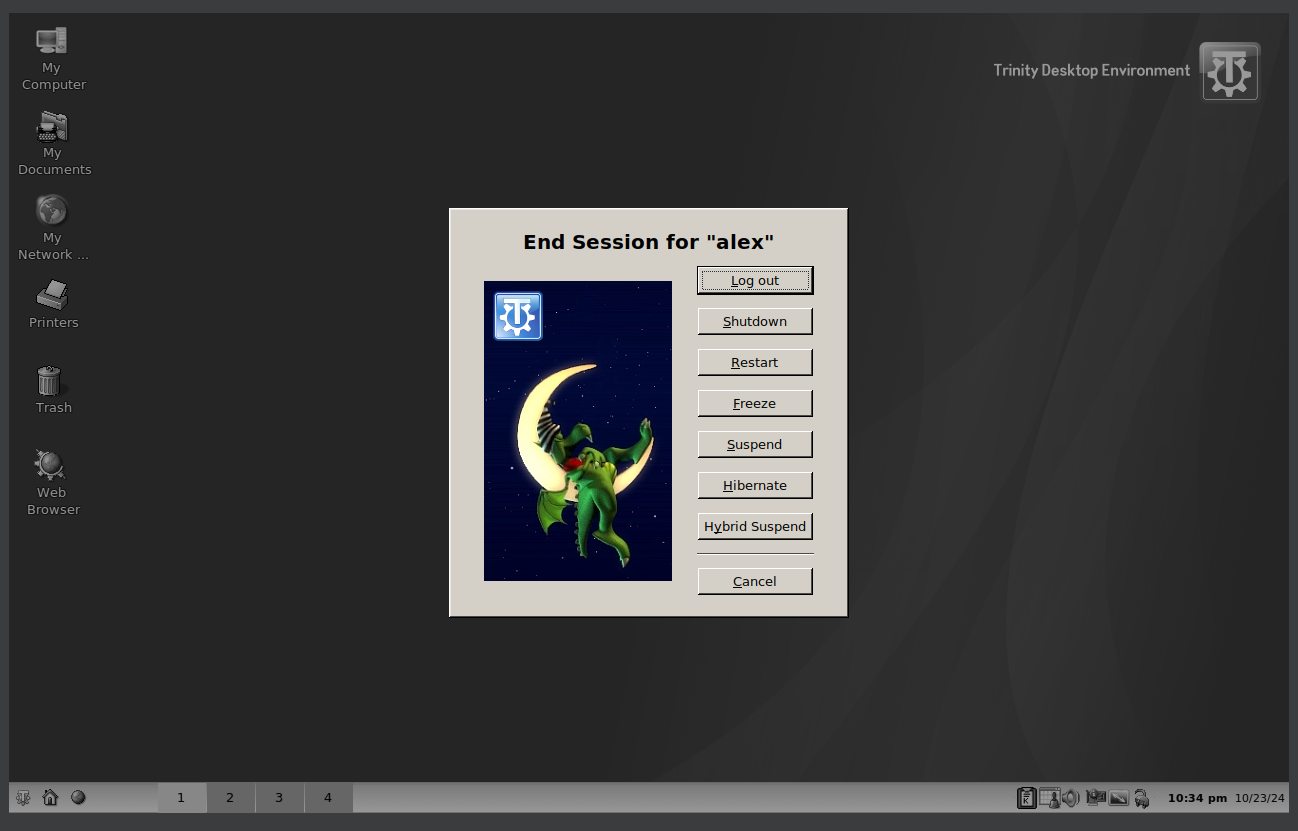
Well, that was exciting. See you in the next one!
If you wish to support our project
Donation link (Buy me a coffee):