
Installing the Ratpoison Window Manager on Debian
Step by step guide and HOWTO
Debian Linux is wonderful for its stability, making it ideal for servers and long-term projects.
It has a vast repository of software, offering thousands of packages, and it's open-source with a strong commitment to free software.
Today we shall install the Ratpoison Window Manager on Debian.
We need to complete several steps to get it working correctly.
1. Boot the system -- System Ready.

2. Boot the system -- Logged In.

3. Switch to root
su

4. Running update
apt-get update

5. Running 'apt install ratpoison'
apt install ratpoison

6. Running 'apt install ratpoison'

7. Running 'apt install xorg'
apt install xorg

8. Running 'apt install xorg'
apt install xorg

9. Running 'reboot'
reboot

10. Running 'startx usr/bin/ratpoison'
startx usr/bin/ratpoison

11. Configuration
nano ~/.ratpoisonrc

12. Configuration
bind x exec firefox

13. Adding dmenu package
apt install dmenu

14. Running Ratpoison

15. Running Ratpoison

16. Running Ratpoison

17. Running Ratpoison

18. Running Ratpoison

19. Running Ratpoison

20. Running Ratpoison

21. Running Ratpoison

22. Running Ratpoison
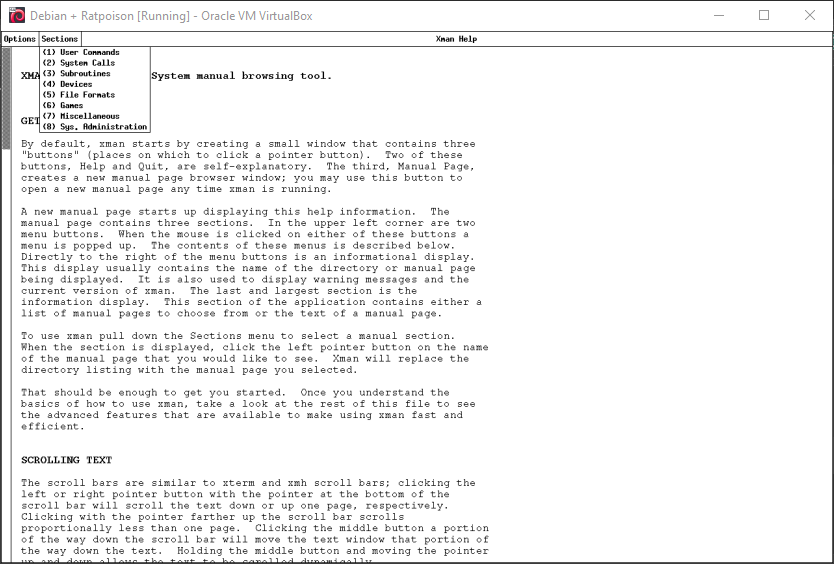
23. Running Ratpoison

24. Running Ratpoison

25. Running Ratpoison

26. Running Ratpoison

27. Running Ratpoison

28. Running Ratpoison
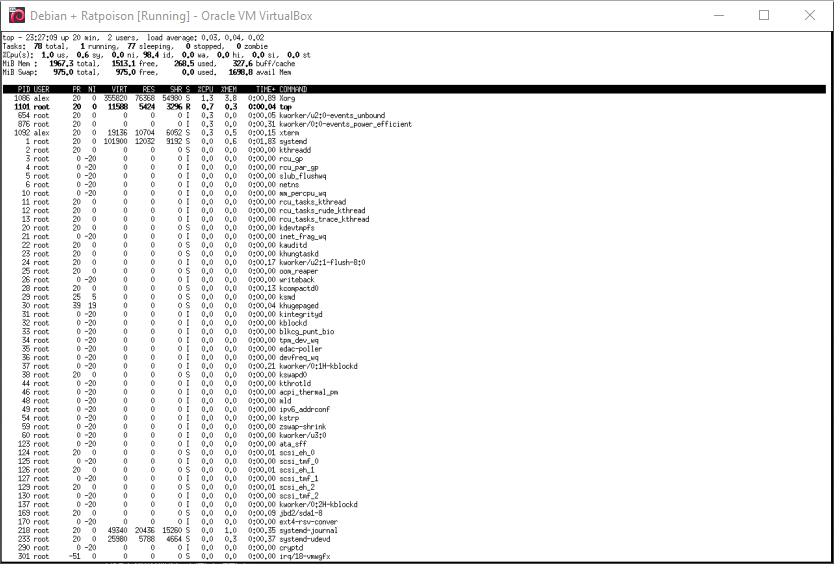
29. Running Ratpoison

30. Running Ratpoison

31. Running Ratpoison

32. Running Ratpoison

33. Running Ratpoison

34. Running Ratpoison

35. Running Ratpoison

36. Running Ratpoison

37. Running Ratpoison

38. Running Ratpoison

39. Running Ratpoison

40. Running Ratpoison

41. Shutting down the system

Using the Ratpoison Window Manager
The default key prefix is Ctrl-t, followed by other commands.
Ctrl-t c opens a new terminal window.
Ctrl-t k kills a window.
Ctrl-t : allows you to type commands directly.
You can run graphical applications within the Ratpoison environment by using these keybindings or launching them from a terminal.
To exit Ratpoison
Press Ctrl-t to invoke the Ratpoison command prefix.
Then, press : to bring up the command prompt.
Type quit and press Enter.
This will close the Ratpoison session and return you to your display manager (if you're using one) or the terminal.
Alternatively, you can also switch to a different terminal using Ctrl + Alt + F1 to log in and manage the system from there if necessary.
To launch xterm in Ratpoison
Press Ctrl-t to invoke Ratpoison's command mode (the default prefix).
Press ! (the exclamation point) to open a command prompt.
Type xterm and press Enter.
This will launch an xterm terminal window within the Ratpoison environment.
You can also bind the launch of xterm to a key combination for easier access.
Well, that was exciting. See you in the next one!
If you wish to support our project
Donation link (Buy me a coffee):