
Installing the OpenBox Window Manager on Debian
Step by step guide and HOWTO
Debian is one of the oldest and most influential distributions of the Linux operating system. It has a rich history and is known for its stability, extensive software repositories, and strong commitment to free software principles.
Today we shall install the OpenBox Window Manager on Debian.
We need to complete several steps to get it working correctly.
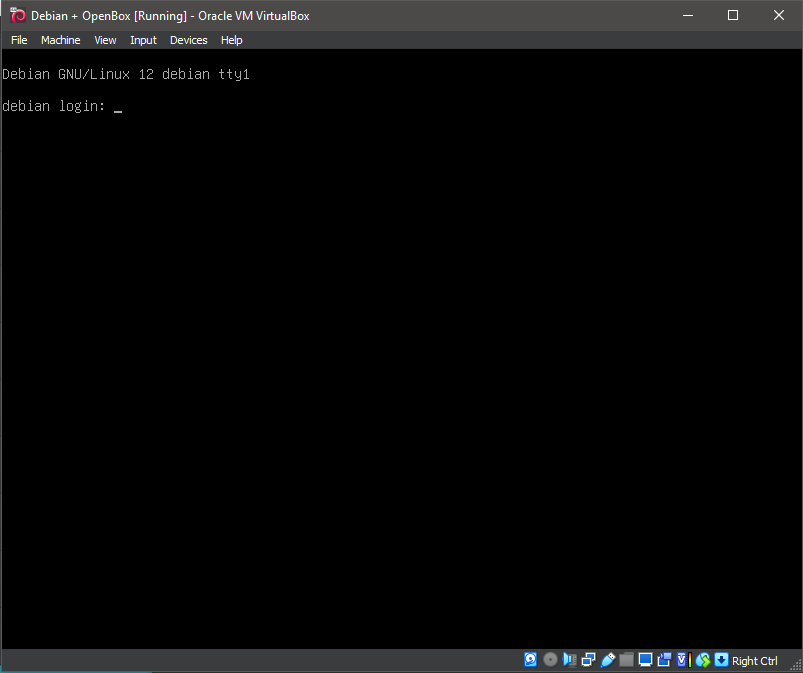
1. Boot the system -- System Ready.
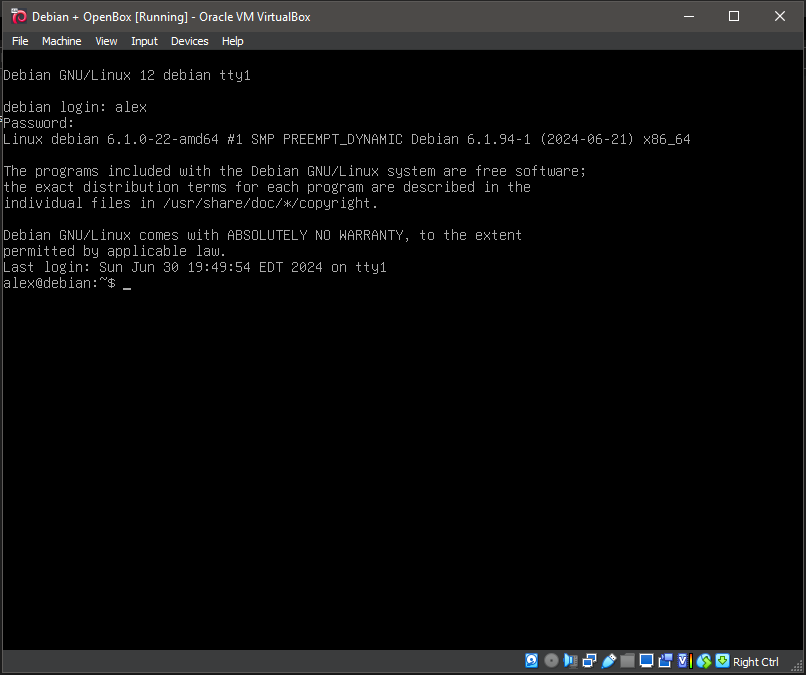
2. Boot the system -- Logged In.
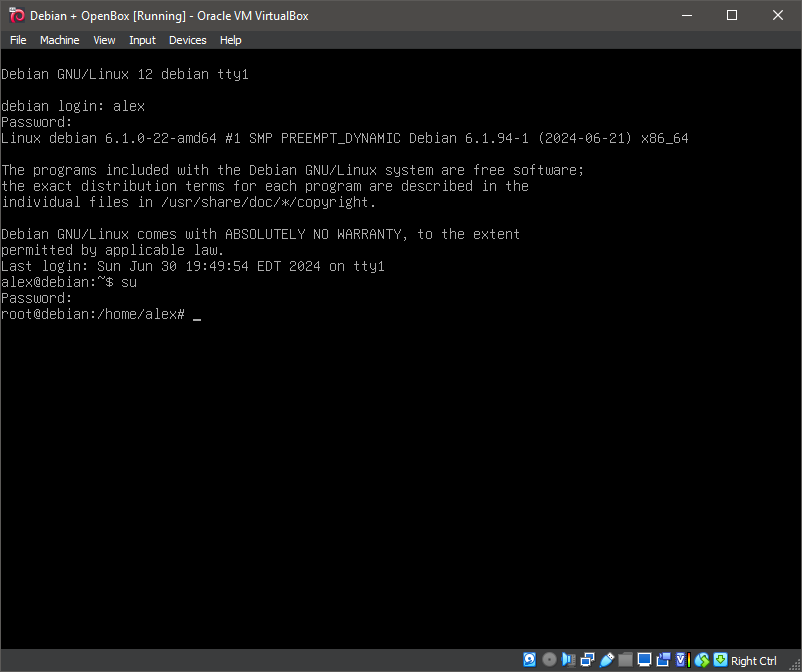
3. Switch to root
su
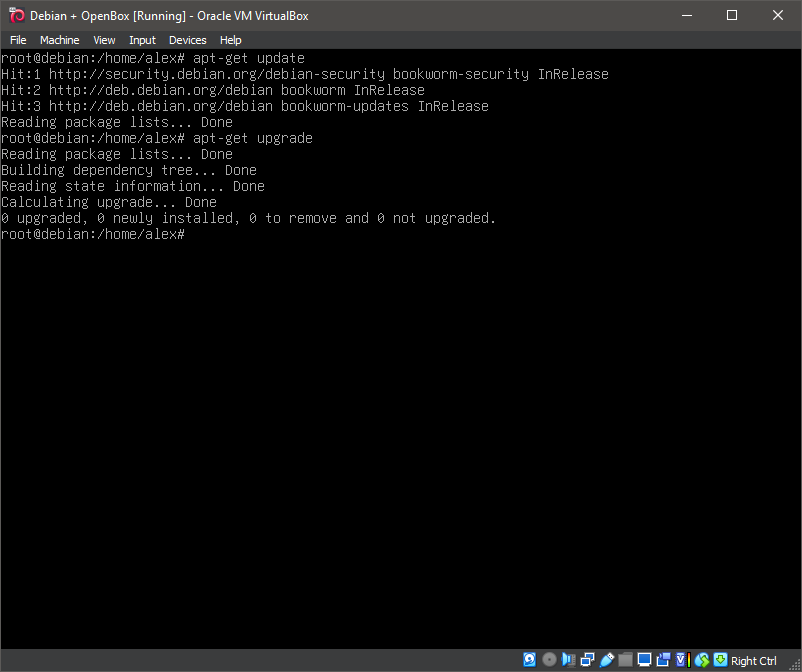
4. Running update
apt-get update
5. Running 'apt install openbox obconf'
apt install openbox obconf
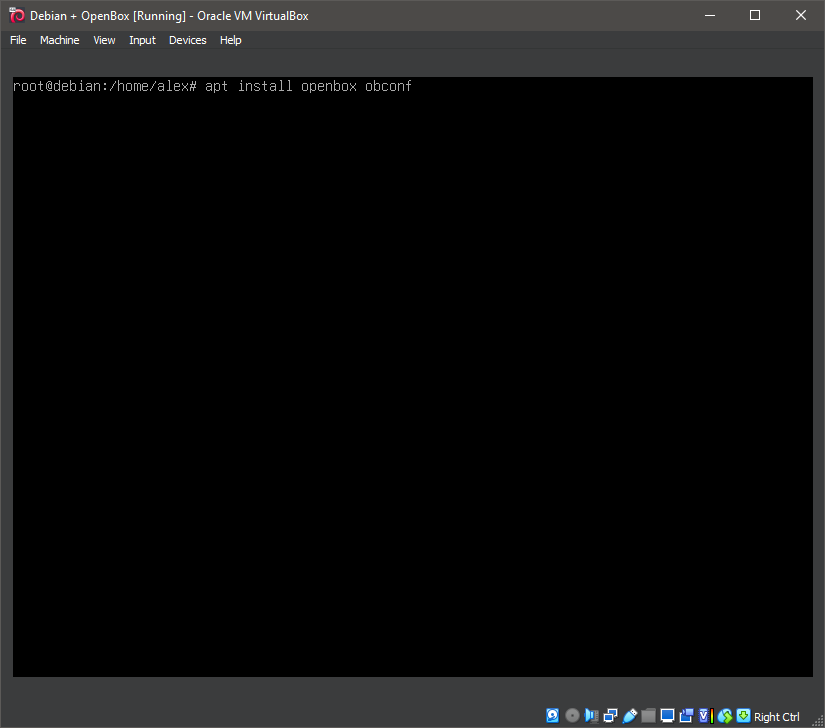
6. Running 'apt install openbox obconf'
apt install openbox obconf
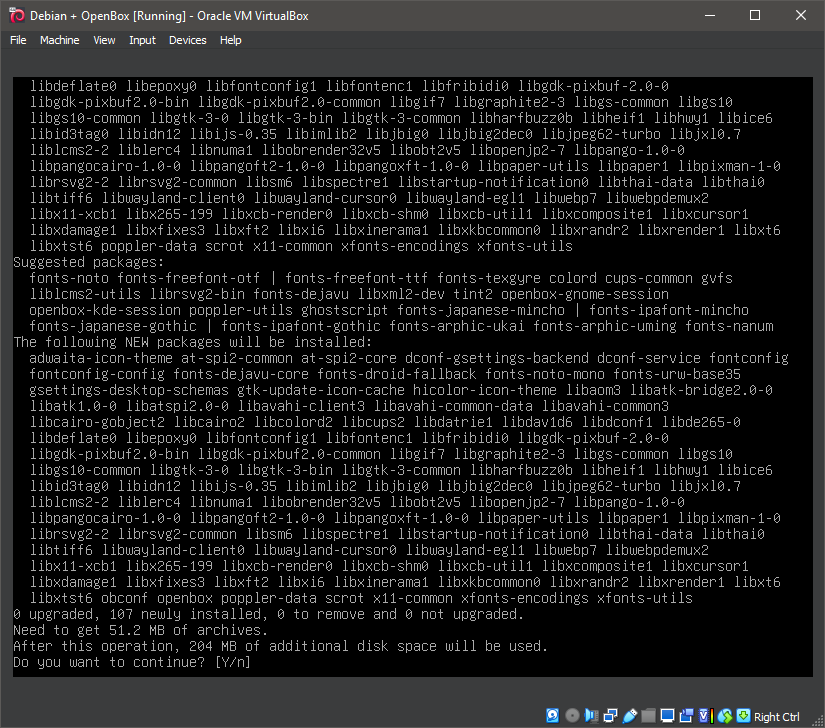
7. Running 'apt install openbox obconf'
apt install openbox obconf
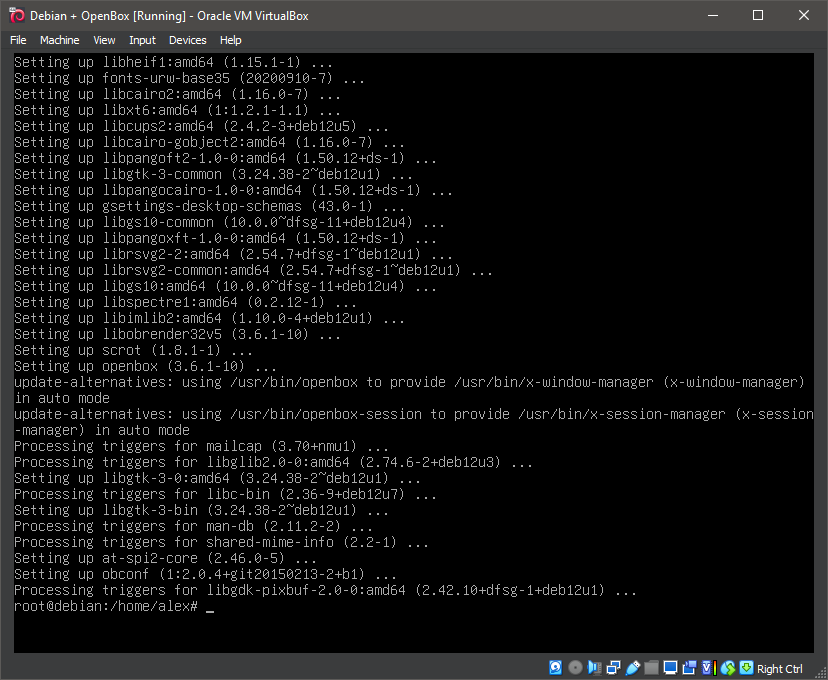
8. Running 'apt install tint2 lxappearance xcompmgr'
apt install tint2 lxappearance xcompmgr
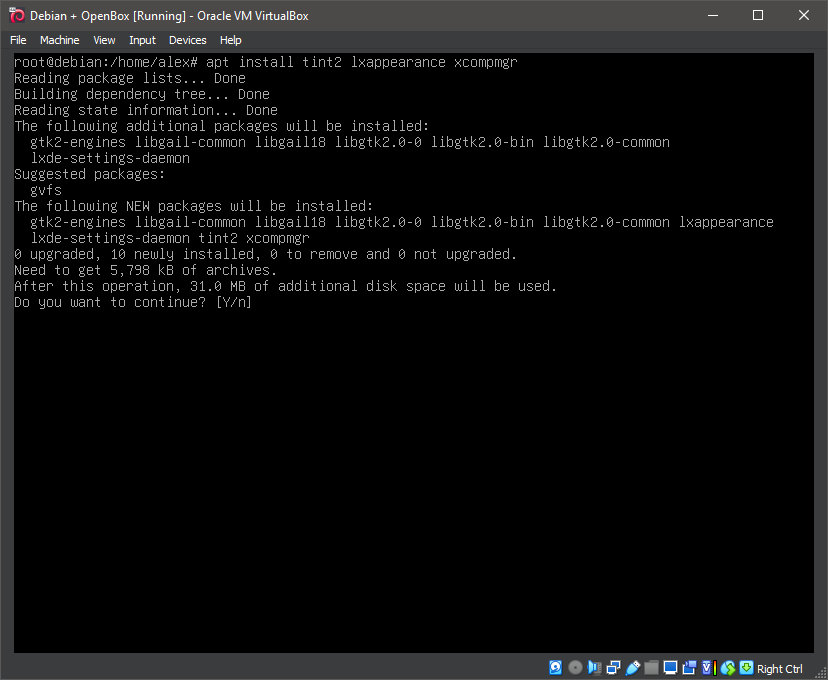
9. Running 'apt install tint2 lxappearance xcompmgr'
apt install tint2 lxappearance xcompmgr
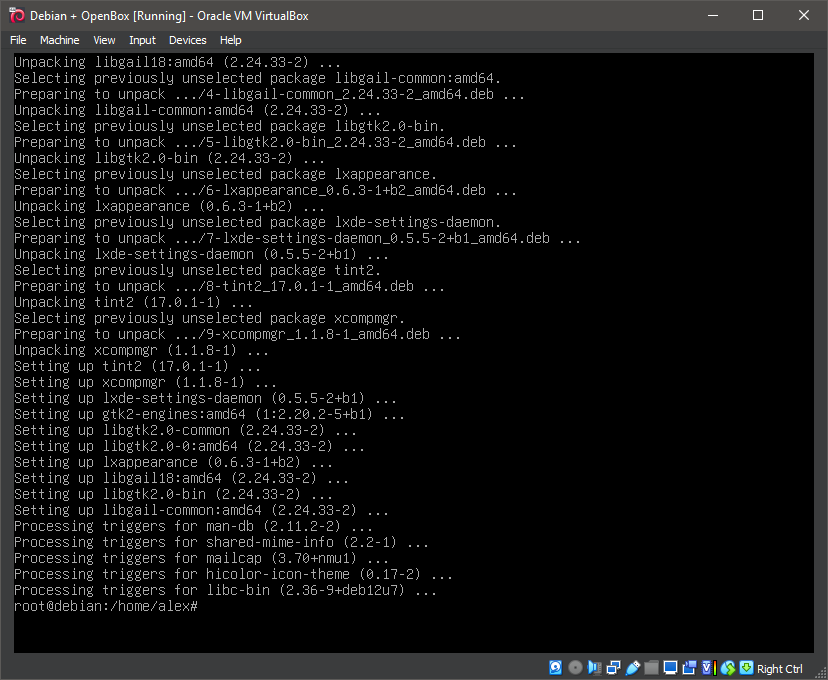
10. Running 'apt install xorg'
apt install xorg
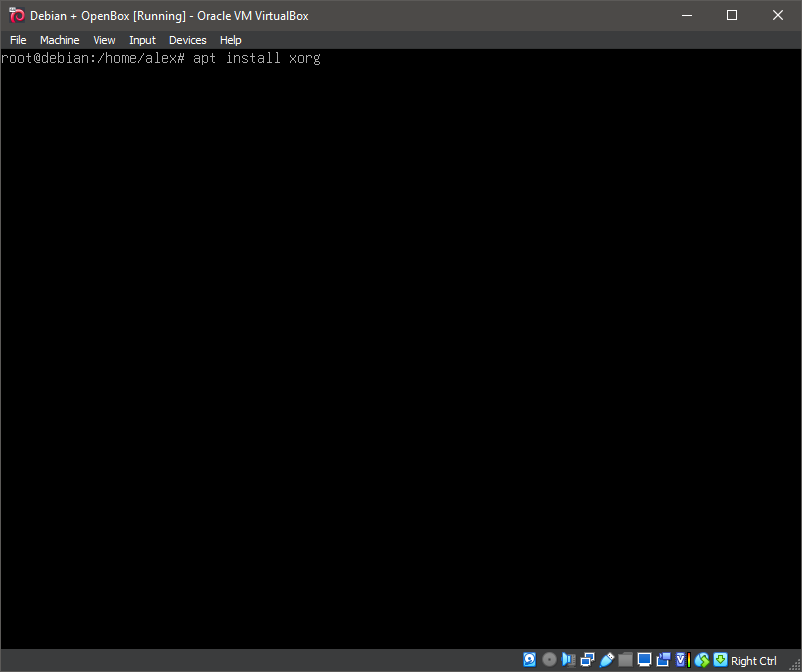
11. Running 'apt install xorg'
apt install xorg
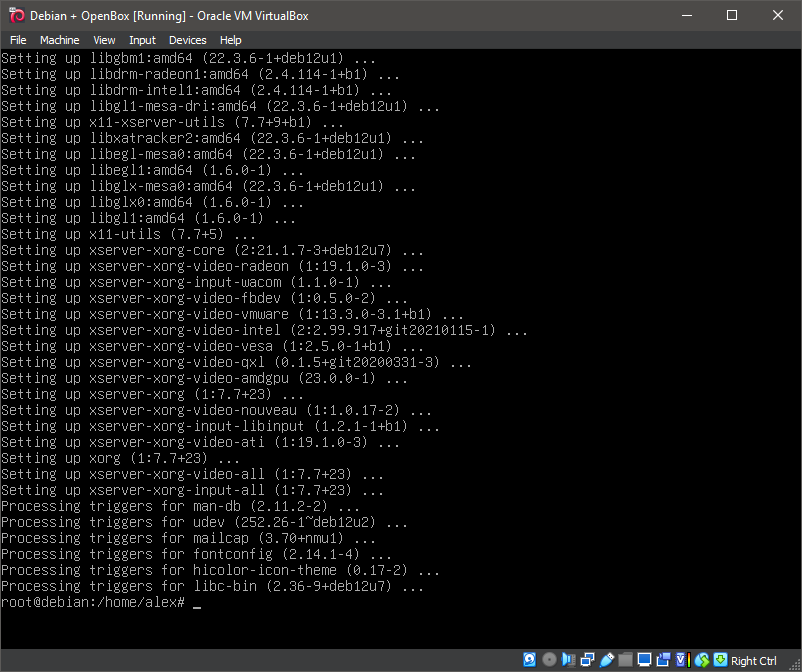
12. Running 'startx'
startx
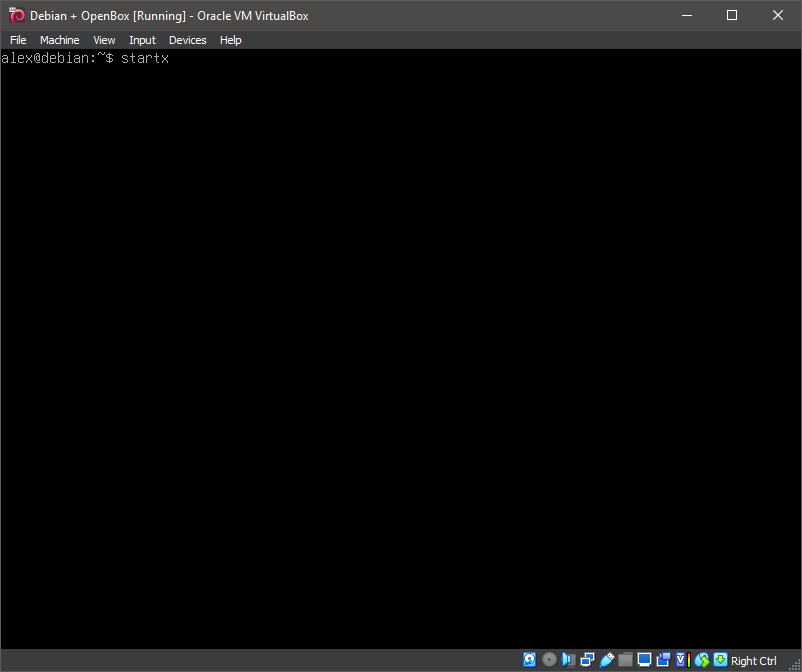
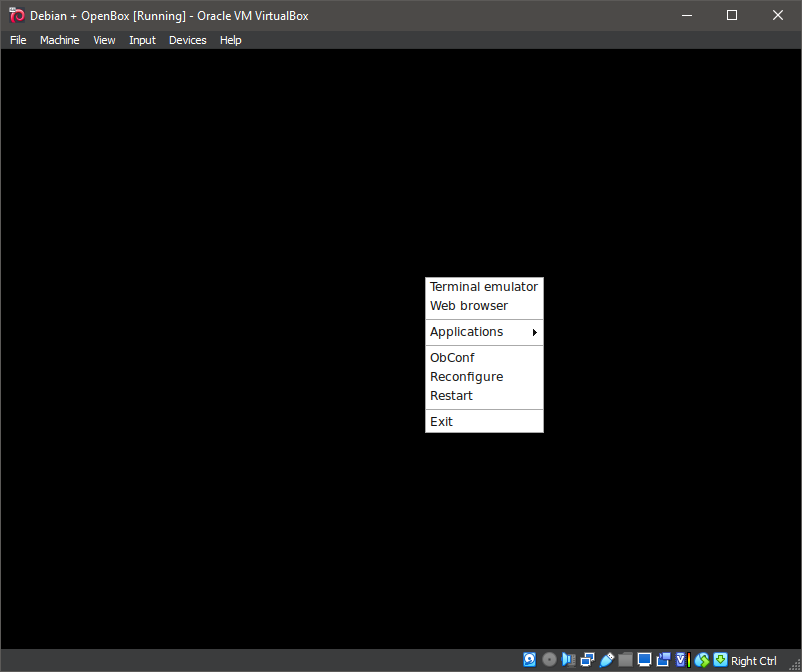
13. OpenBox
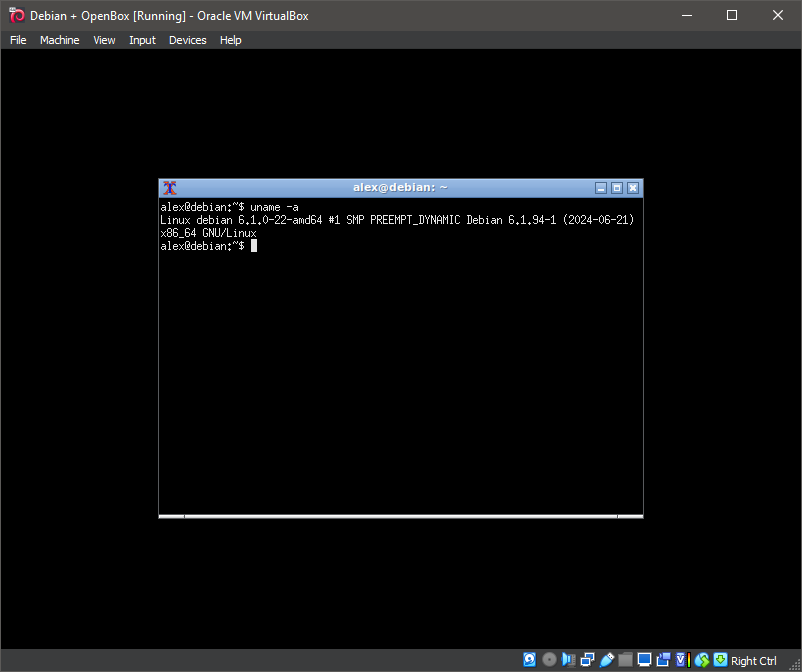
14. Running 'uname -a'
uname -a
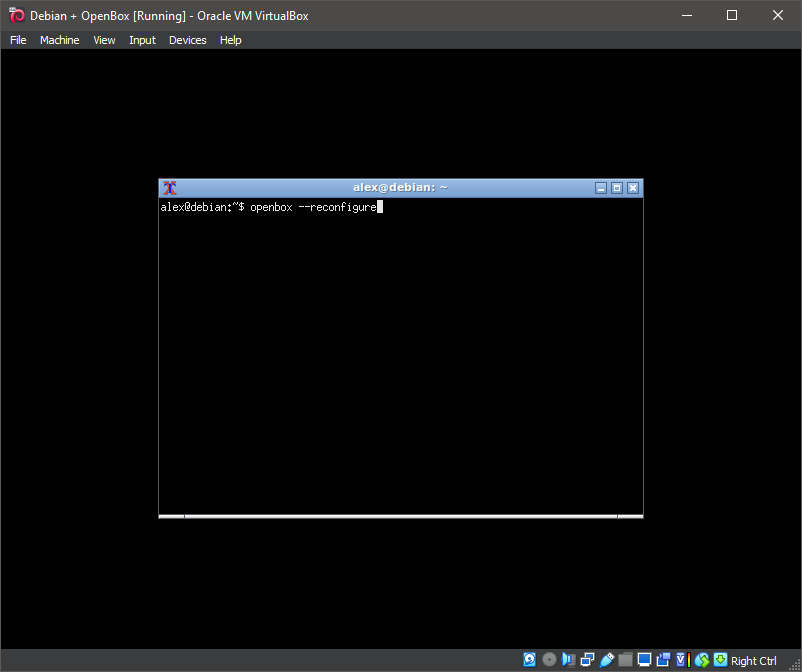
15. Running 'openbox --reconfigure'
openbox --reconfigure
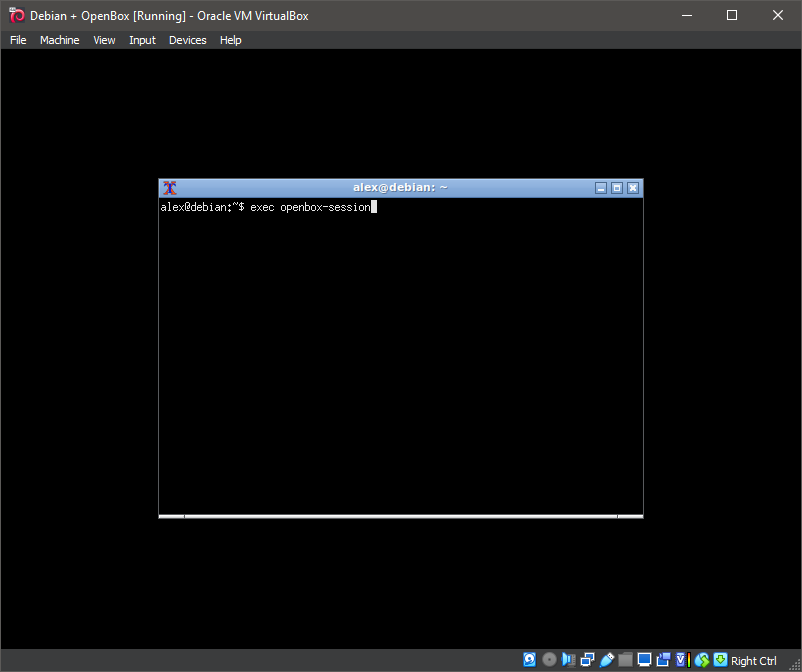
16. Running 'exec openbox-session'
exec openbox-session
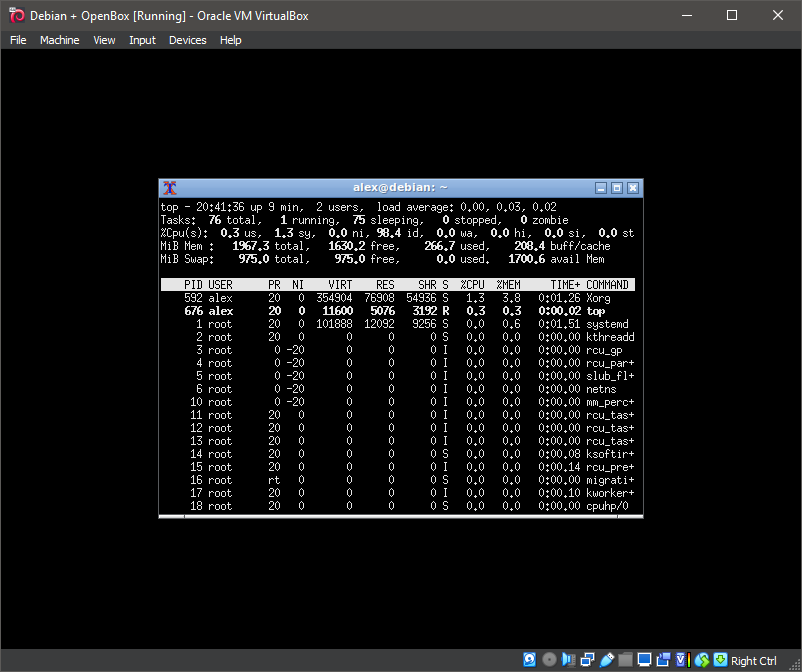
17. Running 'top'
top
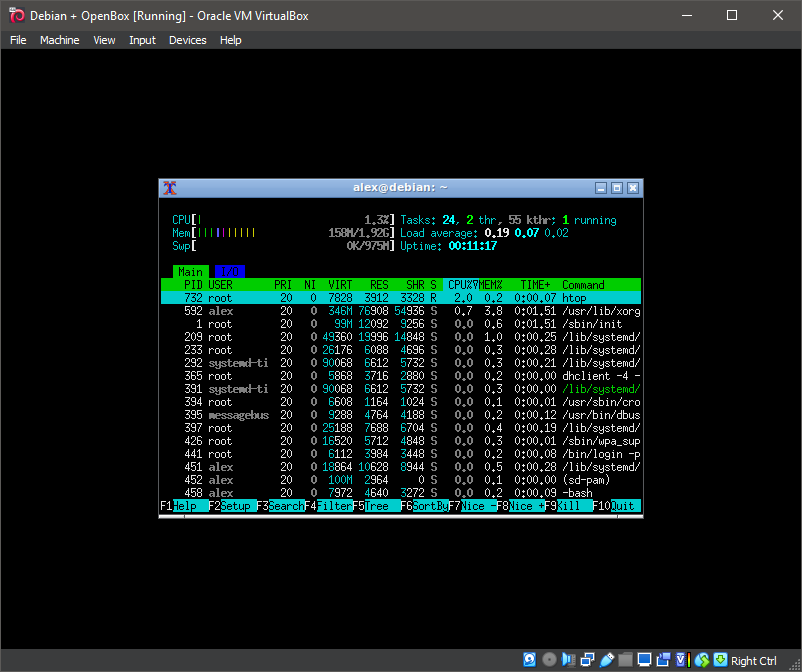
18. Running 'htop'
htop
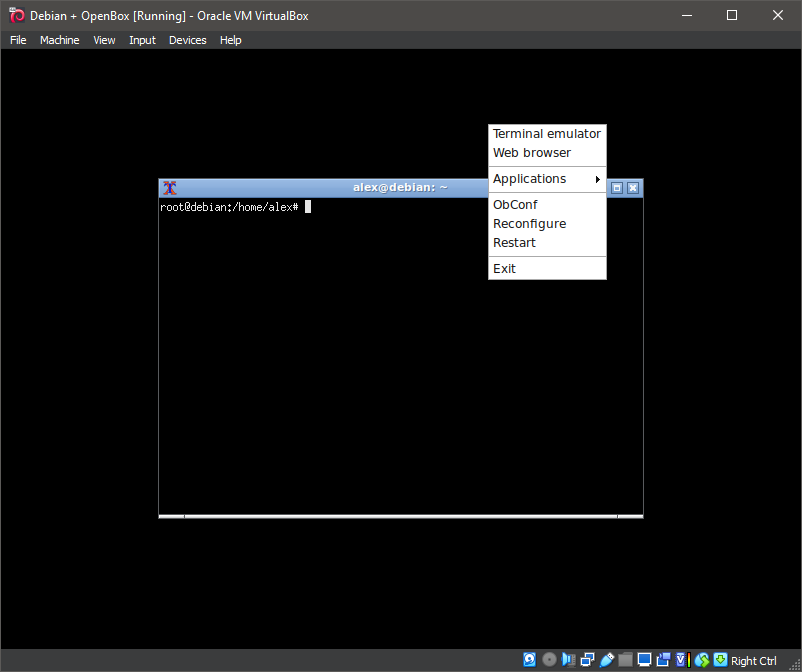
19. Web browser
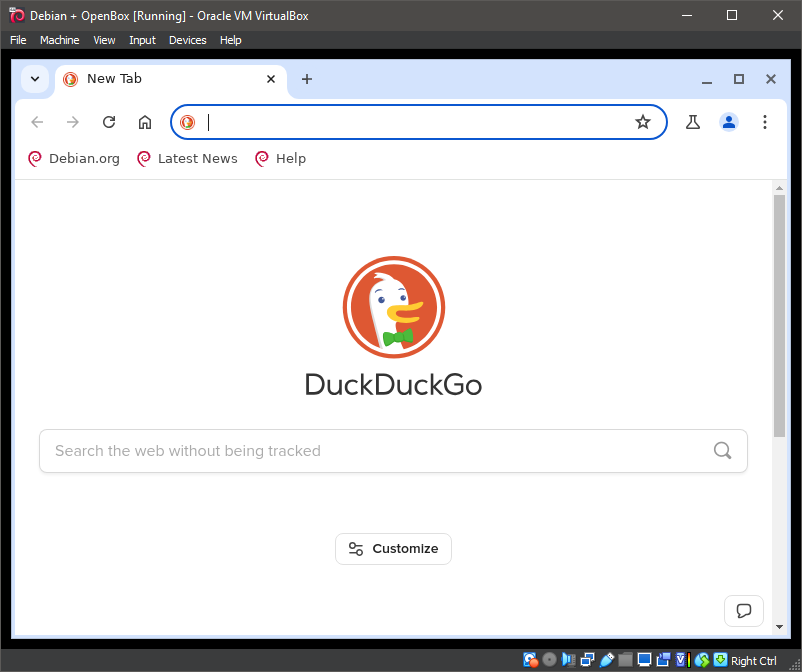
20. Web browser
21. Web browser
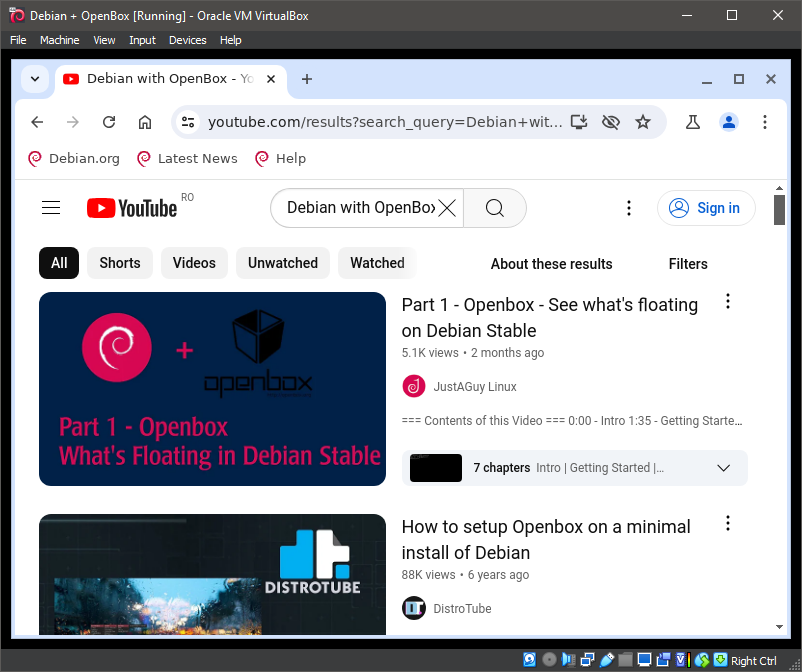
22. OpenBox
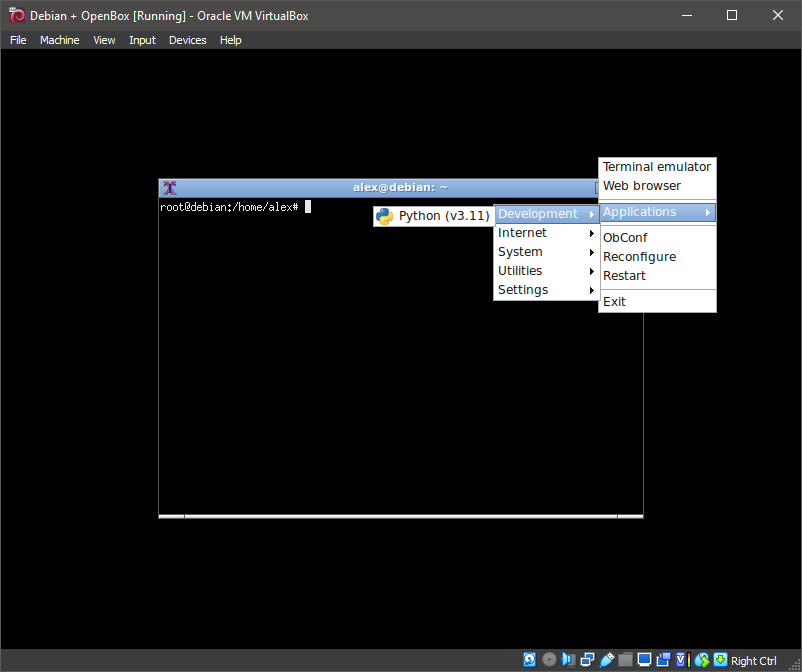
23. OpenBox
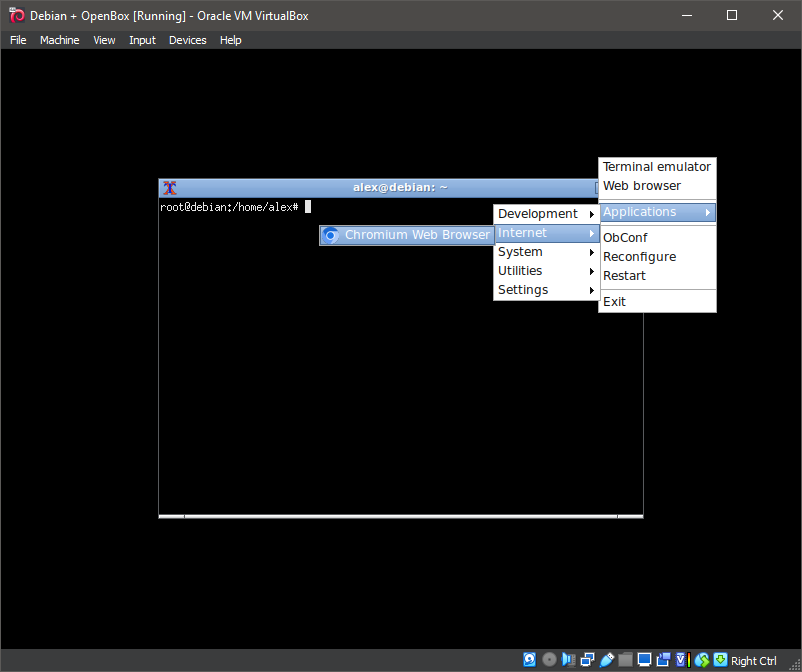
24. OpenBox
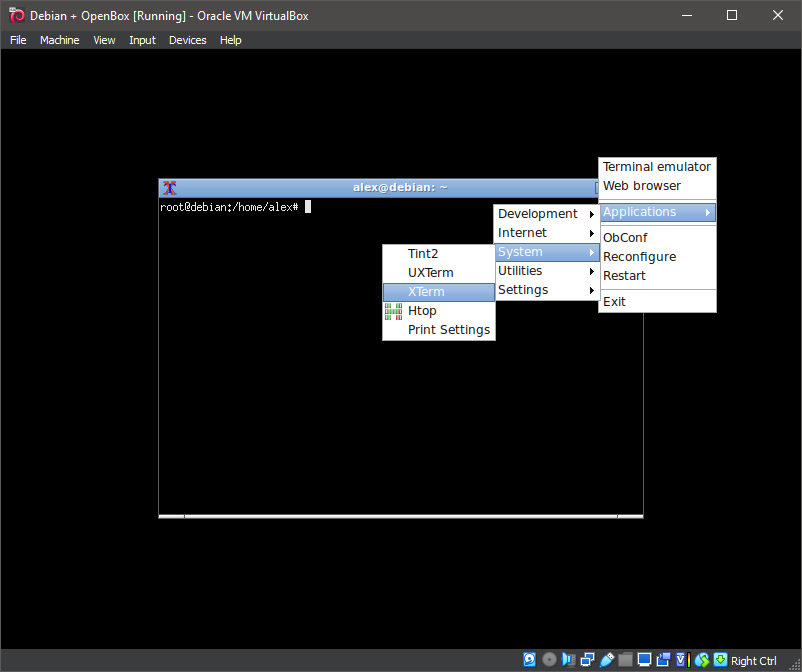
25. OpenBox
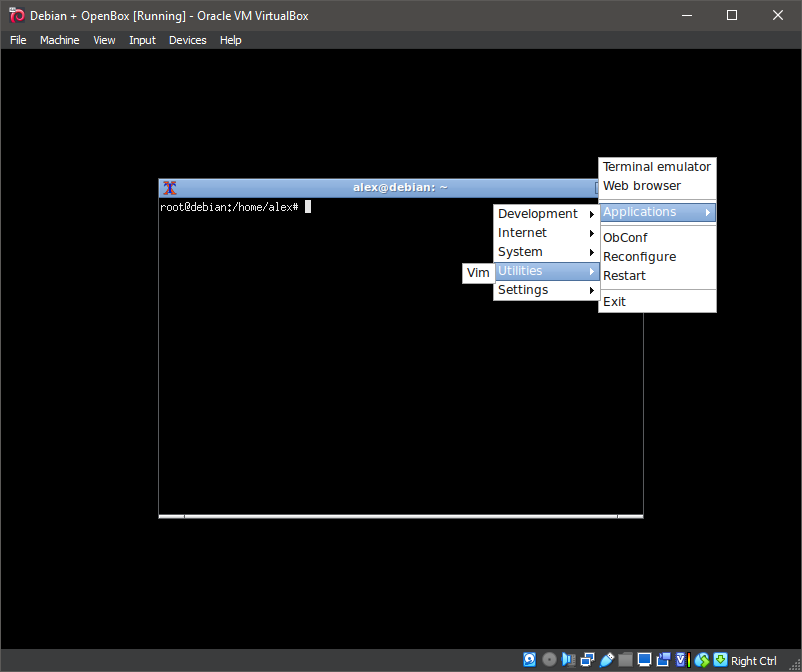
26. OpenBox
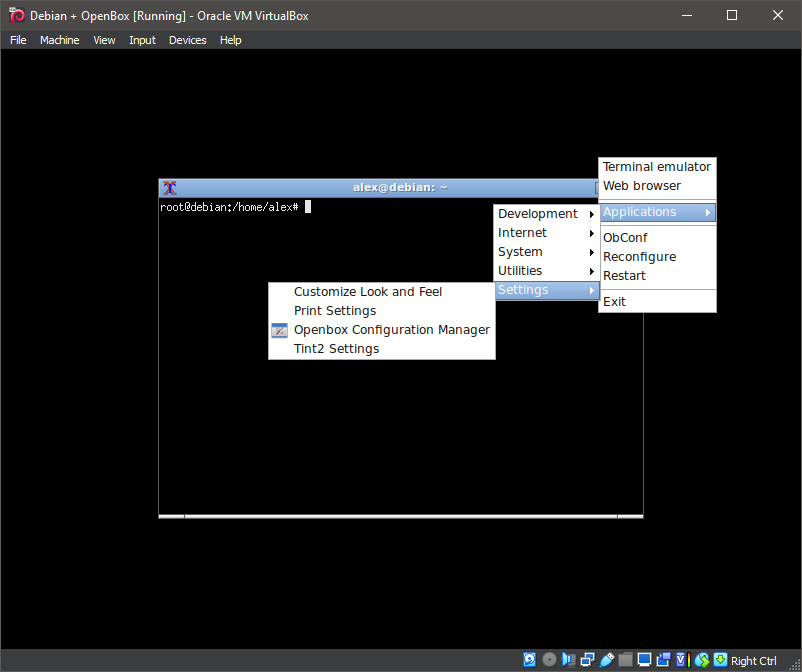
27. OpenBox
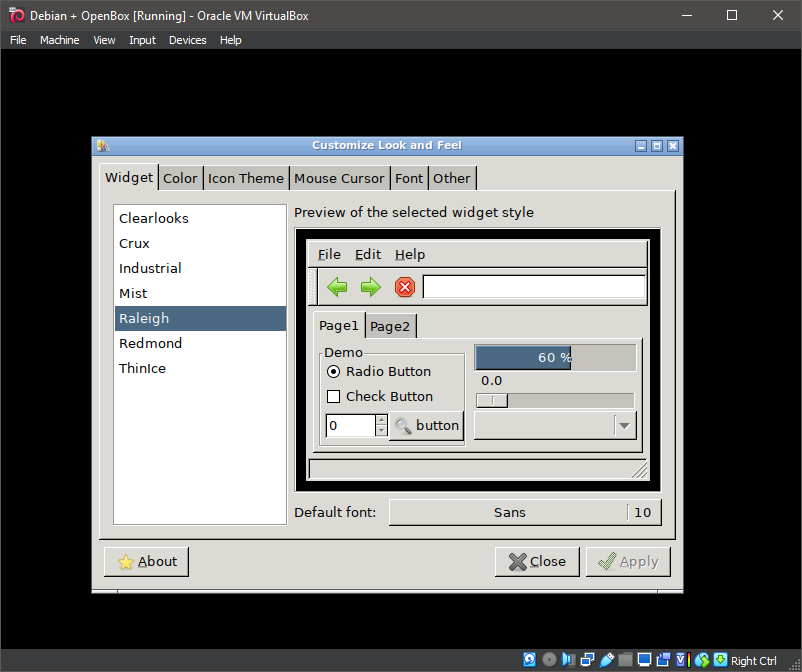
28. OpenBox
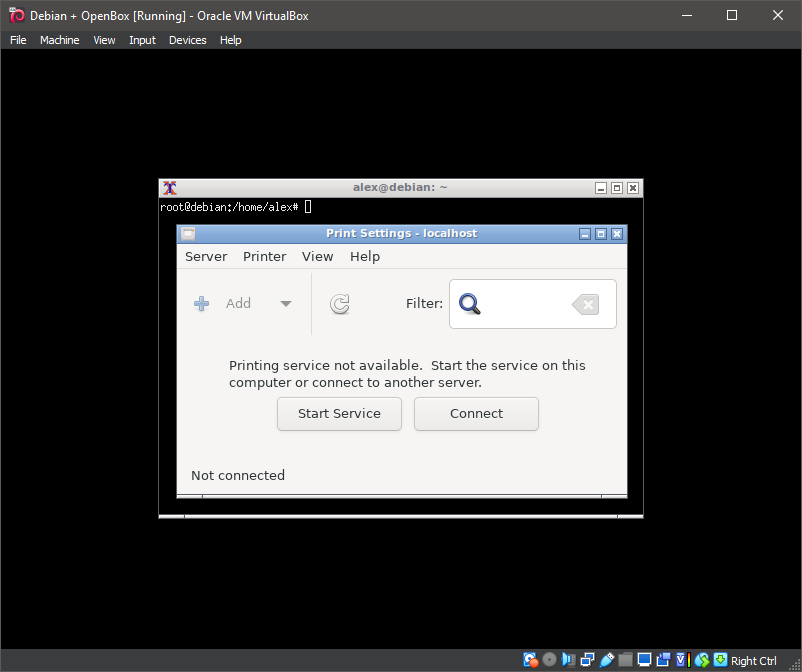
29. OpenBox
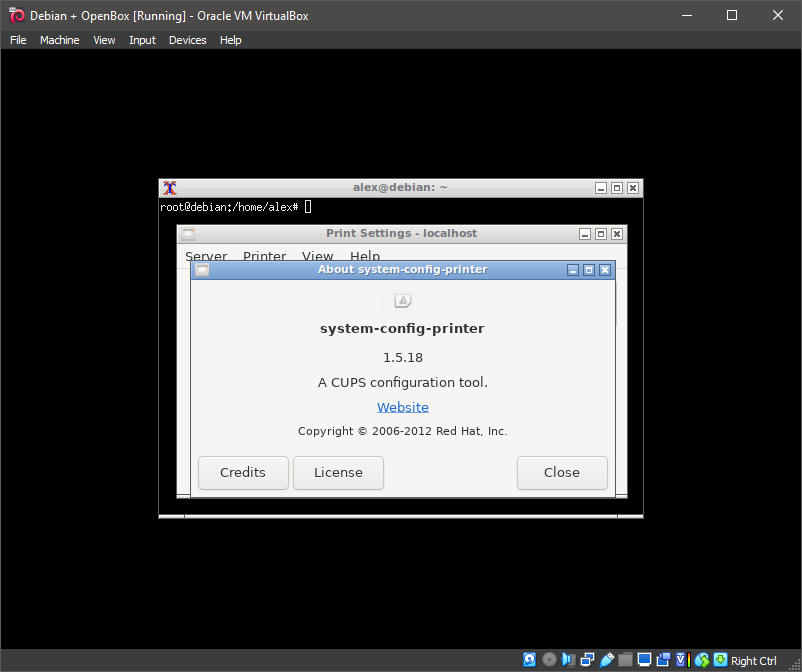
30. OpenBox
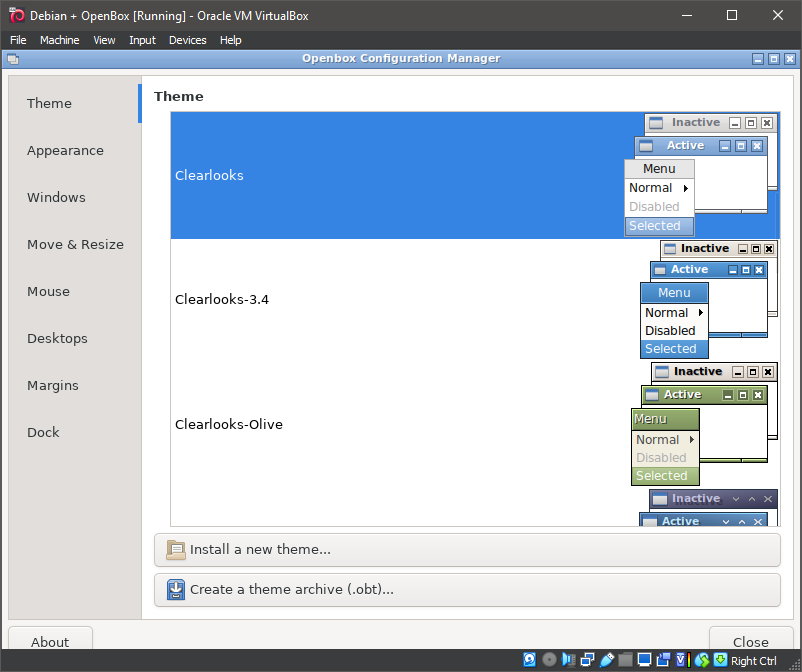
31. OpenBox
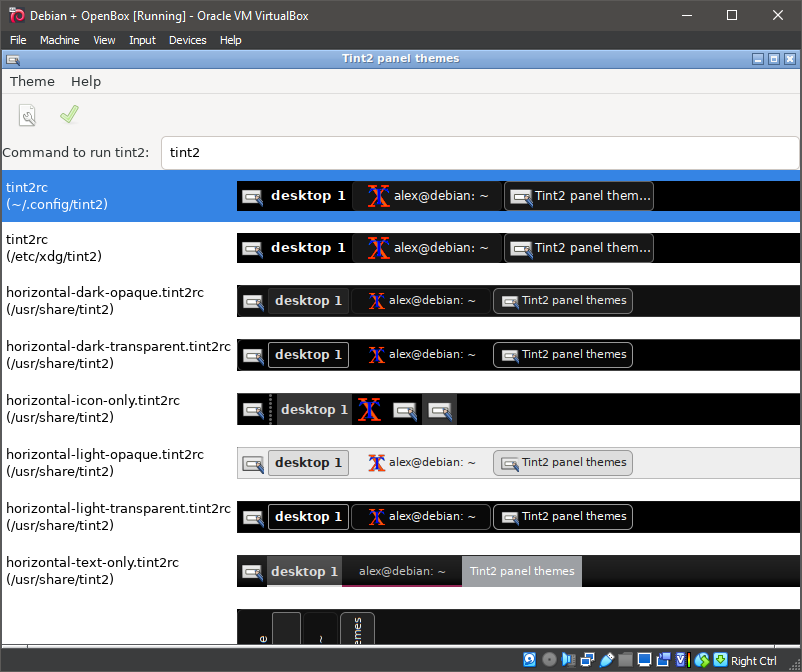
32. OpenBox
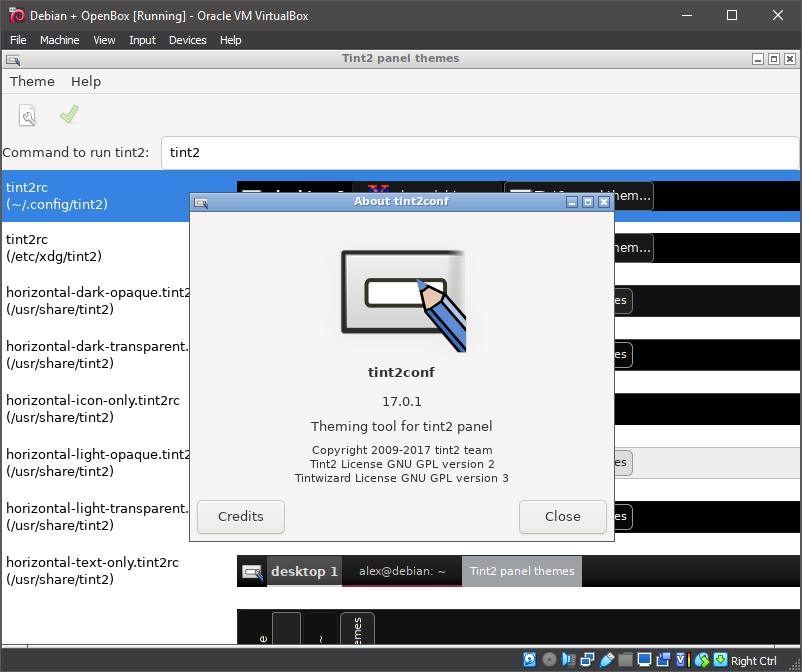
33. OpenBox
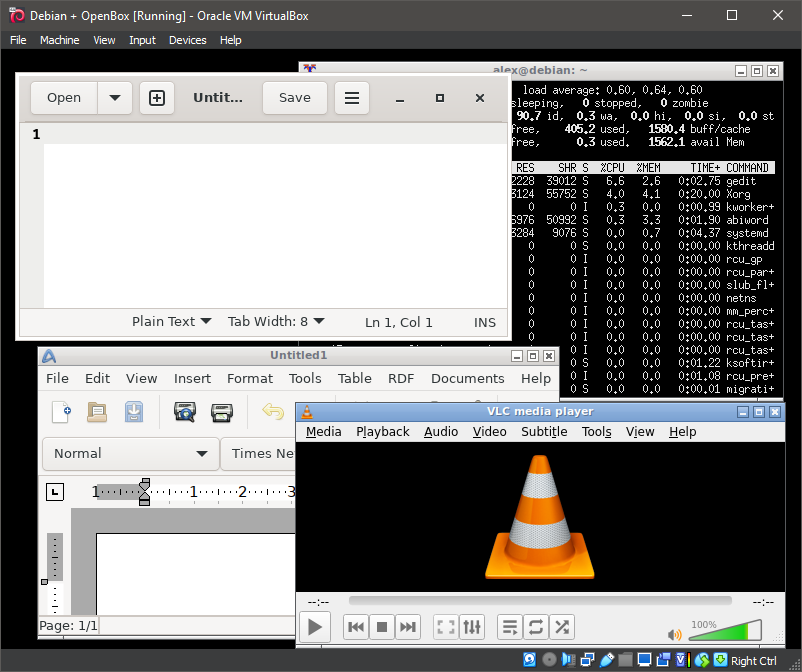
34. OpenBox
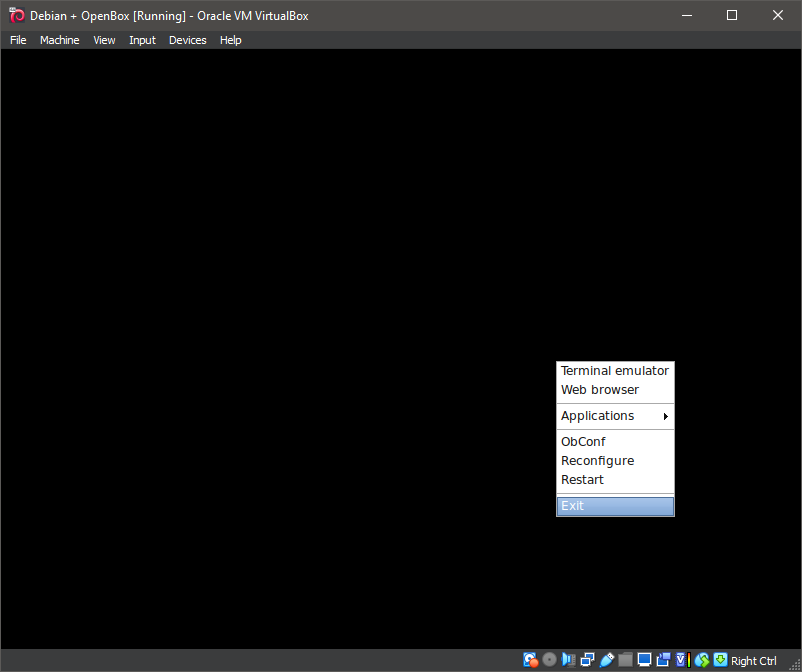
35. OpenBox
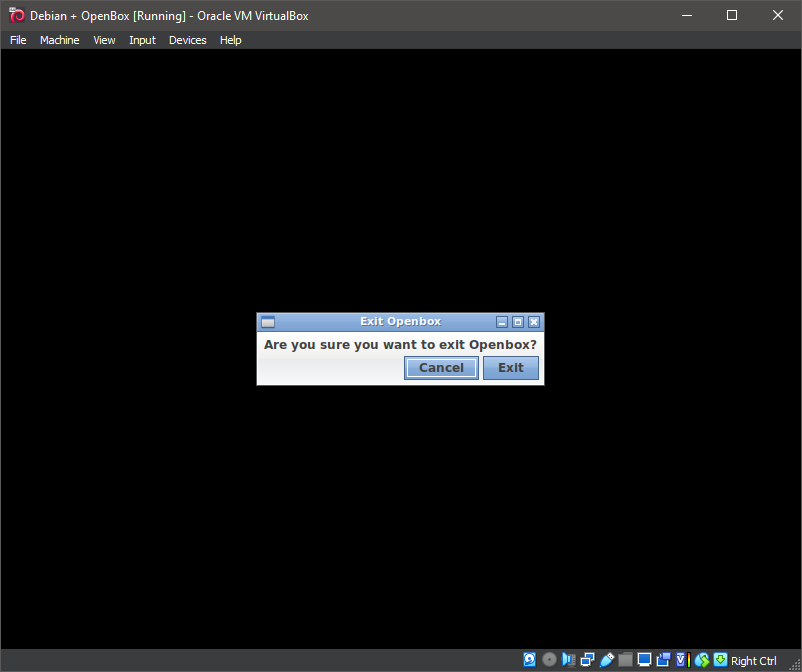
36. OpenBox
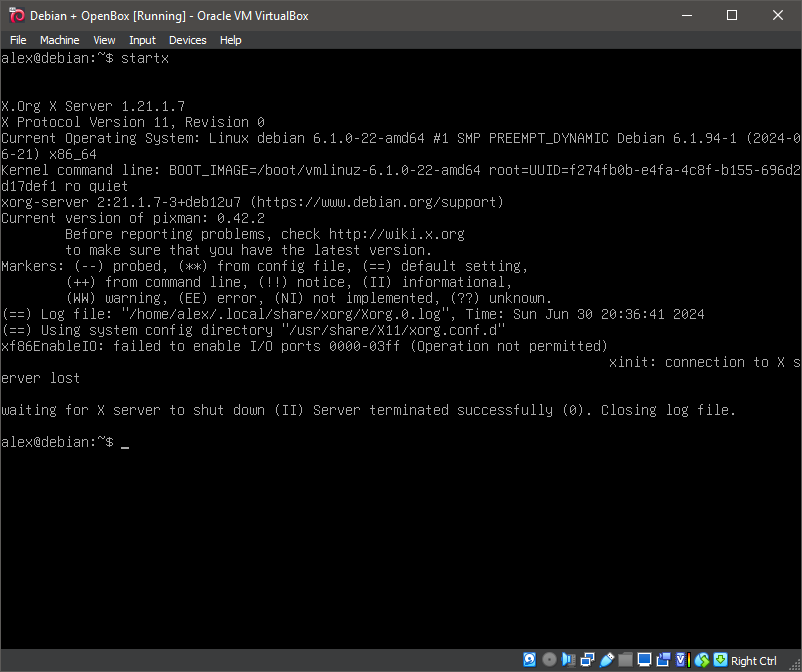
37. OpenBox
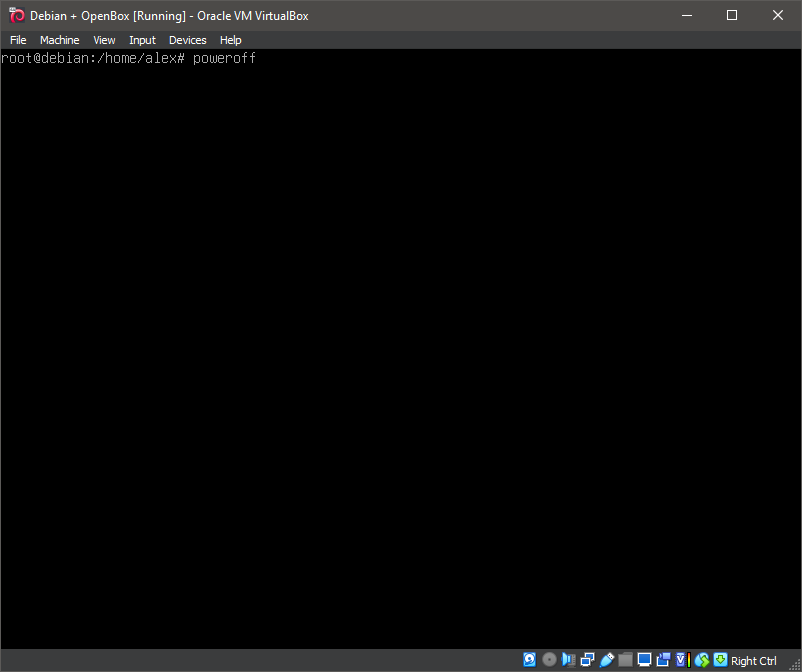
Well, that was exciting. See you in the next one!
If you wish to support our project
Donation link (Buy me a coffee):