
Installing the Motif Window Manager on Debian
Step by step guide and HOWTO
Debian Linux is known for its stability and security, making it a reliable choice for servers and workstations.
It also has a vast software repository with extensive community support, ensuring access to a wide range of applications.
The Motif Window Manager (MWM) has a certain charm and beauty, especially for those who appreciate the aesthetics of early graphical user interfaces (GUIs) and minimalism.
MWM is very lightweight and designed with minimalism in mind.
Unlike modern window managers that can be resource-intensive and cluttered with excessive visual effects, MWM offers a straightforward interface that focuses purely on functionality.
The clean lines and simple window decorations give it a utilitarian elegance.
For those who grew up or worked during the early days of UNIX systems, the Motif Window Manager offers a nostalgic trip back to the 1990s.
It was once the standard window manager for many UNIX systems, and its boxy, widget-based look evokes memories of early computing, where interfaces were designed to be practical and effective.
MWM’s use of the Motif toolkit means its UI has a distinct, almost “industrial” look.
The buttons, sliders, and dialog boxes are reminiscent of early X Window System applications, with raised and sunken elements that give depth to the otherwise flat design.
This look is classic for fans of traditional, no-frills UI design.
MWM maintains a strict, consistent layout across all its applications.
Its reliance on the Motif widget set means applications look uniform and orderly.
This creates a cohesive desktop environment that appeals to users who value a clean, professional look without flashy or inconsistent visual elements.
Beauty can also be found in how efficiently something works.
MWM is incredibly light on system resources, making it both fast and responsive.
For those who appreciate form following function, MWM's ability to run smoothly even on older hardware is a key aspect of its beauty.
There’s an elegance in software that performs well with minimal overhead.
While MWM is minimal, it is also highly customizable.
Users can tweak their desktop environment to match their specific preferences using resource files like .mwmrc.
This flexibility allows users to define their ideal desktop, leading to a highly personal and functional workspace that can still feel aesthetically pleasing.
MWM’s uncluttered design puts the focus entirely on work.
With no unnecessary distractions from flashy effects or overly complex menus, the beauty of MWM lies in its ability to let the user focus entirely on their tasks.
This makes it appealing for users who prioritize efficiency and want a workspace where the interface stays out of their way.
MWM played a crucial role in the development of graphical user interfaces on UNIX systems, and that history adds to its charm.
For people who value the legacy of computing, the design and principles behind MWM hold a certain intellectual beauty.
It represents a time when the user interface was designed with precision and purpose, balancing between limited resources and functionality.
The square and rectangular window designs of MWM have a geometric precision that is appealing to people who prefer clean, sharp edges over rounded, modern designs.
The straightforwardness of the window borders, title bars, and buttons gives it a crisp, structured aesthetic.
The beauty of Motif Window Manager is found in its simplicity, consistency, historical significance, and focus on function over form.
It doesn’t try to dazzle the user with special effects or complex visual features, but instead offers an elegant, efficient, and productive desktop environment.
For those who appreciate retro design and minimalism, MWM has a timeless quality that makes it stand out.
Today we shall install the Motif Window Manager on Debian
We need to complete several steps to get it working correctly.
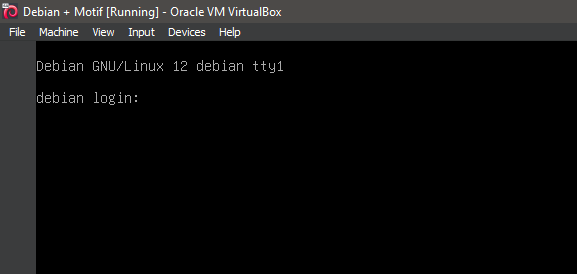
1. Boot the system -- System Ready.
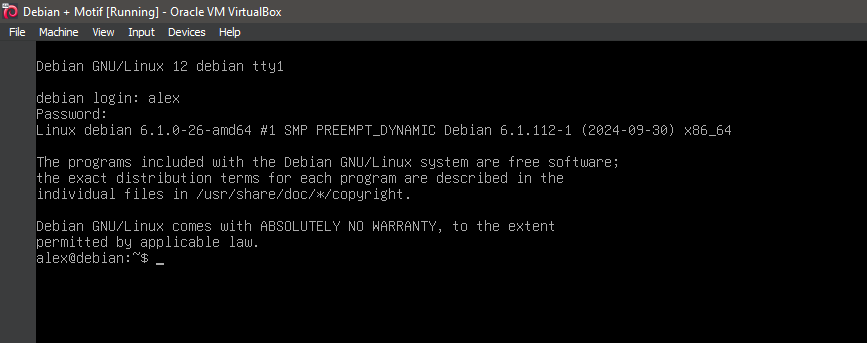
2. Boot the system -- Logged In.
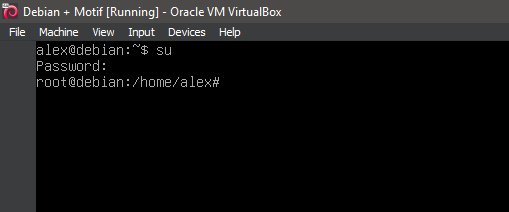
3. Switch to root
su
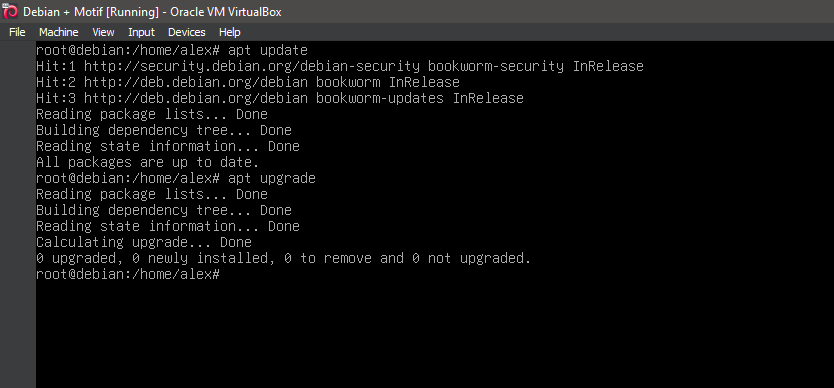
4. Running update
apt-get update
apt-get upgrade
5. Running 'apt install xorg'
apt install xorg
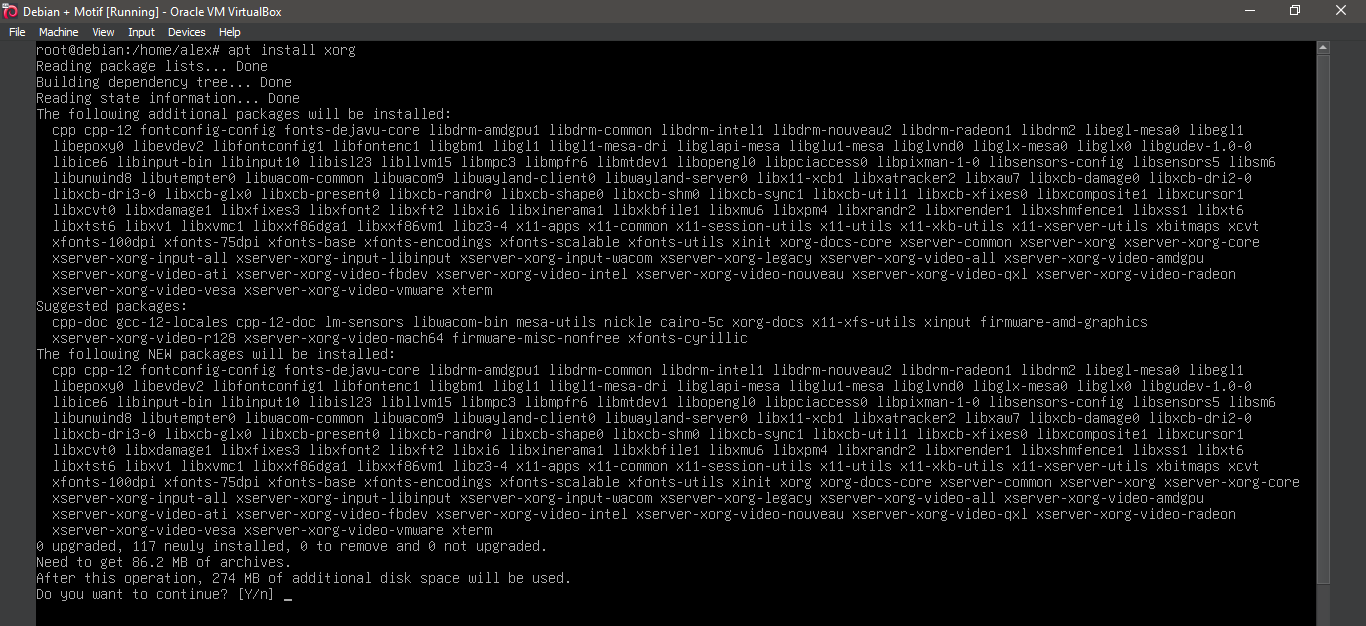
6. Running 'apt install xorg'
apt install xorg
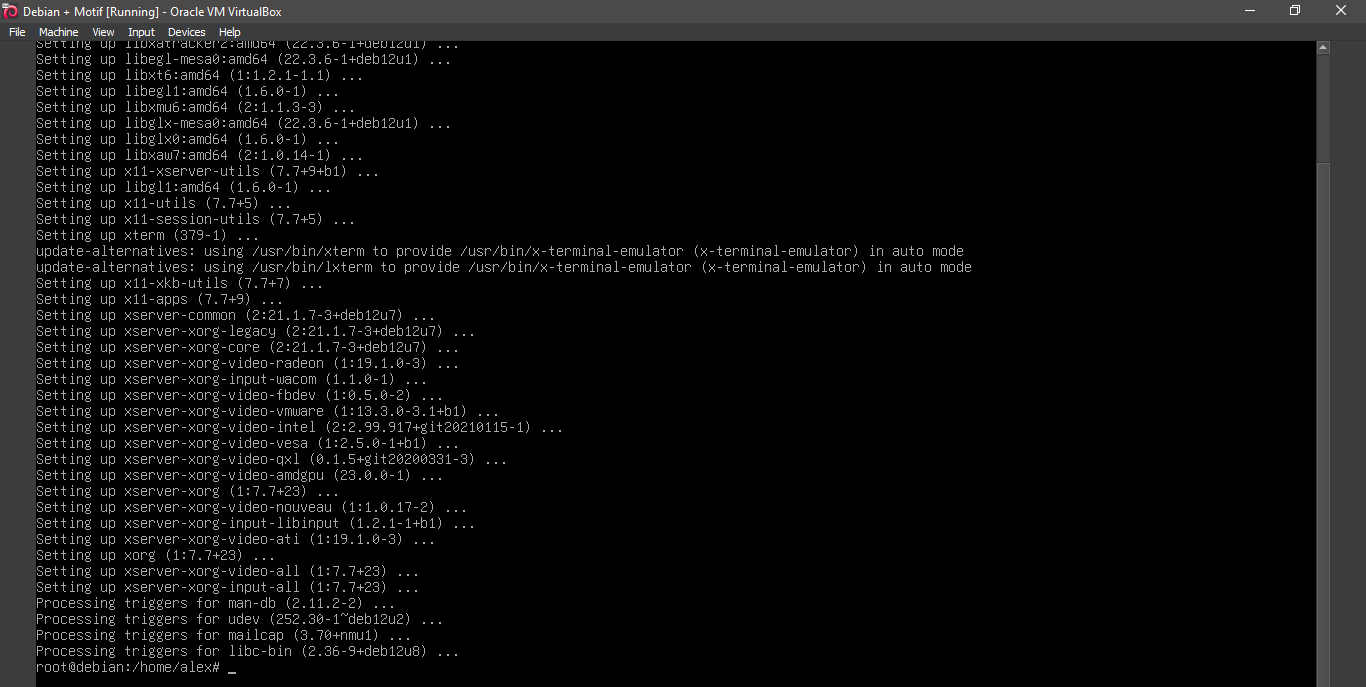
7. Running 'apt install mwm'
apt install mwm
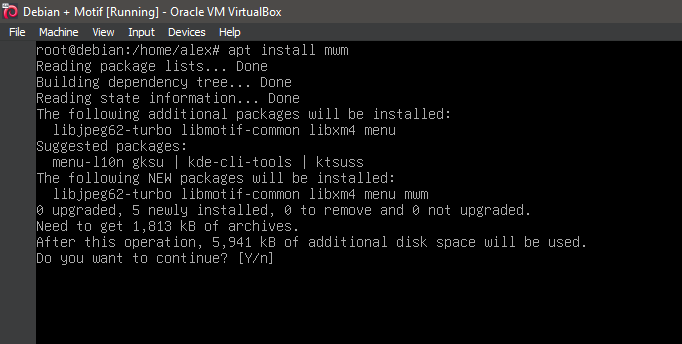
8. Running 'apt install mwm'
apt install mwm
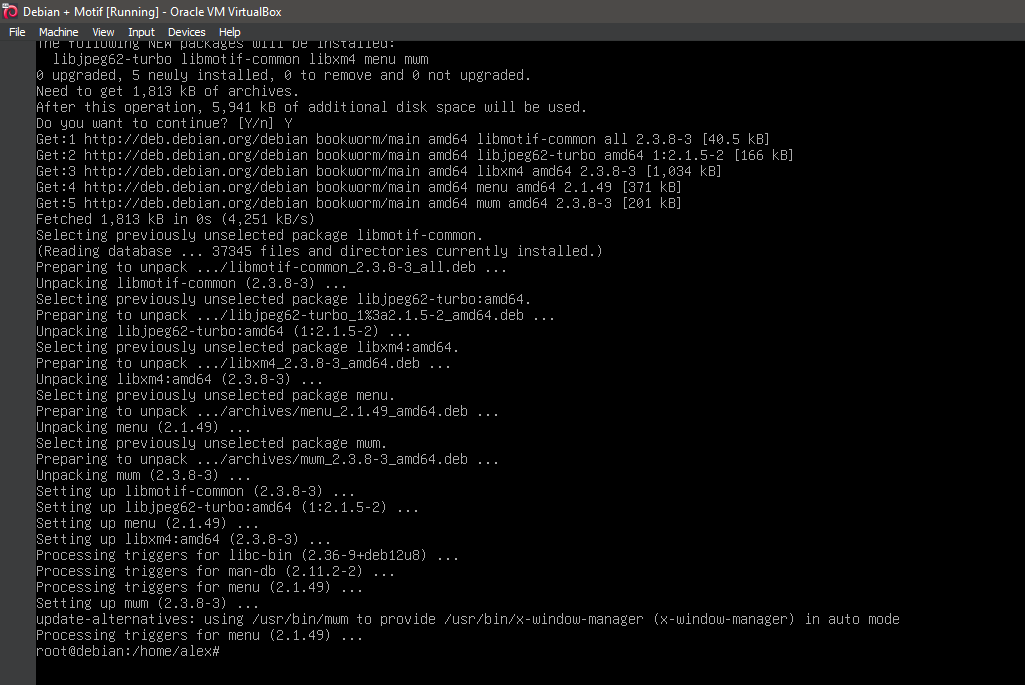
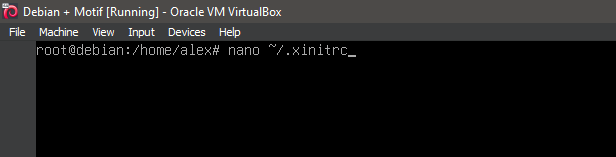
9. Running 'nano ~/.xinitrc'
nano ~/.xinitrc
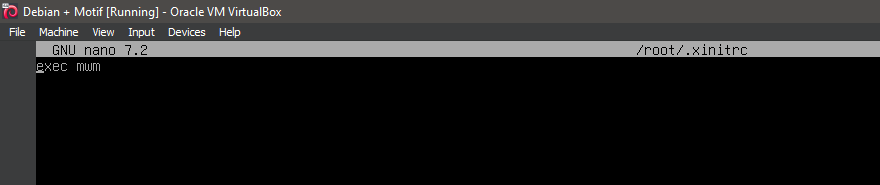
10. Updating configuration file
exec mwm
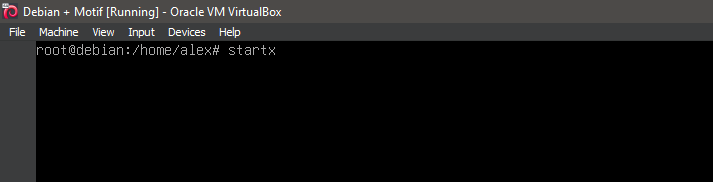
11. Running 'startx'
startx
12. Running Motif Window Manager
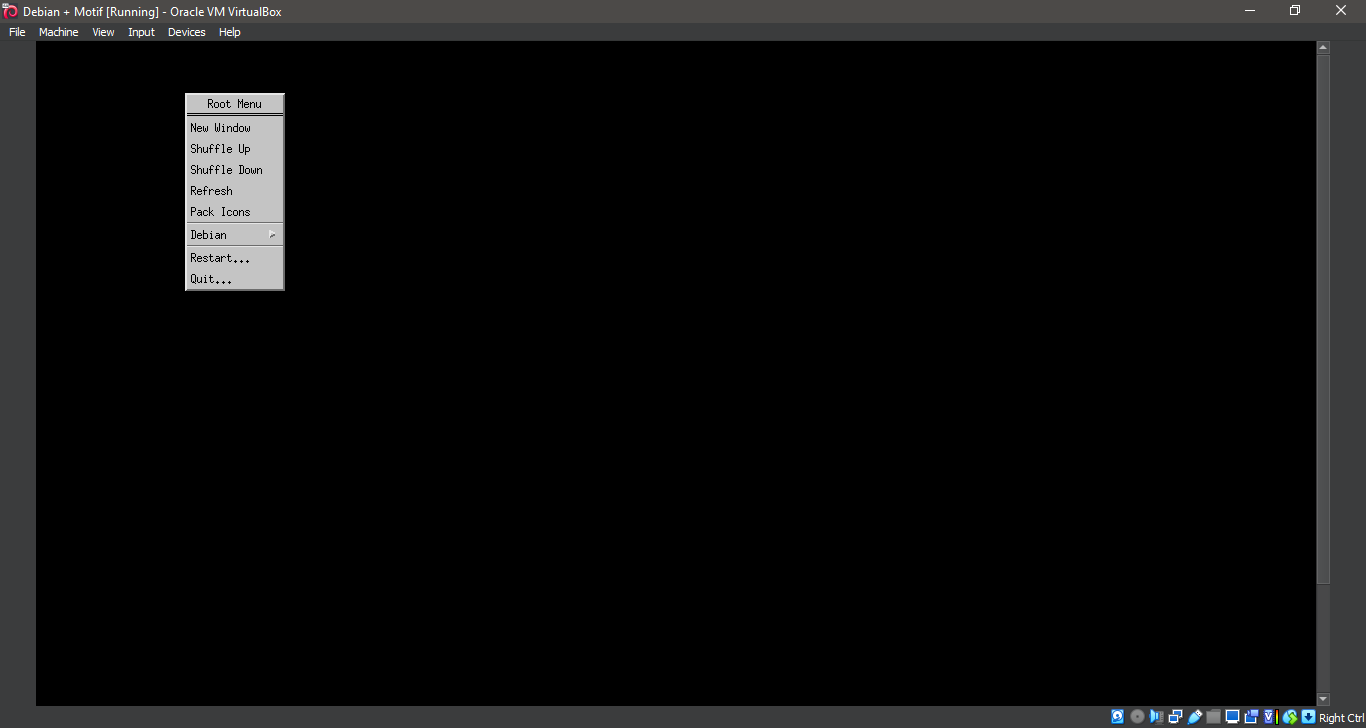
13. Running Motif Window Manager
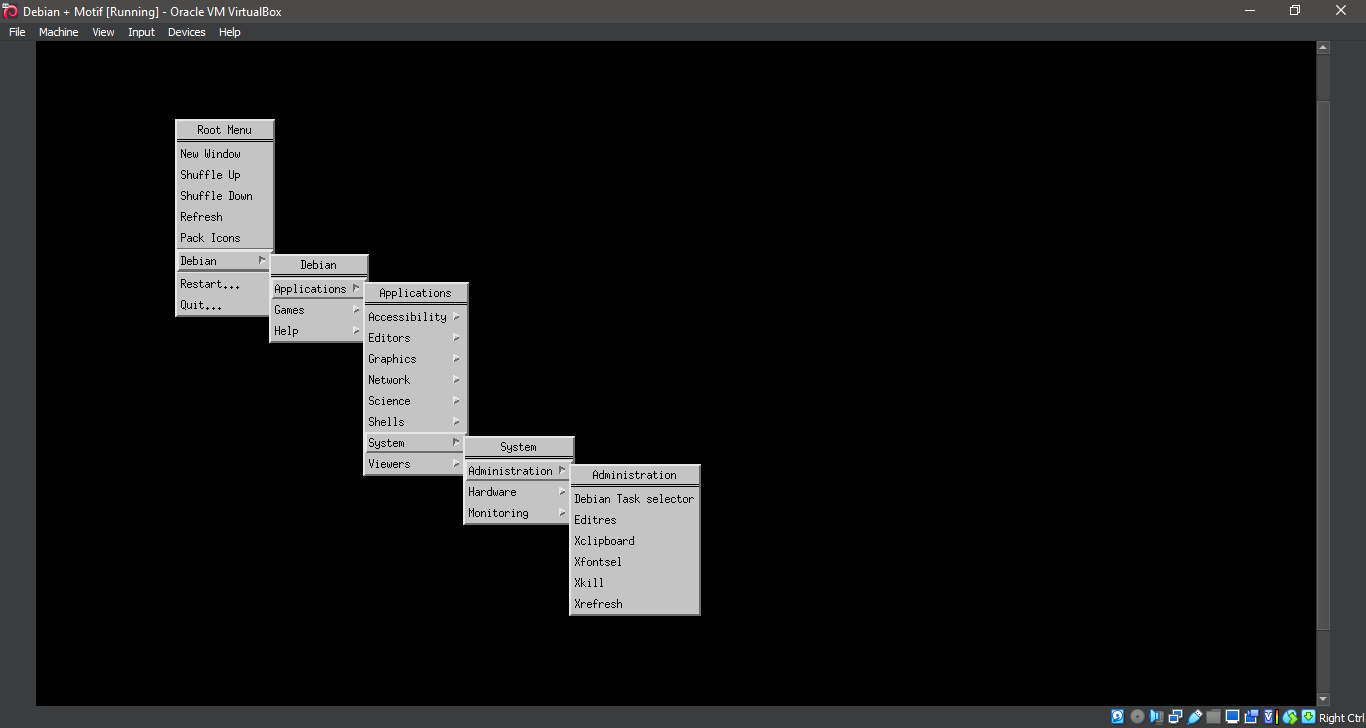
14. Exiting Motif Window Manager
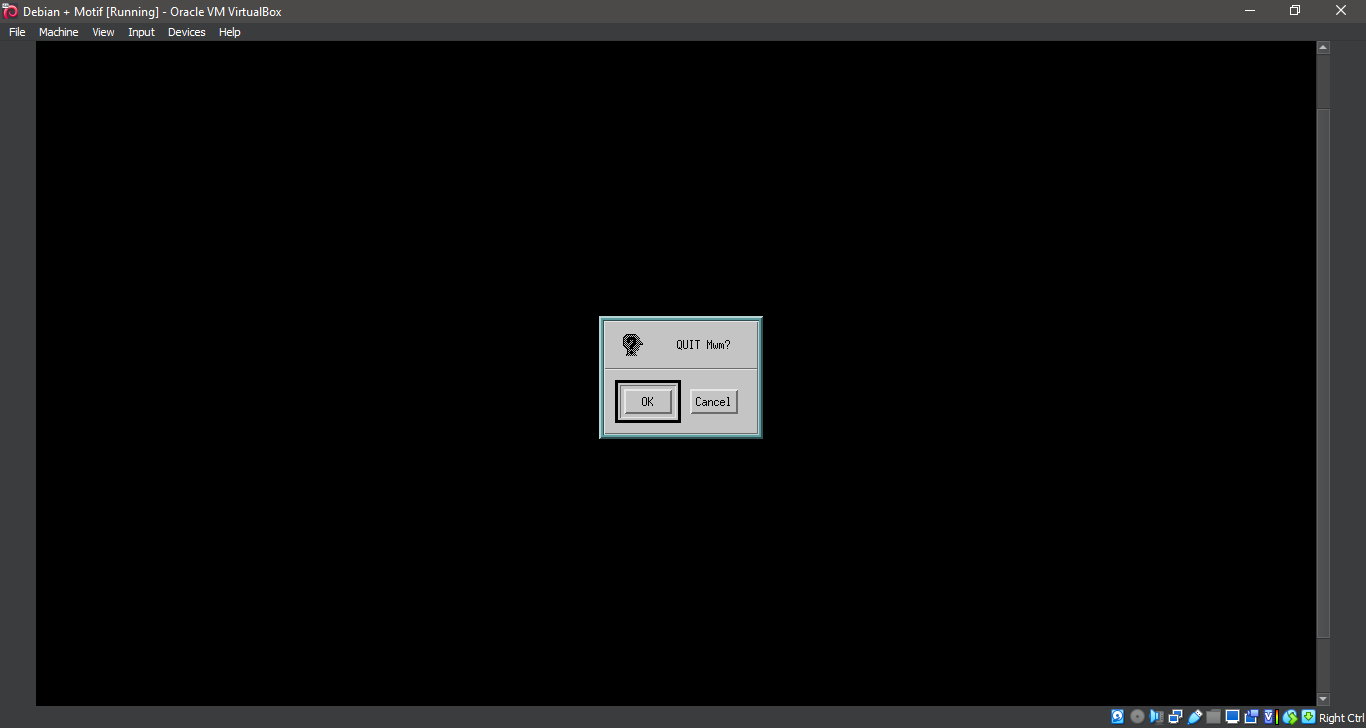
15. Back to the command line
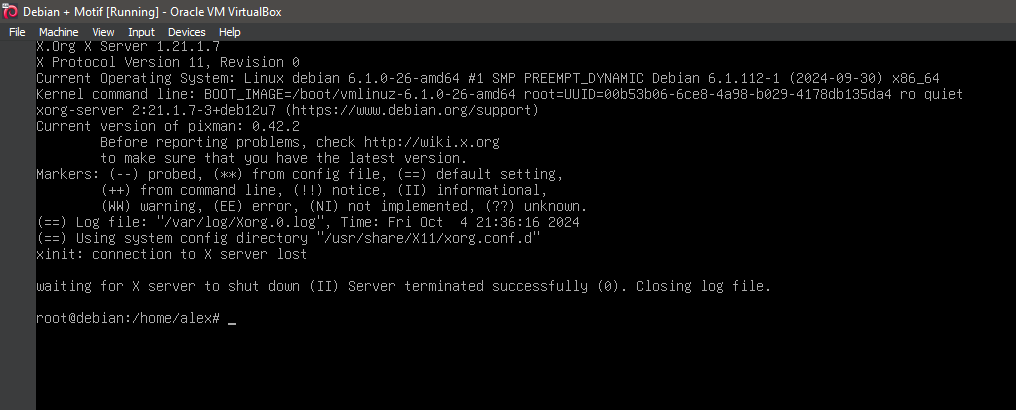
16. Running Motif Window Manager again
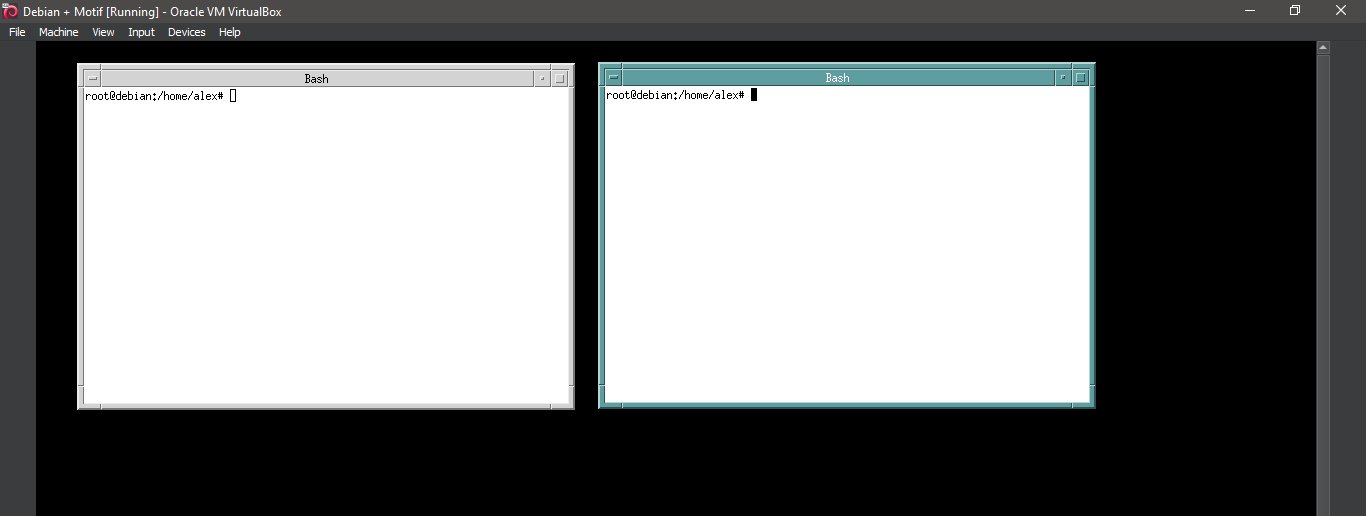
17. Running Motif Window Manager again
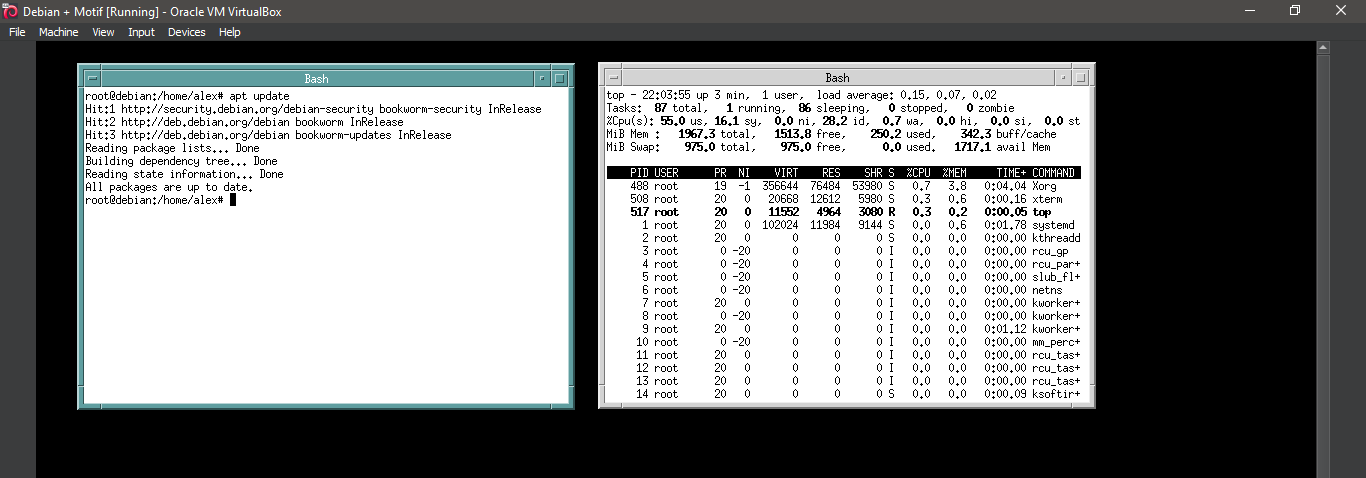
18. Running Motif Window Manager again
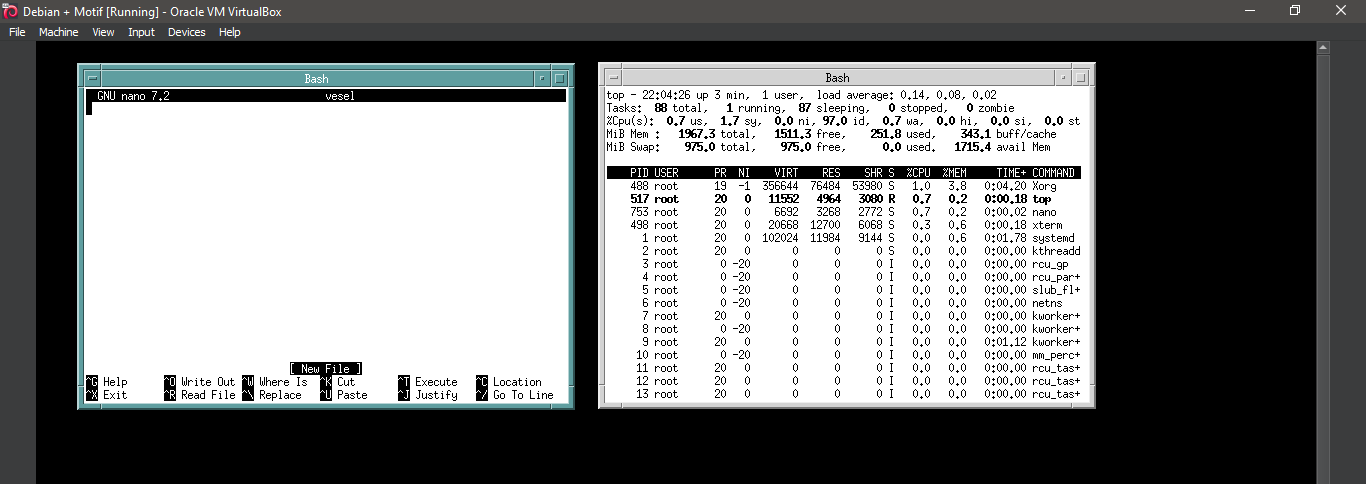
19. Running Motif Window Manager again
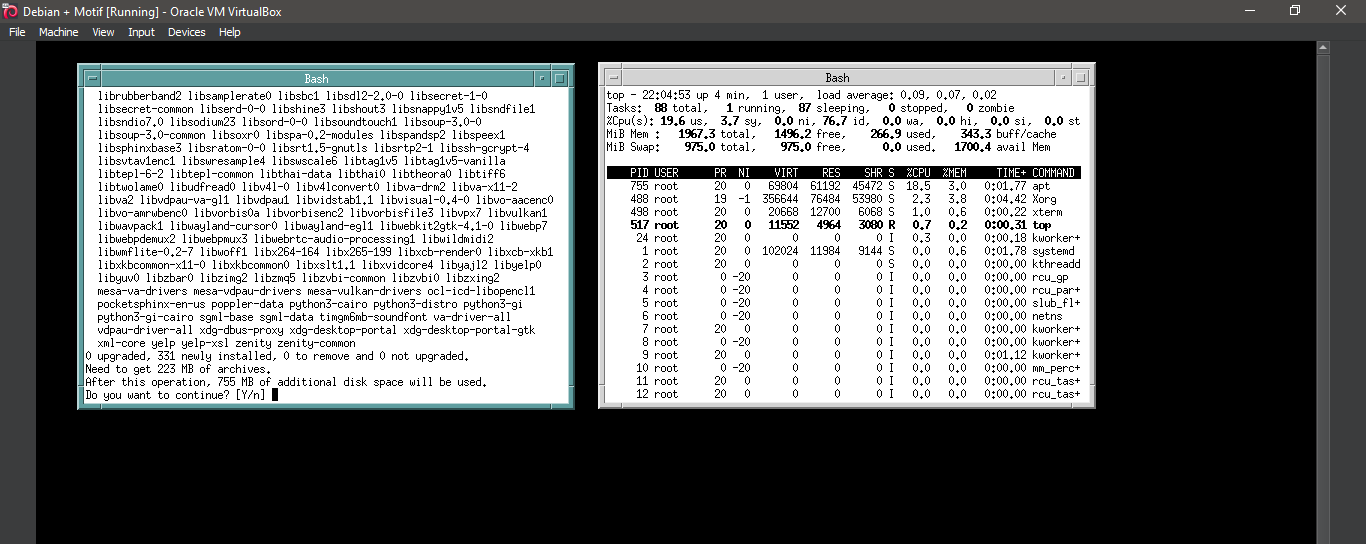
20. Running Motif Window Manager
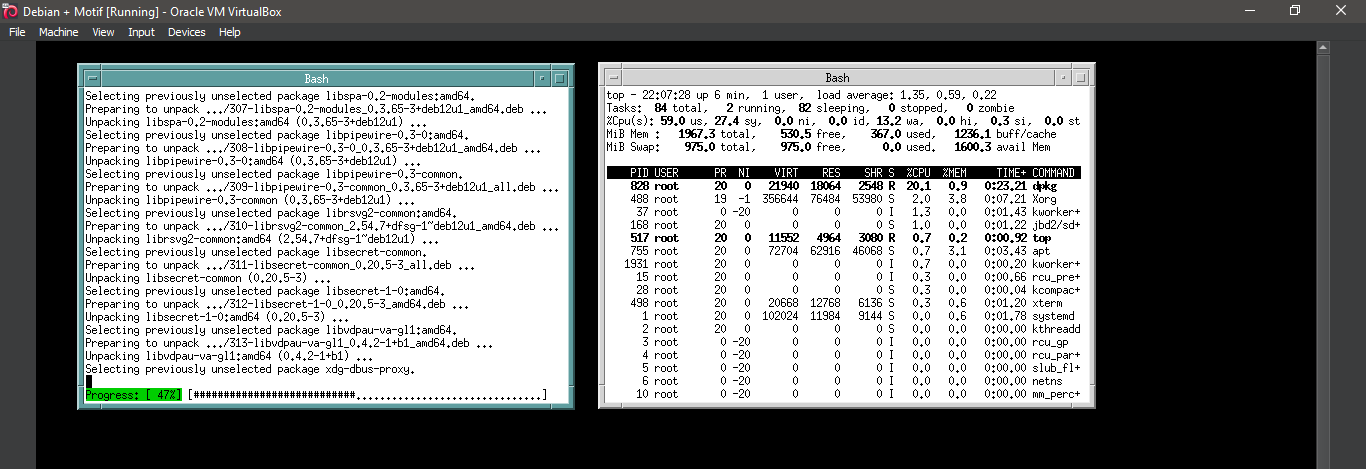
21. Running Motif Window Manager
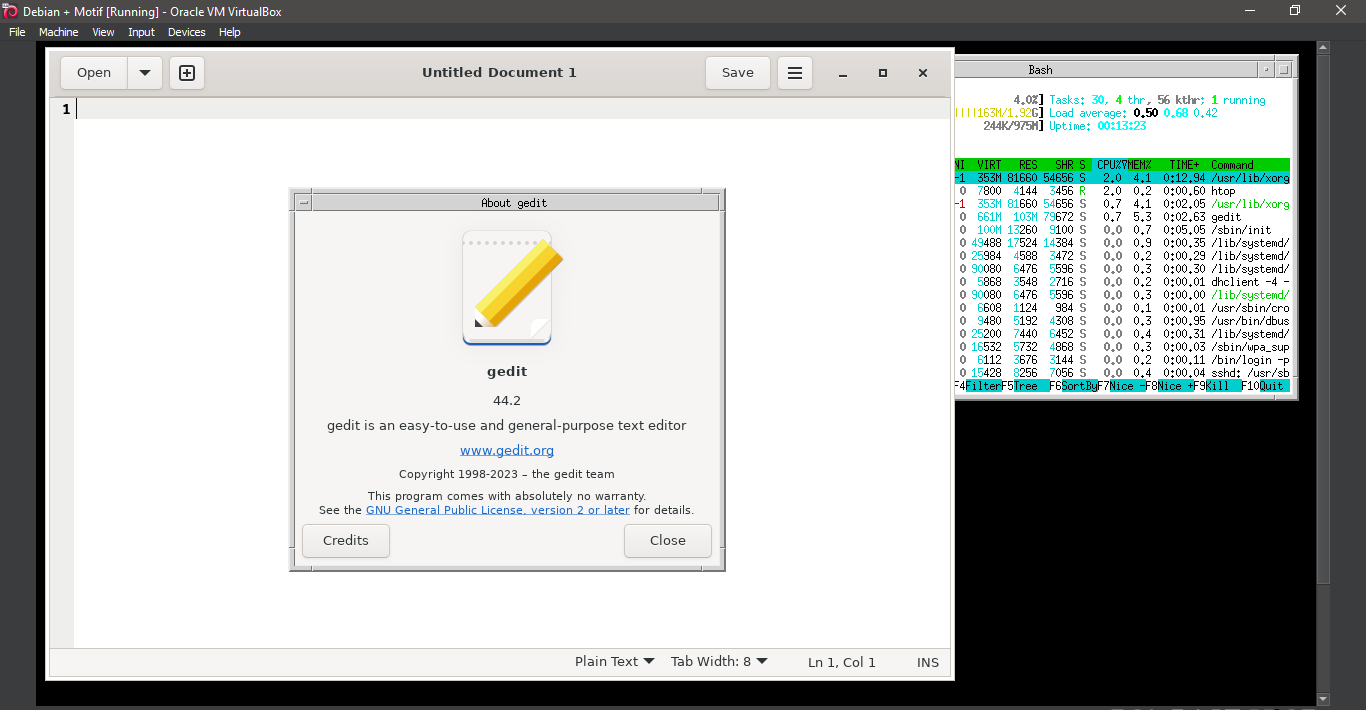
22. Running Motif Window Manager
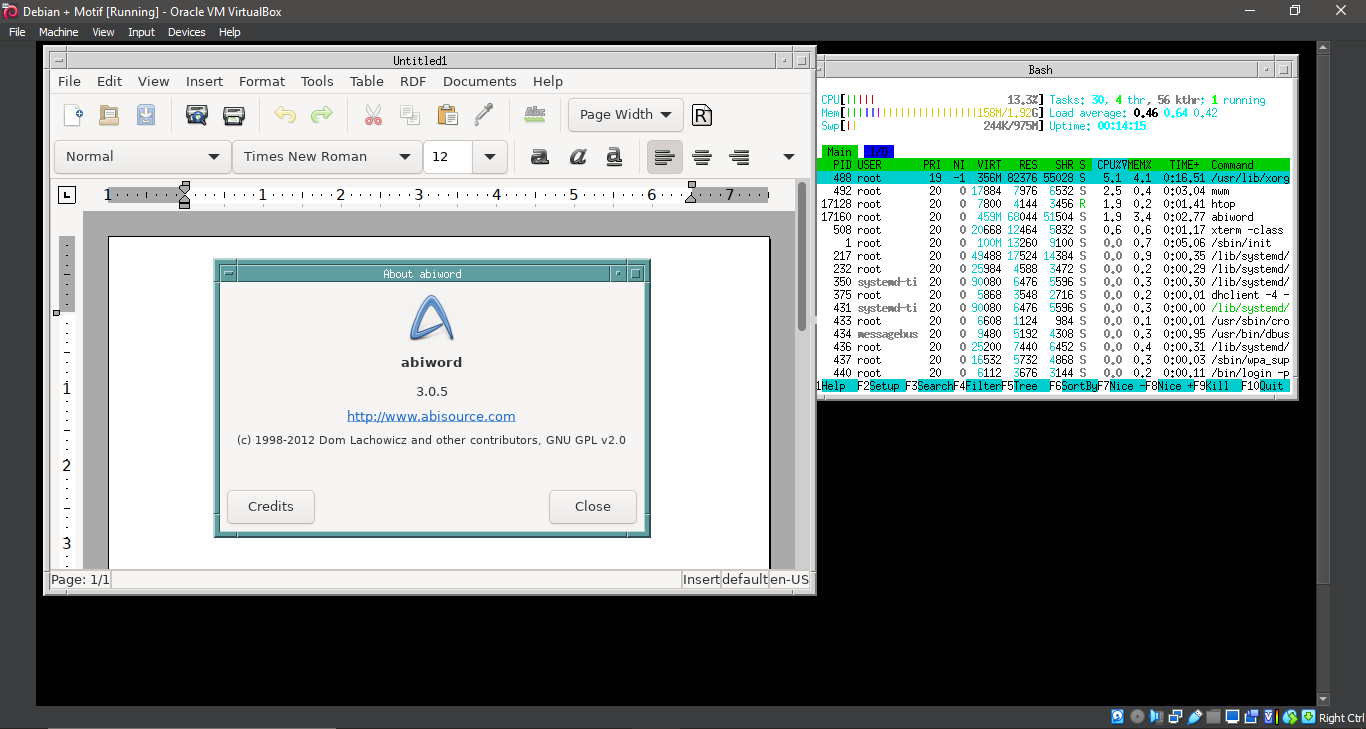
23. Running Motif Window Manager
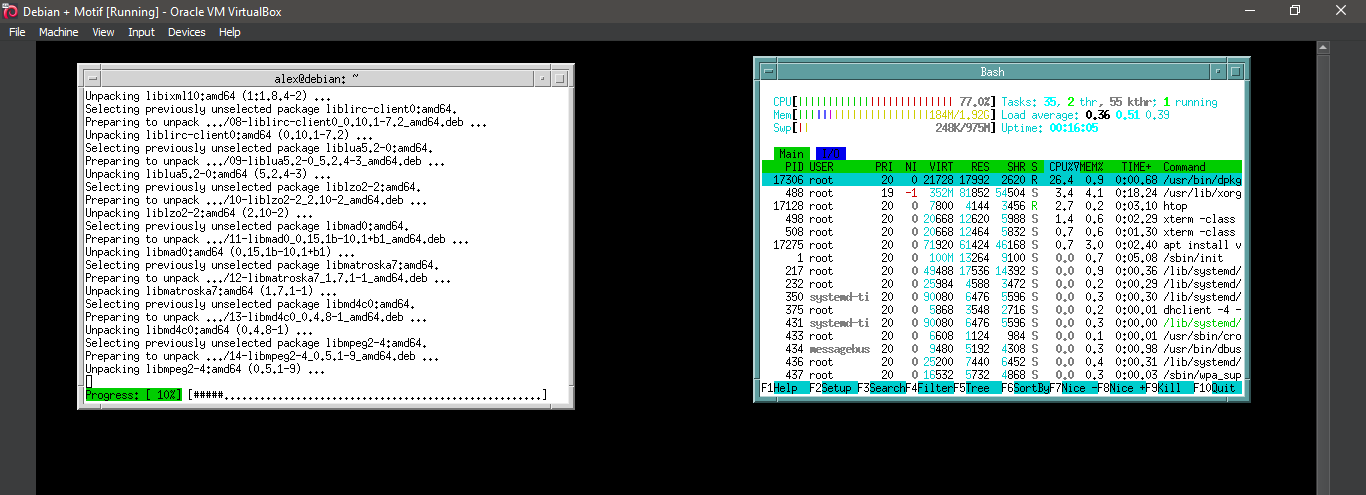
24. Running Motif Window Manager
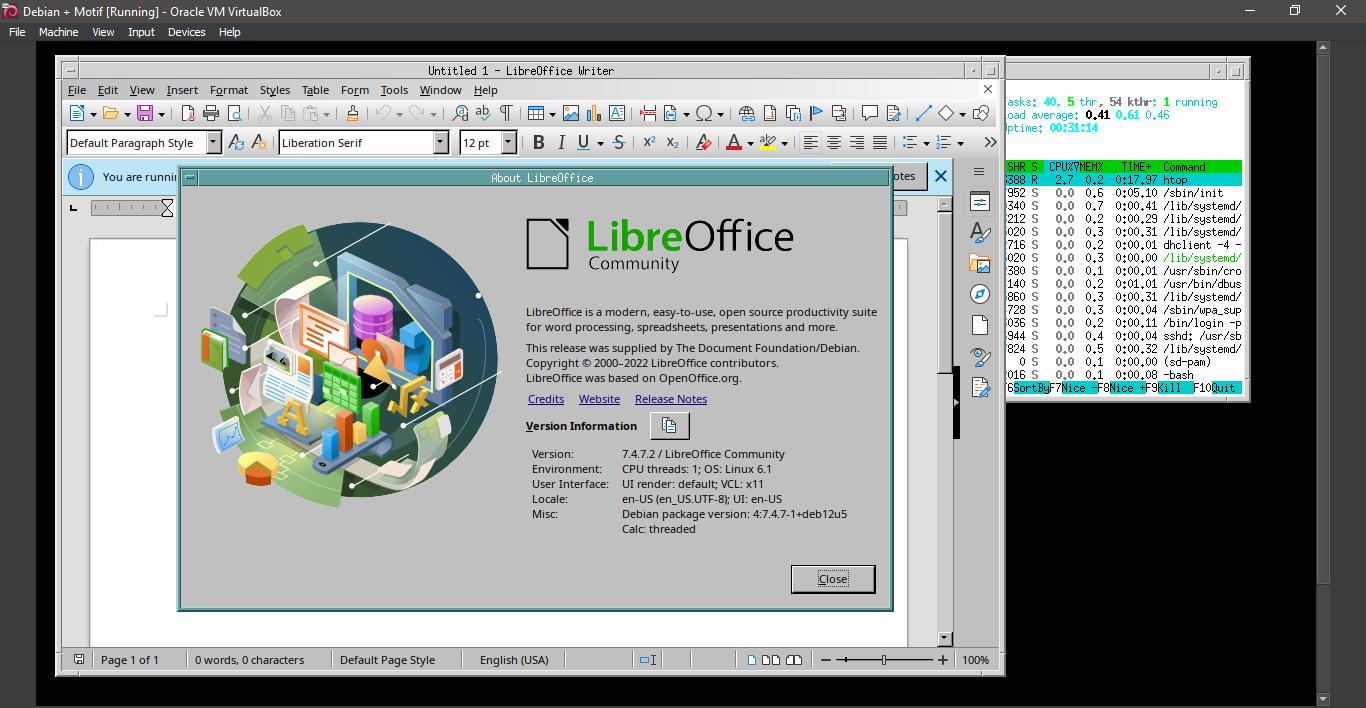
25. Running Motif Window Manager
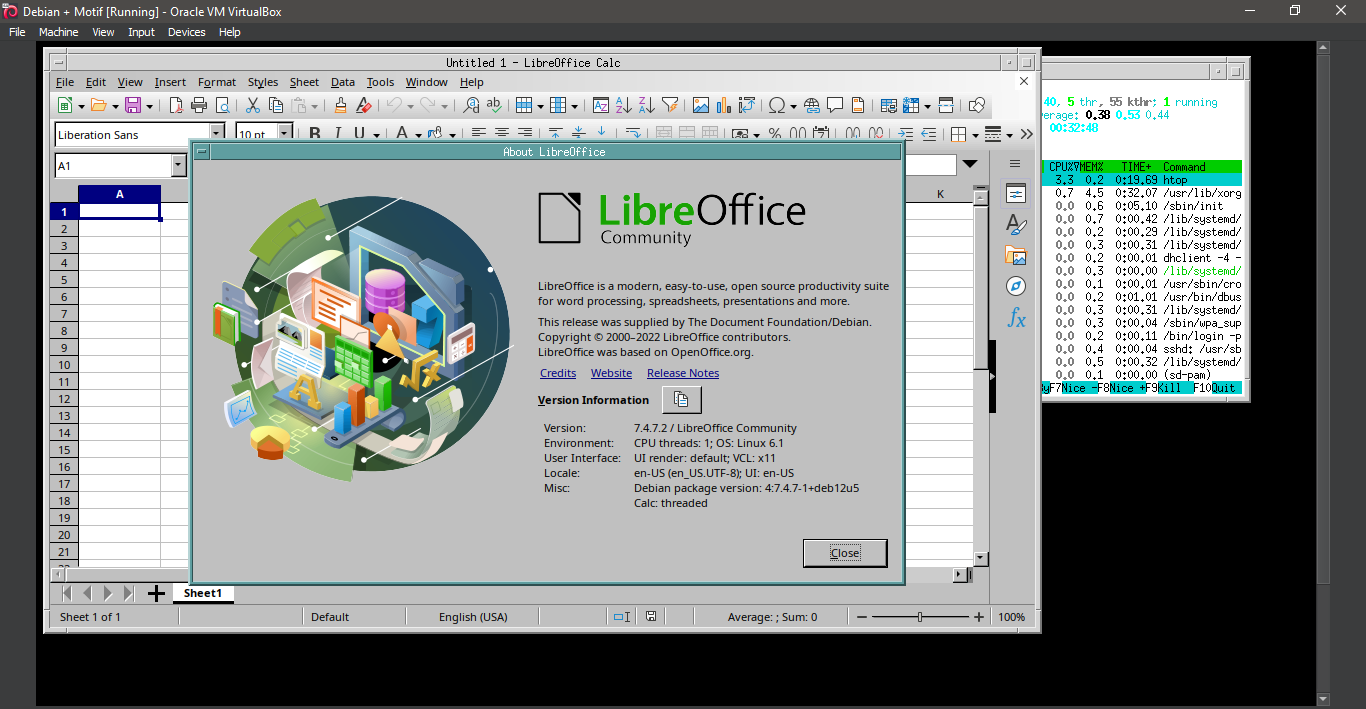
26. Running Motif Window Manager
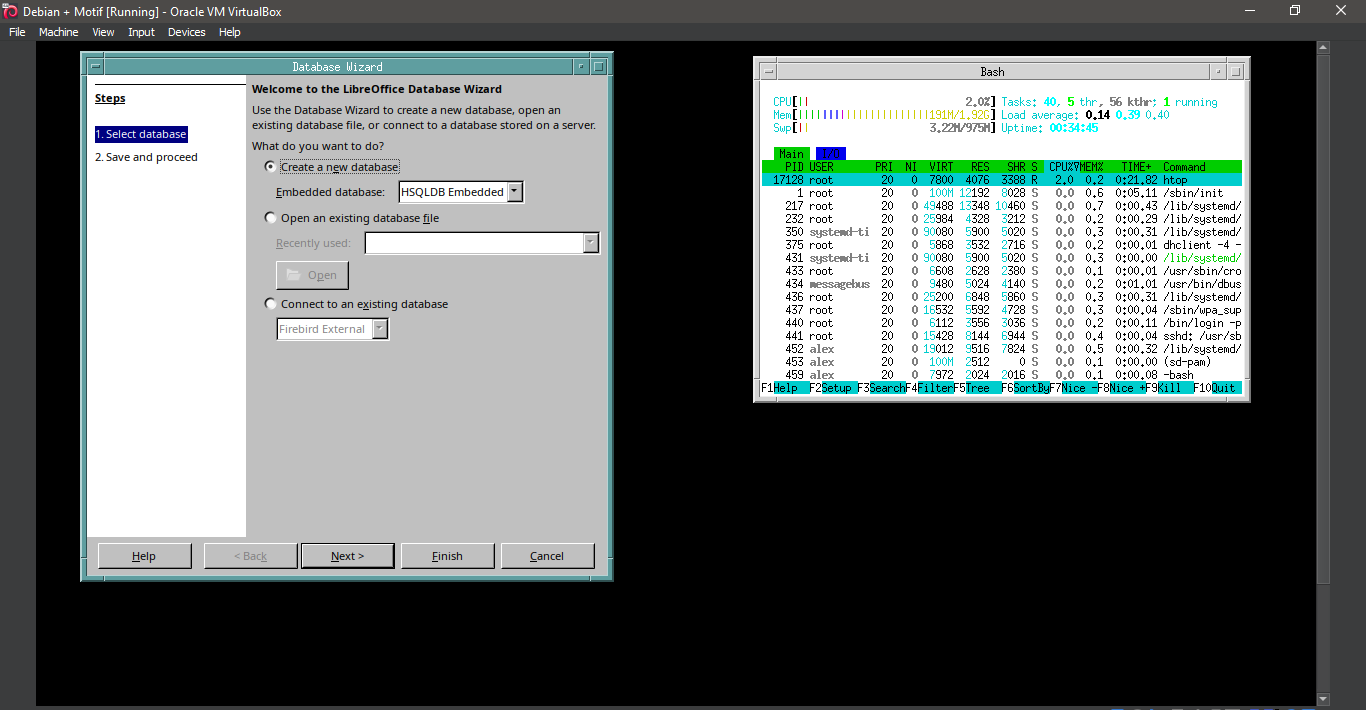
27. Running Motif Window Manager
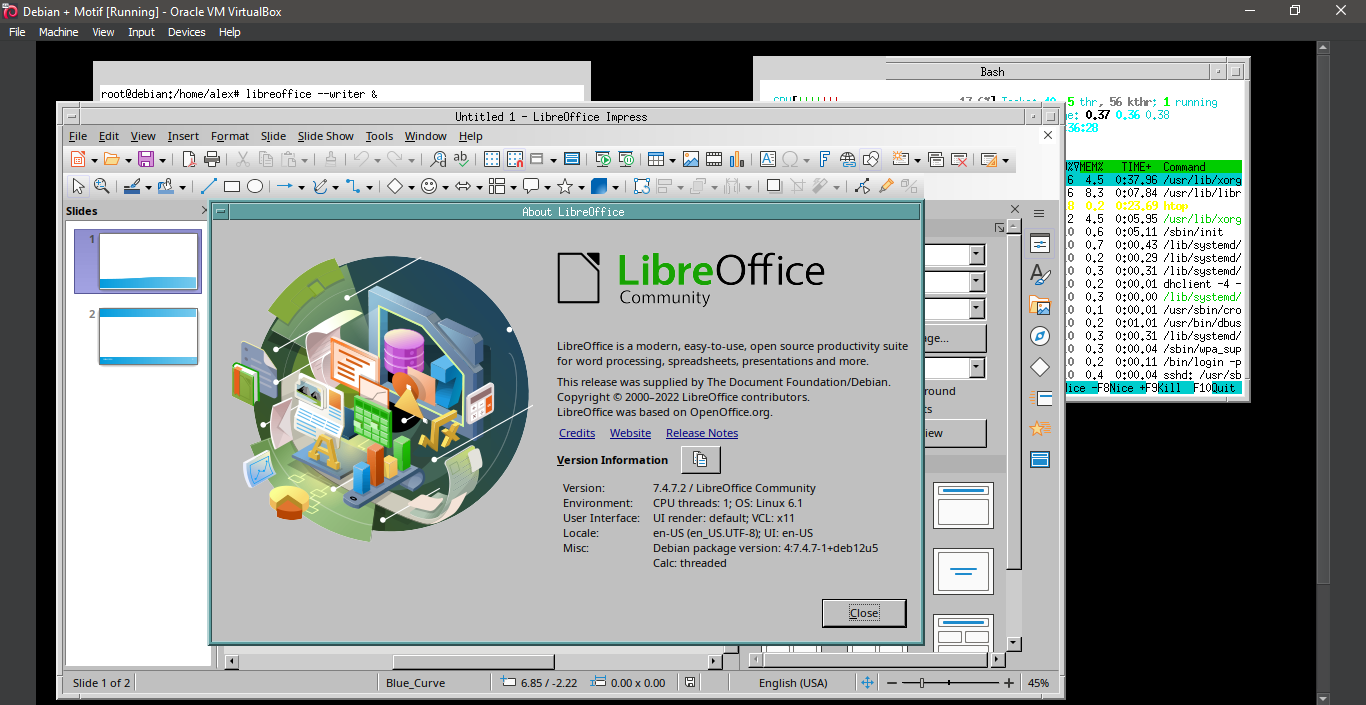
28. Exiting Motif Window Manager
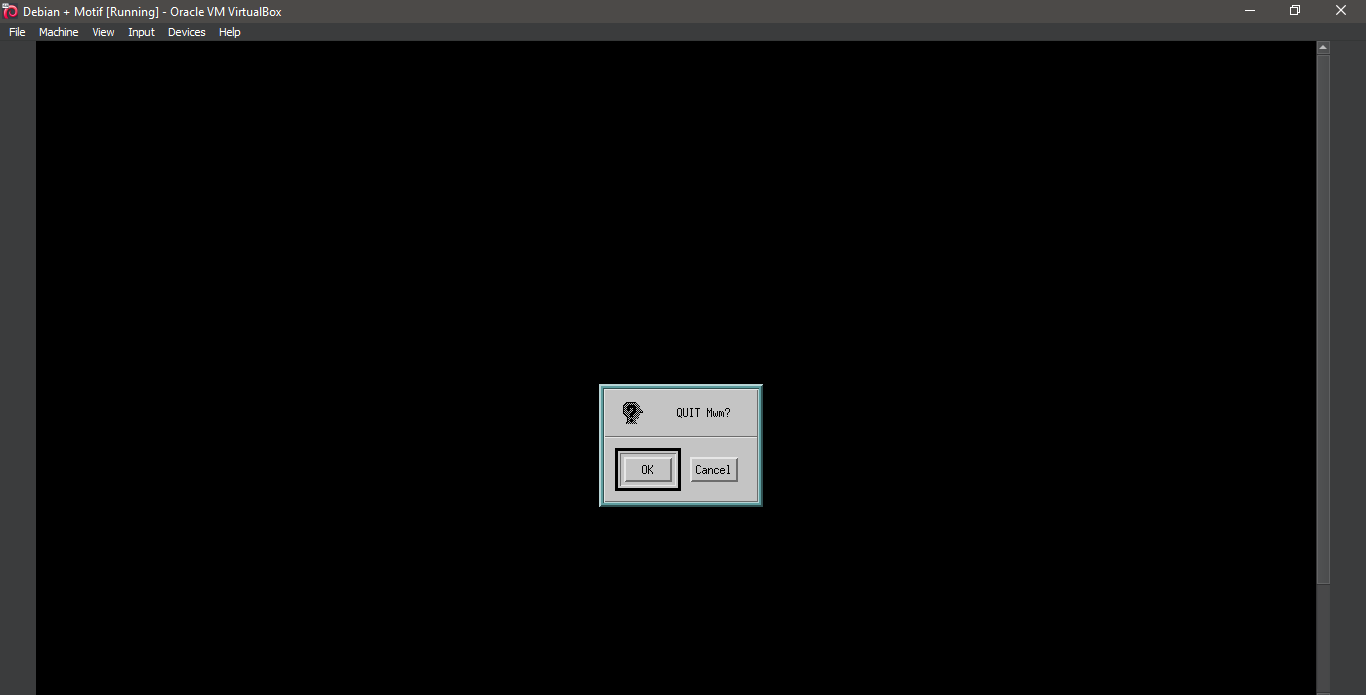
29. Back to the command line interface
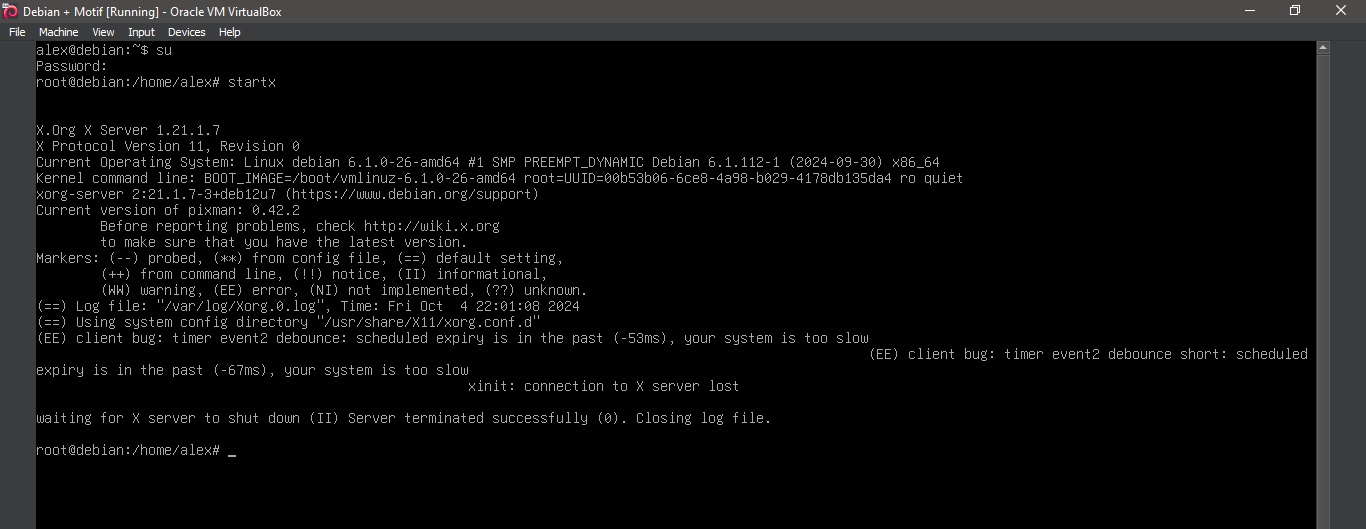
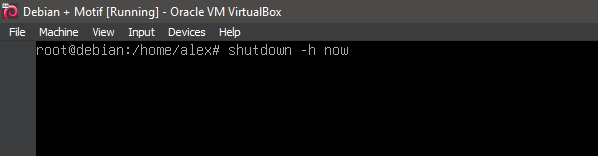
30. Shutting down the system
Well, that was exciting. See you in the next one!
If you wish to support our project
Donation link (Buy me a coffee):