
Installing the Matchbox Window Manager on Debian
Step by step guide and HOWTO
Debian Linux is known for its stability and security, making it a reliable choice for servers and workstations.
It also has a vast software repository with extensive community support, ensuring access to a wide range of applications.
Matchbox has a certain minimalist beauty that comes from its simplicity and purpose-driven design.
Matchbox strips away all the frills and focuses solely on what a window manager needs to do, making it lightweight and fast.
Its minimalist approach gives it a clean aesthetic that doesn't distract with unnecessary visuals.
This design is functional, efficient, and free from clutter, which can feel refreshing, especially compared to heavier, more feature-laden desktop environments.
Originally designed for embedded systems and devices with limited resources, Matchbox is optimized for simplicity and clarity.
It’s used in embedded devices, information kiosks, and even early mobile systems, where clarity and ease of interaction are crucial.
Its focused utility feels purposeful, which gives it a different, almost industrial beauty, especially when running on limited hardware where it performs flawlessly.
With Matchbox, you have complete control over what’s displayed on-screen.
This lets you build an environment from scratch, choosing only the components you need.
There’s a beauty in the control it offers; rather than being locked into a rigid design, Matchbox gives users the freedom to create unique interfaces with only essential applications, clean layouts, and custom backgrounds.
Matchbox doesn’t have the distractions that come with notifications, docks, or widgets.
It creates an environment that helps users focus on single-task workflows, which is often perfect for kiosks, single-purpose devices, or dedicated workspaces.
This focus-driven design makes it beautiful for those who appreciate a minimalist, single-purpose aesthetic.
Matchbox is incredibly lightweight, meaning it runs smoothly even on very old or low-power hardware.
This responsiveness is beautiful in its own way, enabling quick interactions without lag or delay.
Users who value speed and efficiency often find Matchbox’s lightweight nature to be beautiful, as it prioritizes performance over aesthetic embellishments.
Matchbox exemplifies the idea that less is more.
By limiting the interface to the essentials, it leaves room for focus and clarity, resulting in an interface that is uncluttered and pure.
This “bare essentials” aesthetic appeals to people who find beauty in simplicity, where each element has a clear purpose.
Matchbox invites creativity, allowing users to build exactly the interface they want, limited only by their imagination.
It doesn’t dictate style, so you can design around Matchbox and make it look and work the way you want.
For those who enjoy customizing and tailoring every aspect of their desktop experience, Matchbox is beautiful in its willingness to accommodate unique personalizations.
In essence, Matchbox’s beauty is its clean, efficient, purpose-driven design, offering freedom to create a highly personalized, minimalist environment.
It’s an aesthetic that’s subtle yet striking, especially to those who appreciate function, performance, and the philosophy of doing more with less.
Matchbox’s design philosophy reflects a commitment to simplicity, making it ideal for those who value clean, distraction-free environments.
Its lightweight footprint allows for seamless operation on older or resource-constrained hardware, revealing its beauty in both form and function.
For developers and tinkerers, Matchbox offers a refreshing level of control, allowing them to create a truly bespoke environment.
Its emphasis on single-task efficiency encourages a focused workflow, a rare and beautiful quality in an era of multitasking.
Matchbox’s modular approach invites users to add only the elements they need, supporting an elegant, purpose-driven desktop.
The software’s quiet stability and efficiency make it a dependable choice, enhancing its appeal for productivity-focused setups.
By leaving out unnecessary visual elements, Matchbox highlights only what’s essential, bringing a modern, almost Zen-like beauty to any screen.
For those who love minimalism, Matchbox demonstrates how simplicity can create a visually appealing, distraction-free environment.
Its seamless compatibility with various Linux applications makes it versatile, adaptable, and always straightforward to use.
In an increasingly complex digital world, Matchbox stands as a beautiful reminder that sometimes, less truly is more.
Matchbox’s quiet, unobtrusive design allows users to focus entirely on their tasks, making it a great companion for dedicated, single-purpose systems.
It champions efficiency, with every aspect geared towards functionality over flourish, which appeals to those who appreciate utilitarian elegance.
Matchbox embodies the beauty of purpose-driven software, designed to perform well on limited hardware without sacrificing user experience.
Its customization potential lets users create unique, efficient setups that align with their specific needs, offering a tailored and intimate computing experience.
With Matchbox, the beauty lies in its restraint—there’s no clutter, only the essentials, making it feel intentional and well-composed.
By prioritizing simplicity and usability, Matchbox remains accessible yet powerful, a rare combination in window managers.
In the end, Matchbox reminds us that true beauty often lies in simplicity, focusing on function and flexibility over ornamental design.
Today we shall install the Matchbox Window Manager on Debian
We need to complete several steps to get it working correctly.
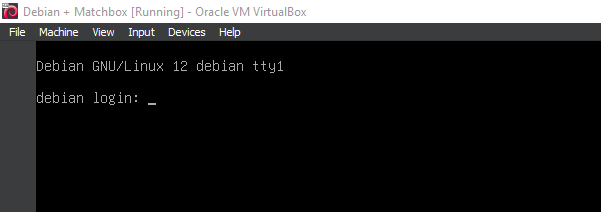
1. Boot the system -- System Ready.
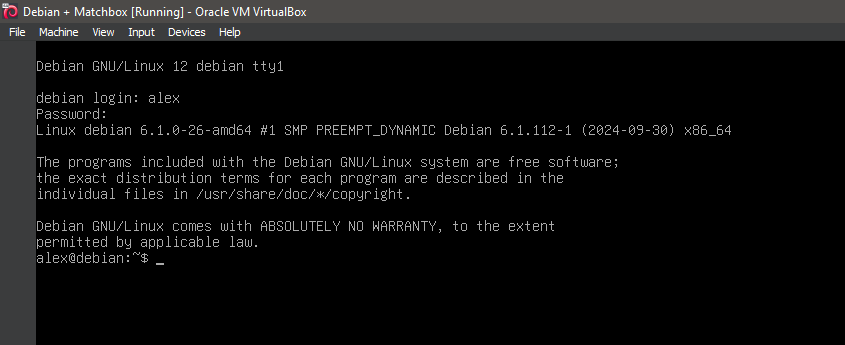
2. Boot the system -- Logged In.
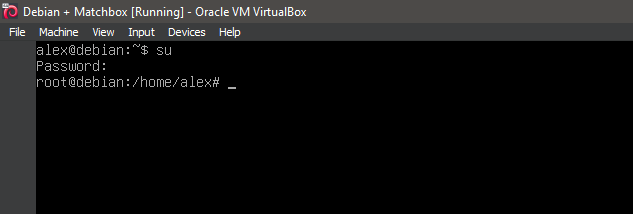
3. Switch to root
su
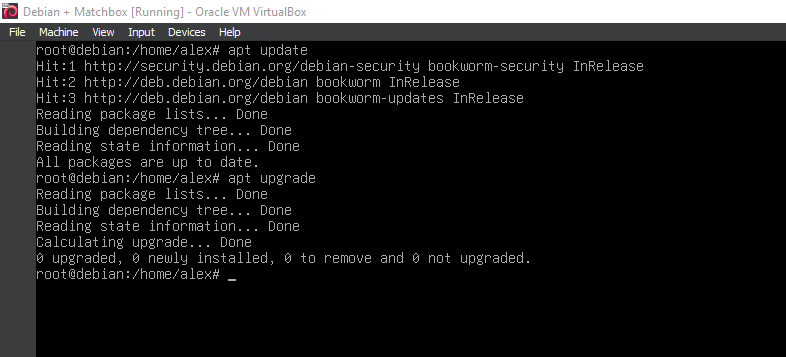
4. Running update
apt-get update
apt-get upgrade
5. Running 'apt install xorg'
apt install xorg
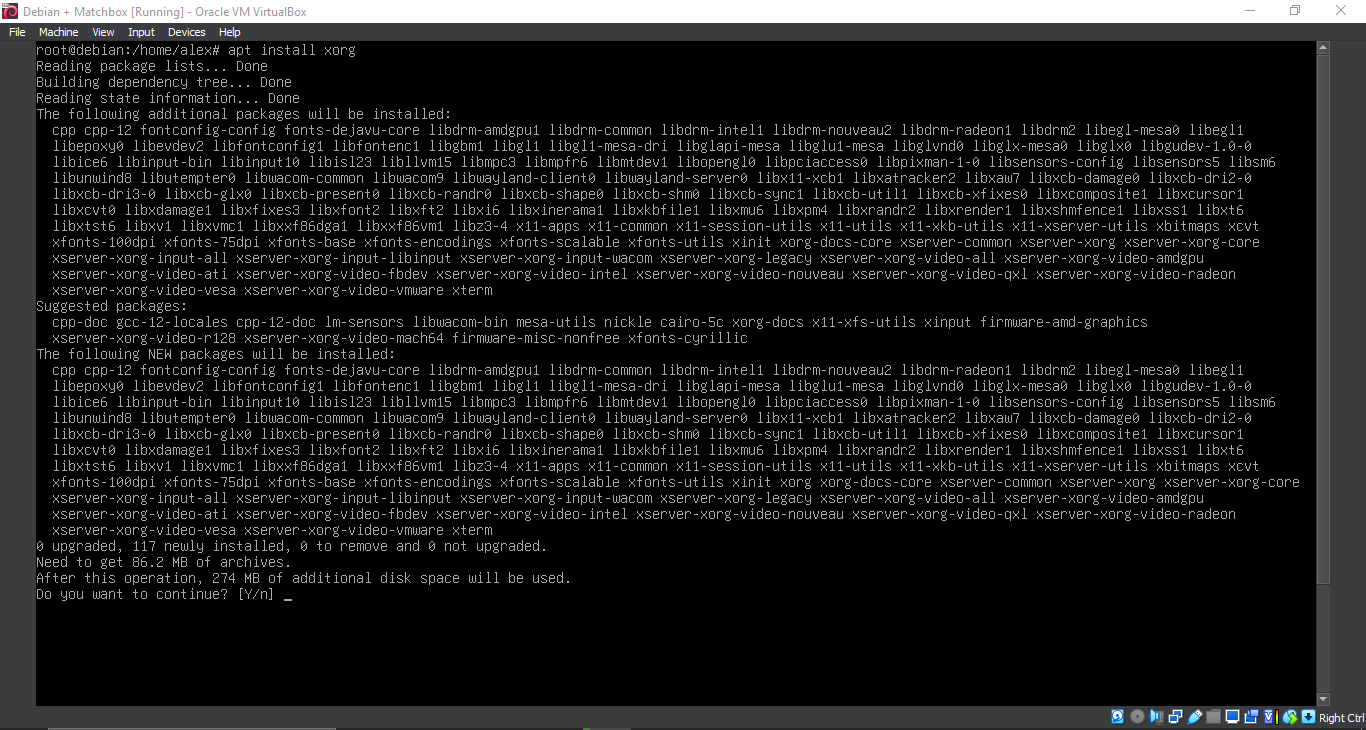
6. Running 'apt install xorg'
apt install xorg
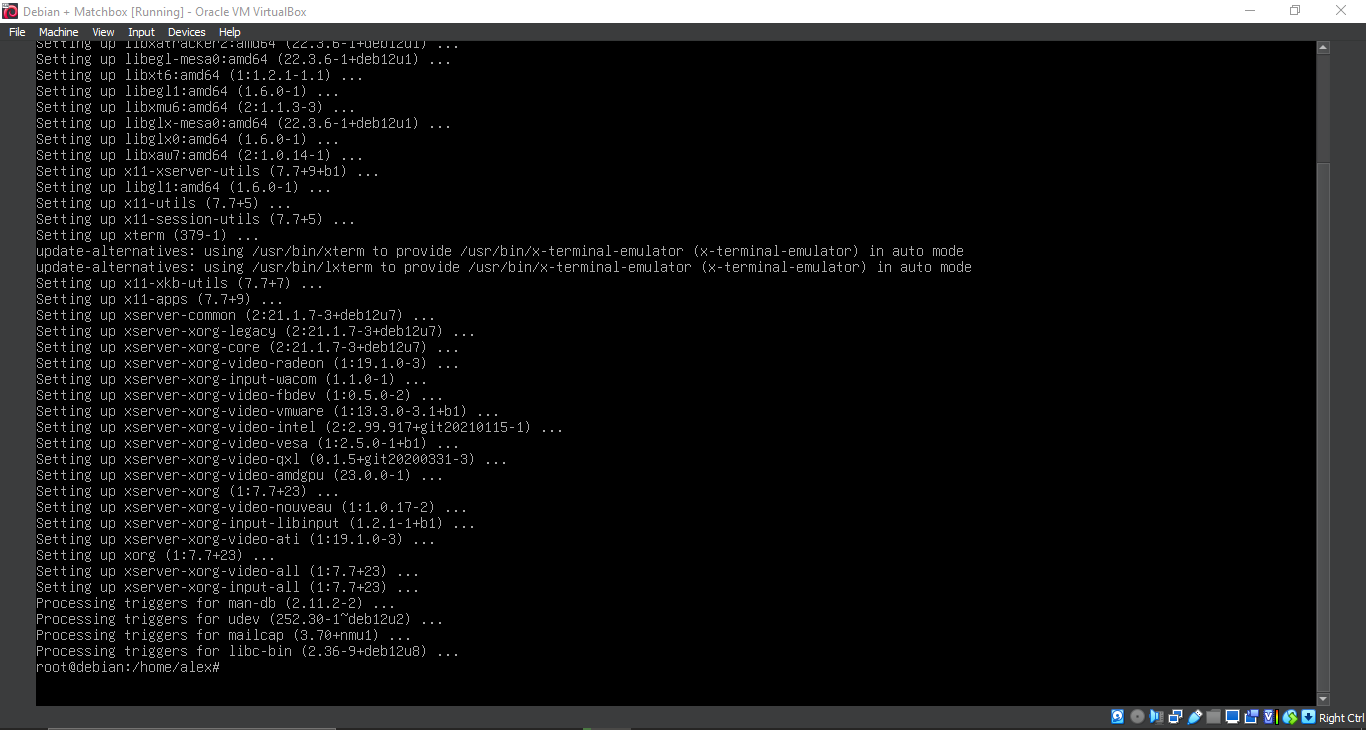
7. Running 'apt install matchbox-window-manager'
apt install matchbox-window-manager
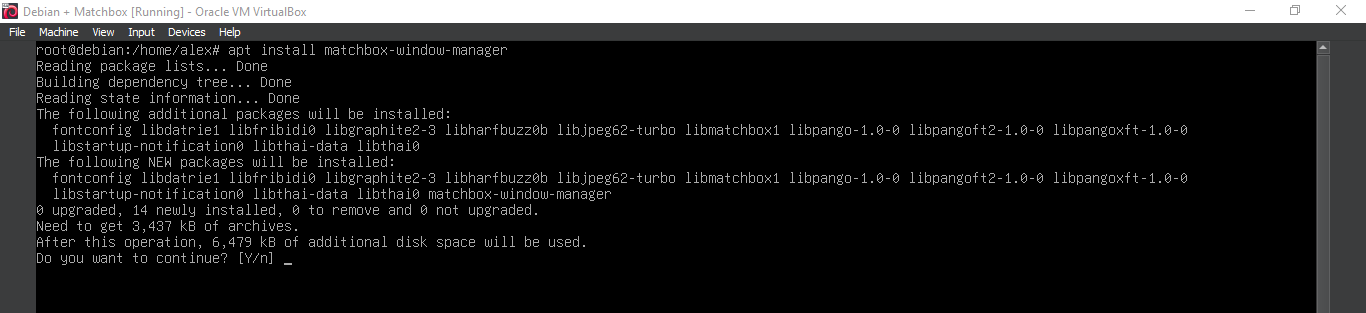
8. Running 'apt install matchbox-window-manager'
apt install matchbox-window-manager
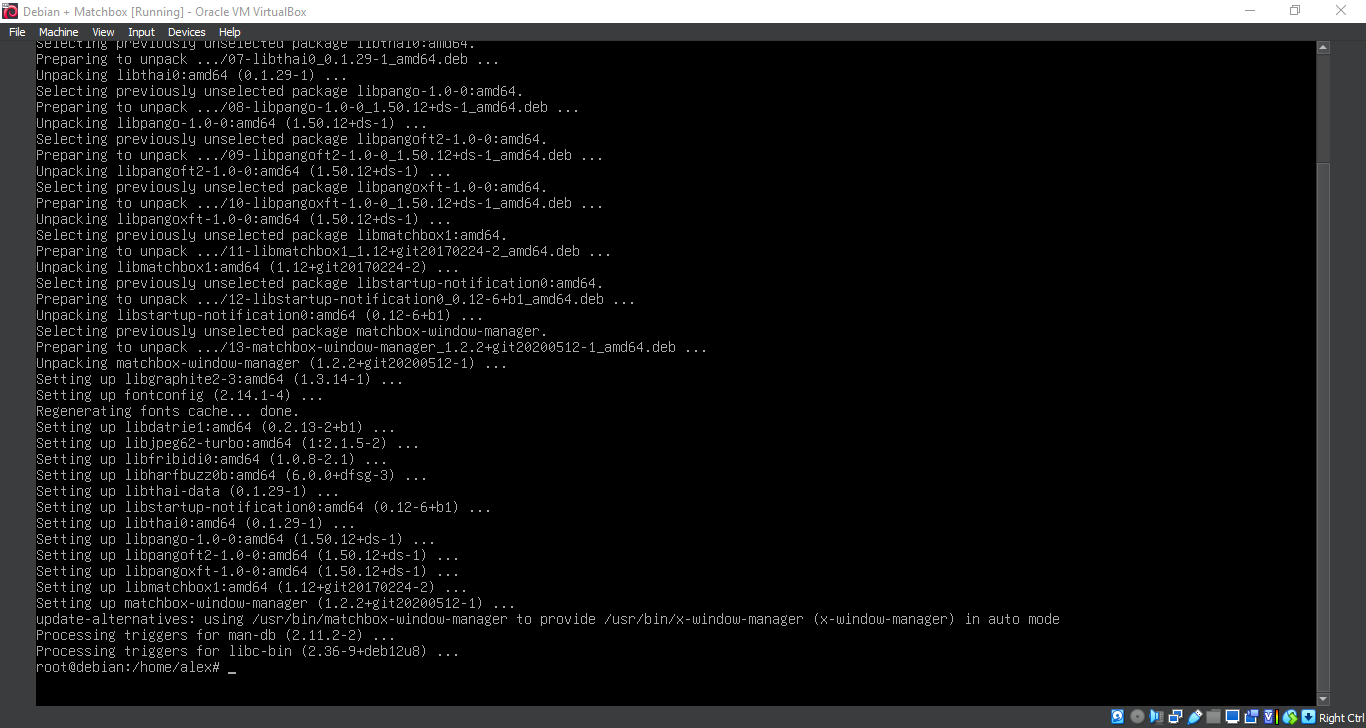
9. Configuration
nano ~/.xinitrc
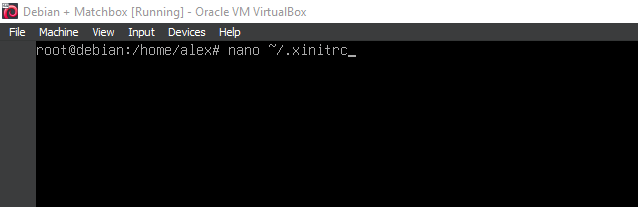
10. Configuration
exec matchbox-window-manager
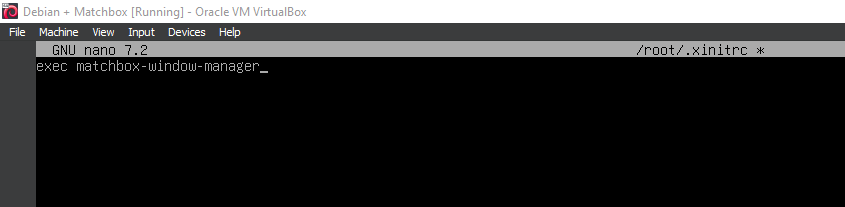
11. Running 'apt install matchbox-keyboard matchbox-desktop matchbox-panel'
apt install matchbox-keyboard matchbox-desktop matchbox-panel
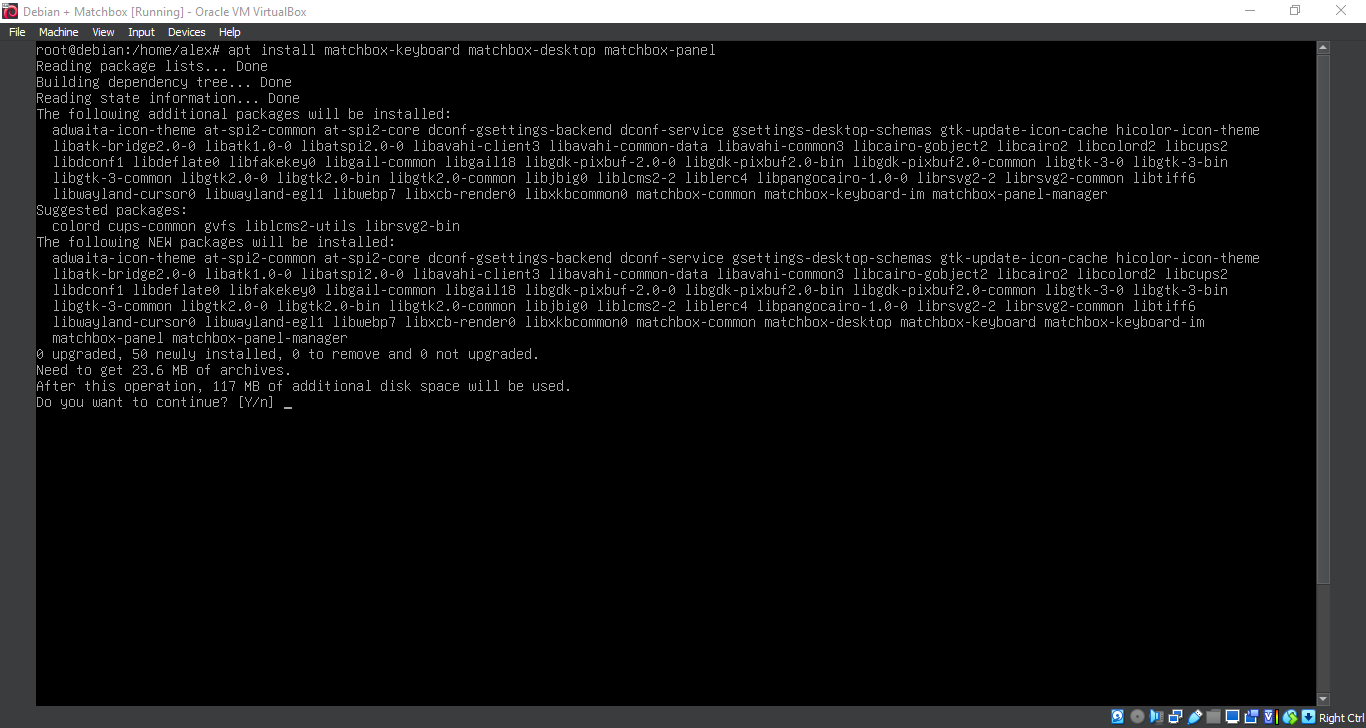
12. Running 'apt install matchbox-keyboard matchbox-desktop matchbox-panel'
apt install matchbox-keyboard matchbox-desktop matchbox-panel
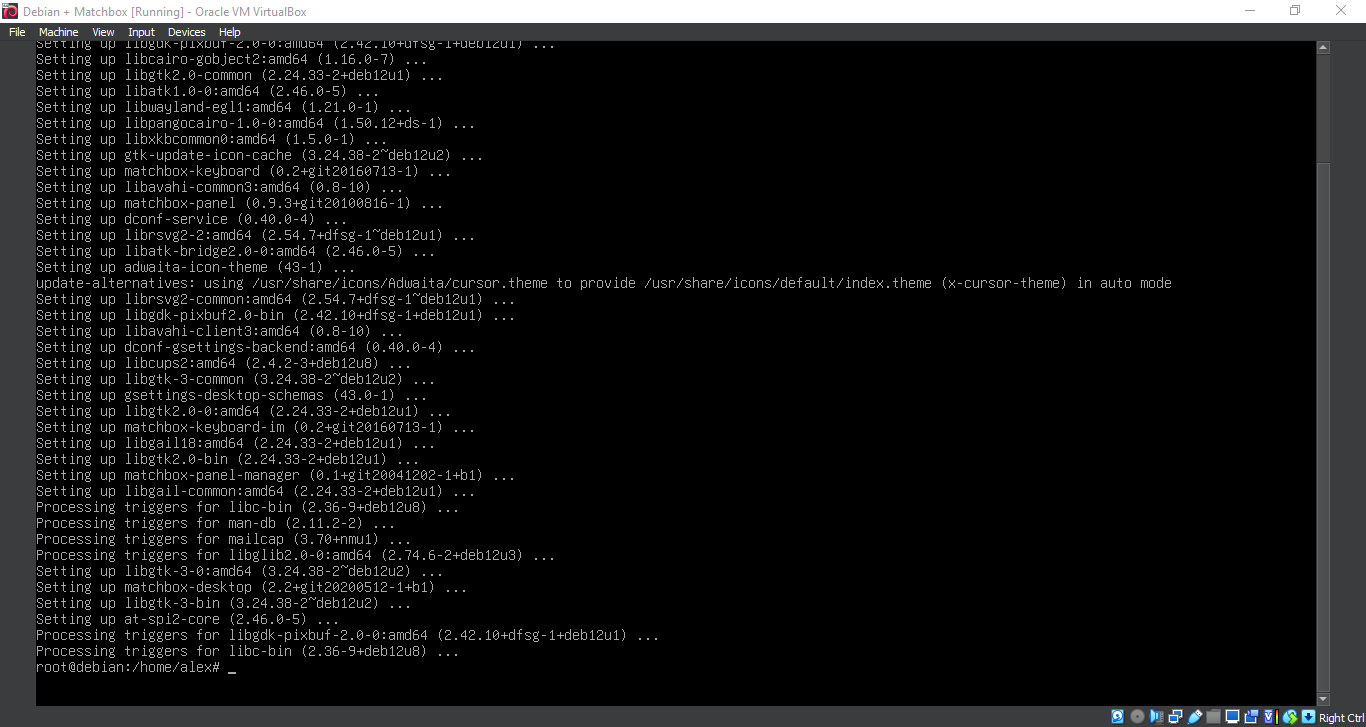
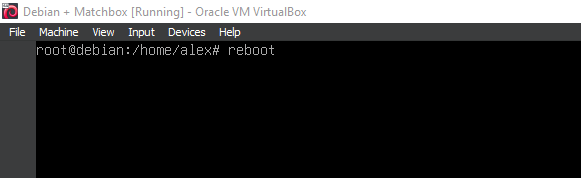
13. Running 'reboot'
reboot
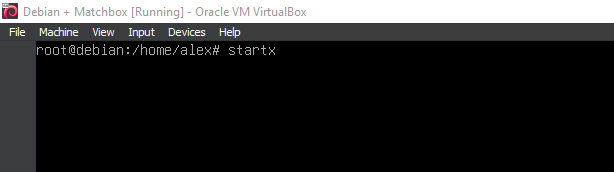
14. Running 'startx'
startx
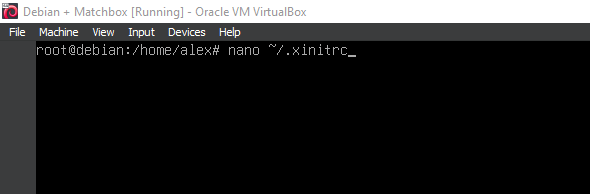
15. Adding extra components
nano ~/.xinitrc
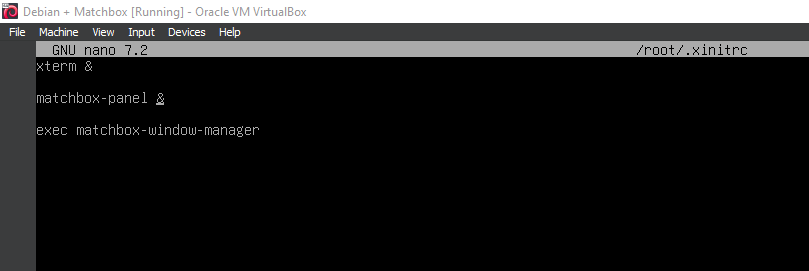
16. Adding extra components
xterm &
matchbox-panel &
exec matchbox-window-manager
17. Running 'startx'
startx
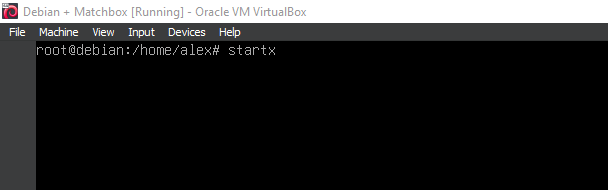
18. Running Matchbox Window Manager
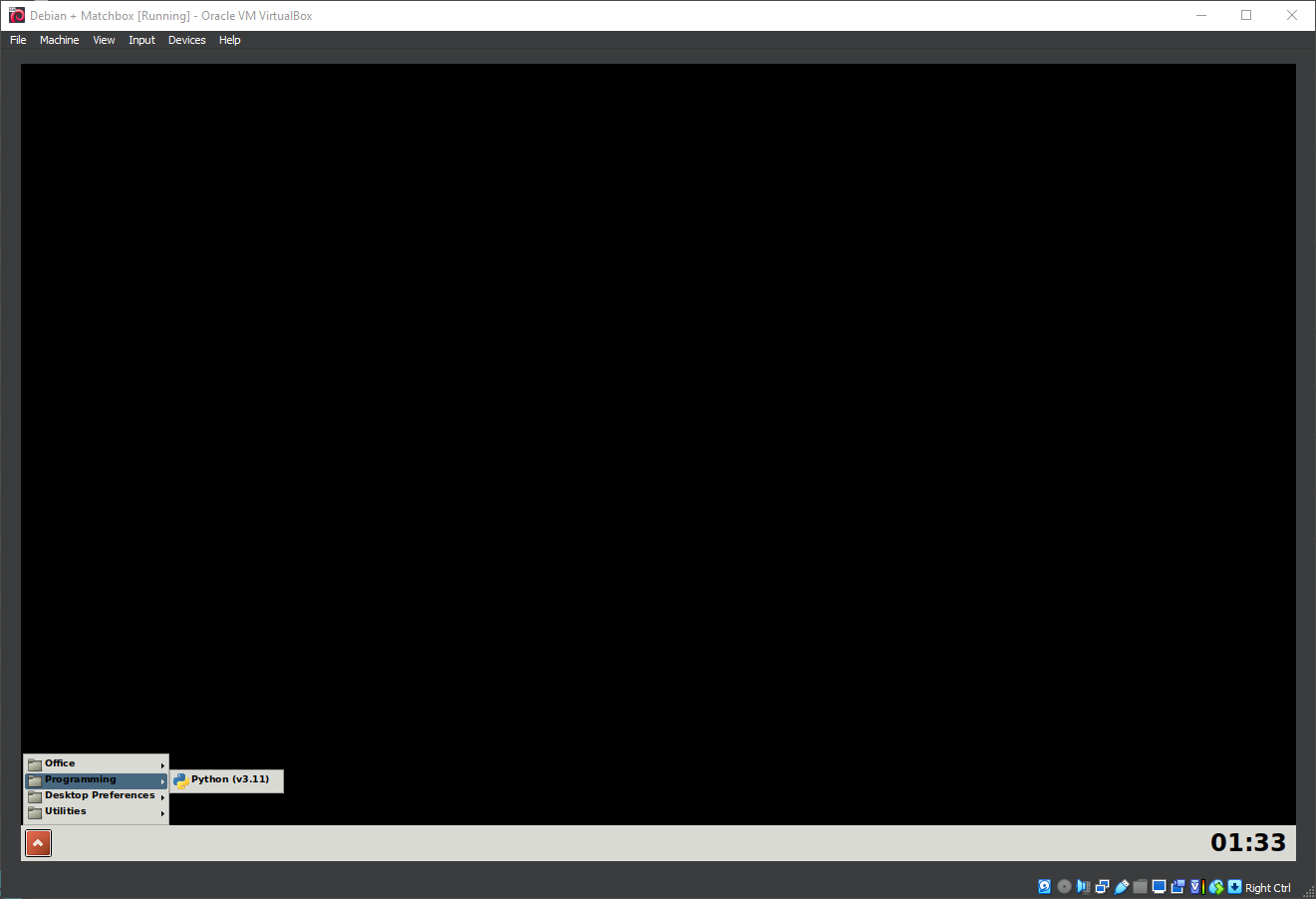
19. Running Matchbox Window Manager

20. Running Matchbox Window Manager
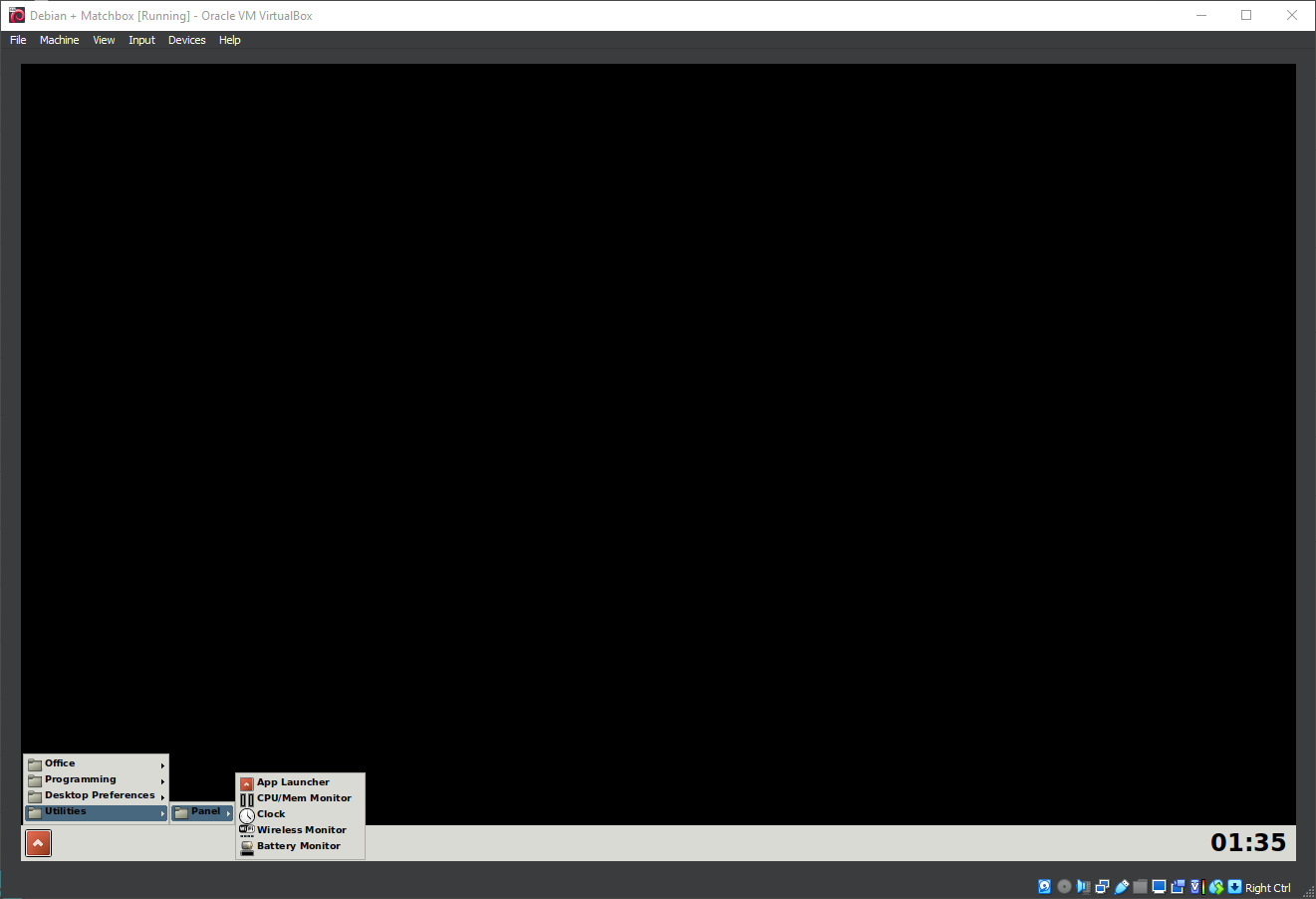
21. Running Matchbox Window Manager
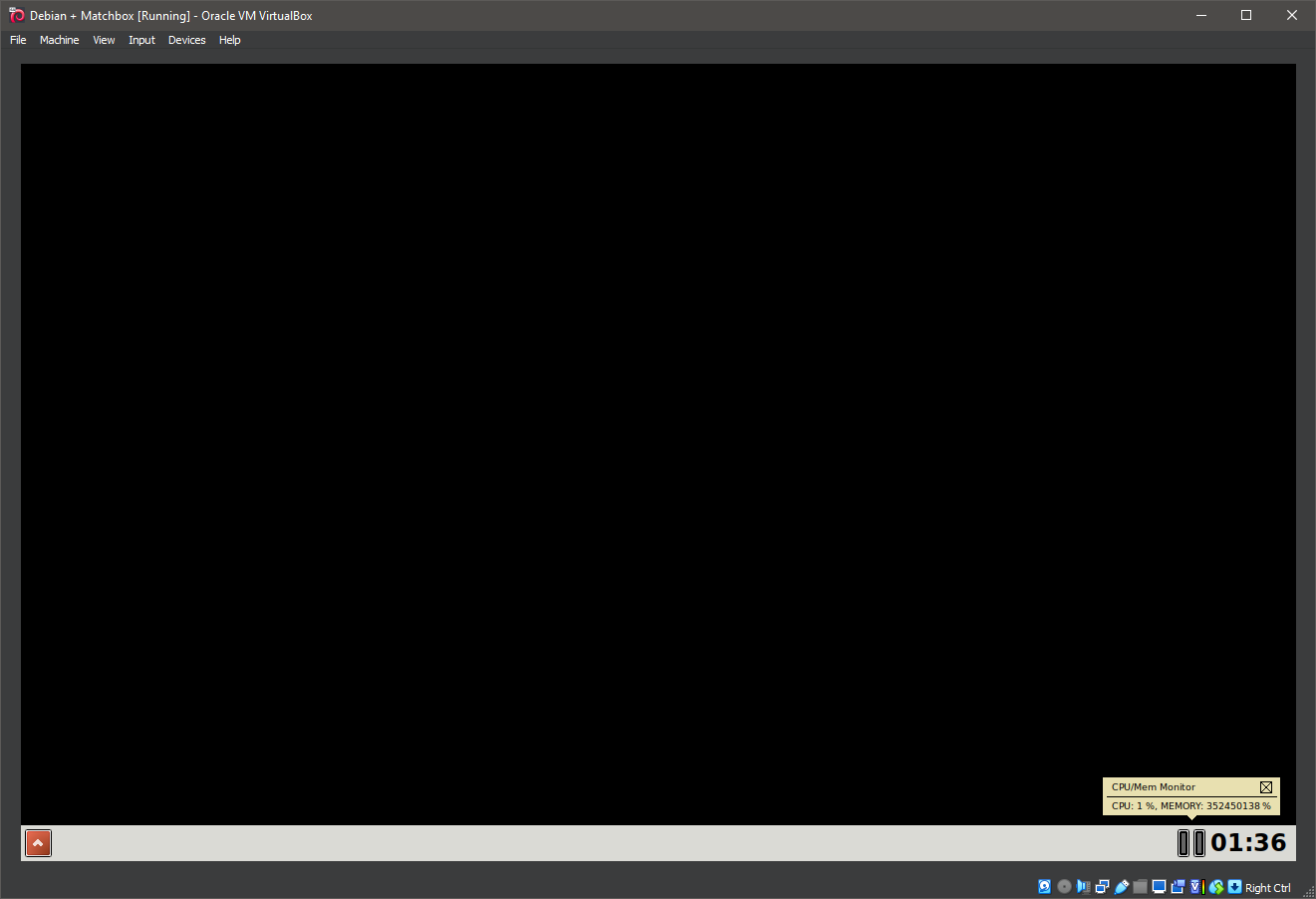
22. Running Matchbox Window Manager
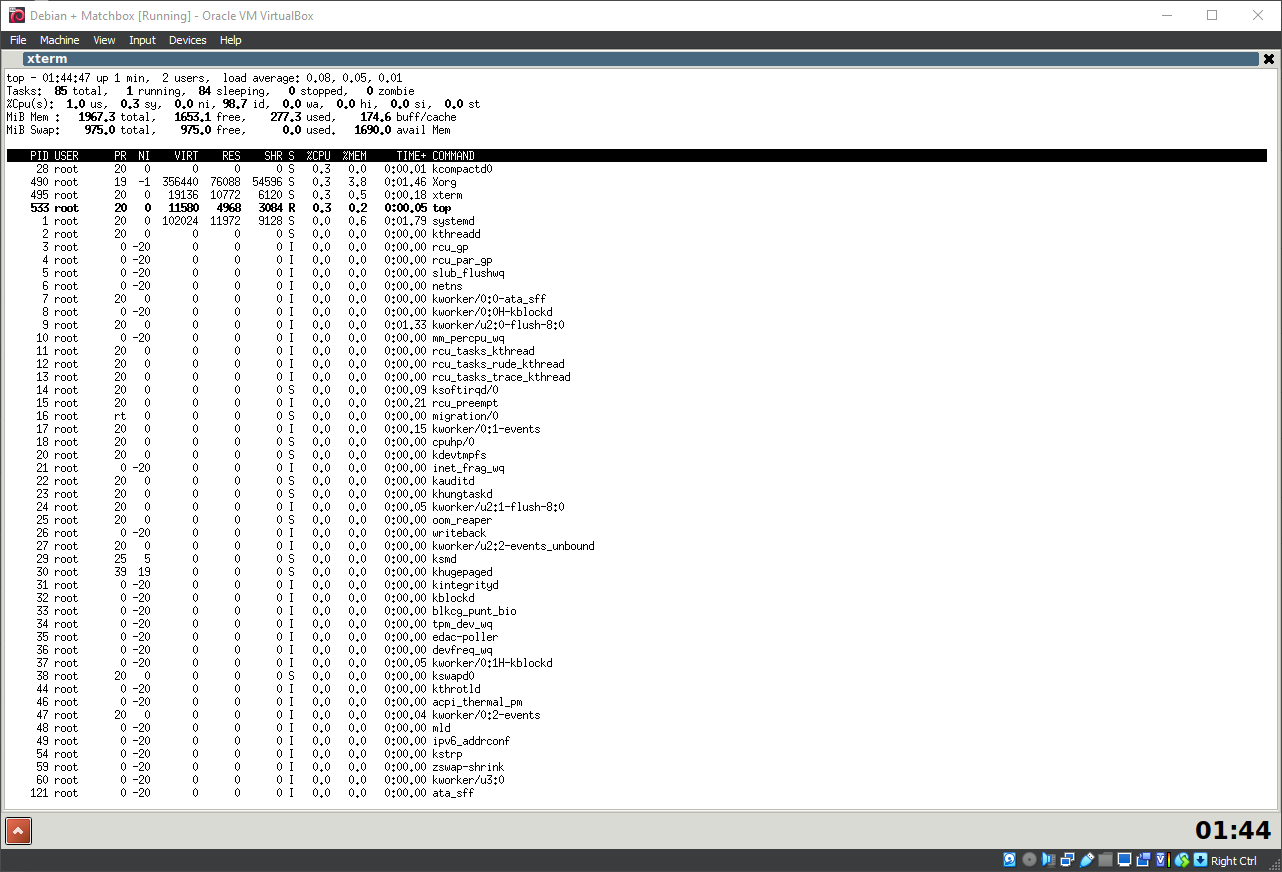
23. Running Matchbox Window Manager
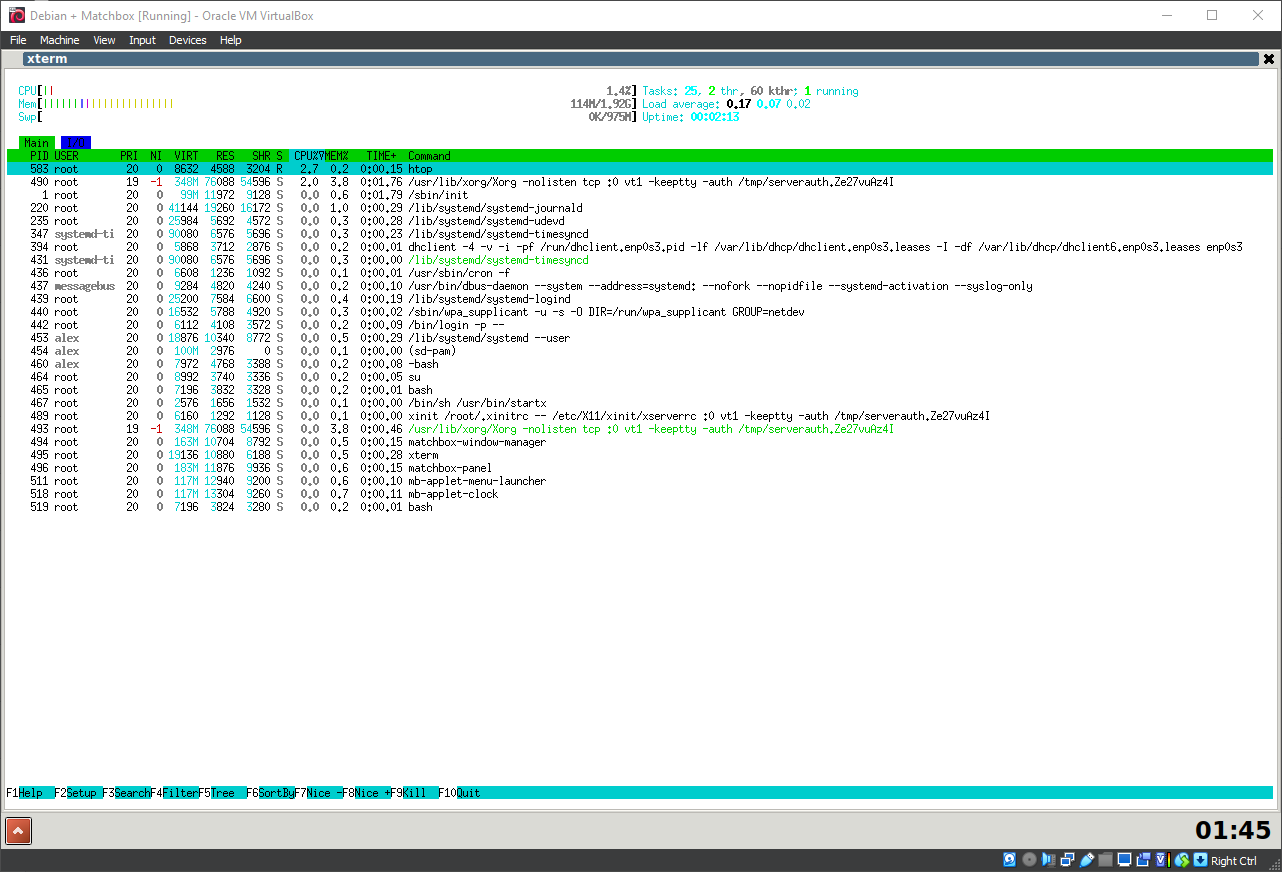
24. Running Matchbox Window Manager
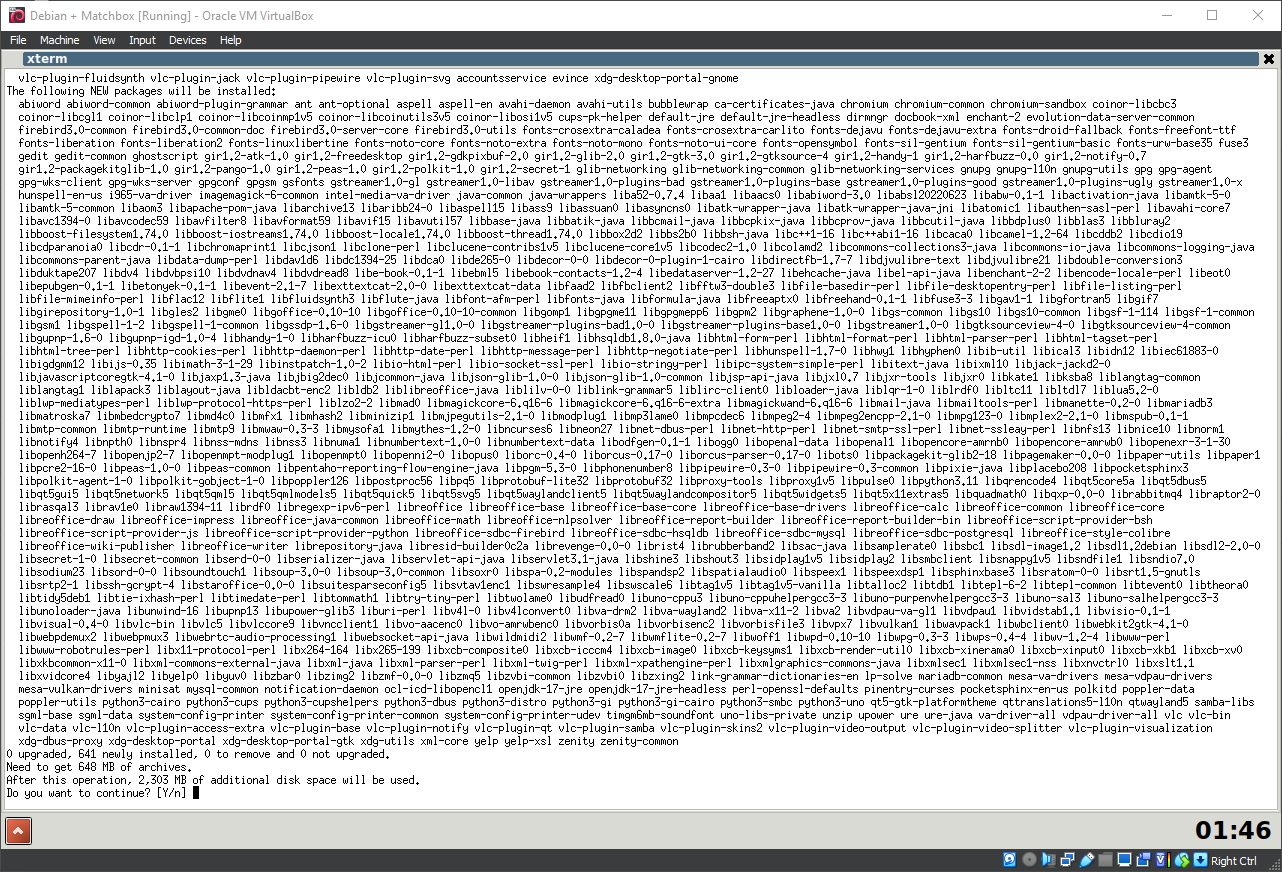
25. Running Matchbox Window Manager
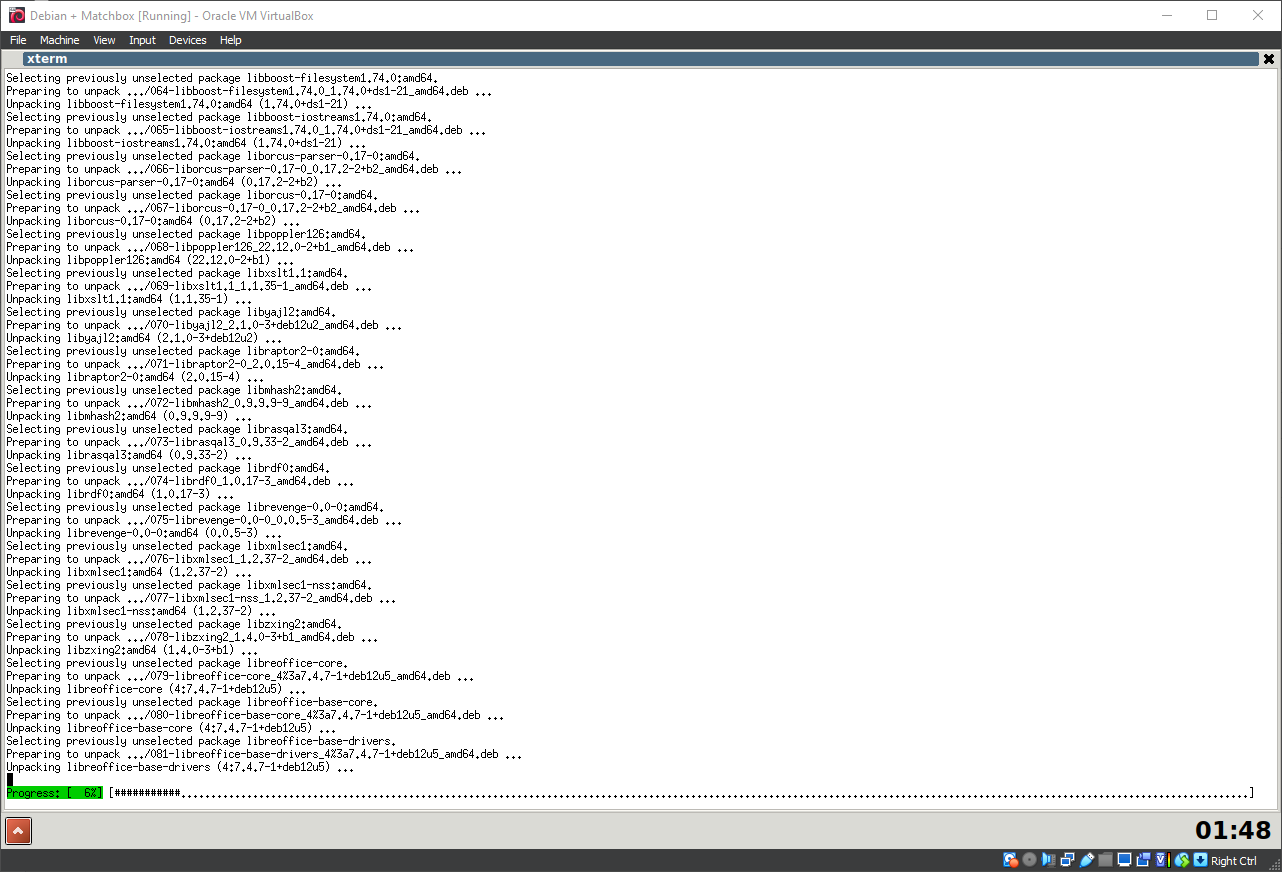
26. Running Matchbox Window Manager
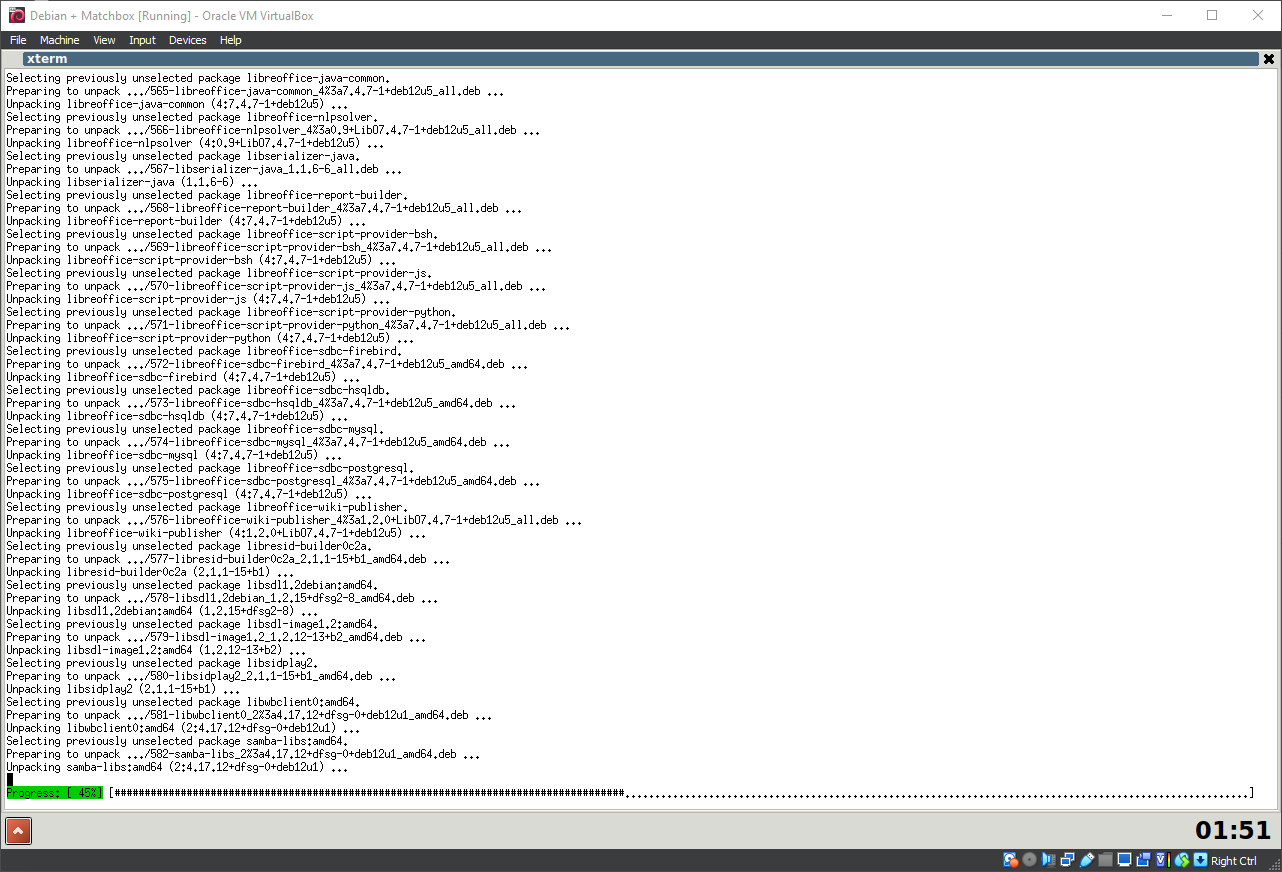
27. Running Matchbox Window Manager
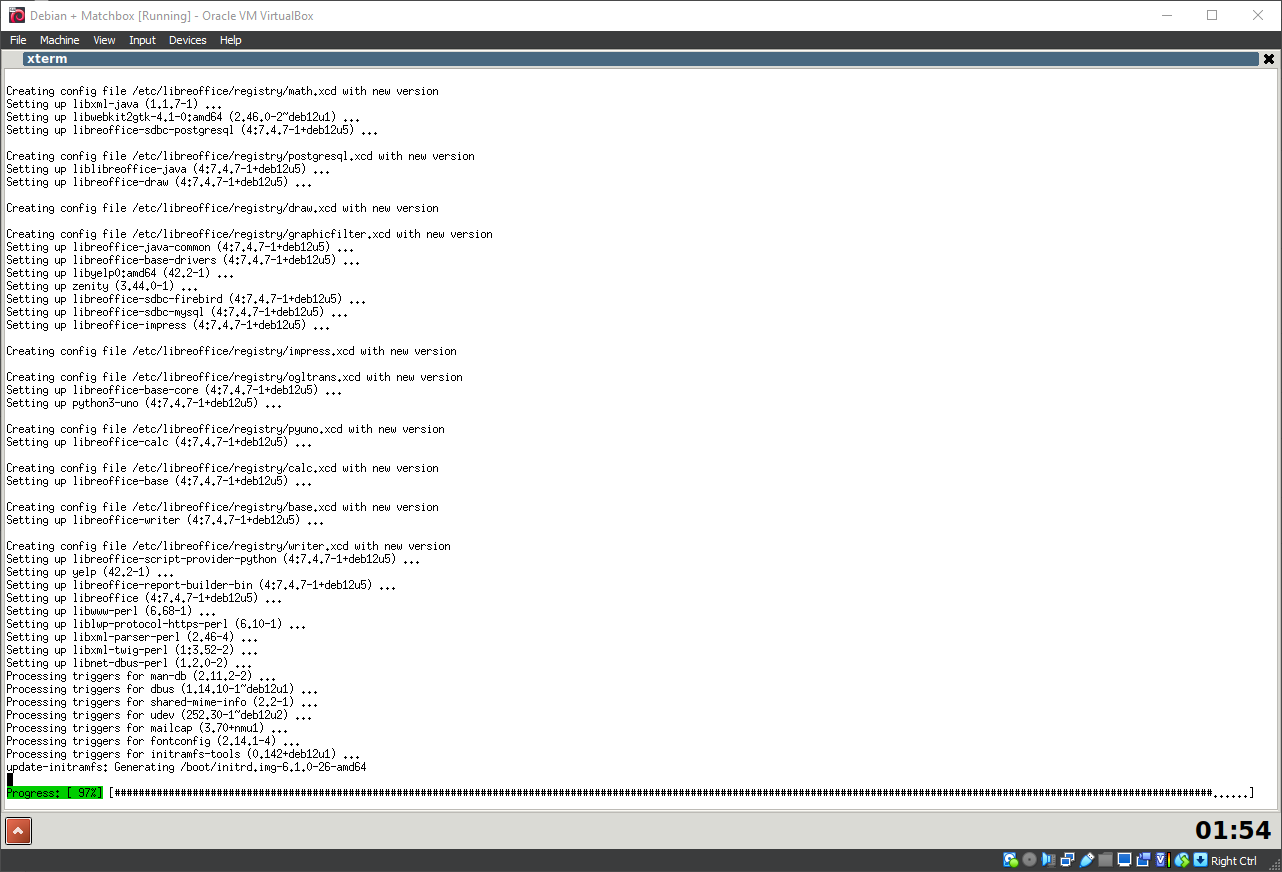
28. Running Matchbox Window Manager
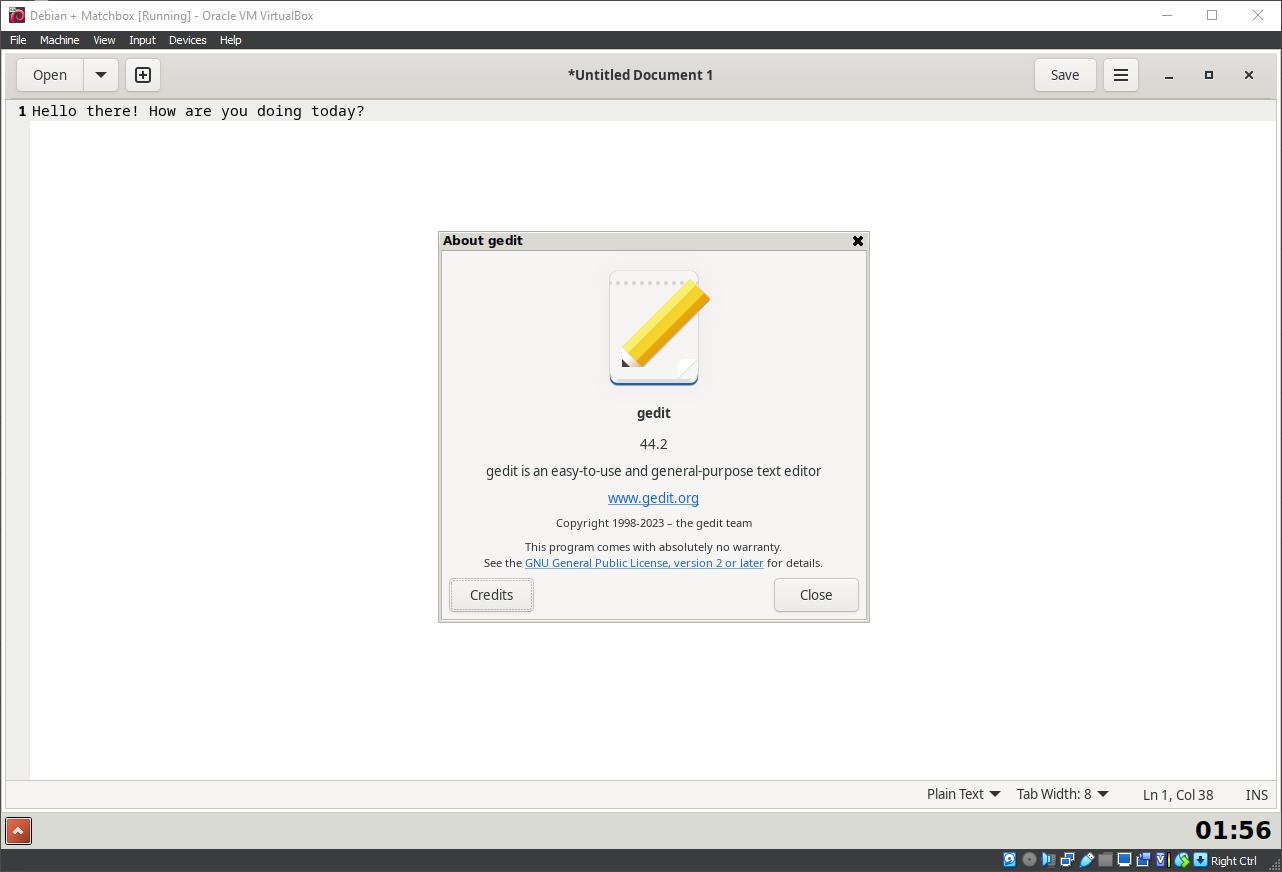
29. Running Matchbox Window Manager
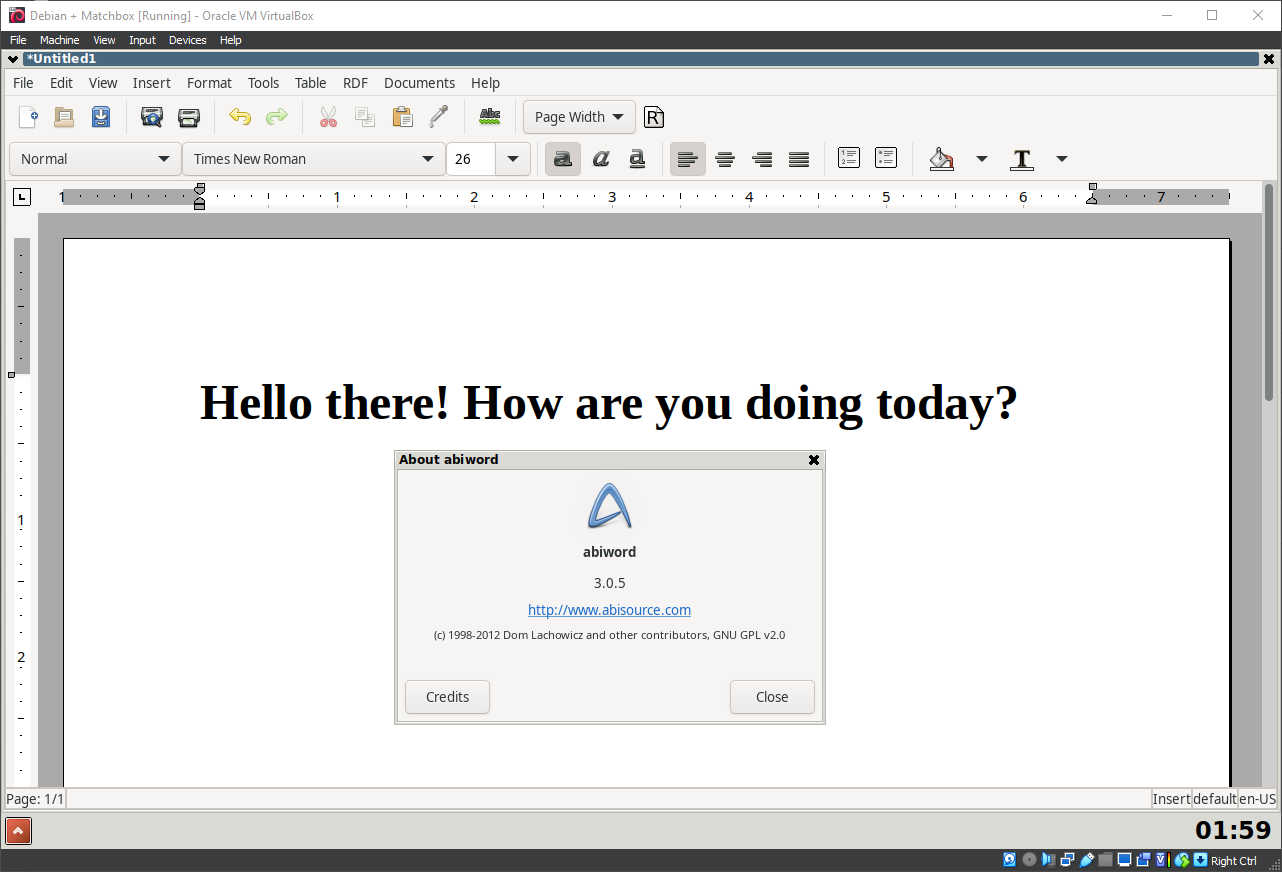
30. Running Matchbox Window Manager
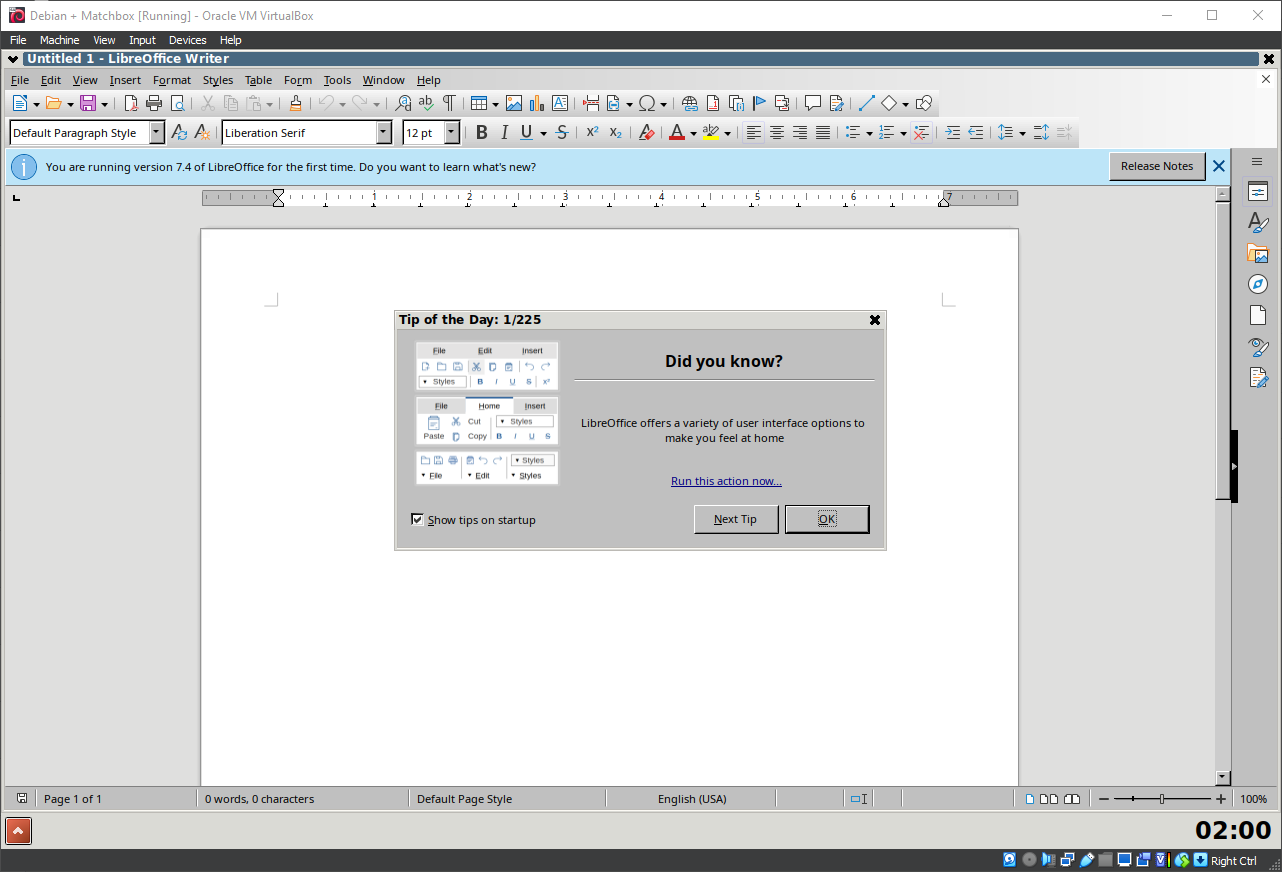
31. Running Matchbox Window Manager
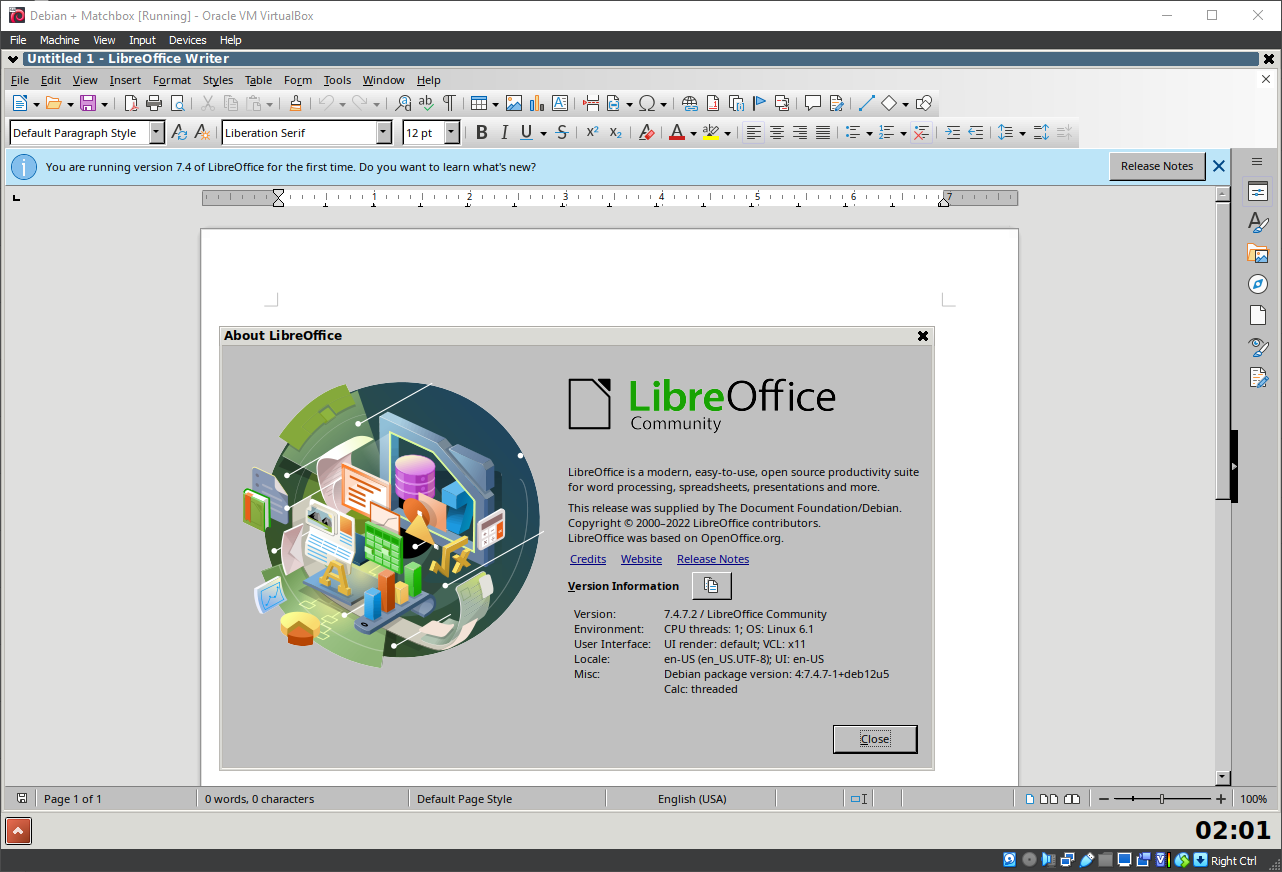
32. Running Matchbox Window Manager
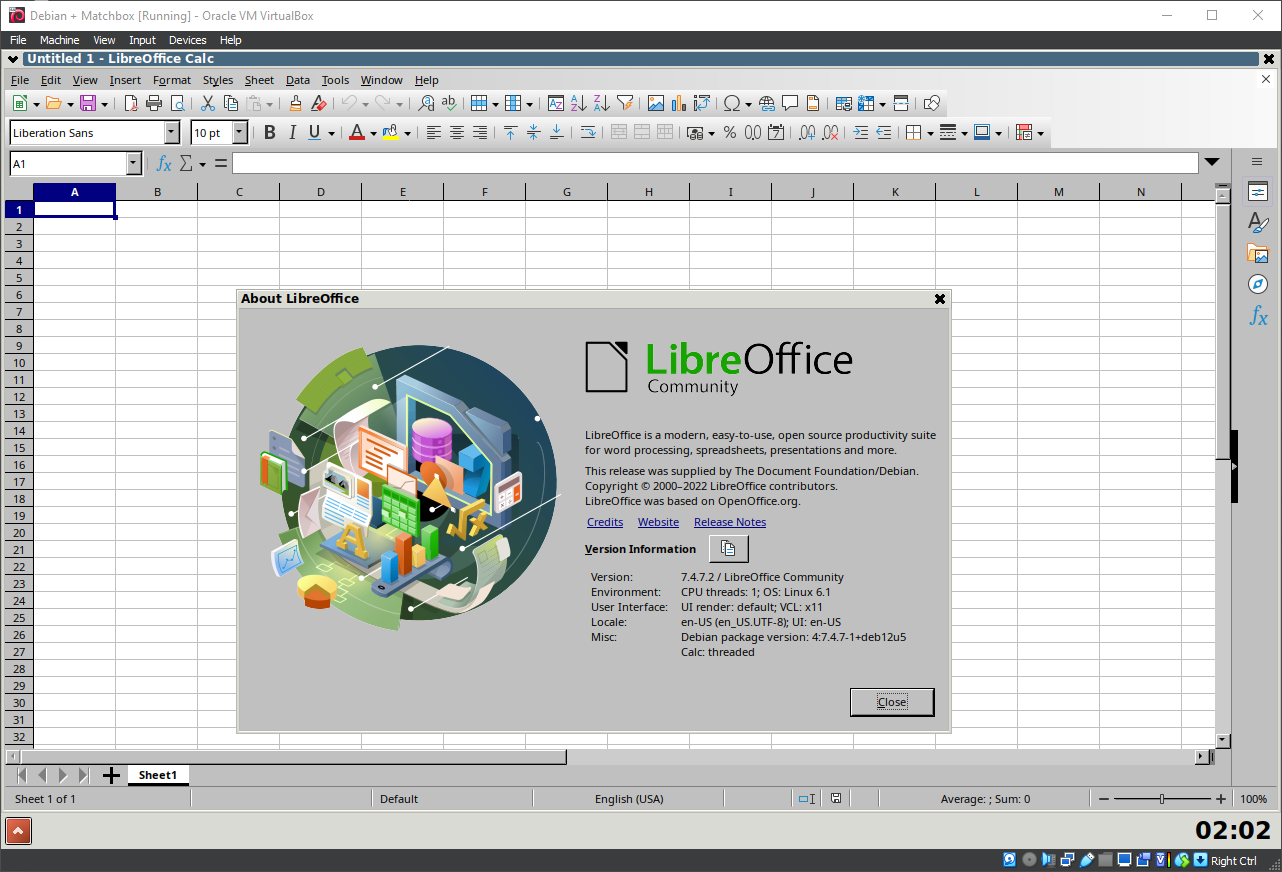
33. Running Matchbox Window Manager
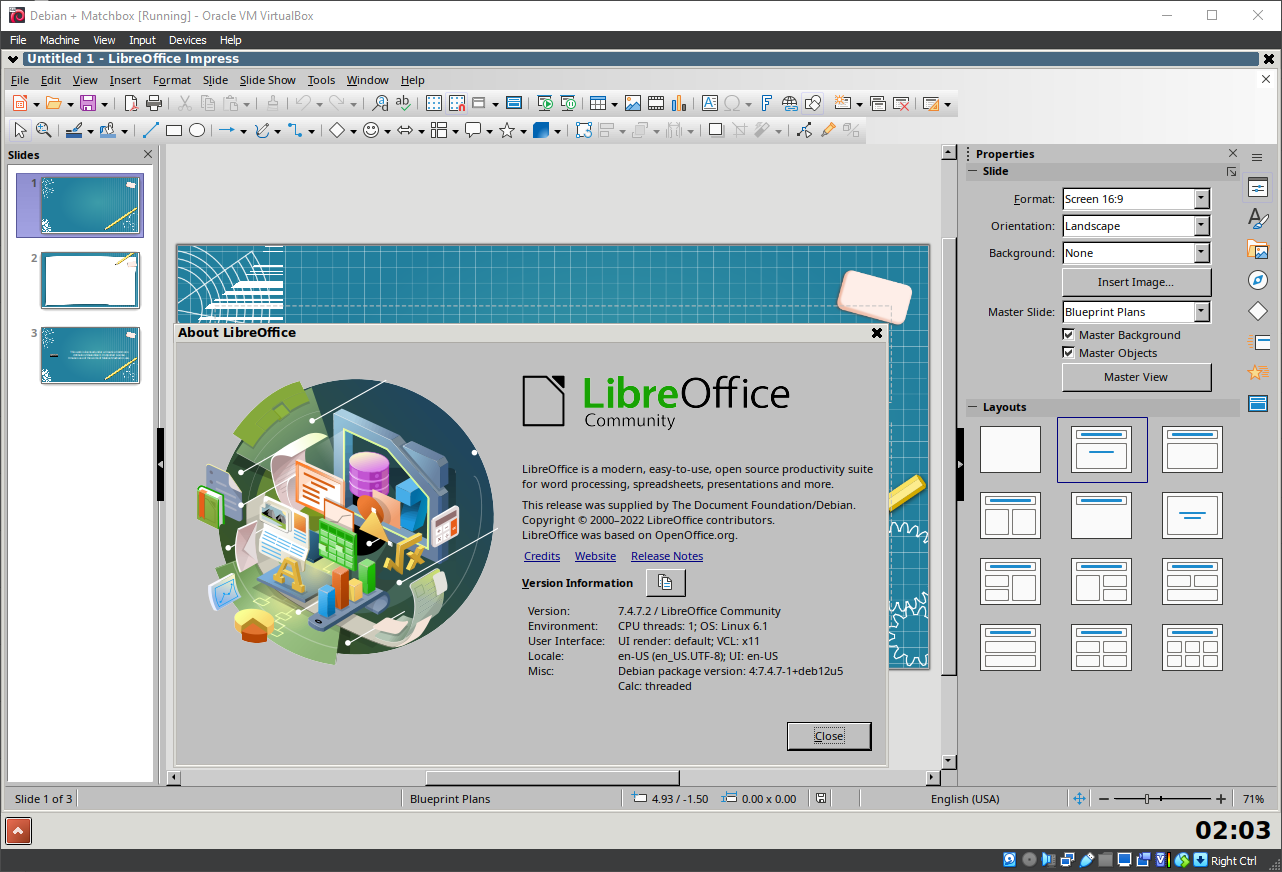
34. Running Matchbox Window Manager
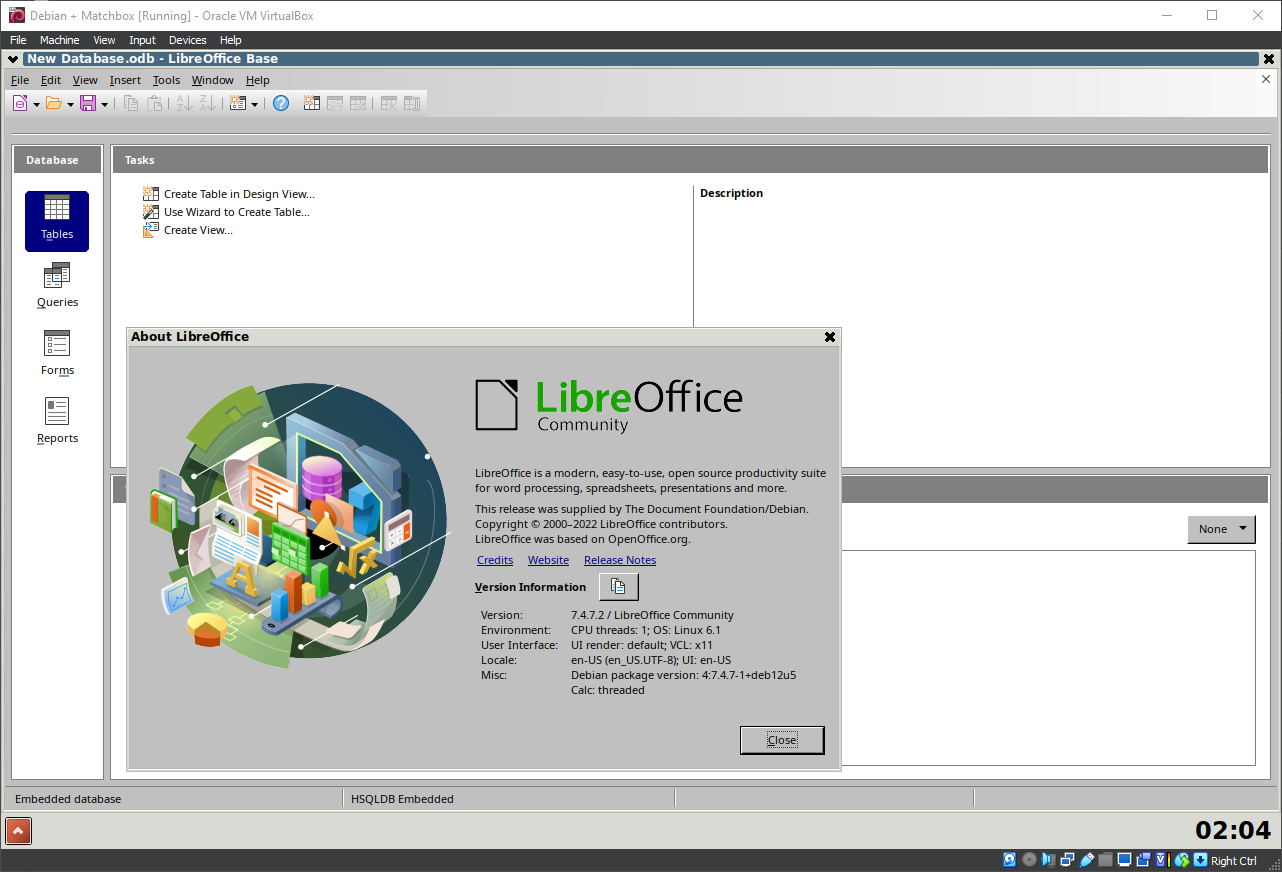
35. Running Matchbox Window Manager
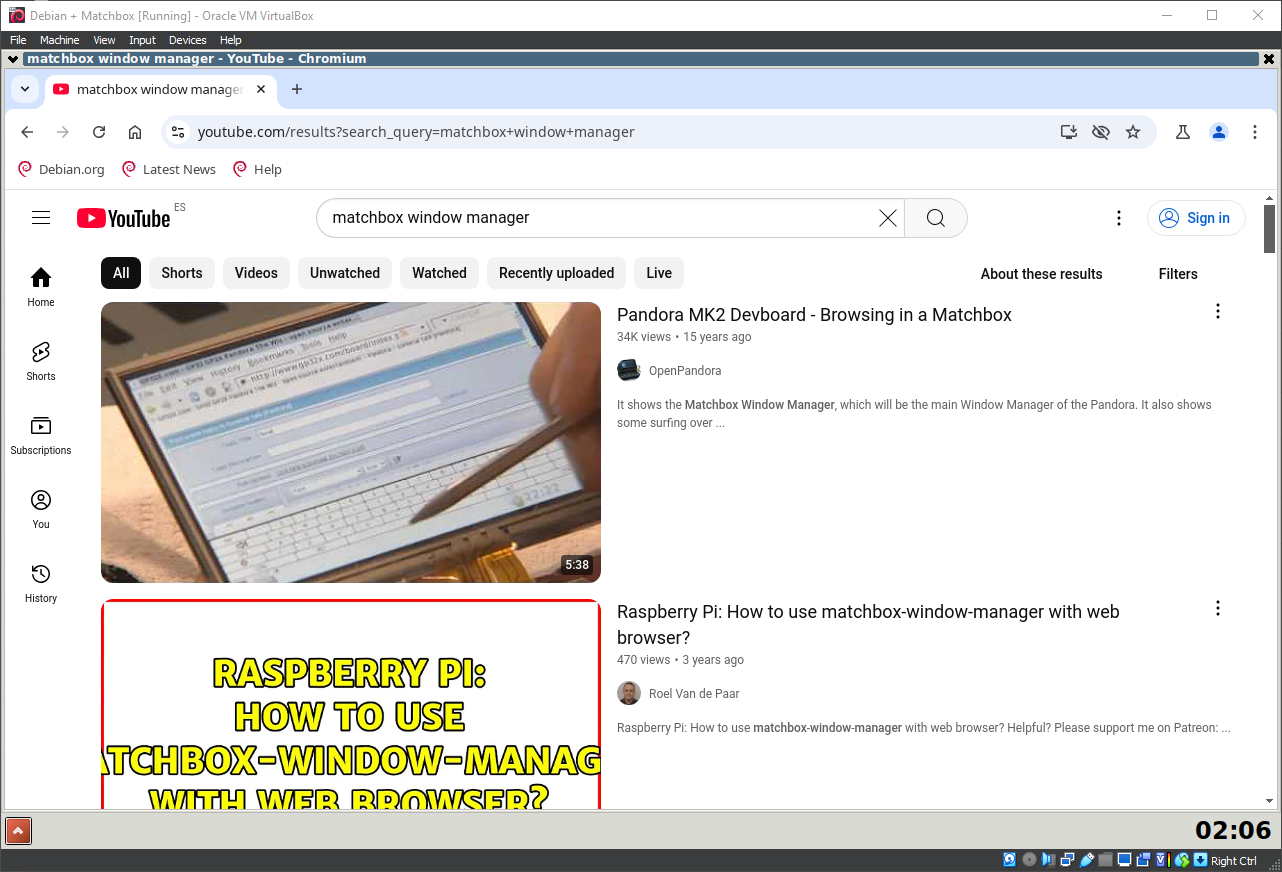
36. Running Matchbox Window Manager
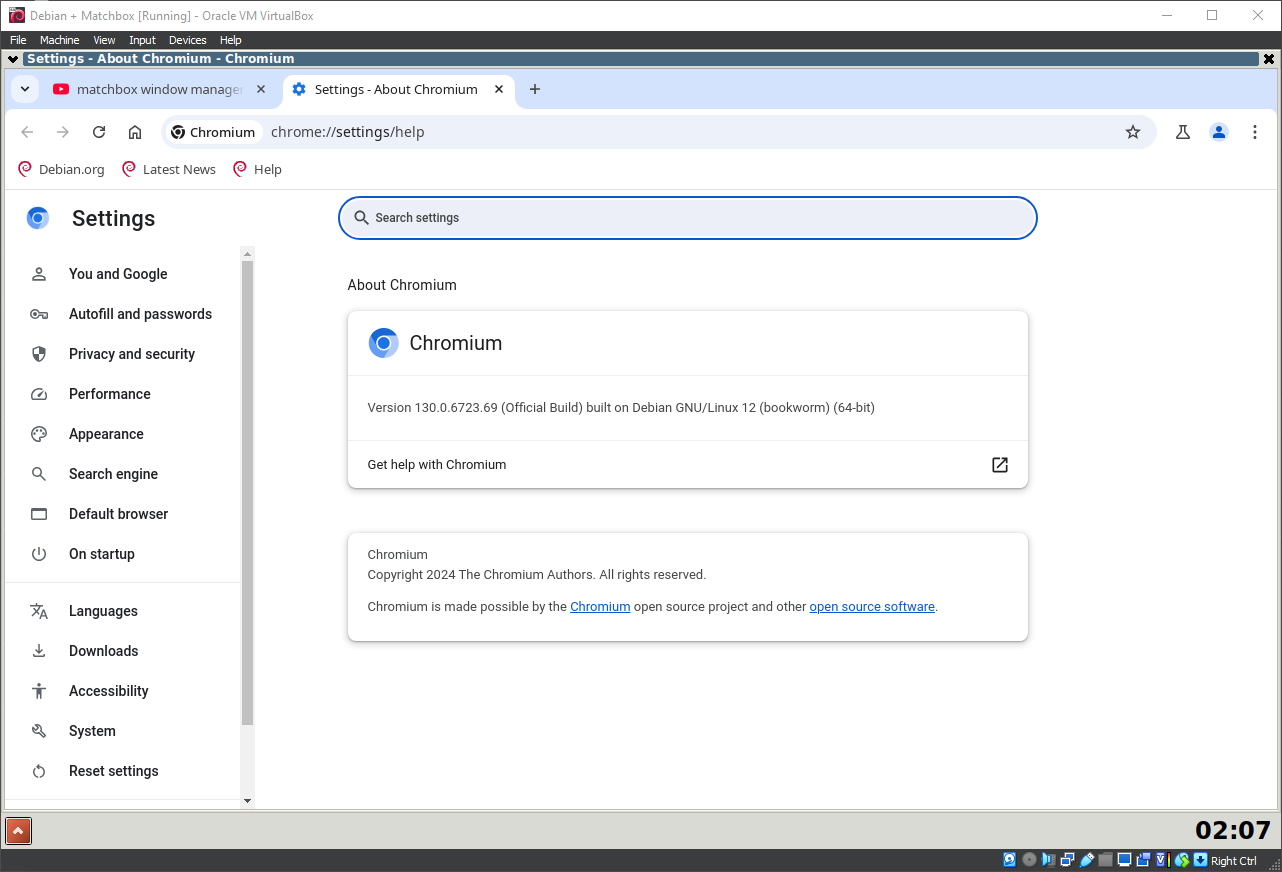
37. Running Matchbox Window Manager
Well, that was exciting. See you in the next one!
If you wish to support our project
Donation link (Buy me a coffee):