
Installing the KWin Window Manager on Debian
Step by step guide and HOWTO
Debian Linux is known for its stability and security, making it a reliable choice for servers and workstations.
It also has a vast software repository with extensive community support, ensuring access to a wide range of applications.
KWin allows deep customization, from window decorations to behavior, making it versatile and adaptable.
Its transitions and effects, like minimizing and maximizing windows, are seamless and pleasing to the eye.
KWin fully supports Wayland, bringing a modern protocol to KDE, which improves performance and security.
Effects like wobbly windows, desktop cube, and magic lamp give KWin a unique flair that’s both fun and functional.
Effects like wobbly windows, desktop cube, and magic lamp give KWin a unique flair that’s both fun and functional.
It supports multiple compositing backends, letting users optimize for performance or appearance.
KWin’s default style is simple yet polished, designed to blend seamlessly with KDE Plasma.
Advanced users can set specific rules for each application’s behavior, placement, and appearance.
KWin’s transparency settings allow users to make windows partially see-through, aiding multitasking.
Subtle shadows and glows make windows feel natural and layered, creating visual hierarchy.
With Plasma integration, KWin can show live or animated wallpapers, enhancing the desktop atmosphere.
Users can switch between layouts, from traditional desktop to tiling, with just a few clicks.
It allows window grouping, so users can organize their workflow by stacking related windows together.
KWin has an extensive shortcut system, enabling fast and efficient navigation through keybindings.
KWin has an extensive shortcut system, enabling fast and efficient navigation through keybindings.
Its background blur feature makes UI elements like menus and panels look polished and refined.
Users can choose from a range of window decoration themes or design their own.
There are multiple task switcher designs, from simple lists to 3D effects, adding visual appeal.
This setting lets windows gain focus simply by hovering, an efficient feature for advanced users.
KWin offers options like keeping windows above others, sticky windows, and edge snapping.
It visually emphasizes the active window, helping users focus on their primary task.
KWin gracefully handles multiple monitors, with per-monitor settings for wallpaper and layout.
As the KDE window manager, it integrates perfectly with Plasma, providing a cohesive experience.
The settings panel is well-organized, making complex configurations accessible.
KWin can automatically switch workspaces based on user-defined rules, streamlining workflows.
Windows can be moved or resized quickly by dragging or keyboard shortcuts.
Shadows enhance depth perception, making it easier to distinguish between overlapping windows.
The desktop grid feature provides an overview of all open desktops, allowing for quick navigation.
Users can assign actions to screen corners, like showing all windows or switching to the desktop grid.
Each window can have its own transparency level, making layered multitasking easy.
Despite its advanced features, KWin is optimized to run smoothly even on modest hardware.
The debug console allows advanced users to troubleshoot or modify settings in real-time.
Developers can extend KWin’s functionality with scripts, automating and enhancing workflows.
KWin can apply custom rules to new windows, like forcing certain apps to open on specific desktops.
KWin’s animations and effects are designed to look good without drawing attention away from tasks.
KWin is developed openly, allowing anyone to contribute or request new features.
For those who enjoy a classic look, the Oxygen theme provides a vintage KDE aesthetic.
KDE’s commitment to improving KWin over the years has kept it current with modern standards.
Effects like the desktop cube create an immersive and visually impressive environment.
KWin prevents new windows from stealing focus, allowing users to stay focused on current tasks.
Overall, KWin combines aesthetic appeal with functional depth, creating a beautiful, productive workspace.
Today we shall install the KWin Window Manager on Debian
We need to complete several steps to get it working correctly.
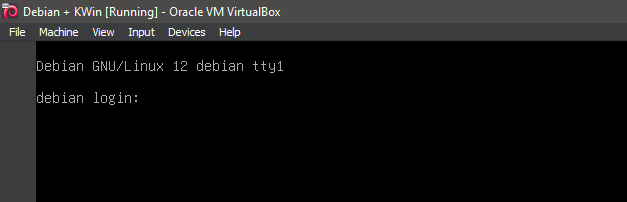
1. Boot the system -- System Ready.
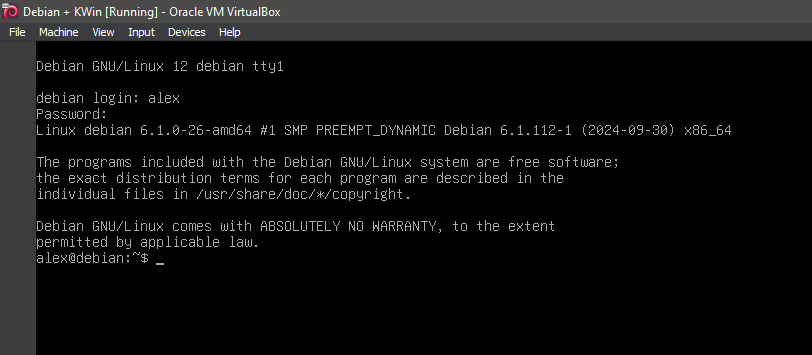
2. Boot the system -- Logged In.
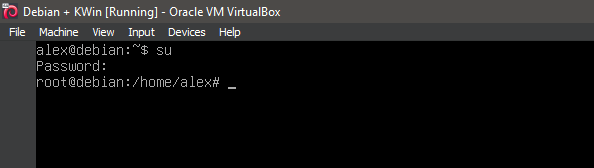
3. Switch to root
su
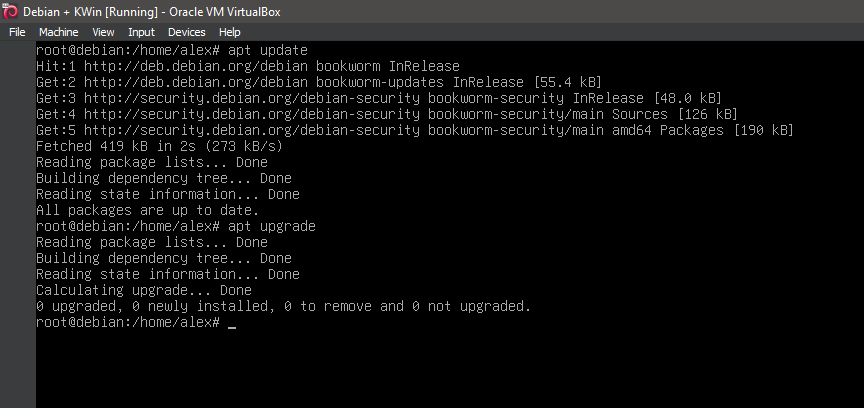
4. Running update
apt-get update
apt-get upgrade
5. Running 'apt install kwin-x11'
apt install kwin-x11
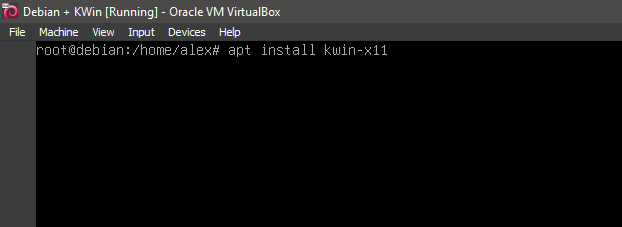
6. Running 'apt install kwin-x11'
apt install kwin-x11
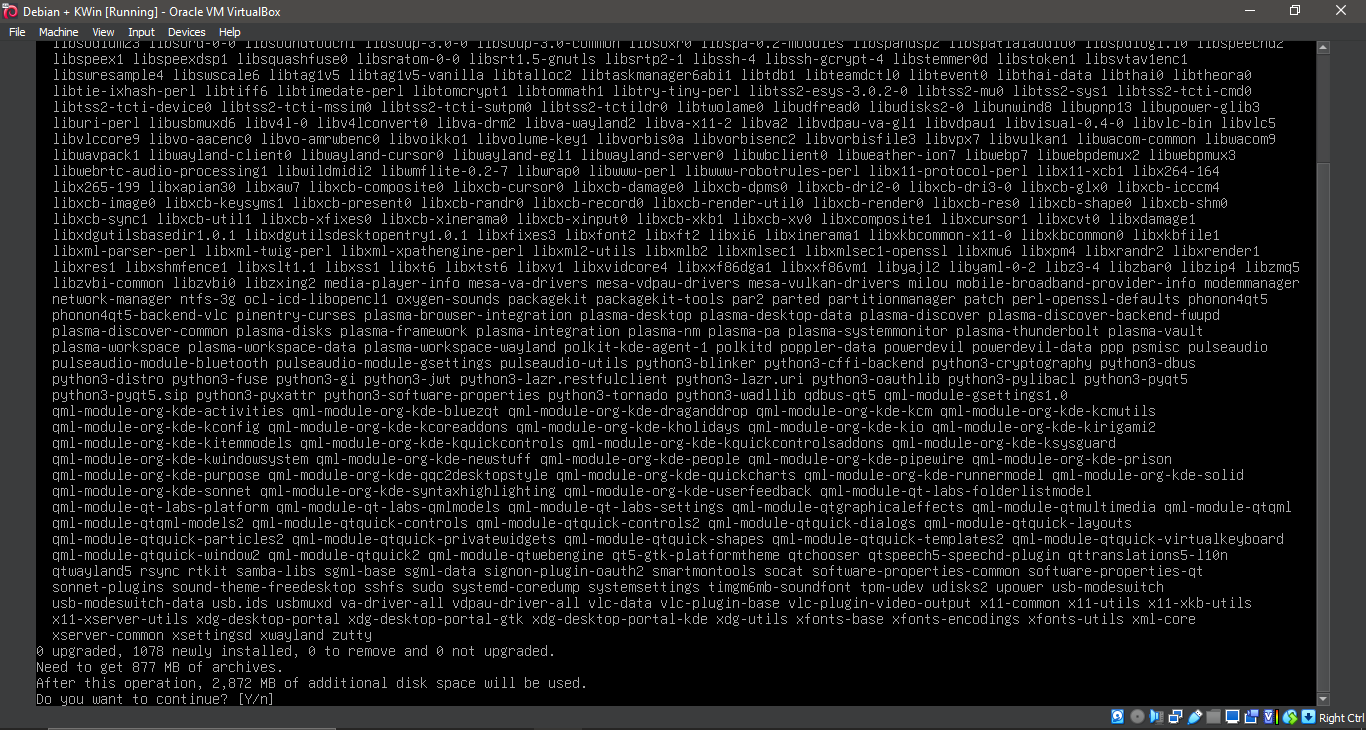
7. Running 'apt install kwin-x11'
apt install kwin-x11
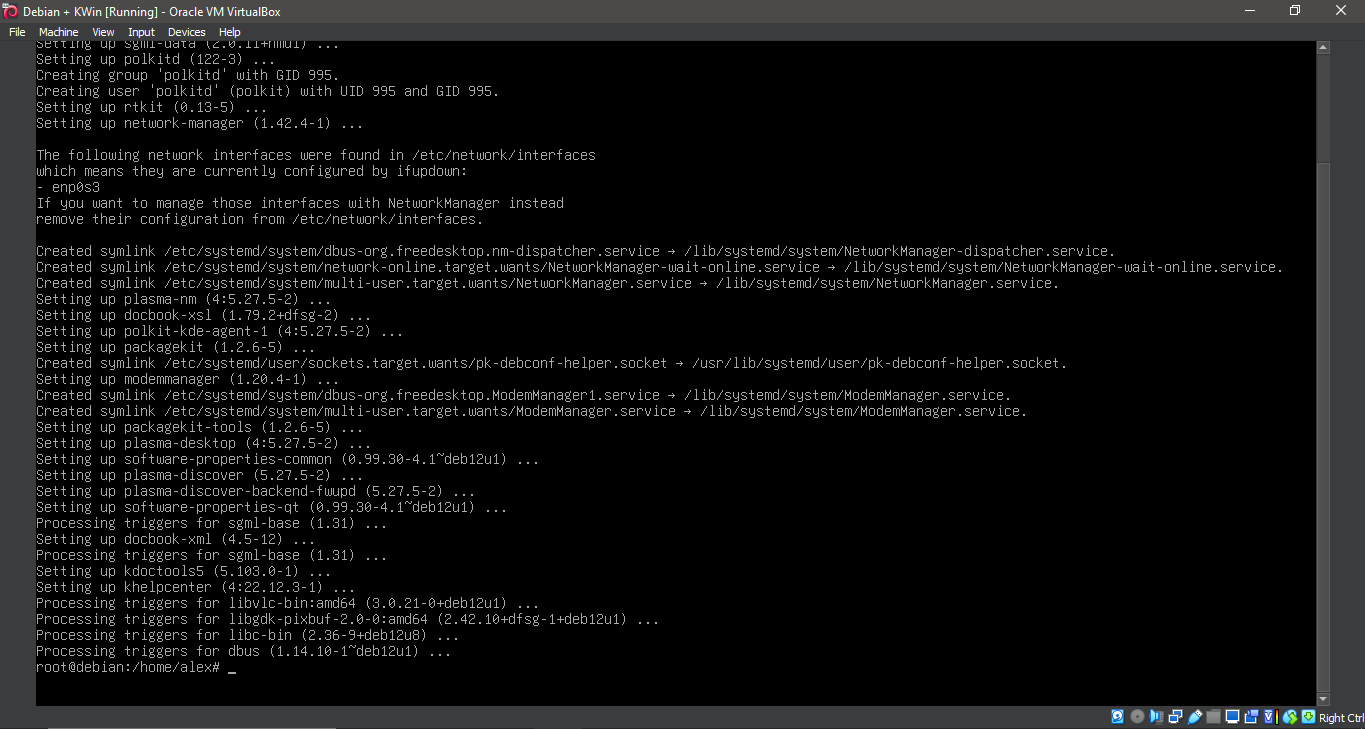
8. Configuration
nano ~/.xinitrc
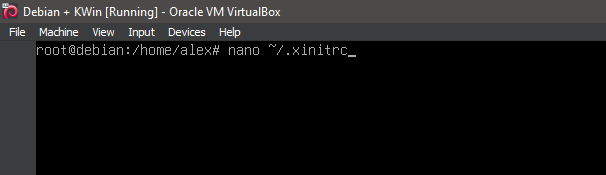
9. Configuration
tint2 &
xterm &
exec kwin_x11

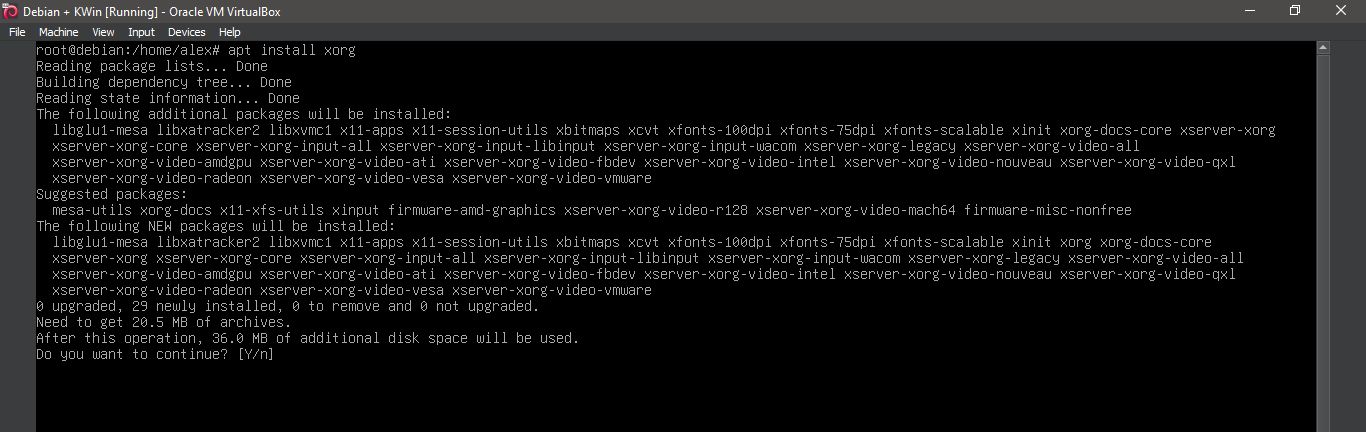
10. Running 'apt install xorg'
apt install xorg
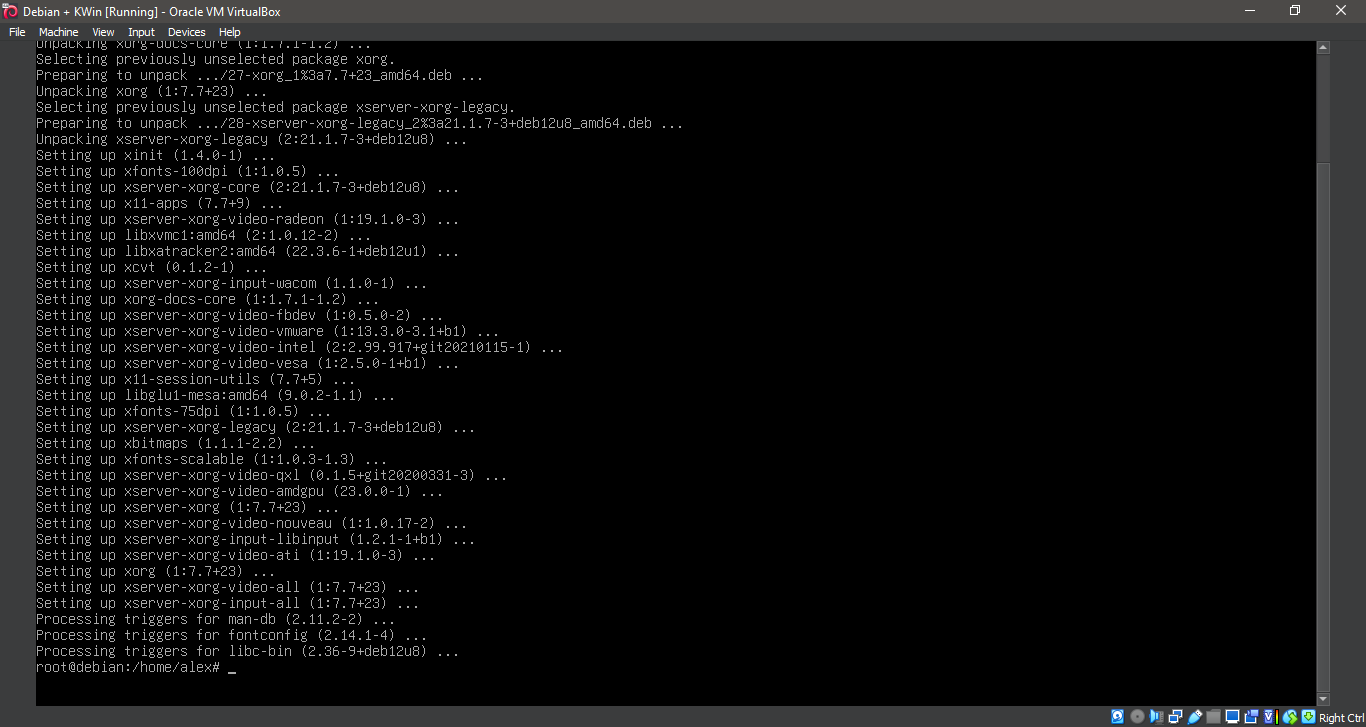
11. Running 'apt install xorg'
apt install xorg
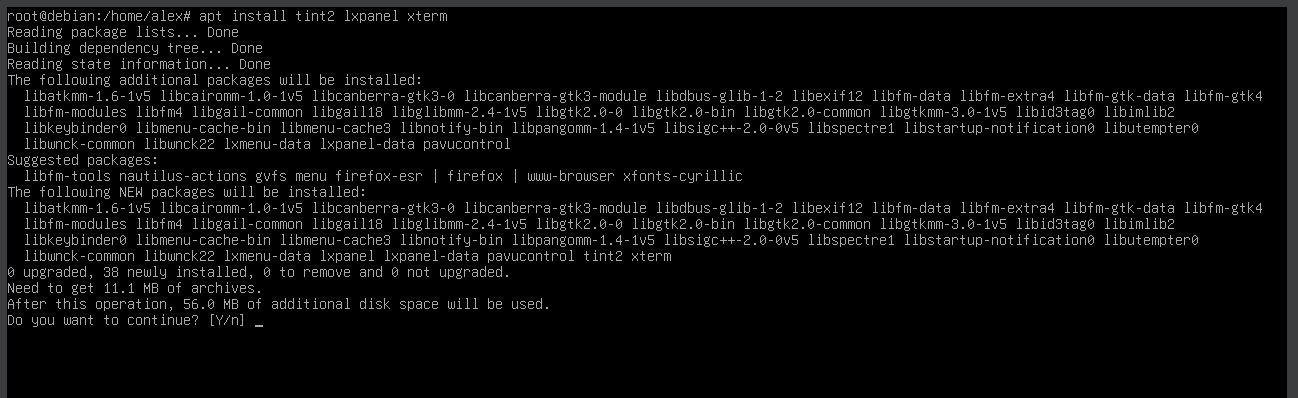
12. Running 'apt install tint2 lxpanel xterm'
apt install tint2 lxpanel xterm
13. Running 'apt install tint2 lxpanel xterm'
apt install tint2 lxpanel xterm

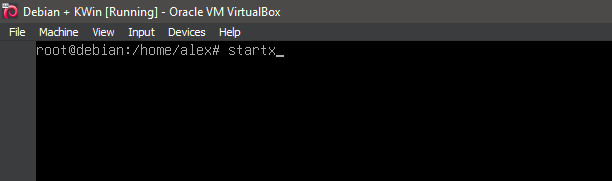
14. Running 'startx'
startx
15. Running KWin
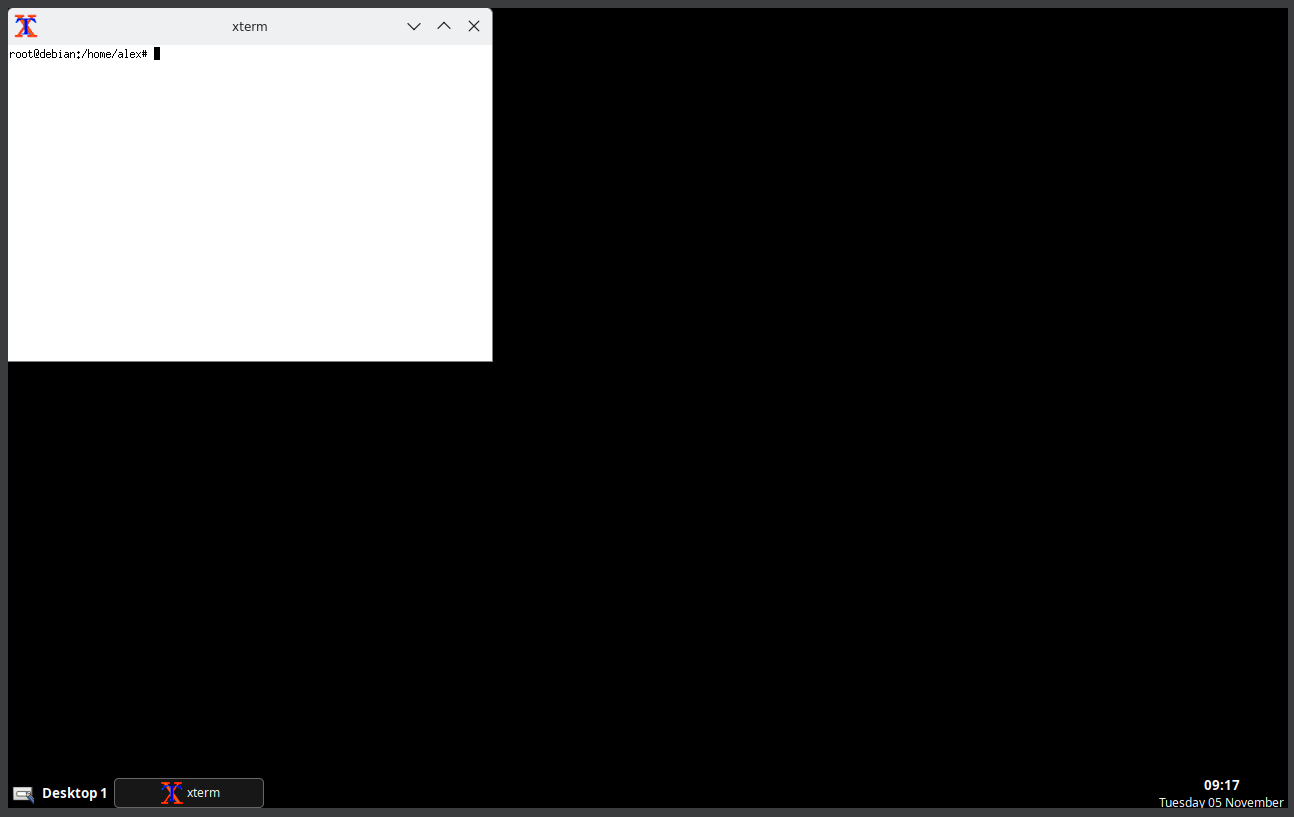
16. Running KWin
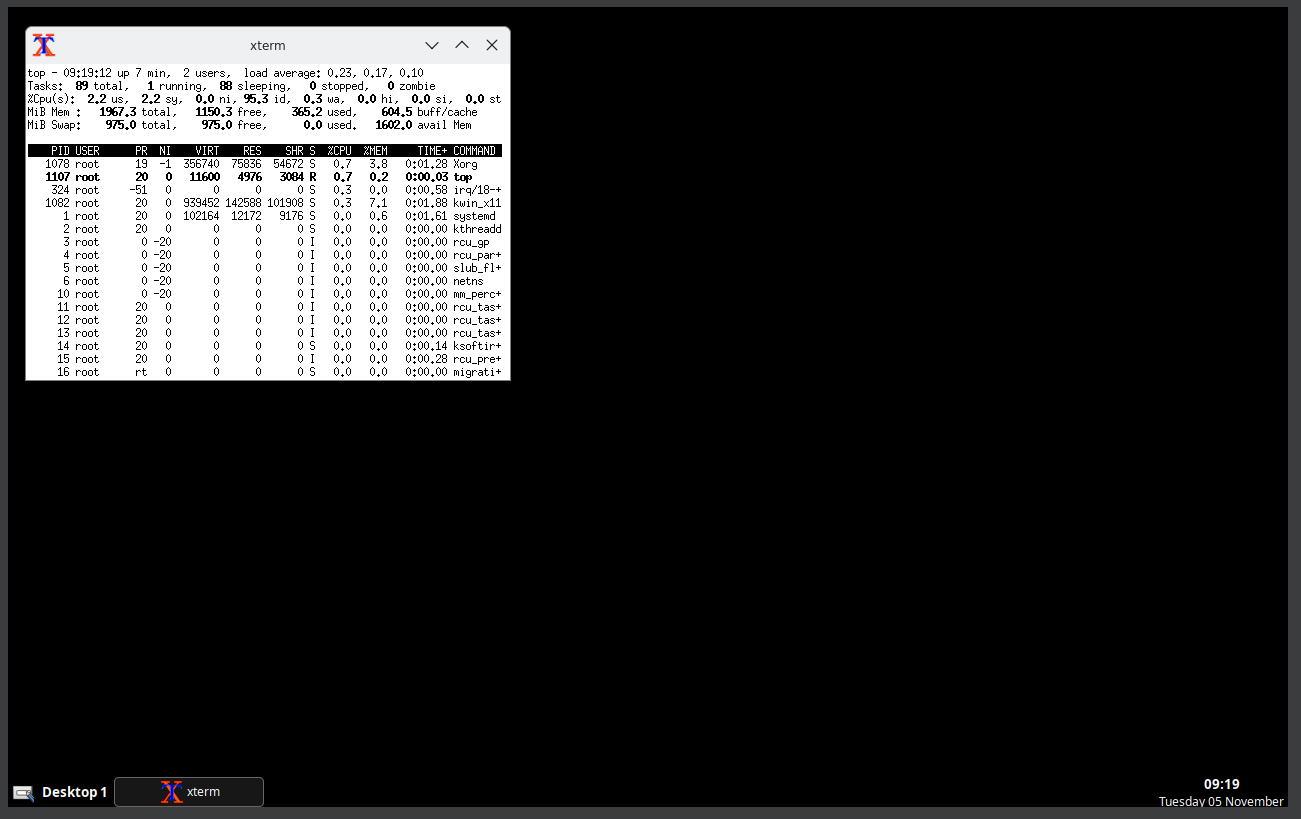
17. Running KWin
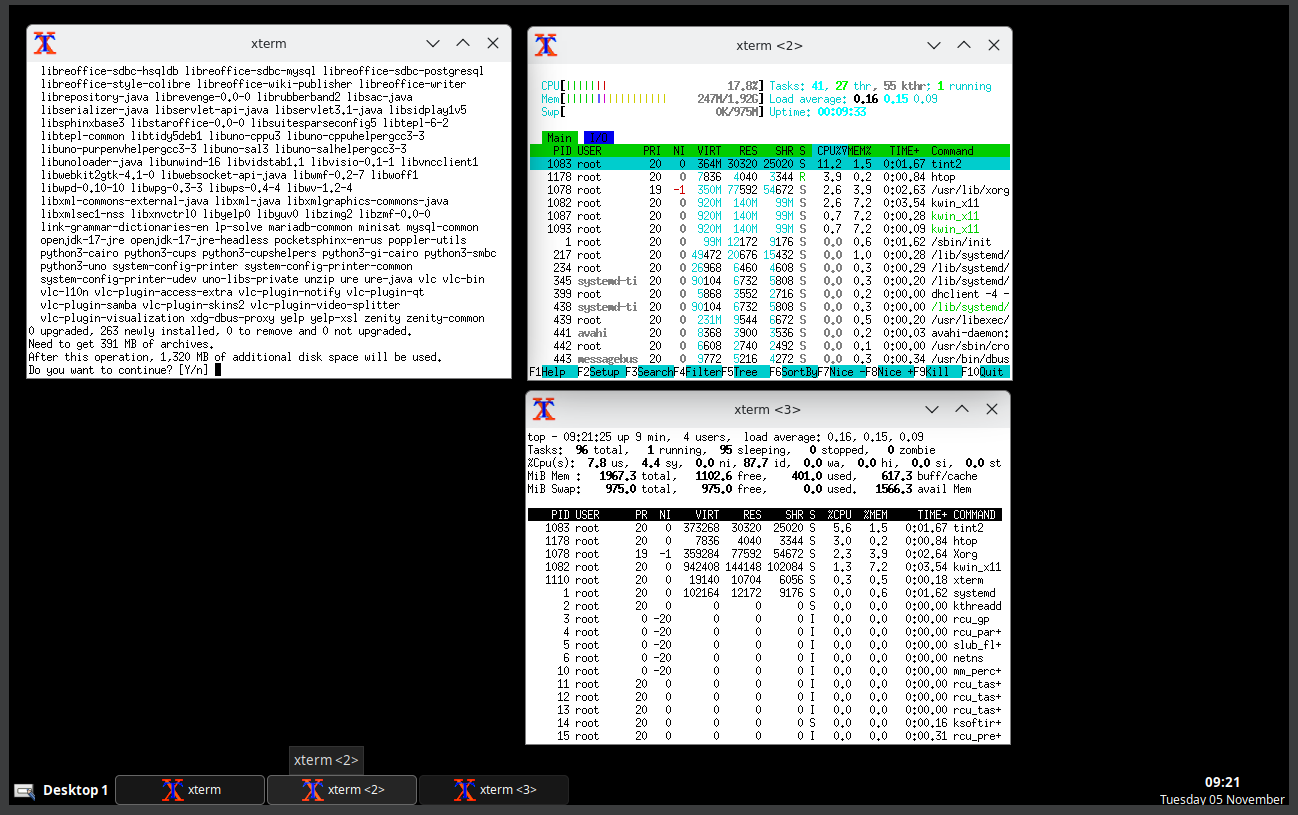
18. Running KWin
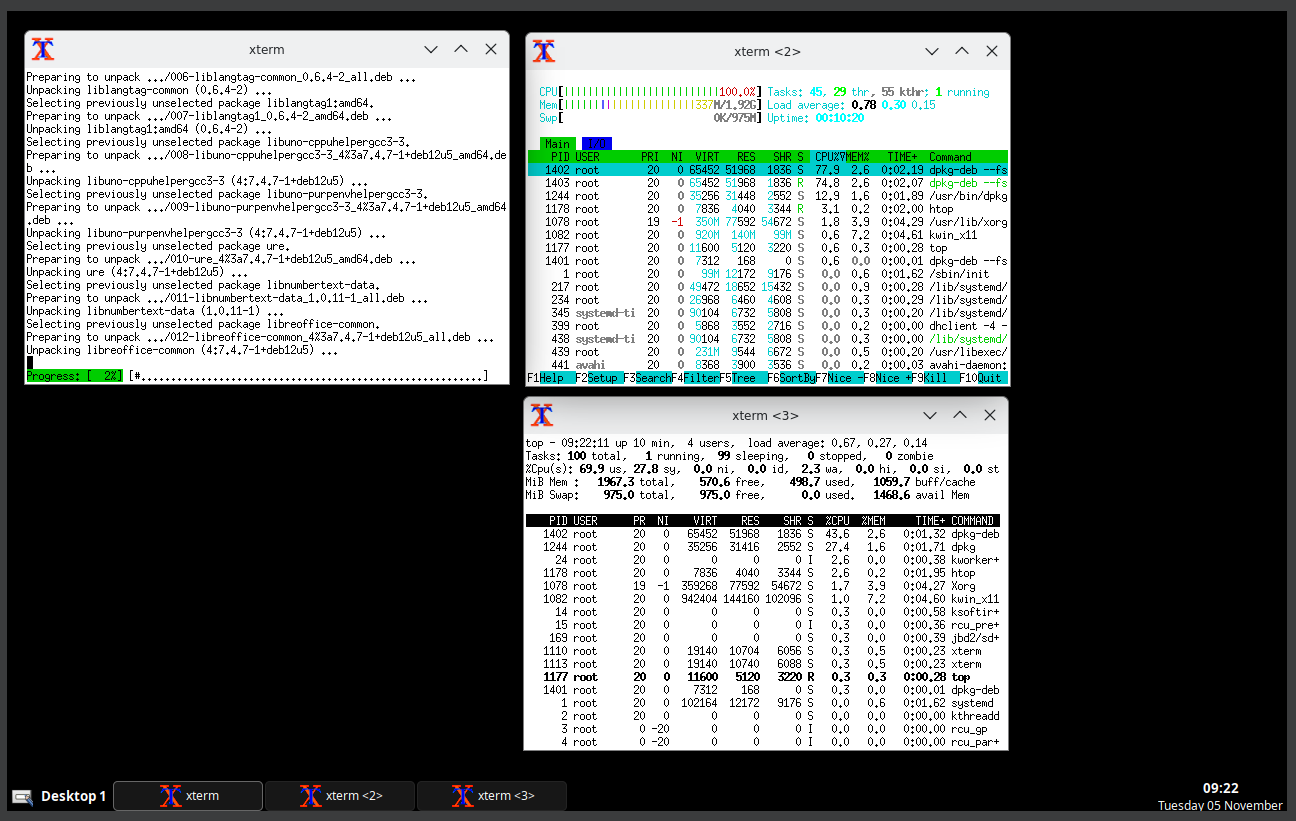
19. Running KWin
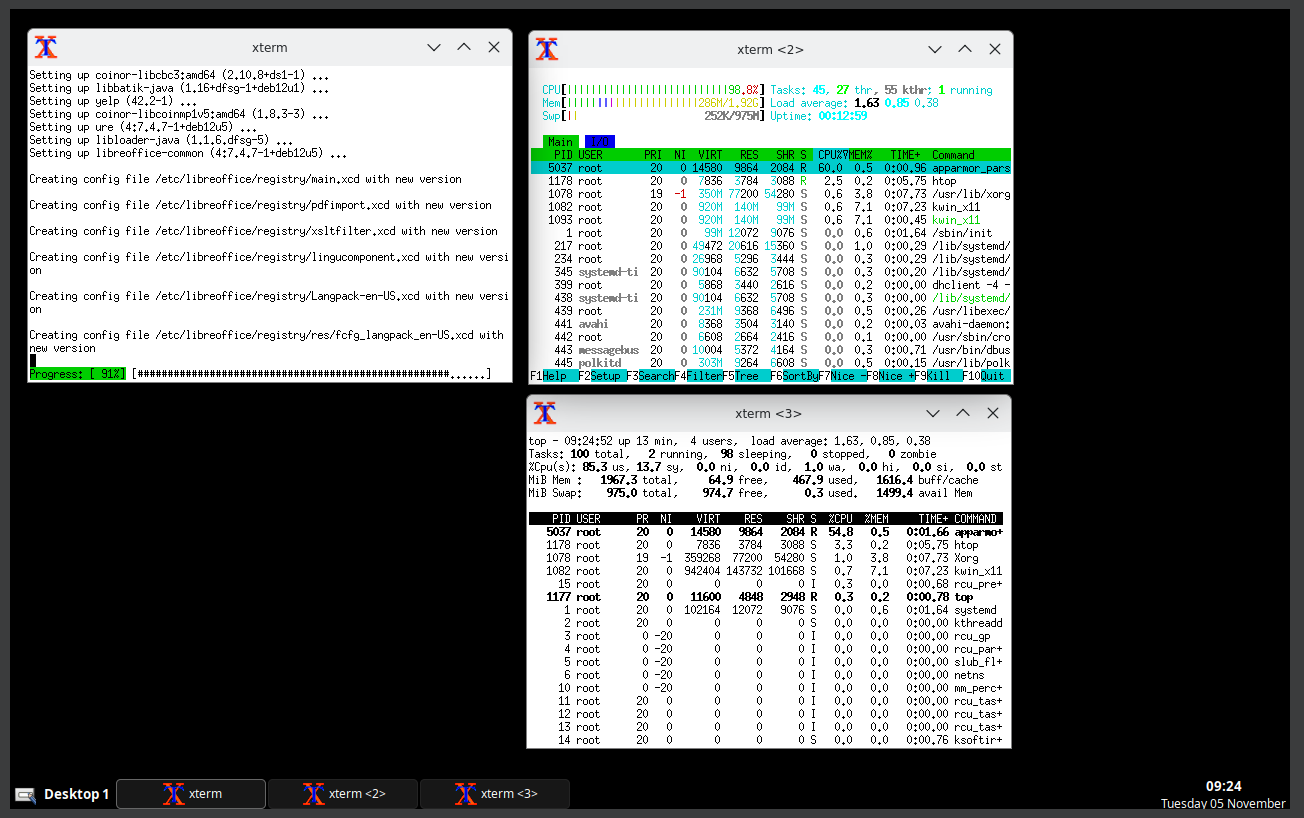
20. Running KWin
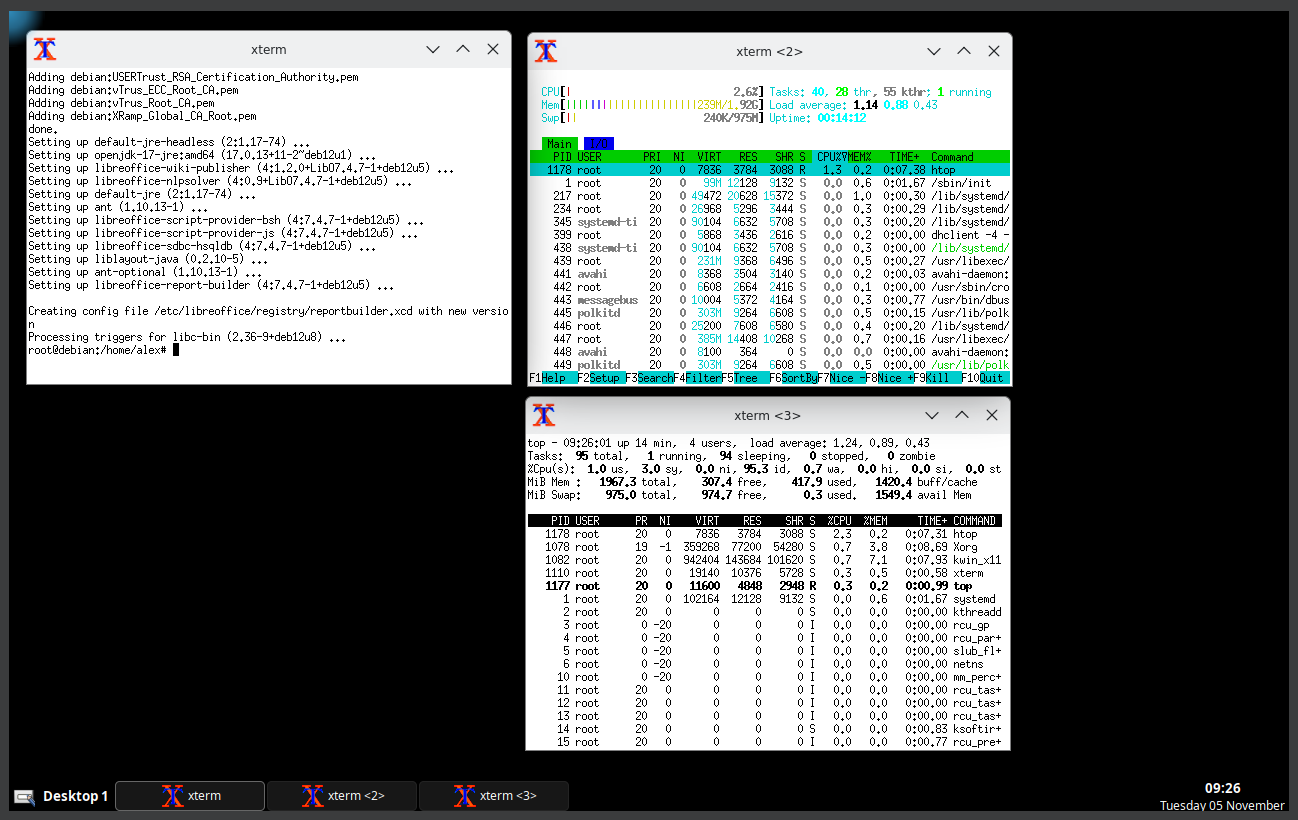
21. Running KWin
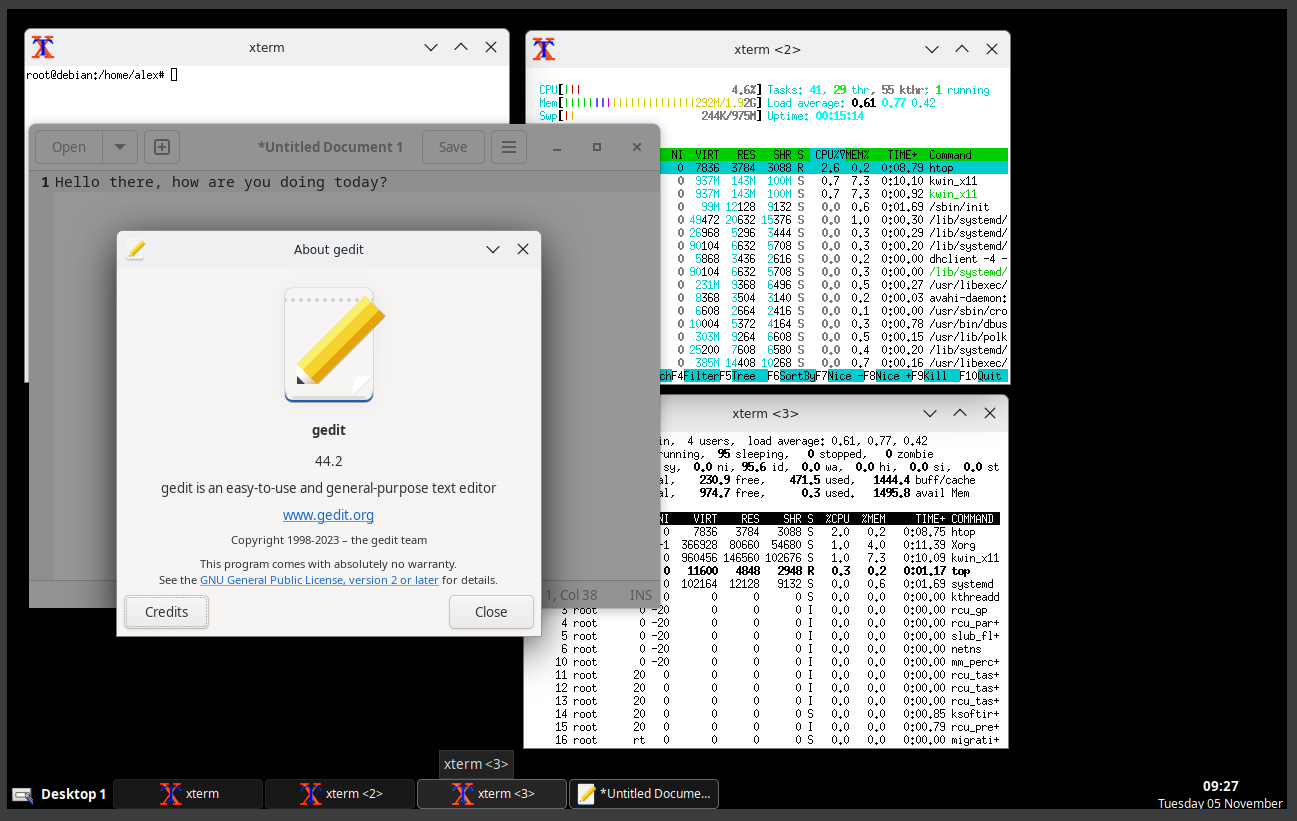
22. Running KWin
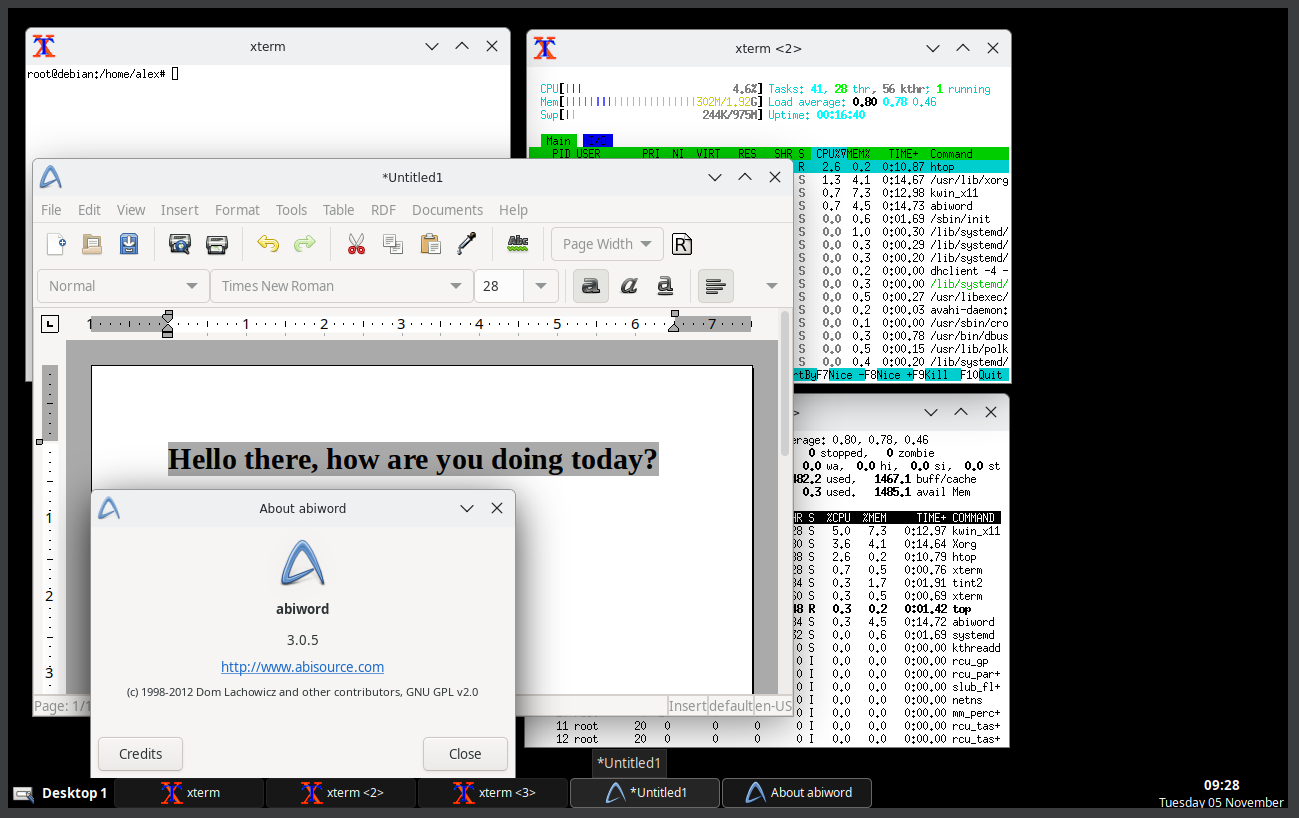
23. Running KWin
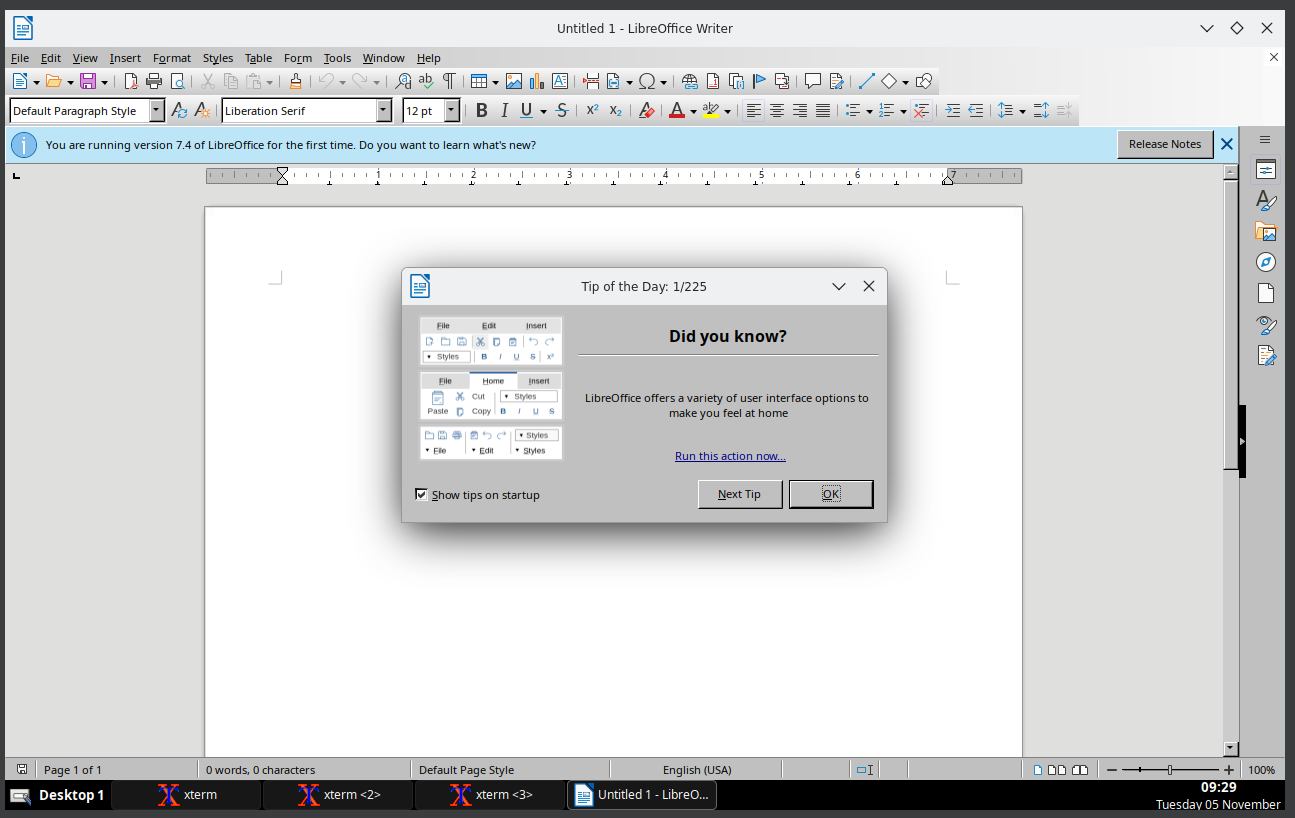
24. Running KWin
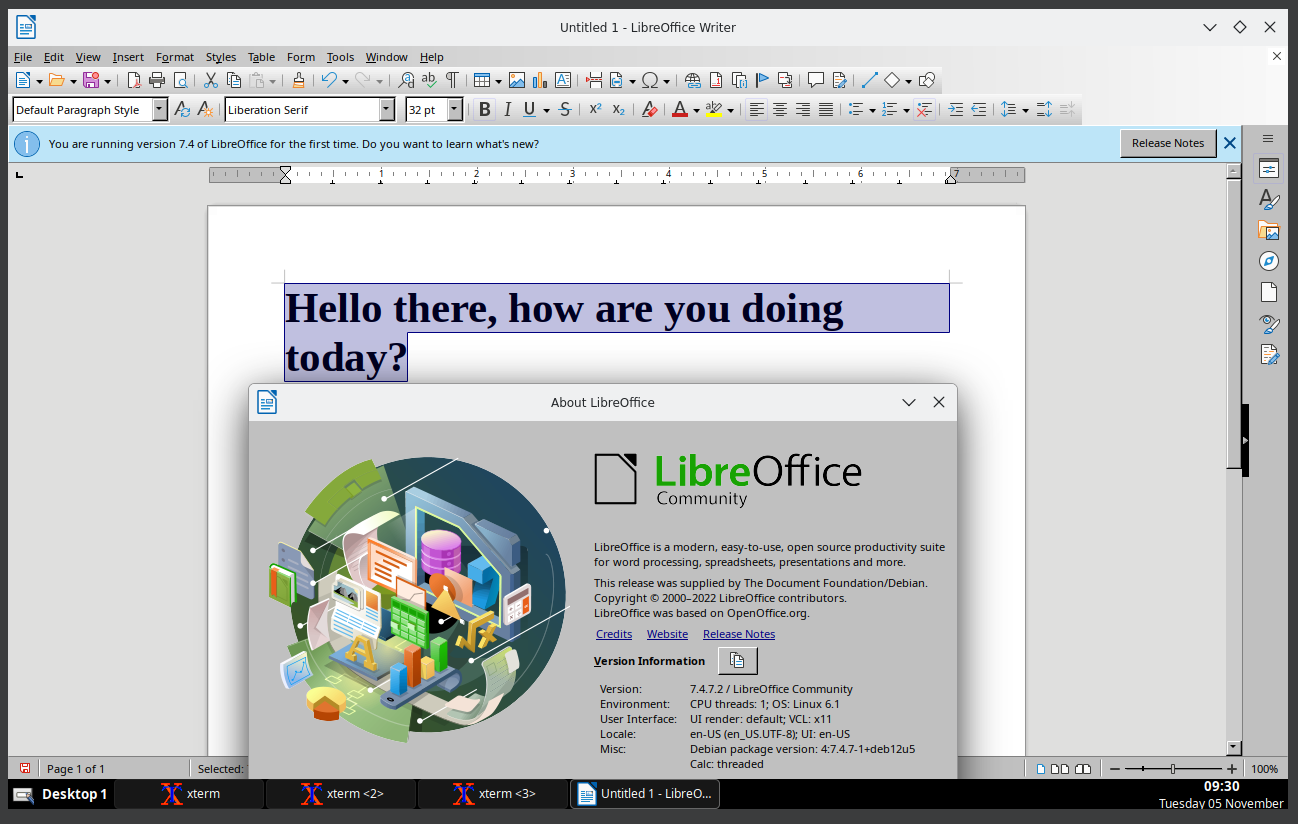
25. Running KWin
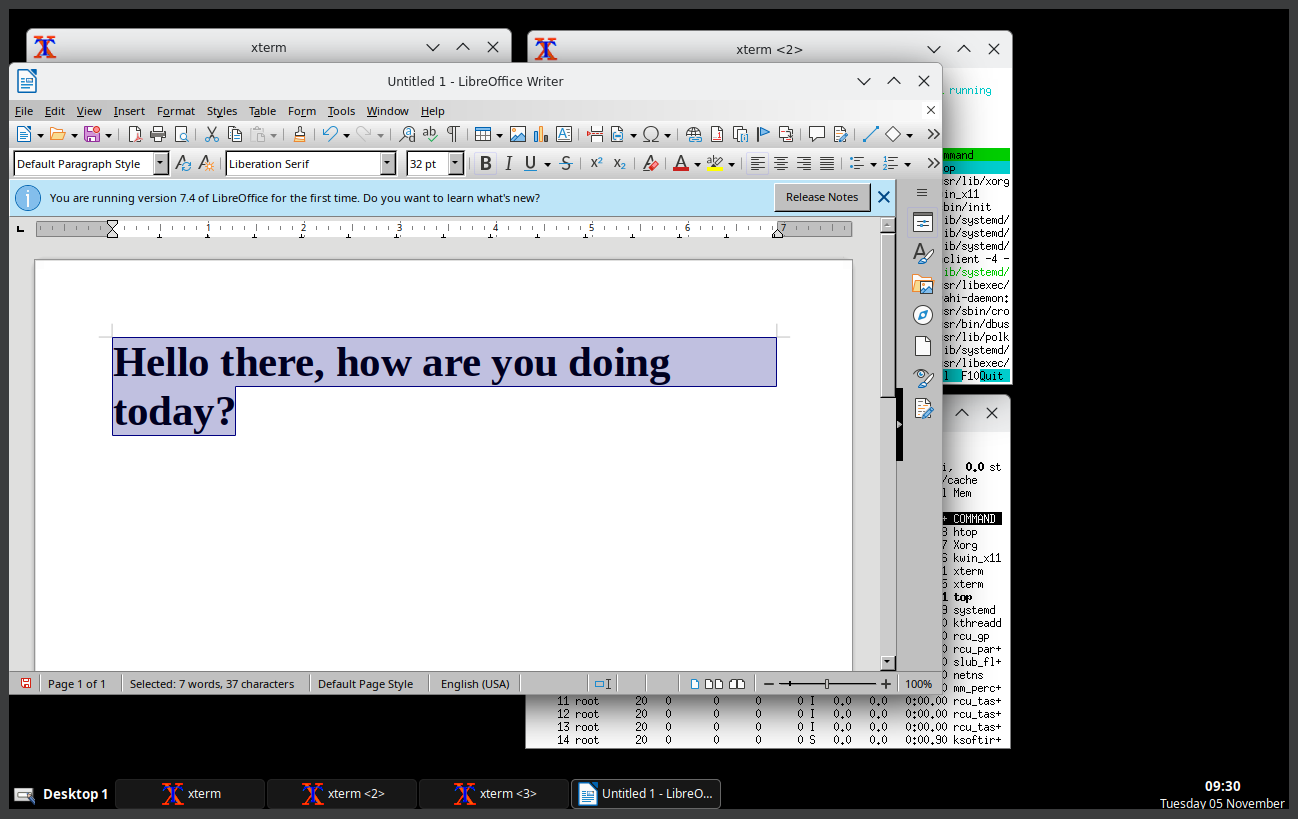
26. Running KWin
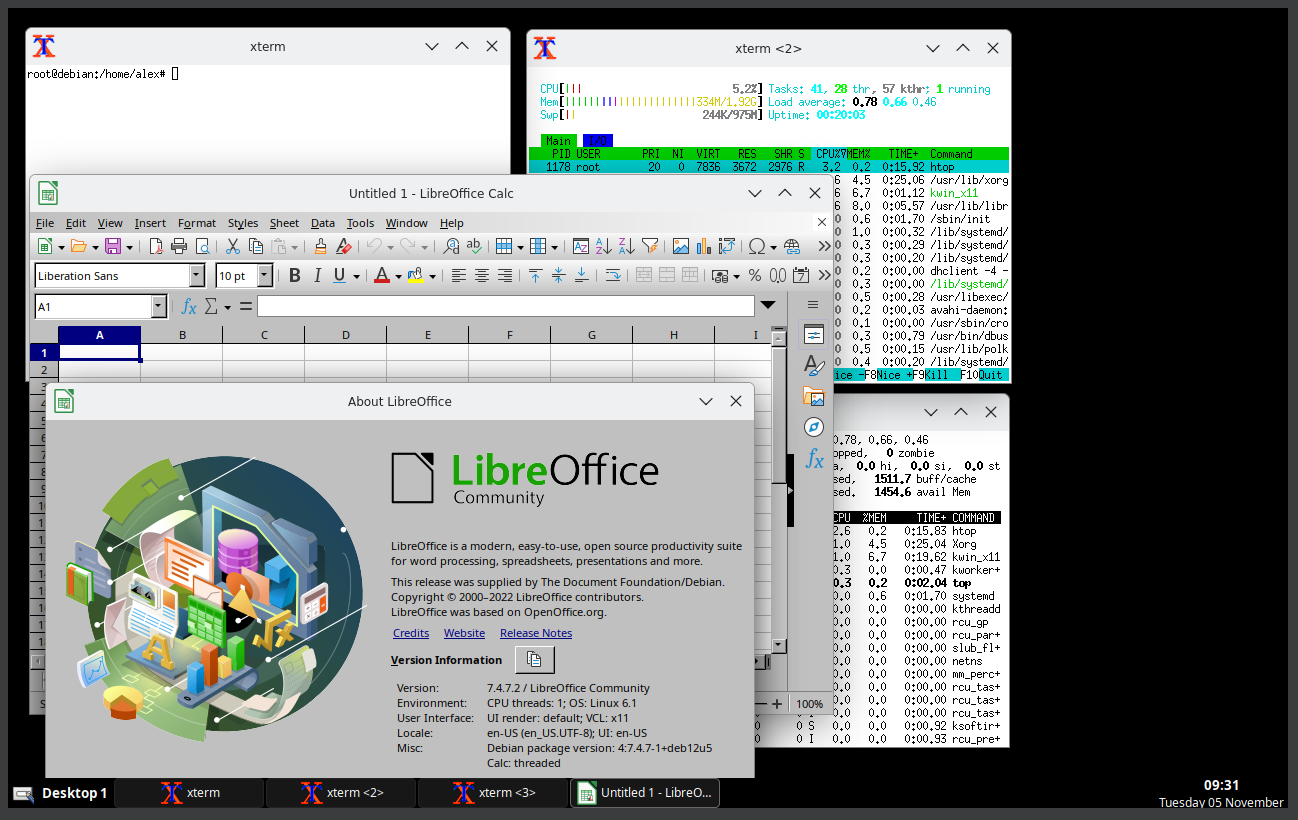
27. Running KWin
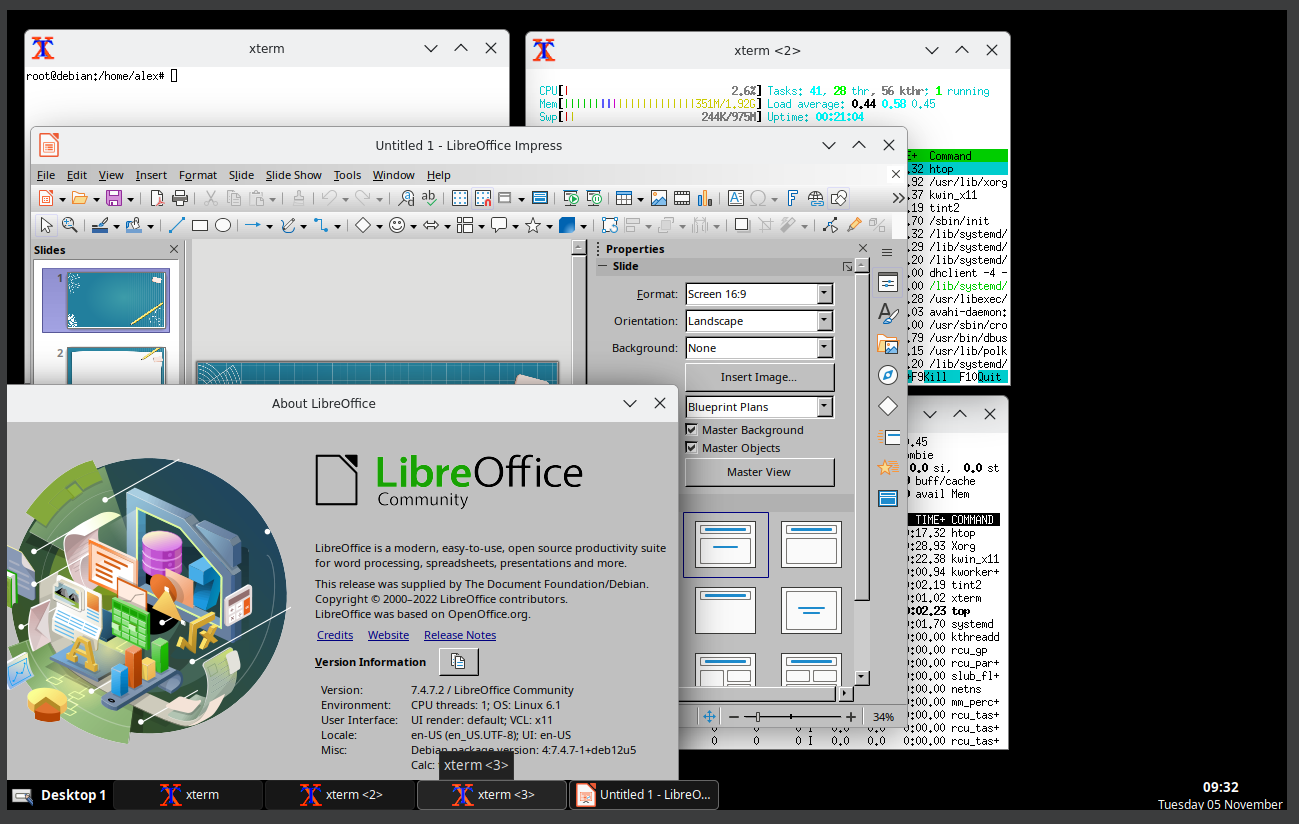
28. Running KWin
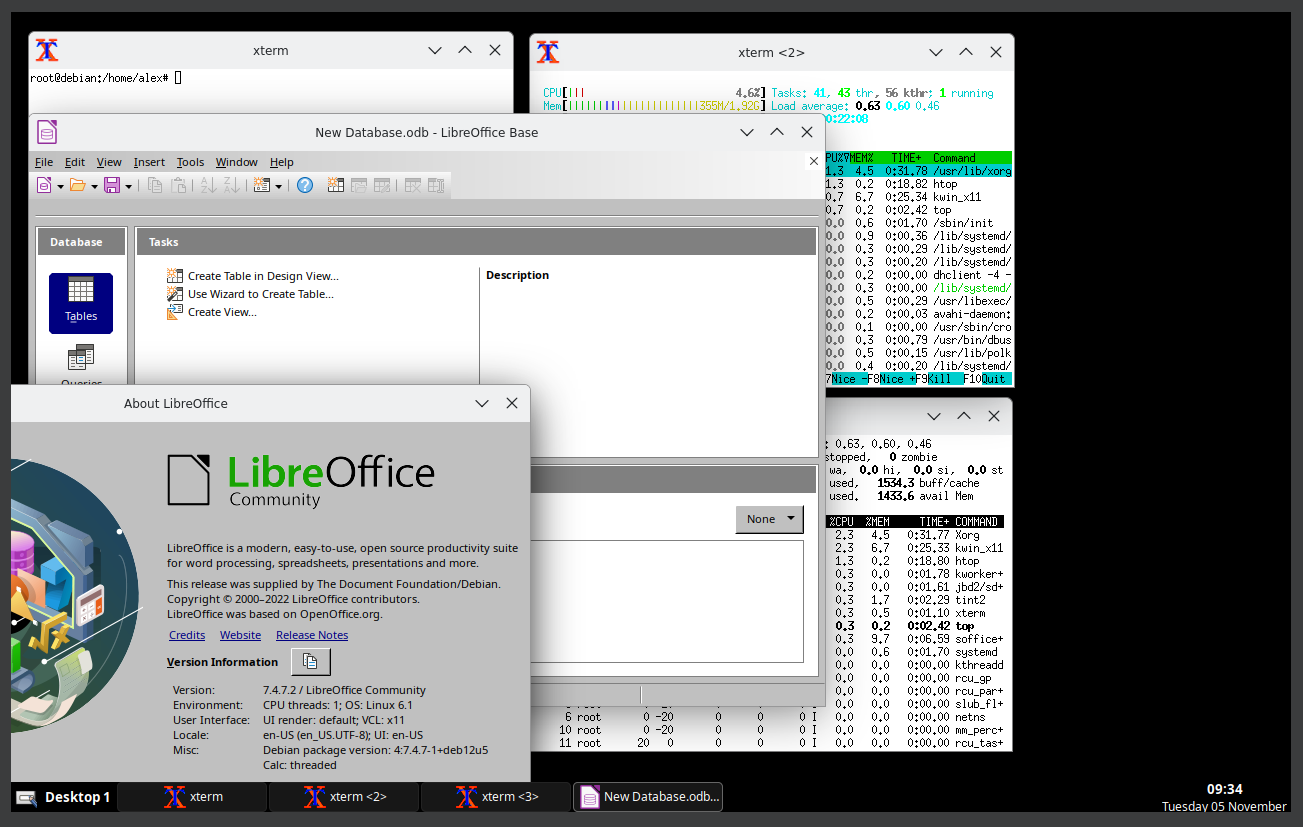
29. Running KWin
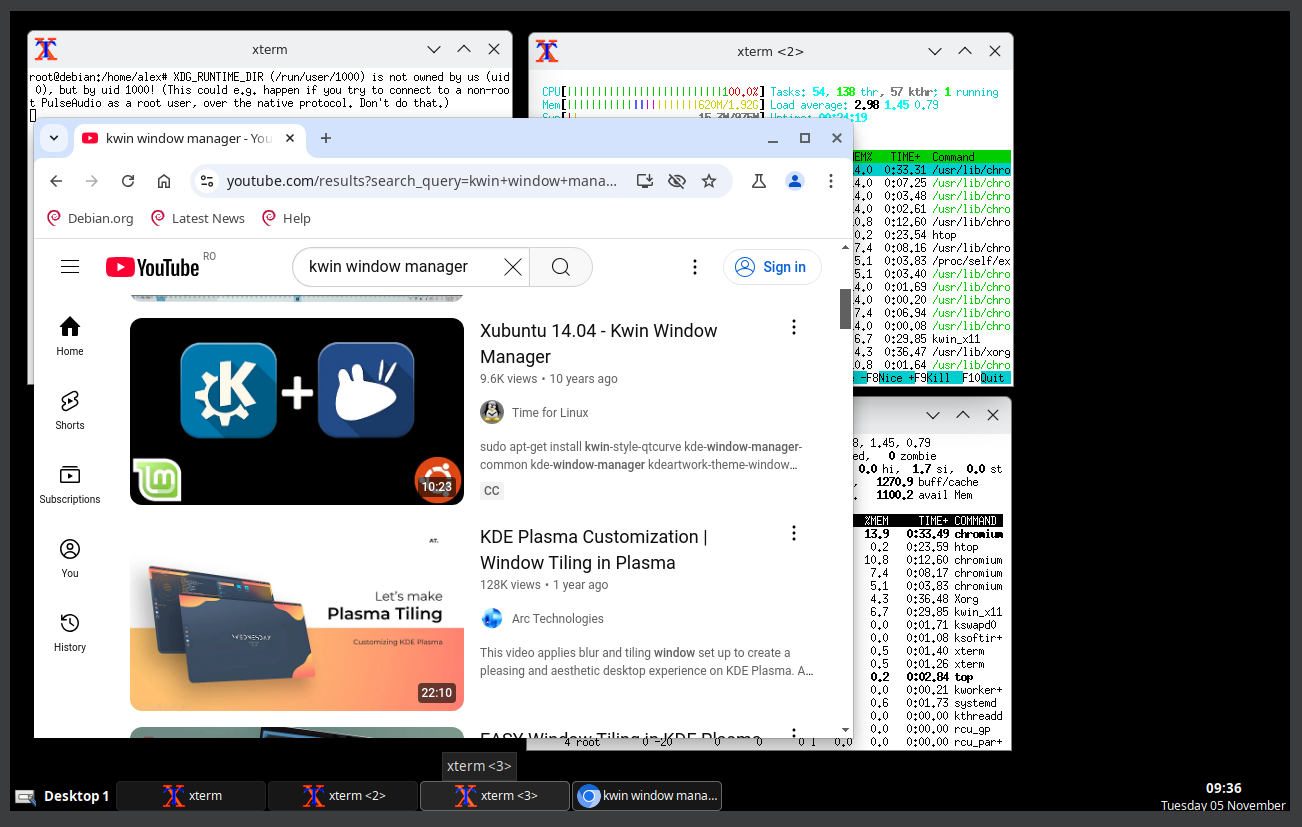
30. Running KWin
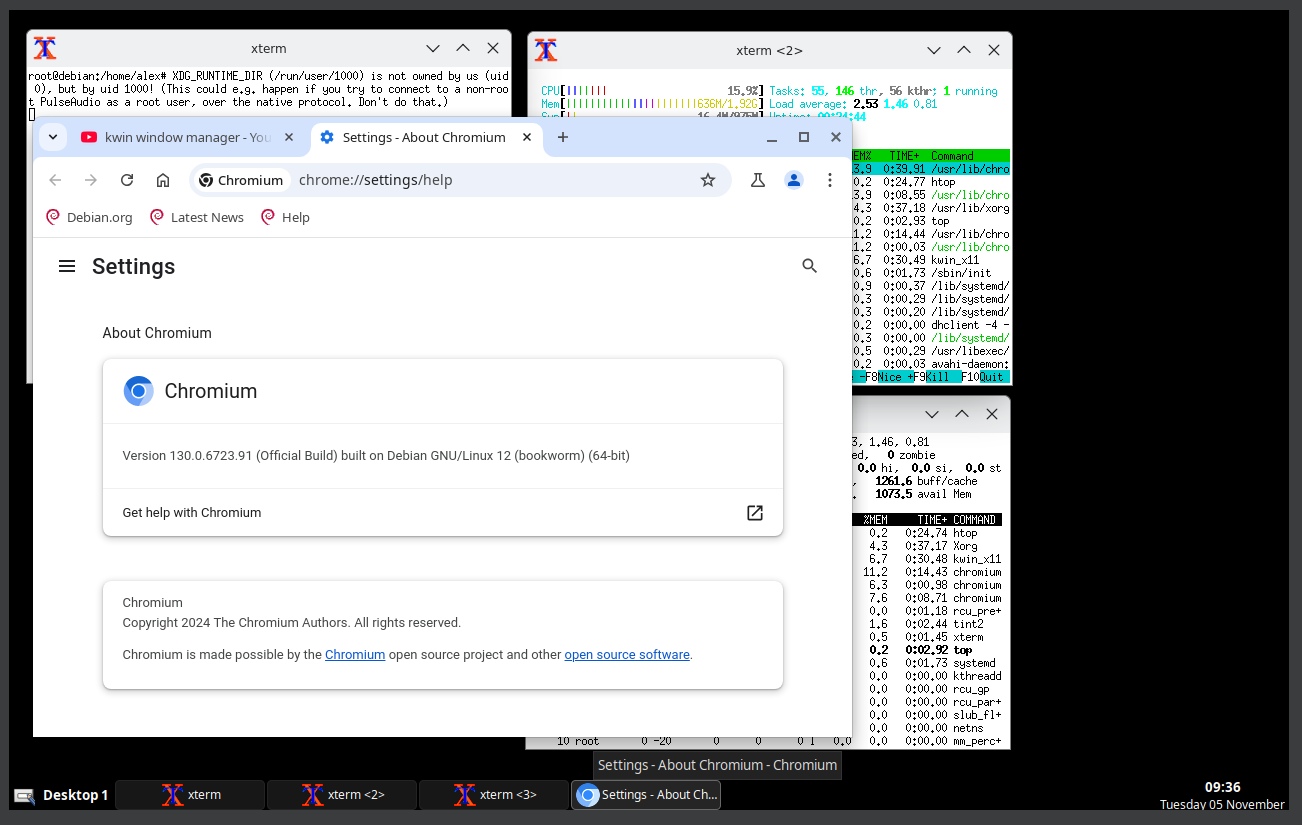
31. Running KWin
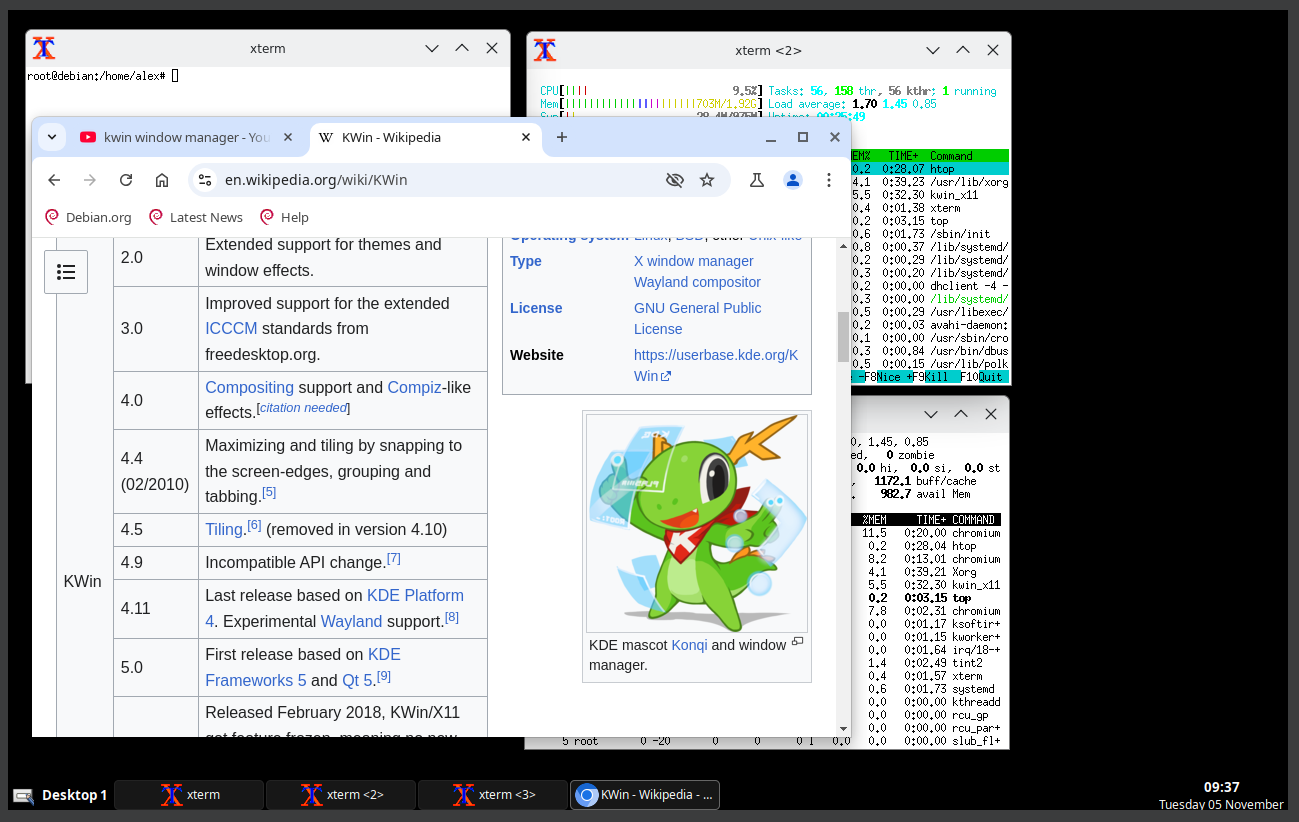
32. Running KWin

33. Running KWin
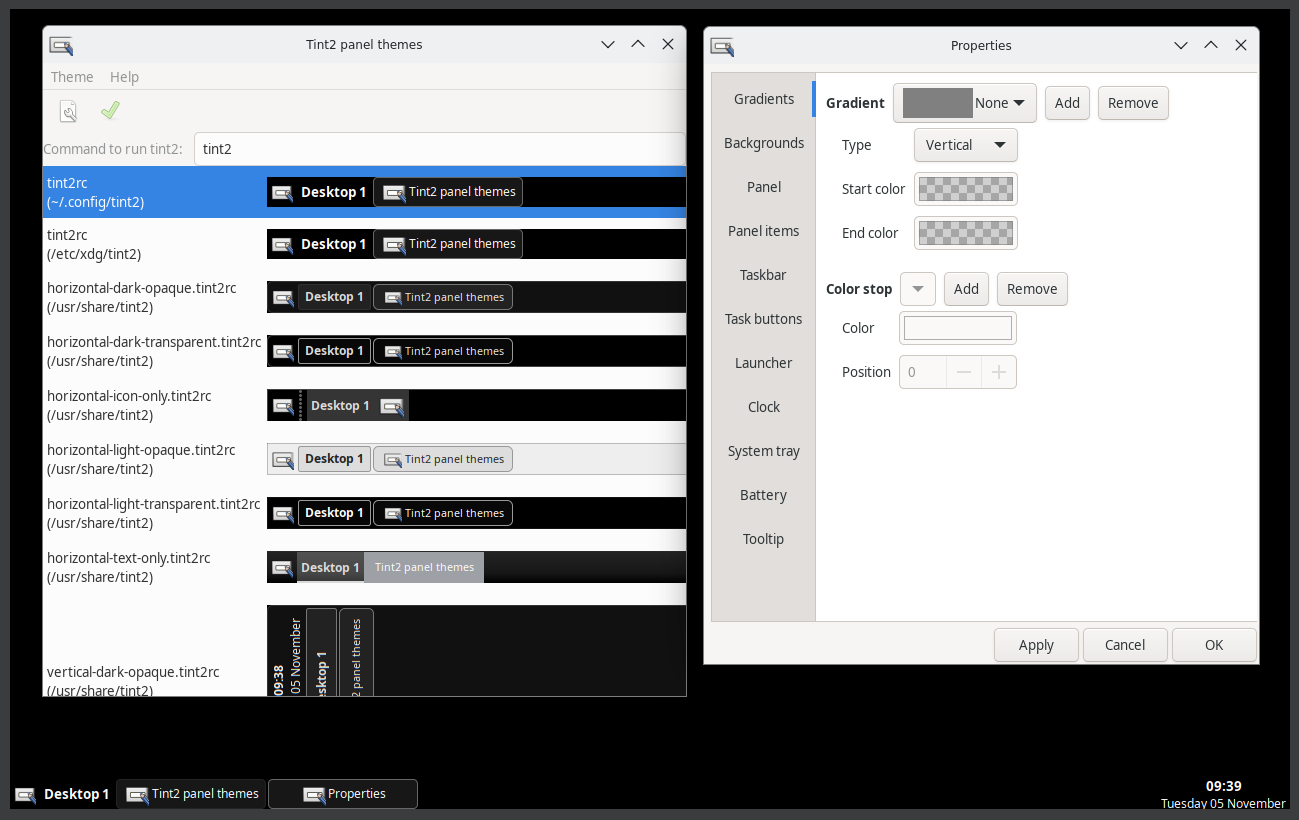
34. Running KWin
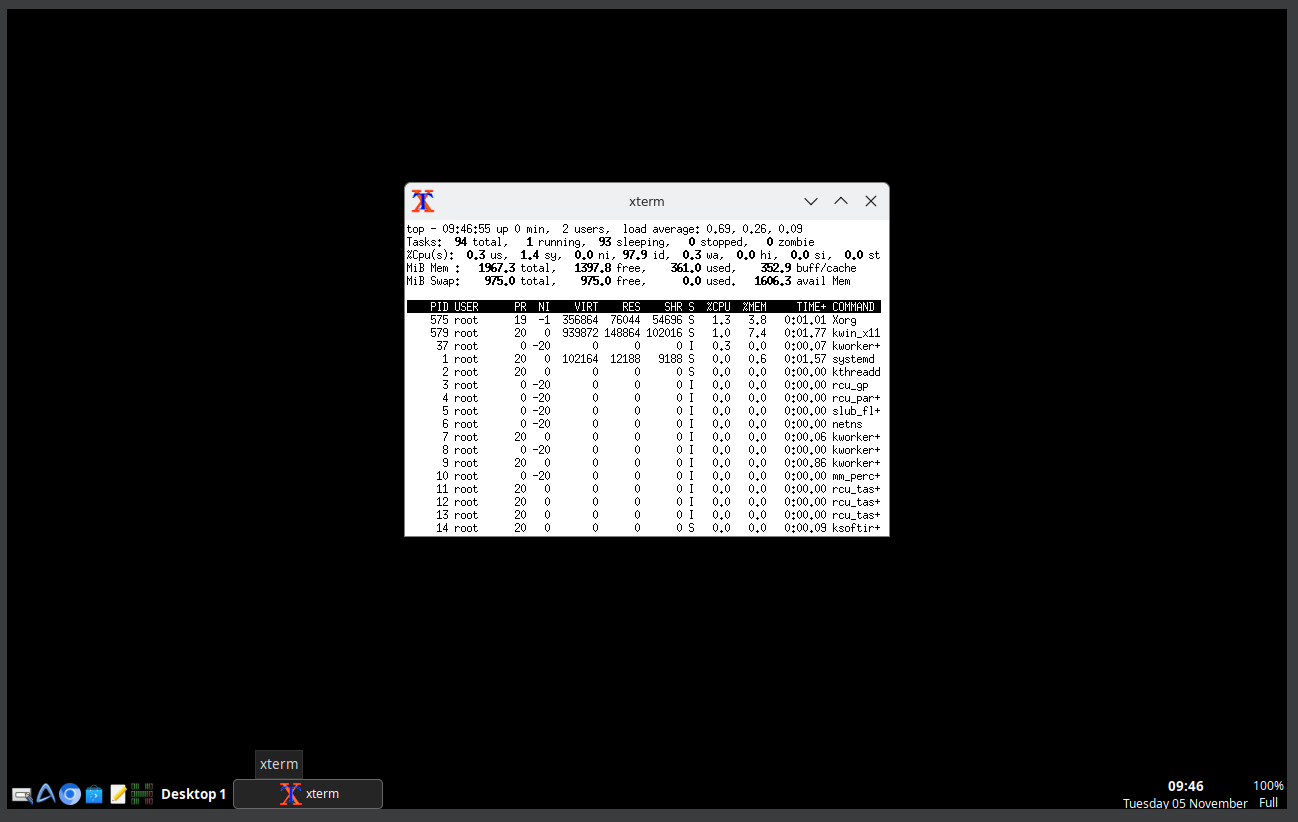
Well, that was exciting. See you in the next one!
If you wish to support our project
Donation link (Buy me a coffee):