
Installing the Gnome graphical shell on Debian
Step by step guide and HOWTO
Debian Linux is known for its stability and security, making it a reliable choice for servers and workstations.
It also has a vast software repository with extensive community support, ensuring access to a wide range of applications.
The GNOME Shell has a reputation for being one of the most visually appealing and thoughtfully designed desktop environments in the Linux world.
Its beauty lies in a combination of elegant simplicity, clean design, and user-centered features.
GNOME's interface is refreshingly minimalistic.
There’s a distinct lack of clutter, which allows users to focus on their work without unnecessary distractions.
The top bar with its understated clock, notification area, and Activities button keeps the screen simple, while offering easy access to key functions.
GNOME Shell is known for its fluid animations.
When you open the Activities Overview, switch between workspaces, or open applications, the transitions are smooth and responsive.
These animations make the environment feel more “alive” and create a sense of spatial awareness that enhances usability.
The Activities Overview is a hallmark of GNOME Shell, combining a workspace switcher, application launcher, and search bar into one convenient, visually appealing space.
The display of open windows and workspaces as previews helps users manage their work intuitively, and the transparent overlay adds a touch of elegance.
Workspaces in GNOME Shell are created dynamically, only appearing when needed, which keeps the environment uncluttered.
Switching between workspaces is visually engaging, with smooth animations that make it clear where each workspace is in relation to the others.
This approach feels organized and natural, rather than overly technical.
GNOME’s Human Interface Guidelines (HIG) ensure a cohesive look across applications, from icons to window layouts.
Most GNOME apps follow these guidelines, creating a uniform and polished experience. The result is a system where everything feels like it "belongs."
GNOME Shell uses simple, modern fonts and icons that look sharp and sophisticated.
The GNOME icon theme, often Adwaita by default, uses flat design principles with just the right amount of color to keep things visually interesting without overwhelming the user.
GNOME Shell’s design is responsive, which means it works well on both large monitors and small laptop screens.
This adaptive quality contributes to its visual appeal by ensuring that it always looks good, no matter the screen.
GNOME allows users to install themes and extensions, letting them change the appearance to suit their preferences.
From subtle dark themes to vibrant icon packs, GNOME can be easily styled to reflect individual tastes.
Popular themes like Arc, Materia, and Yaru bring even more beauty and personalization options to GNOME.
The GNOME Project is committed to a user-centered design, making usability a key part of its visual appeal.
It’s intuitive, unobtrusive, and designed to support workflows rather than interrupting them.
GNOME uses transparency effects, particularly in the Activities Overview and menu backgrounds, which add a sense of depth to the interface without being over-the-top.
Shadows under windows and menus add a three-dimensional feel that makes the desktop appear light and airy.
GNOME receives regular updates that bring small but meaningful improvements to its design.
This keeps the environment looking fresh and modern without radical overhauls, allowing it to evolve naturally with user needs.
In summary, GNOME Shell is beautiful because it combines simplicity, modernity, and thoughtful design choices.
It’s an environment that prioritizes both aesthetics and usability, creating a space that’s not only nice to look at but also a pleasure to work in.
GNOME doesn’t just look good; it feels good to use.
GNOME Shell is more than just looks; it’s a carefully crafted environment that enhances productivity by reducing distractions.
Its design philosophy revolves around “less is more,” making it a favorite for those who appreciate elegance in simplicity.
GNOME’s emphasis on a unified design helps it feel cohesive, allowing users to transition smoothly between applications without jarring visual inconsistencies.
The focus on accessibility, with features like screen readers and high-contrast themes, ensures GNOME’s beauty is inclusive.
Unlike many traditional desktop environments, GNOME doesn’t rely heavily on menus or taskbars, creating a unique experience that feels refreshingly modern.
The GNOME community is vibrant and dedicated, always working to refine the design, which helps GNOME stay visually appealing with each release.
From the top bar to the Activities Overview, every design element in GNOME is purposeful, adding to its charm without unnecessary clutter.
GNOME’s modular extensions system allows users to personalize their experience, making the environment not just beautiful, but adaptable.
Its well-documented Human Interface Guidelines continue to influence other software projects, setting a standard for aesthetic and functional design in open-source software.
Ultimately, GNOME Shell’s beauty lies in its ability to balance form with function, creating an experience that feels both welcoming and powerful for users at all levels.
Today we shall install the Gnome graphical shell on Debian
We need to complete several steps to get it working correctly.
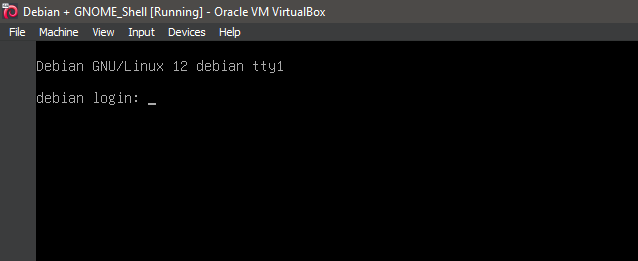
1. Boot the system -- System Ready.
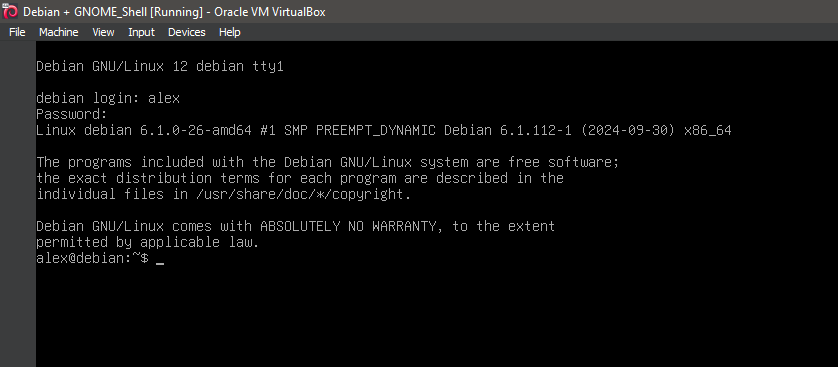
2. Boot the system -- Logged In.
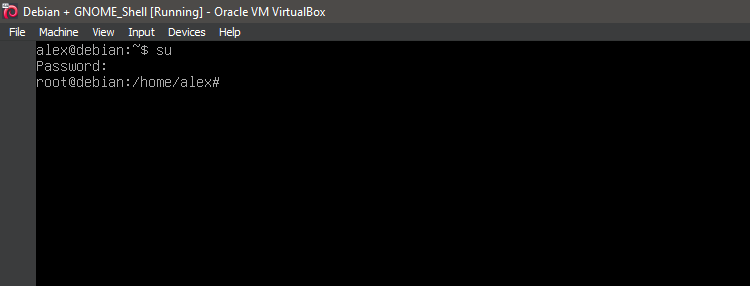
3. Switch to root
su
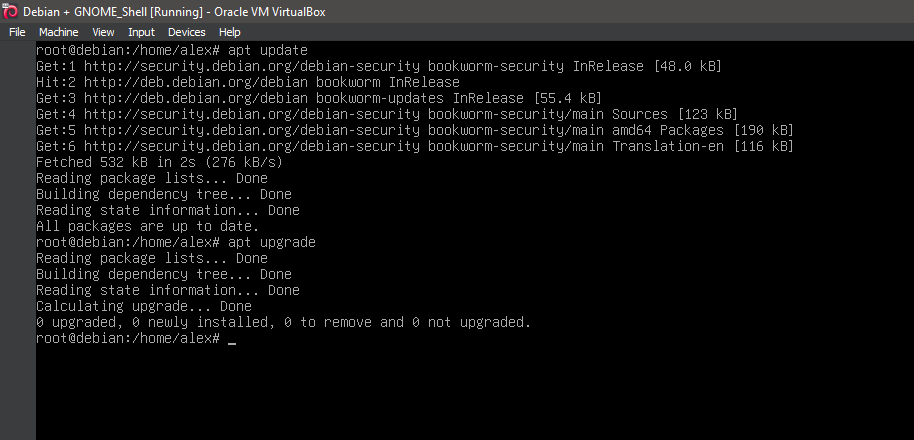
4. Running update
apt-get update
apt-get upgrade
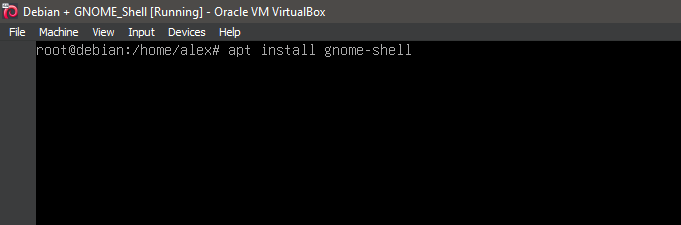
5. Running 'apt install gnome-shell'
apt install gnome-shell
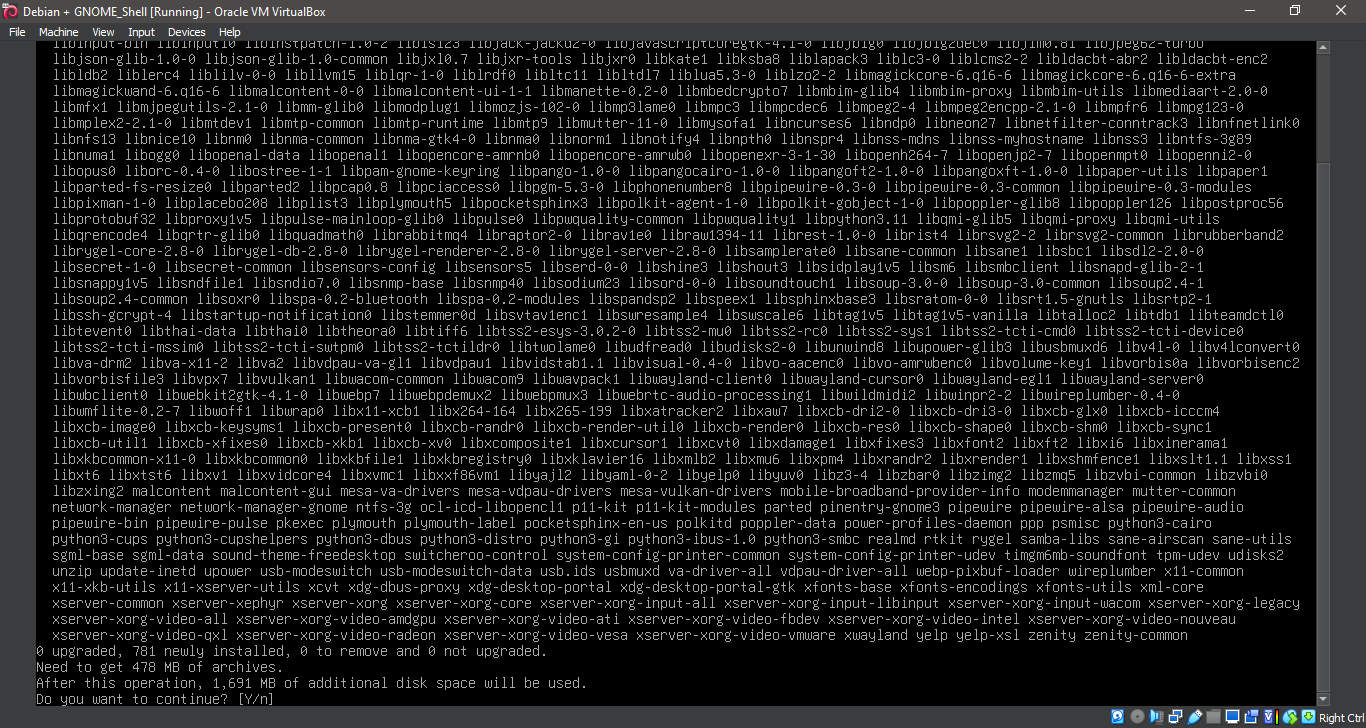
6. Running 'apt install gnome-shell'
apt install gnome-shell
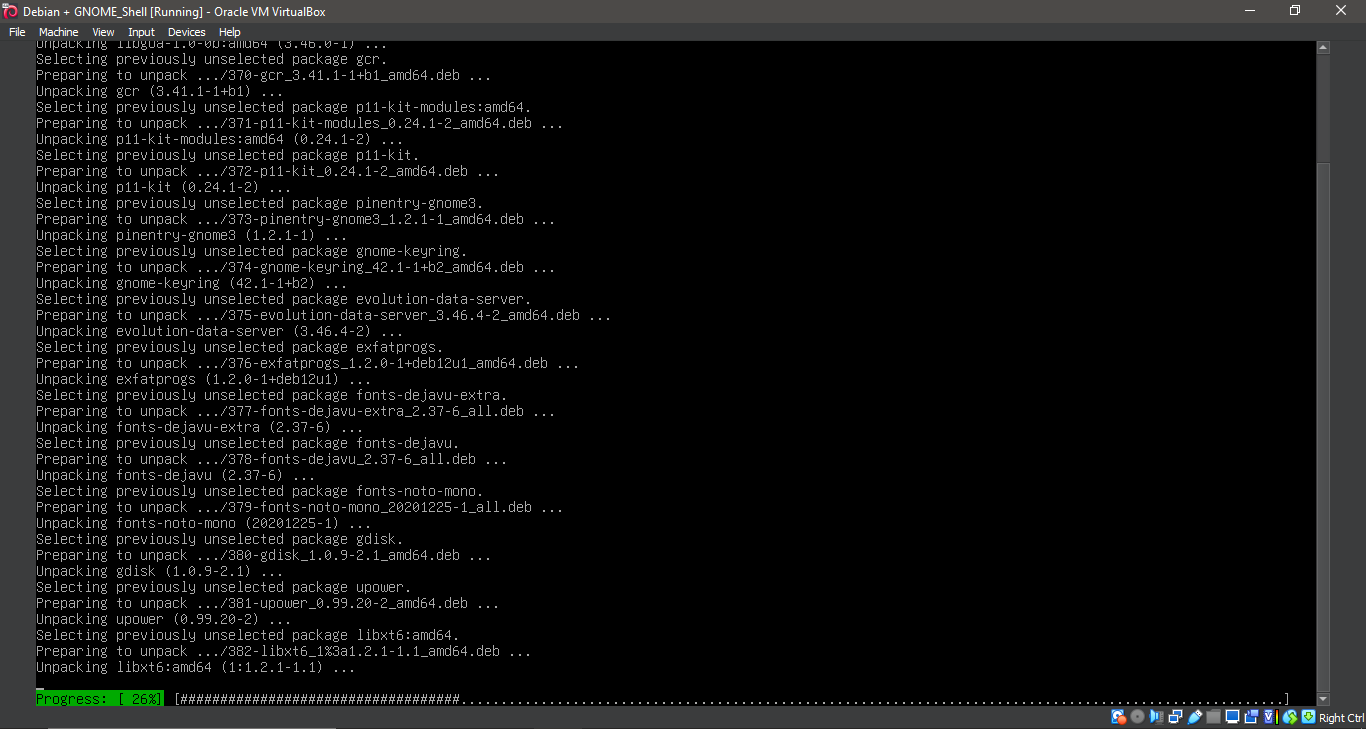
7. Running 'apt install gnome-shell'
apt install gnome-shell
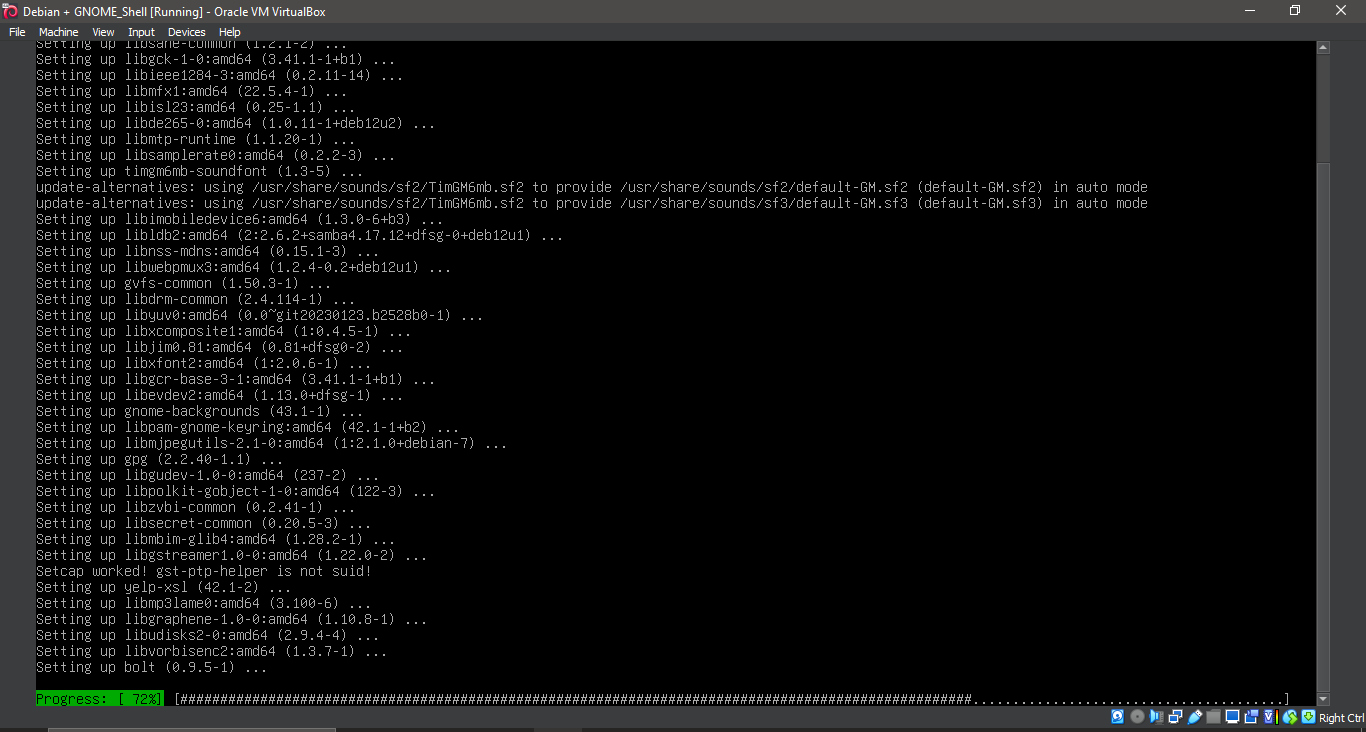
8. Running 'apt install gnome-shell'
apt install gnome-shell
9. Running 'apt install gnome-shell'
apt install gnome-shell
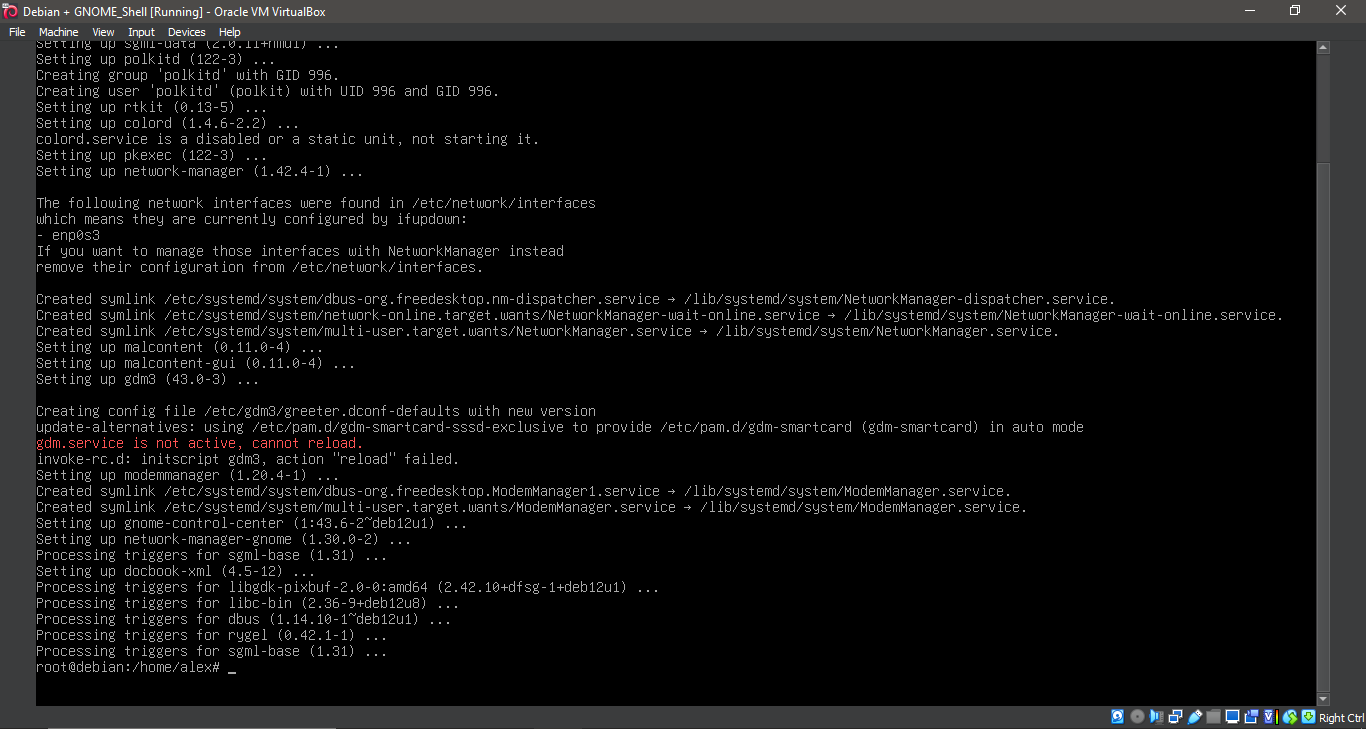
10. Running 'reboot'
reboot
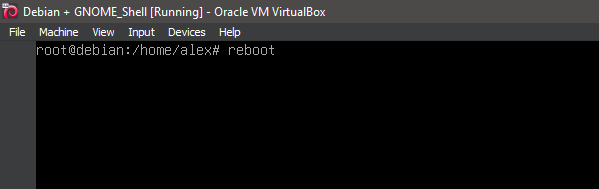
11. Running Gnome-shell
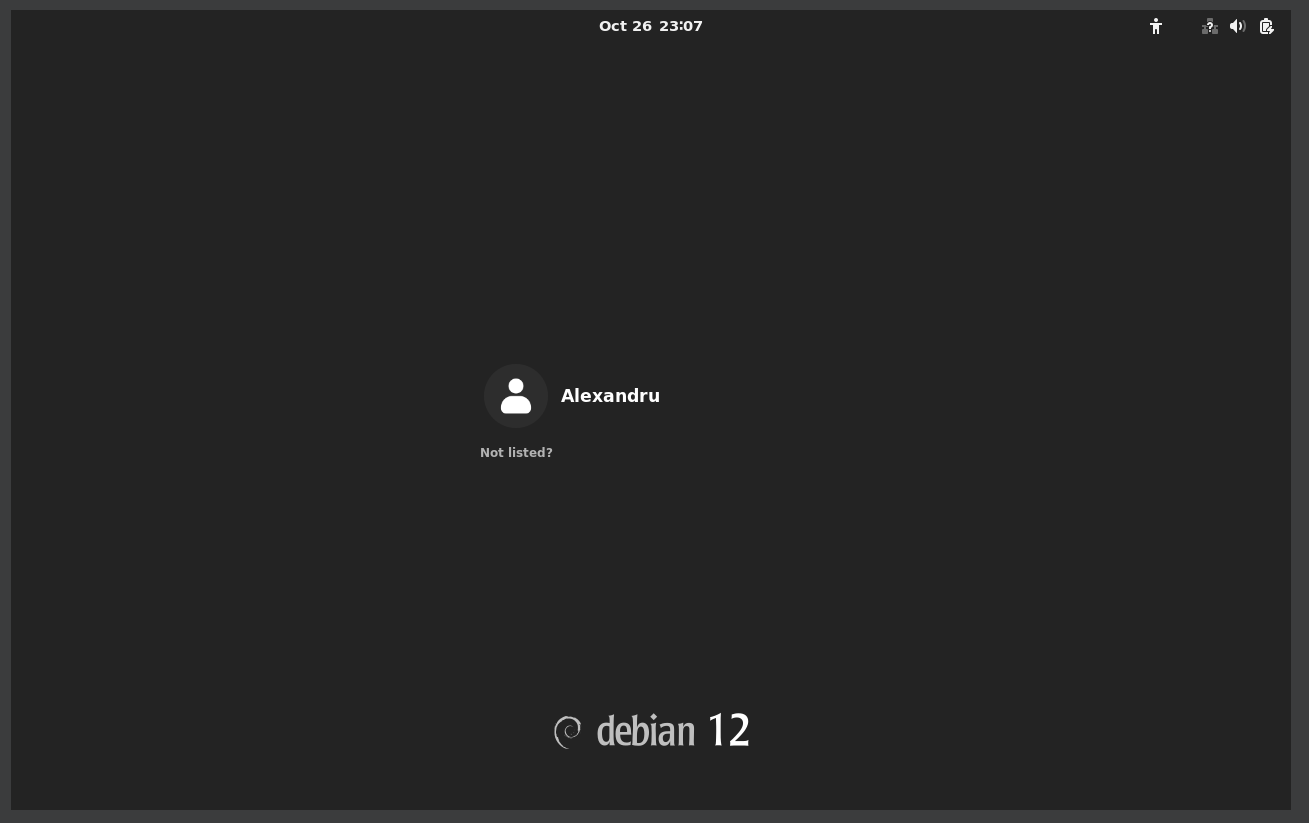
12. Running Gnome-shell
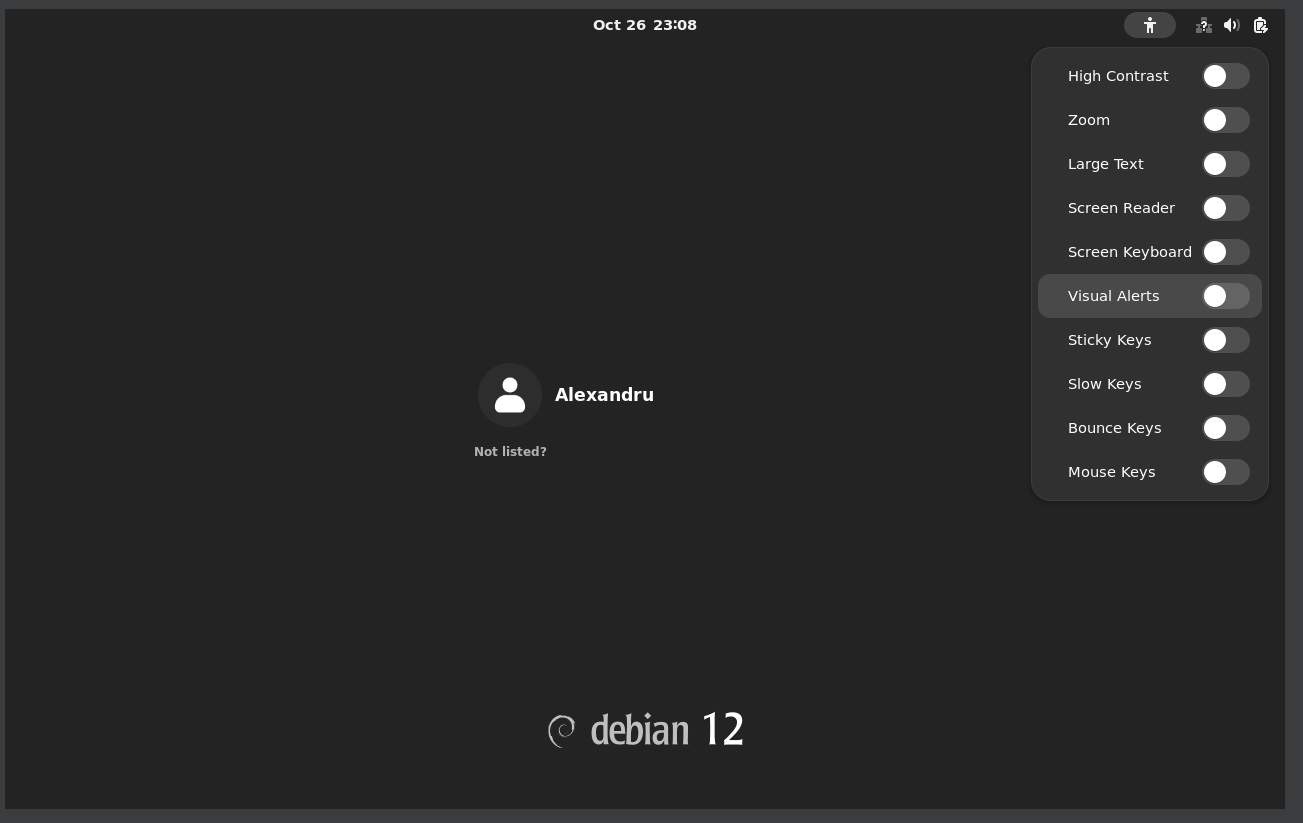
13. Running Gnome-shell
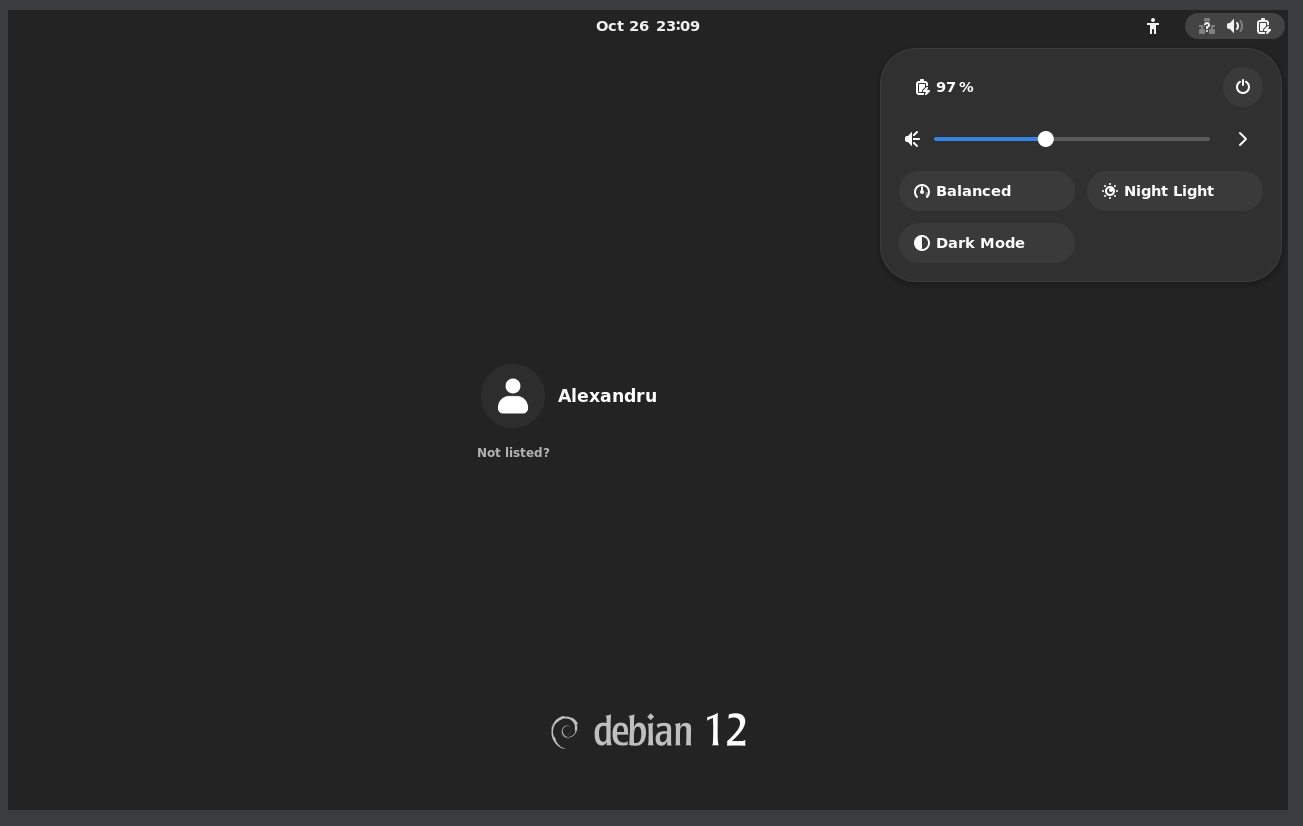
14. Running Gnome-shell
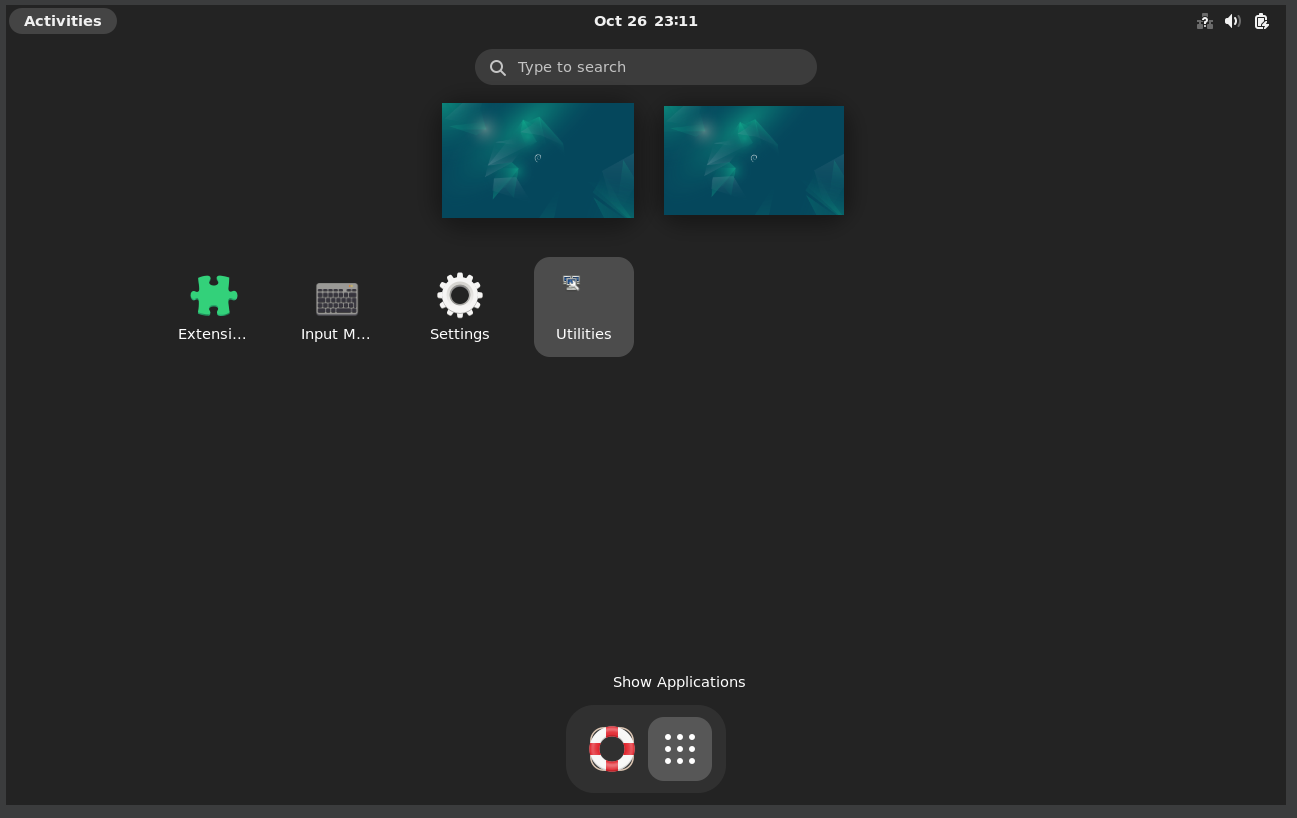
15. Running Gnome-shell
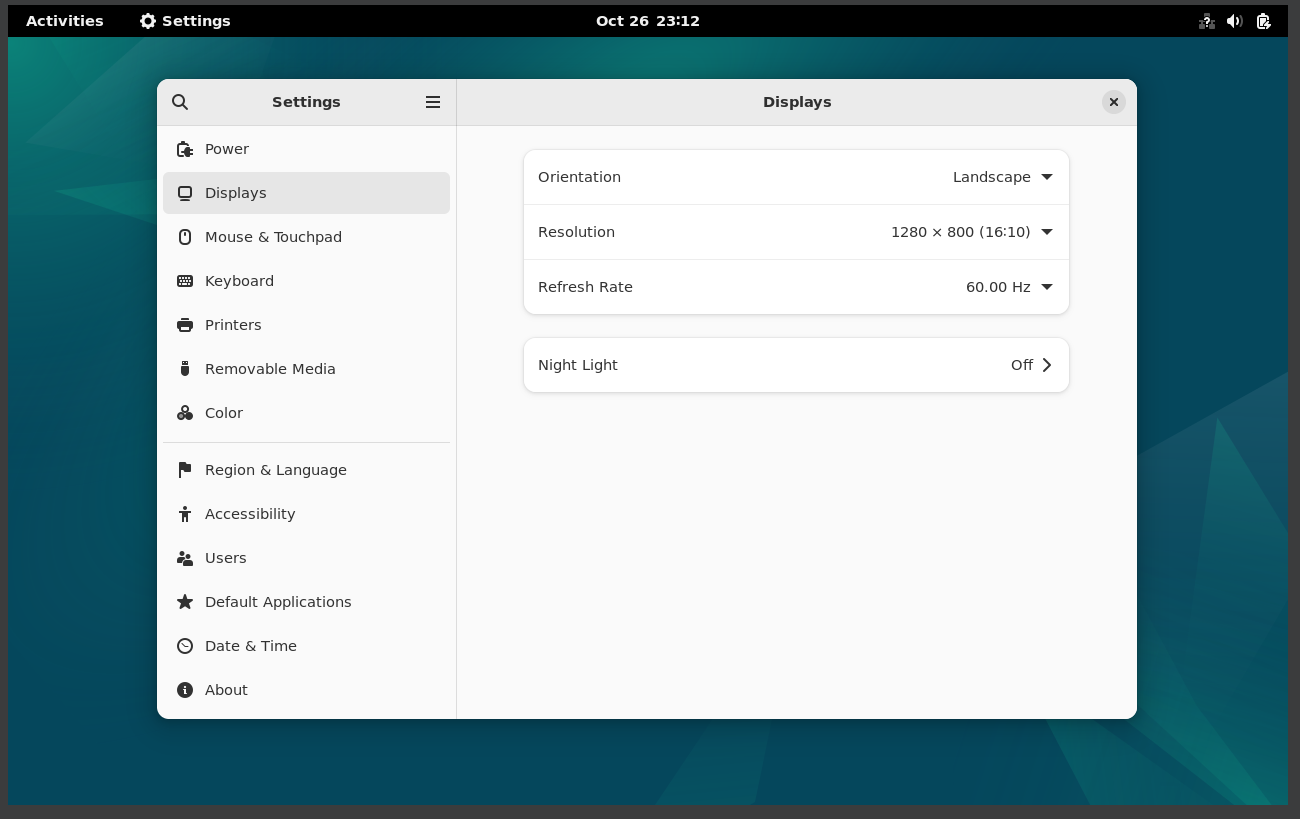
16. Running Gnome-shell
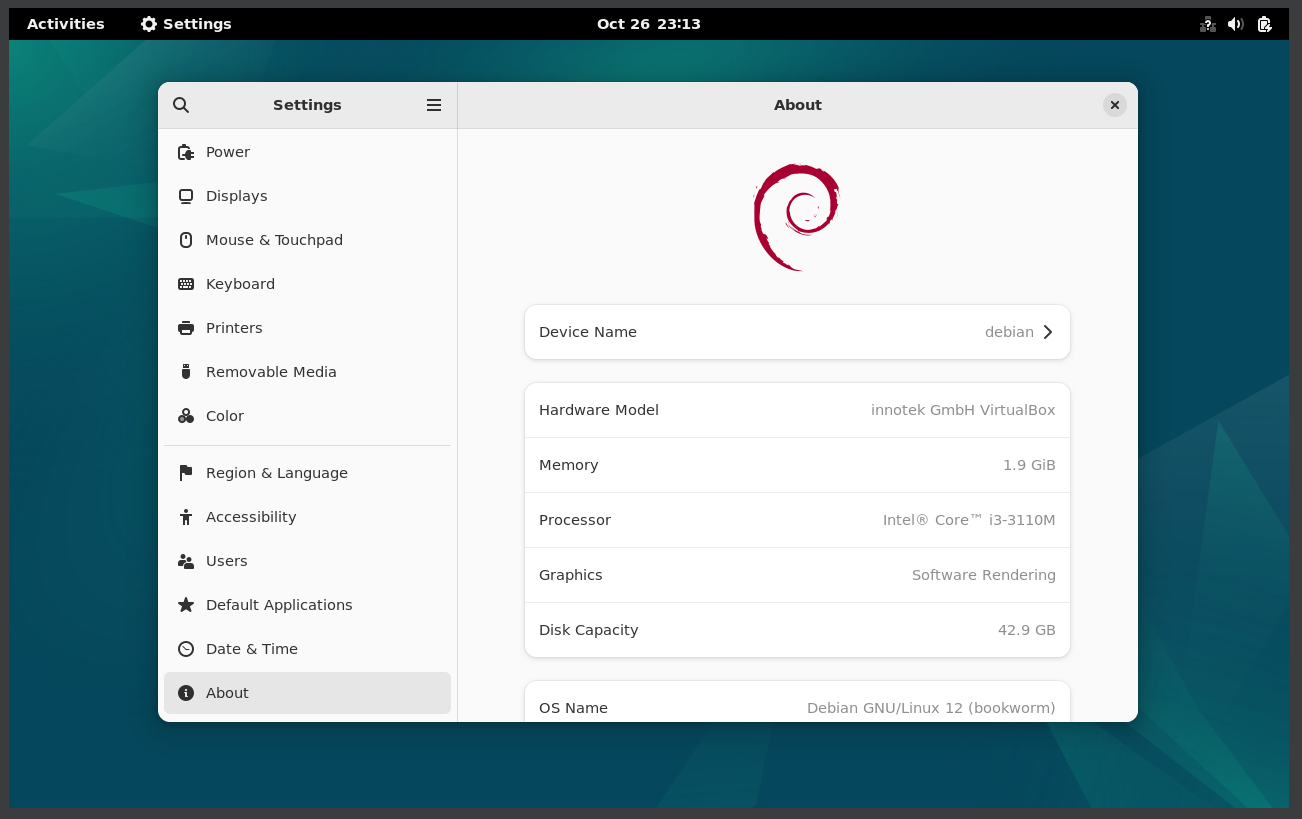
17. Running Gnome-shell
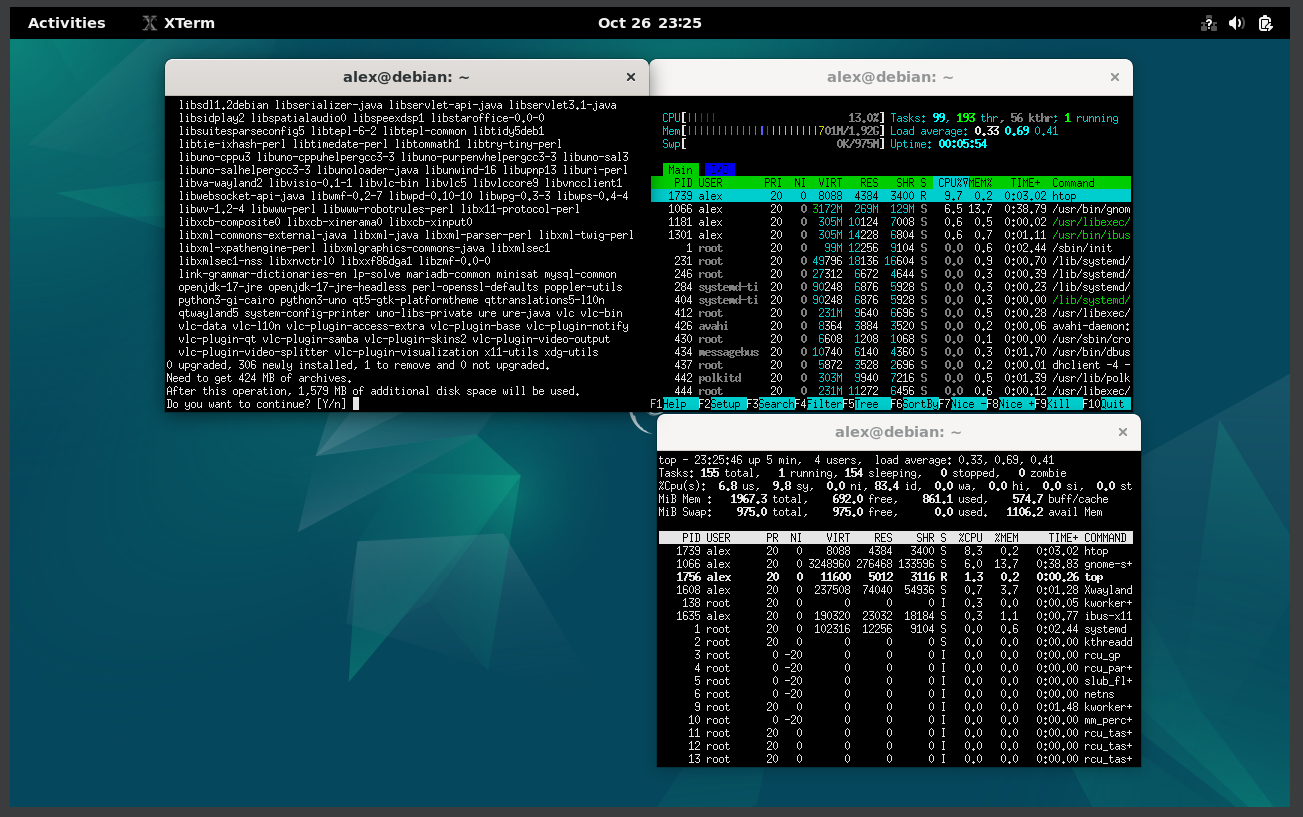
18. Running Gnome-shell
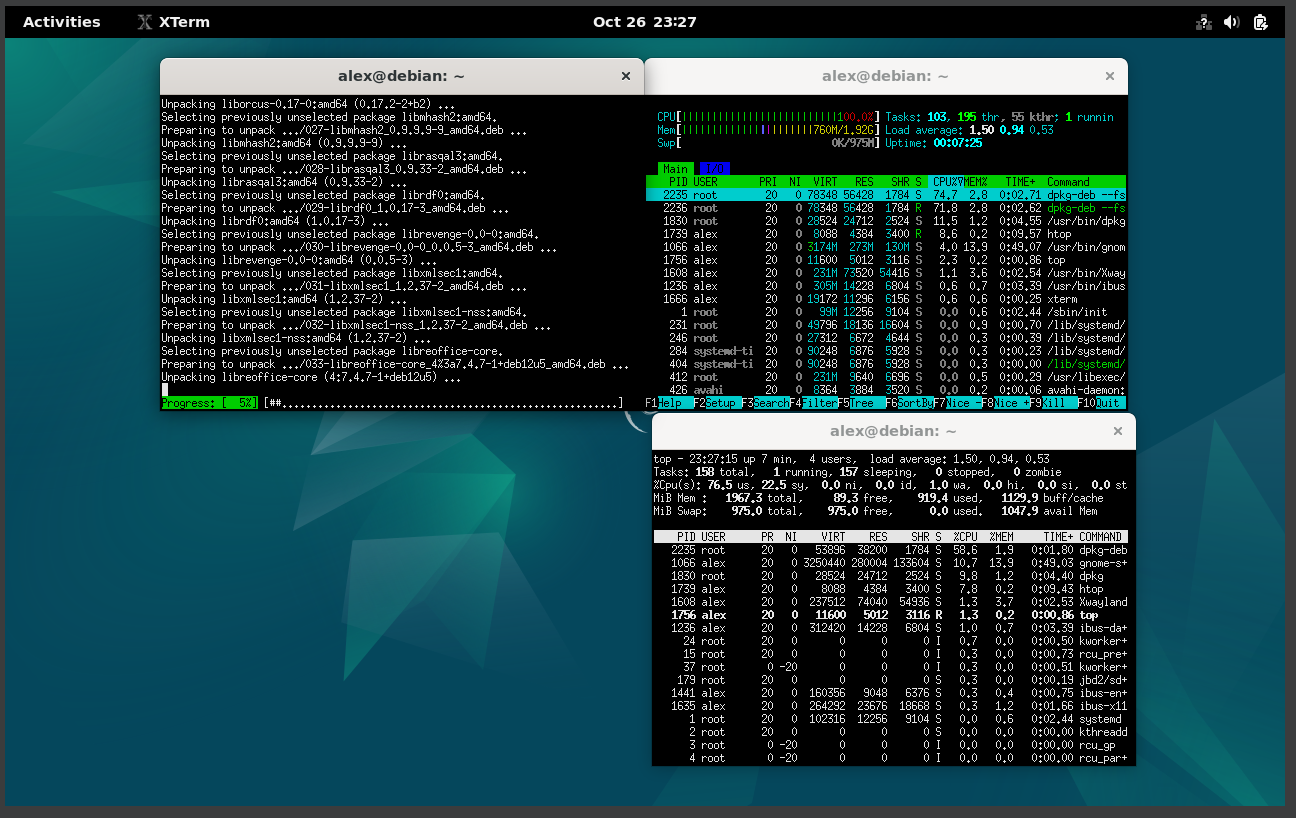
19. Running Gnome-shell
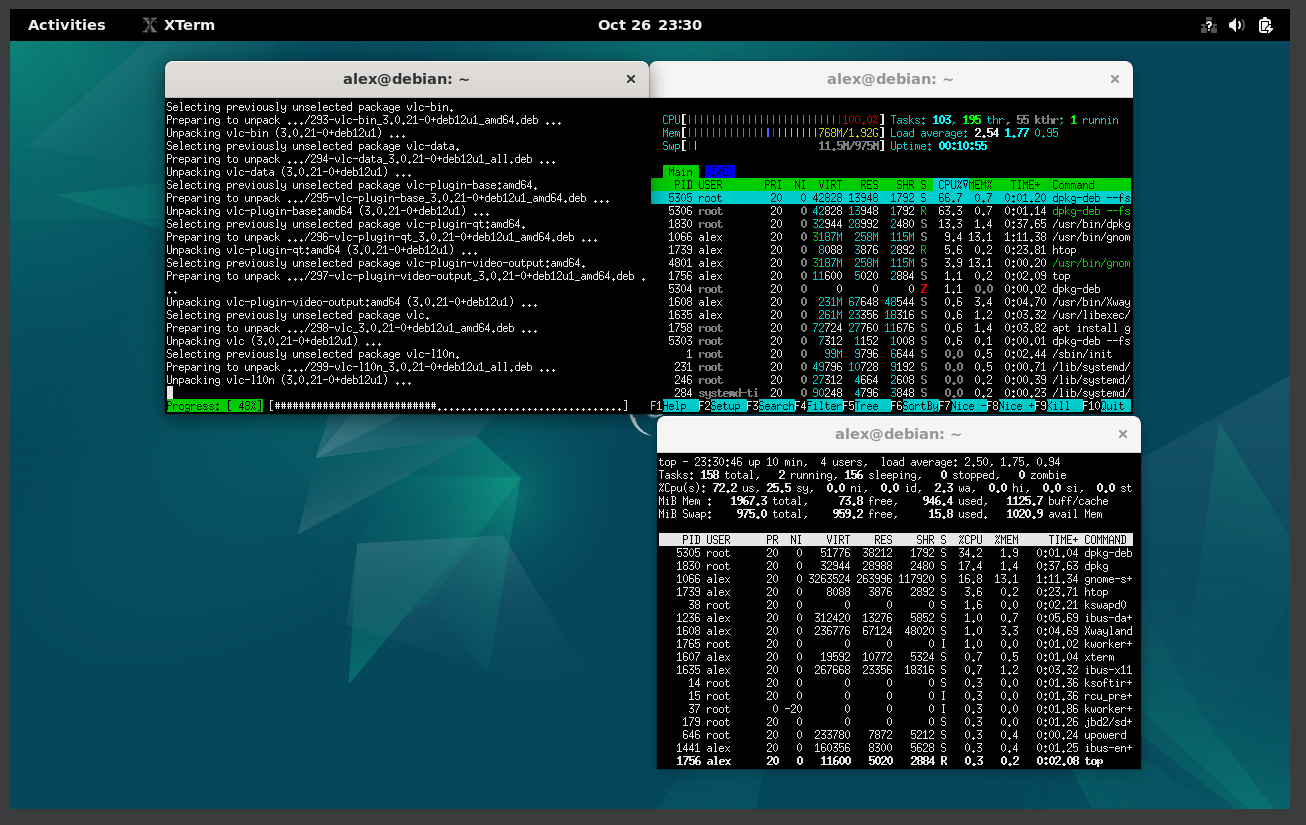
20. Running Gnome-shell
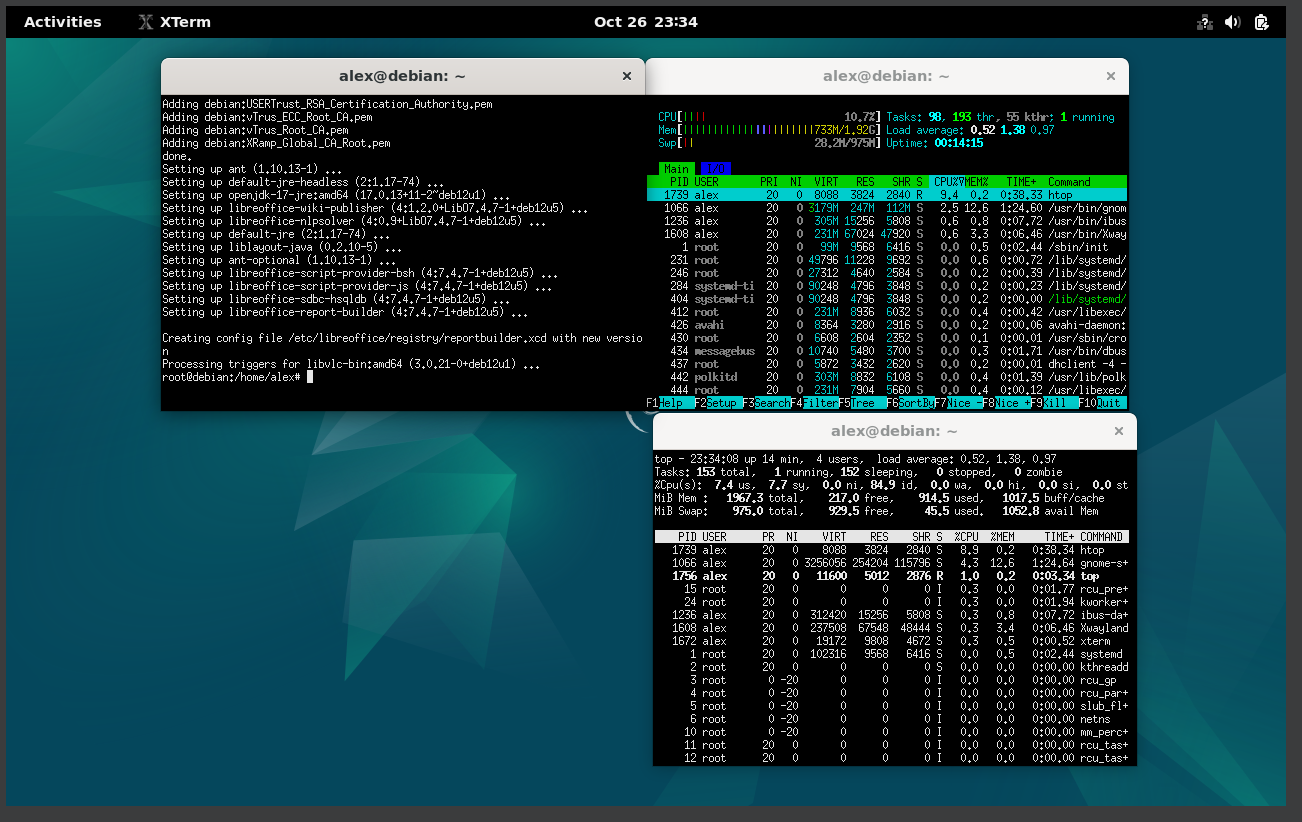
21. Running Gnome-shell
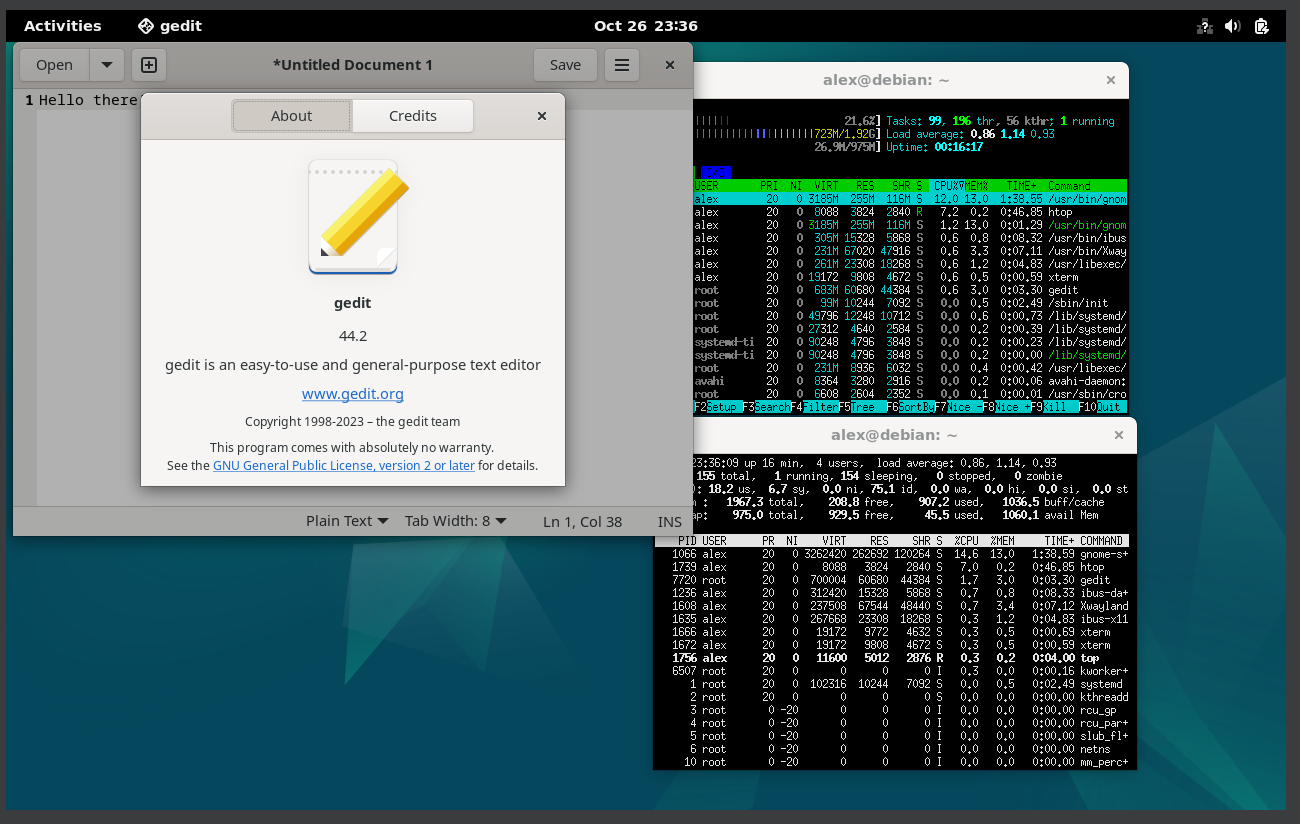
22. Running Gnome-shell
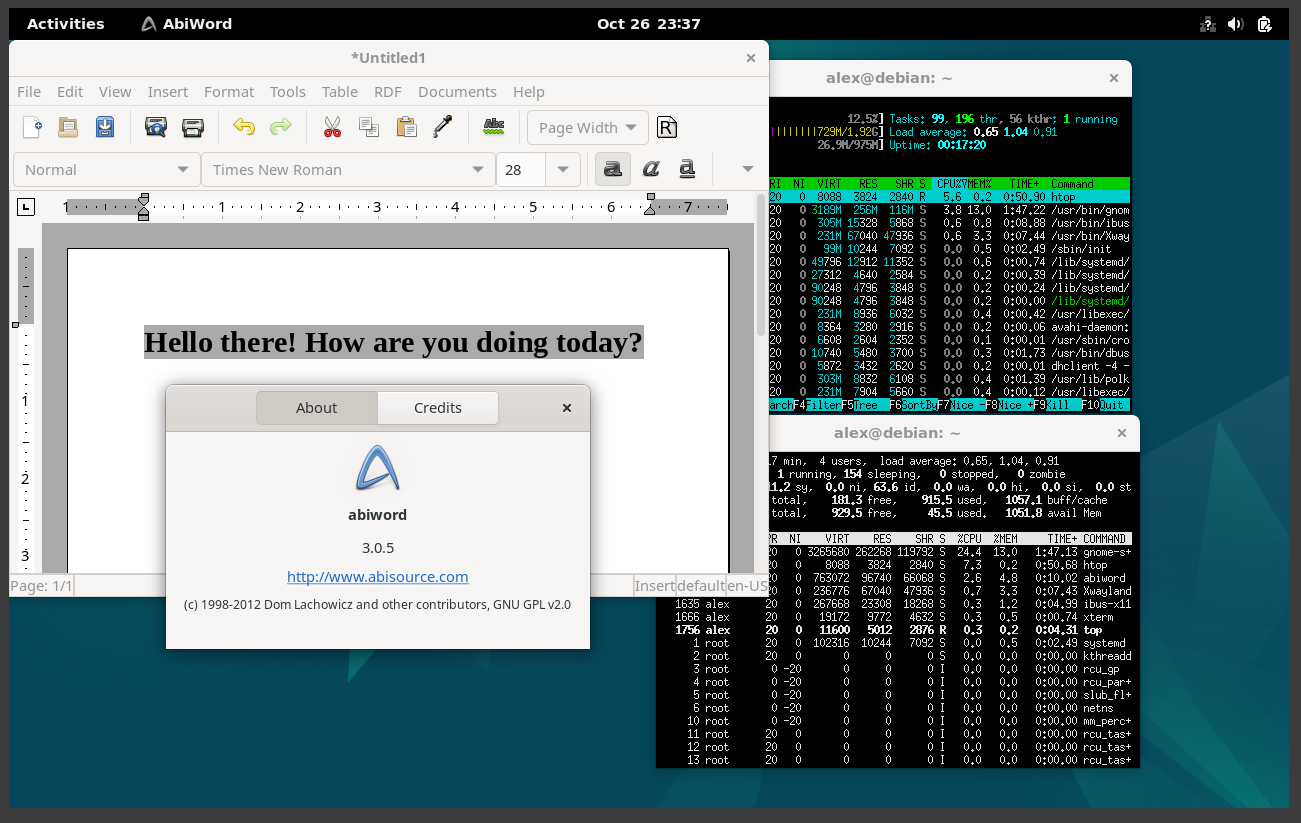
23. Running Gnome-shell
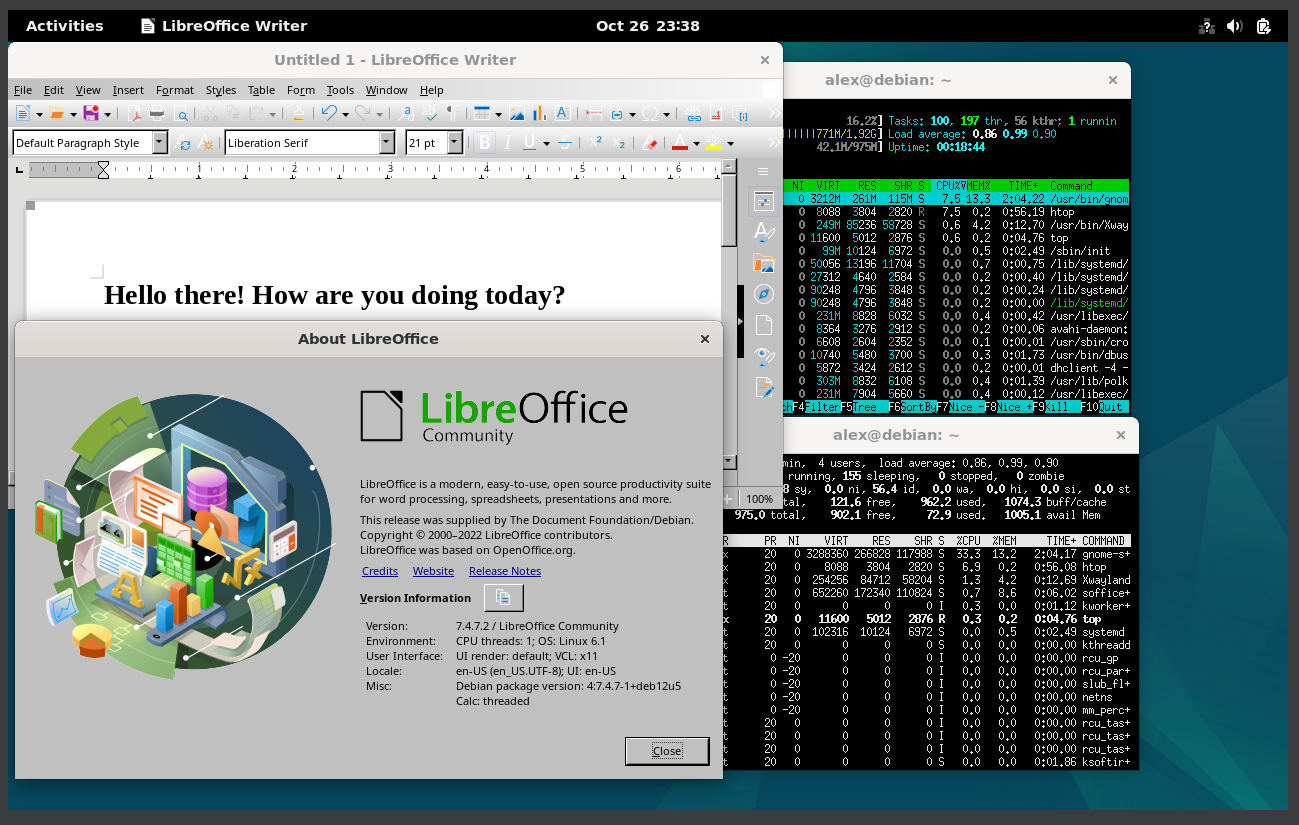
24. Running Gnome-shell
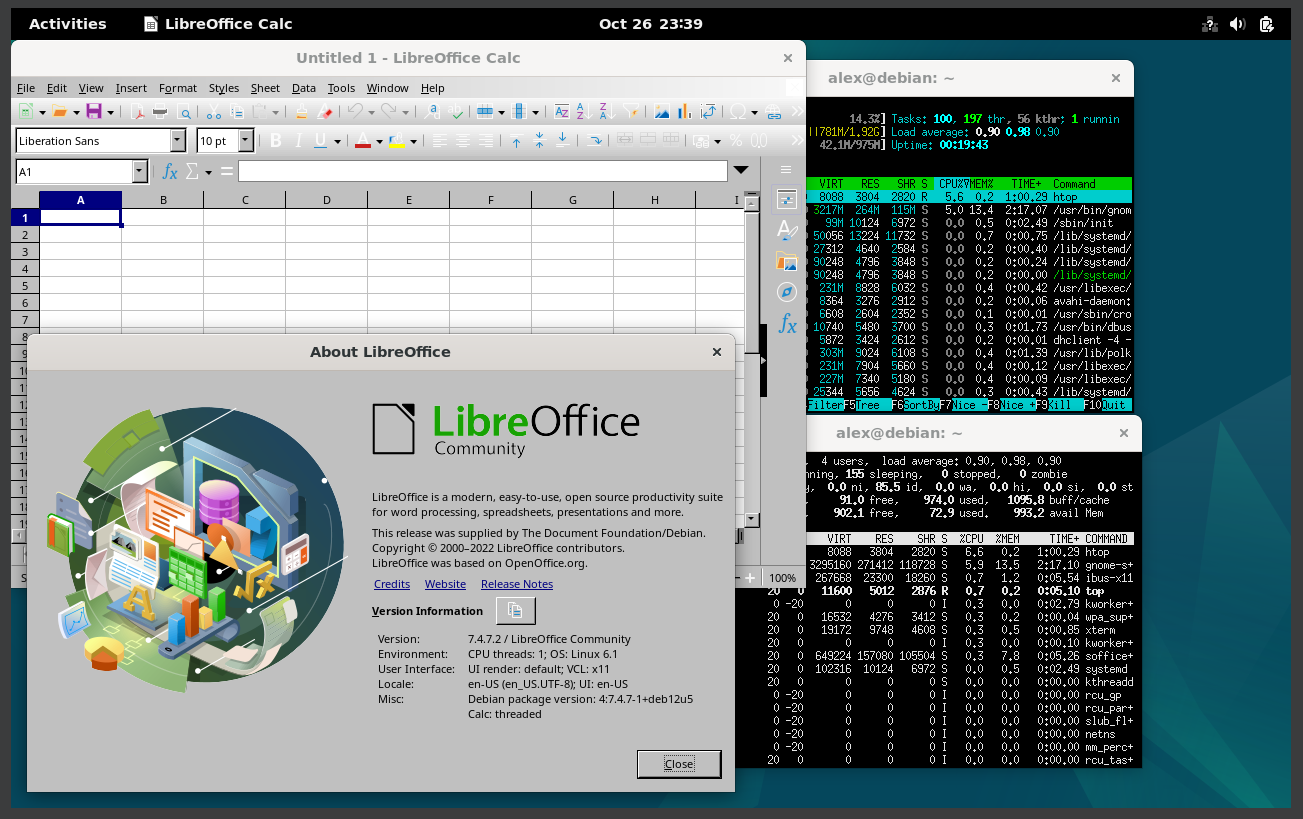
25. Running Gnome-shell
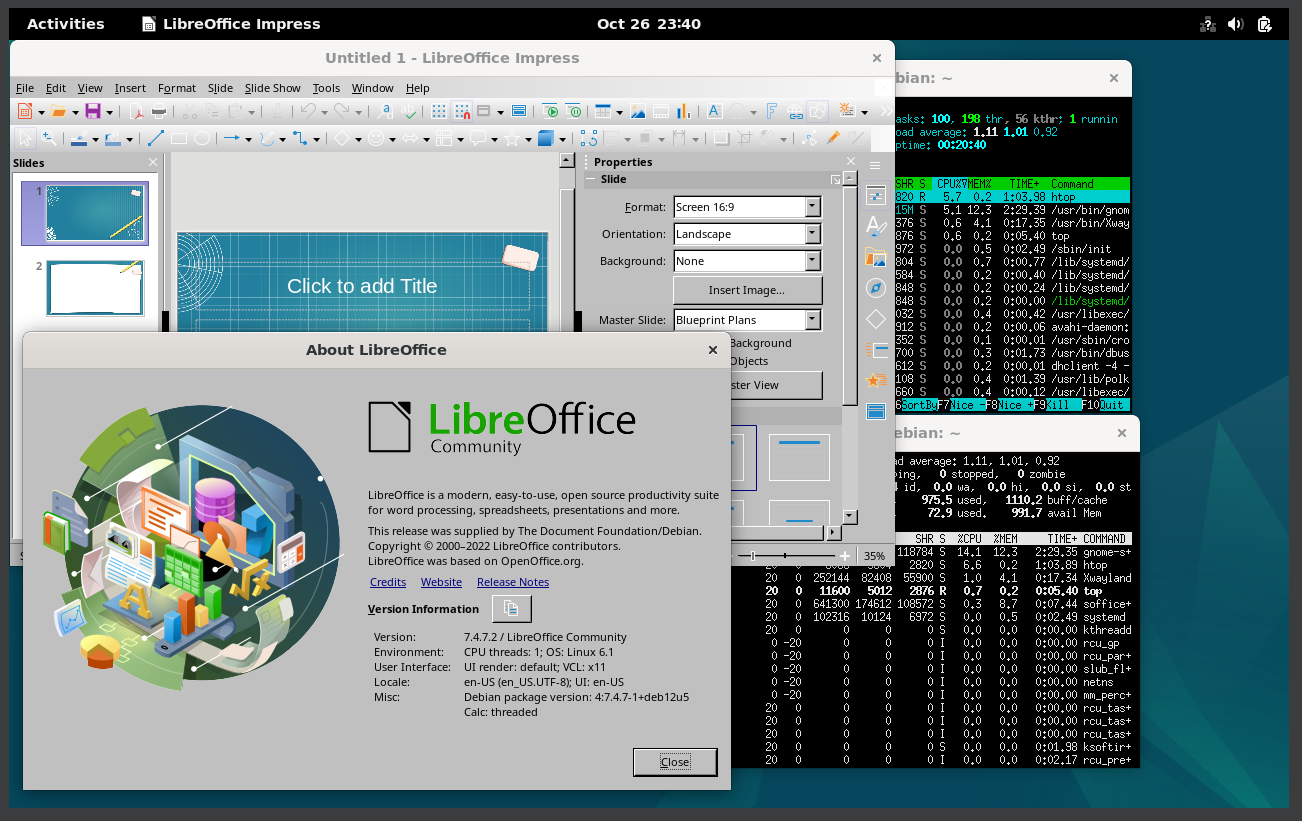
26. Running Gnome-shell
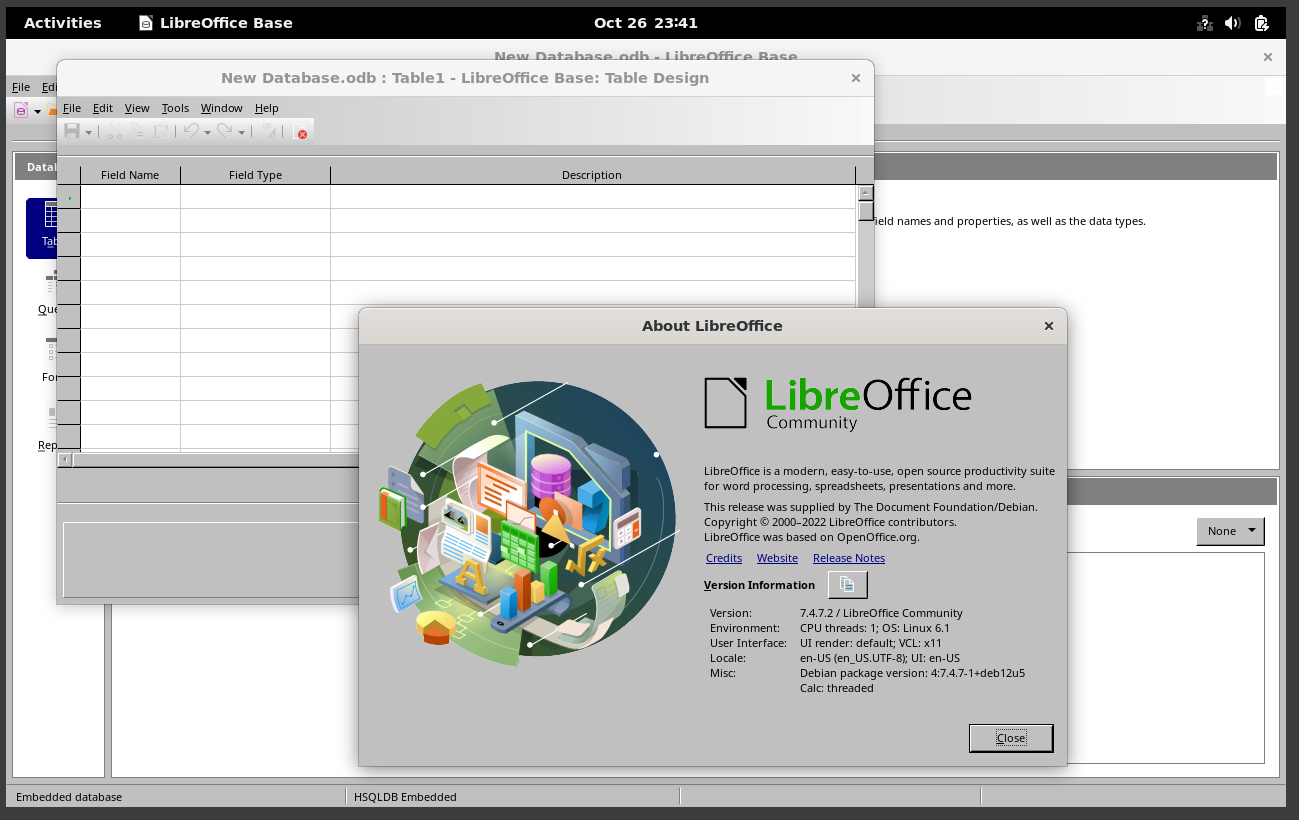
27. Running Gnome-shell
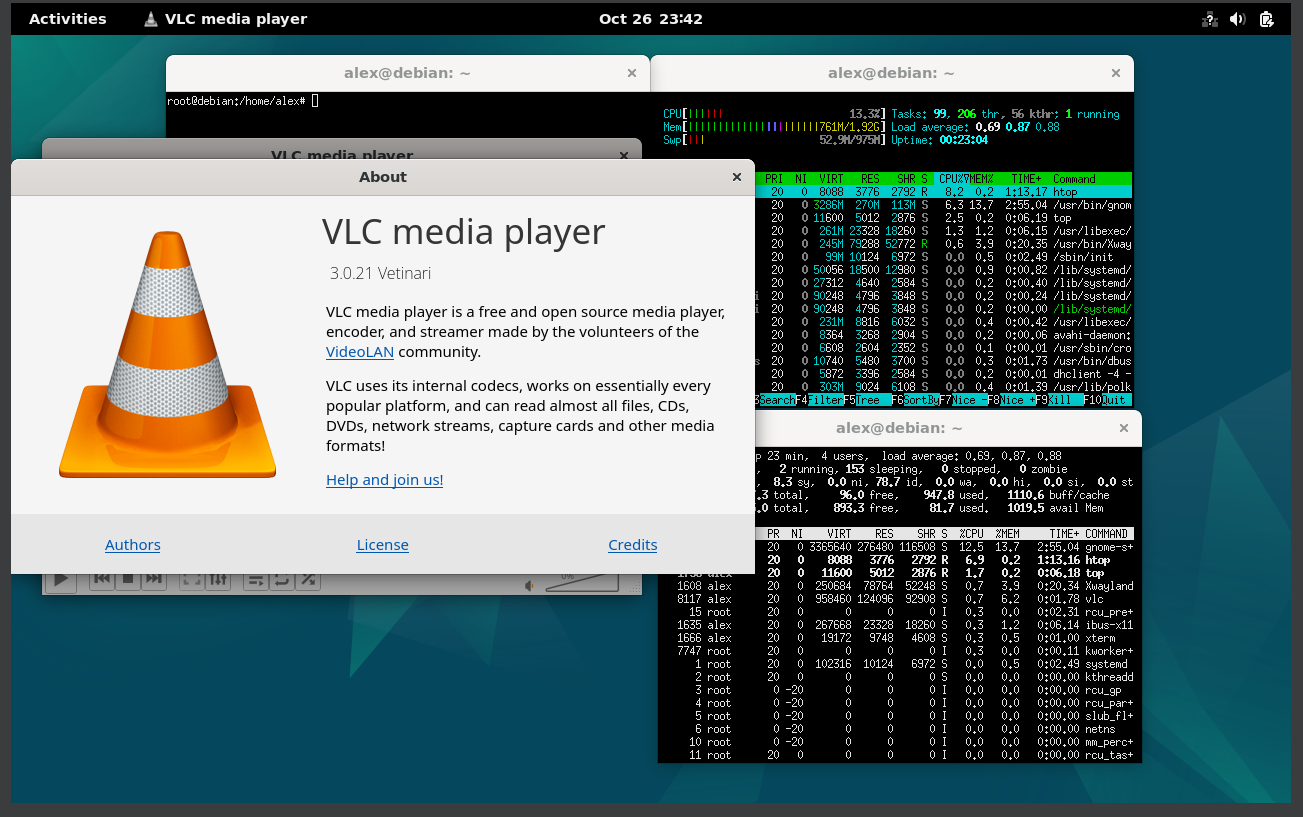
28. Running Gnome-shell
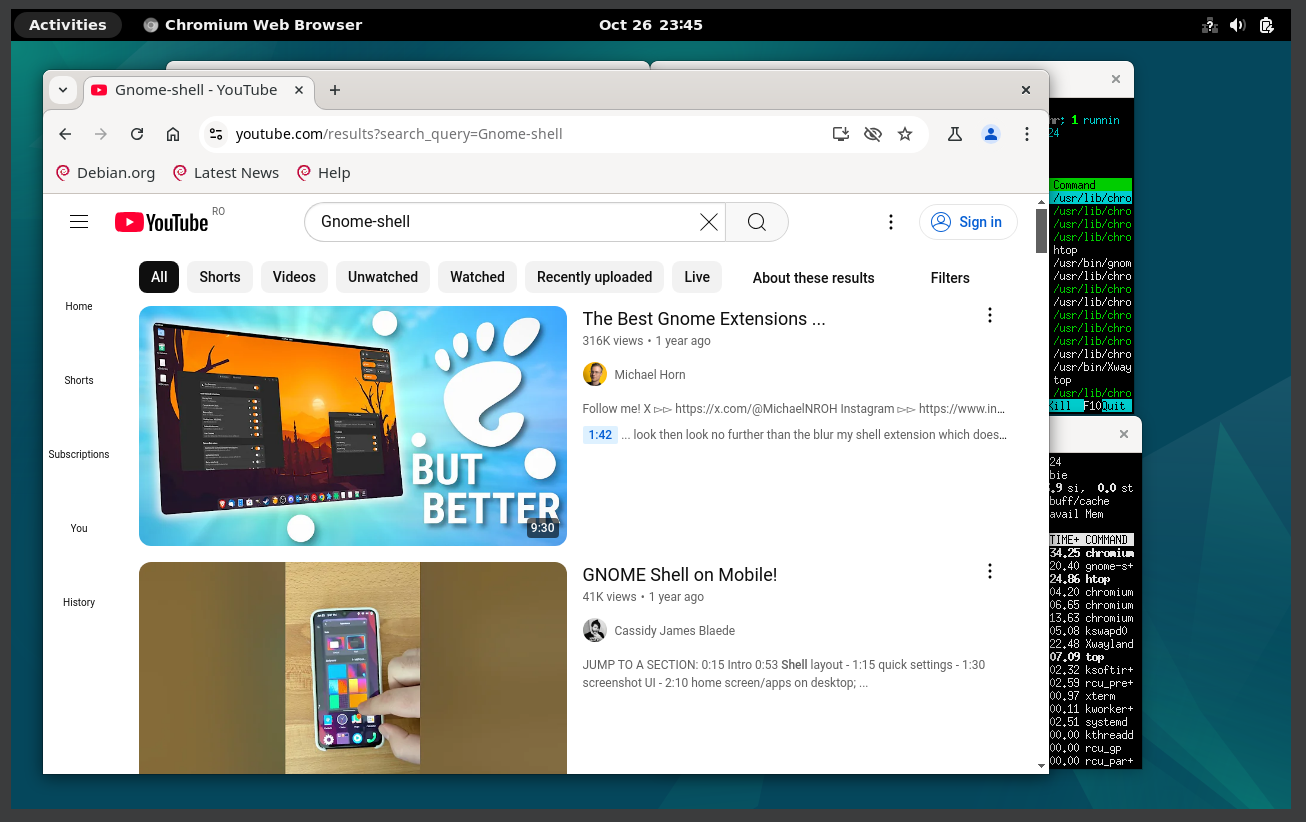
29. Running Gnome-shell
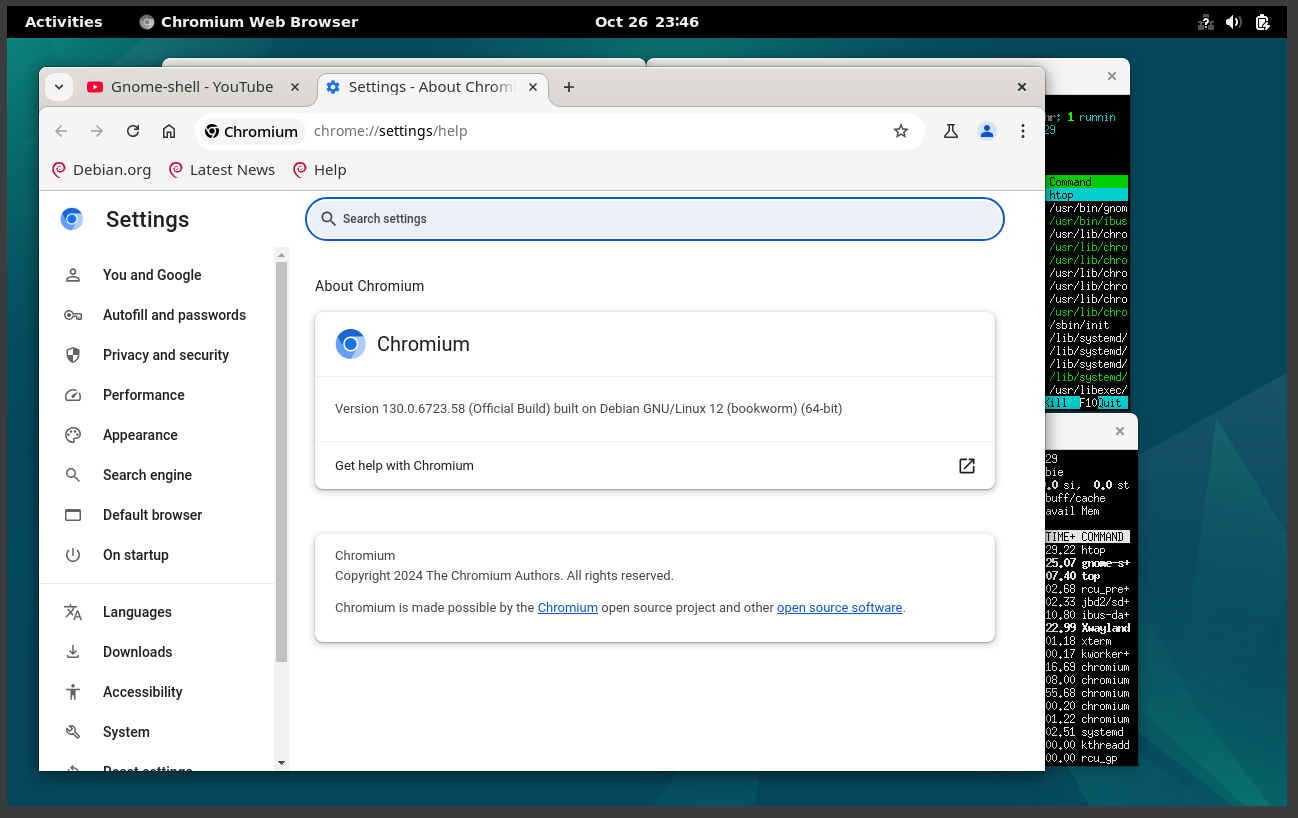
30. Running Gnome-shell
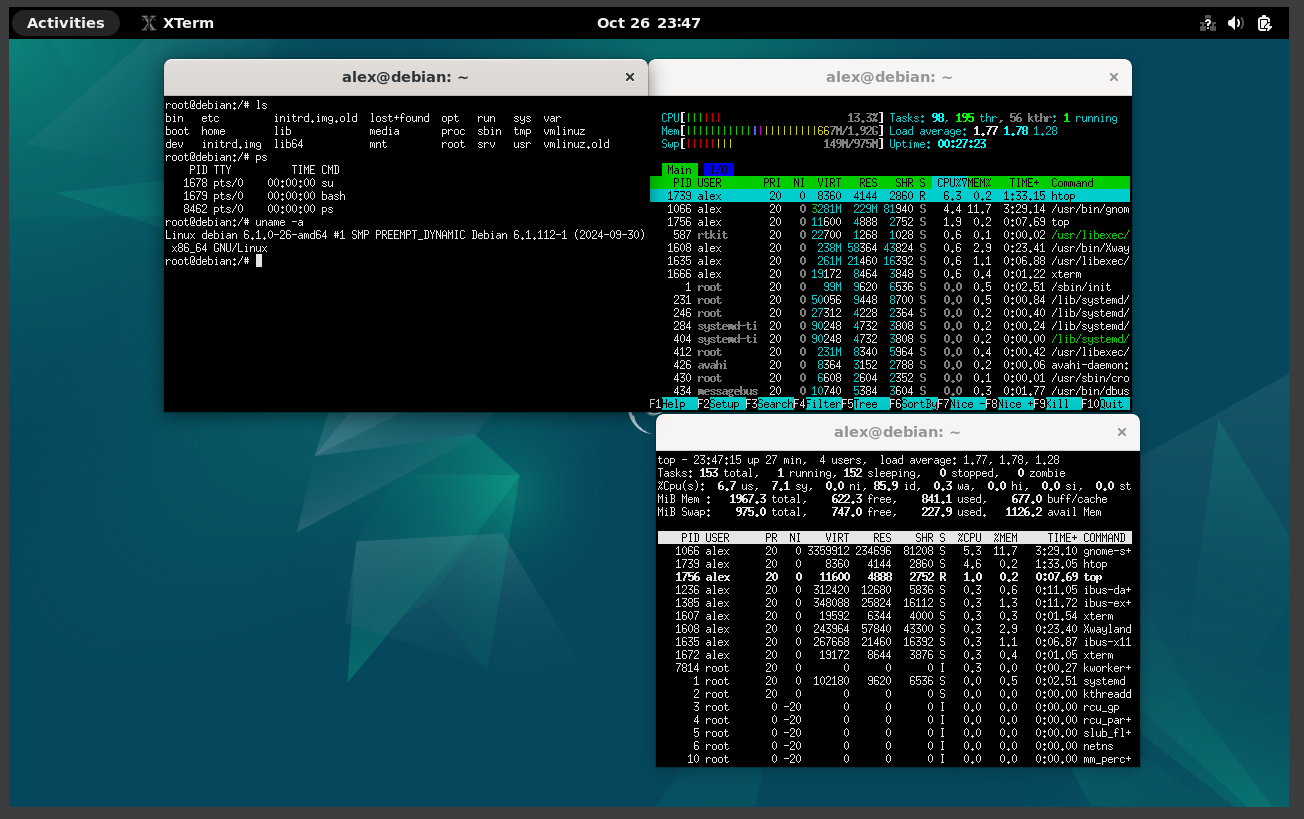
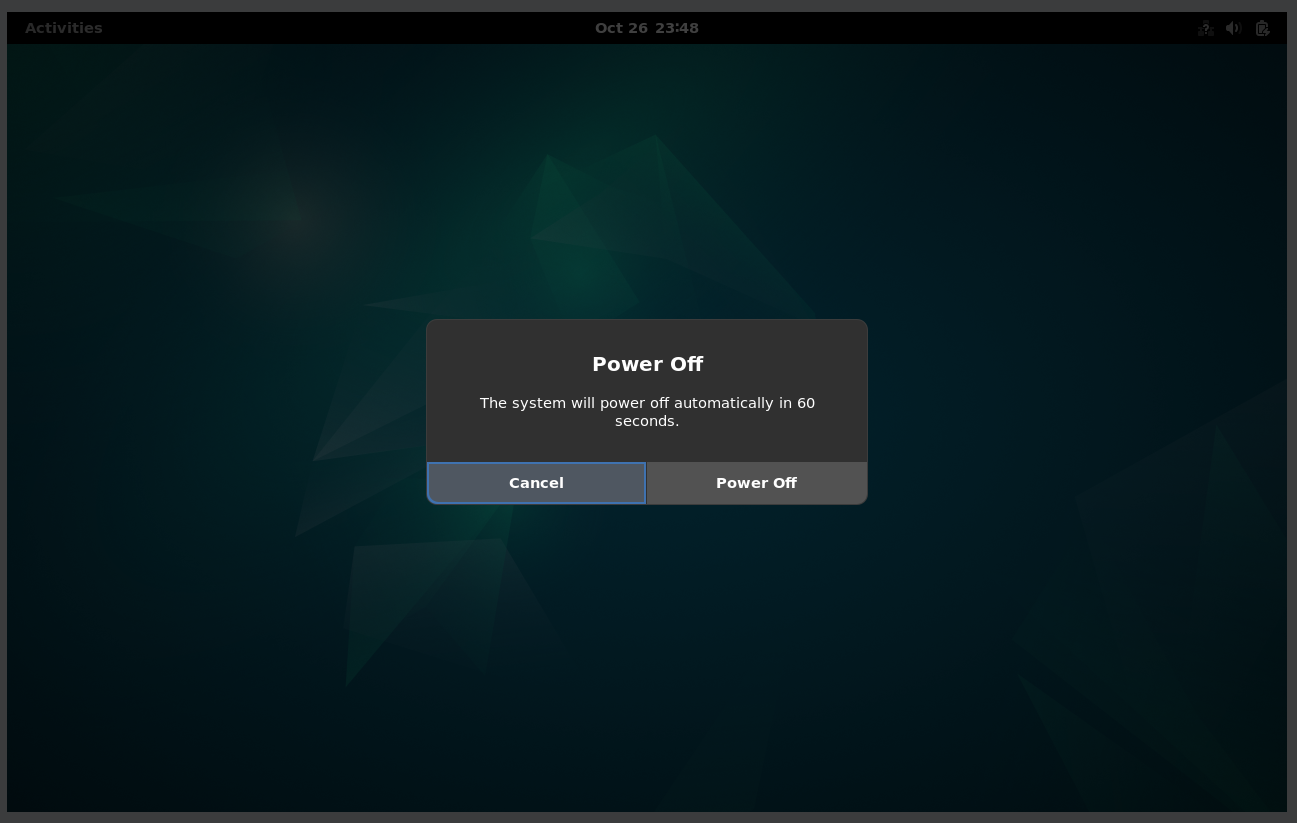
31. Shutting down
Well, that was exciting. See you in the next one!
If you wish to support our project
Donation link (Buy me a coffee):