
Installing the CTWM Window Manager on Debian
Step by step guide and HOWTO
Debian Linux is known for its stability and security, making it a reliable choice for servers and workstations.
It also has a vast software repository with extensive community support, ensuring access to a wide range of applications.
CTWM (Claude's Tab Window Manager) is considered beautiful for several reasons, particularly by those who appreciate minimalist design, efficiency, and the elegance of retro Unix systems.
CTWM is extremely lightweight compared to modern desktop environments.
It doesn’t require much in terms of system resources, making it ideal for older hardware or users who prioritize performance over flashy visuals.
Its design philosophy is rooted in simplicity.
There are no overwhelming animations, bloated features, or resource-heavy widgets.
It's clean and functional, adhering to the Unix philosophy of "do one thing and do it well."
Every aspect of CTWM can be fine-tuned through the .ctwmrc configuration file.
Users can build their ideal environment by adjusting the look and behavior of windows, desktops, keybindings, mouse actions, and menus.
CTWM allows users to shape their workflow according to personal preferences, whether it’s organizing windows with tabs, setting up virtual desktops, or customizing title bars and menus.
This flexibility is rare in modern window managers.
CTWM introduced virtual desktops before they were common.
This feature allows you to extend your workspace across multiple virtual screens, a boon for multitasking and organization.
It keeps your workflow clutter-free and efficient.
Unlike other early window managers, CTWM allows windows to be grouped together in tabs.
This organization helps reduce screen clutter while keeping multiple applications or tasks at your fingertips.
CTWM runs incredibly fast because it doesn’t rely on modern desktop environment overheads.
Everything runs on raw X11, making window interactions instantaneous and smooth.
CTWM encourages keyboard shortcuts for window management, leading to a faster, more efficient workflow.
Power users often find it easier to manage tasks without taking their hands off the keyboard, making it ideal for those who value speed.
For Unix enthusiasts, CTWM evokes a sense of nostalgia.
Its design hearkens back to the golden era of computing, when systems were built for functionality over flashiness.
The traditional X11 look, combined with the hand-crafted .ctwmrc configurations, creates a unique aesthetic that fans of the early Unix window managers find both comforting and elegant.
In an age where eye candy often takes priority, CTWM sticks to its roots by focusing purely on function.
This pragmatism in design makes it "beautiful" for users who value clarity, utility, and elegance in simplicity.
CTWM offers transparency in terms of understanding how the window manager works.
Nothing is hidden behind abstraction layers or obscure system settings.
Users get complete control over their environment, which many consider a rare and beautiful feature in modern systems.
CTWM doesn’t rely on modern libraries or toolkits.
This makes it extremely portable, easy to compile, and maintainable over time.
There’s beauty in its straightforward, hackable nature.
Despite being originally developed in the 1990s, CTWM continues to be used by a small but passionate group of users today.
Its design and feature set are still relevant, which speaks to the robustness and longevity of its architecture.
Its ability to balance lightweight performance with essential features like virtual desktops and window tabbing makes CTWM timelessly beautiful.
It provides just the right amount of power without excess.
While the default CTWM setup is minimal, users can turn it into a visual masterpiece if they choose.
With the ability to customize colors, fonts, menus, icons, and window behavior, CTWM becomes a deeply personal interface.
This level of personalization appeals to those who appreciate the beauty of a workspace tailored to their exact needs.
CTWM is beautiful because it embodies the core principles of simplicity, efficiency, and control.
It strips away unnecessary complexity, allowing the user to craft their ideal workspace.
This combination of minimalism, customization, and speed creates an experience that, while subtle in appearance, provides profound utility and aesthetic pleasure for those who appreciate the elegance of well-designed software.
For many, its beauty lies in its functionality—an interface that serves them without distraction, yet is fully adaptable to their needs.
Today we shall install the CTWM Window Manager on Debian
We need to complete several steps to get it working correctly.
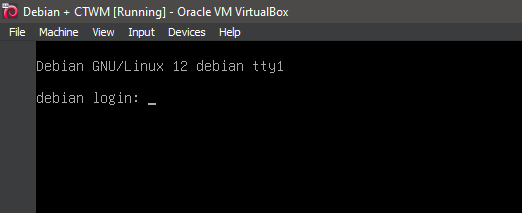
1. Boot the system -- System Ready.
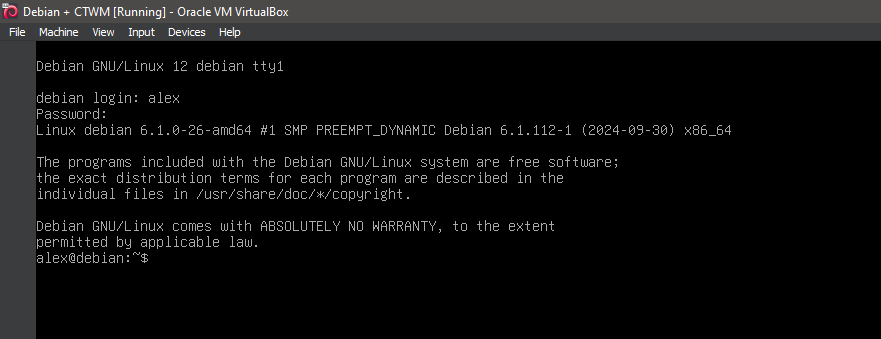
2. Boot the system -- Logged In.
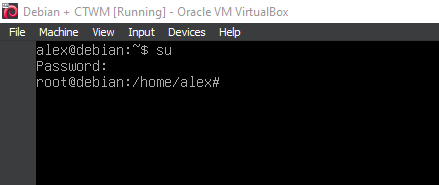
3. Switch to root
su
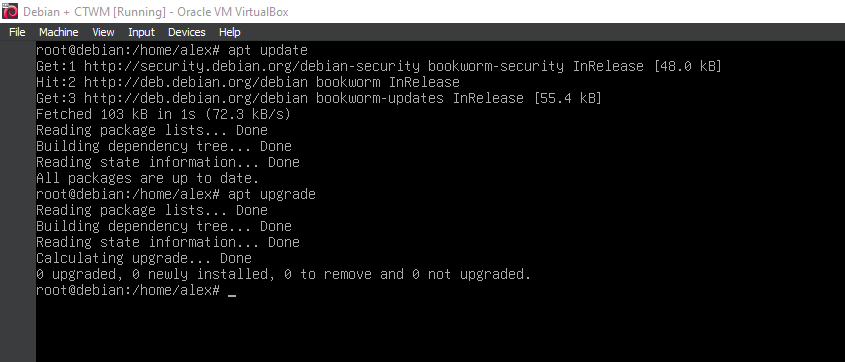
4. Running update
apt-get update
apt-get upgrade
5. Running 'apt install xorg'
apt install xorg
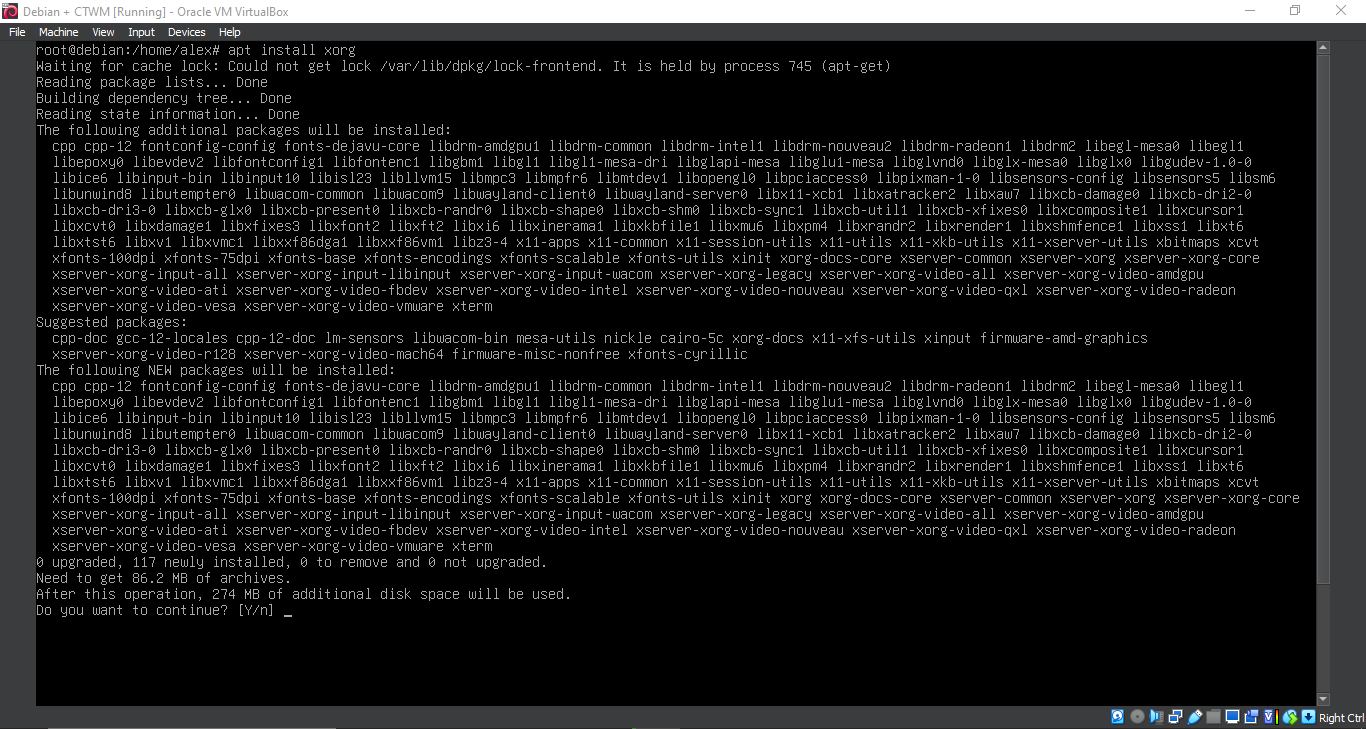
6. Running 'apt install xorg'
apt install xorg
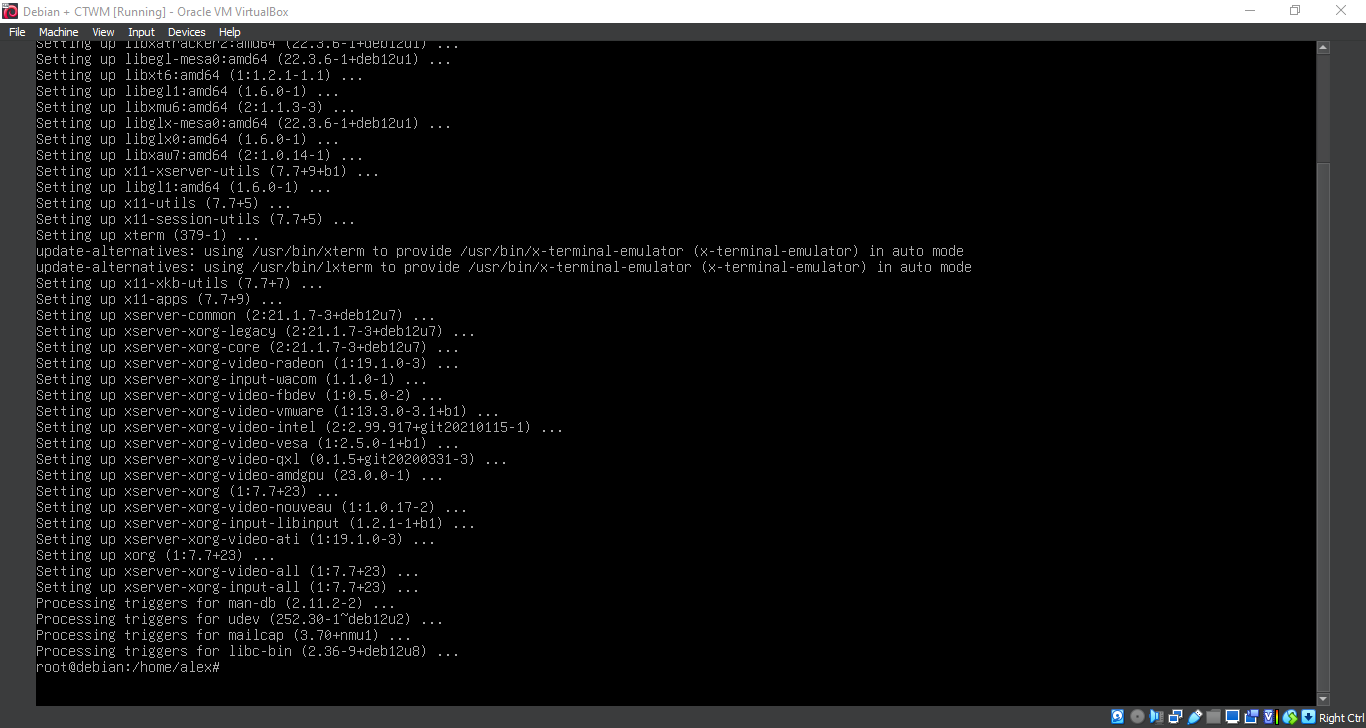
7. Running 'apt install ctwm'
apt install ctwm
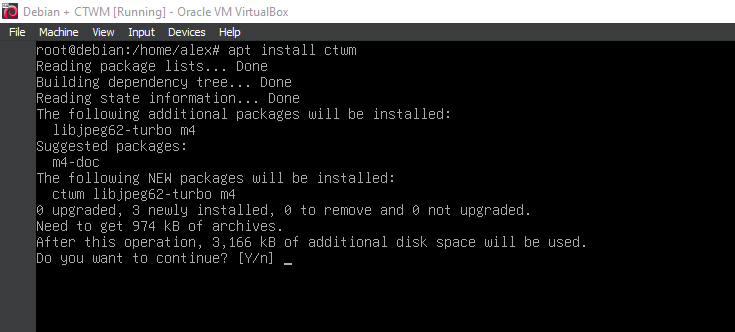
8. Running 'apt install ctwm'
apt install ctwm
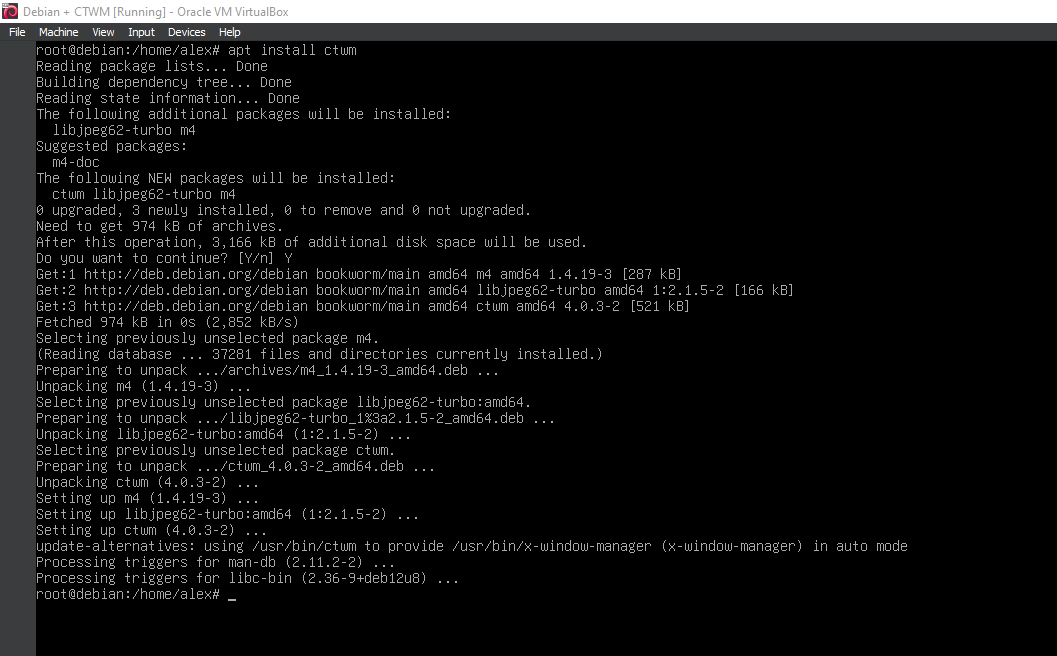
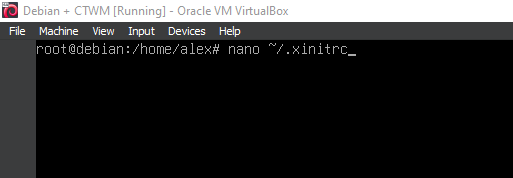
9. Configuration
nano ~/.xinitrc
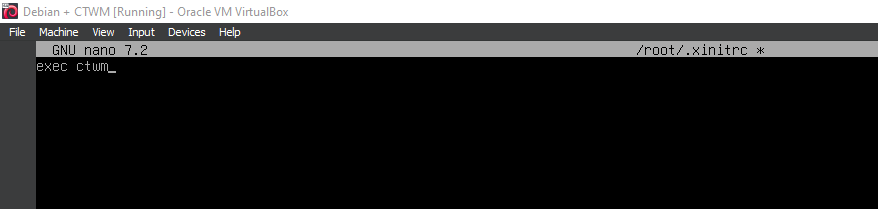
10. Configuration
exec ctwm
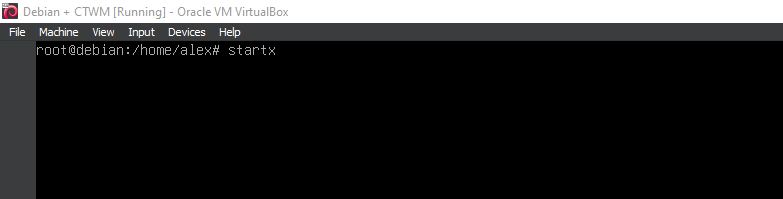
11. Running 'startx'
startx
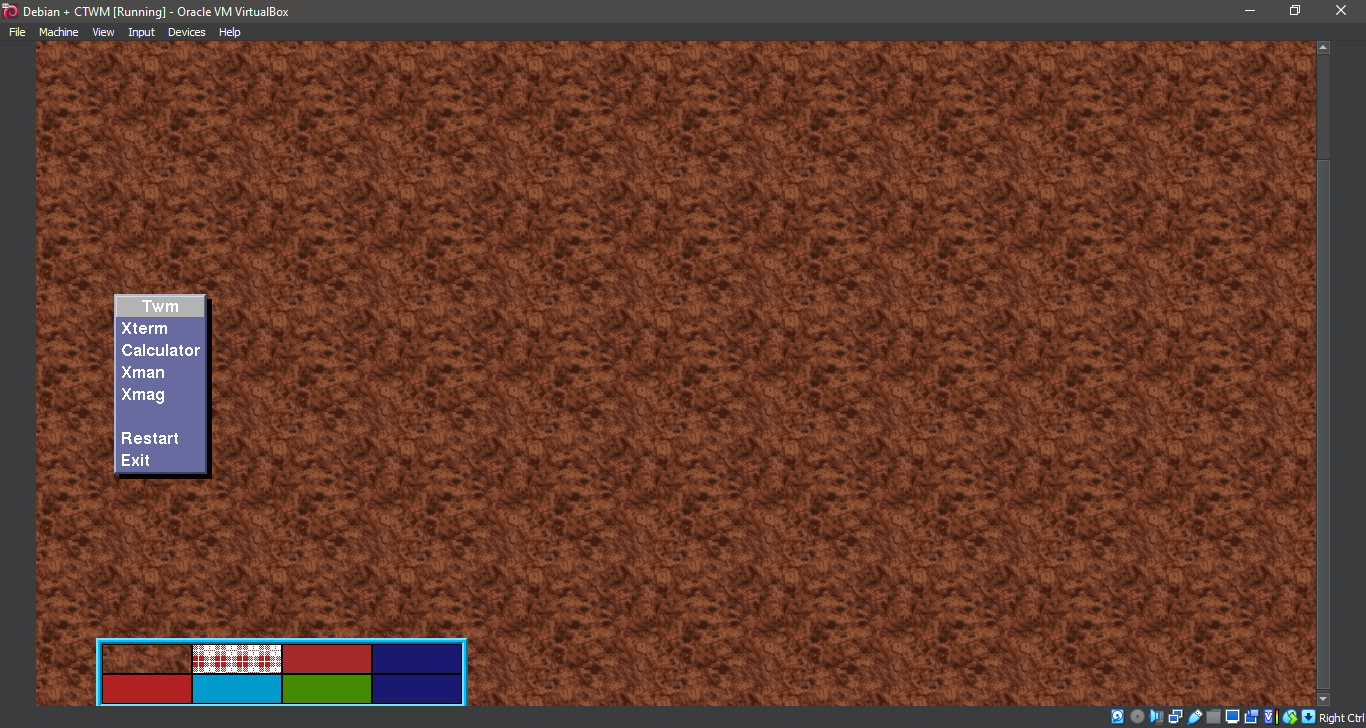
12. Running ctwm
13. Running ctwm
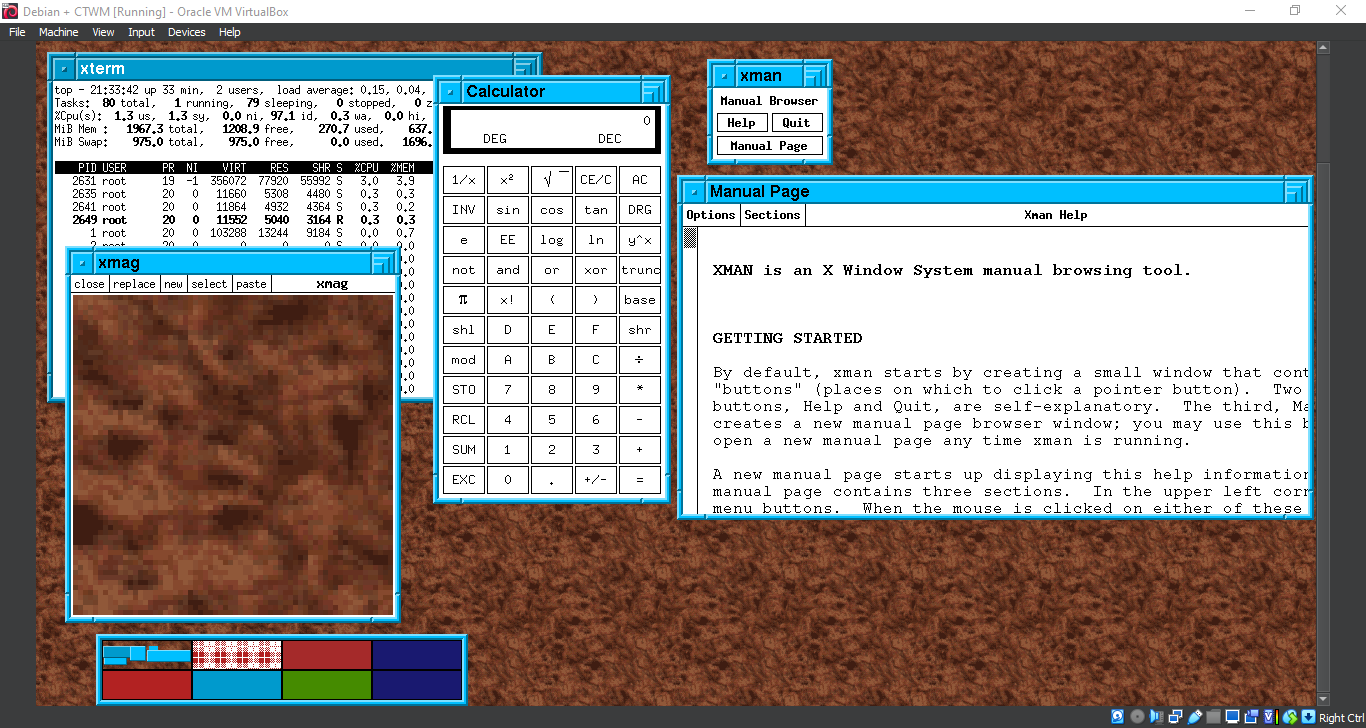
14. Running ctwm
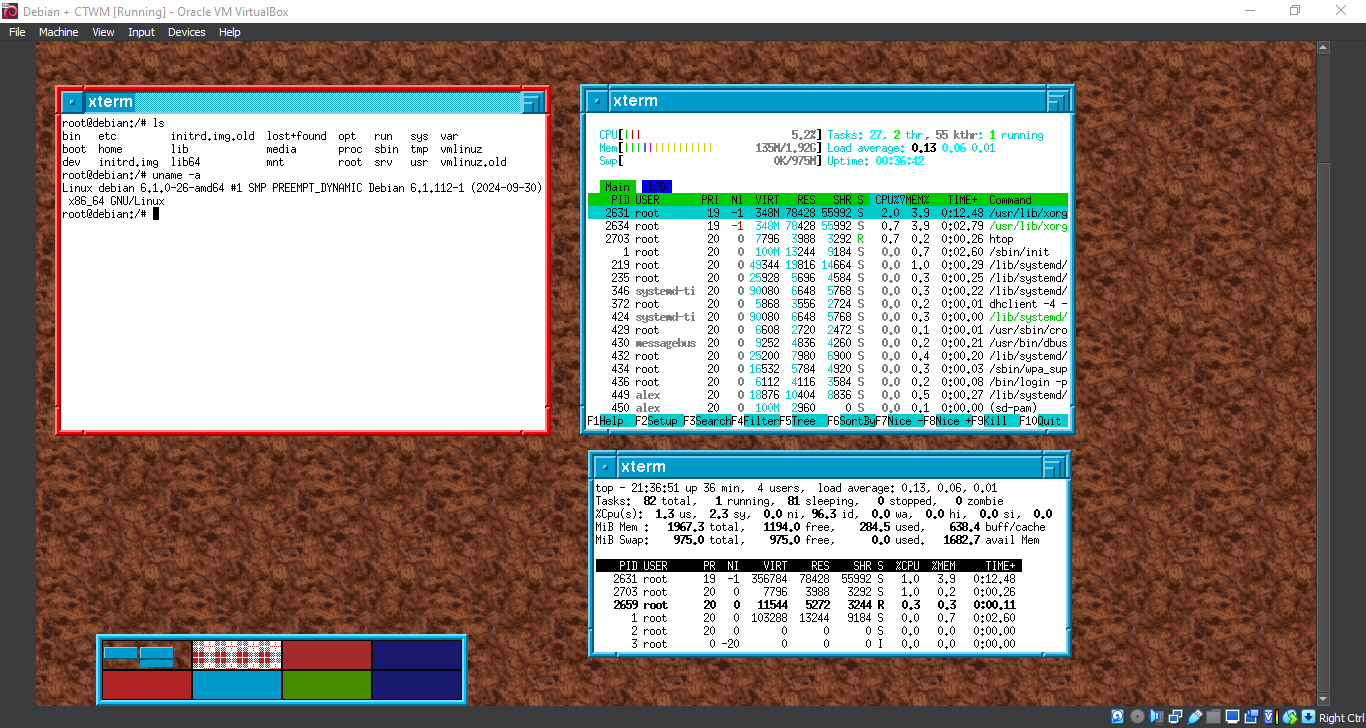
15. Running ctwm
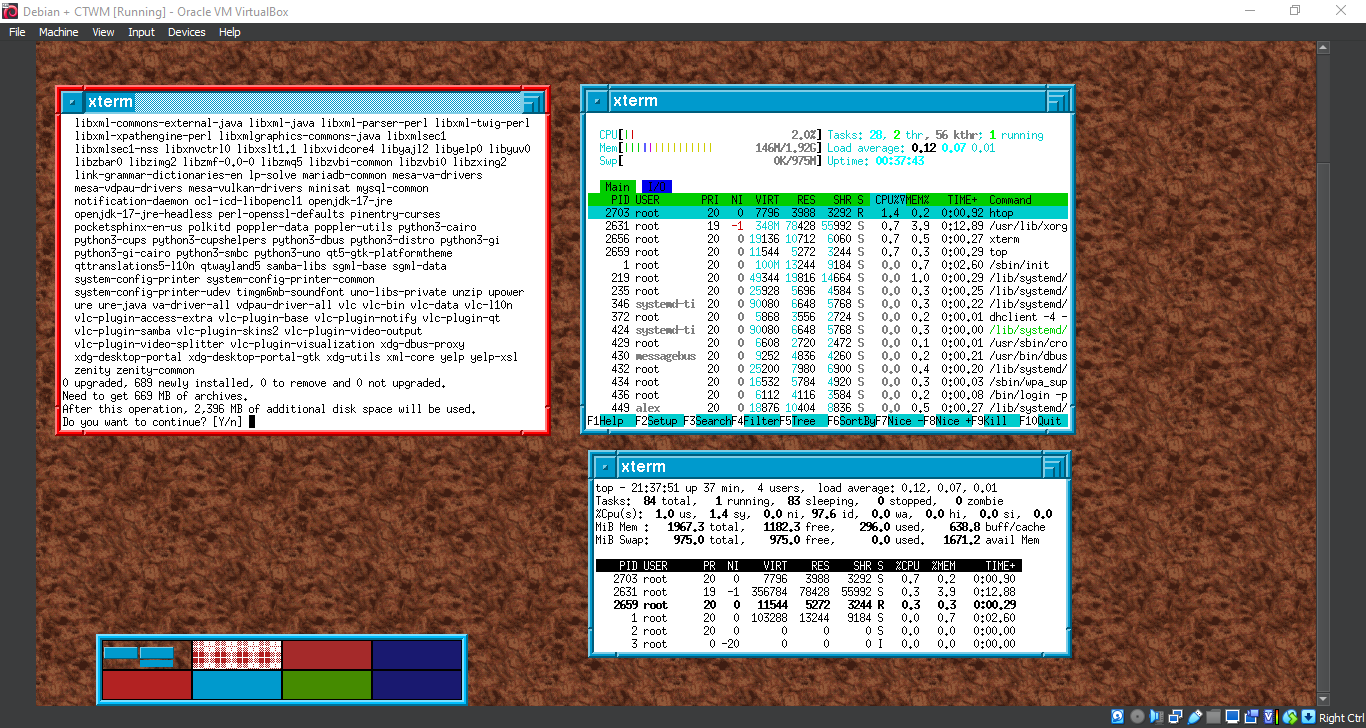
16. Running ctwm
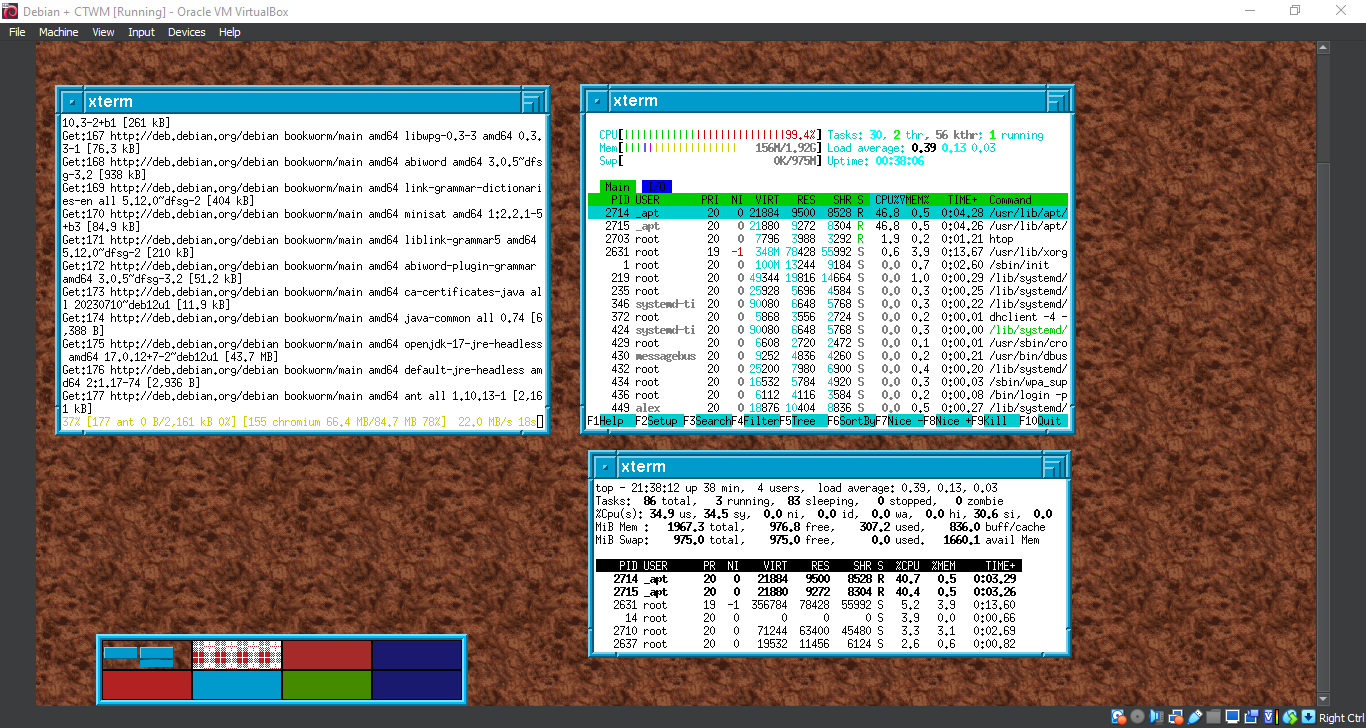
17. Running ctwm
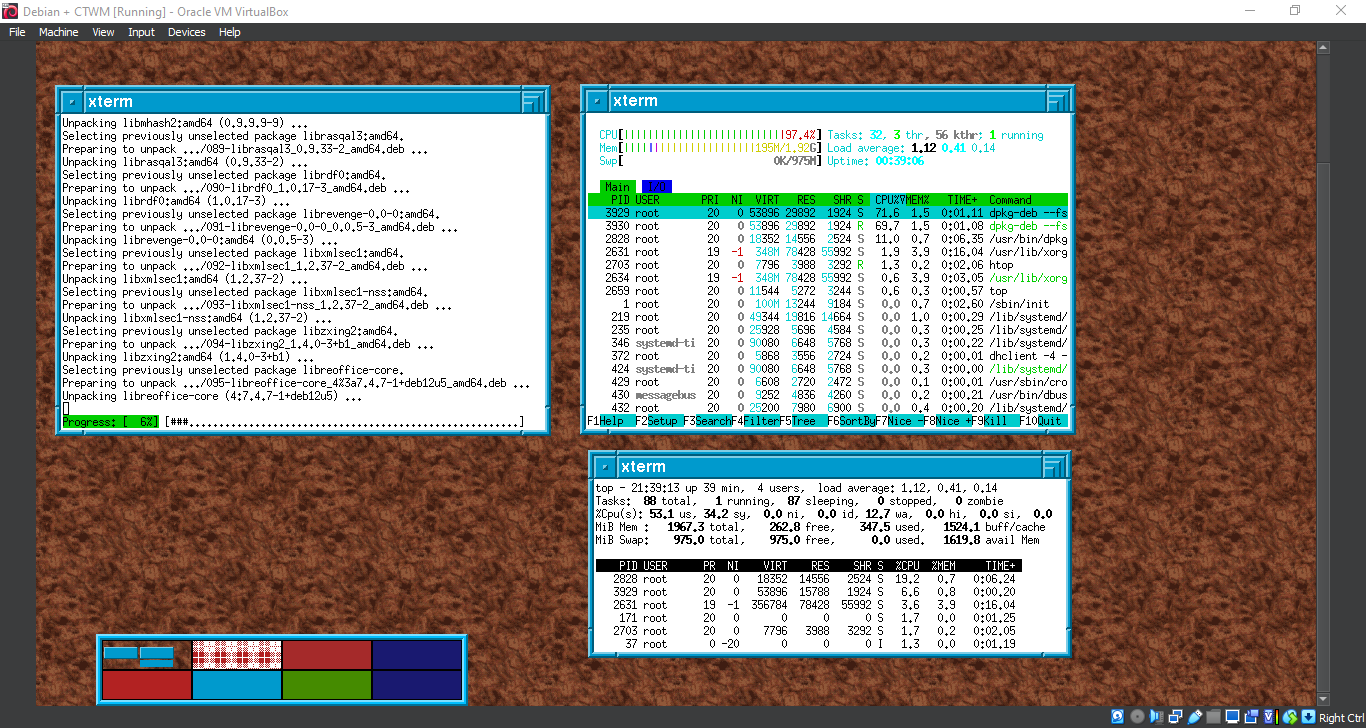
18. Running ctwm
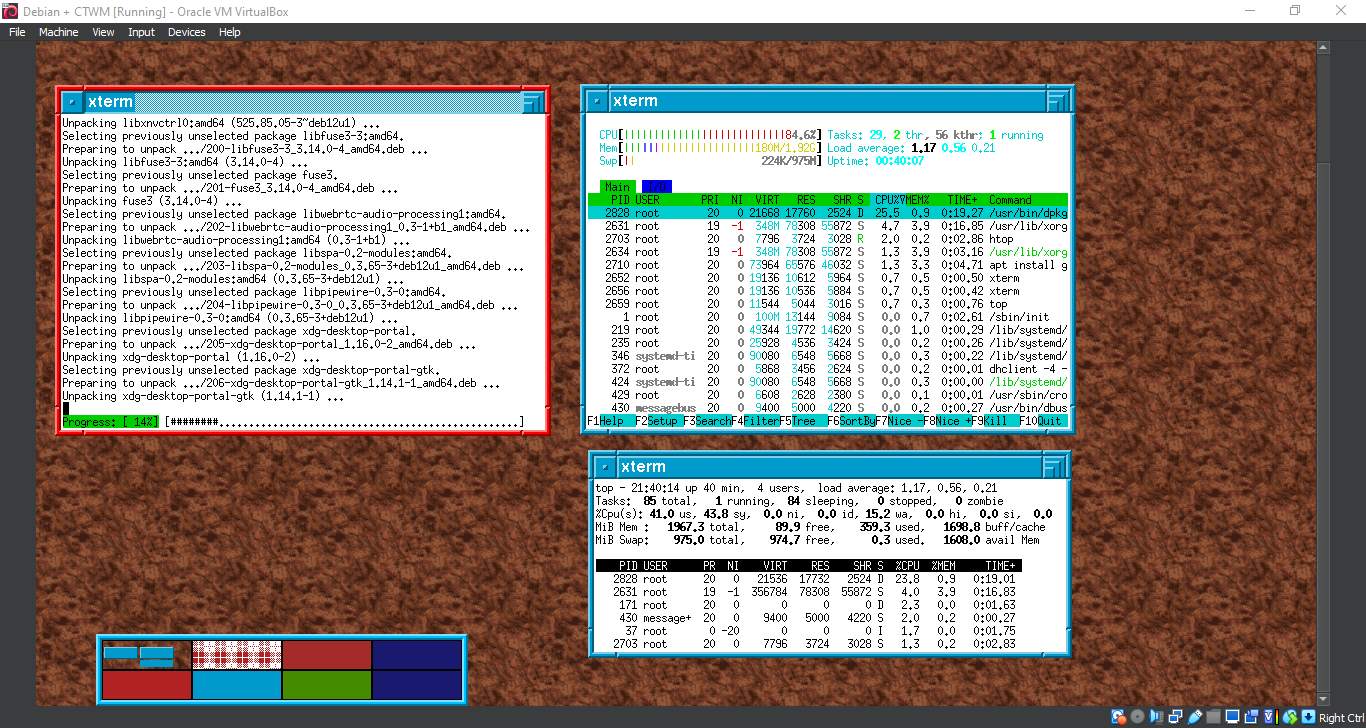
19. Running ctwm
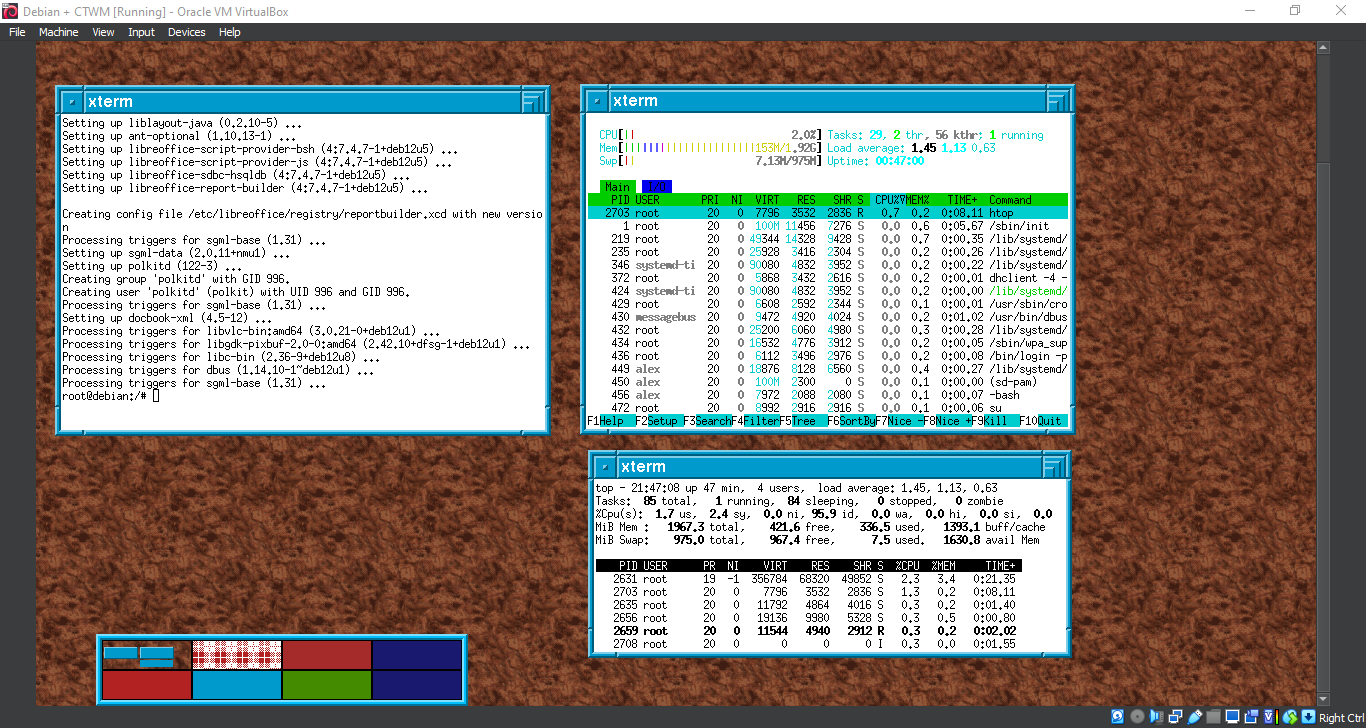
20. Running ctwm
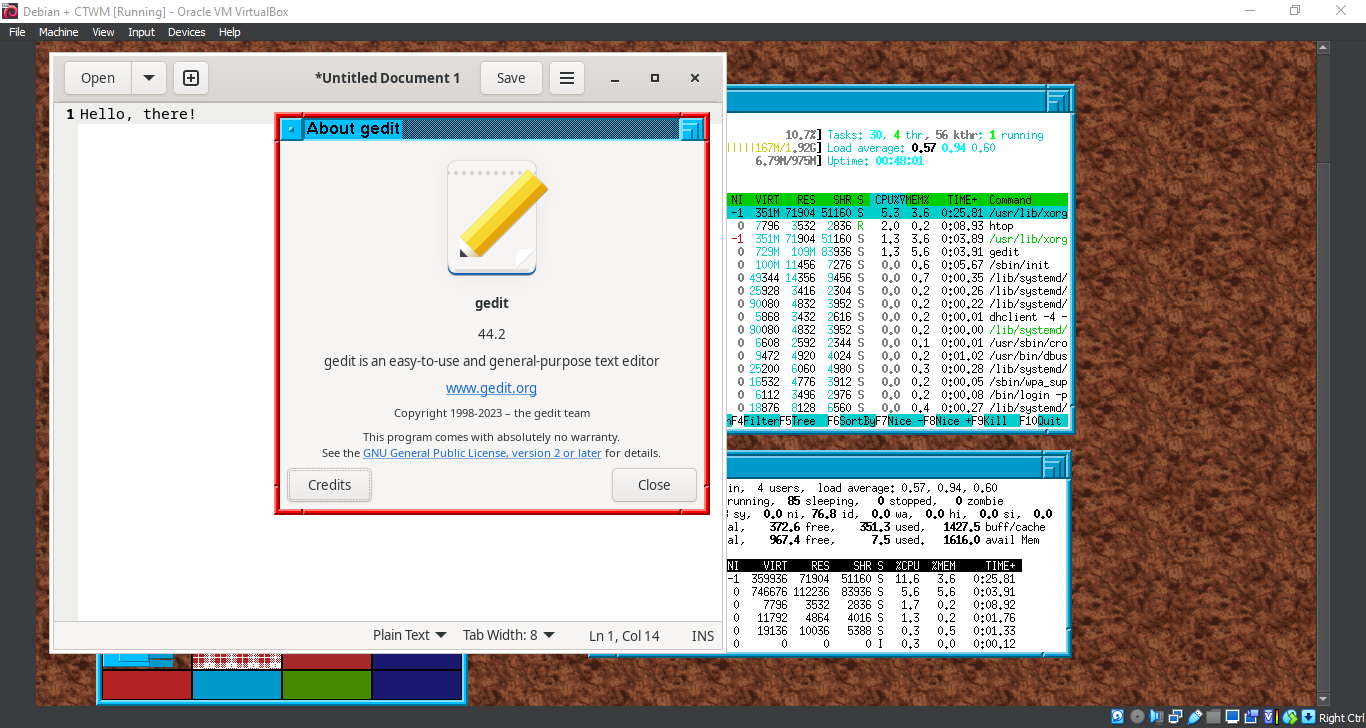
21. Running ctwm
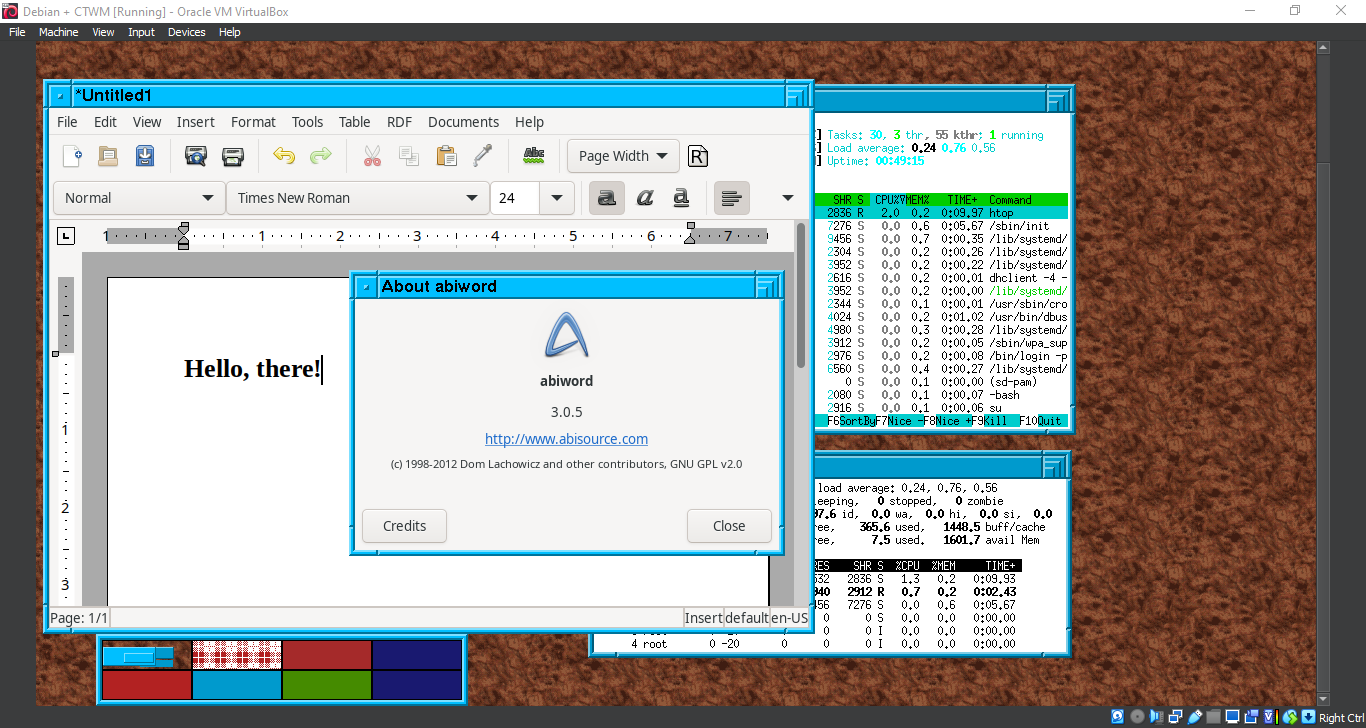
22. Running ctwm
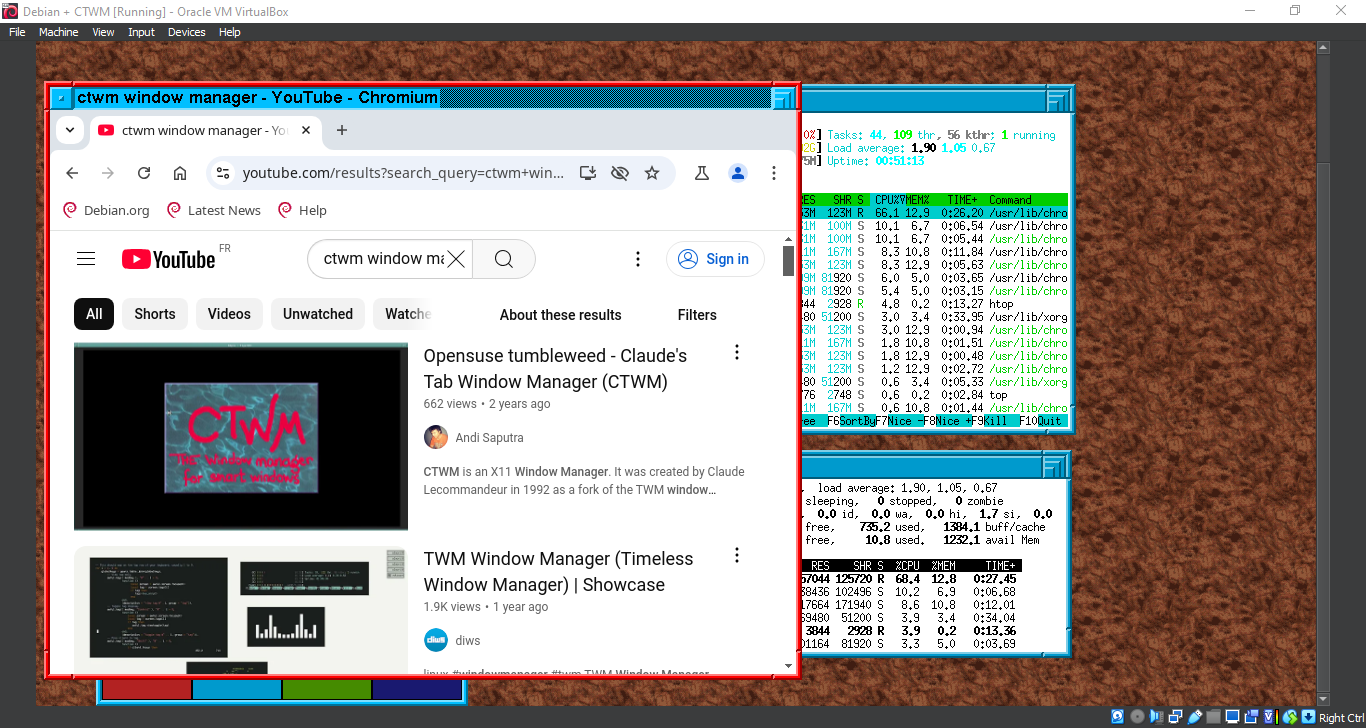
23. Running ctwm
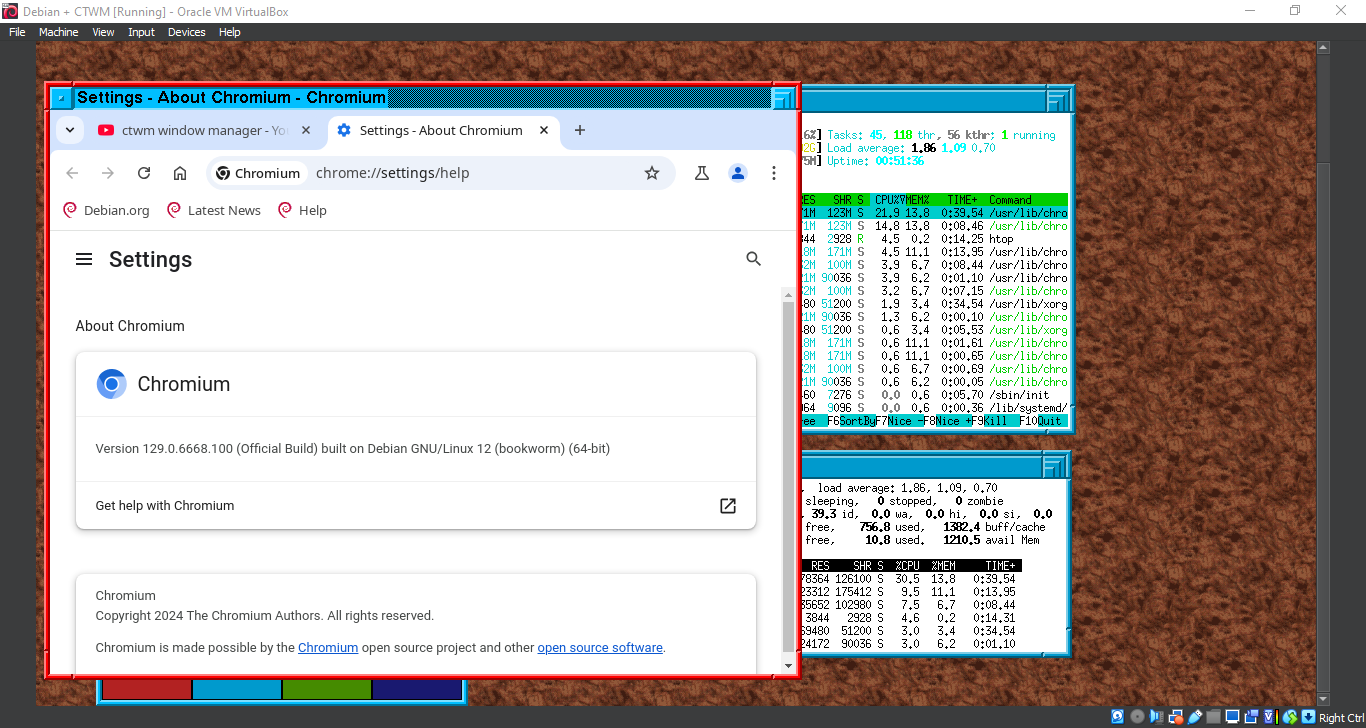
24. Running ctwm
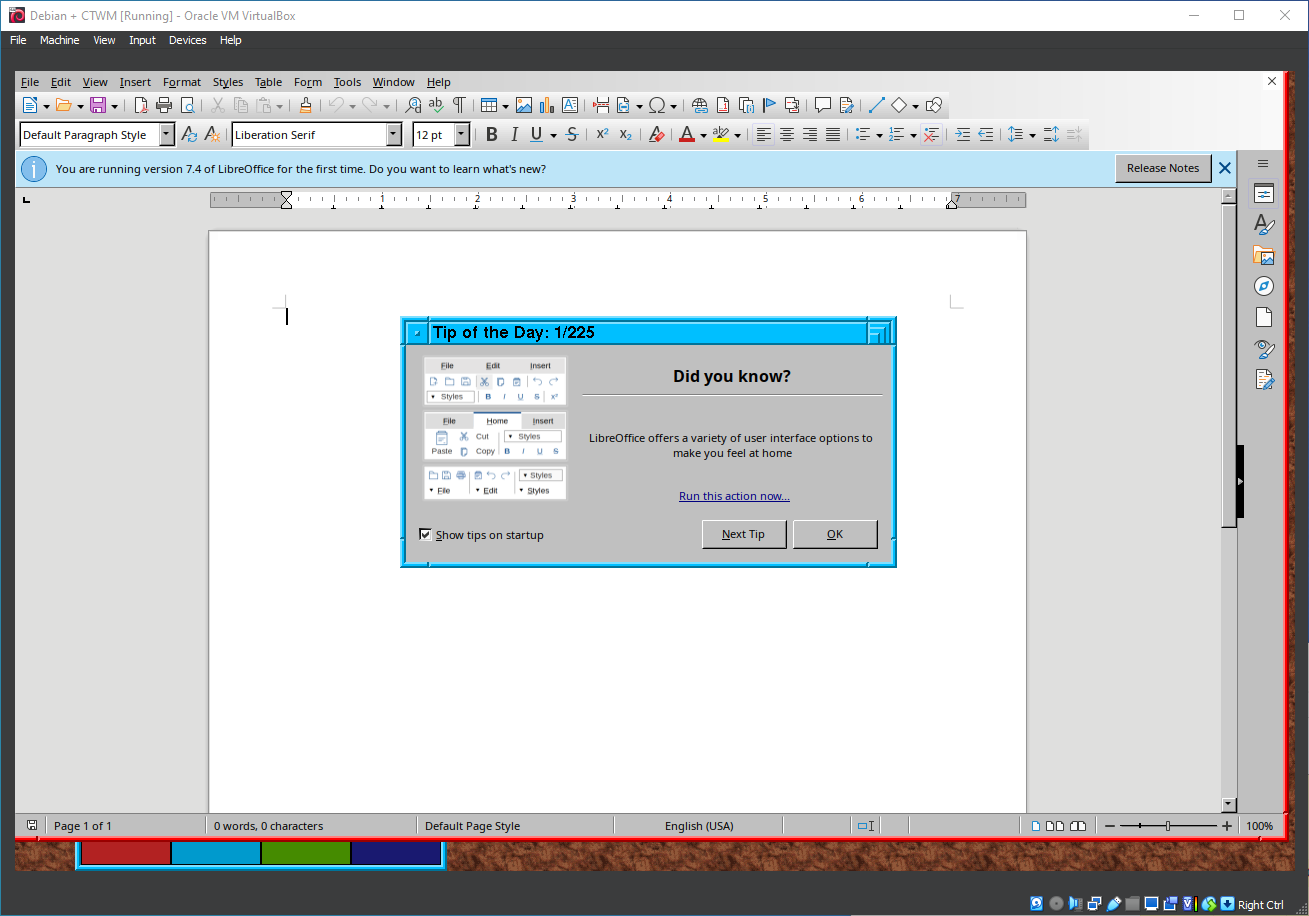
25. Running ctwm
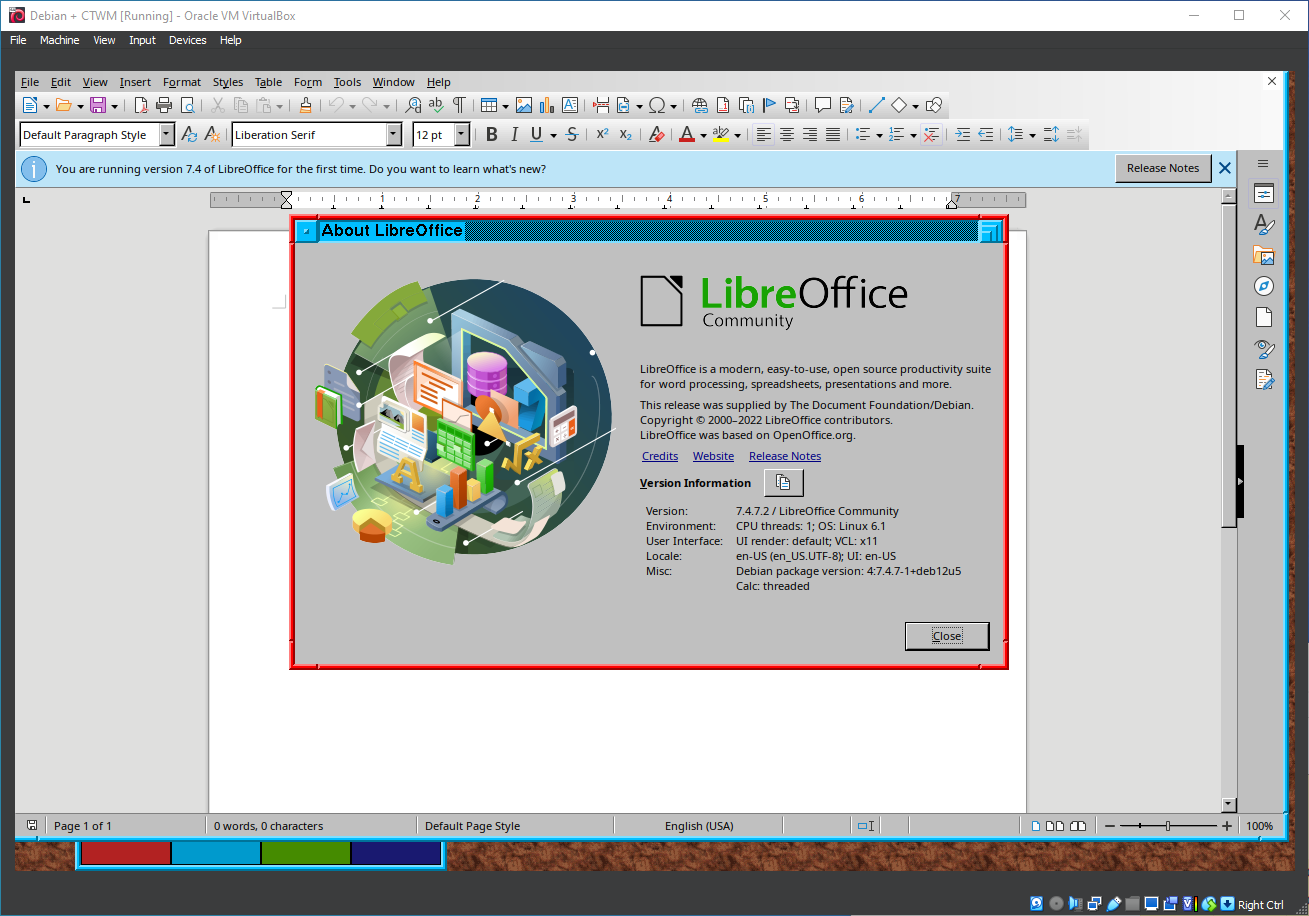
26. Running ctwm
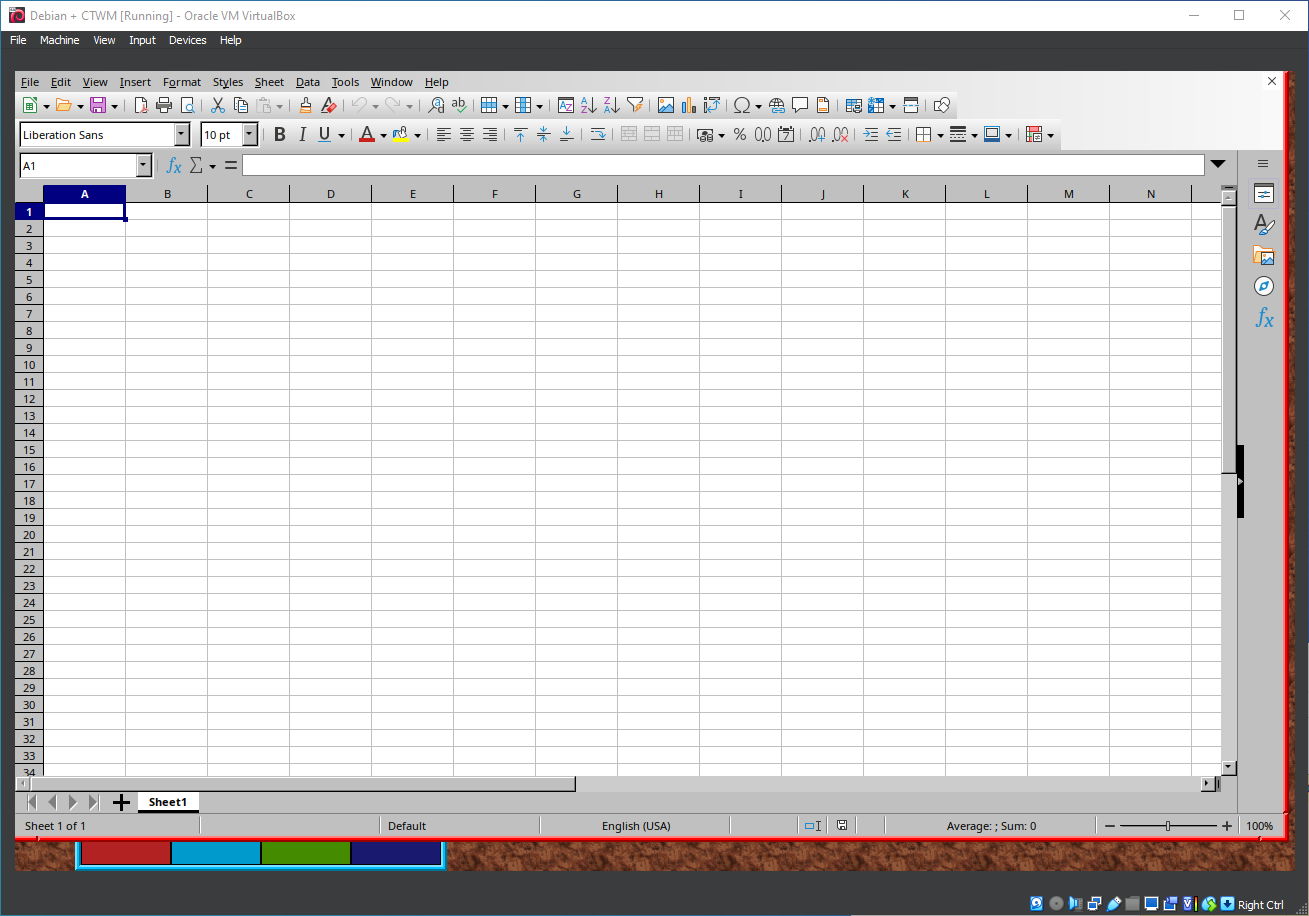
27. Running ctwm
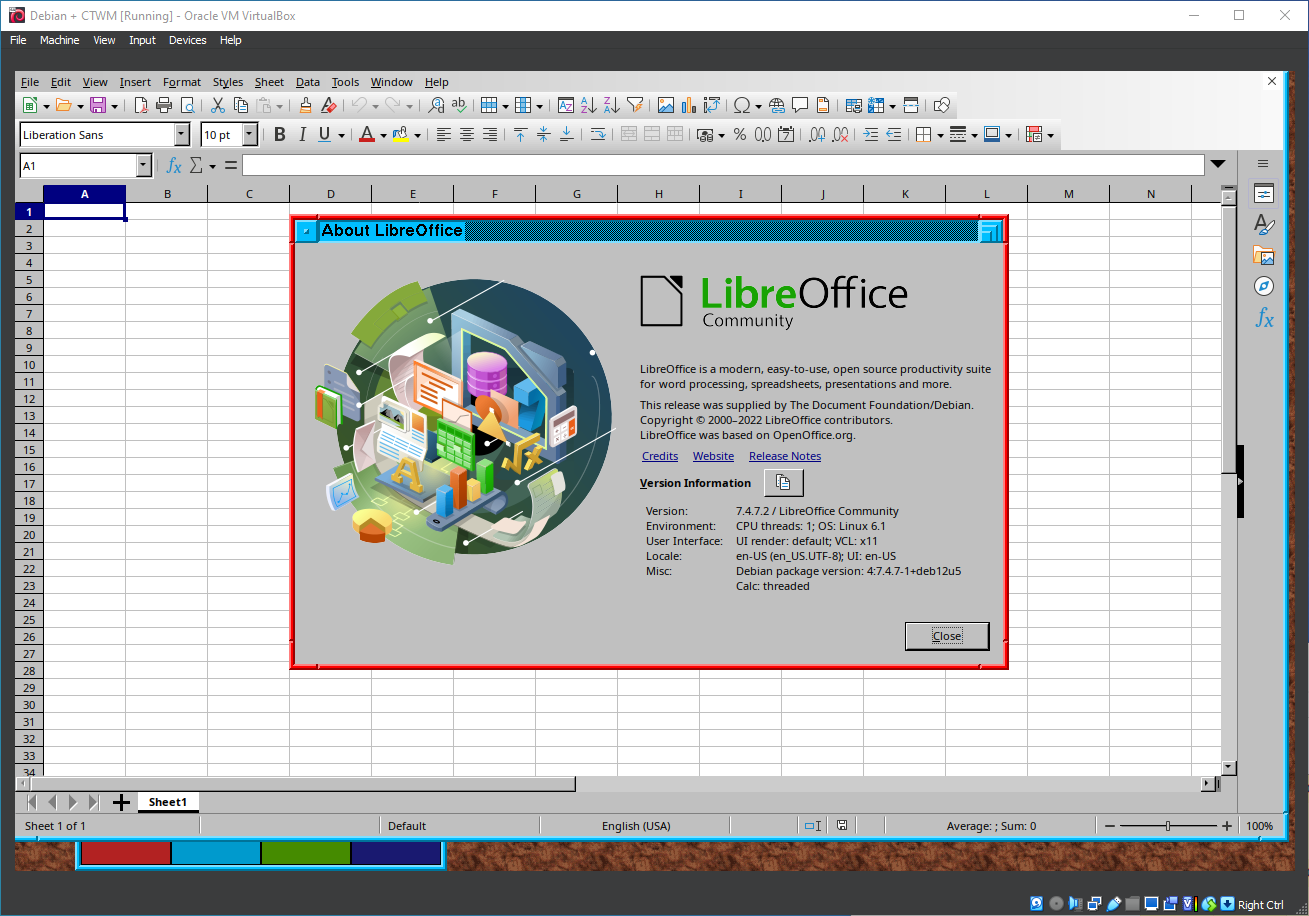
28. Running ctwm
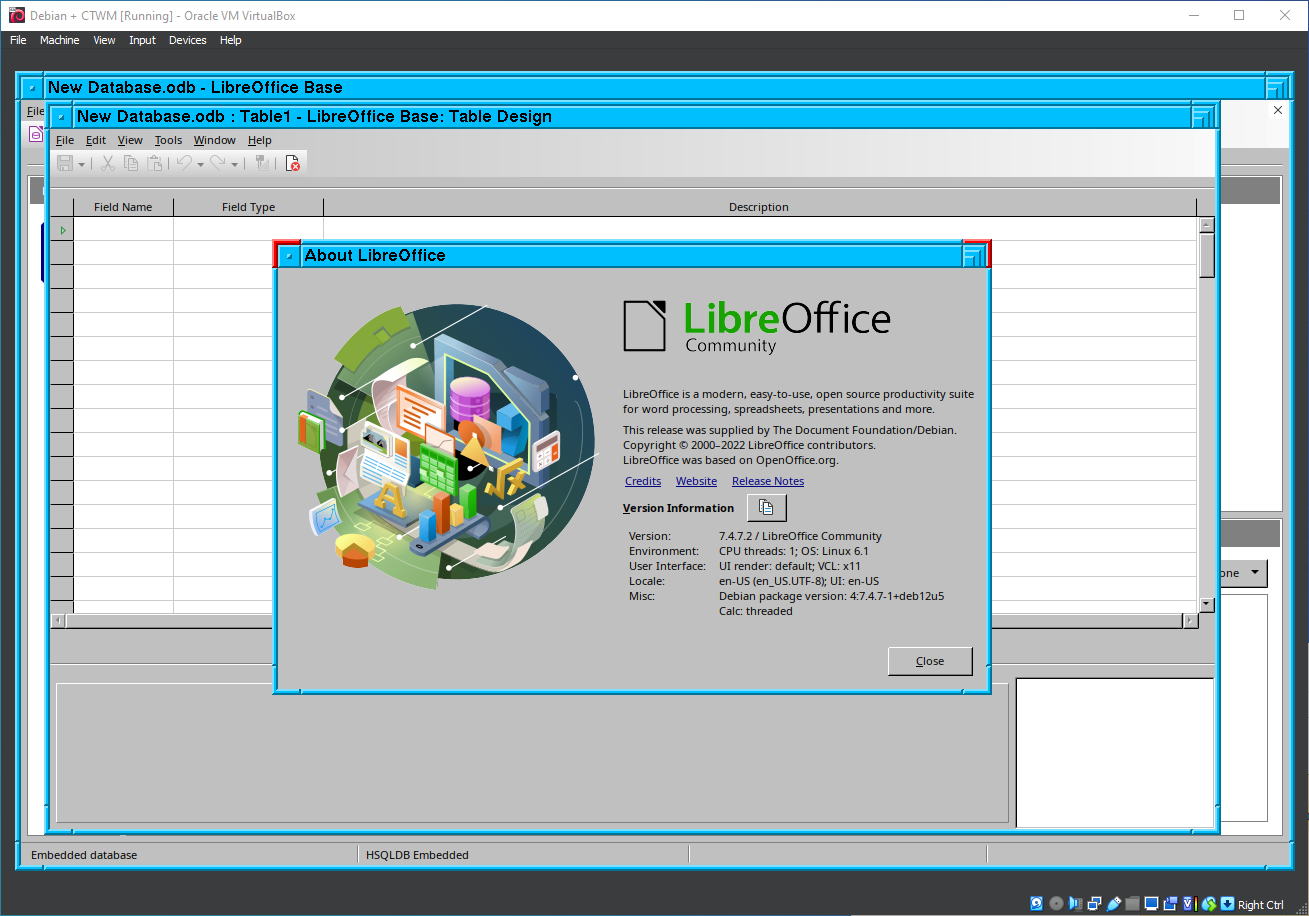
29. Running ctwm
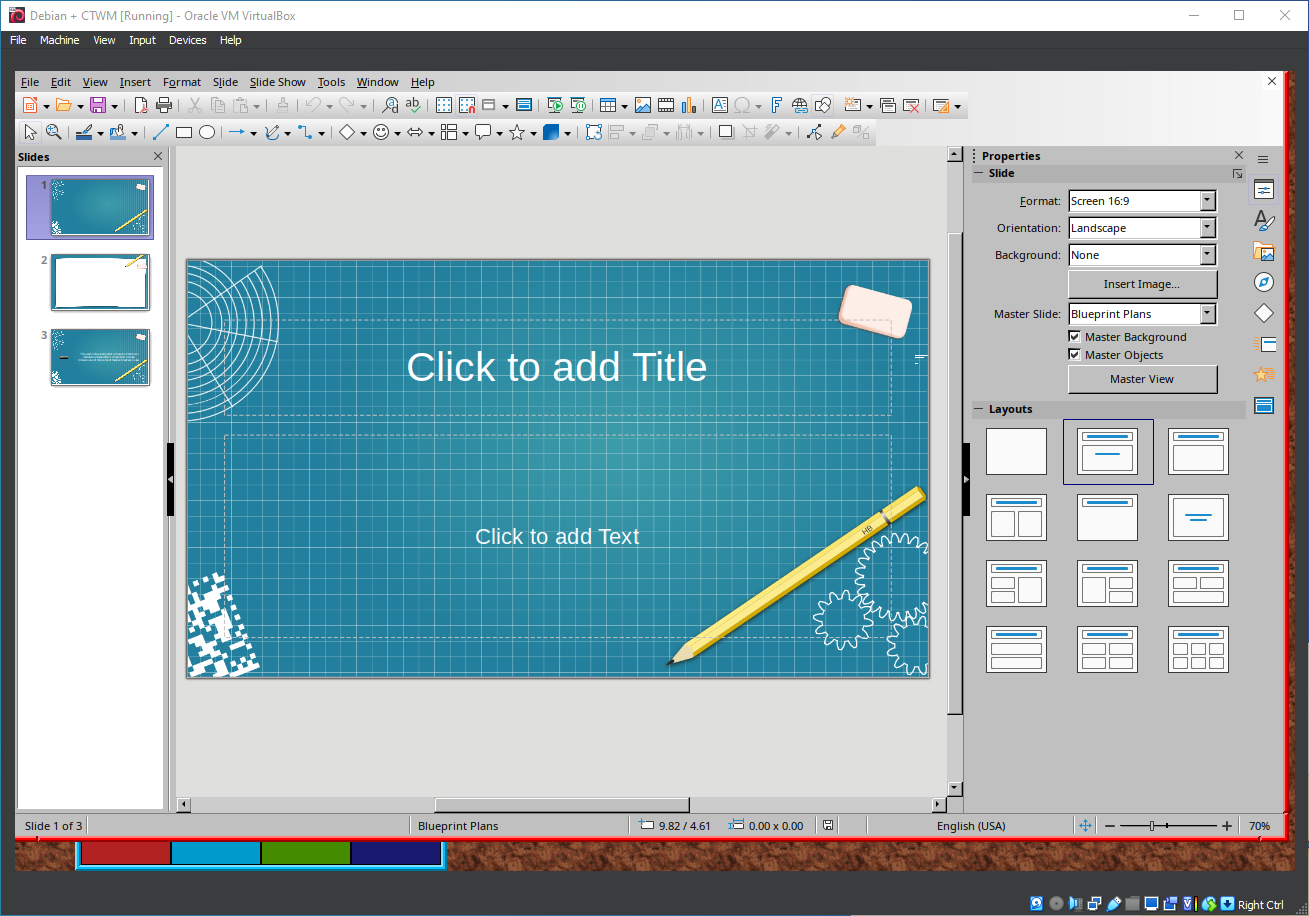
30. Running ctwm
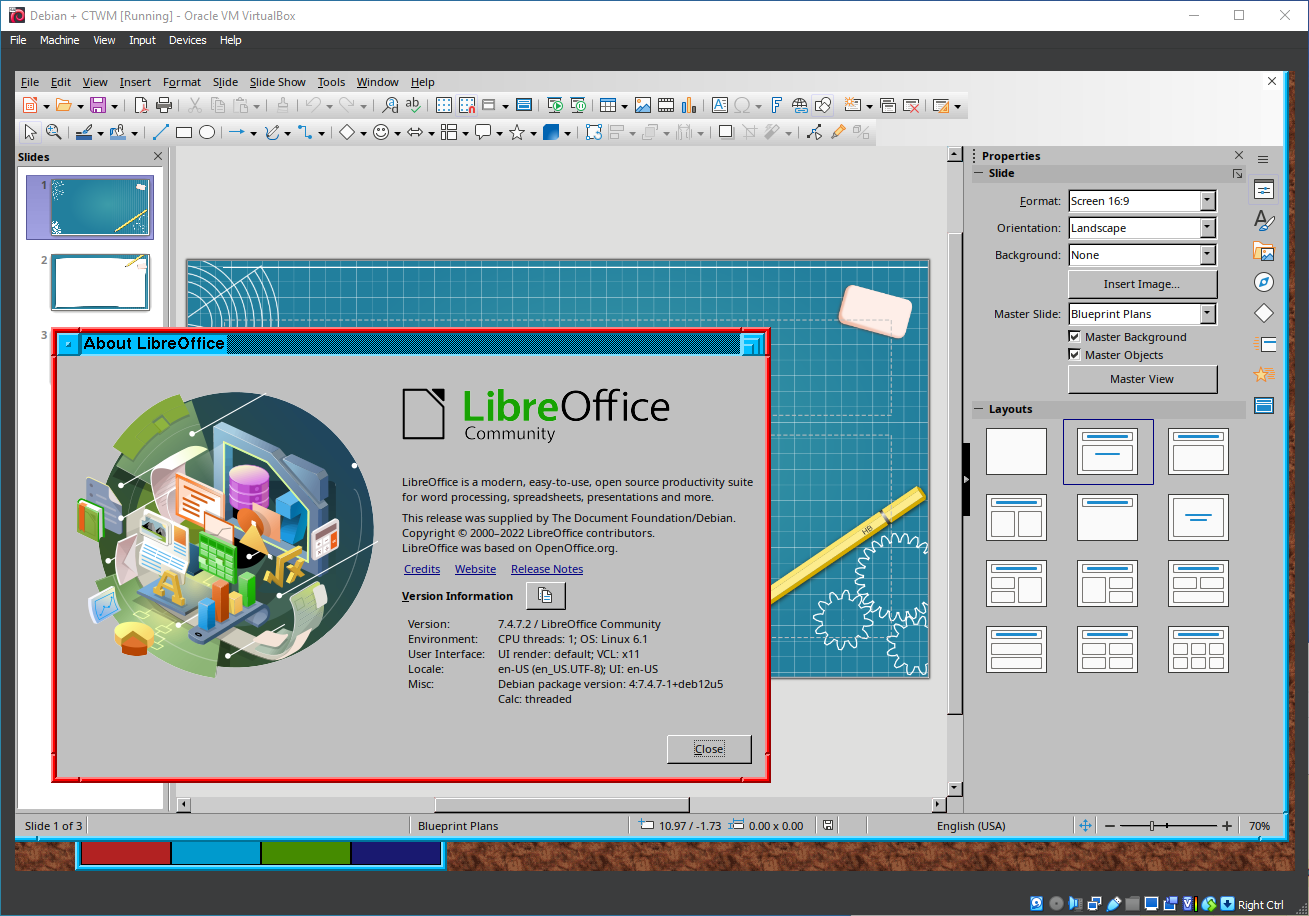
31. Running ctwm
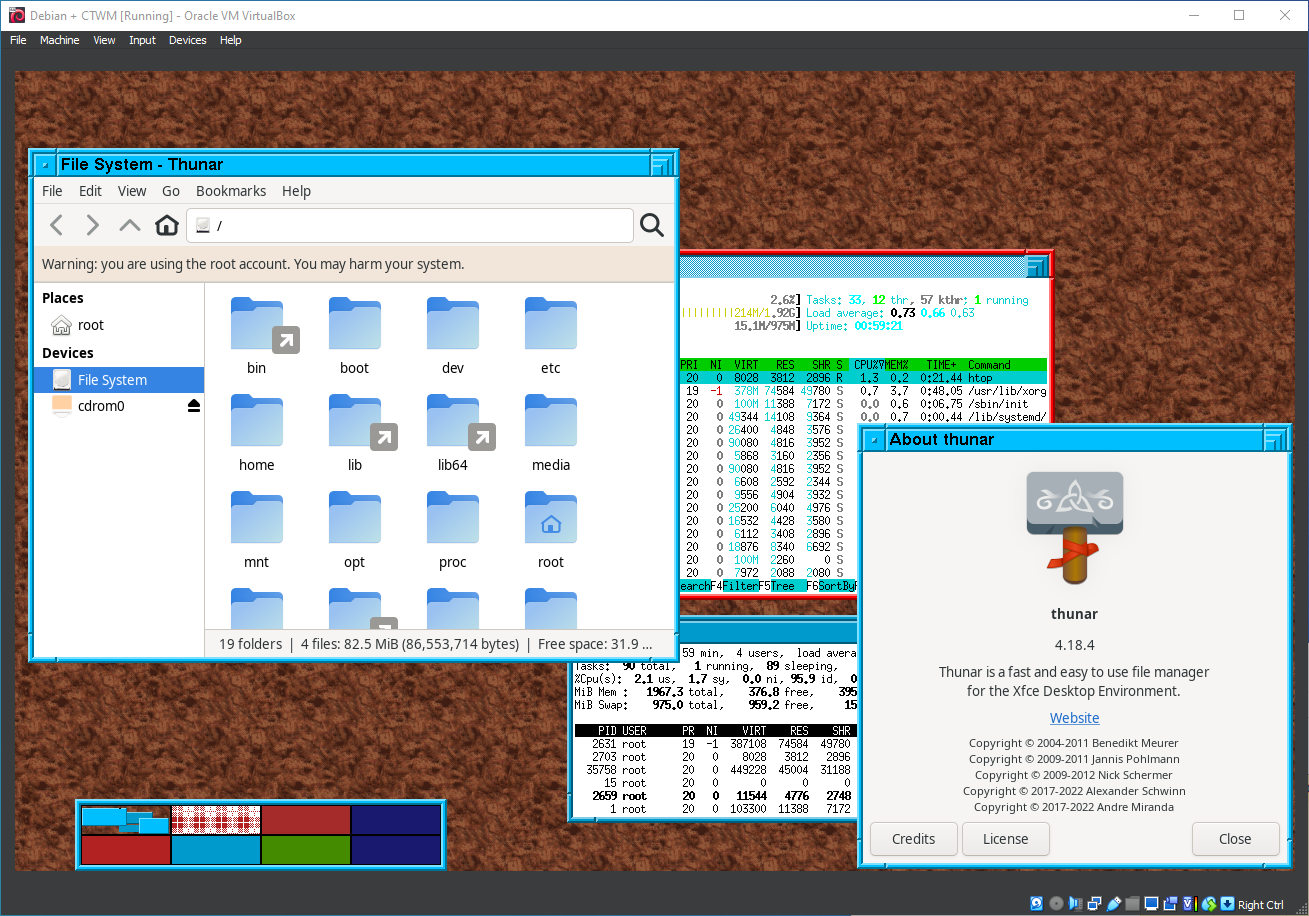
32. Exiting CTWM
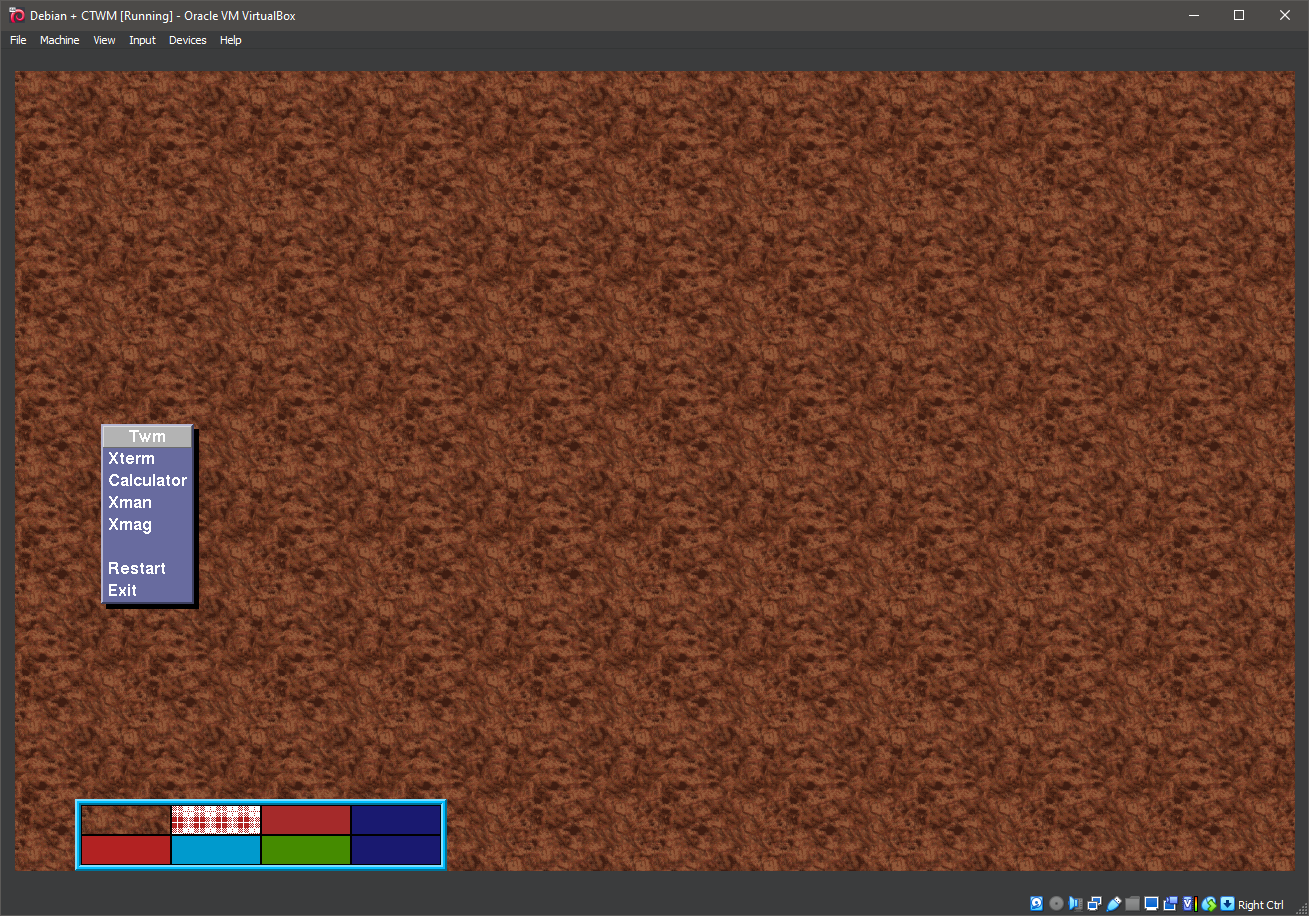
33. Back to the command line
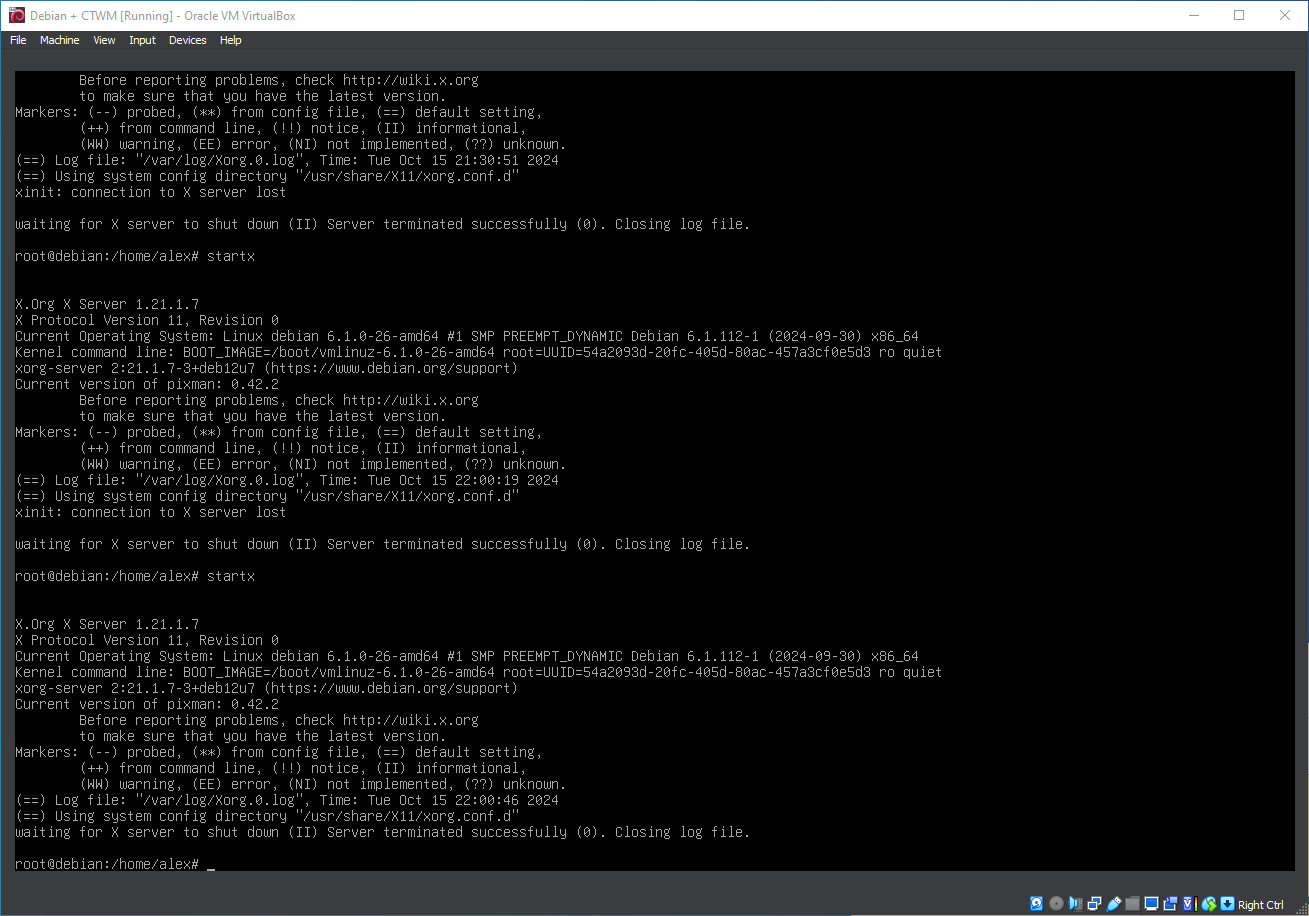
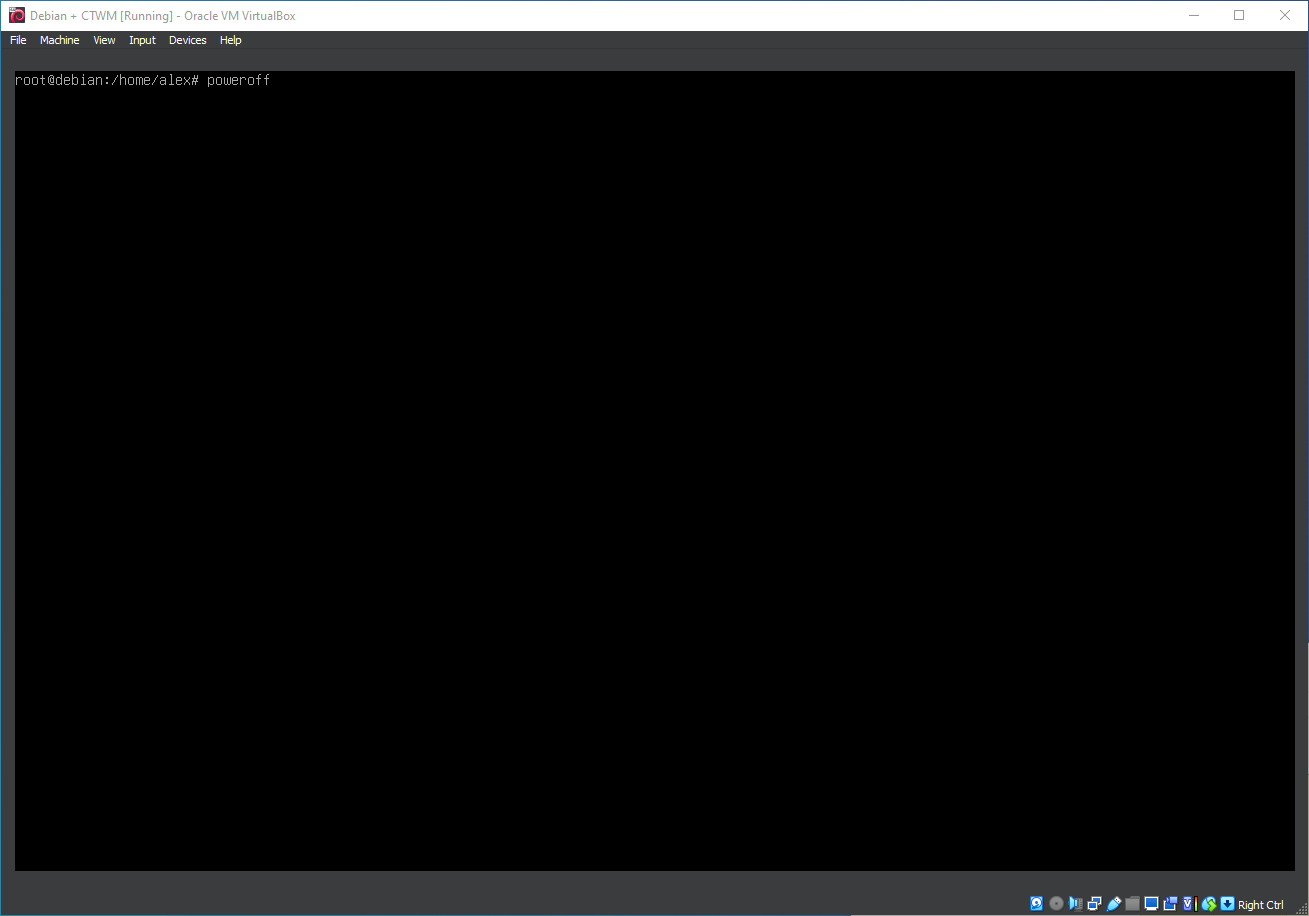
34. Powering down the system
Well, that was exciting. See you in the next one!
If you wish to support our project
Donation link (Buy me a coffee):