
Installing the Budgie desktop environment on Debian
Step by step guide and HOWTO
Debian Linux is known for its stability and security, making it a reliable choice for servers and workstations.
It also has a vast software repository with extensive community support, ensuring access to a wide range of applications.
Budgie is considered beautiful for several reasons, combining simplicity, elegance, and modern design aesthetics.
Budgie emphasizes minimalism without sacrificing functionality.
Its clean interface lacks clutter, making it feel light and organized.
The default panel setup is intuitive, with essential elements like the application launcher, clock, system tray, and applets in an easy-to-navigate layout.
This simplicity helps keep the desktop visually appealing without being overwhelming.
The Raven notification and settings sidebar is a standout feature, elegantly integrating system notifications and quick settings.
It slides in smoothly, offering a clean way to access volume, brightness, and notification settings.
Budgie works well with various GTK themes and icon packs, allowing users to personalize the look and feel easily.
Whether you prefer dark, light, or colorful themes, Budgie can adapt to your aesthetic preferences.
Budgie incorporates subtle animations and smooth transitions, whether it's opening the menu, launching applications, or interacting with the panel.
These animations are non-intrusive, adding a sense of fluidity without slowing down performance.
Applets like the system tray, weather, and notifications are visually cohesive, adding functional yet stylish elements to the desktop.
Since Budgie is built on GNOME technologies, it inherits a lot of GNOME's polished, modern look.
This includes GTK apps, which seamlessly integrate with Budgie, ensuring that applications have a consistent appearance across the board.
The window borders and decorations in Budgie are subtle and minimal, focusing on maximizing screen real estate and giving a clean appearance.
The application menu is sleek and well-organized, with search capabilities that feel responsive and modern.
The menu’s layout is intuitive, balancing ease of access with a visually pleasing design that doesn’t feel cramped or complex.
Unlike some desktop environments that prioritize flashiness over usability, Budgie strikes a balance between visual appeal and practicality.
Its beauty lies in the restrained use of effects, avoiding unnecessary visual clutter.
Budgie was designed with the user in mind, focusing on simplicity and elegance that doesn't overwhelm the user with options.
This makes the desktop feel modern yet approachable, contributing to a smooth and pleasant user experience.
Budgie’s beauty comes from its blend of modern design elements, clean lines, and elegant, functional customization.
It provides an aesthetically pleasing environment without sacrificing performance or usability, offering a refined and adaptable experience that appeals to users who appreciate simplicity and elegance in their desktop.
Budgie combines the best of modern desktop environments with a refreshing simplicity that makes daily use both productive and visually enjoyable.
Its uncluttered interface allows users to focus on tasks without being distracted by excessive visual elements.
The attention to detail in its design ensures that everything feels cohesive and harmonious.
Budgie’s responsive interface, paired with lightweight animations, enhances the overall smoothness of the experience.
The Raven sidebar is a unique feature that sets Budgie apart, merging beauty with functionality through its clean, slide-out design.
Its flexibility with themes and icons allows users to customize the look to match their personal aesthetic preferences.
The panel and menu layouts in Budgie are both intuitive and attractive, making navigation a visually appealing task.
The desktop’s minimalist window decorations add to the beauty, maximizing space while keeping things elegant.
Even with its minimalism, Budgie doesn’t feel lacking; it’s a perfect blend of form and function.
The ability to add or remove applets makes Budgie feel tailored to each user’s needs while maintaining a consistent look.
The carefully crafted icons and system notifications contribute to its polished and professional appearance.
Budgie’s overall design philosophy prioritizes user comfort, which shines through in its simple but effective aesthetics.
Despite being light on system resources, Budgie manages to feel as modern and visually stunning as heavier environments.
Its seamless integration with GTK themes ensures that third-party apps look beautiful alongside native system elements.
Budgie’s design appeals to users who value both minimalism and elegance in their desktop experience.
The desktop environment offers a sense of calm and clarity, making working on it a pleasant visual experience.
Budgie’s beauty lies in its ability to provide a clean, modern desktop without sacrificing the efficiency that users expect.
Ultimately, Budgie is an excellent choice for those who want a desktop environment that looks just as good as it performs.
Today we shall install the Budgie desktop environment on Debian
We need to complete several steps to get it working correctly.
1. Boot the system -- System Ready.

2. Boot the system -- Logged In.
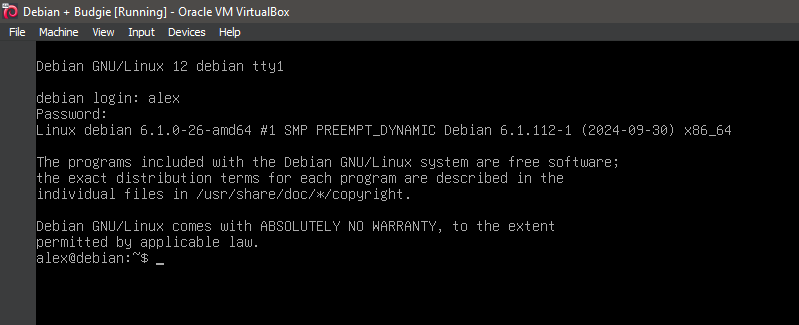
3. Switch to root
su
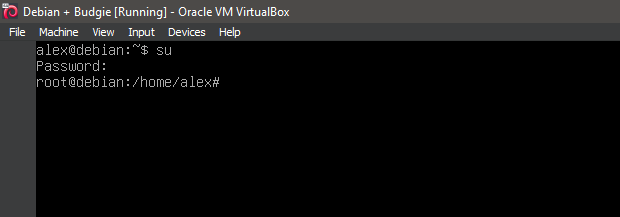
4. Running update
apt-get update
apt-get upgrade
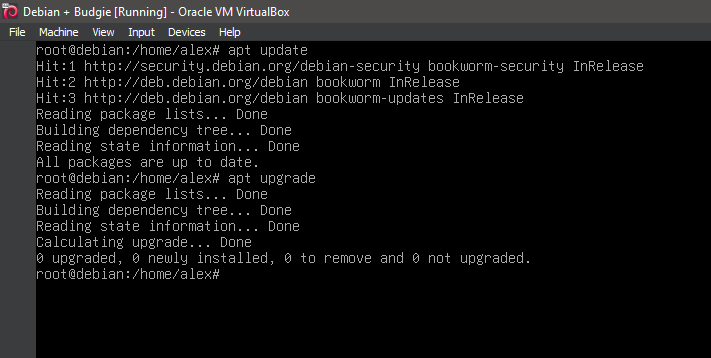
5. Running 'apt install xorg'
apt install xorg
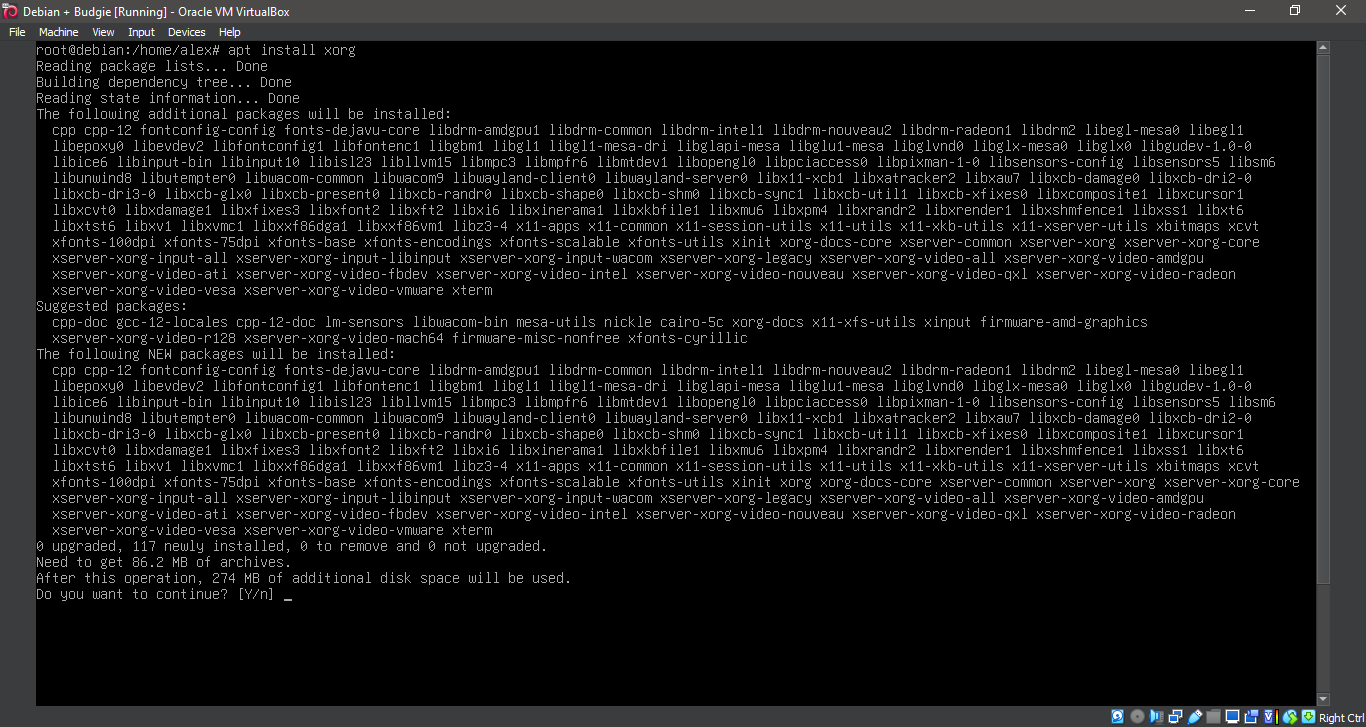
6. Running 'apt install xorg'
apt install xorg
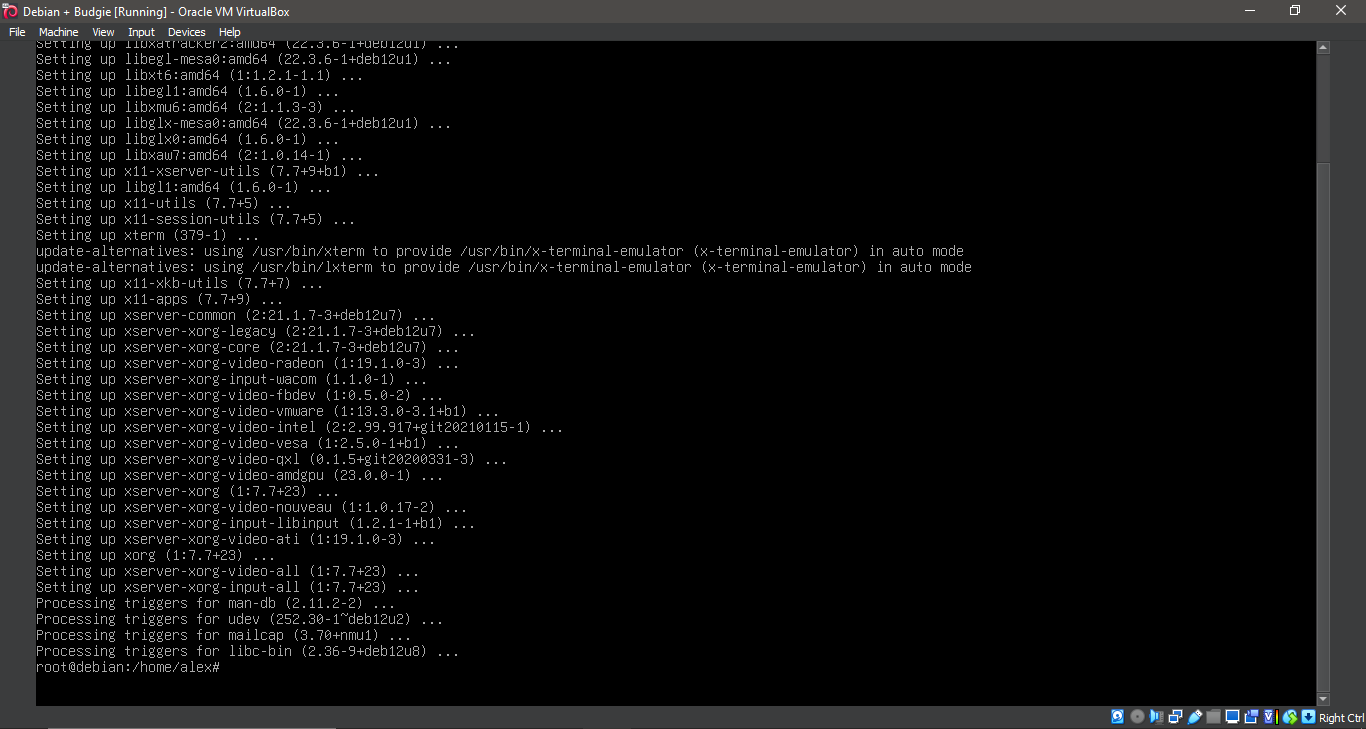
7. Running 'apt install budgie-desktop'
apt install budgie-desktop
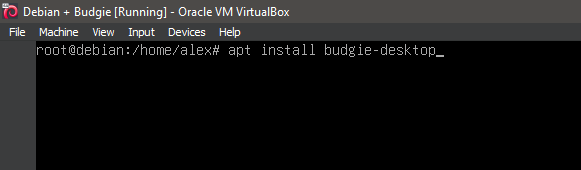
8. Running 'apt install budgie-desktop'
apt install budgie-desktop
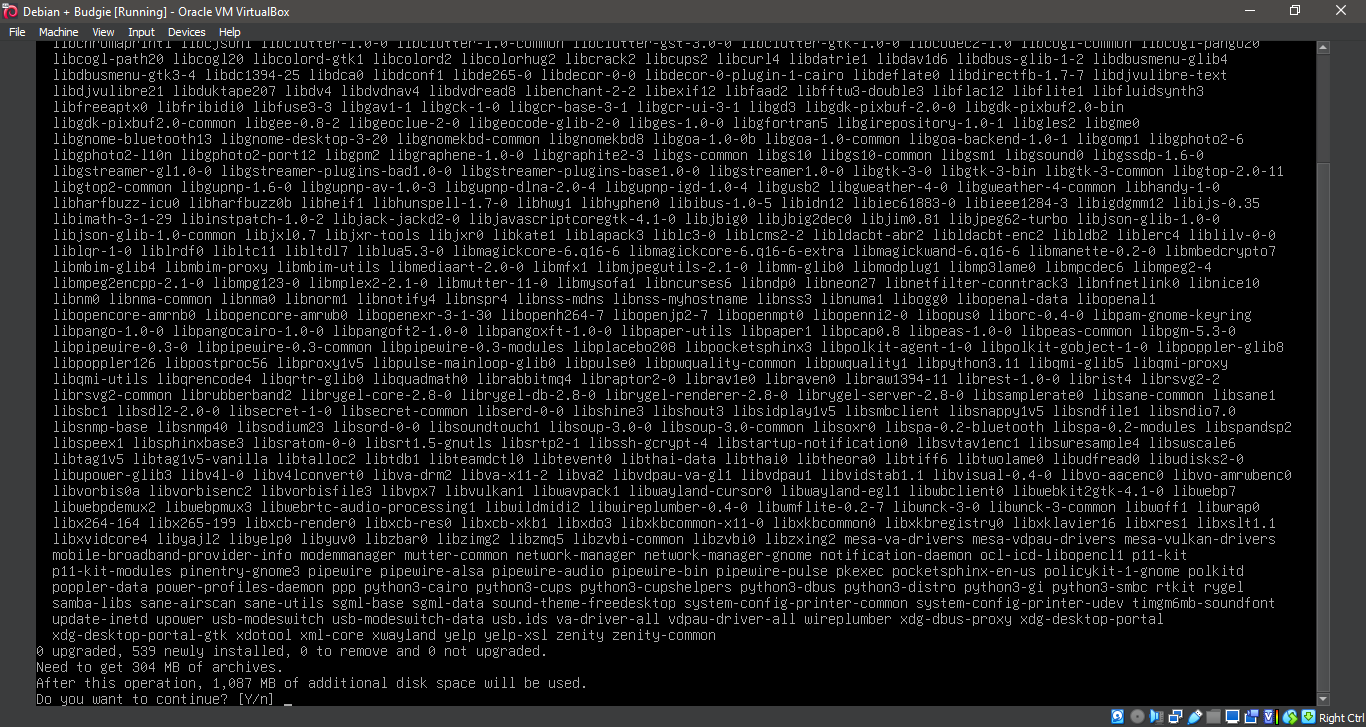
9. Running 'apt install budgie-desktop'
apt install budgie-desktop
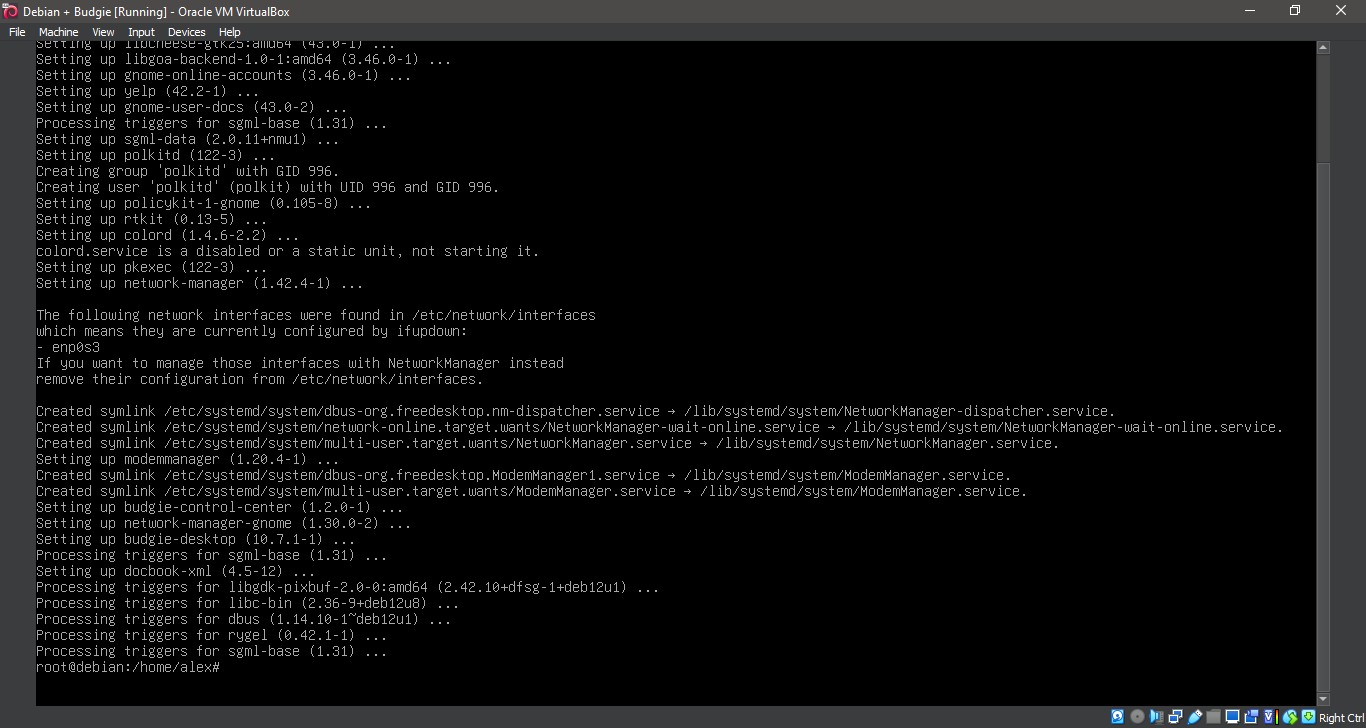
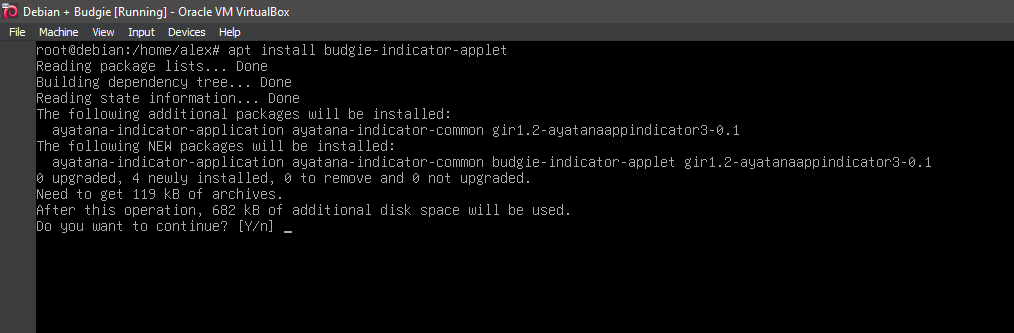
10. Running 'apt install budgie-indicator-applet'
apt install budgie-indicator-applet
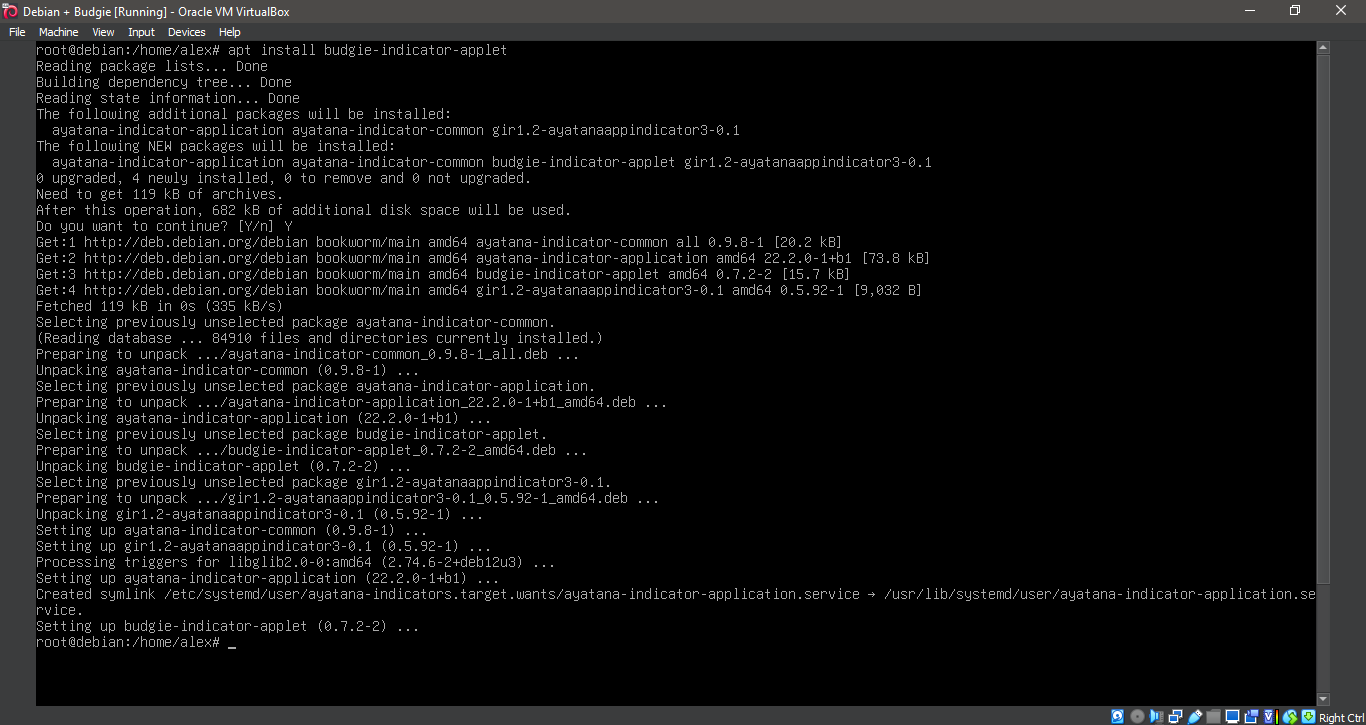
11. Running 'apt install budgie-indicator-applet'
apt install budgie-indicator-applet
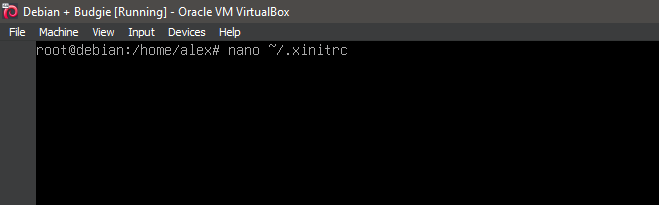
12. Configuration
nano ~/.xinitrc
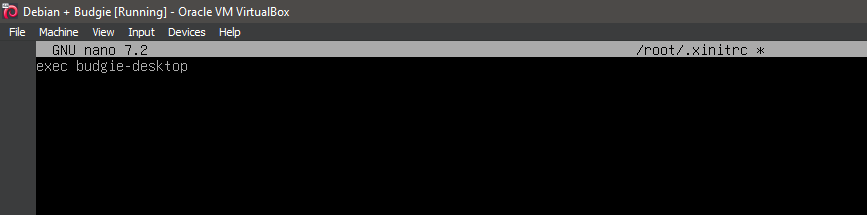
13. Configuration
exec budgie-desktop
14. Running 'apt install gnome-terminal gnome-settings-daemon gnome-control-center'
apt install gnome-terminal gnome-settings-daemon gnome-control-center

15. Running 'apt install gnome-terminal gnome-settings-daemon gnome-control-center'
apt install gnome-terminal gnome-settings-daemon gnome-control-center

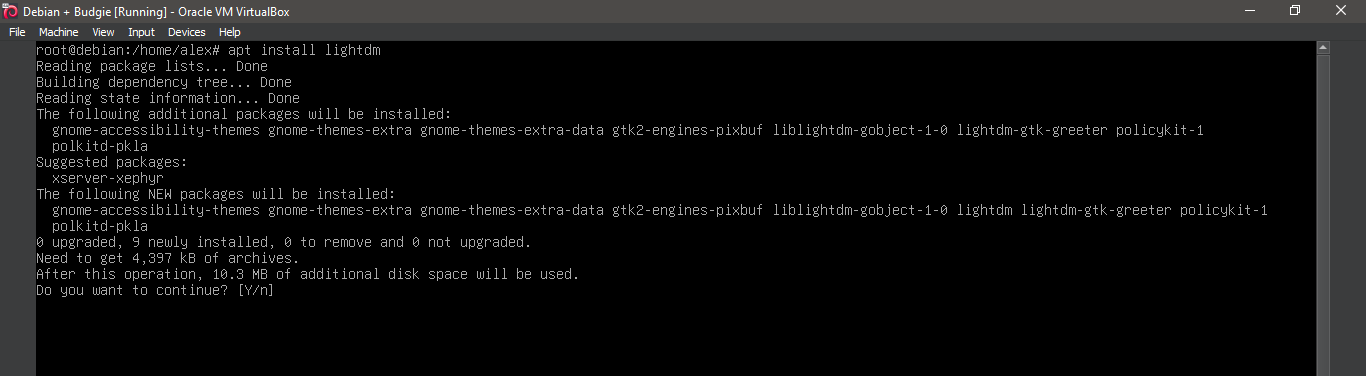
16. Running 'apt install lightdm'
apt install lightdm
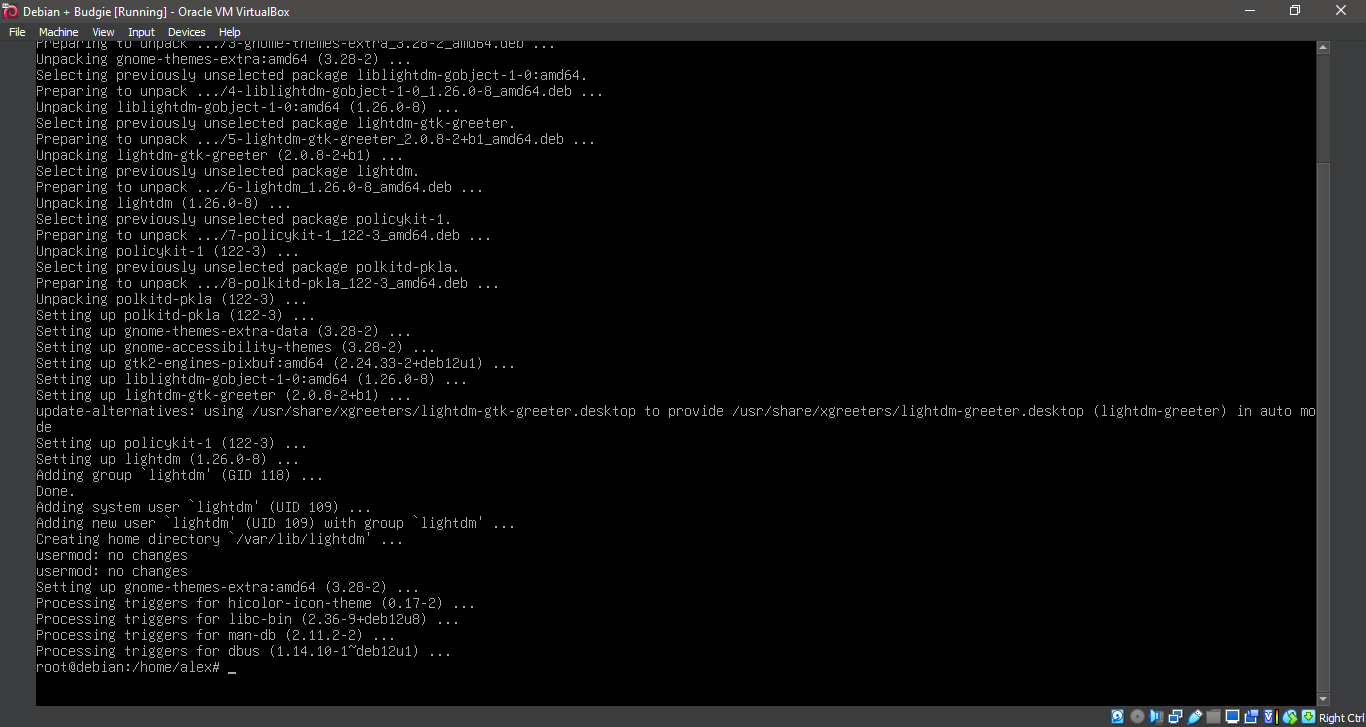
17. Running 'apt install lightdm'
apt install lightdm
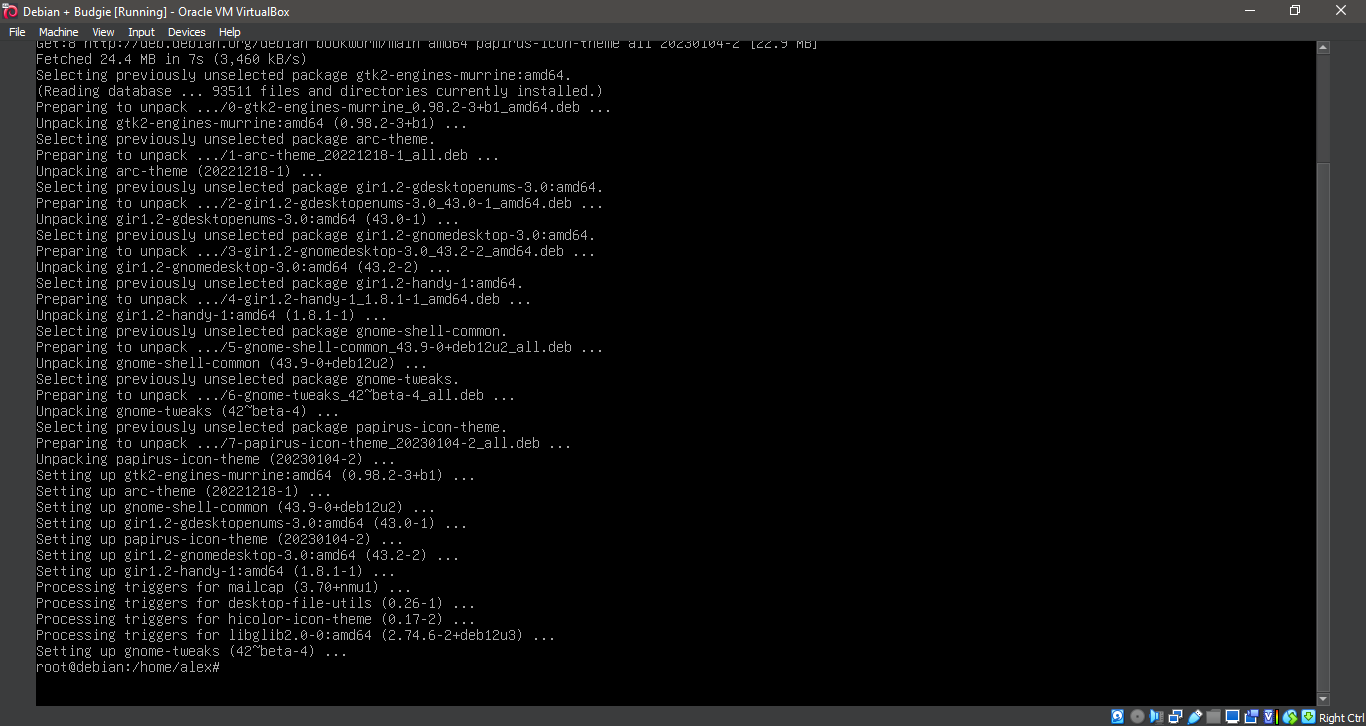
18. Running 'apt install gnome-tweaks arc-theme papirus-icon-theme'
apt install gnome-tweaks arc-theme papirus-icon-theme

19. Running 'apt install gnome-tweaks arc-theme papirus-icon-theme'
apt install gnome-tweaks arc-theme papirus-icon-theme
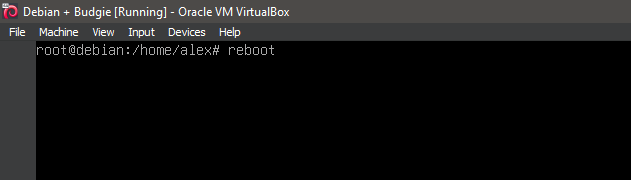
20. Running 'reboot'
reboot
21. Running 'Budgie desktop'
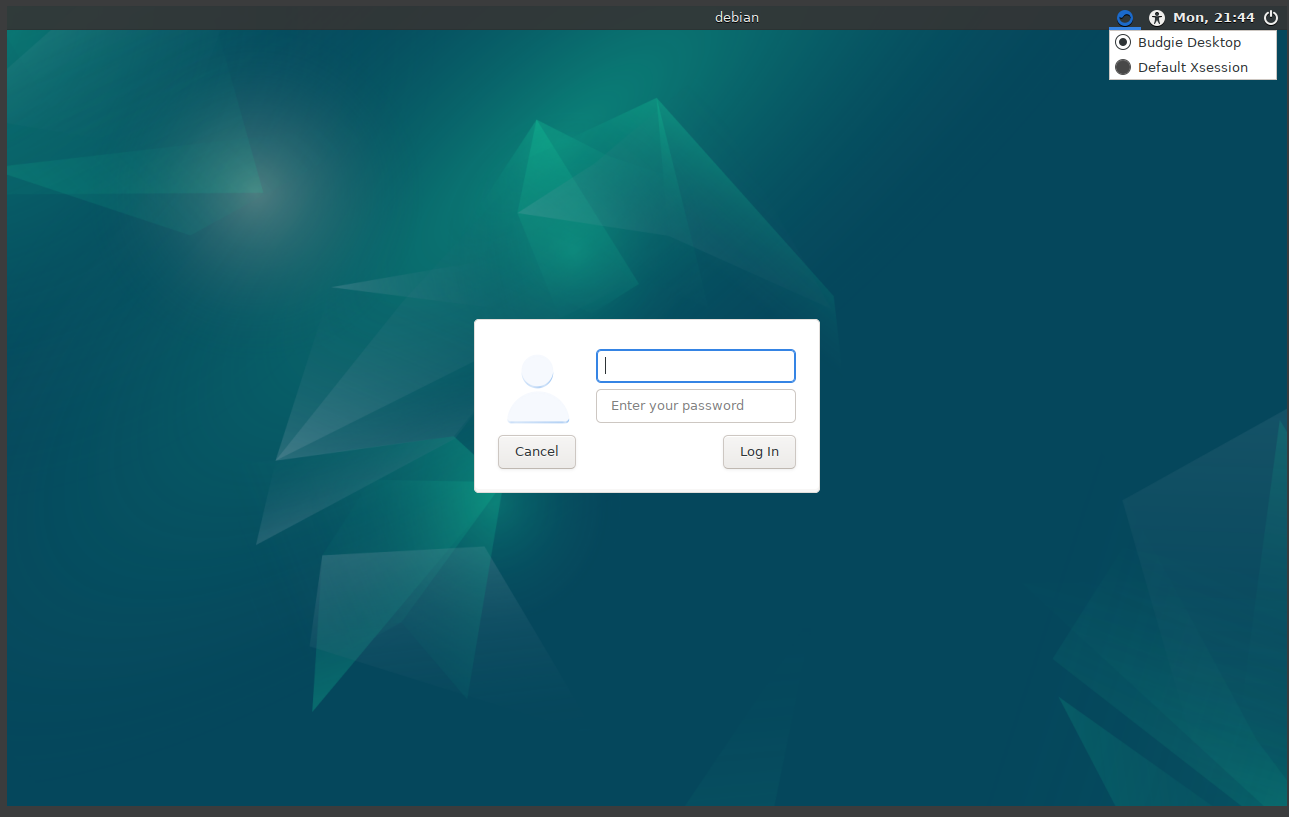
22. Running 'Budgie desktop'
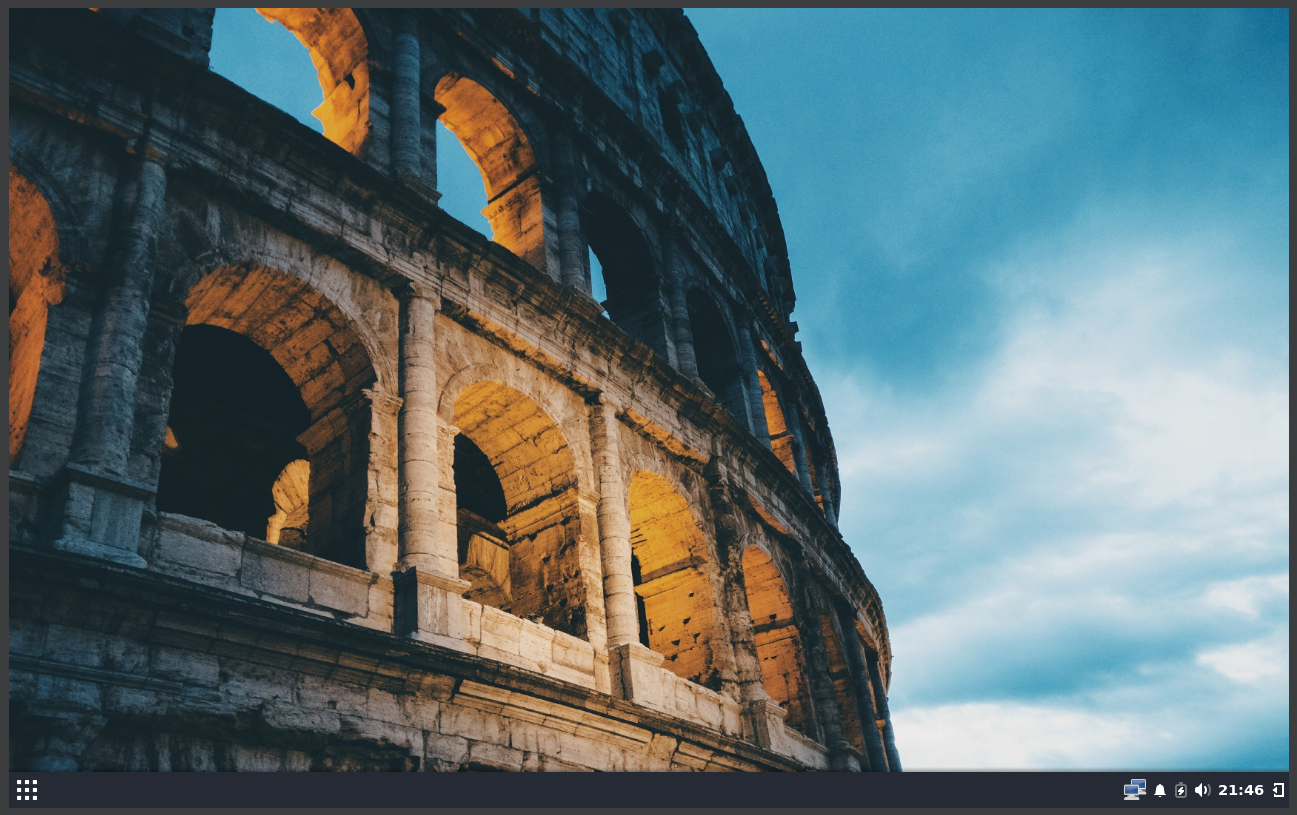
23. Running 'Budgie desktop'

24. Running 'Budgie desktop'

25. Running 'Budgie desktop'

26. Running 'Budgie desktop'
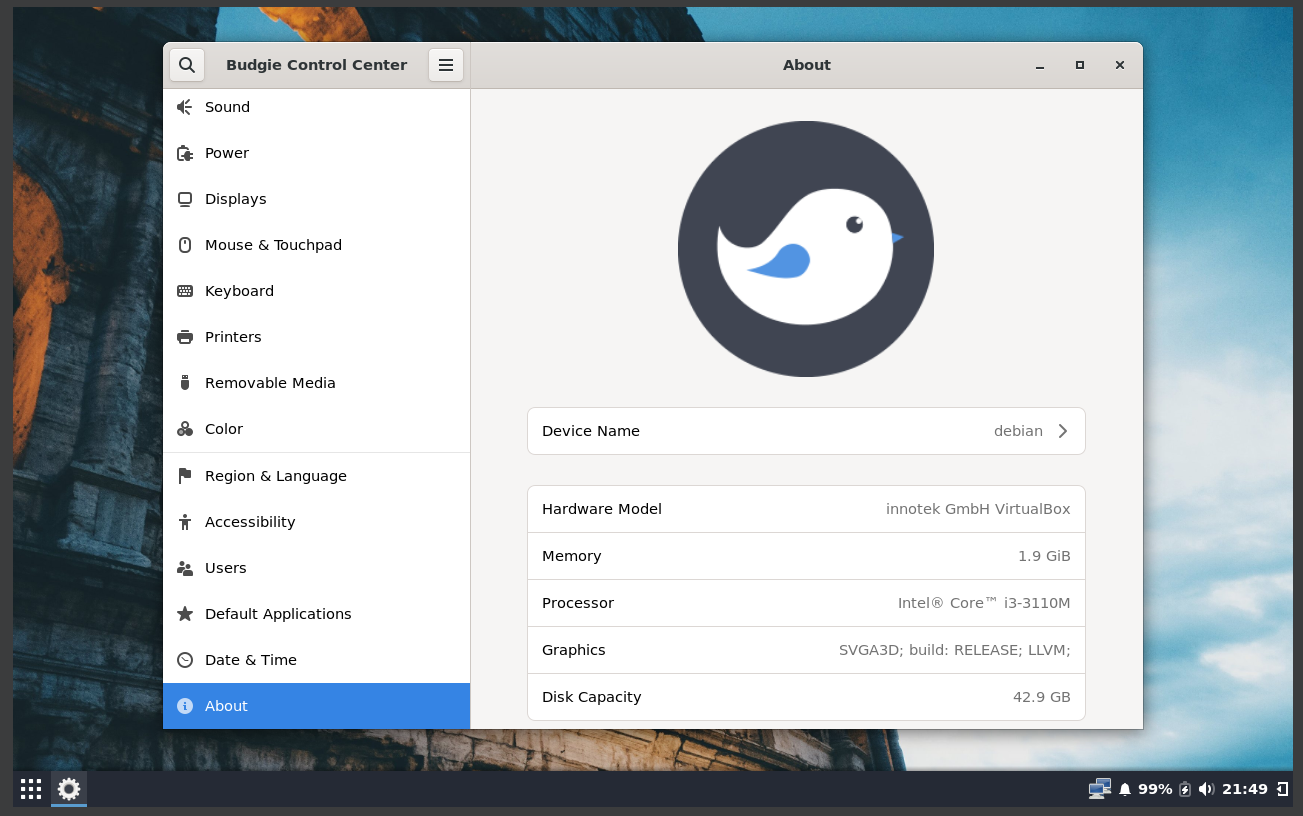
27. Running 'Budgie desktop'

28. Running 'Budgie desktop'
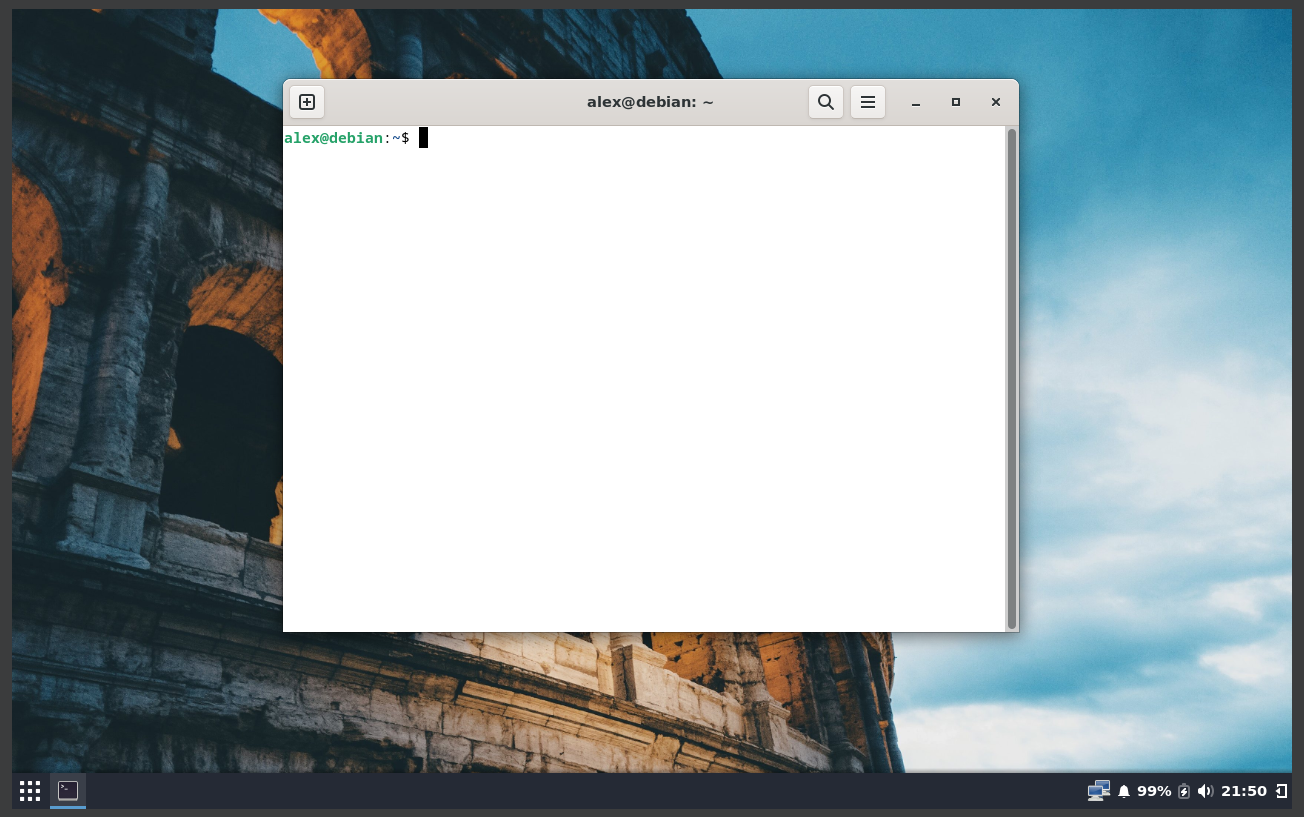
29. Running 'Budgie desktop'

30. Running 'Budgie desktop'

31. Running 'Budgie desktop'

32. Running 'Budgie desktop'
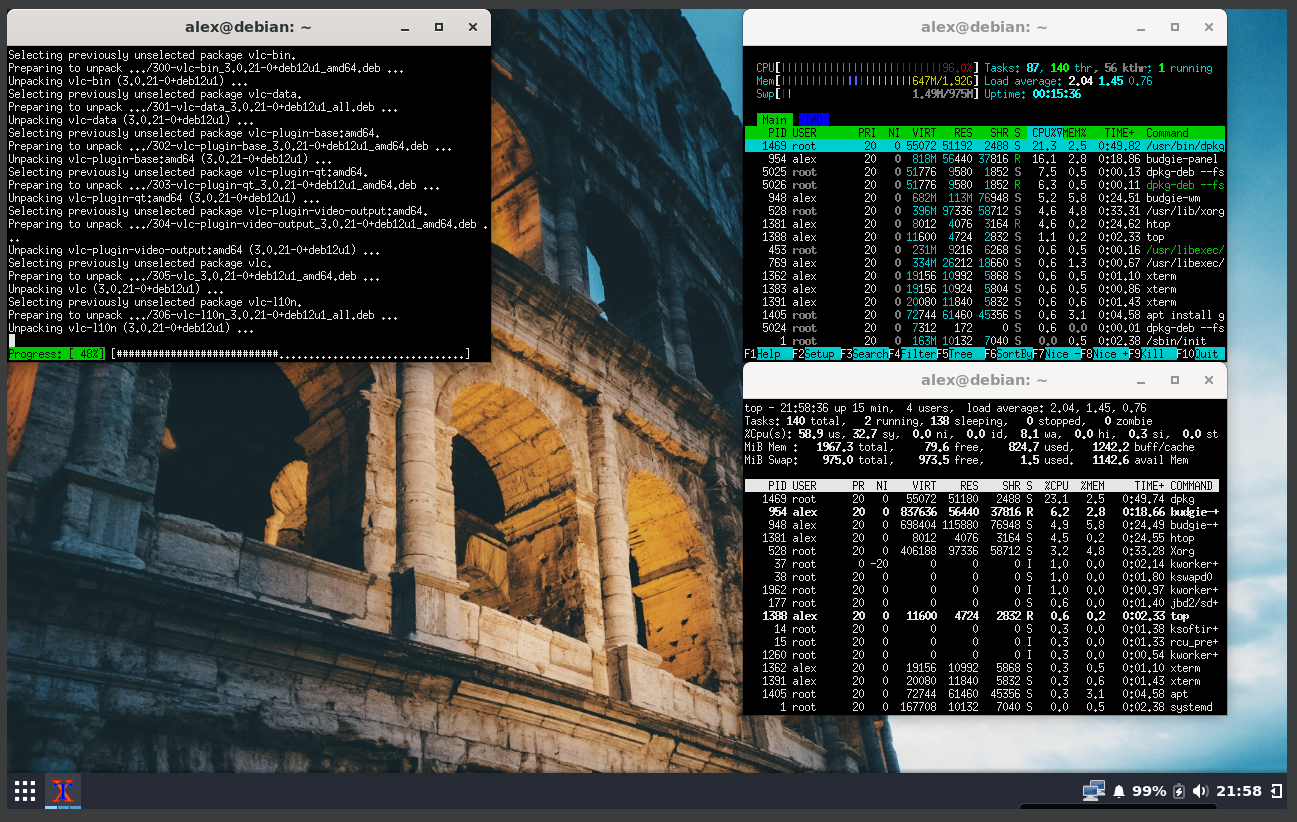
33. Running 'Budgie desktop'
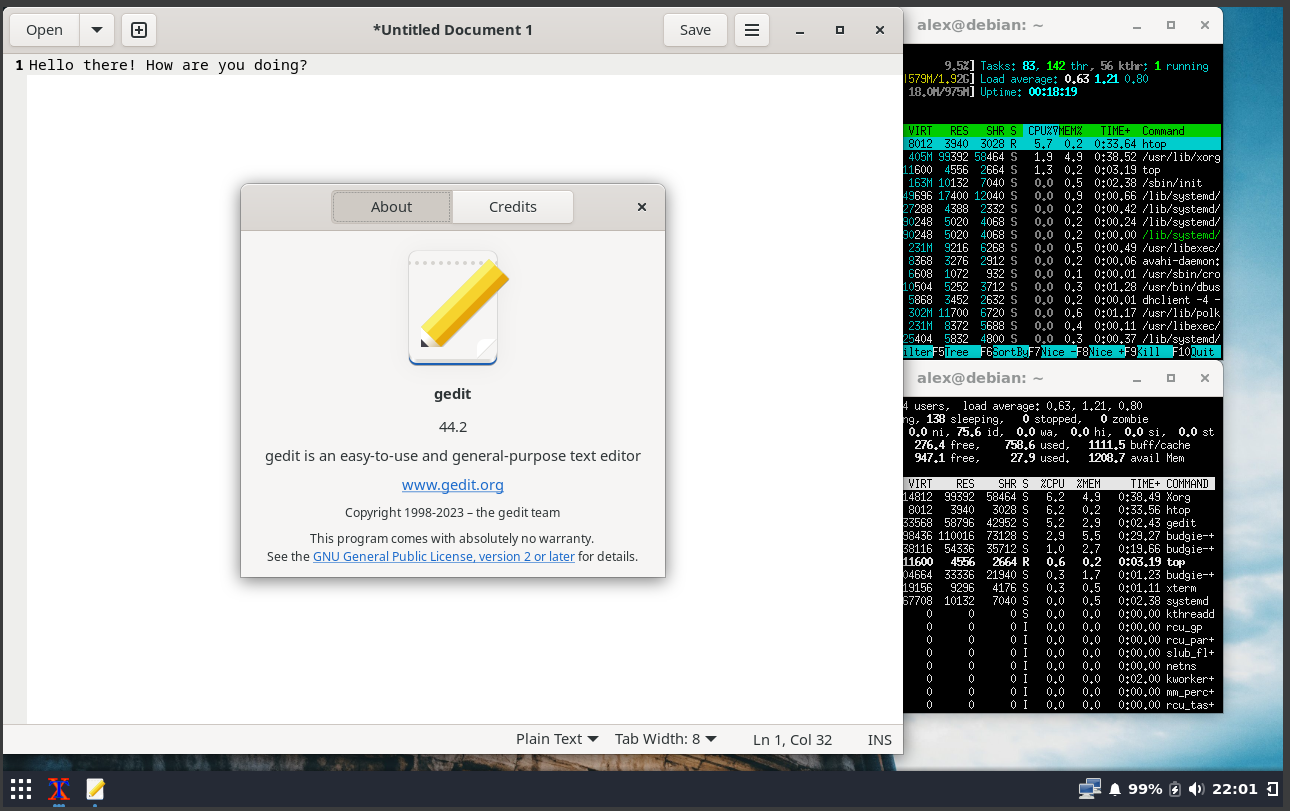
34. Running 'Budgie desktop'
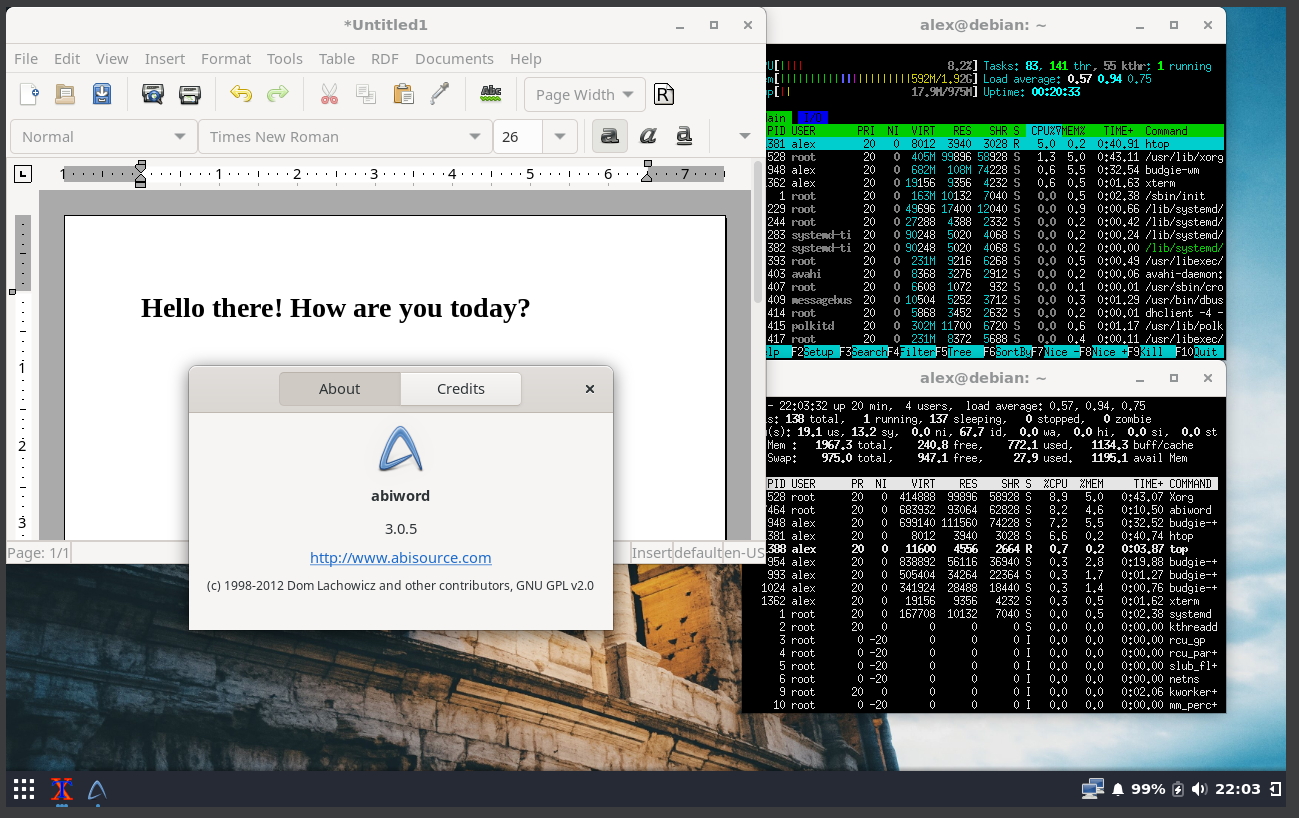
35. Running 'Budgie desktop'
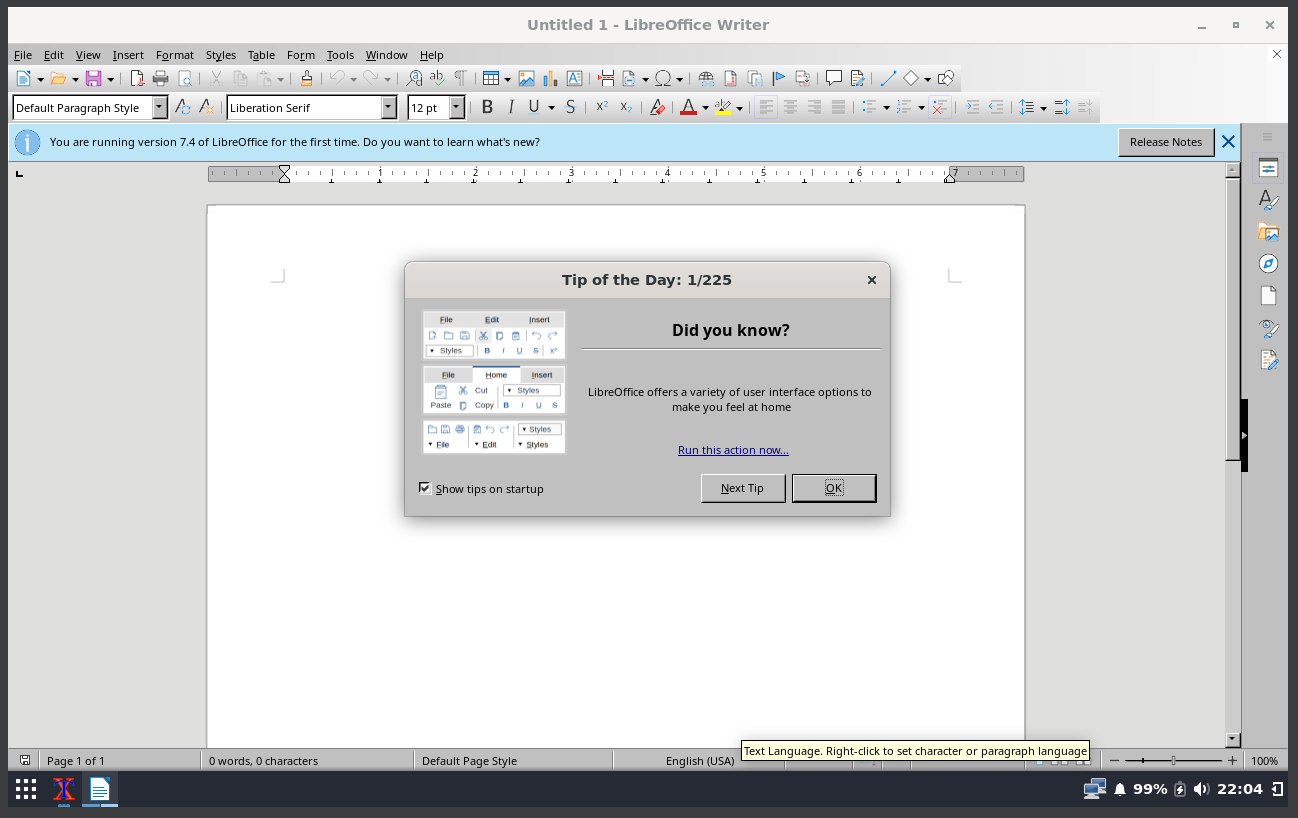
36. Running 'Budgie desktop'

37. Running 'Budgie desktop'
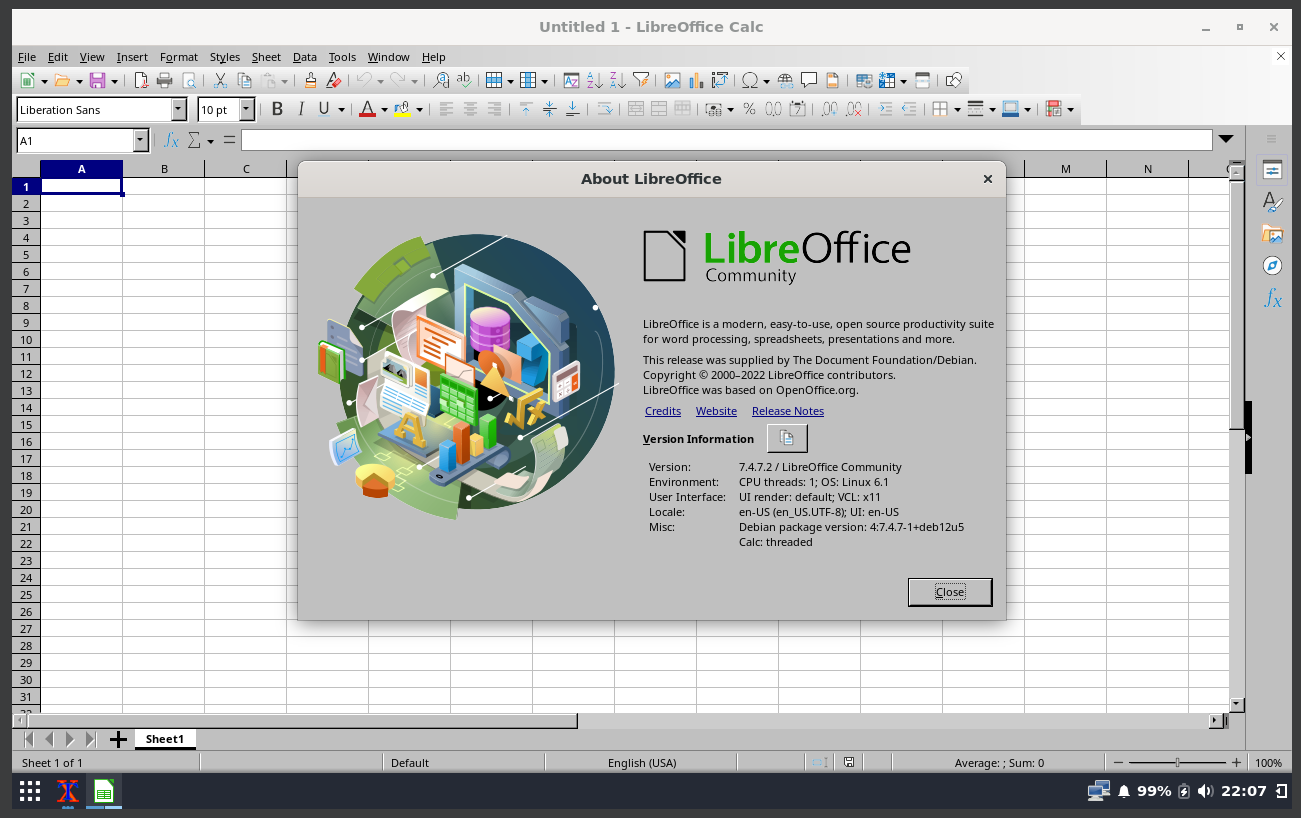
38. Running 'Budgie desktop'

39. Running 'Budgie desktop'

40. Running 'Budgie desktop'
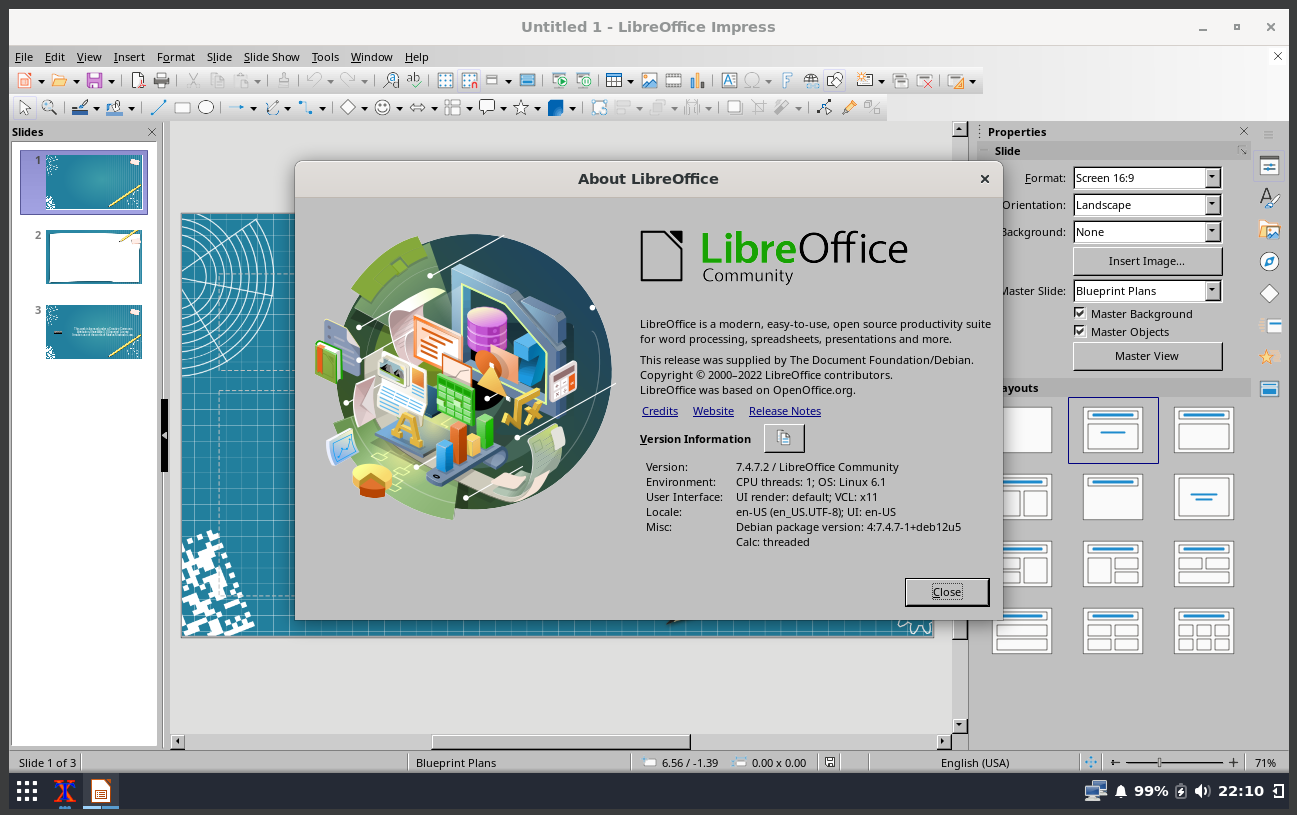
41. Running 'Budgie desktop'
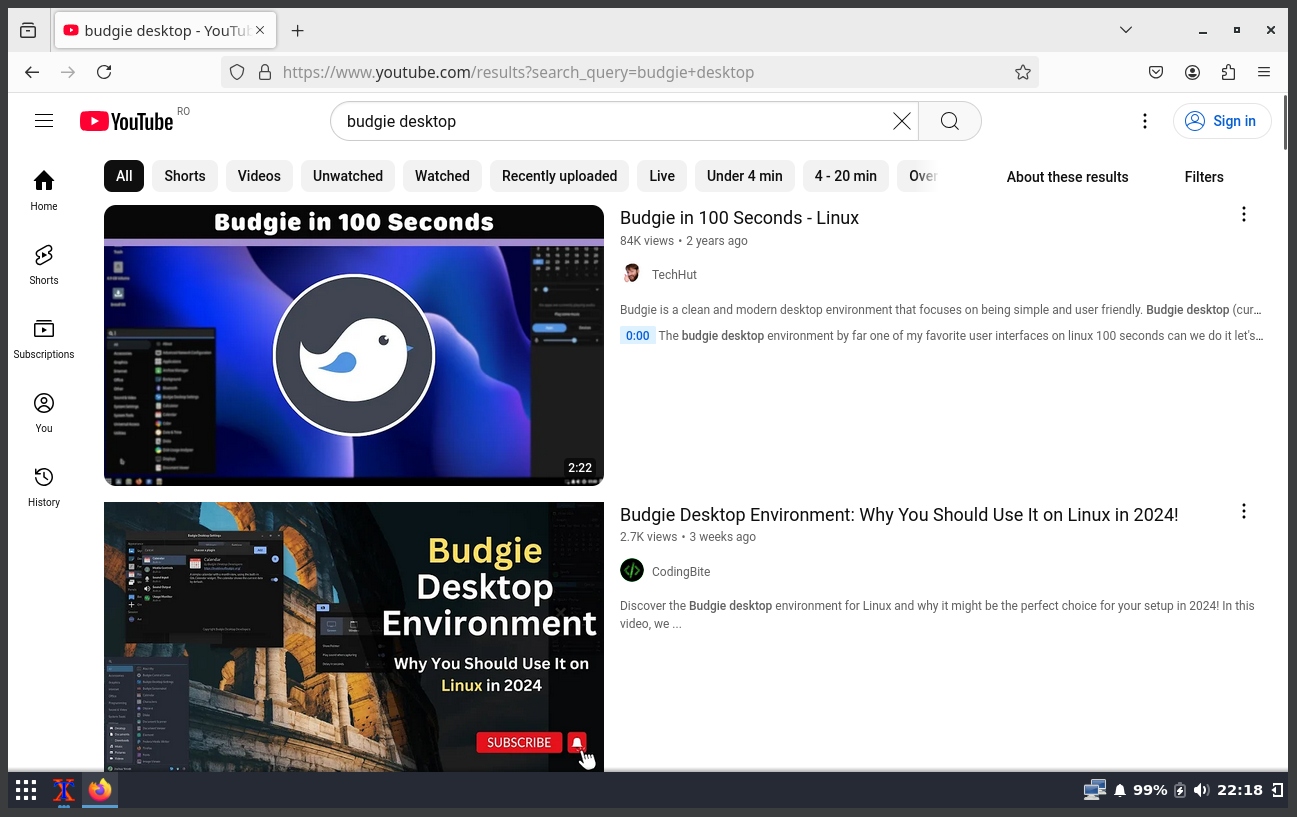
42. Running 'Budgie desktop'

43. Running 'Budgie desktop'

44. Running 'Budgie desktop'
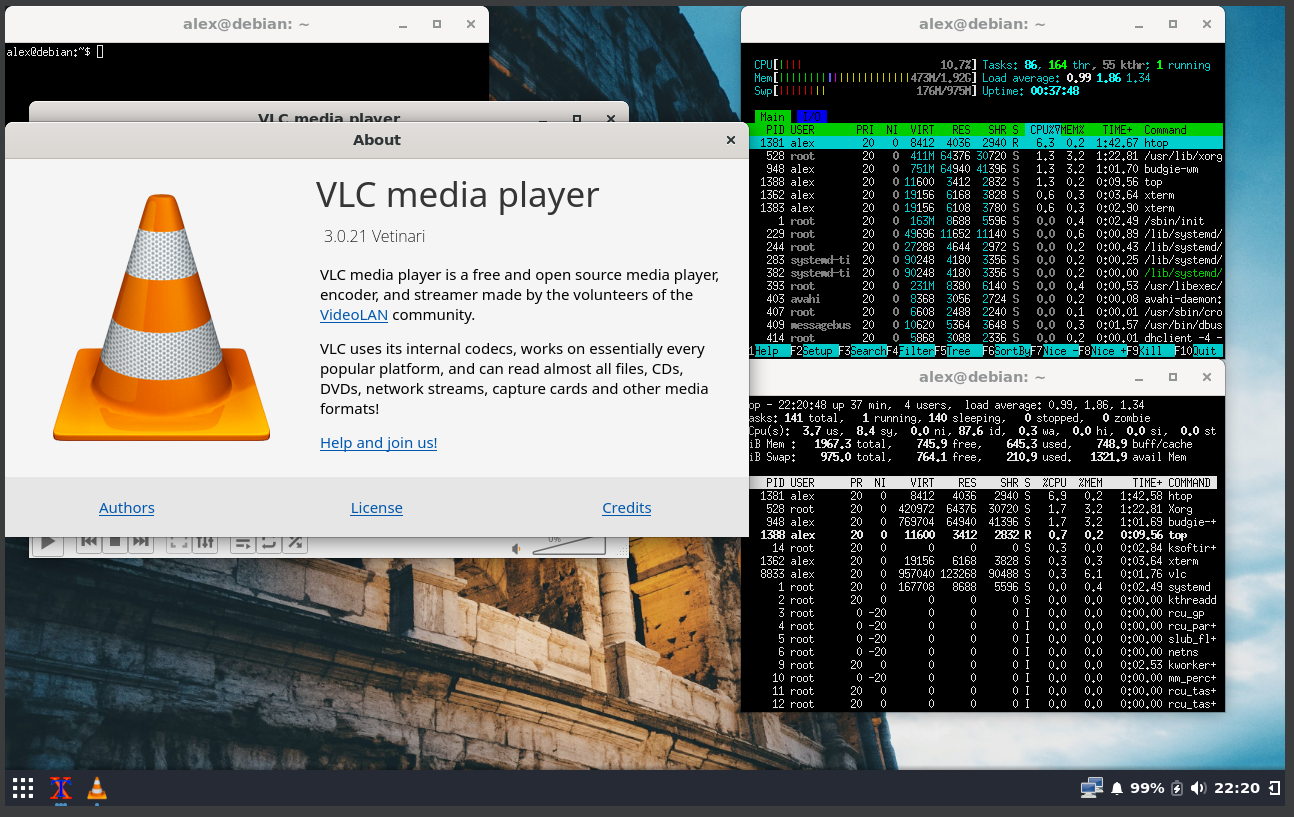
45. Running 'Budgie desktop'
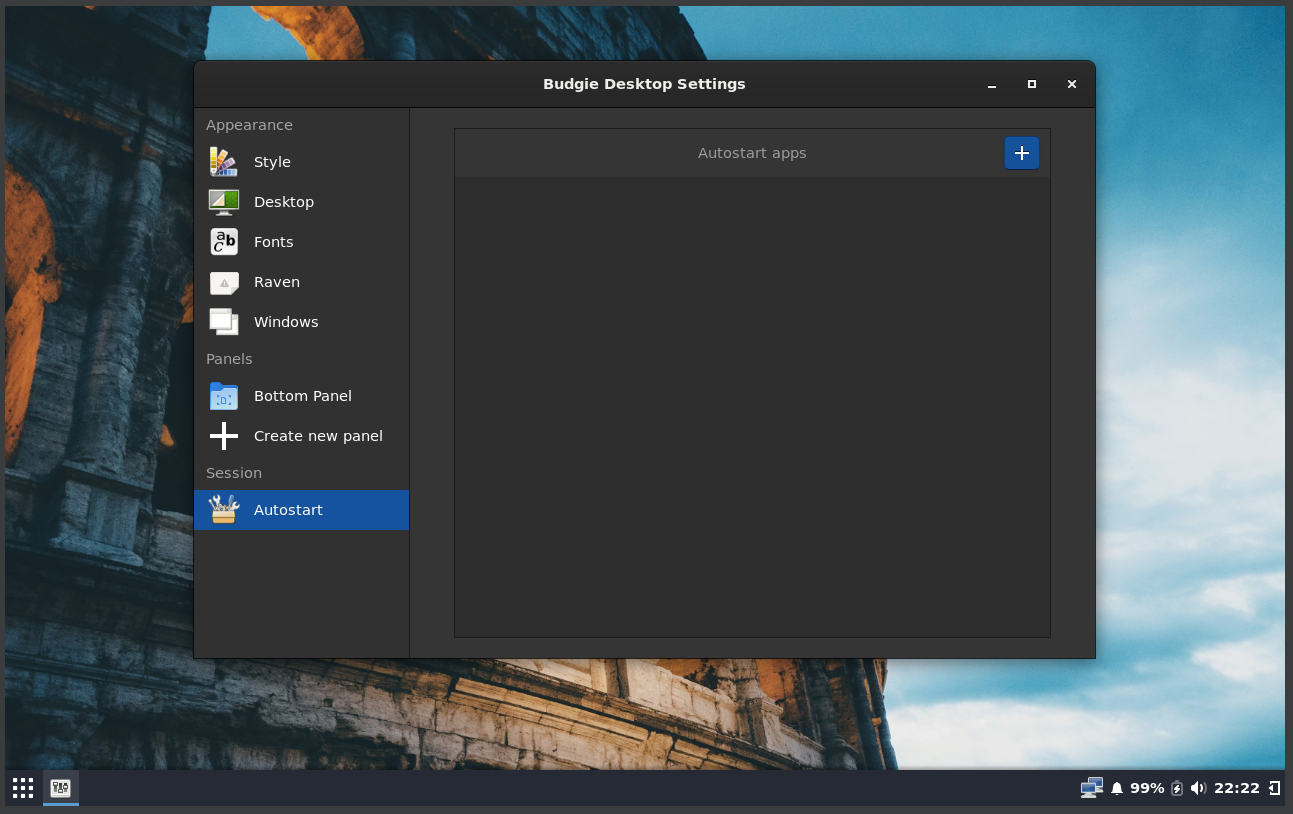
46. Running 'Budgie desktop'
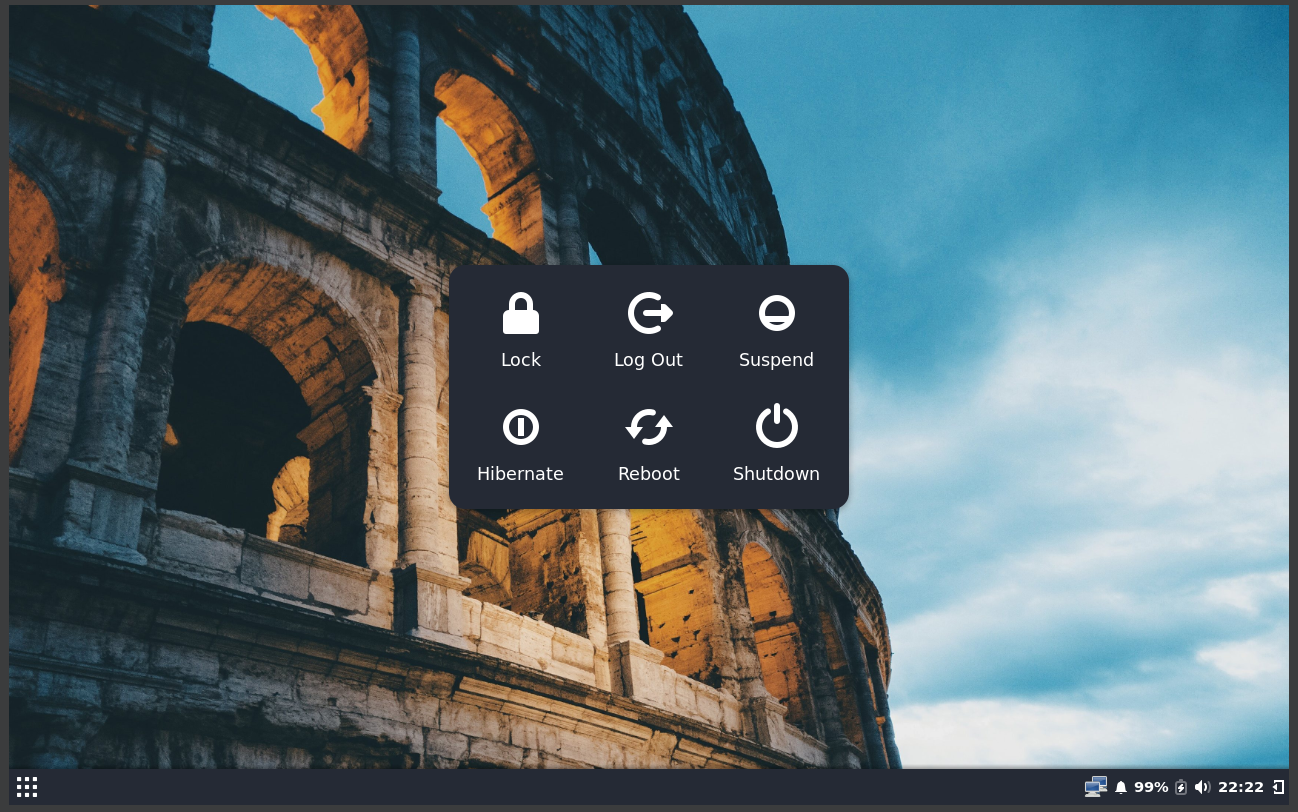
47. Running 'Budgie desktop'
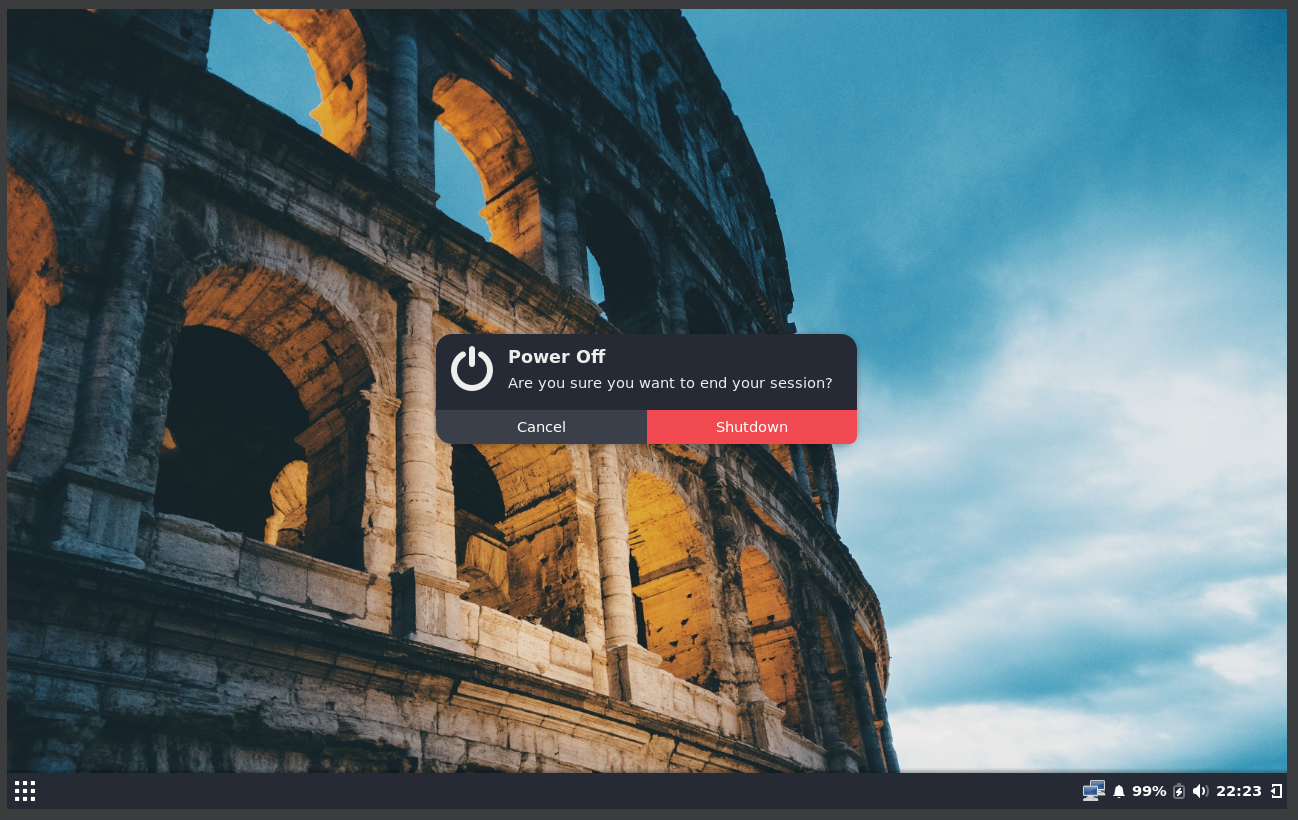
Well, that was exciting. See you in the next one!
If you wish to support our project
Donation link (Buy me a coffee):