
Running the btop command line utility under Debian Linux
Step by step guide and HOWTO
Debian Linux is known for its stability and security, making it a reliable choice for servers and workstations.
It also has a vast software repository with extensive community support, ensuring access to a wide range of applications.
Btop, the modern and visually appealing resource monitor for systems like Linux, macOS, and Windows.
It’s part of the *top series, created by aristocratos, which includes older tools like htop and bpytop.
An overview of btop CLI system utility:
Highly customizable and visually stunning interface with themes and detailed system stats.
Smooth animations for a more interactive experience.
Tracks CPU, memory, disk usage, and network statistics.
Displays per-core CPU usage and temperatures (if sensors are configured using lm-sensors).
Allows users to sort, search, and send signals to processes directly.
Shows detailed information for each running process.
Simple installation and configuration.
An intuitive TUI (Text-based User Interface) that doesn't require a mouse.
Works seamlessly on Linux, macOS, and Windows via WSL.
Optimized for performance with low resource usage despite its detailed display.
Many people prefer btop over tools like htop due to its polished visuals and additional monitoring capabilities.
It combines style and substance for those who need advanced system insights in an easy-to-read format.
The *top series is a set of terminal-based resource monitoring tools
Each tool in the series offers a progressively more refined and feature-rich experience for monitoring system resources, such as CPU, memory, disk, and network usage.
The series has evolved from simplicity and speed to include high levels of customization and polished visuals (top, htop, btop, etc).
Language: C++.
The most recent and advanced tool in the series, Btop was created to address performance limitations and resource usage of its predecessors.
It offers a highly polished, feature-rich, and efficient experience.
Key Features include:
Blazing-fast performance with minimal resource usage.
Highly customizable interface with themes, animations, and smooth graphs.
Extended support for process management, sorting, and filtering.
Works seamlessly across Linux, macOS, and Windows.
Requires no external dependencies, unlike its predecessors.
Combines the best features of Bashtop and Bpytop while being lightweight and fast.
Modular design makes it easy to extend or customize.
Combines the beauty and functionality of the earlier tools with the speed and efficiency of C++.
If you need speed and efficiency without dependencies select Btop.
Latest source code: https://github.com/aristocratos/btop.git
Configuration: ~/.config/btop/btop.conf
You can manually edit the file or configure it through the app by pressing M (Menu) > Options.
Navigation:
Arrow Keys: Move between sections.
Tab: Cycle through sections.
Enter: Interact with the selected process or option.
Q: Quit the program.
Customization: edit ~/.config/btop/themes
Adjust refresh rates, graph scaling, or units via the configuration menu (O) or the btop.conf file.
Today we shall use the btop CLI utility under Debian Linux
We need to complete several steps to get it working correctly.
1. Boot the system -- System Ready.

2. Boot the system -- Logged In.

3. Switch to root
su

4. Running update
apt-get update
apt-get upgrade

5. Running 'apt install btop'
apt install btop

6. Running 'btop'
btop

7. Running 'btop'
btop

8. Running 'btop'
btop

9. Running 'btop'
btop

10. Running 'btop'
btop

11. Running 'btop'
btop

12. Running 'btop'
btop

13. Running 'btop'
btop

14. Running 'btop'
btop

15. Running 'btop'
btop

16. Running 'btop'
btop

17. Running 'btop'
btop

18. Running 'btop'
btop

19. Running 'btop'
btop

20. Running 'btop'
btop

21. Running 'btop'
btop

22. Running 'btop'
btop

23. Running 'btop'
btop

24. Running 'btop'
btop

25. Running 'btop'
btop

26. Running 'btop'
btop

27. Running 'btop'
btop

28. Running 'btop'
btop

29. Running 'btop'
btop

30. Running 'btop'
btop

31. Running 'btop'
btop

32. Running 'btop'
btop

33. Running 'btop'
btop

34. Running 'btop'
btop

35. Running 'btop'
btop

36. Running 'btop'
btop
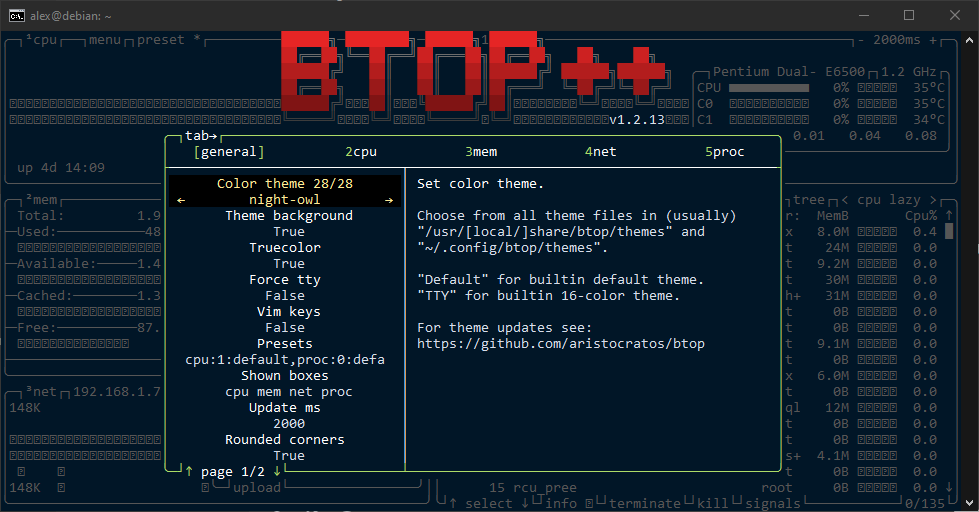
37. Running 'btop'
btop

38. Running 'btop'
btop

39. Running 'btop'
btop

40. Running 'btop'
btop

41. Running 'btop'
btop

42. Running 'btop'
btop

43. Running 'btop'
btop

44. Running 'btop'
btop

45. Running 'btop'
btop

46. Running 'btop'
btop

47. Running 'btop'
btop

48. Running 'btop'
btop

49. Running 'btop'
btop

50. Running 'btop'
btop
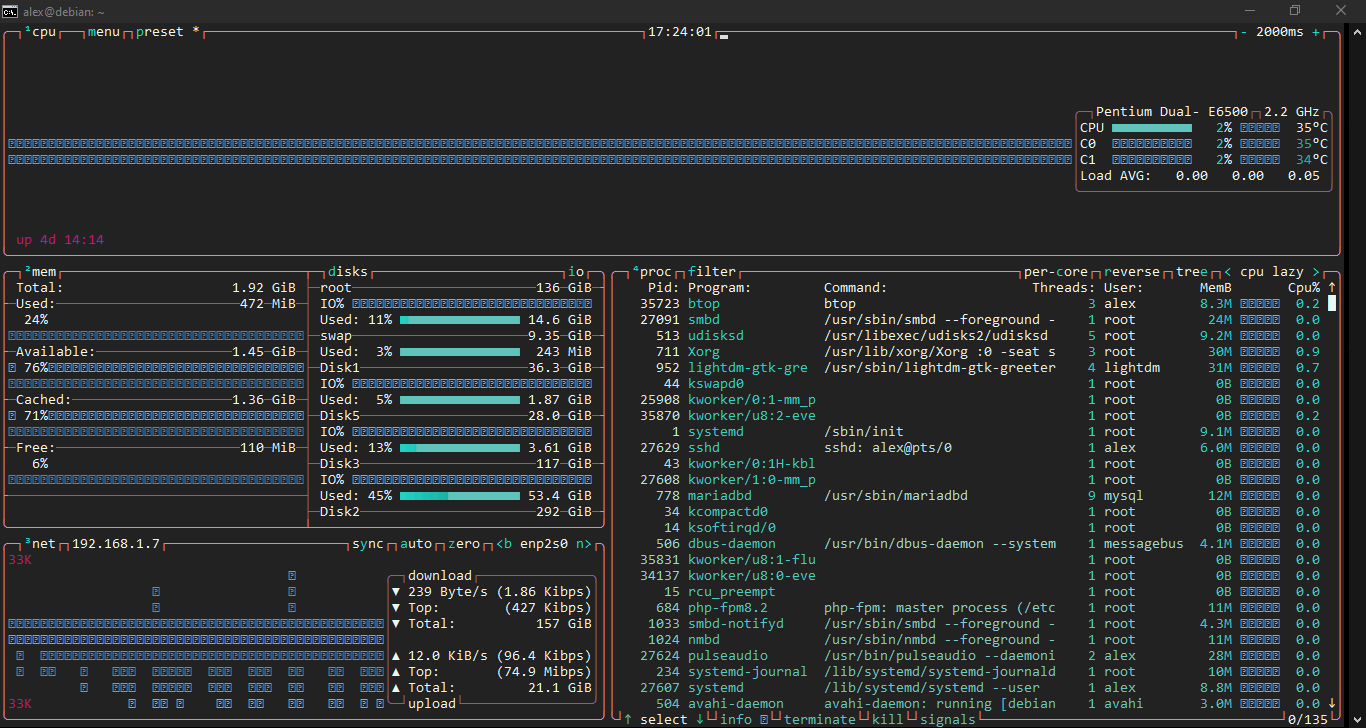
51. Running 'btop'
btop

52. Running 'btop'
btop

53. Running 'btop'
btop

54. Running 'btop'
btop

55. Running 'btop'
btop

56. Running 'btop'
btop

57. Running 'btop'
btop

58. Running 'btop'
btop

59. Running 'btop'
btop

60. Running 'btop'
btop

61. Running 'btop'
btop

62. Running 'btop'
btop

63. Running 'btop'
btop

64. Running 'btop'
btop

65. Running 'btop'
btop

66. Running 'btop'
btop
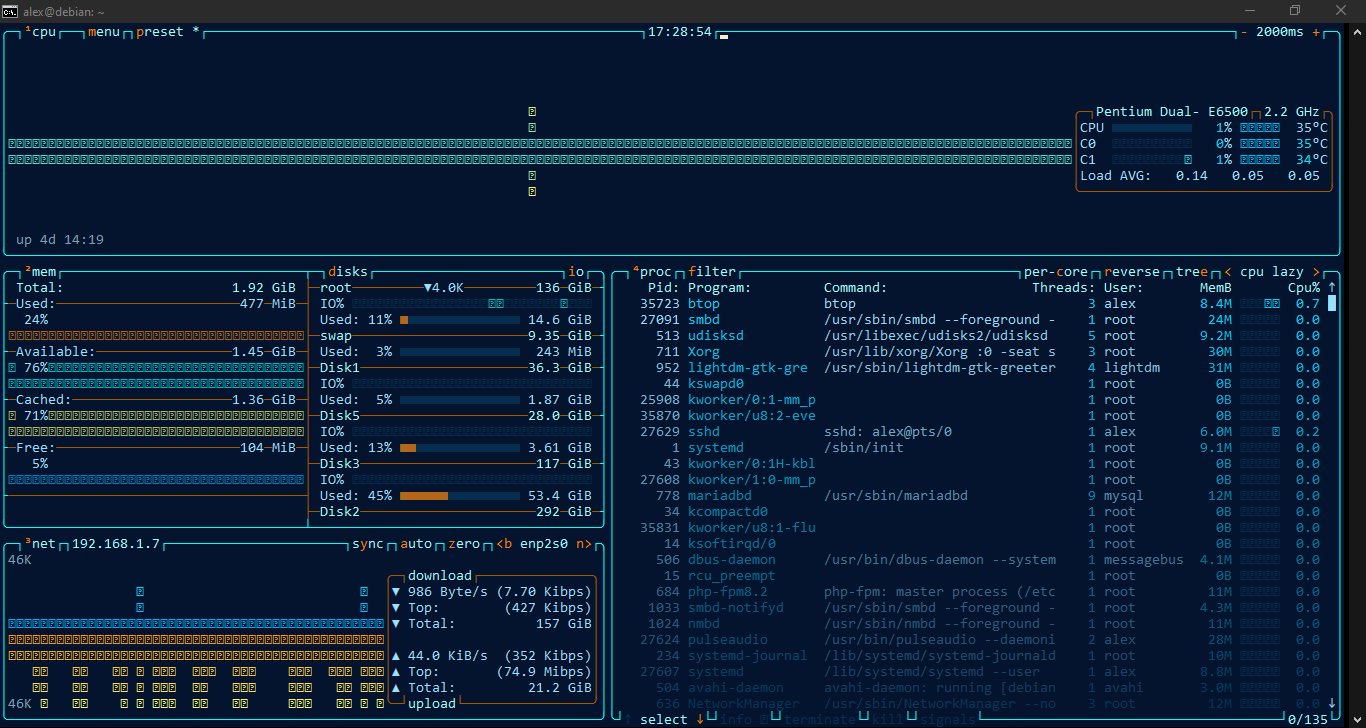
67. Running 'btop'
btop

68. Running 'btop'
btop

69. Running 'btop'
btop

70. Running 'btop'
btop

71. Running 'btop'
btop

72. Running 'btop'
btop

73. Running 'btop'
btop

74. Running 'btop'
btop

75. Running 'btop'
btop

76. M key - Open the main menu
M

77. O - Access configuration options (themes, graphs, units)
O
.PNG)
78. F - Search processes
F

79. F - Search processes
F

80. F - Search processes
F

81. K - Kill a process (select it first)
K
..PNG)
82. T - Terminate a process (select it first)
T
..PNG)
83. K - Kill a process (select it first)
K
.PNG)
84. Tree view.PNG
T

85. Sort them by CPU, MEM, PID, Name or in reverse order if you wish
S

86. Monitor Specific Metrics - RAM memory

87. Monitor Specific Metrics - DISK

88. Monitor Specific Metrics - IO

89. CPU focused metrics

90. CPU, memory, network focused metrics
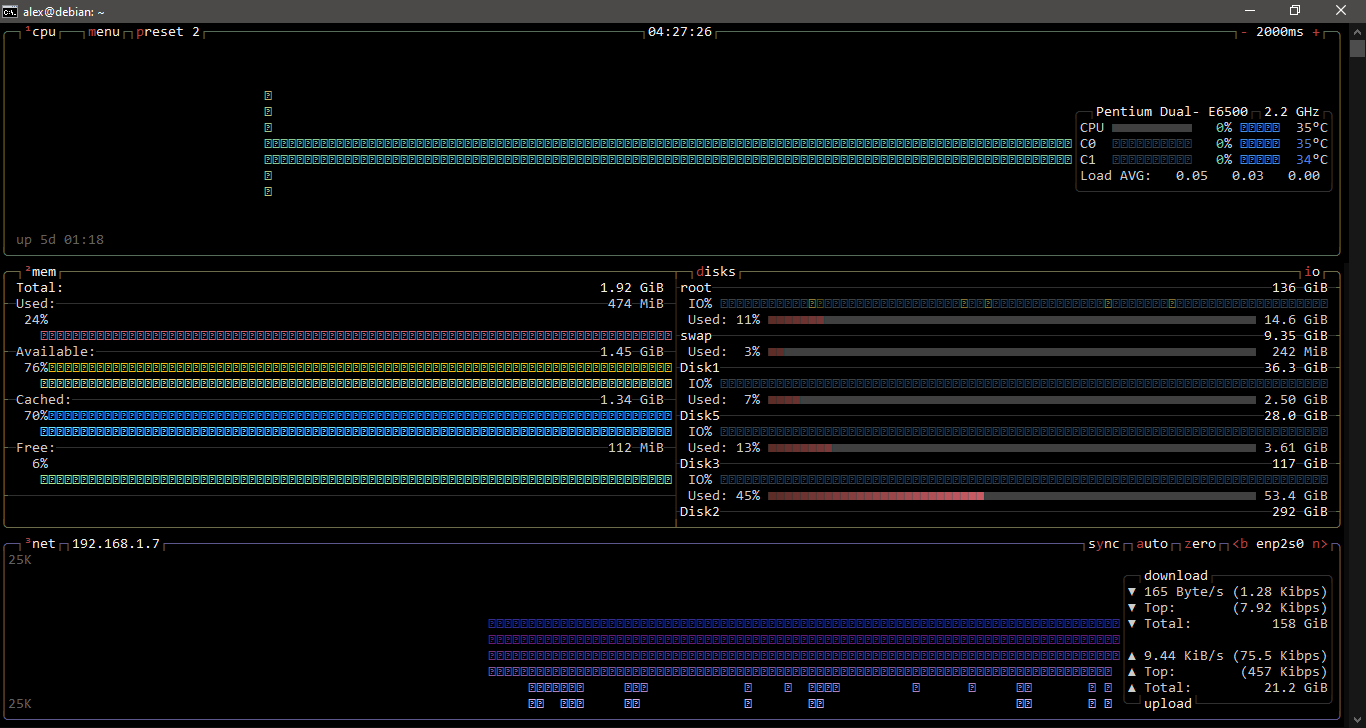
91. CPU, network focused metrics
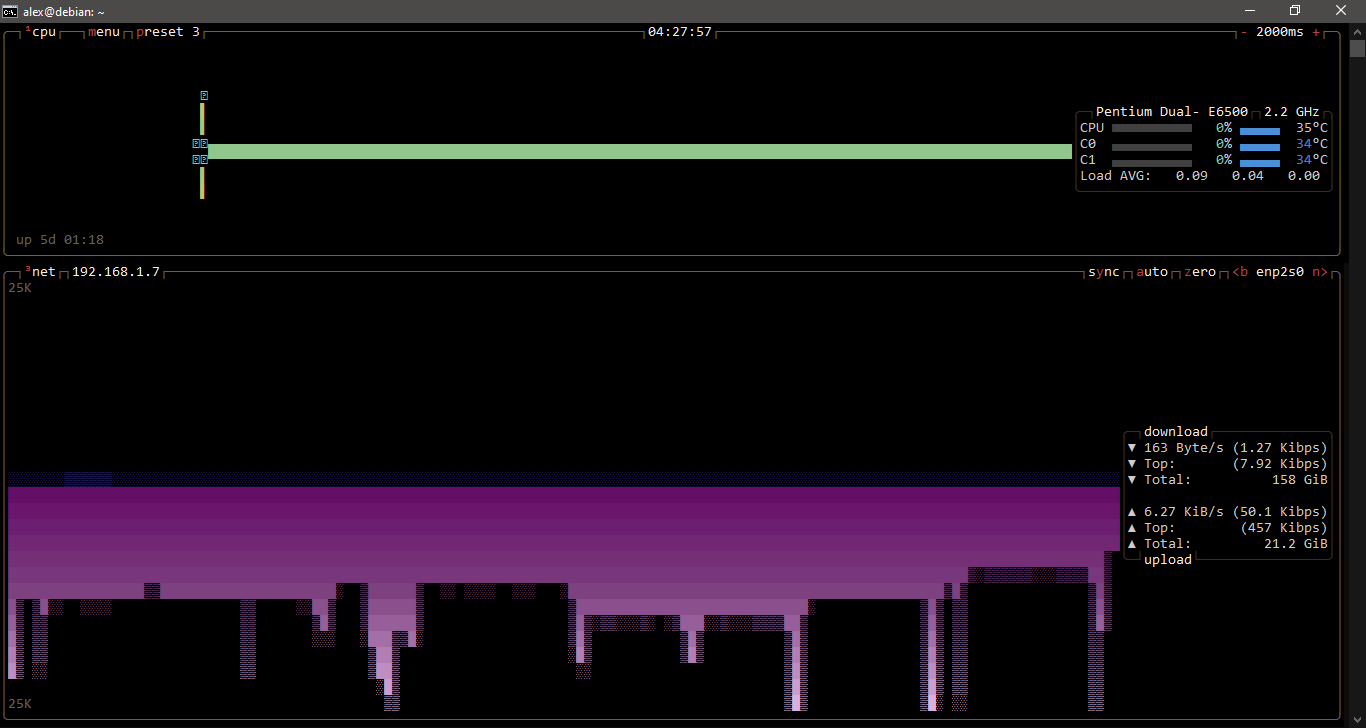
92. Q key - to quit btop

Well, that was exciting. See you in the next one!
If you wish to support our project
Donation link (Buy me a coffee):