
Installing the AfterStep Window Manager on Debian
Step by step guide and HOWTO
Debian Linux is known for its stability and security, making it a reliable choice for servers and workstations.
It also has a vast software repository with extensive community support, ensuring access to a wide range of applications.
AfterStep is considered beautiful for several reasons, particularly by those who appreciate minimalist, highly customizable, and retro-style window managers.
Its elegance lies not just in its appearance, but in the philosophy and flexibility behind its design.
AfterStep embraces the philosophy of "less is more", which gives it a sleek, clean look.
It's free of the visual clutter often found in modern desktop environments, offering a sense of focus and simplicity.
Each visual element is placed for a purpose, contributing to a minimalistic, functional beauty.
AfterStep offers nearly infinite customization, allowing users to personalize almost every aspect of its interface—from the colors and window borders to the desktop background and window behaviors.
This means you can create a look that's uniquely your own, rather than being stuck with a default appearance.
You can customize menus, window decorations, icons, title bars, and even how the desktop handles workspaces and panels.
Textures, colors, and gradients are easily adjustable, allowing for modern, retro, or avant-garde appearances.
AfterStep is inspired by the classic NeXTSTEP interface, which has an iconic design with clean lines and sharp, minimalistic visuals.
This retro style is reminiscent of early Unix window managers, but still manages to look elegant and timeless.
If you're nostalgic for that old-school aesthetic, AfterStep’s design will be especially appealing.
Its blocky icons and simple, functional window borders give it a stylishly "vintage" feel.
AfterStep’s Pager (the tool used to manage multiple virtual desktops) is a key feature that gives a sense of elegance and control.
The ability to manage multiple desktops in an intuitive, graphical way makes it visually appealing to those who thrive on multitasking and organizational beauty.
This element alone gives AfterStep a clean and organized feel, which contributes to its overall aesthetic harmony.
Many modern desktop environments come with a lot of extra features and effects that can make them look busy or overwhelming.
AfterStep, on the other hand, focuses on giving you control over essential elements, keeping things streamlined and elegant.
You can create exactly what you need without unnecessary visual distractions.
While AfterStep isn’t known for flashy, heavy animations like those seen in environments such as KDE or GNOME, it offers subtle visual effects like smooth window transitions, shading, and menu behavior that feel natural and polished without being resource-heavy.
These understated animations contribute to a sense of fluidity and grace.
AfterStep emphasizes efficient screen real estate usage.
Its small, unobtrusive taskbars and window decorations leave plenty of room for actual work.
This minimalist approach to space management can give users the sense of working in a clean, spacious environment, which enhances the visual appeal.
With support for theming, AfterStep can be made to look radically different with a few tweaks.
Users can switch between a retro look, a sleek modern interface, or something entirely avant-garde.
The ability to theme with fine control over details allows AfterStep to match any user’s idea of beauty.
AfterStep’s beauty doesn’t come just from aesthetics alone—it’s in how form follows function.
Every visual element serves a purpose.
The clean, logical design of its menus, workspaces, and window interactions gives it a sense of efficiency and flow, which can feel elegant and satisfying to work with.
AfterStep, while rooted in a classic style, has a timeless quality.
It has remained relevant and attractive despite decades of evolving desktop design trends.
The enduring appeal of its simplicity, customizability, and resource efficiency makes it stand out as beautiful, especially for those who appreciate a refined, unembellished user interface.
In summary, AfterStep’s beauty lies in its simplicity, customizability, and homage to classic design principles.
It’s a tool for those who see elegance in efficiency, and for users who enjoy a high degree of visual and functional control over their workspace.
Its minimalism, combined with the ability to craft an entirely personalized desktop environment, makes it beautiful in a way that appeals to both form and function lovers.
To sum up, AfterStep's beauty comes from its elegant simplicity and deep customization, offering a balance between aesthetic minimalism and practical functionality.
It strips away unnecessary bloat, allowing users to focus on their work while still providing a stylish, retro-inspired interface.
The timeless appeal of its design, rooted in the NeXTSTEP legacy, gives it a nostalgic yet refined feel.
Its efficient use of space and subtle visual effects enhance the overall user experience without overwhelming the senses.
For those who appreciate control, flexibility, and a clean, purposeful design, AfterStep remains a uniquely beautiful choice among window managers.
Today we shall install the AfterStep Window Manager on Debian
We need to complete several steps to get it working correctly.
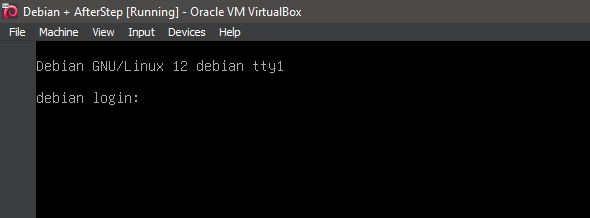
1. Boot the system -- System Ready.
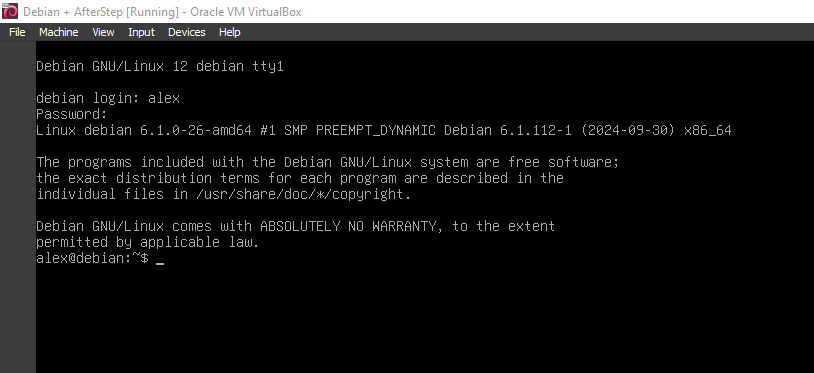
2. Boot the system -- Logged In.
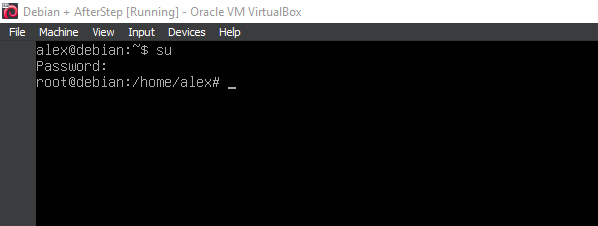
3. Switch to root
su
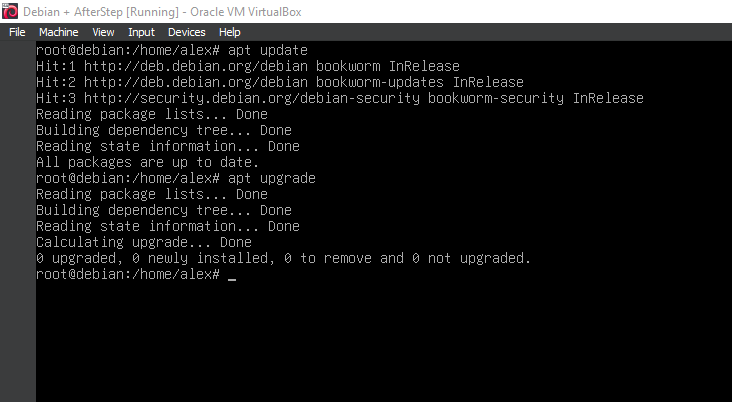
4. Running update
apt-get update
apt-get upgrade
5. Running 'apt install xorg'
apt install xorg
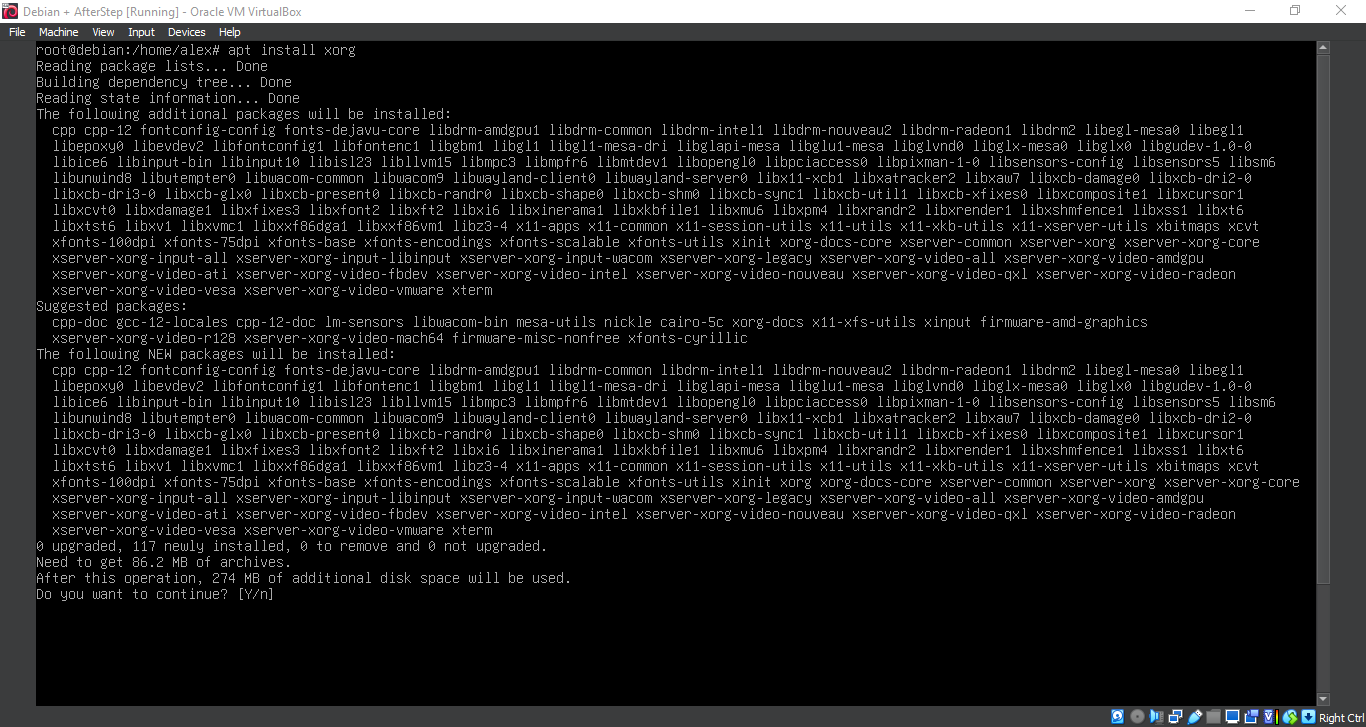
6. Running 'apt install xorg'
apt install xorg
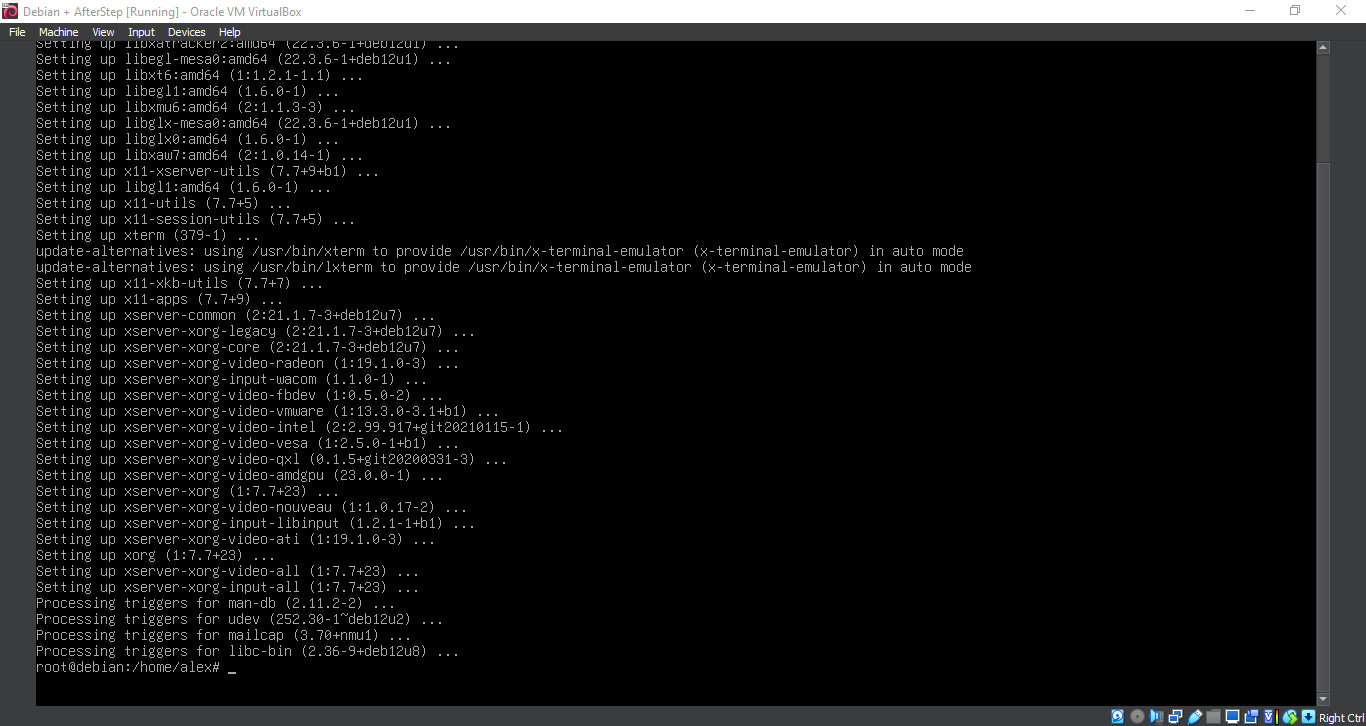
7. Running 'apt install afterstep'
apt install afterstep
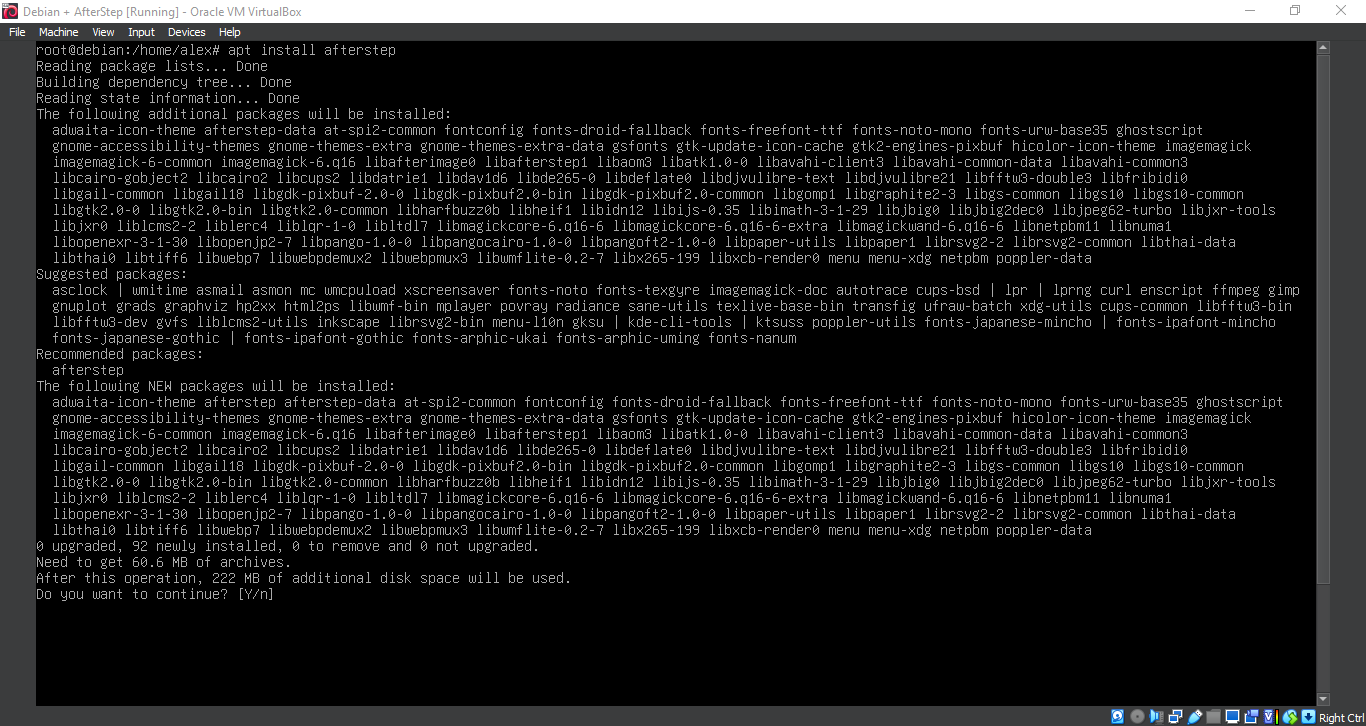
8. Running 'apt install afterstep'
apt install afterstep
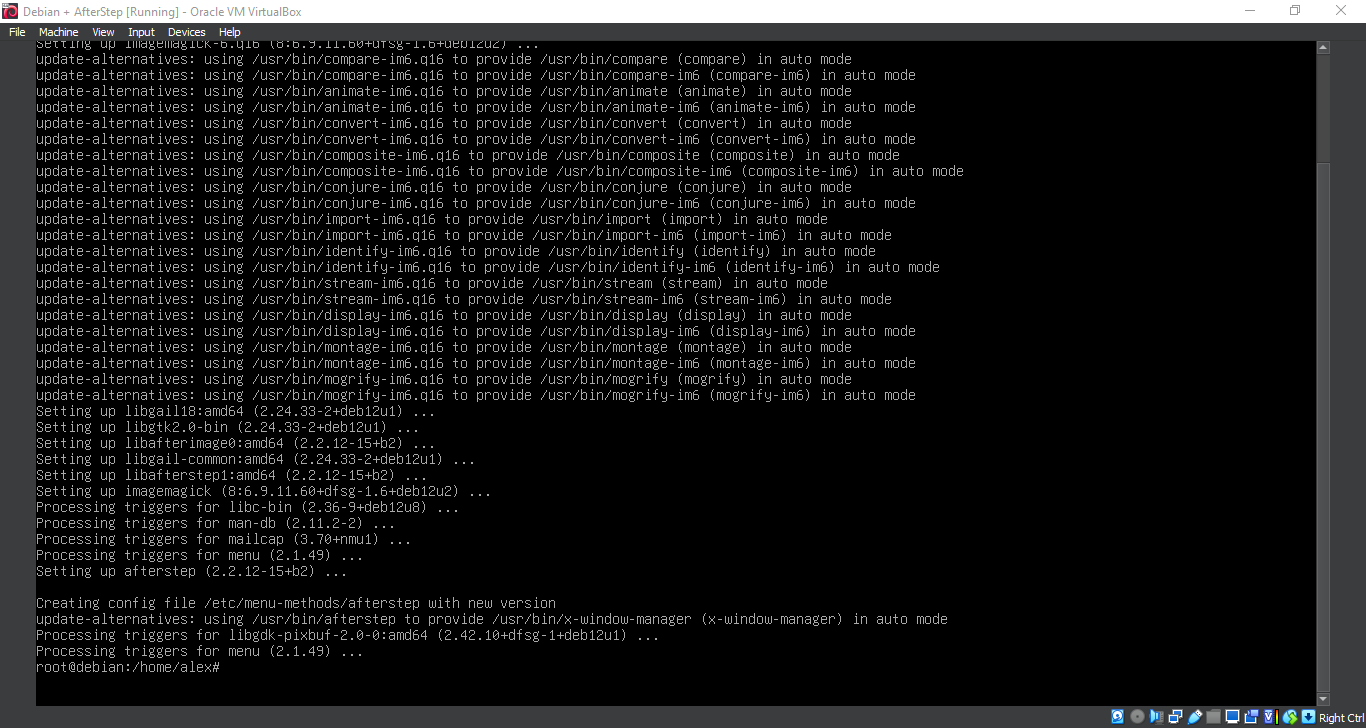
9. Configuration
nano ~/.xinitrc
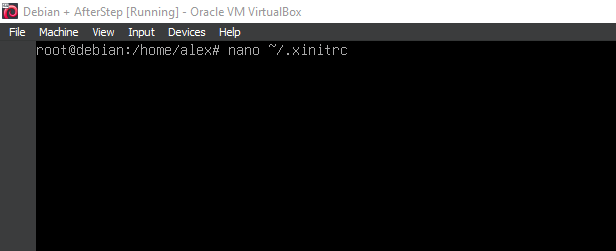
10. Configuration
exec afterstep
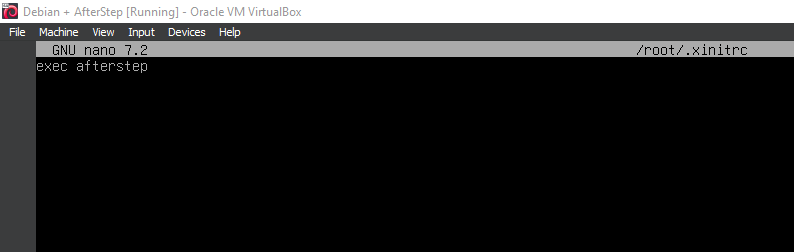
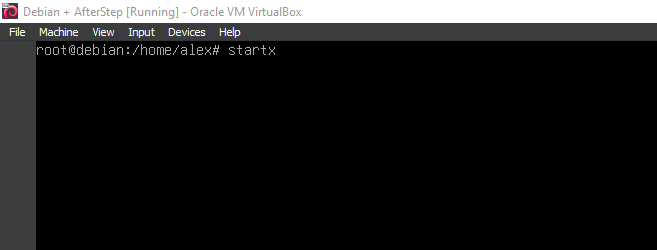
11. Running 'startx'
startx
12. Running afterstep
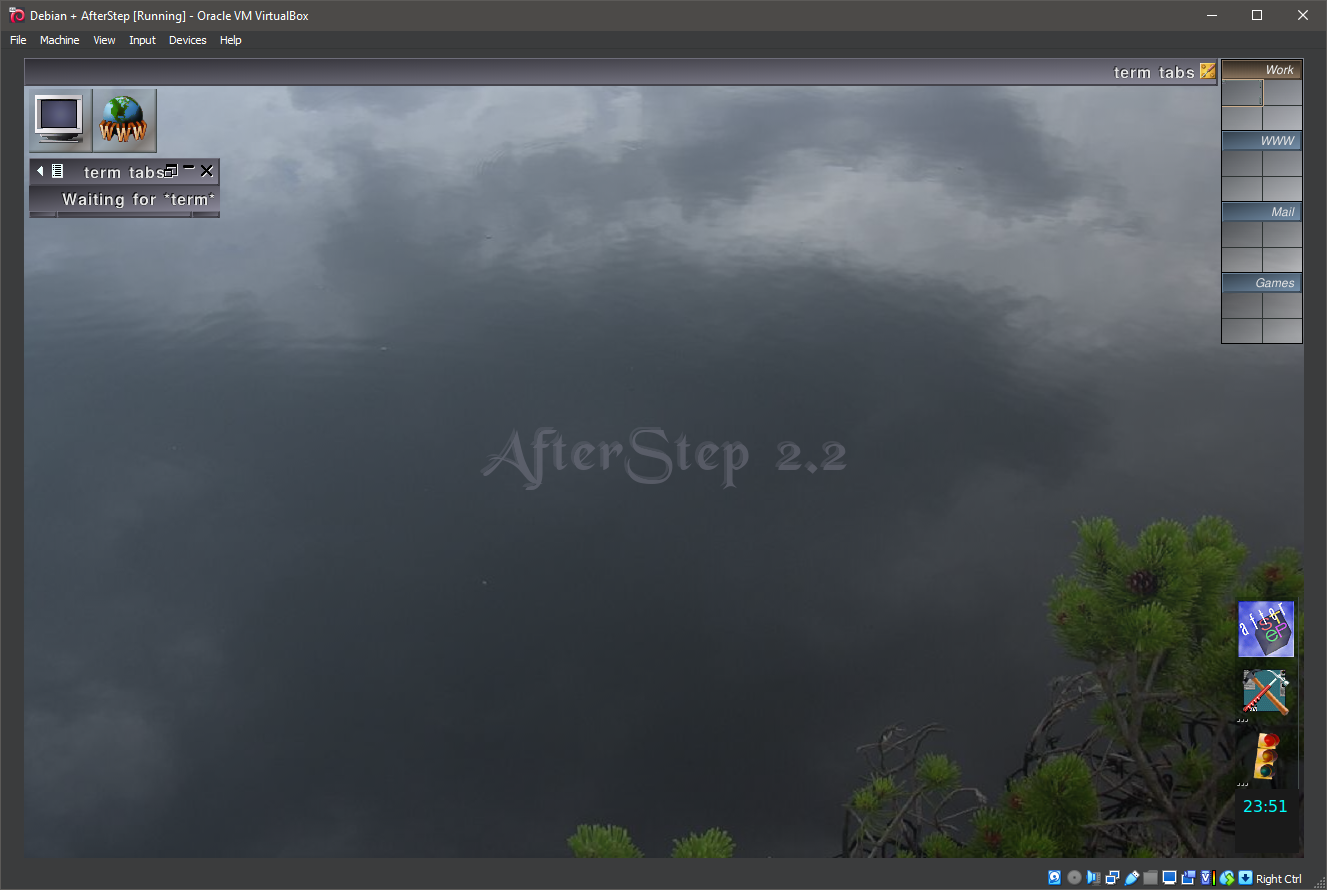
13. Running afterstep
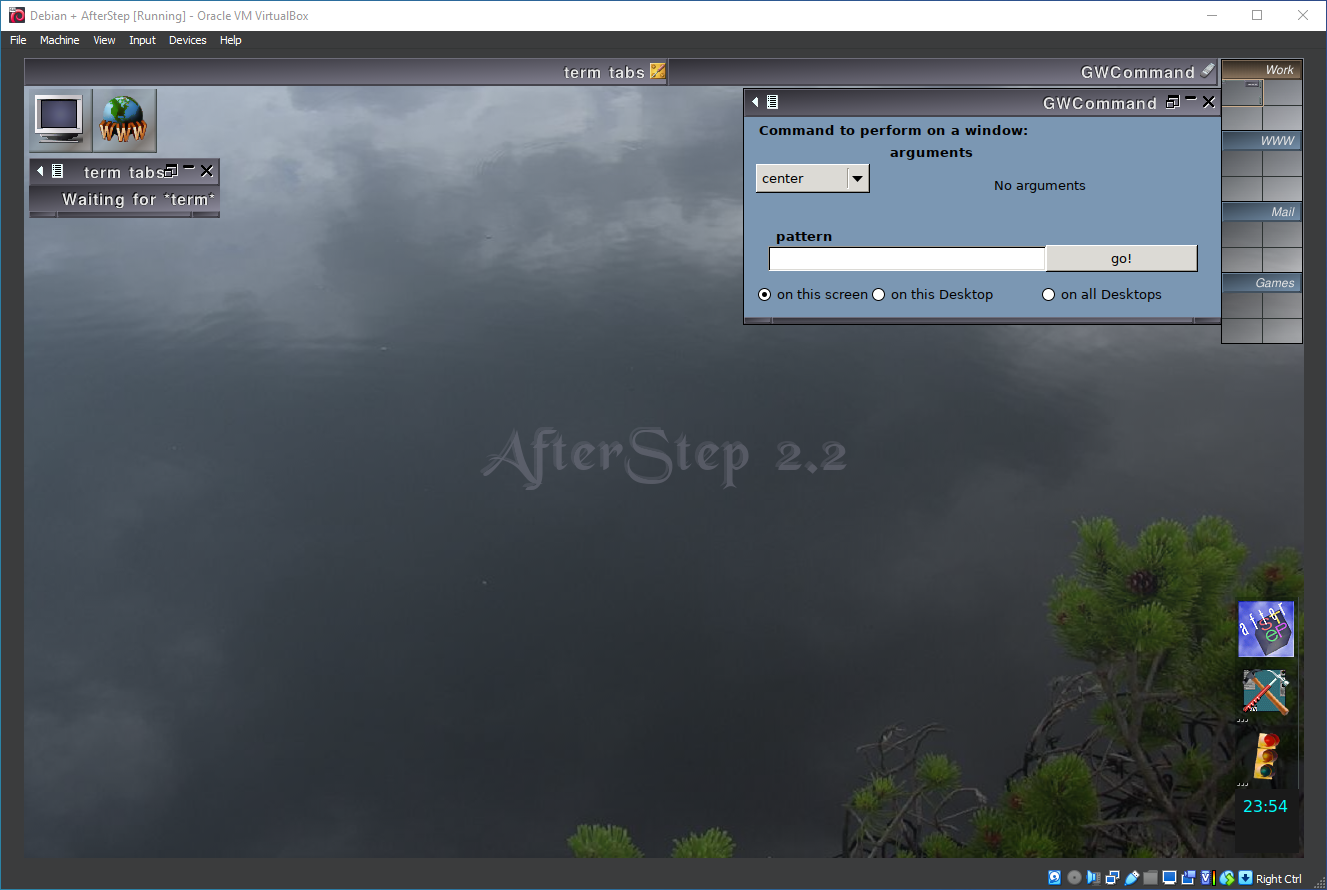
14. Running afterstep
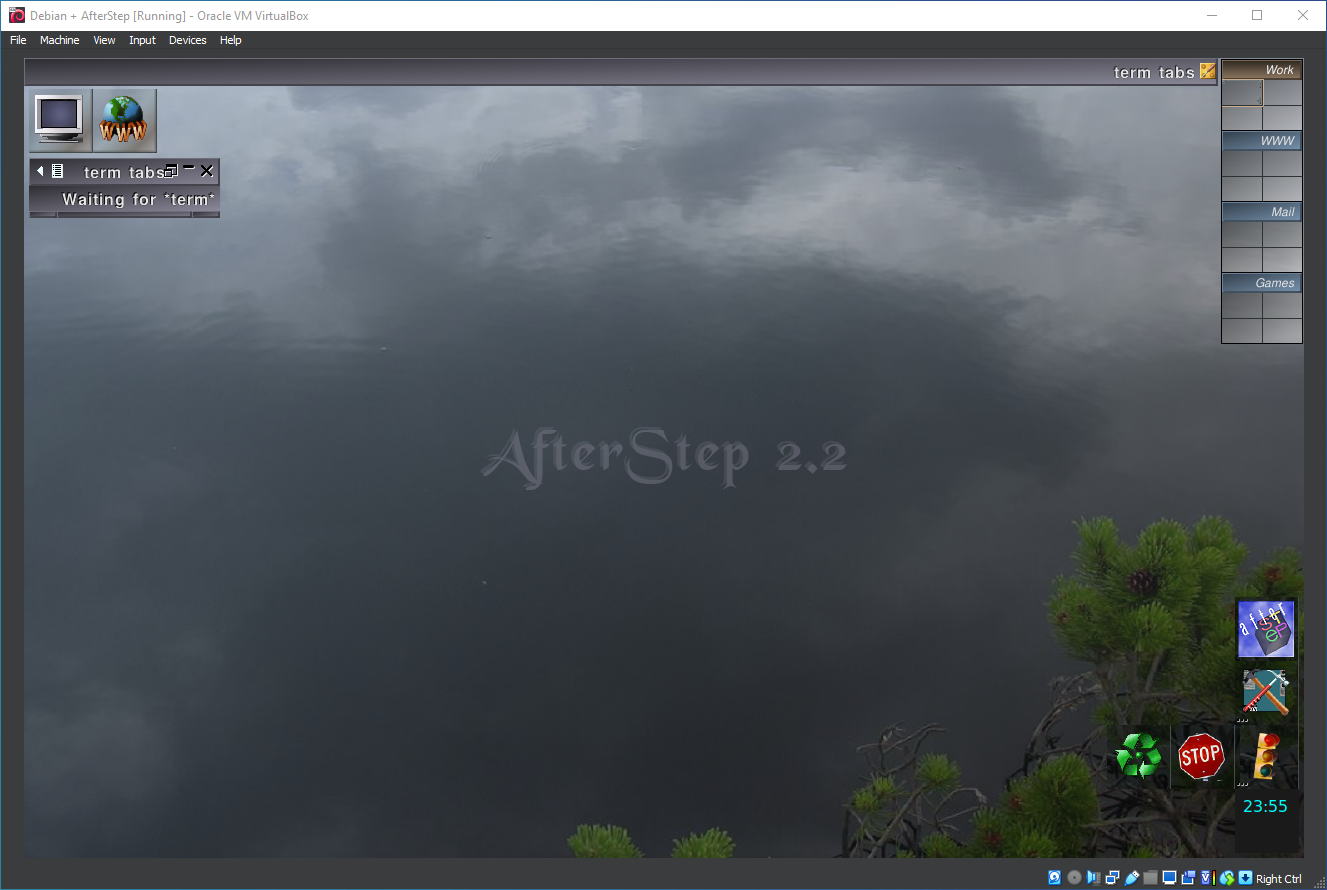
15. Running afterstep
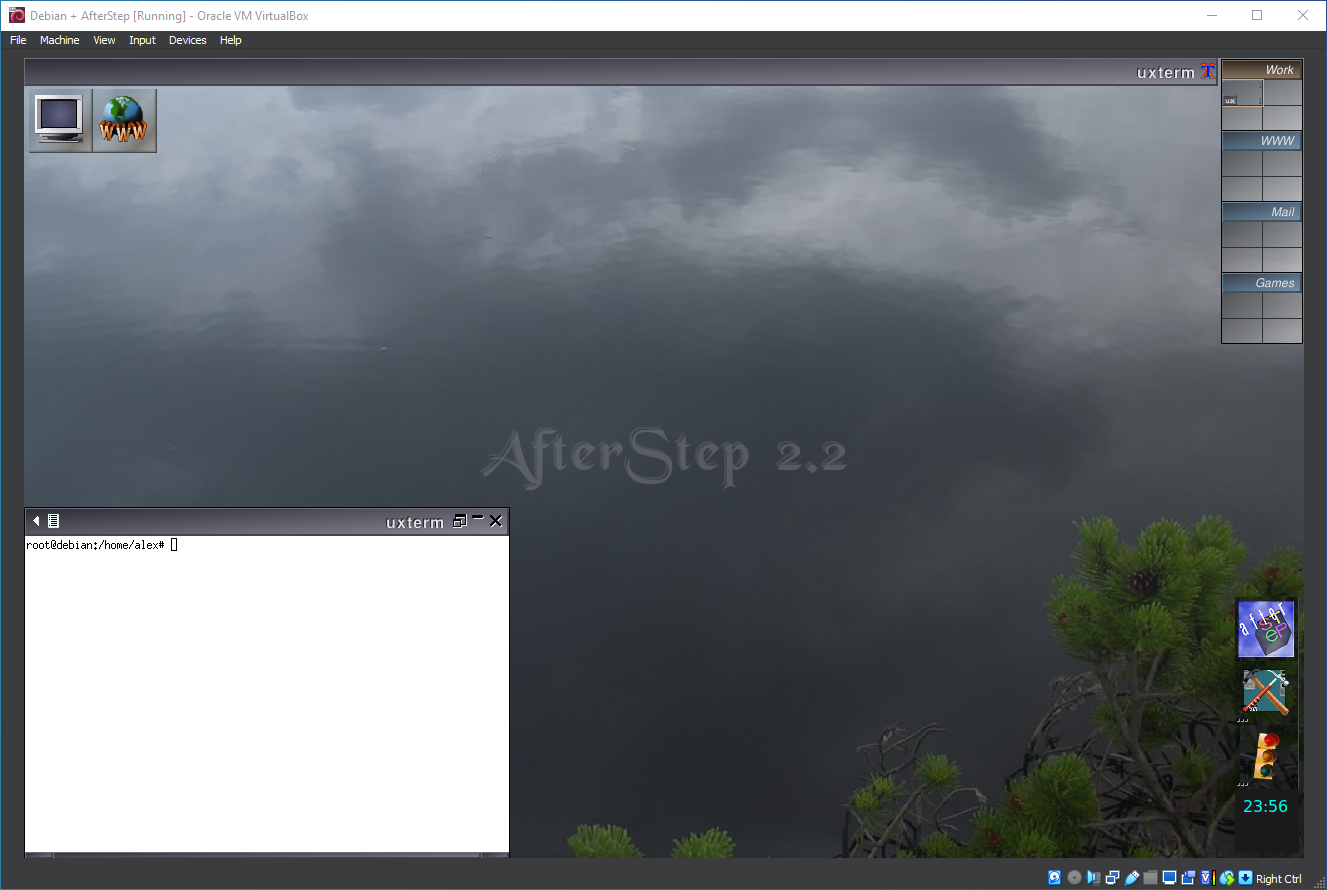
16. Running afterstep
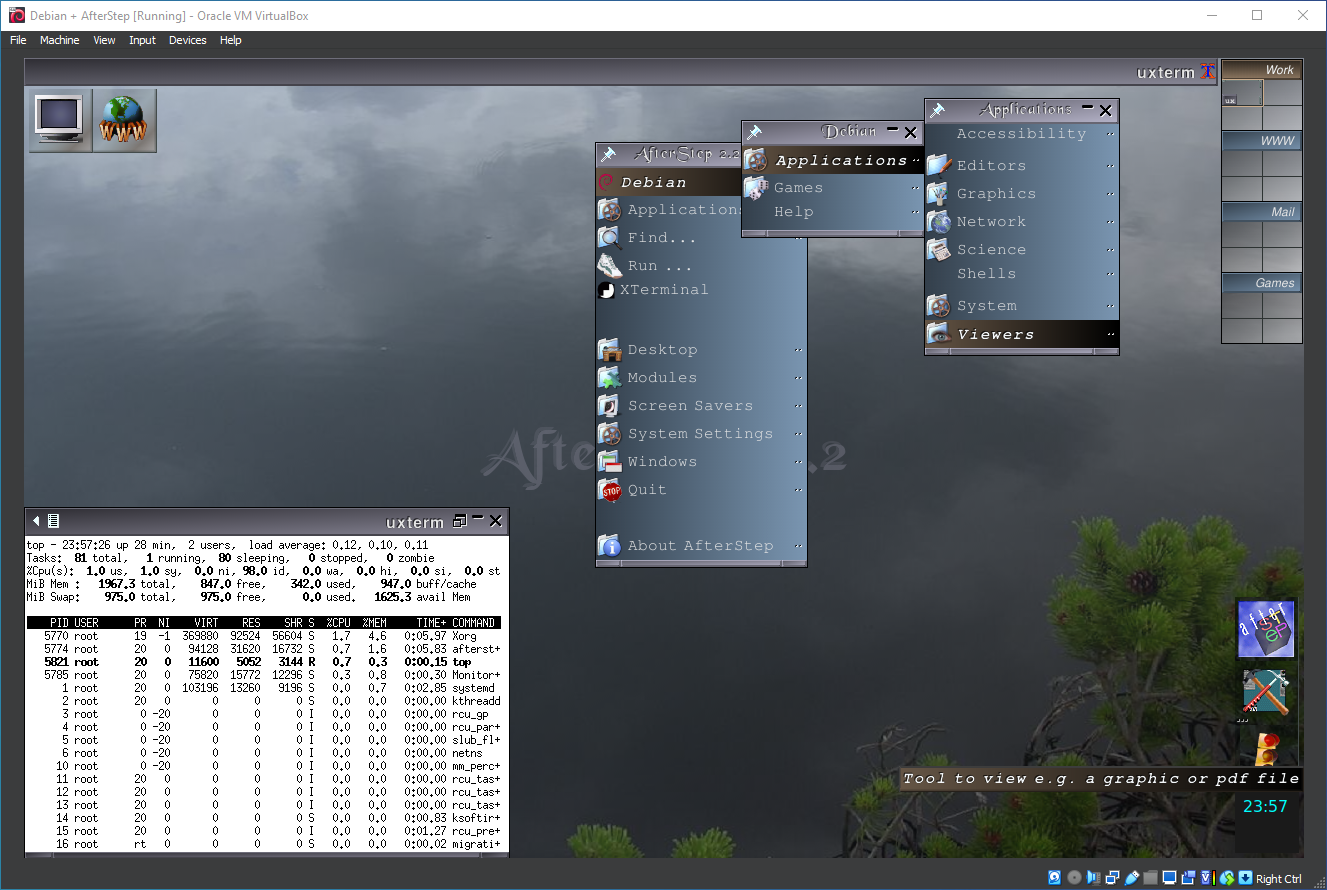
17. Running afterstep
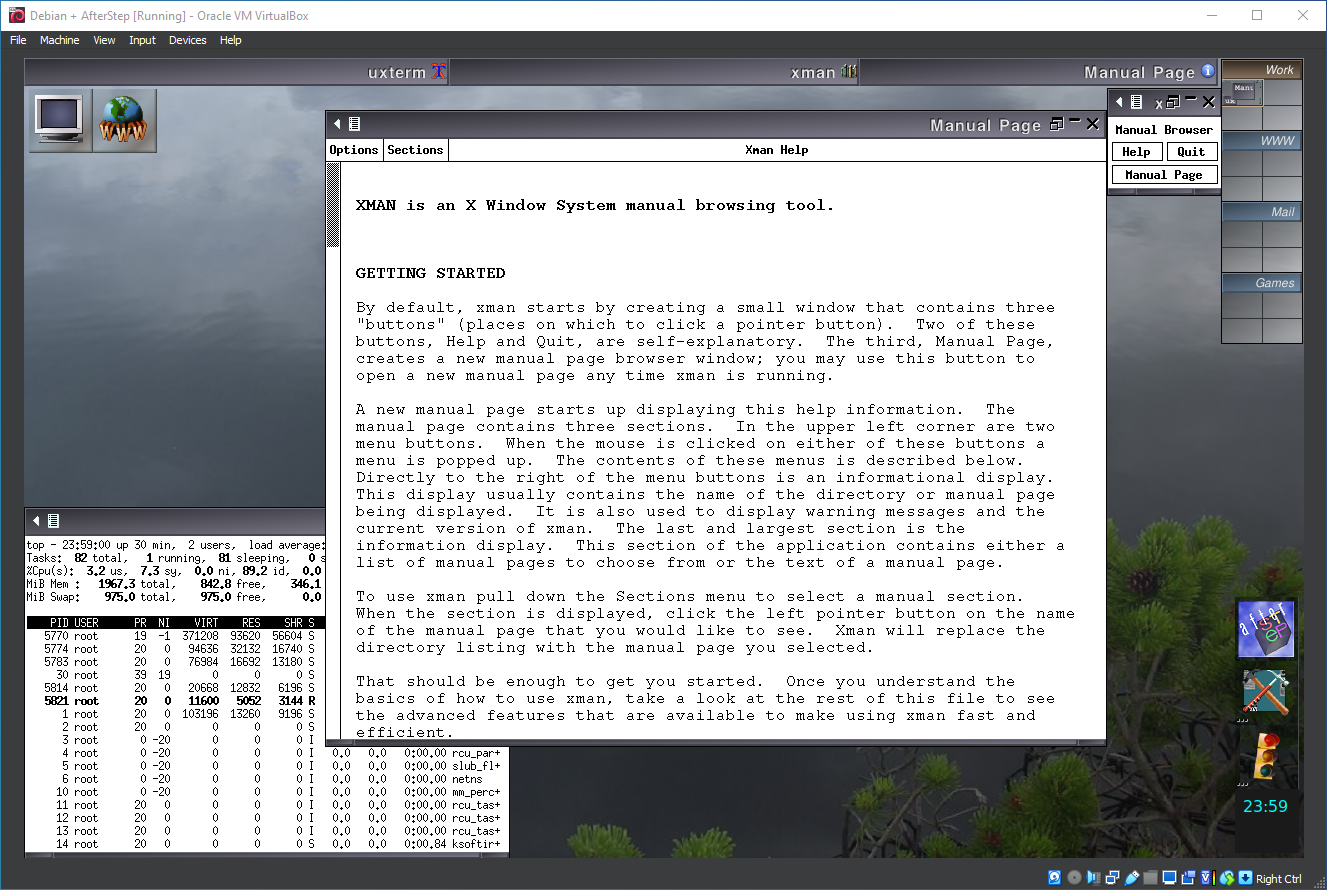
18. Running 'afterstep'
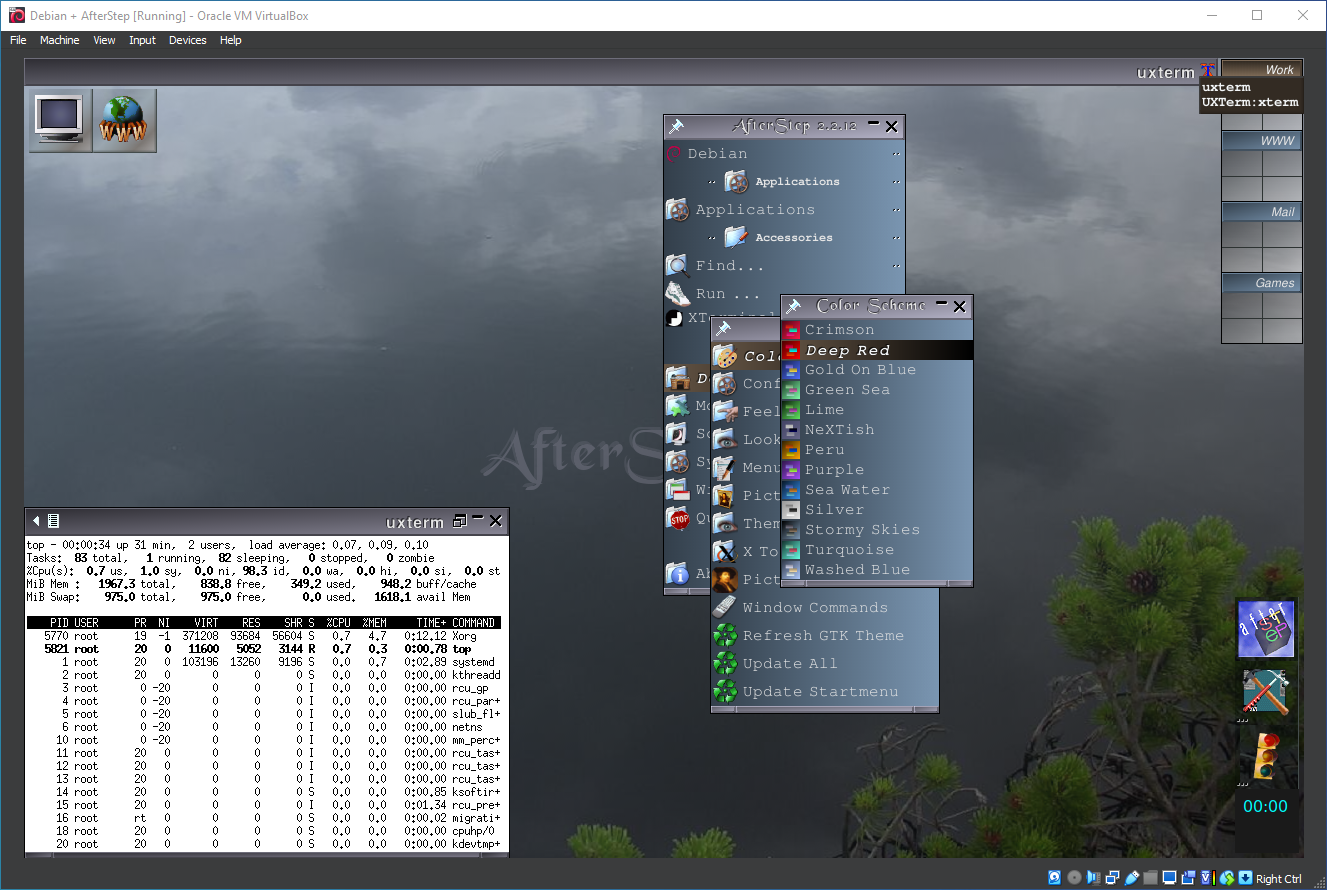
19. Running 'afterstep'
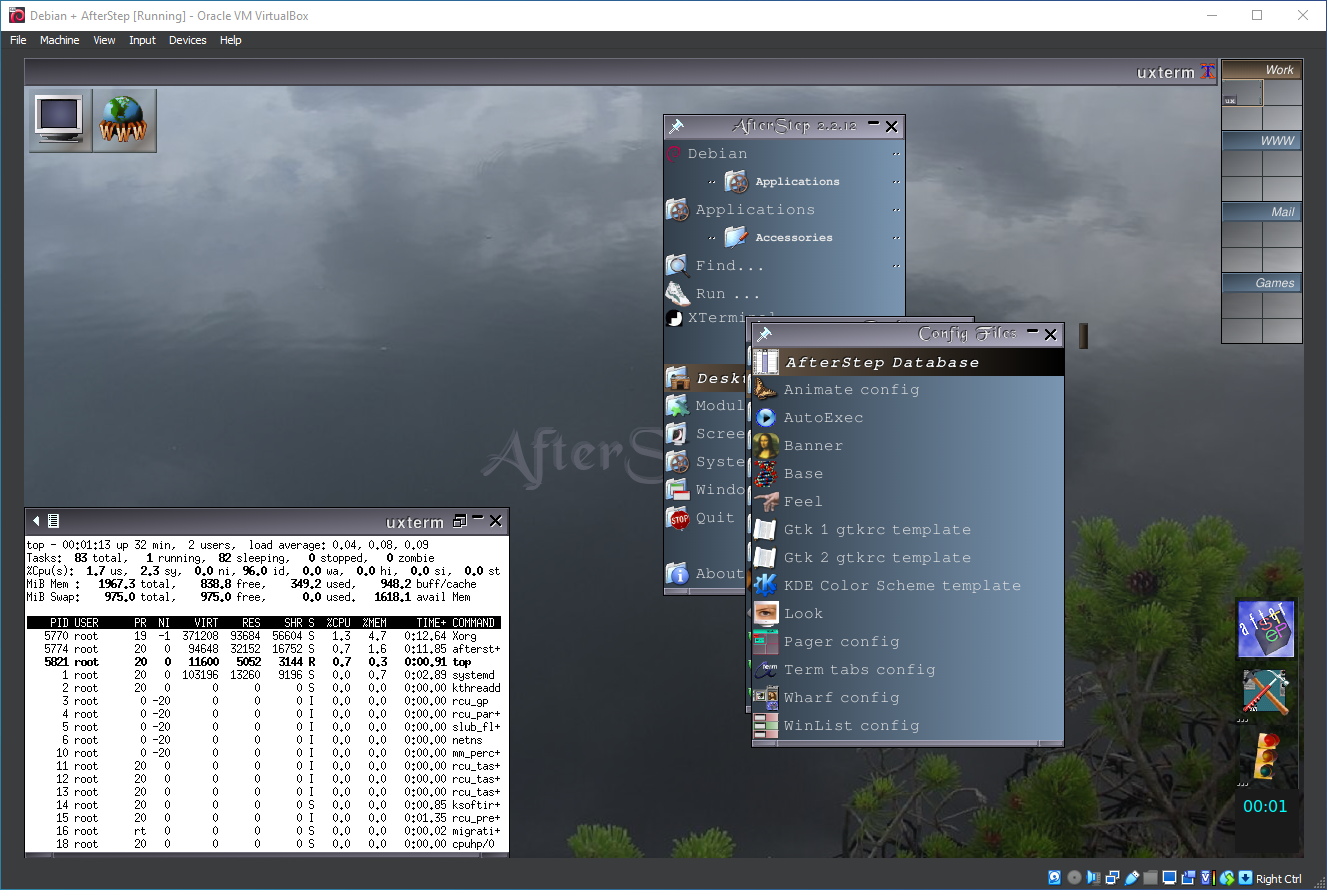
20. Running 'afterstep'
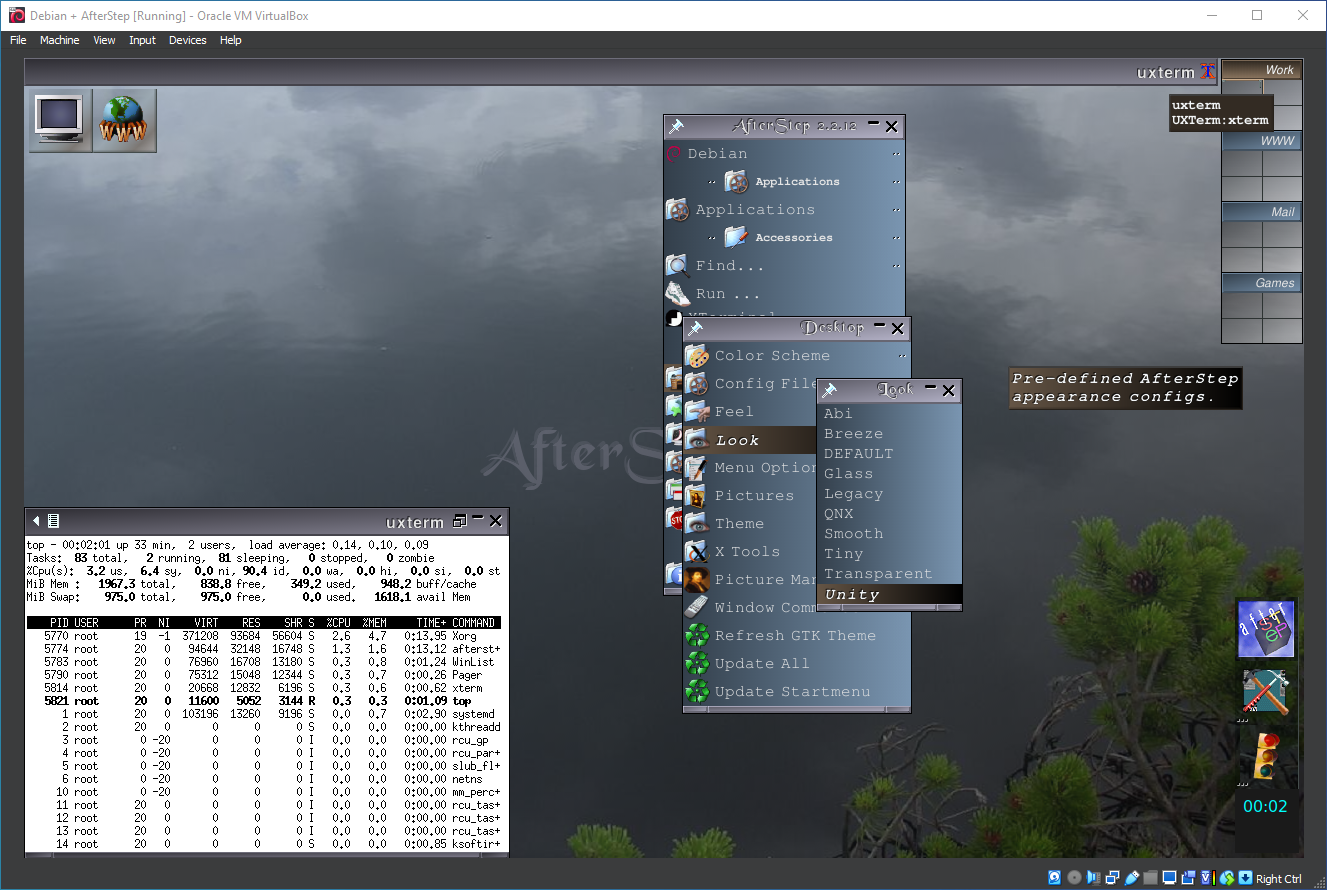
21. Running 'afterstep'
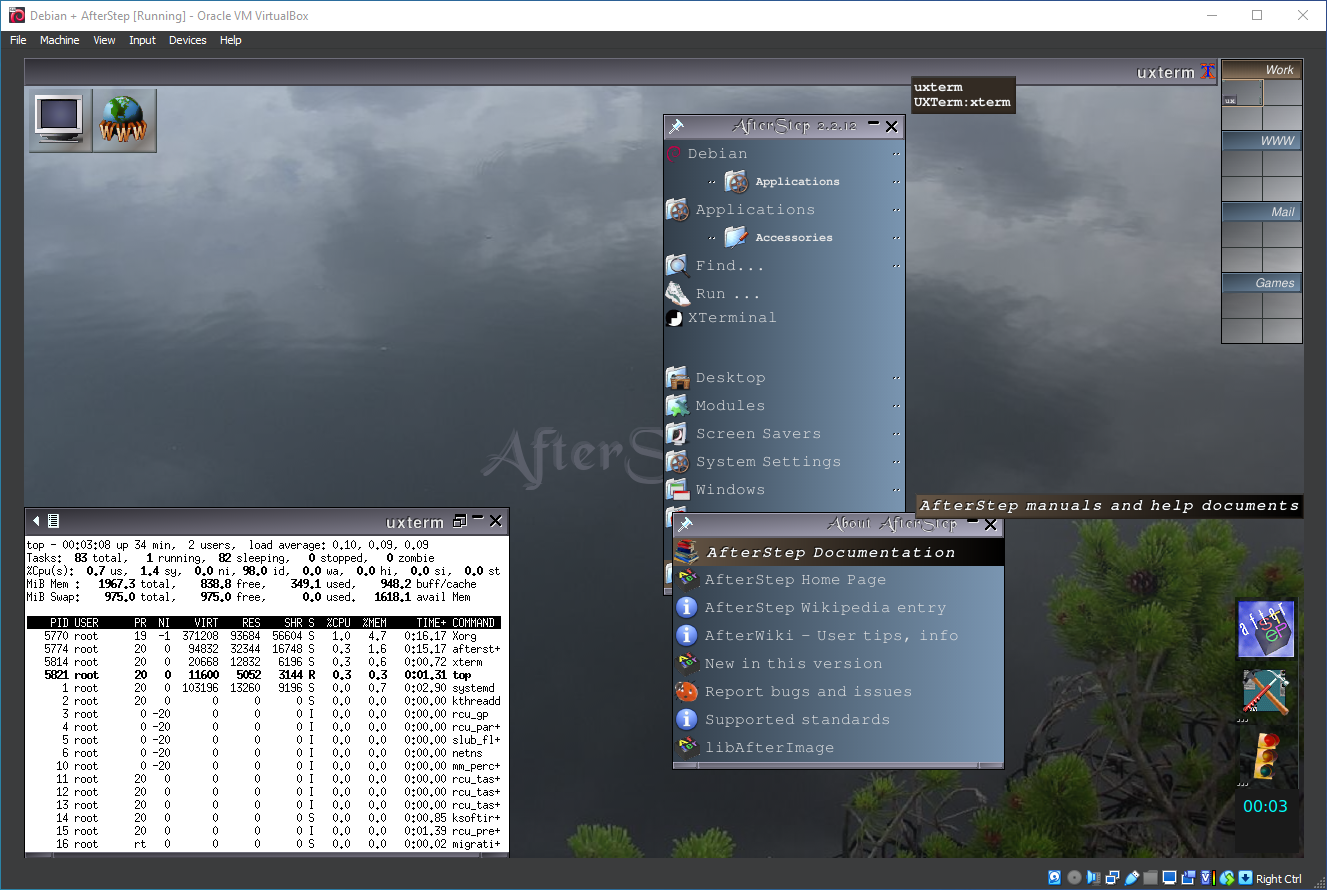
22. Running 'afterstep'
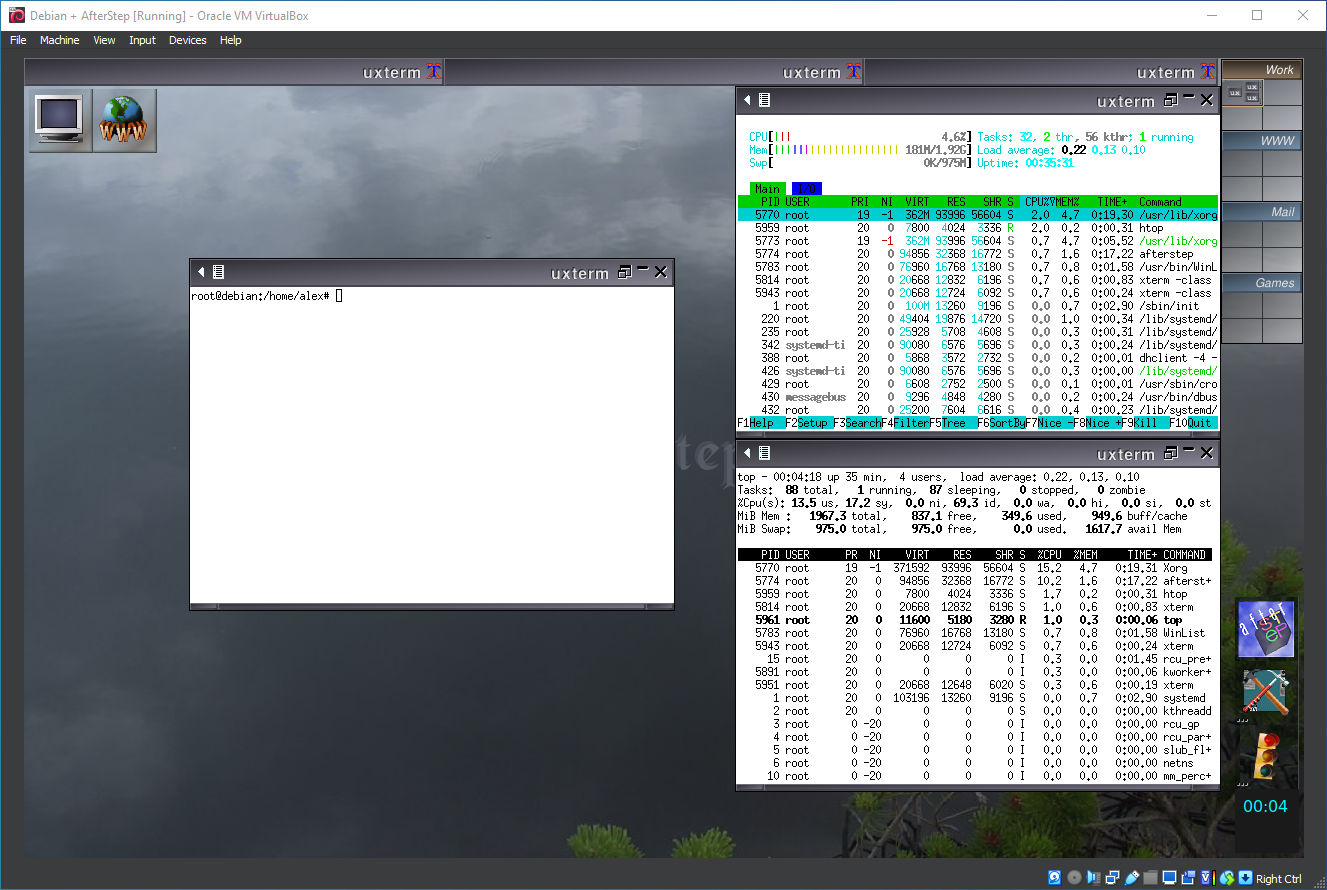
23. Running afterstep
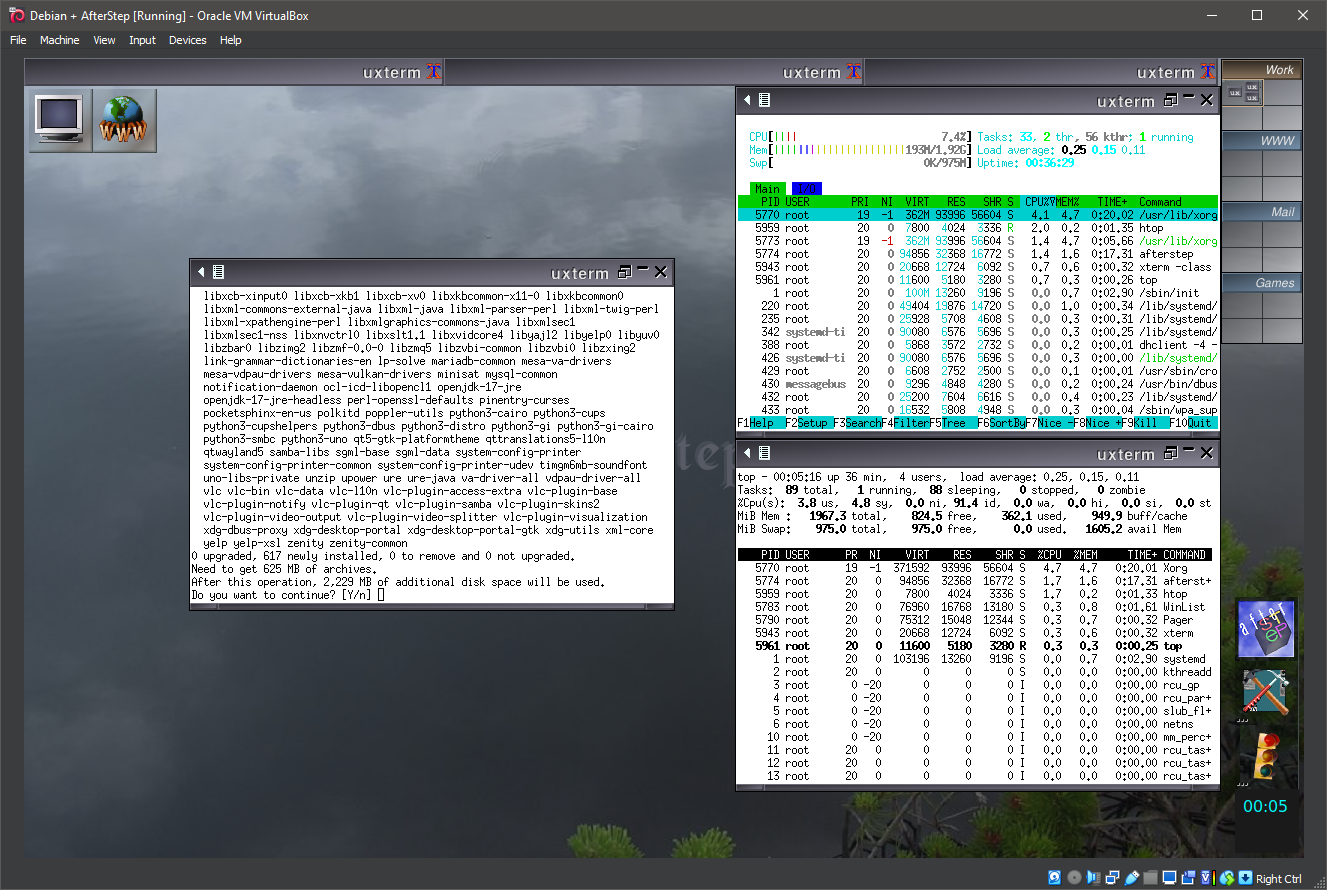
24. Running afterstep
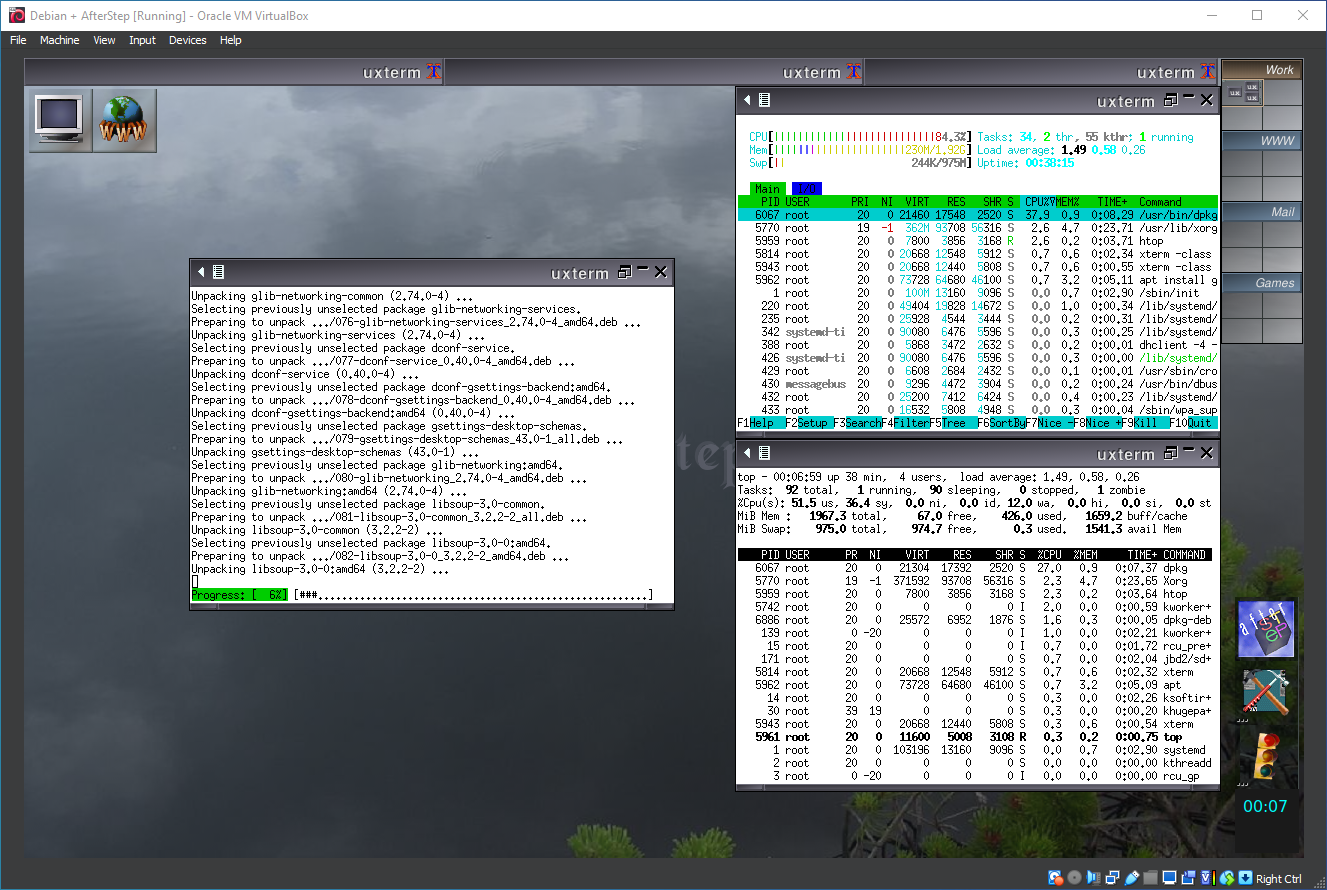
25. Running afterstep
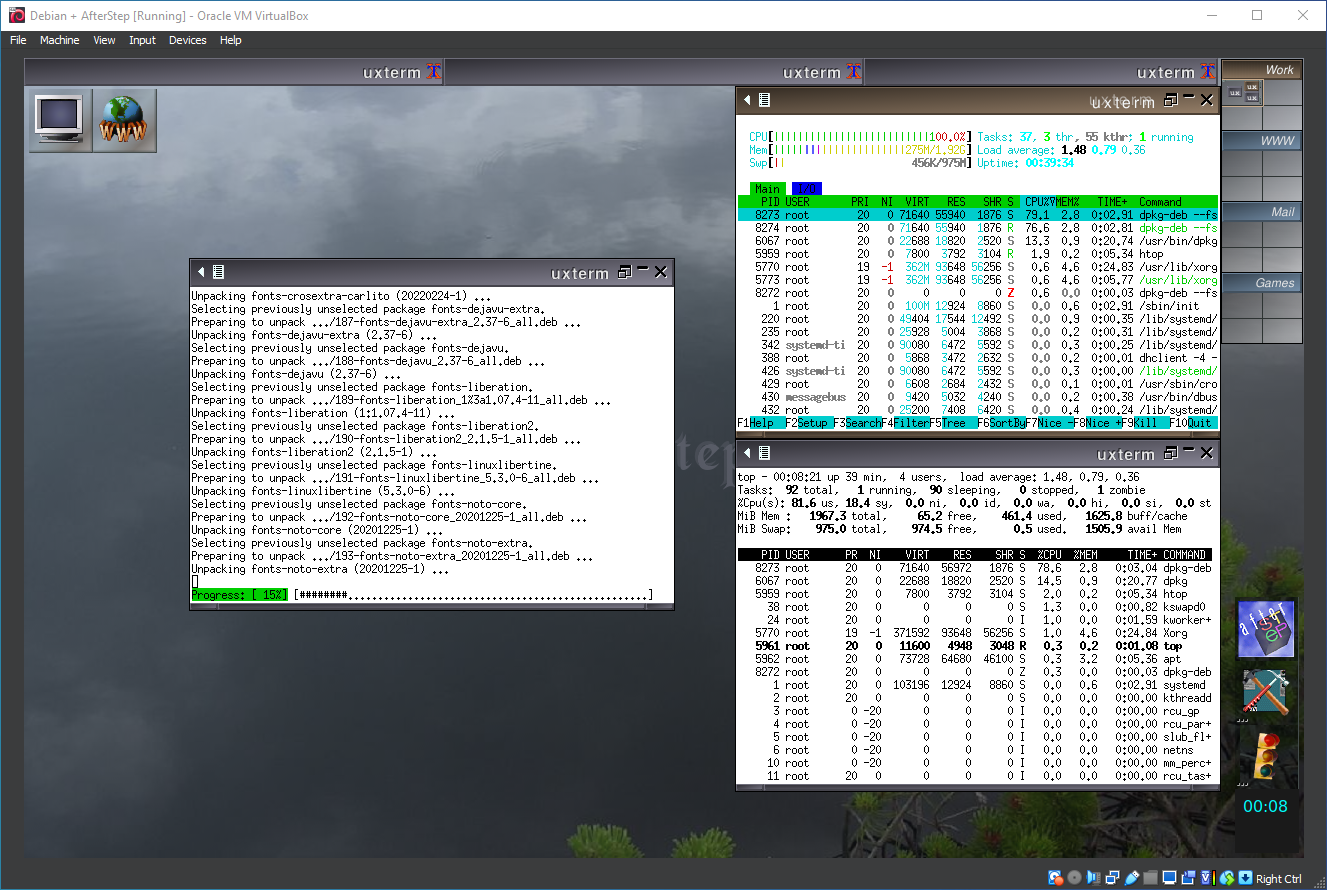
26. Running afterstep
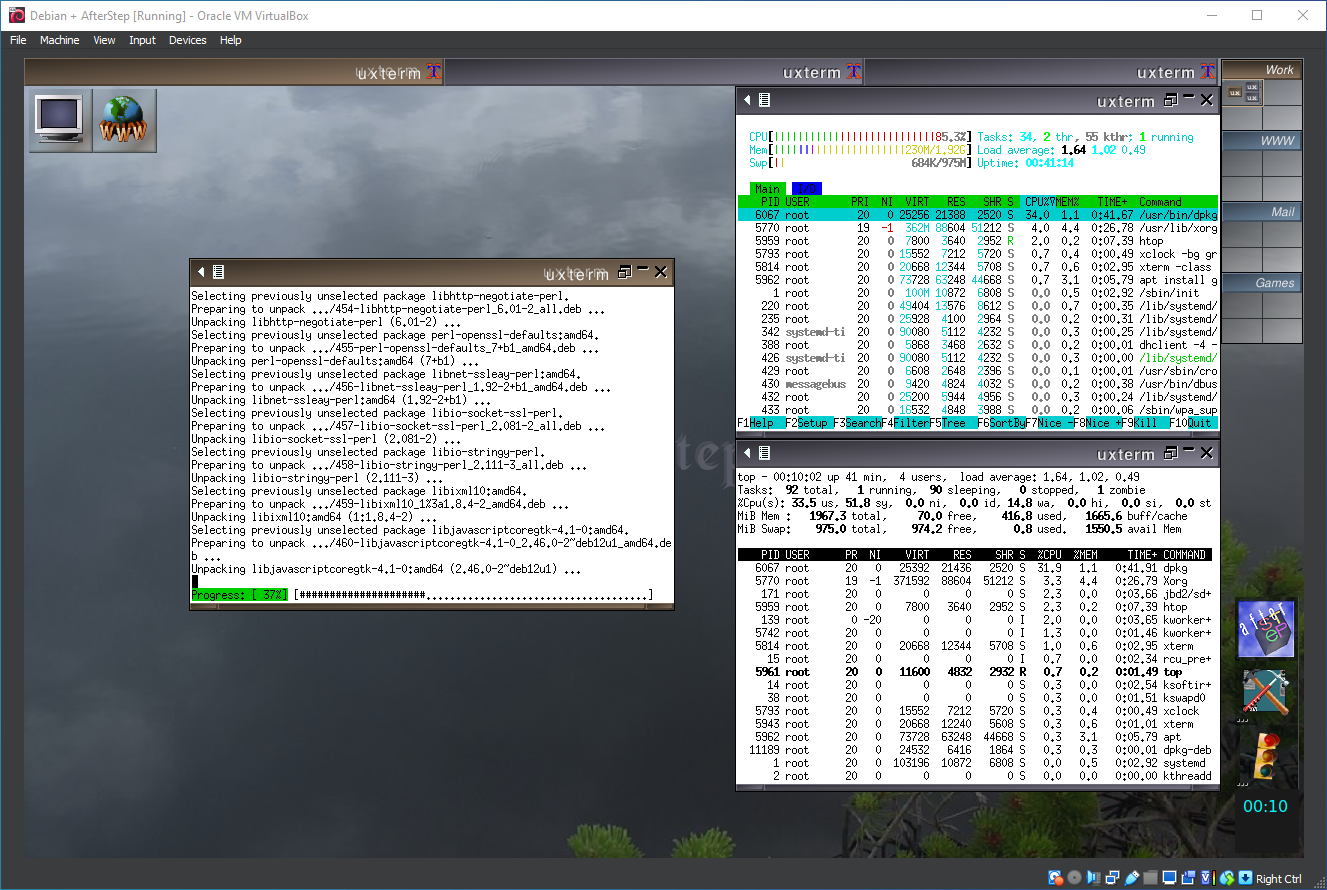
27. Running afterstep
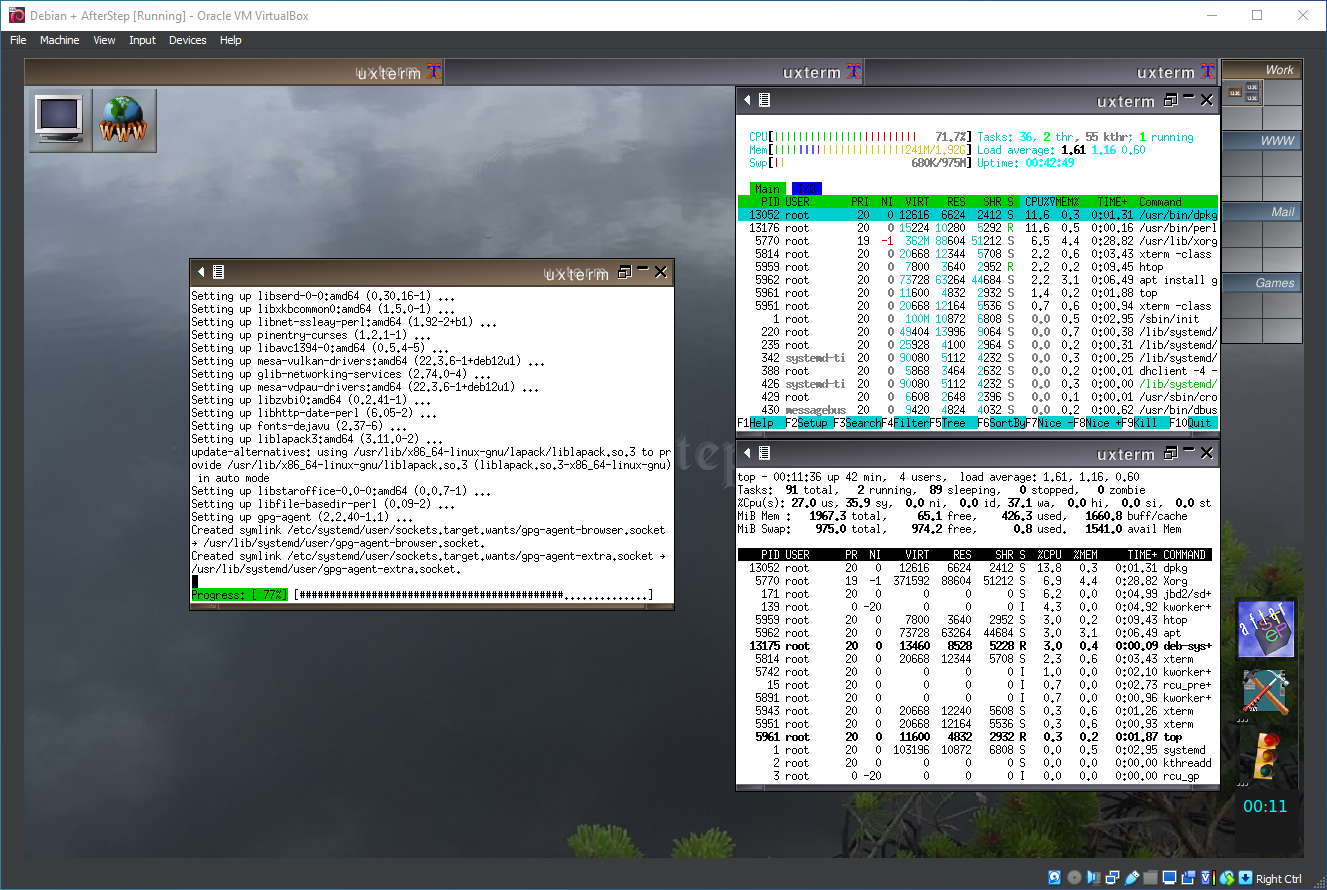
28. Running afterstep
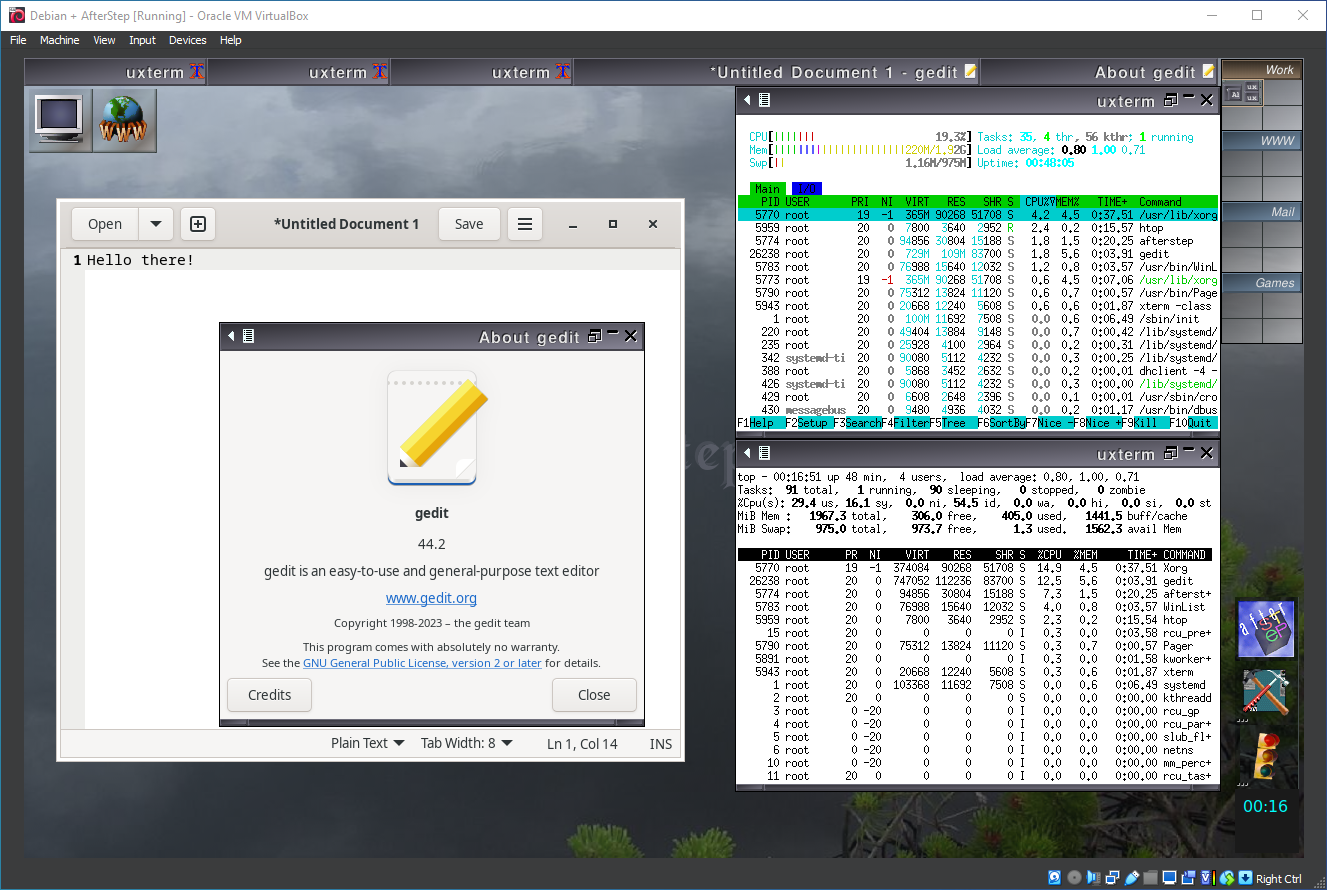
29. Running afterstep
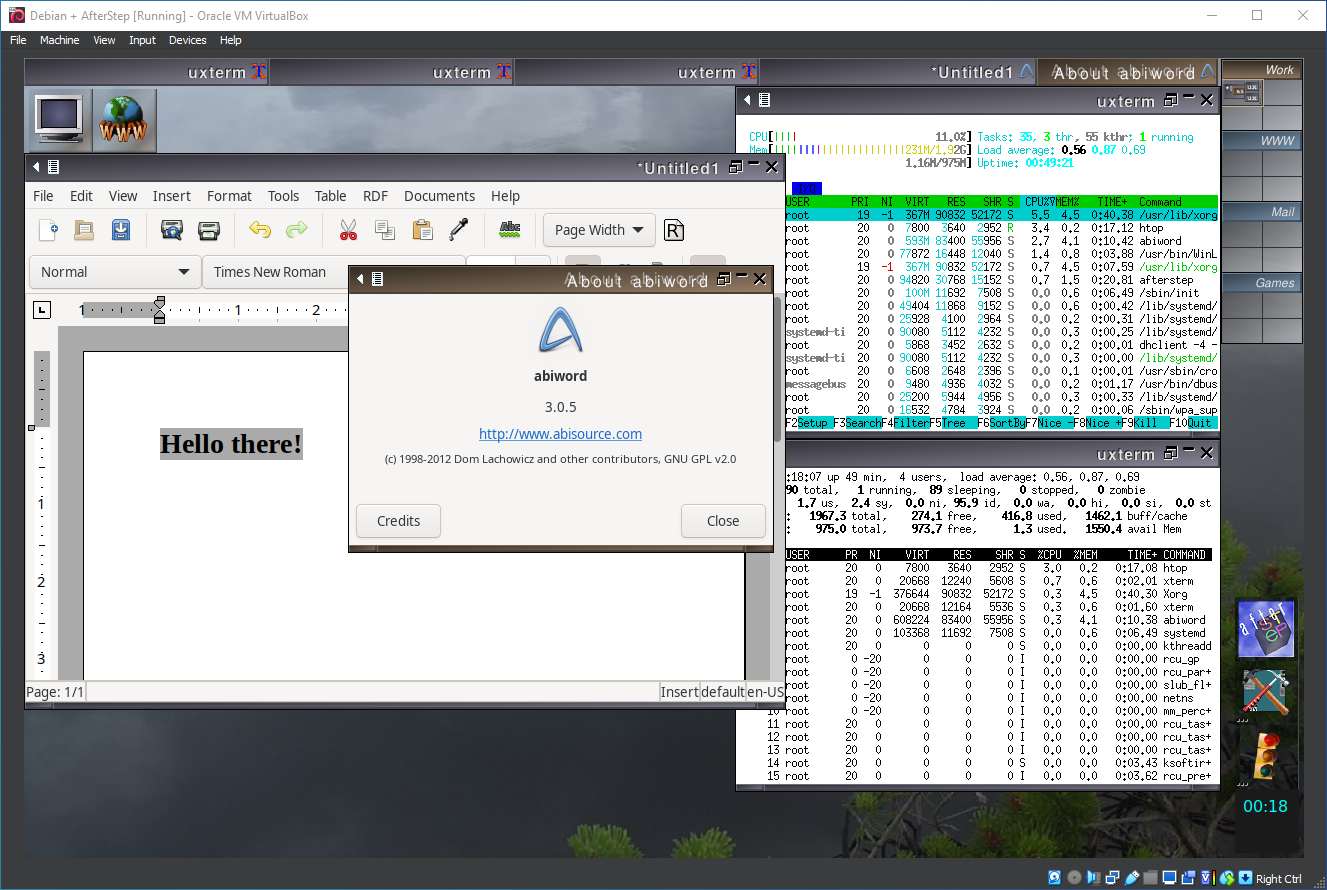
30. Running afterstep
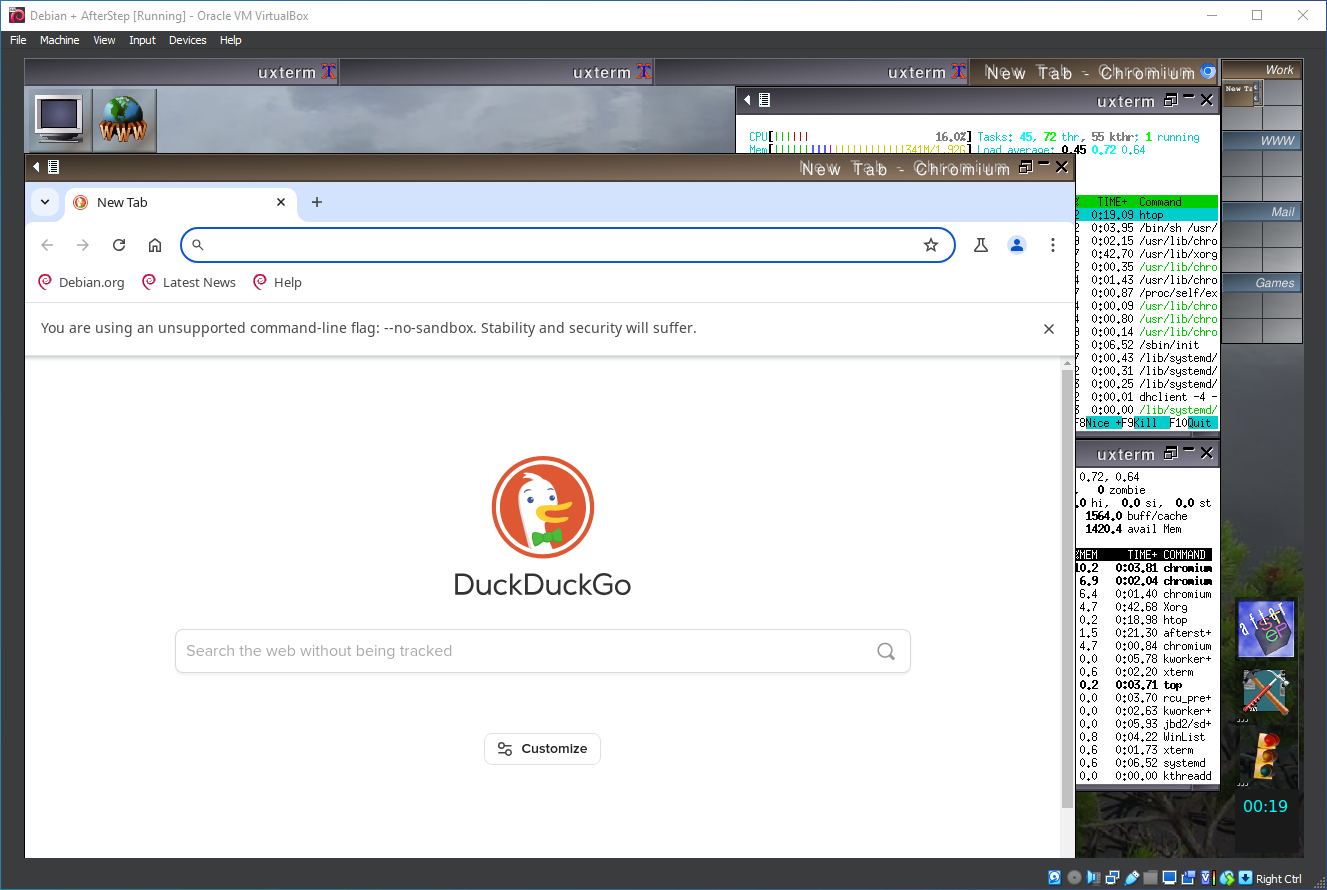
31. Running afterstep
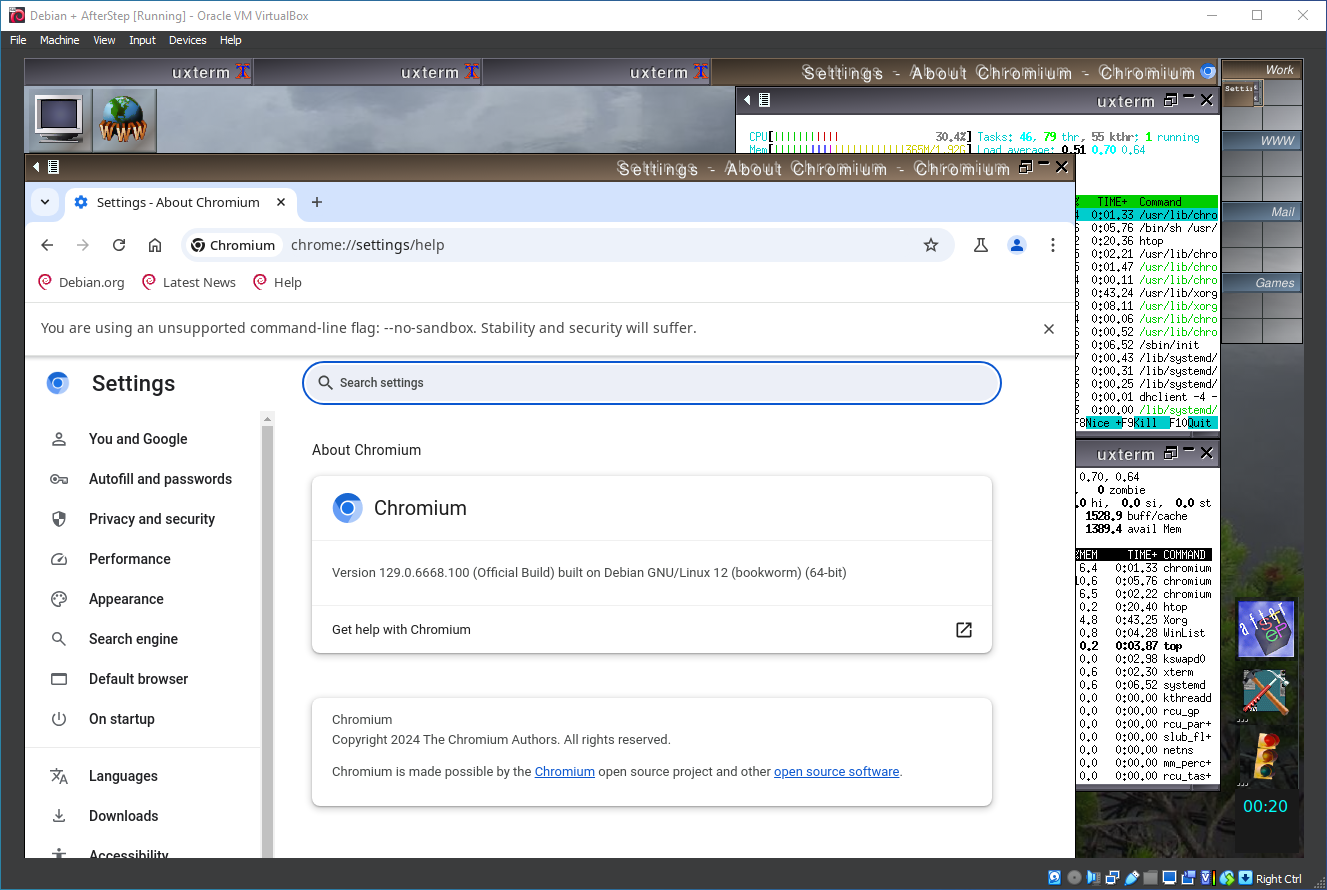
32. Running afterstep
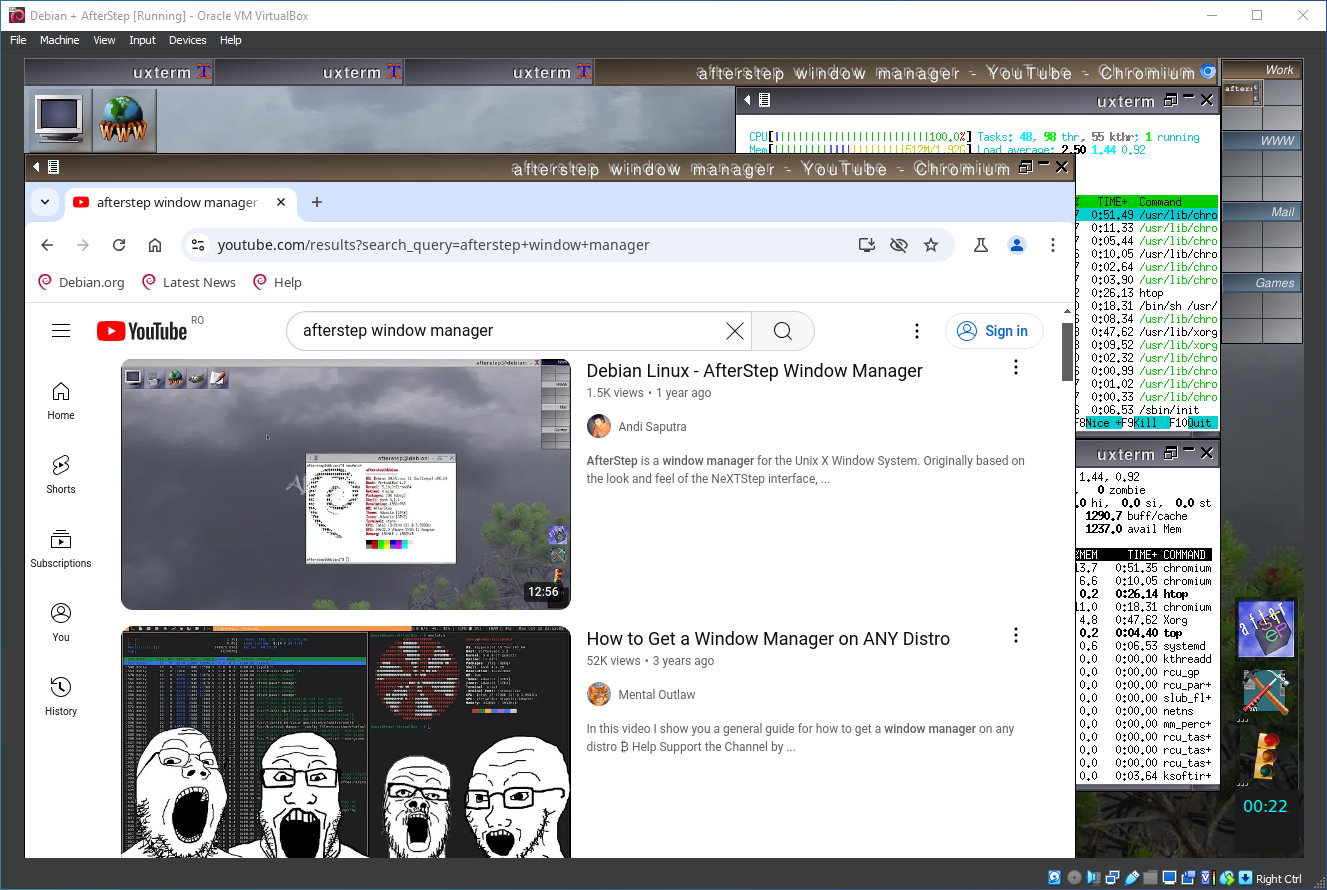
33. Running afterstep
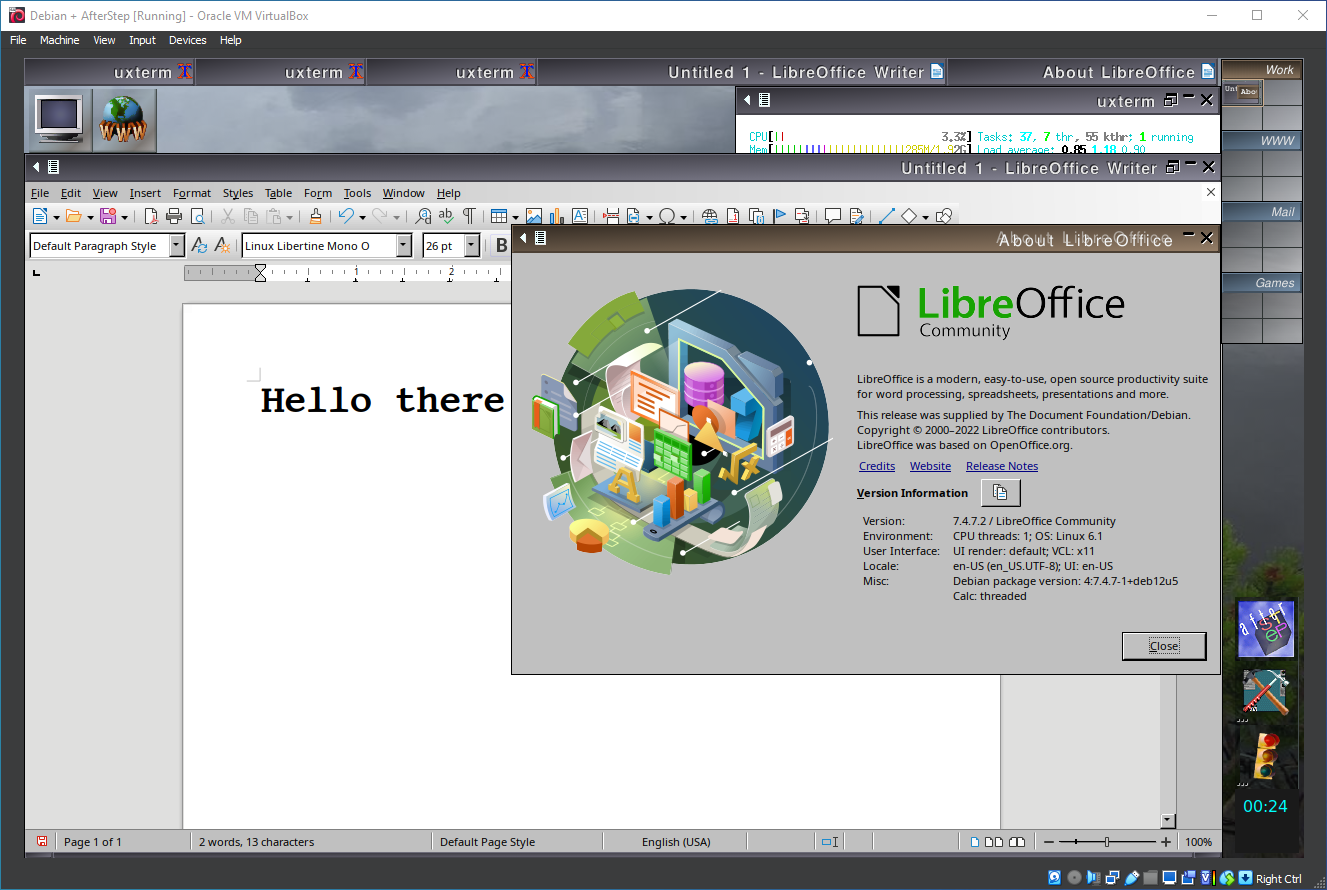
34. Running afterstep
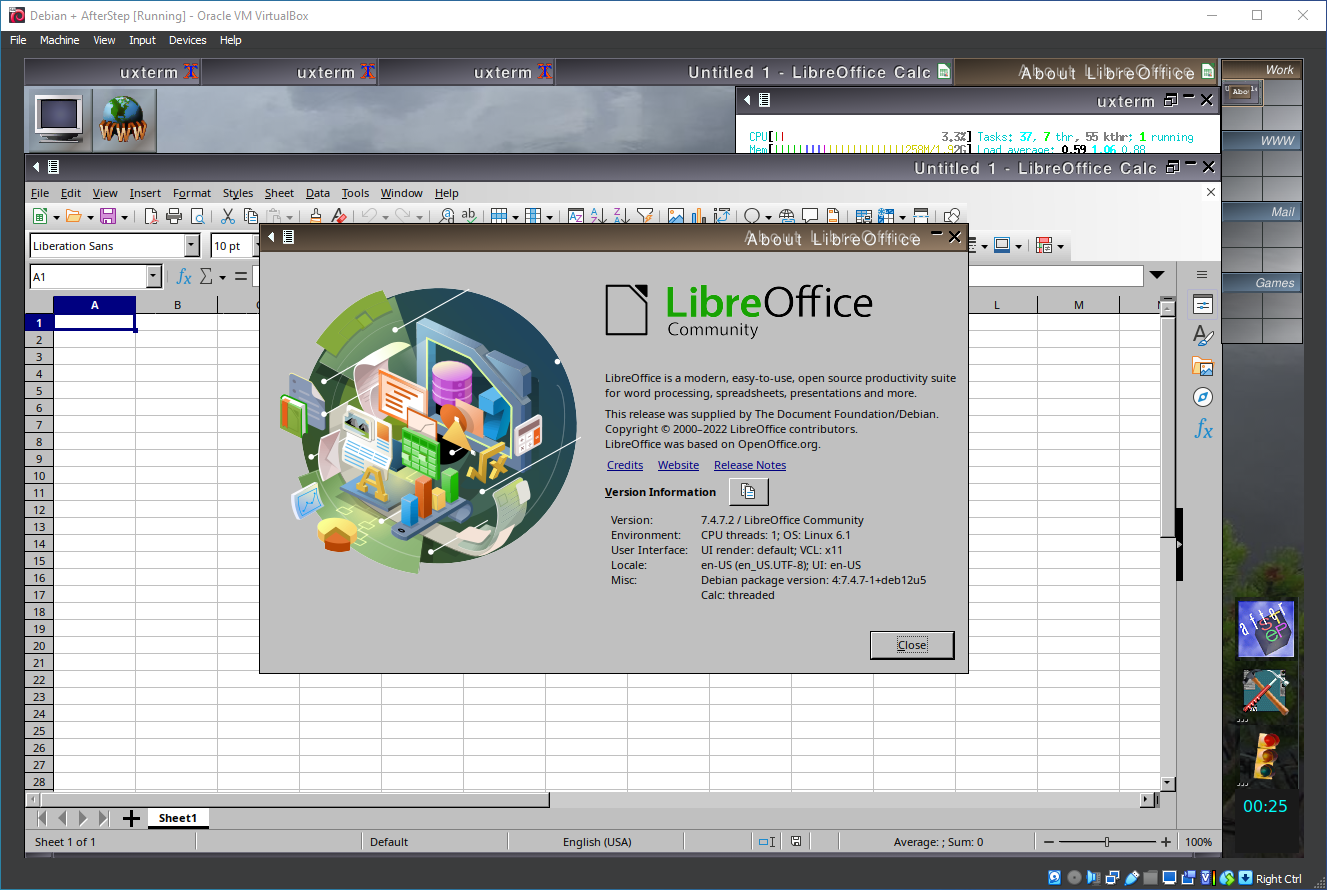
35. Running afterstep
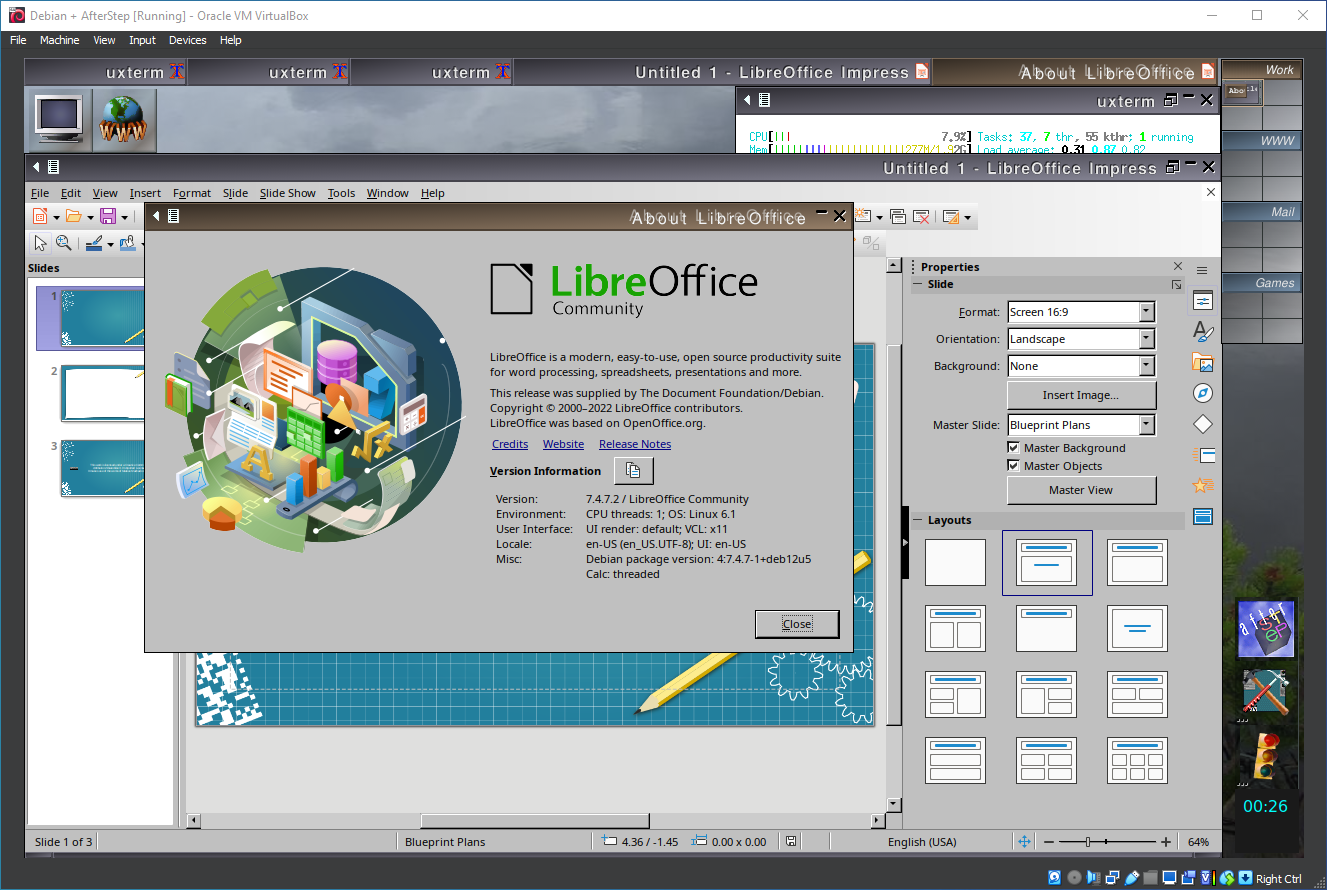
36. Running afterstep
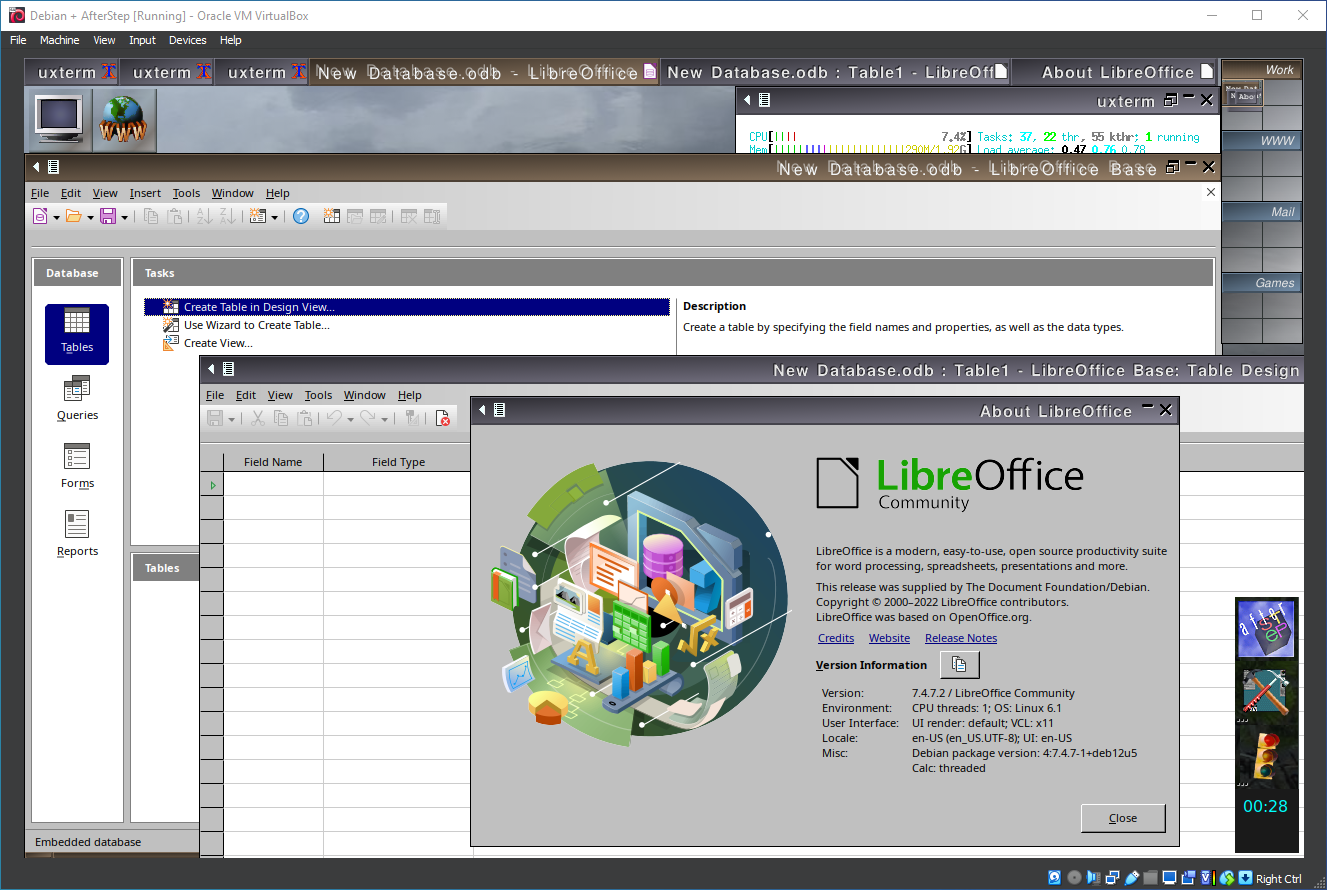
37. Running afterstep
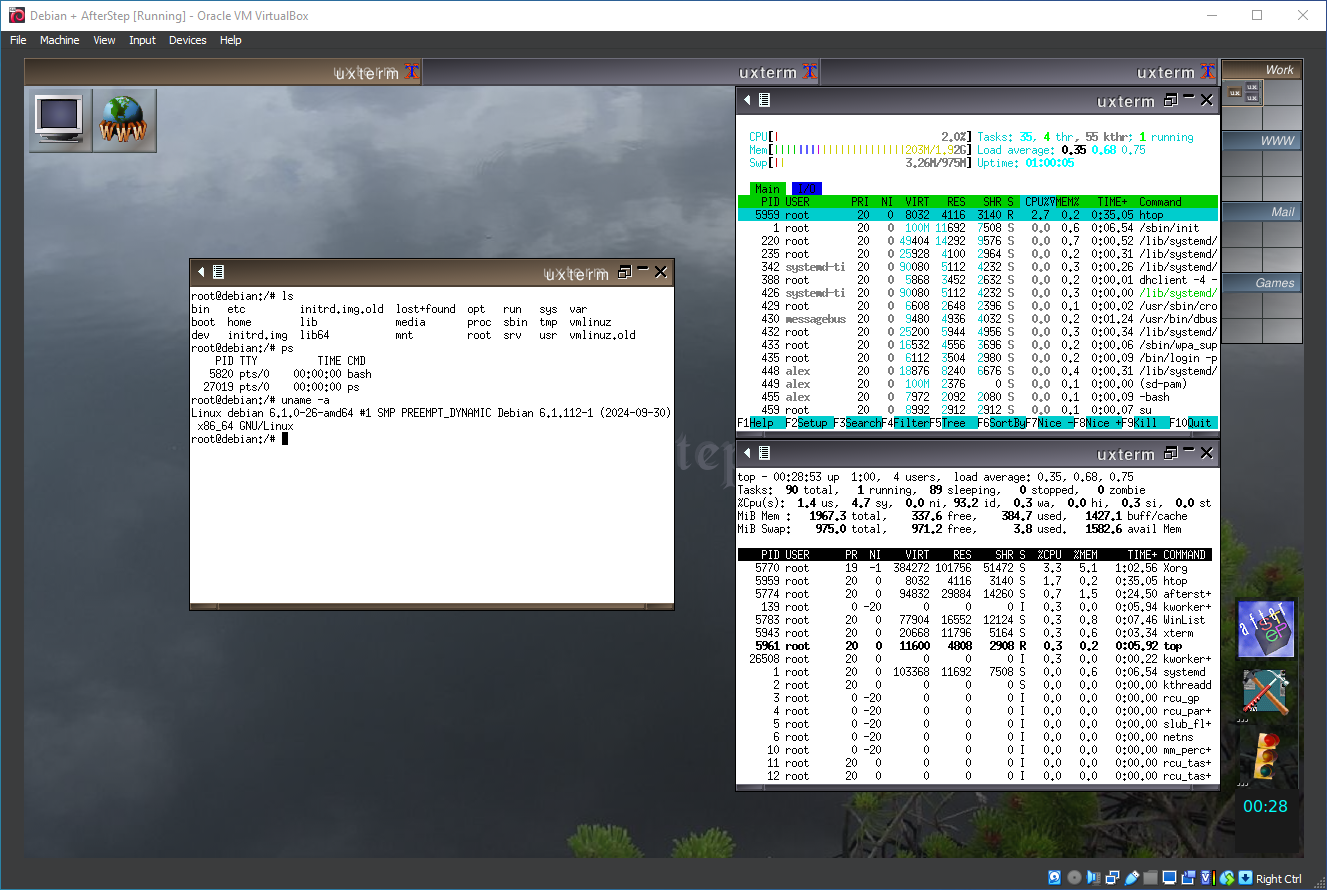
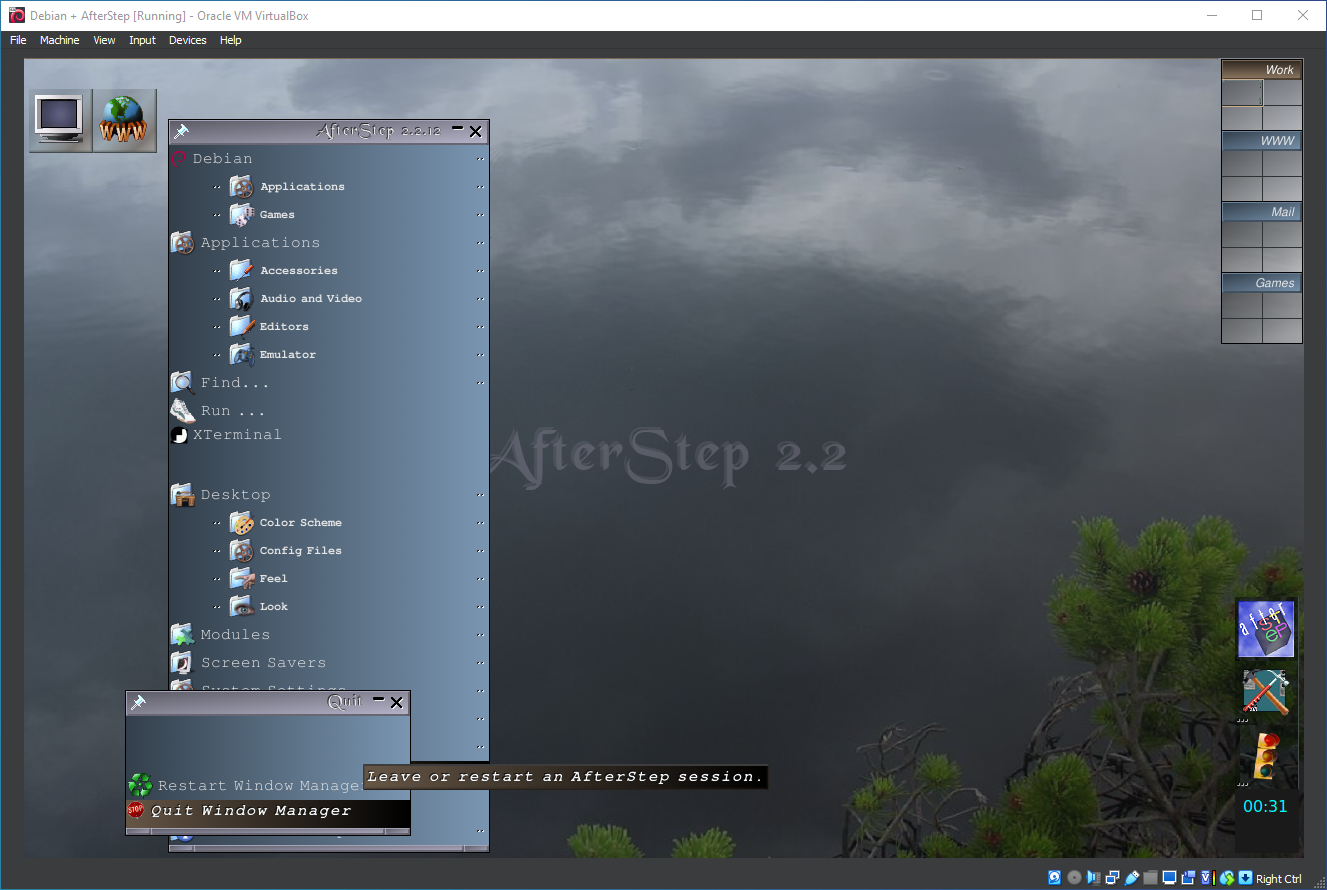
38. Exiting AfterStep
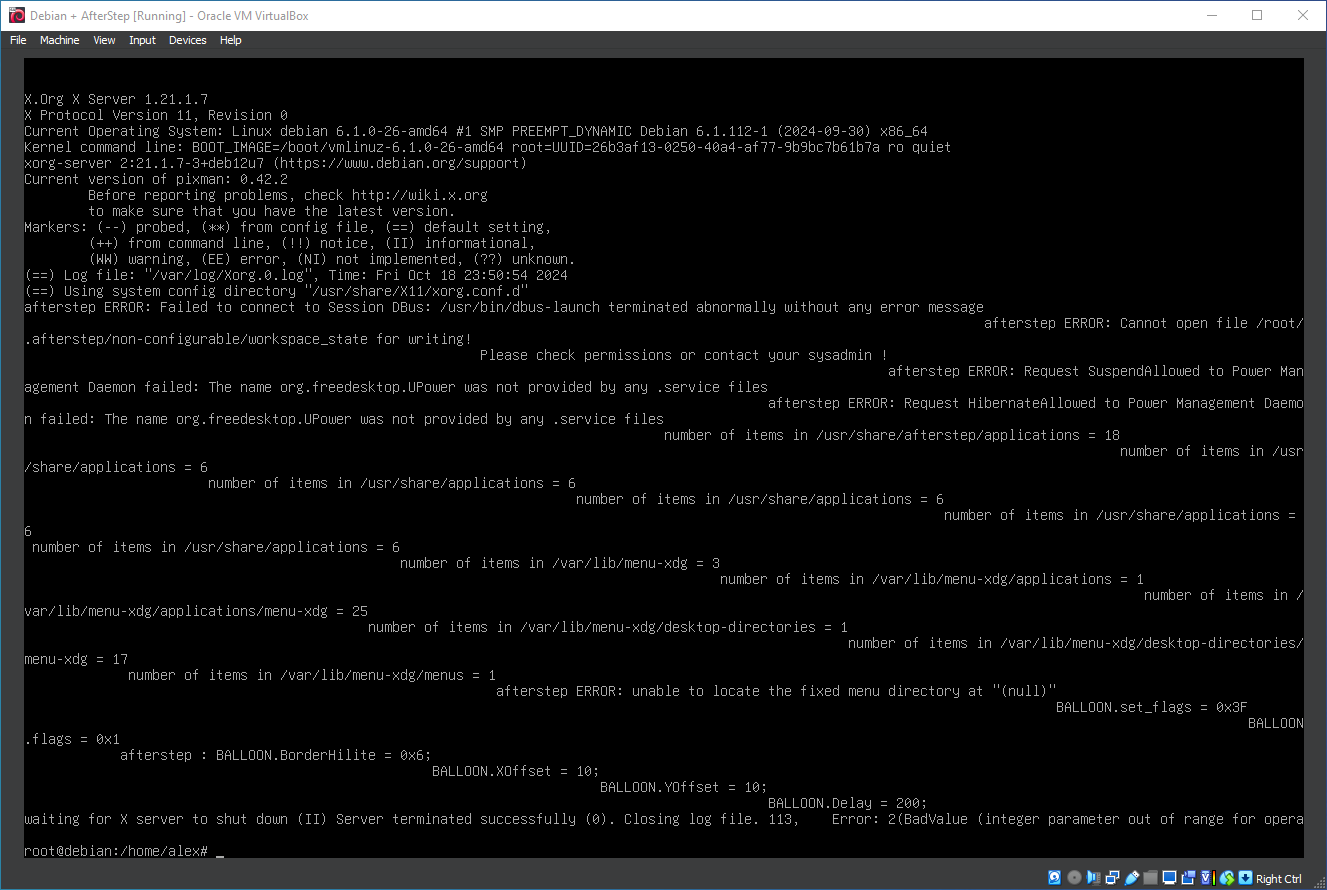
39. Back to the command line
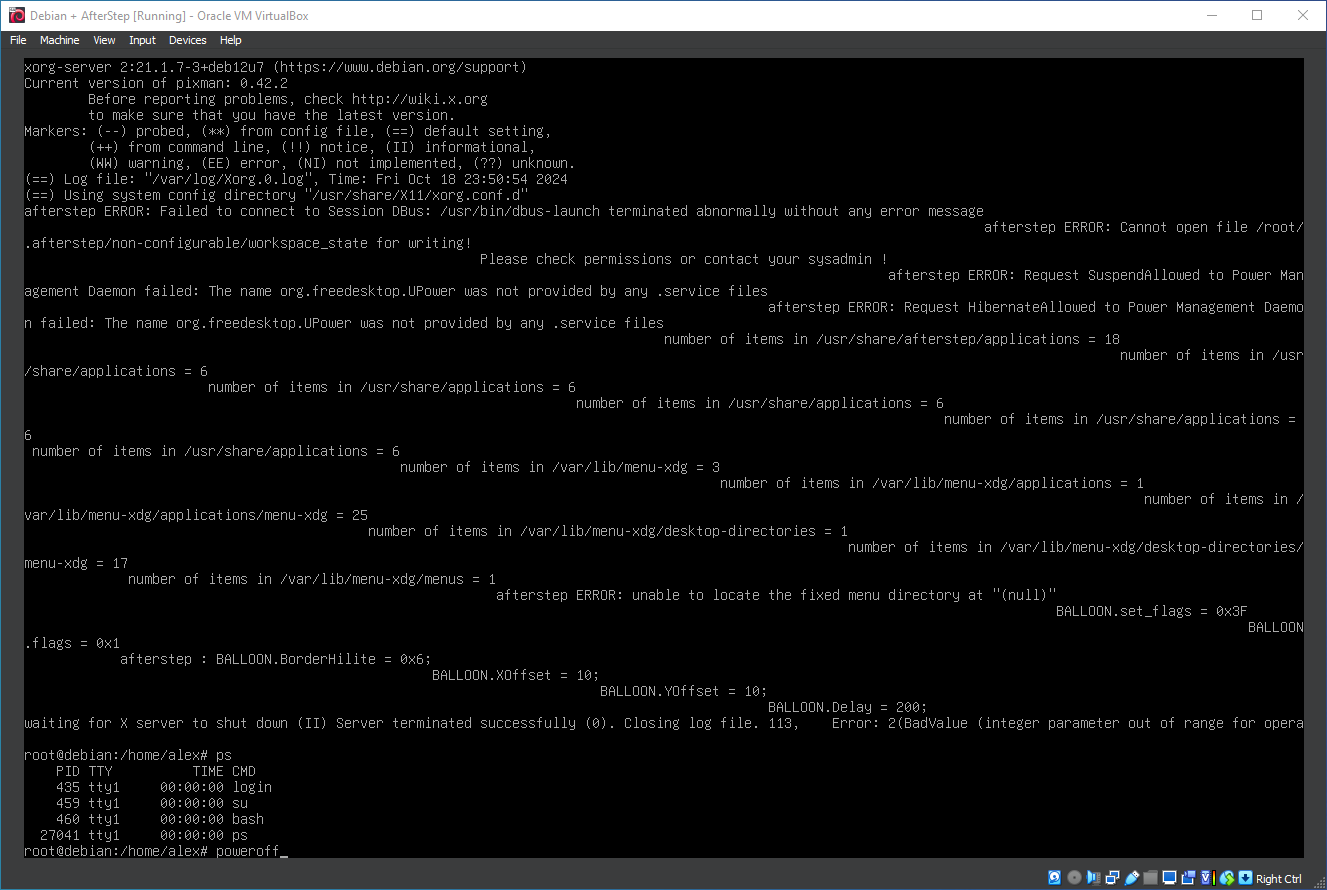
40. Shutting down the system
Well, that was exciting. See you in the next one!
If you wish to support our project
Donation link (Buy me a coffee):